A stretched, cropped, or blurry channel header can make a brand new channel look unfinished before anyone watches a single video. Getting the YouTube banner size right is one of the fastest ways to look professional across TV, desktop, tablet, and phone. In this guide, you’ll learn the exact YouTube channel art dimensions, safe zones, file rules, and free steps to design a banner that looks sharp everywhere.
Key Takeaways
- The recommended YouTube channel banner is 2560 × 1440 pixels.
- Keep important text and logos inside the 1546 × 423 pixel safe zone.
- YouTube crops banners differently on TV, desktop, tablet, and mobile.
- PNG works best for logos and text; JPG is fine for photo heavy banners.
- Free tools at bgimagesnap help you crop, resize, and polish banner images before upload.
What Is YouTube Channel Art and How Does It Work?
A YouTube banner is the wide header image at the top of a channel page. It sits behind your profile picture, channel name, and subscribe button, so it is often the first branding element visitors notice.
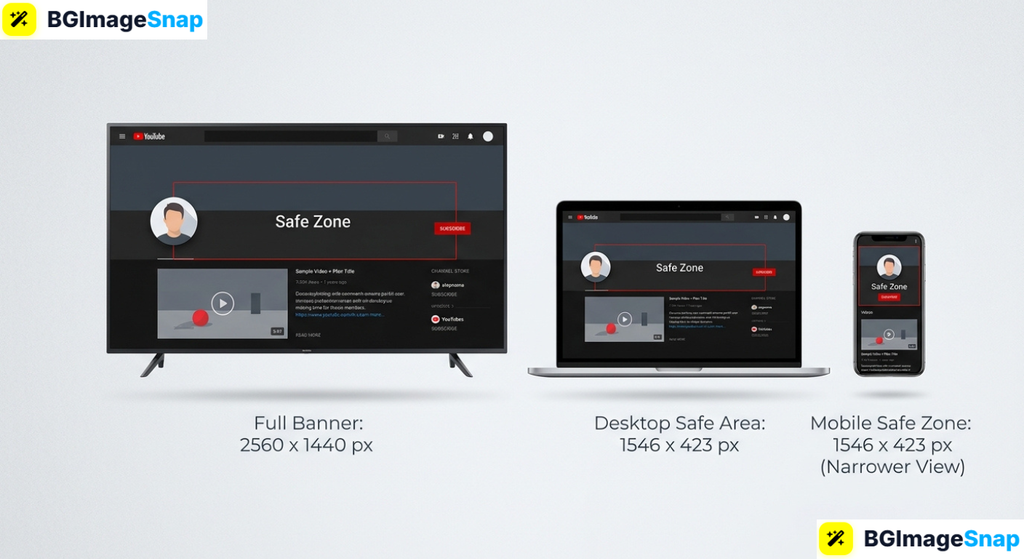
YouTube displays that same image on many screens. A TV crops it one way, a laptop another, and a phone even tighter. That is why one oversized file is required, with the most important details packed into a smaller center area.
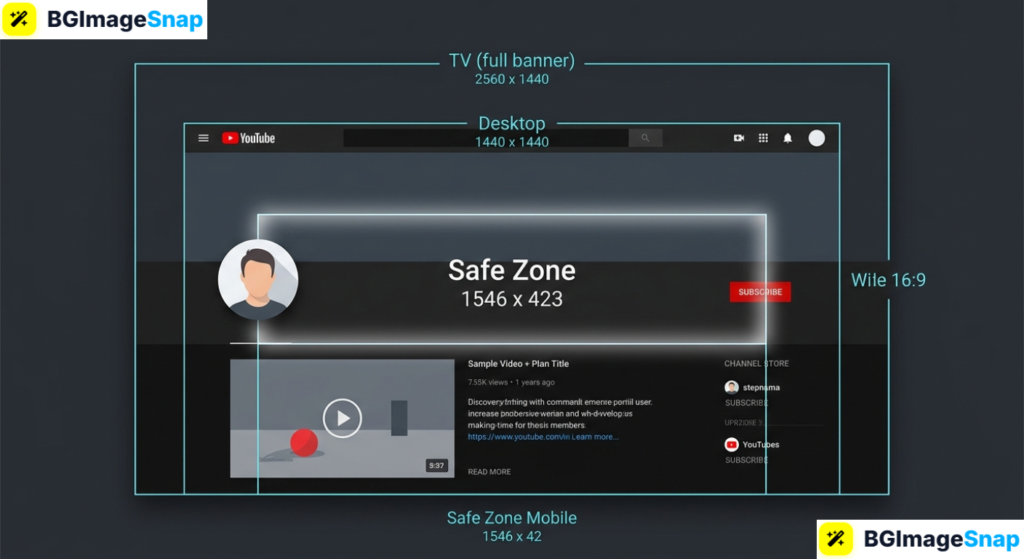
The full recommended canvas is 2560 × 1440 pixels. YouTube then crops this artwork automatically for each device. If your title, face, or logo sits too close to the edge, it may vanish on mobile.
Think of the banner as a billboard with a smaller “safe poster” in the middle. Design the whole scene for atmosphere, then keep names, slogans, and upload schedules inside the safe zone so they survive every crop.
A strong YouTube header also supports your content. Matching colors, fonts, and mood to your thumbnails makes the channel feel consistent, which helps returning viewers recognize you instantly.
YouTube Banner Size Safe Zones and File Specs
Here is the complete breakdown of YouTube banner size, crops, and upload rules. Use this as your checklist before designing or uploading.
Recommended upload size
- 2560 × 1440 pixels is the official YouTube channel art size
- Aspect ratio: 16:9
- Minimum width: 2048 pixels (smaller files often look soft)
- Maximum file size: 6 MB
- Formats: JPG, PNG, GIF, or BMP
- Best practice: PNG for sharp logos and text; JPG for photos
Safe zone (the area that shows on almost every device)
- 1546 × 423 pixels, centered in the 2560 × 1440 canvas
- Put channel name, slogan, upload days, and logos here
- Avoid tiny text; it becomes unreadable on phones
- Leave breathing room around words so crops do not clip them
How YouTube crops the banner by device
- TV: shows the largest area of the 2560 × 1440 image
- Desktop: shows a wide center strip
- Tablet: crops more from the sides
- Mobile: shows the tightest crop, close to the safe zone
- Rule: if it must be seen, keep it in the center safe zone
Related YouTube channel image sizes
- Profile picture: 800 × 800 pixels, displayed as a circle
- Video thumbnail: 1280 × 720 pixels (16:9)
- Watermark/end screen icon: 150 × 150 pixels
- Community post image: often 16:9 or 1:1 depending on layout
Design elements that work well
- A simple background photo, texture, or color block
- One clear channel name
- A short promise, such as “New videos every Friday”
- Matching colors from your YouTube thumbnails
- Extra space on the left for the circular profile photo overlap
The most important insight is this: the full YouTube banner is huge, but viewers on phones only see the center. Design for the safe zone first, then fill the extra space with atmosphere, not essential text.
How to Create and Upload a YouTube Banner Step by Step
You can make a clean channel banner in minutes. Follow these five steps:
- Start with a 2560 × 1440 canvas. Create or crop your artwork to those exact pixels. If you already have a photo, resize and crop it at bgimagesnap so nothing important sits near the edges.
- Map the 1546 × 423 safe zone. Imagine a centered rectangle in the middle of the banner. Place your name, logo, and schedule only inside that rectangle.
- Keep the left side quieter. Your YouTube profile photo overlaps the lower left area on many layouts. Do not put faces, prices, or small text there.
- Export under 6 MB. Use PNG if you have logos or lettering. Use a compressed JPG if the file is a large photo and needs to stay under the limit.
- Upload in YouTube Studio. Go to YouTube Studio > Customization > Branding > Banner image, then upload and preview TV, desktop, and mobile crops before publishing.
Always check the mobile preview. If the slogan is still readable on a phone, your YouTube banner size is working.
Who Needs a Proper YouTube Banner? Real Use Cases
A correctly sized banner helps more than big creators. Here are four groups who benefit right away:
New YouTube creators. First time channel owners often upload a random selfie or logo that gets chopped on mobile. A proper banner makes a brand new page look intentional, even with only a few videos.
Small businesses and local brands. Shops, coaches, and restaurants use YouTube for tutorials, ads, and customer stories. A banner with the business name and posting schedule builds trust before the first play.
Educators and students. Teachers, tutors, and student clubs share lessons and project recaps. A clean educational banner with the course or club name helps viewers know they are in the right place.
Freelancers and agencies. Designers, editors, and social managers deliver channel art to clients. Using the official YouTube dimensions avoids revision rounds caused by cropped text and blurry logos.
Tips for a Better YouTube Channel Banner
- Design the center first. If the safe zone looks complete on its own, every device crop will still make sense.
- Use large, high contrast text. White or cream words on a darker area beat thin script fonts, especially on phones.
- Match your thumbnail style. Repeat 1–2 brand colors so the YouTube page feels like one brand, not mixed leftover images.
- Do not crowd the edges. TV shows more of the artwork, but phones hide the sides. Decorate the edges; do not depend on them.
- Leave space for the profile photo. Keep the lower left simpler so your circular avatar does not cover a face or slogan.
- Test all three previews. YouTube Studio shows TV, computer, and phone crops. Fix problems there before publishing.
- Update as your channel grows. Change the banner when your niche, upload schedule, or channel name changes so returning fans get current information.
Frequently Asked Questions
What is the official YouTube banner size?
The recommended size is 2560 × 1440 pixels. Keep important text and logos inside a centered 1546 × 423 pixel safe zone so they remain visible on all devices.
Why does my YouTube banner look cropped on mobile?
Phones show a much smaller center strip than TVs. If your text was placed on the far left or right, YouTube hides it. Move key details into the middle safe zone.
What file type should I use for a YouTube banner?
PNG is best for logos, icons, and sharp text. JPG is better for large photographs when you need a smaller file. Stay under 6 MB either way.
Can I use an animated GIF as my YouTube banner?
YouTube accepts GIF files, but channel art is typically static. A clean still image is more reliable and usually looks sharper after compression.
Do I need Photoshop to make a YouTube banner?
No. You can crop and resize any image to 2560 × 1440 with free browser tools, then add simple text in any design app. The dimensions matter more than expensive software.
Conclusion
The right YouTube banner size 2560 × 1440 pixels with a centered safe zone turns a messy header into branding that works on every screen. Design the middle first, preview mobile, and your channel page will look polished from the very first visit. Need to crop, resize, or clean up your artwork? Visit bgimagesnap to prepare a sharp banner image with free browser based tools.