How to Remove Background from Cloud Couch Product Photos 5 Easy Steps

A cloud couch looks huge, soft, and expensive in real life then your listing photo shows a messy living room, a lamp growing out of the armrest, and a rug that fights the fabric color. Clean cutouts fix that. In this guide, you’ll learn how to photograph a cloud couch, remove the background, and export marketplace ready images with free tools.

Key Takeaways

  • Shoppers judge a cloud couch by shape, depth, and fabric cluttered rooms hide all three.
  • Shoot wide, keep even light, and leave space around every module before you edit.
  • AI background removal turns a room shot into a transparent PNG you can drop on white or lifestyle scenes.
  • Amazon, Shopify, and catalogs usually want white or light gray; social ads want styled rooms.
  • Remove backgrounds free at bgimagesnap then resize for each channel.

What Background Removal Does for Cloud Couch Photos

Background removal isolates the sofa from the room. The cloud couch stays; walls, floors, pets, and laundry piles go. You get a cutout with a transparent background (usually PNG) you can place on pure white, marble, or a digital living room.

AI tools scan edges: cushions, piped seams, throw pillows, and the gap under the frame. Good light and contrast help the model see where fabric ends and the floor begins. Fuzzy boucle and deep slipcovers are harder than a leather cube, so extra care around the base matters.

Why bother? Marketplaces compare products side by side. A cloud couch on a busy patterned rug looks smaller and cheaper than the same sofa on white. Cutouts also let you show one sofa in gray, beige, and “in a loft” without reshooting every scene.

You are not faking the product if the sofa itself is honest. You are removing noise so buyers can see seat depth, chaise length, and how many seats they are paying for.
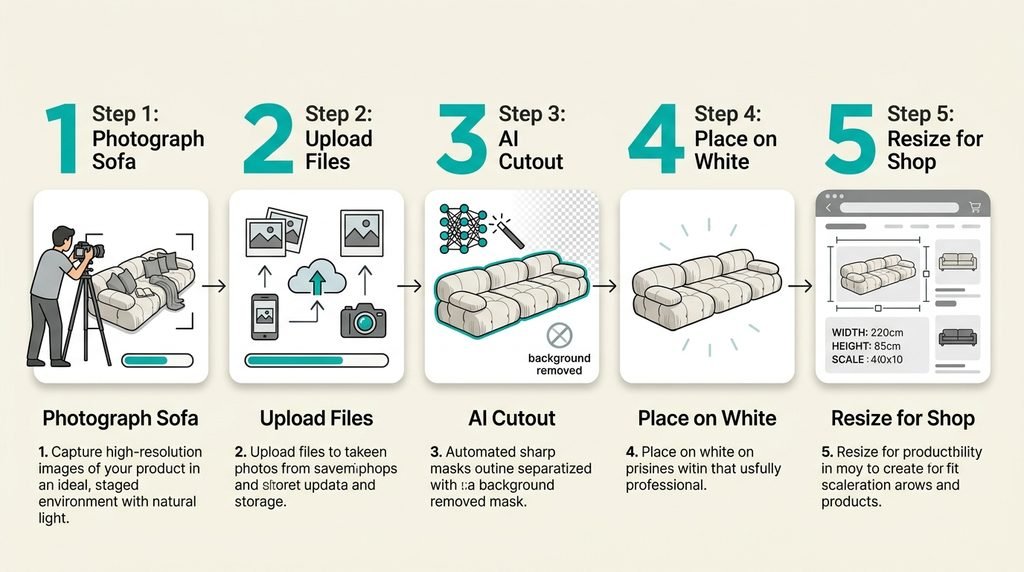
Steps to remove the background from a cloud couch photo

Cloud Couch Photo Specs, Angles, and Export Details

Use this as a shot list and file checklist for cloud couch listings.

Angles that sell a cloud couch

  • Hero three quarter shows length, depth, and the “cloud” cushion stack
  • Straight on honest width for apartment shoppers
  • Top down or high corner modular layout (L-shape, U-shape, ottoman)
  • Detail fabric texture, performance weave, seam, and sink in cushions
  • Scale person sitting or a coffee table so the cloud couch does not look toy sized
  • Chaise / corner module extra pieces people add later

Shooting setup

  • Pull the sofa 1–2 feet from the wall so shadows do not glue it to the paint
  • Use window light plus a white bounce (foam board) on the shadow side
  • Turn off mixed yellow lamps if you can; one color temperature looks cleaner
  • Hide remotes, shoes, and cables AI may keep them as “part of the product”
  • Shoot extra space around the arms; cropping after removal is easier than cloning missing fabric
  • For white or cream cloud couch fabric, use a slightly darker floor or backdrop so edges exist

File and format notes

  • Input: JPG or PNG from phone or camera
  • Output after removal: PNG with transparency
  • Catalog / Amazon style: place PNG on #FFFFFF or very light gray
  • Web hero: 1600–2000 px on the long side is plenty for most stores
  • Thumbnails: keep the full sofa in frame; do not crop off the chaise
  • Avoid JPG for the cutout JPG cannot store real transparency

What a background remover should handle

  • Soft cushion edges and wrinkled slipcovers
  • Thin legs or hidden glides
  • Pillows you want to keep vs. styling you want gone
  • Hair, rugs, and plants touching the skirt
  • Batch friendly uploads if you have six modules

Common cloud couch listing sizes (check each store)

  • Square 1:1 for many grid catalogs
  • 4:3 for some furniture sites
  • Vertical 4:5 or 9:16 for Reels and Stories (sofa still centered)
  • Infographics: dimensions overlay next to the isolated cloud couch

When not to fake the room

  • Do not add a mansion interior if you sell a compact apartment set
  • Do not change fabric color in a way that misleads
  • Keep true proportions; stretching a cloud couch to look longer is a return waiting to happen

Prep is half the edit. A well lit, uncluttered photo of a cloud couch removes in seconds; a dark, busy photo fights you for an hour.

How to Remove the Background from a Cloud Couch Photo Step by Step

  1. Pick the cleanest source frame. Choose a sharp three quarter shot with the whole cloud couch visible, no motion blur, and light on the front cushions. Duplicate the file so you never overwrite the original.
  2. Open a background remover. Go to bgimagesnap upload the photo, and run remove background. Wait for the cutout; check legs, pillow edges, and the floor shadow.
  3. Fix the misses. If the tool ate a cushion corner or left a plant, use restore/erase brushes if available, or recrop tighter and run again. Cream fabric on a cream wall is the usual failure reshoot with a darker floor if needed.
  4. Export PNG, then place on white or a scene. Drop the cloud couch on white for the main SKU image. For ads, place it on a simple digital living room. Keep a drop shadow soft and under the base so it does not float.
  5. Resize for each channel. Make a square catalog crop, a wide website banner, and a vertical social crop. Compress for web without turning boucle into plastic.

Do one hero the slow way, then batch the rest of the module photos with the same crop and background so the store looks like one brand.

Who Needs Cloud Couch Cutouts? Real Use Cases

Furniture sellers on Amazon, Wayfair, or Shopify. Grids punish busy rooms. A white background cloud couch next to competitors looks bigger, cleaner, and easier to compare on price and size.

Interior stylists and content freelancers. They drop one sofa into several mock rooms for Pinterest and client decks without booking a warehouse studio every time.

Small workshops and upholsterers. Before and after slipcover photos work when both shots sit on the same white field. Buyers see the fabric, not the garage.

Students and apartment hunters. Class projects and “will this fit” mood boards need a cloud couch PNG dropped on a floor plan photo without the seller’s lifestyle clutter.

Tips for Better Cloud Couch Cutouts

  • Light the front, not only the window behind. Backlight turns cushions into a silhouette and wrecks edge detection.
  • Style fewer pillows. Extra throws become “product” the AI will keep. Keep the look you actually ship.
  • Shoot modules separately if the full U-shape will not fit in frame. Composite later at correct scale.
  • Watch white on white. A white cloud couch on a white rug needs a gray paper sweep or a slightly darker floor.
  • Keep true color. Do not oversaturate beige into gold; returns start in the details.
  • Add a faint ground shadow after removal so the sofa sits on the new background.
  • Name files clearly. cloud-couch-3seat-gray-hero-white.png saves you in a 200 SKU folder.

Frequently Asked Questions

Can I remove the background from a phone photo of a cloud couch?

Yes, if the sofa is sharp, well lit, and fully in frame. Step back; ultra wide distortion makes the cloud couch look huge in the middle and tiny at the arms.

Should furniture always be on a white background?

Main SKUs often yes. Lifestyle shots still sell emotion. Use the same cutout on white for the catalog and on a room for social.

Why did the tool delete part of my cushion?

Low contrast or a pillow matching the wall. Reshoot with a darker backdrop or paint the restore brush over the missing foam.

PNG or JPG for a cloud couch listing?

PNG for transparent cutouts. Flatten to JPG only after you place it on a solid white canvas if the marketplace requires JPG.

Is it honest to change the room behind a cloud couch?

Yes if the sofa, color, and size match what you ship. No if you imply a different fabric, extra modules, or a palace that misleads scale.

Conclusion

A cloud couch sells on softness and scale and those only show when the background is quiet. Shoot with space and even light, remove the room, and export a sharp PNG for every store. Start your next listing at bgimagesnap upload, remove the background, and download a clean cloud couch cutout in your browser.
Best Free Cloud Storage Plans for Photos and Files 7 Options Compared

Phones fill up fast, laptops die, and USB sticks go missing usually right after a trip or a product shoot. Cloud storage free plans give you a backup folder on the internet so photos and documents stay available on any device. In this guide, you’ll see how the best cloud storage free plans work, how much space each one really gives you, and how to stretch that space with smaller image files.

Key Takeaways

  • Cloud storage free plans let you save files on remote servers and open them from a phone, tablet, or computer.
  • Typical free tiers range from about 2 GB to 20 GB, depending on the provider and extra bonuses.
  • Google Drive, OneDrive, iCloud, Dropbox, Mega, and similar tools cover most photo and document needs.
  • Compressing photos before upload is the easiest way to make a free plan last longer.
  • Prep images at bgimagesnap so your cloud folders stay small and your shares look sharp.

What Are Cloud Storage Free Plans and How Do They Work?

Cloud storage free plans are no-cost accounts that hold your files on a company’s servers. You upload a photo or PDF, and a copy lives in a data center instead of only on one device.

When you open the file later, your app or browser asks the server for it. The file downloads or streams to you. If you edit a document in the cloud, the new version usually syncs so every device sees the same copy.

Free plans cap how many gigabytes you can keep. When you hit the limit, new uploads fail until you delete files, compress them, or pay. Some services also cap link sharing, file size per upload, or how long a public link stays active.

Photos eat space fastest. A single phone burst can use more storage than a year of invoices. That is why cloud storage free plans work best when you resize and compress images first, then upload the keepers.

Security still depends on you. Use a strong password and two-factor login. Treat a shared link like a public poster unless you set it to view-only or add an expiry date.

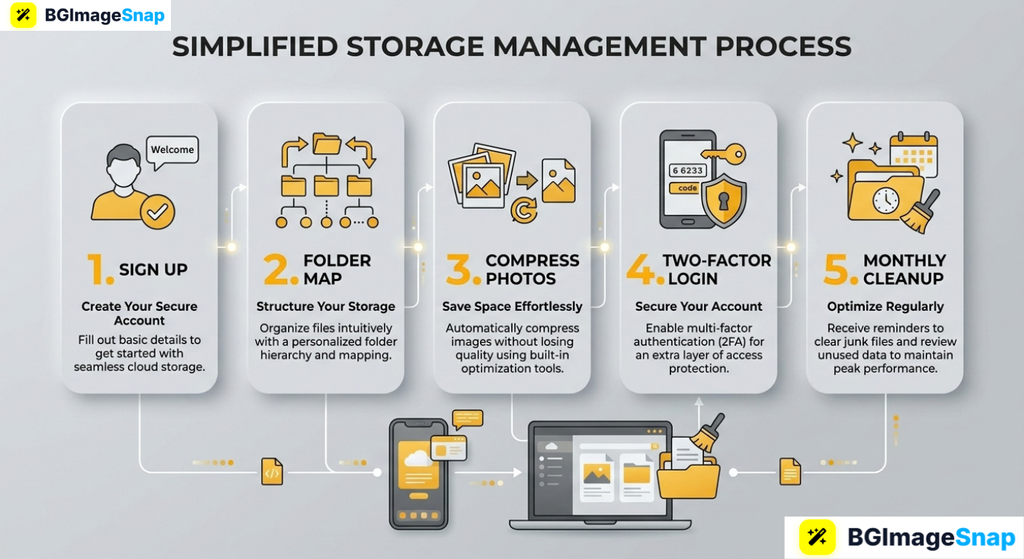
How to set up cloud storage free plans for photos and files

Cloud Storage Free Plans Space Features and Limits

Here is a practical breakdown of popular cloud storage free plans. Numbers can change, so confirm on each site before you migrate a whole library.

Google Drive (with a Google account)

  • Typical free space: 15 GB shared with Gmail and Google Photos (depending on backup settings)
  • Best for: Docs, Sheets, and mixed work files
  • Photos: Original-quality backup counts against the quota; compressed backup may not
  • Limits: Large video libraries fill 15 GB quickly
  • Plus: Strong search and sharing with Gmail contacts

Microsoft OneDrive

  • Typical free space: 5 GB
  • Best for: Windows PCs and Office files
  • Photos: Personal Vault and camera backup on paid tiers; free is tighter
  • Limits: Smaller starter quota than Google
  • Plus: Files On-Demand so you do not copy everything onto the laptop disk

Apple iCloud

  • Typical free space: 5 GB
  • Best for: iPhone photos, backups, and Apple devices
  • Photos: iCloud Photos can consume the free 5 GB in days
  • Limits: Weak if you only have Android or Windows
  • Plus: Simple if your life is already on iPhone

Dropbox

  • Typical free space: 2 GB (sometimes more with referral bonuses)
  • Best for: Sharing folders with clients
  • Photos: Fine for small sets, not whole camera rolls
  • Limits: Strictest common free cap
  • Plus: Clean desktop sync and professional share links

Mega

  • Typical free space: often around 20 GB (watch current offer)
  • Best for: Extra room when other free plans are full
  • Photos: Zero-knowledge encryption on the service’s model; you must not lose the password
  • Limits: Fair-use transfer caps on some free accounts
  • Plus: More gigabytes than most big-name free tiers

Other options worth a look

  • pCloud small free starter, paid lifetime plans later
  • Box work-style sharing, modest free space
  • Amazon Photos full-resolution photo backup is often bundled with Prime in some regions (not a generic file drive)
  • Proton Drive privacy-focused, smaller free quota

What almost every free plan includes

  • Web upload and mobile apps
  • Share links (sometimes with expiry on paid only)
  • JPG, PNG, PDF, DOCX, MP4, and ZIP support
  • Trash or version history for a limited time
  • A file-size ceiling per upload (for example 2 GB vs 10 GB+)

What free plans often block

  • Team admin tools
  • Long-term version history
  • Huge single-file uploads
  • Advanced link passwords
  • Extra storage after the cap without a card

Photo-specific reality check

  • 100 uncompressed 12 MP shots can be several gigabytes
  • Web-sized 1920-pixel JPEGs can be 10× smaller
  • Transparent logos should stay PNG; everyday photos should be compressed JPG or WebP
  • Cloud storage free plans last months longer if you never upload raw dumps

Pick one “home” for documents and one for camera backup if needed. Two half-used cloud storage free plans beat one overflowing mess.

How to Use Cloud Storage Free Plans Step by Step

You can set up a clean free workflow in one evening.

  1. Choose a primary plan that matches your devices. iPhone-heavy homes lean iCloud or Google. Windows and Office homes lean OneDrive. Client sharing often fits Dropbox even with only 2 GB if files are small.
  2. Create a simple folder map. Use Photos/Year-Month, Invoices, IDs, and Work. Never dump everything into “Camera uploads” with no albums.
  3. Shrink photos before the first big upload. Crop, compress, and remove messy backgrounds at bgimagesnap Then upload. This single habit is what makes cloud storage free plans usable.
  4. Turn on two-factor authentication and review sharing. Default links should not be “anyone with the link can edit.” Use view-only for clients.
  5. Set a monthly cleanup. Empty trash, delete burst duplicates, and check the quota bar. If you are at 90%, compress more or archive old years to a cheap disk.

After setup, install the mobile app only for the folders you need. Full camera backup on a 5 GB plan will fail within a week.

Who Uses Cloud Storage Free Plans? Real Use Cases

Students. Lecture PDFs, group-project slides, and phone photos of whiteboards fit in Google’s 15 GB if videos stay off the drive. Sharing a folder beats emailing 40 MB attachments.

Online sellers. Product shots, packing lists, and tax PDFs live in the cloud so packing can happen from any room. Compressed listing photos keep cloud storage free plans from filling during a busy season.

Freelancers. A designer sends a Dropbox or Drive link instead of WeTransfer every time. The free cap works when proofs are web-sized, not 40 MP originals.

Families. Vacation albums and scanned documents need a backup that survives a lost phone. Parents use Google or iCloud free tiers for the important set, not every similar sunset.

Tips to Stretch Cloud Storage Free Plans

  • Never backup “original quality” of everything on a free quota. Keep heroes at high quality; compress the rest.
  • Do not store WhatsApp dumps and screenshots forever. They are the silent quota killers.
  • Use one naming style. 2026-04-product-red-front.jpg is searchable. IMG_8843.jpg is not.
  • Prefer links over duplicate copies. Five people with five copies of the same folder waste free space.
  • Watch email attachments. Gmail files can count against the same Google 15 GB as Drive.
  • Export a yearly archive. Download old projects to an external drive, then delete them from the cloud.
  • Read the fine print on “unlimited photos.” Unlimited often means compressed or a paid bundle, not a blank check.

Frequently Asked Questions

Are cloud storage free plans really free?

Yes for the stated gigabytes, with ads, limits, or upsells. You pay with a smaller cap, not always with money.

Which free plan is best for photos?

Google’s 15 GB is the most generous among the big names if you are careful with quality settings. Mega can offer more space. iCloud’s 5 GB is tight for iPhone camera rolls.

Is it safe to store ID scans in free cloud storage?

Use a strong unique password, two-factor login, and avoid public links. For highly sensitive files, extra encryption or a paid vault is wiser.

What happens when I hit the limit?

New uploads stop. Email (on Google) can even refuse mail. Delete, compress, or upgrade.

Can I combine several cloud storage free plans?

Yes. Many people keep documents in Drive and a second Mega folder for extra photos. Just remember which plan holds the real original.

Conclusion

Cloud storage free plans are enough for documents and a curated photo set they fail when every burst, 4K clip, and duplicate screenshot stays forever. Pick a provider that fits your phone, lock the account, and upload compressed keepers. Before your next backup, visit bgimagesnap to resize, compress, and clean photos with free browser tools so that free quota lasts.

How Xbox Cloud Gaming Works Stream Console Games Without a Console

Buying a console, waiting for downloads, and filling a hard drive used to be the only way to play big Xbox titles. Xbox Cloud Gaming streams those games from Microsoft’s servers to a phone, tablet, PC, or TV, so you play without installing the full game on your device. In this guide, you’ll learn how Xbox Cloud Gaming works what internet you need, and how to start a session in a few taps.

Key Takeaways

  • Xbox Cloud Gaming runs games on remote Xbox Series X hardware and sends the video to your screen.
  • You need Xbox Game Pass Ultimate and a supported browser, app, or smart TV.
  • A stable connection of about 10 Mbps is the usual minimum; 20 Mbps or more looks smoother.
  • Your controller (or touch controls) sends inputs back to the cloud with as little delay as possible.
  • Capture stills and covers for posts, then crop them free at bgimagesnap.

What Is Xbox Cloud Gaming and How Does It Work?

Xbox Cloud Gaming (often called xCloud) is Microsoft’s game streaming service. The game does not fully install on your phone or laptop. It runs in a data center, and you watch a live video of that session.

Here is the loop. You pick a title from the cloud library. Microsoft assigns a blade of Xbox Series X hardware in a nearby region. That machine loads the game, renders each frame, compresses the picture, and streams it to you over the internet.

Your button presses travel the other way. The controller or touch pad sends inputs to the server, the game reacts, and a new frame comes back. If the network is fast and close, this feels close to playing on a real console.

Compression is the trade off. Xbox Cloud Gaming must shrink video in real time, so busy scenes can look slightly softer than a local disc. A wired or strong Wi-Fi link hides most of that.

Not every Game Pass game is in the cloud list, and popular hours can mean a short queue. When a slot opens, play continues from the cloud save tied to your Xbox account.

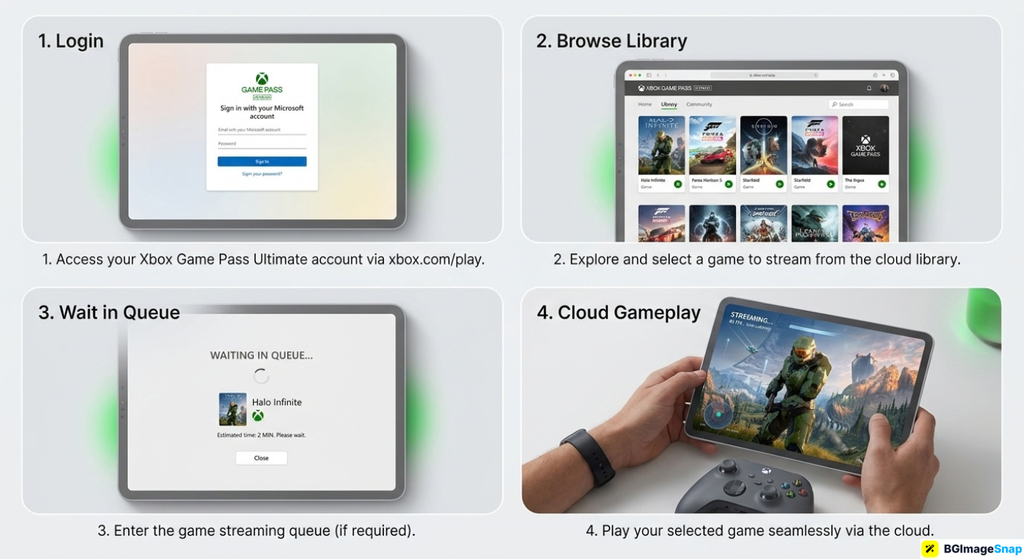
 Steps to start Xbox Cloud Gaming on a tablet

Xbox Cloud Gaming Devices Specs and Limits

This breakdown covers what Xbox Cloud Gaming needs and what you can expect on a good night.

What you need to sign in

  • An Xbox account
  • Xbox Game Pass Ultimate (cloud play is tied to this plan)
  • The Xbox app or a supported browser at xbox.com/play
  • A Microsoft region where the service is offered

Where you can play

  • Windows PC in Edge, Chrome, or the Xbox app
  • Android phones and tablets via the Xbox app
  • iPhone and iPad in a supported browser (Safari) or the Xbox app where available
  • Select smart TVs, streaming sticks, and Amazon Fire TV
  • Some Xbox consoles can use cloud titles alongside local installs

How the stream is built

  • Games run on Xbox Series X cloud hardware
  • Video is encoded (compressed) and sent as a live stream
  • Audio rides along with the picture
  • Your inputs go back as small network packets
  • Saves sync to the cloud on your Xbox profile

Internet and performance targets

  • About 10 Mbps is often cited as a minimum
  • 20 Mbps or more is more comfortable for a stable 1080p class stream
  • Low latency (ping) matters as much as download speed
  • 5 GHz Wi-Fi or ethernet beats crowded 2.4 GHz Wi-Fi
  • Play close to a Microsoft streaming region when you can

Controllers and touch

  • Official Xbox Wireless Controller (Bluetooth on many phones)
  • Many other Bluetooth gamepads work, quality varies
  • On screen touch controls for some games
  • Keyboard and mouse on PC for supported titles
  • Headsets for in game chat where the title allows it

Library and session rules

  • A subset of Game Pass games, not the entire catalog
  • New cloud titles appear over time; others rotate
  • Sessions can time out if you leave the game idle
  • Queues appear when servers are busy
  • Resolution and frame rate depend on device and connection (often up to 1080p/60 when conditions allow)

What Xbox Cloud Gaming is not

  • Not a replacement for every local Series X feature
  • Not guaranteed 4K on every phone
  • Not offline play no internet means no stream
  • Not a free add on on Game Pass Core or PC only plans

The big idea: Xbox Cloud Gaming is remote play on Microsoft’s hardware. Your gadget is a screen and a controller, not the computer doing the heavy graphics.

How to Start Xbox Cloud Gaming Step by Step

You can be in a game in minutes if your plan and Wi-Fi are ready.

  1. Confirm Game Pass Ultimate. Cloud streaming is included with Ultimate, not every Xbox subscription. Check subscriptions in your Microsoft account before you hunt for a missing Play button.
  2. Open a supported app or browser. On Android, use the Xbox app. On many PCs, go to xbox.com/play in Edge or Chrome. On iOS, use the supported Xbox experience in the browser or app for your region.
  3. Plug in a controller if you can. Pair an Xbox pad over Bluetooth, or use a USB cable on PC. Touch works in a pinch, but Xbox Cloud Gaming feels better with real buttons.
  4. Pick a cloud enabled game and wait for the slot. Titles marked for cloud show a play from cloud option. If you see a queue, keep the screen awake until the stream starts.
  5. Test picture and input, then play. If the image stutters, pause other downloads, move closer to Wi-Fi, or lower other traffic on the network. After your session, grab screenshots and crop them for social posts at bgimagesnap.

The first session is the slowest because you are learning menus. After that, Xbox Cloud Gaming is mostly “choose game, wait for server, play.”

Who Uses Xbox Cloud Gaming? Real Use Cases

Students in small rooms. A dorm laptop or phone can run huge games without a console under the bed. Xbox Cloud Gaming keeps noise and heat off the desk during late study breaks.

Travelers and commuters. Hotel Wi-Fi is hit or miss, but when it is decent, a controller in a backpack is enough. You pick up the same Xbox saves you left at home.

Families sharing one TV. Someone else has the living room console. A tablet on Xbox Cloud Gaming lets a second person play a Game Pass title in another room.

PC players without a gaming rig. A work safe laptop can still stream Xbox Cloud Gaming in a browser after hours, as long as the network is stable and the plan is Ultimate.

Tips for Smoother Xbox Cloud Gaming

  • Use 5 GHz Wi-Fi or a cable. Streaming hates interference from microwaves and crowded apartment routers.
  • Pause big downloads. Cloud updates and Netflix on the same Wi-Fi steal the bitrate Xbox Cloud Gaming needs.
  • Sit closer to the router. Phones in a far bedroom add delay you will feel in fighting games.
  • Keep the controller charged. Bluetooth dropouts feel like “the cloud is laggy” when the pad is dying.
  • Close extra browser tabs. They eat CPU while the stream is decoding video.
  • Play off peak if you always queue. Evenings and launch weeks fill Xbox Cloud Gaming servers first.
  • Lower motion blur expectations on cellular. Phone hotspots can work, but home Wi-Fi is the safer default.

Frequently Asked Questions

Do I need an Xbox console for Xbox Cloud Gaming?

No. The game runs on Microsoft’s Xbox Series X servers. You need Game Pass Ultimate and a supported device.

Is Xbox Cloud Gaming free?

Not by itself. It comes with Xbox Game Pass Ultimate. Other Game Pass tiers do not always include cloud play.

Why is there input lag?

Your presses travel to the data center and the video travels back. Distance, Wi-Fi, and compression all add delay. A nearby region and a strong network keep Xbox Cloud Gaming feeling tight.

Can I play every Game Pass game in the cloud?

No. Only titles Microsoft enables for streaming. Check the cloud filter in the app or on xbox.com/play.

Does Xbox Cloud Gaming work on iPhone?

In supported regions, yes, through the allowed browser or app path. Apple’s rules have changed over time, so use the official Xbox instructions for your country.

Conclusion

Xbox Cloud Gaming turns a phone or laptop into a window onto Series X hardware in the cloud, as long as Ultimate and your internet hold up. Know the bitrate, grab a real controller, and the stream feels close to a console without the install wait. When you share clips and stills from a session, visit bgimagesnap to crop, resize, and clean screenshots with free browser tools!

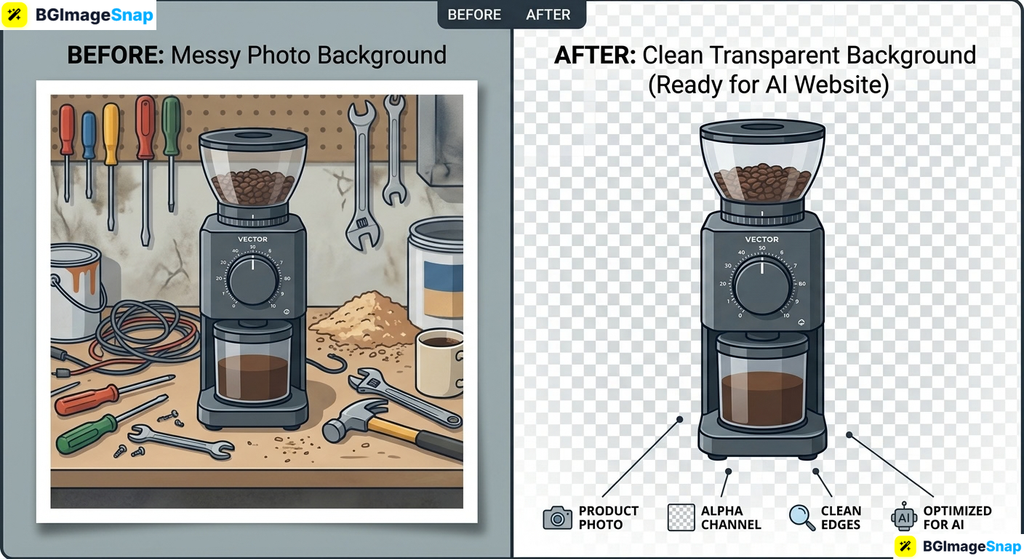
How to Build an Ai Website Complete Guide for Beginners

Building a site from scratch takes weeks of coding and design work that most people simply do not have. An Ai Website builder solves this by generating full web pages from a simple text prompt in minutes. With free image tools from Bgimagesnap, you can perfectly resize and remove backgrounds on your photos to make that new site look professional instantly.

Key Takeaways

  • An Ai Website builder uses artificial intelligence to create complete web layouts, text, and design elements automatically.
  • You do not need any coding or graphic design skills to launch a beautiful, functional site anymore.
  • These platforms generate sites based on a short description of your business or project.
  • AI builders still require high quality, optimized images to look trustworthy and load quickly.
  • Bgimagesnap gives you free tools to resize, compress, and remove backgrounds from photos for your new site.

What an Ai Website Builder Does and How It Works

An Ai Website builder is a platform that uses machine learning to design and code web pages for you. Instead of dragging elements onto a blank canvas or writing HTML, you simply describe what you want. The AI processes your description and builds a complete site in seconds.

The system relies on large language models and design algorithms. It has studied millions of successful websites to understand what makes a good layout. When you type a prompt like “a modern bakery website with a menu and photo gallery,” the AI knows exactly how to structure it. It picks the colors, fonts, and sections that work best for bakeries.

Within moments, the AI delivers a fully functional draft. This draft includes placeholder text tailored to your niche, contact forms, image galleries, and navigation menus. You can then tweak the design using a simple visual editor.

This technology removes the biggest roadblocks in web design. You no longer need to hire expensive agencies or learn complex software. The AI handles the heavy lifting, giving you a polished foundation that you can easily customize.

However, artificial intelligence cannot take real photos of your products or team. You still need to supply your own images. This is where Bgimagesnap becomes essential. You can prepare your pictures so they look flawless on your new digital home.

Full List of Ai Website Features and Builder Options

There are several platforms available that can generate an Ai Website for you. Each offers different features, but they all share the goal of making web design instant and effortless. Below is a breakdown of the top features and a comparison of popular builders.

Core Features of an Ai Website Builder

  • Prompt Based Generation: You describe your business in a few sentences, and the AI builds the site from that prompt.
  • Customizable Drafts: Once the AI generates the layout, you can change colors, fonts, and text using a simple drag and drop editor.
  • AI Copywriting: The platform automatically writes professional headlines and paragraphs tailored to your industry.
  • Responsive Design: The generated site automatically adjusts to look perfect on desktop computers, tablets, and mobile phones.
  • Built In SEO: Many AI builders include basic search engine optimization settings to help your site rank on Google.
  • E-Commerce Integration: You can easily add shopping carts, product pages, and checkout systems to sell items online.
  • Free Hosting: Most platforms host your site on their servers, so you do not need to manage technical server setups.
Optimizing a product photo with a background remover for an Ai Website

Popular Ai Website Builders Compared

PlatformBest ForKey AI FeaturePricing
Hostinger AI BuilderBeginners & small businessGenerates full site from a single promptVery affordable paid plans
Wix ADICreative portfoliosAsks a few questions, builds a custom layoutFree plan available, paid for premium
Framer AIModern startups & techGenerates sleek, high end designs from promptsFree to start, paid for custom domains
Durable AISolo service providersCreates a full business site in 30 secondsAffordable monthly subscription
10WebWordPress usersGenerates WordPress sites using AIFree trial, then paid

Essential Image Tools for Your Ai Website

Even the best AI cannot create real photos of your specific products. You must upload your own visuals. Here are the image features you need to perfect your site:

  • Background Remover: Erase messy backgrounds from product or team photos to make them look professional.
  • Image Resizer: Adjust your photos to fit exact website dimensions without stretching or distortion.
  • Image Compressor: Shrink file sizes so your web pages load quickly for visitors.
  • Format Converter: Change images into web friendly formats like WebP or PNG for better performance.

How to Create Your Own Ai Website Step by Step

Launching your own Ai Website takes just a few minutes. Follow these simple steps to go from an idea to a live, polished website.

Step 1: Choose an AI Website Builder
Select a platform that fits your needs. If you want the fastest setup, try Durable or Hostinger. If you want more design control later, choose Wix or Framer. Create an account on your chosen platform to get started.

Step 2: Enter Your Business Prompt
The AI will ask you for a description of your business. Type a clear, simple sentence. For example, say “A freelance graphic design studio specializing in logos and branding.” The more specific you are, the better the AI can tailor the layout and text.

Step 3: Let the AI Generate the Site
Click the generate button and wait a few seconds. The platform will create a complete website with a homepage, about section, contact form, and services page. Browse the draft to see how it looks and read the AI written text.

Step 4: Prepare and Upload Your Images
Go to Bgimagesnap to prepare your photos. Use the background remover to isolate your products, and use the resizer to make them fit perfectly. Then, return to your website draft and replace the placeholder images with your optimized pictures.

Step 5: Edit, Review, and Publish
Adjust any text or colors to match your brand. Check the site on your phone to ensure it looks good on mobile. Once you are happy with the design, click the publish button. Your new Ai Website is now live on the internet.

Real Use Cases Who Uses an Ai Website and Why?

AI builders are transforming how different people create their online presence. Here are a’few common examples.

1. Freelancers and Solo Service Providers
Freelance writers, designers, and consultants need a portfolio to attract clients. They often lack the time to build a complex site. An Ai Website gives them a professional portfolio in minutes. They just upload their work samples and are ready to share their link with potential clients.

2. E-Commerce Sellers and Local Shops
Small shop owners who sell handmade goods or local products need an online store. AI builders can generate product galleries and shopping carts instantly. Sellers use Bgimagesnap to remove backgrounds from their product photos. This makes their items look clean and expensive on their new site.

3. Students and Event Organizers
Students working on group projects or organizing events need a quick way to share information. An AI builder can create a simple event page with schedules, maps, and contact forms. It is much faster than coding, and it looks highly professional for school presentations.

4. Small Business Startups
New businesses need to establish an online presence quickly to build trust. With an AI builder, a startup can launch a polished landing page on their very first day. This allows them to start collecting emails and making sales while they focus on growing their business.

Practical Tips for Perfecting Your Ai Website Images

An Ai Website is only as good as the images you put on it. Follow these tips to make sure your site looks incredible and loads fast.

  • Always remove messy backgrounds. A photo taken in a messy room looks unprofessional. Use Bgimagesnap to instantly erase the background and place your product on a clean white or transparent canvas.
  • Resize images to the exact dimensions. Huge images will slow down your website. Use an image resizer to match the exact pixel size required by your layout before uploading.
  • Compress your files for speed. Large image files make websites load slowly, which drives visitors away. Run your photos through a compressor to reduce the file size without losing visual quality.
  • Use consistent lighting. Take all your product photos in the same lighting setup. This makes your website look cohesive and professional, rather than patched together.
  • Save logos as transparent PNGs. If your logo has a background box, it will look awkward on colored website headers. Remove the background and save it as a PNG so it blends perfectly.
  • Replace all AI placeholders. AI builders use generic stock photos. Always replace these with your own real images to build trust with your audience.

Frequently Asked Questions

What is an Ai Website builder?

It is a platform that uses artificial intelligence to design and build a website for you automatically. You simply describe your business, and the AI creates the layout, writes the text, and sets up the features.

Is an Ai Website good for SEO?

Yes, most AI builders create sites that follow good technical SEO practices. They are mobile friendly and load quickly. However, you still need to add your own keywords and high quality content to rank well on Google.

Do I need to know how to code?

No, you do not need any coding skills. The AI writes the code in the background. You only interact with a simple visual editor to make changes to your site.

Are AI websites free?

Many platforms offer a free plan or a free trial to test the builder. However, to connect a custom domain name like www.yourbusiness.com you usually need to upgrade to a paid subscription.

Why do I need to edit my images before uploading?

AI builders create great layouts, but they cannot fix bad photos. Uploading high quality, properly sized, and compressed images ensures your site looks professional and loads quickly for your visitors.

Conclusion

Creating an Ai Website is the fastest and easiest way to build a professional online presence without hiring a developer. The AI handles the design, layout, and writing, giving you a stunning site in seconds. By combining these smart builders with Bgimagesnap to perfect your photos, you can launch a flawless website in under an hour.

Ready to create stunning visuals for your new site? Visit bgimagesnap today to resize, compress, and remove backgrounds from your images for free.

How to Use Dezgo A Beginners Guide to Free AI Image Generation

Creating original visuals for blogs, social media, or product mockups often means paying for stock photos or spending hours in complex design software. Dezgo solves this problem by letting anyone turn a simple text description into a finished image in seconds using free AI models directly in the browser. Paired with the editing and background tools on Bgimagesnap, you can generate, refine, and polish stunning graphics without downloading a single program.

Key Takeaways

  • Dezgo is a free, browser based AI image generator that turns written prompts into pictures using open source diffusion models.
  • The platform includes text to image, image to image, inpainting, background removal, upscaling, and short video generation tools.
  • Basic generation works without an account, while a paid “Power Mode” unlocks faster processing, higher resolutions, and premium models.
  • Writing specific prompts with style, lighting, and composition details produces dramatically better results.
  • Bgimagesnap’s resizer and background remover help you prepare AI generated images for print, web, and social media.

What Dezgo Does and How It Works

Dezgo is an online AI art platform built on top of open source image generation models such as Stable Diffusion, SDXL, and Flux. Instead of drawing or photographing a scene, you describe what you want to see in plain language. The system then renders a brand new image that matches your description.

Under the hood, the tool uses a process called diffusion. The AI starts with a canvas full of random visual noise and gradually removes that noise step by step. At each step, it steers the image closer to the meaning of your text prompt until a clear picture emerges.

What makes Dezgo popular is its simplicity. There is no account requirement for basic use, no software installation, and no confusing interface. You type a sentence, choose a model, click generate, and download your picture.

The platform also goes beyond basic text prompts. It can edit existing photos, extend or repaint selected areas, remove backgrounds, sharpen low resolution images, and even create short animated clips. This range makes it a flexible starting point for both hobbyists and working creators.

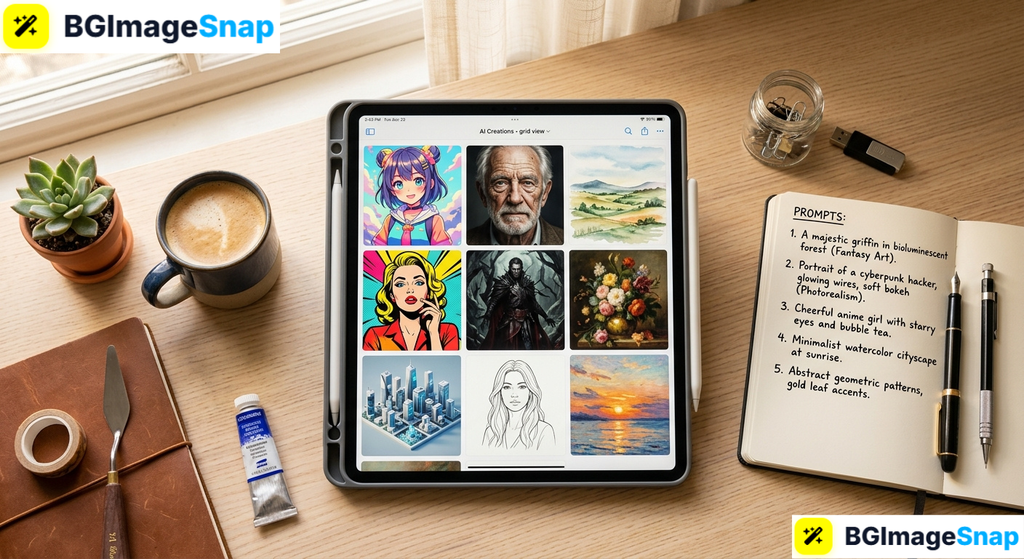
Designer reviewing AI artwork created with Dezgo in multiple visual styles

Full List of Dezgo Tools Features and Options

Understanding what each tool does helps you pick the right workflow for your project. Below is a detailed breakdown of the main features available on the platform.

Core Generation Tools

  • Text to Image: Type a written prompt and receive an original picture. This is the most widely used feature and the best place for beginners to start.
  • Image to Image: Upload a reference photo or sketch and describe how you want it changed. The AI keeps the general composition while applying your new style or subject.
  • Inpainting: Paint a mask over part of an existing image and tell the AI what to place there. This is useful for swapping objects, fixing hands, or removing unwanted details.
  • Outpainting (Image Extension): Expand the borders of a picture by generating new content that blends seamlessly with the original edges.
  • Text to Video: Generate short animated clips from a written description for social posts and motion previews.
  • Image Upscaling: Increase the resolution of a small or blurry image while adding realistic detail.
  • Background Removal: Automatically isolate a subject and export it with a transparent background.
  • Edit Image by Text: Describe a change in plain words, such as “make the sky pink,” and let the AI apply it directly.

Available AI Models

  • Stable Diffusion 1.5 and 2.1: Fast, lightweight models suited for quick concepts and stylized art.
  • SDXL and SDXL Lightning: Higher detail models that handle realistic lighting, textures, and complex scenes.
  • Flux models: Newer models known for strong prompt understanding and accurate text rendering inside images.
  • Community fine tuned models: Specialized versions trained for anime, photorealism, fantasy art, product renders, and more.

Generation Settings You Can Control

  • Prompt and Negative Prompt: Describe what you want and, separately, what you want the AI to avoid.
  • Aspect Ratio and Resolution: Choose square, portrait, landscape, or custom dimensions.
  • Guidance Scale: Controls how strictly the AI follows your prompt versus how creative it gets.
  • Sampling Steps: More steps generally improve detail at the cost of slower generation.
  • Seed Number: Locking the seed lets you reproduce or slightly vary a specific image.
  • Sampler Method: Different algorithms produce subtle changes in sharpness and style.

Free vs. Power Mode

  • Free Mode: Access to standard models, standard resolutions, and normal queue speeds with no account needed.
  • Power Mode: A paid option offering priority processing, larger image sizes, premium models, private generations, and higher usage limits.
  • API Access: Developers can integrate Dezgo generation into their own apps, websites, and automated pipelines.

How to Use Dezgo Step by Step Instructions

Generating your first AI image takes less than a minute. Follow these simple steps to get started:

Step 1: Open the Dezgo Website
Visit dezgo.com in any modern browser on your desktop, tablet, or phone. Select the Text to Image tool from the main menu to begin without creating an account.

Step 2: Write a Detailed Prompt
Type a clear description of the image you want in the prompt box. Instead of writing “a cat,” try “a fluffy orange cat sitting on a sunlit windowsill, soft morning light, cozy watercolor illustration.” Add unwanted elements like “blurry, distorted hands, text” to the negative prompt field.

Step 3: Choose Your Model and Settings
Pick an AI model that matches your goal, such as SDXL for realism or an anime model for stylized art. Set your aspect ratio, adjust the guidance scale if desired, and leave the other settings at their defaults if you are a beginner.

Step 4: Generate and Review Your Image
Click the Generate button and wait a few seconds for the AI to render your picture. If the result is close but not perfect, tweak your prompt wording, change the seed, or adjust the guidance scale and generate again.

Step 5: Download and Polish the Result
Save your finished image to your device. To prepare it for a specific platform, upload it to Bgimagesnap to resize it to exact dimensions, remove the background, or convert the file format before publishing.

Real Use Cases Who Uses Dezgo and Why

AI image generation is useful across a wide range of personal, academic, and business projects.

1. Bloggers and Content Creators
Writers who publish articles regularly need fresh featured images without paying stock photo fees. With Dezgo, a blogger can generate a custom header illustration that matches the exact topic and color scheme of each post. Resizing the result to 1200 × 630 pixels on Bgimagesnap makes it ready for social sharing.

2. E-Commerce Sellers and Marketers
Online store owners use AI images to create lifestyle scenes, seasonal banners, and ad concept mockups quickly. A seller can generate a stylish background scene, then use Bgimagesnap’s background remover to place a real product photo on top. This produces professional looking marketing visuals without renting a studio.

3. Students and Educators
Students working on presentations, science projects, or creative writing assignments use AI art to illustrate ideas visually. Teachers create custom diagrams, storybook scenes, and worksheet graphics that fit their lessons exactly. The free, no signup access makes it practical for classroom use.

4. Freelance Designers and Indie Game Developers
Freelancers use Dezgo for rapid concept art, mood boards, and client presentations before committing hours to final artwork. Indie developers generate placeholder characters, environment sketches, and texture ideas during early prototyping. The image to image tool lets them evolve rough sketches into polished references.

Practical Tips for Better Results with Dezgo

To get sharper, more accurate images from the platform, keep these practical tips in mind:

  • Be specific and descriptive. Include the subject, setting, lighting, camera angle, art style, and mood. Specific prompts consistently outperform short, vague ones.
  • Use the negative prompt. Adding terms like “blurry, low quality, extra fingers, watermark, text” helps the AI avoid common flaws.
  • Try multiple models. The same prompt can look completely different across SDXL, Flux, and community models. Experiment to find the one that suits your style.
  • Lock the seed when refining. Once you get a composition you like, keep the seed number fixed and make small prompt changes to fine tune details.
  • Start with a moderate guidance scale. Values around 7 to 9 usually balance creativity and accuracy. Very high values can create harsh, over saturated results.
  • Upscale before printing. Generate at standard resolution first, then use the upscaling tool to prepare files for print or large displays.
  • Check licensing and usage rights. Review the platform’s terms before using generated images commercially, and avoid recreating copyrighted characters or real people.
  • Finish in Bgimagesnap. Crop to platform specific sizes, remove backgrounds, compress files, and convert formats so your AI art looks polished wherever you post it.

Frequently Asked Questions

Is Dezgo free to use?

Yes. The basic text to image and editing tools are free and do not require an account. A paid Power Mode is available for users who want faster generation, higher resolutions, premium models, and increased limits.

Do I need to sign up to use Dezgo?

No sign up is required for standard use. You can open the website and start generating immediately. Creating an account is only necessary if you upgrade to Power Mode or want to use the API.

What AI models does Dezgo support?

The platform runs open source diffusion models including Stable Diffusion, SDXL, Flux, and a variety of community fine tuned models specialized for anime, photorealism, and fantasy art.

Can I use Dezgo images commercially?

In many cases you can, but usage rights depend on the specific model and the platform’s current terms of service. Always review the licensing information before using AI images in products, ads, or client work.

How do I make Dezgo images higher resolution?

Use the built in upscaling tool to enlarge images while adding detail, or generate in Power Mode for larger native sizes. You can then resize and optimize the final file using Bgimagesnap.

Conclusion

Dezgo makes AI image generation accessible to everyone by removing costs, sign up barriers, and technical complexity. Whether you need blog illustrations, product mockups, presentation visuals, or concept art, a well written prompt and the right model can deliver impressive results in seconds. Ready to turn your AI creations into polished, platform ready graphics? Visit bgimagesnap today to resize, remove backgrounds, compress, and perfect your generated images for free!