Opening a design tool for the first time can feel overwhelming, especially when you face a blank canvas and dozens of unfamiliar buttons. This Canva tutorial solves that problem by walking you through the editor step by step, from choosing a template to exporting a finished graphic that looks professional. Paired with free helpers like the background remover and image resizer on Bgimagesnap, you can produce clean, polished designs even if you have never used design software before.
Key Takeaways
- This Canva tutorial covers the interface, templates, text, photos, elements, and exporting in a simple, beginner friendly order.
- Canva works in any web browser and as an app for iOS, Android, Windows, and macOS, with every project synced to the cloud.
- The free plan handles most everyday design needs, while Canva Pro adds premium assets, Background Remover, and Magic Resize.
- Removing photo backgrounds on Bgimagesnap before importing gives you layered, professional results without a paid subscription.
- Choosing the correct dimensions, limiting fonts, and exporting in the right format are the three habits that make beginner designs look expert.
What Canva Does and How It Works
Canva is a browser based graphic design platform built around templates and drag and drop editing. Instead of drawing from scratch, you begin with a professionally designed layout and replace the placeholder content with your own words and pictures. This approach lets complete beginners create social posts, flyers, presentations, and videos in minutes.
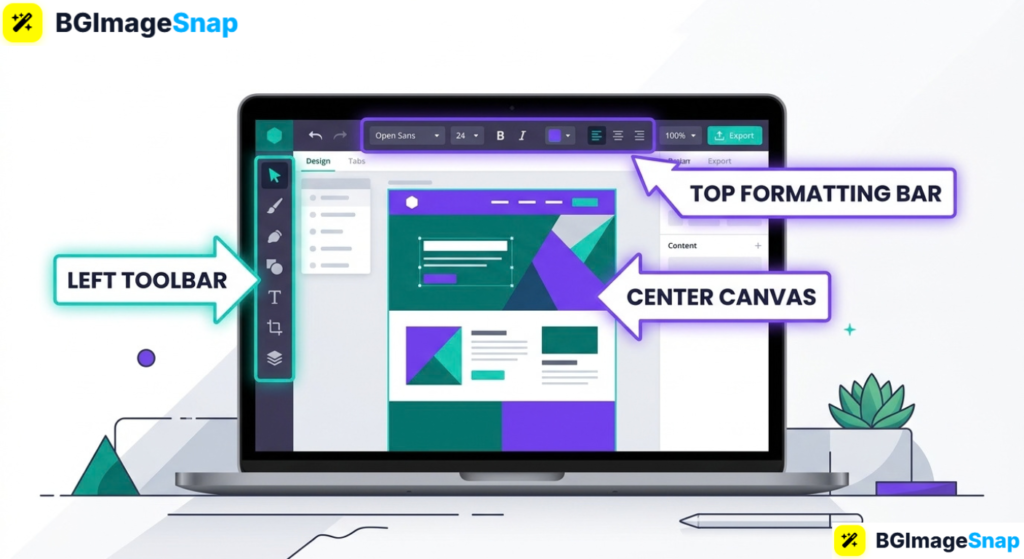
The editor is organized into three main areas. The left sidebar holds your tools, including templates, elements, text, uploads, and brand assets. The center is your canvas where the design lives. The top toolbar changes depending on what you select, showing font options for text or crop and filter options for photos.
Everything you make is saved automatically to the cloud. You can start a design on a laptop, continue on a phone, and download it from a tablet without exporting or emailing files. Earlier versions can be restored if you make a mistake.
Canva also layers smart automation on top of this simple structure. AI features called Magic Studio can write captions, suggest layouts, remove objects from photos, and resize a design for several platforms at once. Learning the basics in this Canva tutorial gives you the foundation to use those advanced tools confidently later.
Full Breakdown of the Canva Interface Tools and Formats
Before you start designing, it helps to know what each part of the editor does and what the platform can produce.
The Main Workspace Areas
- Home Dashboard: Where you create new designs, browse recent projects, and access folders, Brand Kit, and the Content Planner.
- Left Sidebar: Contains Design (templates), Elements, Text, Brand, Uploads, Draw, Projects, and Apps tabs.
- Canvas: The central page where you place and arrange your content, with zoom controls at the bottom.
- Top Toolbar: Context sensitive options such as font, size, color, alignment, effects, position, and transparency.
- Share Button: Opens download, link sharing, scheduling, and print ordering options.
Core Design Tools
- Templates: Hundreds of thousands of free layouts, plus premium options on Pro, filtered by category, color, and style.
- Elements: Shapes, lines, icons, stickers, illustrations, photos, videos, audio, charts, frames, and grids.
- Text: Headings, subheadings, body text, font pairings, and effects like shadow, outline, curve, and neon.
- Uploads: Your own images, videos, and audio stored in the cloud for use across any design.
- Photo Editor: Crop, flip, filters, brightness, contrast, saturation, blur, and vignette adjustments.
- Video Editor: Trim, split, add transitions, captions, and background music.
- Draw: Freehand pen, marker, and highlighter tools for annotations and sketches.
- Position and Layers: Align, group, lock, and reorder elements front to back.
Magic Studio AI Features
- Magic Write: Generates headlines, captions, outlines, and paragraphs from a short prompt.
- Magic Design: Suggests complete templates based on an uploaded image or description.
- Magic Edit and Magic Eraser: Replace or remove objects by brushing over them.
- Magic Expand: Extends photo edges with AI generated content.
- Magic Media: Creates images and short clips from text prompts.
- Magic Animate: Applies motion to elements in one click.
- Background Remover (Pro): Isolates subjects in photos and videos.
- Magic Resize (Pro): Duplicates a design into multiple platform dimensions instantly.
Common Design Dimensions
- Instagram Post: 1080 × 1080 pixels (square) or 1080 × 1350 pixels (portrait).
- Instagram Story and Reel Cover: 1080 × 1920 pixels.
- YouTube Thumbnail: 1280 × 720 pixels.
- Facebook Cover: 1640 × 664 pixels.
- Presentation Slide: 1920 × 1080 pixels.
- A4 Document or Flyer: 210 × 297 millimeters.
- Business Card: 3.5 × 2 inches.
Export Formats
- PNG: Best for graphics with text and logos, with transparent backgrounds available on Pro.
- JPG: Smaller files ideal for photographs and web use.
- PDF Standard: For digital documents, resumes, and email attachments.
- PDF Print: Higher resolution with bleed and crop marks for professional printing.
- MP4 and GIF: For videos and animated designs.
- PPTX: For presentations opened in PowerPoint.
- SVG (Pro): Scalable vector files for logos and icons.
Canva Tutorial: Step by Step Instructions for Your First Design
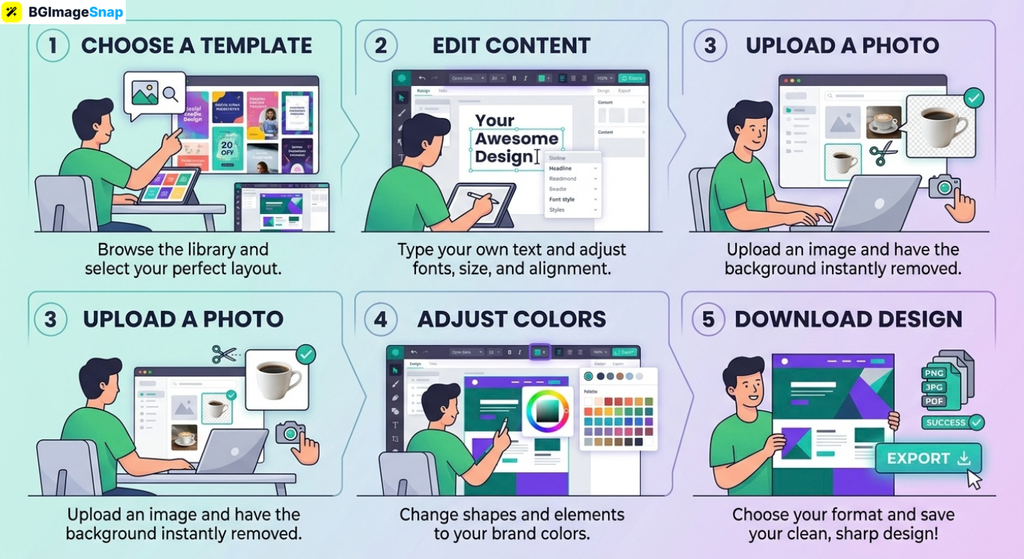
Follow these five steps to go from a blank screen to a finished, shareable graphic. This example creates an Instagram post, but the same process applies to every design type.
Step 1: Create a New Design with the Right Size
Go to canva.com or open the app and sign in with Google, Apple, or email. Click the Create a Design button and choose Instagram Post, or select Custom Size and enter 1080 × 1080 pixels. Starting with the correct dimensions prevents blurry or cropped results later.
Step 2: Choose and Apply a Template
In the left sidebar, browse the Design tab or search for a theme such as “product launch” or “motivational quote.” Click a template to load it onto your canvas. If you prefer to start simple, choose a minimalist layout with one photo and a short headline.
Step 3: Edit the Text and Colors
Click any text box, select the words, and type your own message. Use the top toolbar to change the font, size, and color. Limit yourself to two fonts and one accent color for a clean look. Click a shape or background and use the color panel to match your brand or theme.
Step 4: Add and Clean Up Your Photos
Before uploading, open Bgimagesnap in your browser, upload your product shot or portrait, and remove the background in one click. Download the transparent PNG, then return to Canva and drag it into the Uploads tab. Place it on your canvas, resize it by dragging a corner, and position it over your chosen background. This layered effect looks professional and works on the free plan.
Step 5: Review, Download, and Share
Zoom in to check alignment and spelling. Click Share in the top right, choose Download, and select PNG for graphics or JPG for photos. If you want matching versions for stories and Pinterest, Pro users can click Resize before downloading. You can also share directly to Instagram or copy a link for collaborators.
Real Use Cases Who Benefits from This Canva Tutorial?
Learning the basics of Canva pays off across many personal and professional situations.
1. E-Commerce Sellers and Small Business Owners
Shop owners on Etsy, Shopify, and Amazon need product graphics, sale banners, and story ads every week. After following this Canva tutorial, a seller can remove product backgrounds on Bgimagesnap, drop them onto branded templates, and publish listings and promotions in minutes. Consistent visuals build trust and increase conversions.
2. Students and Teachers
Students create presentations, infographics, and project posters that stand out in class. Teachers design worksheets, classroom signs, and lesson slides without spending hours formatting. Many schools qualify for free premium access through Canva for Education, so the full toolkit is often available at no cost.
3. Freelancers and Social Media Managers
Freelancers managing multiple client accounts use templates, folders, and the Content Planner to produce a month of posts in a single session. Understanding the editor thoroughly allows them to deliver on brand work quickly and justify higher rates for faster turnaround.
4. Job Seekers and Content Creators
Job seekers build clean resumes, cover letters, and personal branding graphics. YouTubers and TikTok creators design thumbnails, channel art, and reel covers. A polished visual presence helps both groups make strong first impressions online.
Practical Tips to Make Your Canva Designs Look Professional
Keep these habits in mind as you practice the techniques in this tutorial:
- Start with the correct dimensions. Always pick the exact platform preset before designing. Resizing afterward can distort elements and soften image quality.
- Limit fonts and colors. Use no more than two fonts and a small palette of two or three colors. Restraint is the fastest way to look professional.
- Use alignment guides. Enable rulers and guides from the File menu and watch for the pink snap lines that appear when elements line up.
- Leave white space. Avoid filling every corner. Empty space around text and images makes designs easier to read and more elegant.
- Remove backgrounds before importing. Bgimagesnap isolates subjects for free, so you can layer photos over colored backgrounds without a Pro subscription.
- Group related elements. Select multiple items and press the Group button so they move together, which keeps layouts intact when you rearrange.
- Use frames for photos. Drag an image into a circle or rounded rectangle frame from the Elements tab for instant clean cropping.
- Compress files before uploading to websites. Large PNG and JPG exports slow down pages. Run them through an online compressor before adding them to a blog or store.
- Save your best design as a template. Duplicate a layout you love for future posts instead of starting from scratch, which keeps your branding consistent.
- Learn a few shortcuts. Press T to add text, R for a rectangle, C for a circle, Ctrl or Cmd + D to duplicate, and Ctrl or Cmd + G to group.
Frequently Asked Questions
Is Canva free to use for beginners?
Yes. The free plan includes thousands of templates, standard fonts and elements, 5GB of storage, and PNG, JPG, PDF, and MP4 exports. Premium templates, Background Remover, Magic Resize, and Brand Kit require Canva Pro, which costs roughly $15 per month or $120 per year.
Do I need design experience to follow a Canva tutorial?
No. Canva is built for people with no design background. If you can drag an element and type text, you can complete every step in this guide within thirty minutes.
How do I remove a photo background without Canva Pro?
Upload your image to Bgimagesnap, click to remove the background, and download the transparent PNG. Then upload that file to Canva’s Uploads tab and place it in your design. The transparency is preserved on the free plan.
Can I use Canva on my phone?
Yes. The Canva app is available for iOS and Android with the same editor and templates as the website. Projects sync automatically, so you can start on a phone and finish on a computer.
What file format should I download my design in?
Choose PNG for graphics with text, logos, or transparent backgrounds. Use JPG for photographs and smaller web files. Pick PDF Standard for documents, PDF Print for professional printing, and MP4 for videos or animations.
Conclusion
This Canva tutorial gives you everything you need to move from a blank canvas to a polished, shareable design: understanding the interface, choosing templates, editing text and photos, and exporting in the right format. With a few good habits like correct sizing, limited fonts, and clean backgrounds, even your first projects can look professionally made. Ready to make your photos design ready? Visit bgimagesnap today to remove backgrounds, resize images, and compress files for free, then bring them into Canva and start creating.