Creating professional graphics used to mean sitting at a computer with complicated software but great ideas don’t wait until you’re at your desk. The Canva app puts a full design studio in your pocket, letting you create social posts, logos, and presentations right from your phone or tablet. In this guide, you’ll learn everything the Canva app can do, how to use it step by step, and pro tips to design like a pro on the go.
Key Takeaways
- The Canva app is a free mobile design tool for iOS and Android that syncs with the web version.
- It offers thousands of templates, drag-and-drop editing, and one-tap sharing to social media.
- You can design social posts, stories, logos, presentations, videos, and more on your phone.
- Your projects sync automatically across all devices, so you can start on mobile and finish on desktop.
- Free tools at bgimagesnap complement the Canva app for quick background removal.
What Is the Canva App and How Does It Work?
The Canva app is the mobile version of Canva, the popular online graphic design platform. Available free for iPhone, iPad, and Android devices, it lets you create professional designs anywhere no computer required.
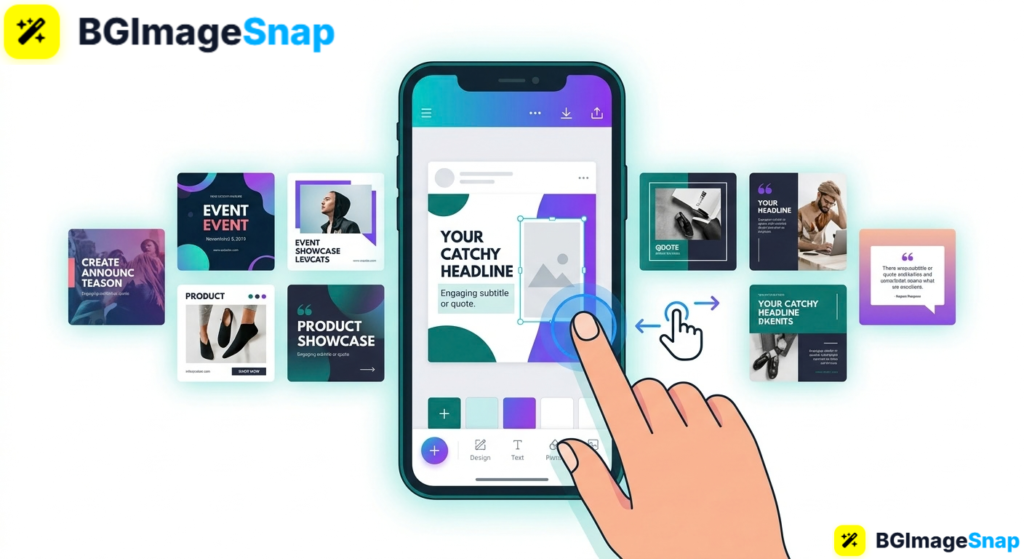
The app works through a touch-friendly drag-and-drop editor. You pick a template, tap to add text and images, move elements with your finger, and export your finished design in seconds. Everything is designed for small screens and touch controls.
What makes the Canva app powerful is its template library. Thousands of professionally designed layouts cover every need Instagram posts, YouTube thumbnails, business cards, and more so you never start from a blank page.
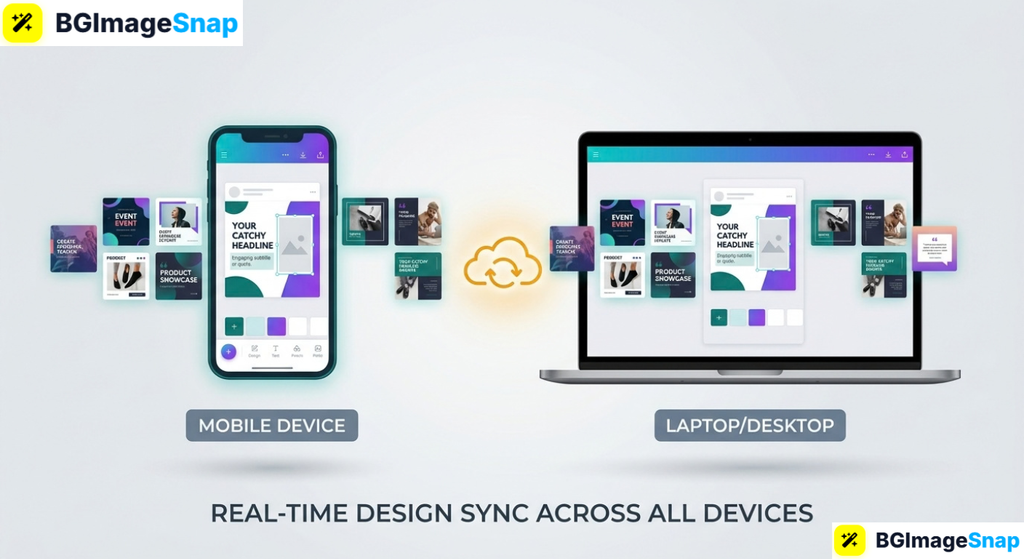
The app also syncs seamlessly with the web version. Start a design on your phone during your commute, then open your laptop at home and continue exactly where you left off. Your entire design library follows you everywhere.
For anyone who creates content on the move social media managers, small business owners, and everyday creators the Canva app turns idle moments into productive design time.
Canva App Features and Capabilities A Full Breakdown
Here’s a complete look at what the Canva app can do, so you know exactly what’s possible from your mobile device.
Design Types You Can Create
- Social media posts Instagram, Facebook, TikTok, and more, in correct sizes
- Stories and Reels vertical formats with animation and music
- Logos and branding simple logo creation for small businesses
- Presentations build and even present slideshows from your phone
- Videos trim clips, add text, music, and transitions
- Print materials flyers, posters, business cards, and invitations
Core Editing Tools
- Drag-and-drop interface move, resize, and rotate elements with touch
- Text tools hundreds of fonts and text effects
- Photo editing filters, adjustments, cropping, and effects
- Templates thousands of free, professionally designed starting points
- Elements library icons, stickers, shapes, and illustrations
- Camera integration snap photos directly into your designs
Mobile-Specific Advantages
- Cloud sync designs update across phone, tablet, and desktop automatically
- One-tap sharing post directly to social media from the app
- Offline access work on some designs without an internet connection
- Camera roll integration pull photos straight from your gallery
- Quick export save as PNG, JPG, PDF, or MP4 in seconds
Free vs. Pro Features
- Free: thousands of templates, basic editing, and standard exports
- Pro (paid): premium templates, background remover, Magic Resize, Brand Kit, and 100 GB storage
- Note: the free app covers most everyday design needs
Two features make the Canva app especially handy. Cloud sync means your work is never trapped on one device, and one tap sharing turns “design and post” into a single seamless action for social media creators.
How to Use the Canva App Step by Step
Getting started takes just a few minutes. Follow these five steps:
- Download and install the app. Get the Canva app free from the Apple App Store or Google Play Store, then open it on your phone or tablet.
- Sign up or log in. Create a free account with your email, Google, Apple, or Facebook. If you already use Canva on desktop, log in to sync your existing designs.
- Choose a design type. Tap the “+” button and pick what you’re creating an Instagram post, story, logo, or any other format. Browse the templates that appear.
- Customize your design. Tap elements to edit text, swap photos from your camera roll, and adjust colors. Use touch gestures to move, resize, and rotate everything.
- Export or share. Tap the share button to download your design or post it directly to social media. Your project saves to the cloud automatically for future edits.
The touch controls feel natural within minutes, and everything you create stays synced across all your devices.
Who Uses the Canva App? Real Use Cases
The Canva app serves creators of every kind. Here are four groups who rely on it daily:
Social media managers and creators. Content creators need to post consistently, often on the move. The Canva app lets them design and publish a post from anywhere at an event, during a commute, or between meetings without touching a computer.
Small business owners. Entrepreneurs juggling a dozen tasks appreciate designing on their phones between customers. A café owner can whip up a daily-special graphic and post it to Instagram in the few minutes before opening.
Students and teachers. Students design presentations, project visuals, and study materials right on their phones. Teachers create classroom graphics and worksheets on the go, fitting quick design tasks into busy schedules.
Event planners and freelancers. Planners create invitations, signage, and social promos on-site during events. Freelancers respond to client requests instantly, mocking up ideas from their phone the moment inspiration strikes.
Tips for Getting the Most from the Canva App
- Start on mobile, finish on desktop. Use the app to capture ideas and rough drafts anywhere, then switch to the larger web editor for detailed fine-tuning thanks to cloud sync.
- Use the camera integration. Snap product photos or scenes directly into your designs instead of switching between apps it’s faster and keeps you in the creative flow.
- Save templates as favorites. Star the templates and elements you use often so they’re one tap away for your next project.
- Master touch gestures. Pinch to resize, two-finger rotate, and tap-and-hold to select multiple elements. Learning these makes mobile editing dramatically faster.
- Design in the right size from the start. Always pick the correct template size for your platform to avoid awkward cropping when you post.
- Pair it with a free background remover. The app’s background tool requires Pro, but you can remove backgrounds free at bgimagesnap.com, then import the clean image into Canva.
- Enable notifications for collaboration. If you work with a team, turn on app notifications so you never miss comments or edits on shared designs.
Frequently Asked Questions
Is the Canva app free?
Yes. The Canva app is free to download and use on iOS and Android, with thousands of free templates and editing tools. A paid Canva Pro subscription unlocks premium features, but the free app covers most needs.
Does the Canva app work on both iPhone and Android?
Yes. The Canva app is available for iPhone, iPad, and Android phones and tablets. Your designs sync across all of them, plus the web version, through your account.
Can I use the Canva app offline?
Partially. Some editing features work offline, but you’ll need an internet connection to access the full template library, sync your work, and download or share designs.
Is the Canva app as good as the desktop version?
For most tasks, yes. The app includes the core design tools and templates. However, the larger screen of the desktop version makes detailed, complex projects easier to fine-tune.
Can I remove backgrounds in the Canva app for free?
The built-in background remover requires Canva Pro. For a free alternative, use bgimagesnap to remove backgrounds, then import the transparent image into your Canva design.
Conclusion
The Canva app turns your phone into a portable design studio free, powerful, and synced across every device you own. Whether you’re posting to social media, running a business, or studying for class, you can create professional graphics wherever inspiration strikes. Want to add crisp, background-free images to your designs? Visit bgimagesnap to remove backgrounds and polish your photos with free browser-based tools!