Producing cinematic video used to require camera rigs, lighting crews, and days of editing that most creators simply cannot afford. Higgsfield AI solves this problem by turning a single photo or short text prompt into a polished, motion-rich video clip with professional camera moves in minutes. Paired with free image preparation tools like the background remover and resizer on Bgimagesnap, you can clean up your source photos first and feed the generator sharper assets for better results.
Key Takeaways
- Higgsfield AI is a browser-based AI video platform known for preset cinematic camera movements such as crash zooms, dolly shots, and bullet time.
- It supports text-to-video, image-to-video, AI avatars with lip-sync, visual effects, and its own realistic image model for still photos.
- A free tier lets you test the tool with limited credits, while paid plans unlock faster generation, higher resolution, and more monthly clips.
- The platform is popular with marketers, content creators, e-commerce sellers, and filmmakers who need fast, stylish short-form video.
- Preparing clean, high-resolution source images on Bgimagesnap before uploading noticeably improves motion quality and edge consistency.
What Higgsfield AI Does and How It Works
Higgsfield AI is a generative video platform built around a simple idea: give ordinary users the camera language of professional cinematographers. Instead of asking you to describe complicated motion in words, it offers a library of ready-made camera presets. You pick a movement such as a dramatic push-in, a sweeping orbit, or a handheld shake, and the system applies it to your scene.
The process starts with either a text prompt or an uploaded image. If you upload a photo, the AI analyzes the subject, estimates depth, and predicts how the scene should move when the virtual camera travels through it. It then generates new frames that keep the subject consistent while the background shifts realistically.
Under the hood, the platform runs diffusion-based video models trained on large collections of cinematic footage. This training is why the clips feel like film shots rather than animated slideshows. Lighting responds to movement, motion blur appears naturally, and the camera behaves the way a real operator would move it.
Higgsfield AI also layers additional tools on top of its core generator. You can create realistic portraits with its still image model, animate talking characters with synced speech, and apply visual effects like explosions, melting, or transformations. The result is an all-in-one studio for short-form video that runs entirely in a web browser.
Full List of Higgsfield AI Features Modes and Formats
Knowing what each mode offers helps you choose the right workflow for your project. Below is a detailed breakdown of the platform’s main capabilities.
Core Generation Modes
- Image-to-Video: Upload a photo and apply a camera motion preset or custom prompt to bring it to life. This is the most popular entry point for beginners.
- Text-to-Video: Describe a full scene in writing and let the AI generate both the visuals and the motion from scratch.
- Camera Control Presets: Choose from a library of cinematic moves including crash zoom, dolly in and out, overhead crane, 360 orbit, bullet time, FPV drone, handheld, and snorricam effects.
- Visual Effects (VFX): Apply dramatic transformations such as fire, water, disintegration, levitation, and stylized transitions to your subject.
- AI Avatars and Lip-Sync: Upload a portrait and an audio clip or script to produce a talking character with synchronized mouth movement.
- Soul Image Model: Generate highly realistic, fashion-style still photos with consistent lighting and aesthetic presets, which can then be animated.
- Multi-Model Access: Depending on your plan, you can route prompts through several leading video models inside one interface and compare results.
Customization and Control Options
- Motion Strength: Adjust how subtle or dramatic the camera and subject movement appears.
- Duration: Generate short clips, typically in the range of a few seconds, suited for social media hooks and transitions.
- Aspect Ratio: Choose vertical 9:16 for Reels and TikTok, square 1:1 for feeds, or widescreen 16:9 for YouTube and presentations.
- Prompt Enhancement: Let the AI expand a short description into a detailed cinematic prompt automatically.
- Seed and Regeneration: Re-run a generation with small adjustments to refine a shot you like.
- Style Presets: Apply looks such as film noir, anime, documentary, or commercial product lighting.
Supported Input and Output Formats
- Image Uploads: JPG, PNG, and WebP files, ideally at 1080 pixels or higher on the shortest side.
- Audio Uploads: MP3 and WAV files for avatar lip-sync projects.
- Video Output: MP4 downloads in standard HD, with higher resolution and watermark removal on paid tiers.
- Browser Access: Works on Chrome, Safari, Edge, and Firefox across desktop and mobile without installation.
Plans and Pricing Overview
- Free Tier: A limited monthly credit allowance for testing core features, with watermarked exports and standard queue speeds.
- Paid Subscriptions: Tiered monthly plans, generally starting under $10 and scaling to premium tiers, that increase credits, remove watermarks, speed up generation, and unlock advanced models.
- Credit System: Each generation consumes credits based on length, resolution, and model, so shorter test clips help stretch your budget.
How to Use Higgsfield AI Step by Step Instructions
Creating your first cinematic clip takes only a few minutes. Follow these simple steps:
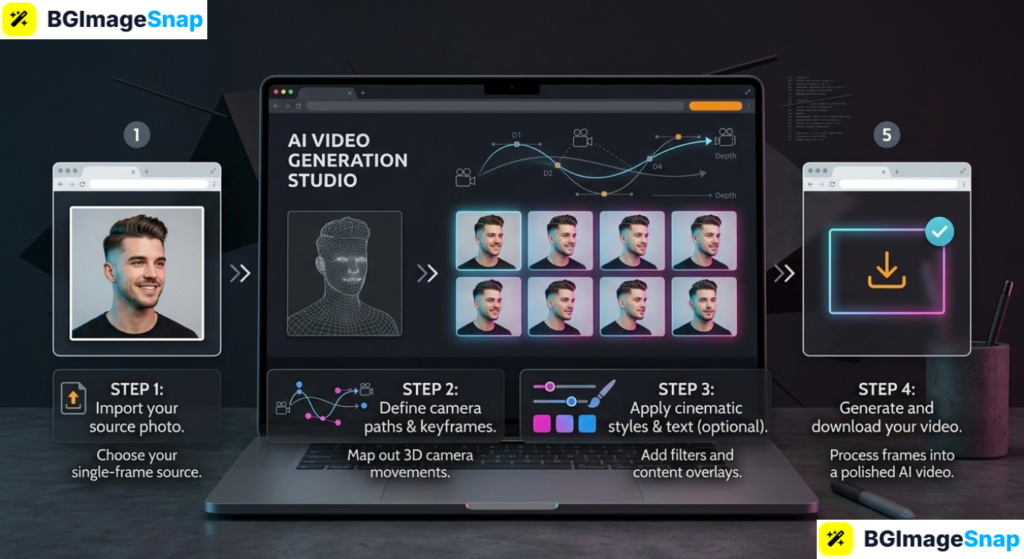
Step 1: Prepare Your Source Image
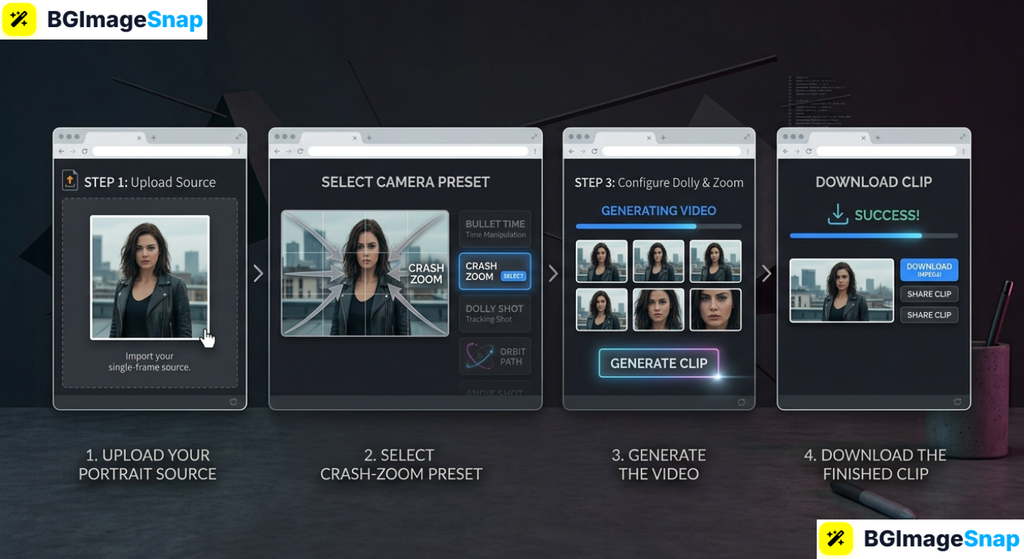
Choose a sharp, well-lit photo of your subject. Open Bgimagesnap in your browser, remove any cluttered background if needed, resize the image to at least 1080 × 1080 pixels or 1080 × 1920 pixels for vertical video, and download the clean file. Cleaner inputs produce smoother motion and fewer edge glitches.
Step 2: Sign In and Choose a Mode
Visit the Higgsfield AI website and create a free account with Google or email. From the dashboard, select Image-to-Video for the easiest start, or Text-to-Video if you want to generate a scene entirely from a prompt.
Step 3: Upload and Pick a Camera Preset
Upload your prepared image. Browse the camera motion library and select a preset that matches your goal, such as a slow dolly in for product reveals or a crash zoom for dramatic hooks. Add a short text description to guide lighting, mood, or extra motion.
Step 4: Adjust Settings and Generate
Set your aspect ratio to match your target platform, choose a motion strength, and pick a duration. Click Generate and wait for the clip to render. Review the preview, and if something looks off, tweak the prompt or motion strength and run it again.
Step 5: Download and Finalize
Download the MP4 to your device. Trim, add captions, or layer music in your preferred video editor, then publish to Instagram Reels, TikTok, YouTube Shorts, or your website.
Real Use Cases Who Uses Higgsfield AI and Why
Fast, cinematic video generation serves a wide range of creators and businesses.
1. E-Commerce Sellers and Product Marketers
Online store owners turn flat product photos into eye-catching motion ads without hiring a videographer. A seller can remove the background from a sneaker photo on Bgimagesnap, upload it to Higgsfield AI, and apply a slow orbit or dramatic zoom to create a scroll-stopping ad. These short clips often outperform static images in paid campaigns.
2. Content Creators and Social Media Managers
Creators who post daily need constant fresh visuals. Animating a single portrait or landscape into several different camera moves yields multiple hooks, transitions, and B-roll clips from one asset. Social media managers use the tool to produce branded intros and story backgrounds at scale.
3. Freelance Filmmakers and Agencies
Video professionals use the platform for pre-visualization, mood boards, and concept pitches. Showing a client an animated storyboard with real camera movement communicates ideas far better than static sketches. Agencies also generate quick drafts to test creative directions before committing to full production.
4. Students and Educators
Film students experiment with camera language without needing expensive equipment, learning how a dolly differs from a zoom by seeing both applied to the same image. Teachers animate historical photos, scientific diagrams, and storybook illustrations to make lessons more engaging.
Practical Tips for Better Results with Higgsfield AI
Keep these tips in mind to get smoother motion and more professional clips:
- Start with high-resolution, well-lit images. Blurry or dark photos produce muddy motion. Aim for sharp focus and even lighting on your subject.
- Isolate the subject when it helps. For product shots and portraits, removing a busy background on Bgimagesnap and placing the subject on a simple backdrop gives the AI a cleaner scene to animate.
- Match the preset to the mood. Slow dollies and gentle orbits suit luxury and calm content, while crash zooms and FPV moves fit energetic hooks and sports.
- Keep prompts specific but short. Mention lighting, mood, and any extra motion such as “wind in hair” or “steam rising” rather than long paragraphs.
- Test at low cost first. Generate short, standard-resolution drafts to confirm the motion, then spend credits on the final high-resolution version.
- Choose the right aspect ratio upfront. Generating in 9:16 for vertical platforms avoids cropping and preserves detail.
- Use regeneration to refine, not restart. Small adjustments to motion strength or wording often fix issues without changing the whole composition.
- Review hands, faces, and edges. These areas are where AI video most often shows artifacts, so inspect them before publishing.
- Respect usage rights. Only upload photos you own or have permission to use, and check the platform’s terms before commercial distribution.
Frequently Asked Questions
Is Higgsfield AI free to use?
Yes, there is a free tier with a limited number of monthly credits, which is enough to test the core image-to-video and camera preset features. Exports on the free plan typically include a watermark, and paid subscriptions remove it while adding more credits and faster processing.
What makes Higgsfield AI different from other AI video tools?
Its main distinction is the library of cinematic camera presets. Rather than hoping a text prompt produces the right motion, you select a specific move like a crash zoom or 360 orbit and get consistent, film-like results.
Can I use Higgsfield AI videos commercially?
Commercial use is generally permitted on paid plans, but rights depend on your subscription level and the content you upload. Always review the current terms of service and make sure you own the rights to any source images.
Do I need video editing skills to use it?
No. The platform is designed for beginners, with presets and one-click generation. Basic editing skills help when you want to combine clips, add music, or insert captions after downloading.
How do I improve the quality of my generated clips?
Use sharp, high-resolution source images, remove distracting backgrounds with a tool like Bgimagesnap, choose a camera preset that fits the scene, and keep prompts clear and specific. Generating in the correct aspect ratio for your platform also preserves detail.
Conclusion
Higgsfield AI brings professional camera movement and cinematic polish to anyone with a photo and an idea, making it one of the fastest ways to produce short-form video for ads, social media, and creative projects. With preset motions, visual effects, and avatar tools in a single browser interface, it removes the cost and complexity that once stood between creators and film-quality results. Want better clips from the very first generation? Visit bgimagesnap today to remove backgrounds, resize, and sharpen your source images for free, then upload them to Higgsfield AI and watch your photos come to life!