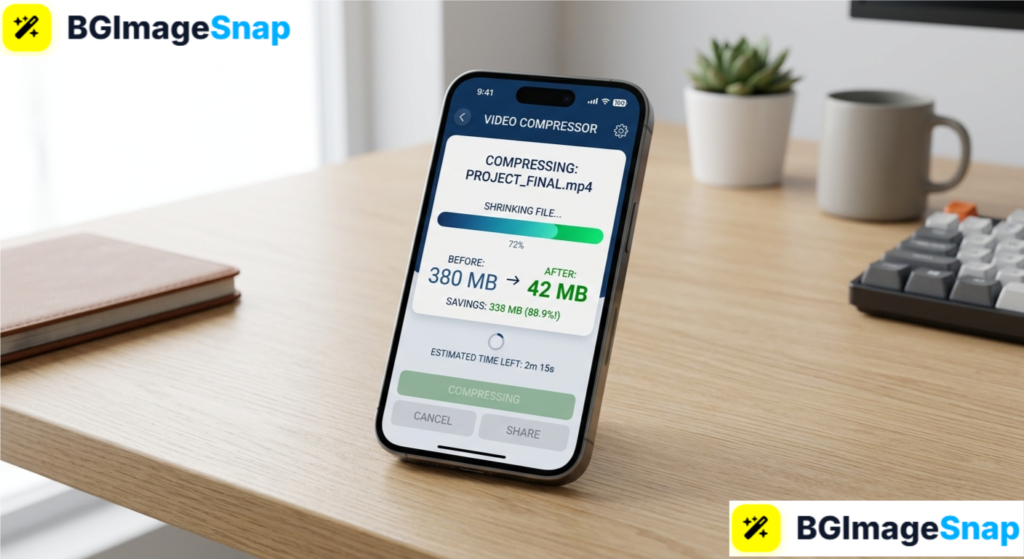
Modern iPhones shoot stunning 4K video but a single minute of footage can swallow 400MB of storage and be far too large to email or message. A video compressor app for iPhone solves this in seconds, shrinking oversized clips into shareable files while keeping them looking sharp. In this guide, you’ll learn how these apps work, which settings actually matter, and how to compress any video in just a few taps.
Key Takeaways
- One minute of 4K iPhone footage can consume 170–400MB compression cuts that by 50–90%.
- A video compressor app for iPhone shrinks files by adjusting resolution, bitrate, and codec.
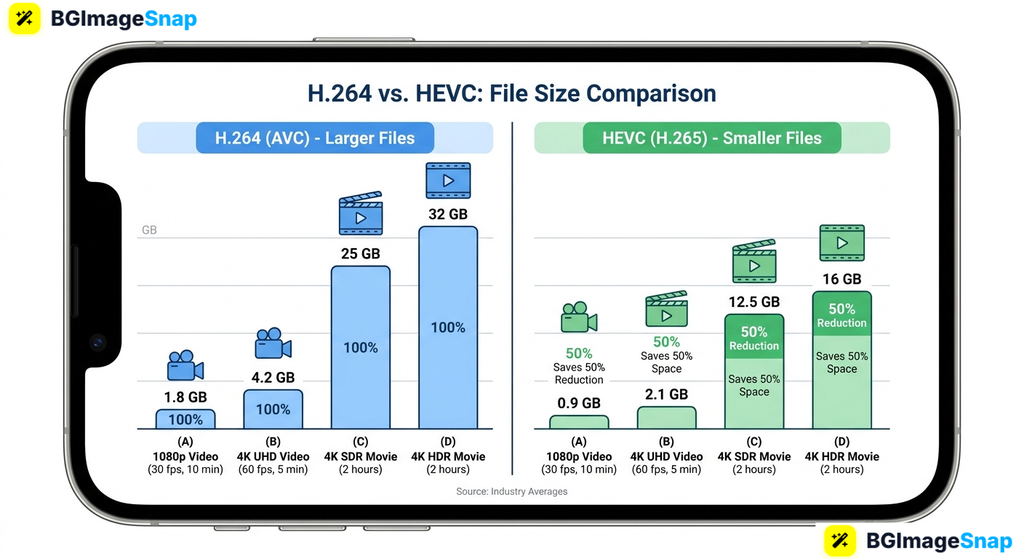
- HEVC (H.265) delivers roughly half the file size of H.264 at similar visual quality.
- The best apps offer batch compression, target file sizes, and direct sharing to Messages or social apps.
- Recording in High Efficiency mode prevents oversized files before they’re even created.
What Is a Video Compressor App for iPhone and How Does It Work?
A video compressor app for iPhone is a tool that re encodes your videos into smaller files. It takes the large video your camera records and rebuilds it using smarter settings, so it takes up less space without looking noticeably worse.
Every video’s file size comes down to three factors. Resolution is the number of pixels 4K packs four times the pixels of 1080p. Bitrate is how much data describes each second of footage. Codec is the compression technology used to store everything.
A compressor app adjusts these three levers together. Dropping 4K to 1080p, lowering the bitrate, and switching to a more efficient codec can shrink a 400MB clip to under 50MB.
The codec choice matters most on iPhone. Apple’s devices record in either H.264 or HEVC (H.265). HEVC is newer and roughly twice as efficient the same clip looks nearly identical at half the file size.
Best of all, modern compressor apps process everything directly on your device. Your videos never leave your phone, which keeps them private and makes compression fast even without internet.
Full Details iPhone Video Sizes and Features to Look For
Before choosing a video compressor app for iPhone, it helps to know how big your files really are and which features separate great apps from mediocre ones.
Typical iPhone Video File Sizes
| Recording Setting | Codec | Approximate Size |
|---|---|---|
| 4K at 60fps | H.264 | ~440MB |
| 4K at 30fps | H.264 | ~350MB |
| 4K at 30fps | HEVC | ~170MB |
| 1080p at 30fps | H.264 | ~130MB |
| 1080p at 30fps | HEVC | ~65MB |
| 720p at 30fps | H.264 | ~40MB |
| Compressed for email/messaging | HEVC, lower bitrate | ~15–40MB |
Features to Look for in a Compressor App
| Feature | Why It Matters |
|---|---|
| Supported formats | Should handle MP4, MOV, and HEVC the formats iPhones record in |
| Batch compression | Shrink dozens of clips at once instead of one by one |
| Target file size | Tell the app “make this under 25MB” and it calculates settings automatically |
| Resolution presets | One tap options for 1080p, 720p, or social media sizes |
| Built in trimming | Cut unwanted footage before compressing for even smaller files |
| Quality preview | Compare before and after before you commit |
| No watermarks | Free versions shouldn’t stamp logos on your videos |
| On device processing | Keeps your footage private and works offline |
The target size feature deserves special attention. If you know your email limit is 25MB or your messaging app caps videos at 100MB, the app works backward from that number no guesswork about bitrates or resolutions.
How to Use a Video Compressor App for iPhone Step by Step
Compressing a video takes less than a minute once you know the workflow. Follow these five steps:
- Download a well rated compressor from the App Store. Search for a video compressor app for iPhone with strong recent reviews, or open a trusted online compressor in Safari if you prefer not to install anything.
- Grant access to your Photos library. The app needs permission to read your videos. You can limit access to selected items if you prefer tighter privacy.
- Select your video and choose your settings. Pick a preset like “Email” or “Social Media,” enter a target file size, or manually set resolution and bitrate. When in doubt, 1080p with HEVC is the sweet spot.
- Preview and compress. Most apps show the estimated output size before starting. Compression usually takes a few seconds to a couple of minutes depending on clip length.
- Save or share directly. Export the compressed video back to your Photos library, or share it straight to Messages, Mail, WhatsApp, or your favorite social platform.
That’s the whole process. Keep the original until you’ve confirmed the compressed version plays perfectly, then delete the large file to reclaim your storage.
Who Needs a Video Compressor App for iPhone? Real Use Cases
Video compression isn’t just for tech enthusiasts. Here are four groups who rely on it every week:
Parents and families. Kids’ birthdays, school plays, and vacations fill an iPhone’s storage faster than anything else. Parents compress older memories to keep thousands of clips without paying for larger iCloud plans, and share highlights with grandparents over messaging apps instantly.
Content creators and vloggers. Creators shooting on iPhone need to move footage quickly to editors, clients, or social platforms. A video compressor app for iPhone turns a ten minute upload into a two minute one, and faster uploads mean faster publishing schedules.
Real estate agents. Property walkthrough videos are essential for listings, but raw 4K tours are too heavy for email and slow to send on mobile data. Agents compress walkthroughs to send polished previews to clients within minutes of filming.
Students and teachers. Video assignments often face strict upload limits on school portals. Students compress presentations and project footage to fit under submission caps, avoiding last minute deadline panic.
Tips for Better Video Compression on iPhone
- Record in High Efficiency mode from the start. Go to Settings > Camera > Formats and choose High Efficiency. Your iPhone records in HEVC, cutting file sizes in half before you ever need a compressor.
- Trim before you compress. Cutting thirty seconds of unusable footage saves more space than any bitrate setting. Most compressor apps include a basic trimmer.
- Match resolution to the destination. Social media feeds display at 1080p or lower, so compressing 4K footage to 1080p loses nothing your audience will ever see.
- Keep originals backed up. Compression is permanent. Save master copies to iCloud or a computer before shrinking the versions on your phone.
- Never compress the same video twice. Each pass degrades quality a little more. Always compress from the original file.
- Polish your thumbnails too. If you’re uploading to YouTube, a sharp custom thumbnail matters as much as the video itself. Create one free at bgimagesnap using browser based image tools.
- Compress big batches while charging. Long compression queues drain battery and generate heat. Plug in first for smooth, uninterrupted processing.
Frequently Asked Questions
Does compressing a video reduce its quality?
Slightly, yes but modern codecs make the difference nearly invisible at sensible settings. Compressing 4K to 1080p with HEVC typically looks identical on phone screens and social feeds.
Can I compress a video on iPhone without an app?
Only partially. You can trim videos in Photos and change future recordings to High Efficiency, but iOS has no built in “compress this video” button. A video compressor app for iPhone or a browser based tool is needed for real file size reduction.
Should I choose HEVC or H.264 when compressing?
Choose HEVC for the smallest files it halves file size at equal quality. Choose H.264 only if you’re sharing with someone using very old devices or software that may not support HEVC.
Are video compressor apps free?
Most offer free versions that handle everyday compression, often with ads or daily limits. Paid upgrades typically add unlimited batch processing, higher resolutions, and watermark removal.
How much can I compress a video before it looks bad?
Expect clean results at 50–70% reduction with standard settings. Pushing past 80–90% introduces visible artifacts like blockiness and smearing, especially in fast motion scenes.
Conclusion
A video compressor app for iPhone turns storage anxiety into a non issue massive 4K clips become lightweight, shareable files in seconds, with quality your viewers will never question. Whether you’re a parent drowning in family footage or a creator racing to publish, compression keeps your phone fast and your videos moving. And for everything visual beyond video, visit bgimagesnap to edit, resize, and enhance your thumbnails and images with free browser based tools!