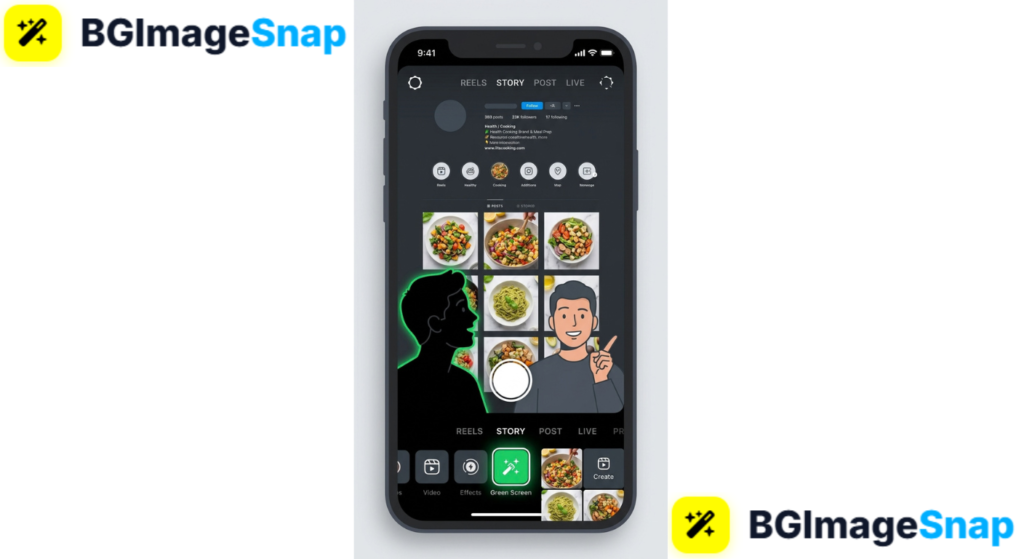
Ever wanted to record a Story in front of the Eiffel Tower, a breaking news screenshot, or your latest product photo without leaving your room? The green screen on instagram storyeffect makes it possible in seconds, cutting you out of your real surroundings and placing you in front of any image you choose. In this guide, you’ll learn exactly how the Instagram story green screen works, how to use it step by step, and creative ideas to make your Stories impossible to skip.
Key Takeaways
- The Instagram story green screen effect removes your real background and replaces it with any photo from your camera roll.
- No physical green screen is needed Instagram’s AI detects your silhouette automatically in real time.
- You can find the effect in the Story camera’s effects gallery by searching “Green Screen.”
- Pinch and drag to resize or reposition yourself anywhere on screen while recording.
- Free tools at bgimagesnap help you prepare the perfect background images before filming.
What Is the green screen on instagram story and How Does It Work?
The IG story green screen is a built in augmented reality effect inside Instagram’s Story camera. It detects your body in real time, erases everything behind you, and lets you place any photo or video from your phone as your new backdrop.
Traditional green screens work by filming against a physical green backdrop, then digitally removing that color in editing software. Movie studios and news broadcasters have used this chroma key technique for decades.
Instagram’s version skips the green fabric entirely. Instead of removing one specific color, the effect uses machine learning to recognize human shapes your head, shoulders, and body and separates you from whatever is actually behind you.
This happens live through your camera. As you move, the cutout follows you, so you can talk, gesture, and react while your custom background stays perfectly still behind you.
The result is one of Instagram’s most popular effects for a reason. The IG story green screen turns any bedroom into a studio, any screenshot into a talking point, and any ordinary update into something people actually stop to watch.
Instagram Story Green Screen Features Requirements and Creative Ideas
Here’s a complete breakdown of what the IG story green screen offers, what you need to use it, and the most popular ways creators put it to work.
Key Features
- Real time background removal your silhouette is cut out live as you record, with no editing required afterward
- Custom backgrounds choose any photo or video from your camera roll to appear behind you
- Resizable cutout pinch to shrink yourself into a corner reaction bubble, or stay full size for a presenter look
- Repositioning drag yourself anywhere on screen to leave room for the part of the background you’re discussing
- Works with photos and videos use static images or moving backgrounds from your gallery
- Front and rear cameras flip between selfie mode and showing your surroundings creatively
What You Need
- An updated Instagram app on iOS or Android
- Camera permission enabled for Instagram
- Background images saved to your camera roll
- Decent, even lighting so the AI can detect your outline cleanly
- No downloads, subscriptions, or physical equipment required
Creative Ideas to Try
- Reaction commentary shrink into a corner and react to a screenshot, meme, or headline filling the screen behind you
- Virtual travel “visit” famous landmarks using travel photos as your backdrop
- Product presentations sellers can stand in front of their own product photos like a professional spokesperson
- Before and after reveals show transformation photos behind you while narrating the story
- News style reporting present updates with supporting images over your shoulder, anchor style
- Tutorial walkthroughs point at screenshots of apps, recipes, or instructions while explaining each step
- Mood boards and announcements float in front of a collage that sets the tone for your news
The reaction format deserves special mention. Much of the IG story green screen’s popularity comes from creators shrinking themselves into the corner to comment on content behind them it’s the format that made the effect go viral.
How to Use the IG Story Green Screen Step by Step
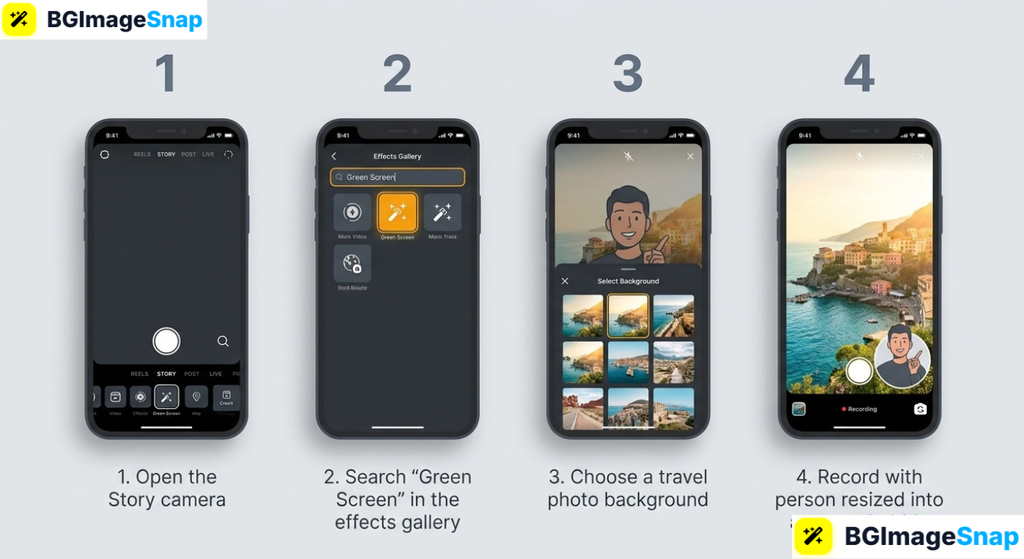
Ready to film? Here’s exactly how to use the IG story green screen effect in five quick steps:
- Open the Story camera. Launch Instagram and tap your profile picture with the “+” icon, or swipe right from your feed to open the camera.
- Find the Green Screen effect. Swipe through the effect bubbles at the bottom of the screen to the end, tap “Browse effects” (the magnifying glass), and search “Green Screen.” Select the one made by Instagram and tap “Try it.”
- Choose your background. Tap the “Add media” button in the effect tray and pick any photo or video from your camera roll. It instantly fills the screen behind you.
- Position yourself and record. Drag your cutout to the best spot, pinch to resize if needed, then press and hold the record button to film your clip. Speak, point, and gesture naturally the effect tracks you in real time.
- Edit and share. Add text, stickers, music, or drawings as usual, then tap “Your Story” to publish. Save the effect to your favorites so it’s one tap away next time.
The whole process takes about two minutes the first time and under a minute once the effect is saved in your tray.
Who Uses the Instagram Story Green Screen? Real Use Cases
The IG story green screen has become a daily tool across many kinds of accounts. Here are four groups who rely on it constantly:
Content creators and influencers. Creators use the effect for reaction videos, commentary on trending topics, and storytelling with visual proof behind them. It adds production value that keeps viewers watching until the last slide without any editing software.
Small business owners and sellers. Shop owners present products by standing in front of their own catalog photos, pointing at features and prices. A candle maker can “walk through” her new collection in one Story, with each product shot filling the screen behind her.
Teachers, coaches, and educators. Explaining concepts becomes visual when diagrams, slides, and notes appear behind the presenter. Tutors use the IG story green screen to point at math problems or vocabulary lists while talking directly to their students.
Students and everyday users. From sharing funny screenshots with live reactions to presenting school projects with slides behind them, students use the effect to make ordinary updates far more engaging than a plain talking head video.
Tips for Better IG Story Green Screen Videos
- Light yourself evenly. Face a window or lamp so your outline is clear. Backlighting and dim rooms confuse the AI and cause flickering edges.
- Avoid busy real backgrounds. The effect cuts you out most cleanly when your actual surroundings are simple and contrast with your clothing.
- Don’t wear colors that match your backdrop. If your digital background is mostly white and you’re wearing white, parts of you may blend or flicker.
- Prepare your background images first. Crop screenshots and photos to 9:16 vertical format so they fill the screen without awkward gaps. The free tools at bgimagesnap resize images in seconds.
- Move slowly and deliberately. Fast jumps can outrun the AI’s tracking, causing brief glitches around your edges. Smooth movement keeps the cutout clean.
- Shrink yourself for commentary. Pinch down to a small corner bubble when the background content is the star viewers can read screenshots while watching your reaction.
- Save the effect to your tray. After using it once, tap the effect name and hit the bookmark icon so you never have to search again.
FAQs
Where is the green screen effect on Instagram?
Open the Story camera, swipe to the end of the effect bubbles at the bottom, tap “Browse effects,” and search “Green Screen.” Choose the official effect by Instagram it appears in the effects tray whenever you need it.
Why can’t I find the IG story green screen effect?
Update your app first, since older versions may lack the effect. Also check your region and device compatibility occasionally effects roll out gradually, but updating solves the problem for most users.
Can I use a video as my green screen background?
Yes. When adding media, you can select videos from your camera roll as well as photos. The video plays behind you while you record, creating dynamic moving backdrops.
Does the IG story green screen work on Android?
Yes, the effect works on both iOS and Android through the same effects gallery. Performance is smoothest on newer devices with updated operating systems.
Why does my green screen effect look glitchy around the edges?
Flickering edges usually come from poor lighting, a cluttered real background, or clothing that blends into your digital backdrop. Improve your lighting and simplify your surroundings for a much cleaner cutout.
Conclusion
The IG story green screen turns any phone into a portable studio no equipment, no editing apps, and no learning curve required. With the steps and creative ideas above, you can film reactions, presentations, and announcements that look professionally produced in about two minutes. Want the perfect background images for your next green screen Story? Visit bgimagesnap to crop, resize, and polish your photos with free browser based tools!