
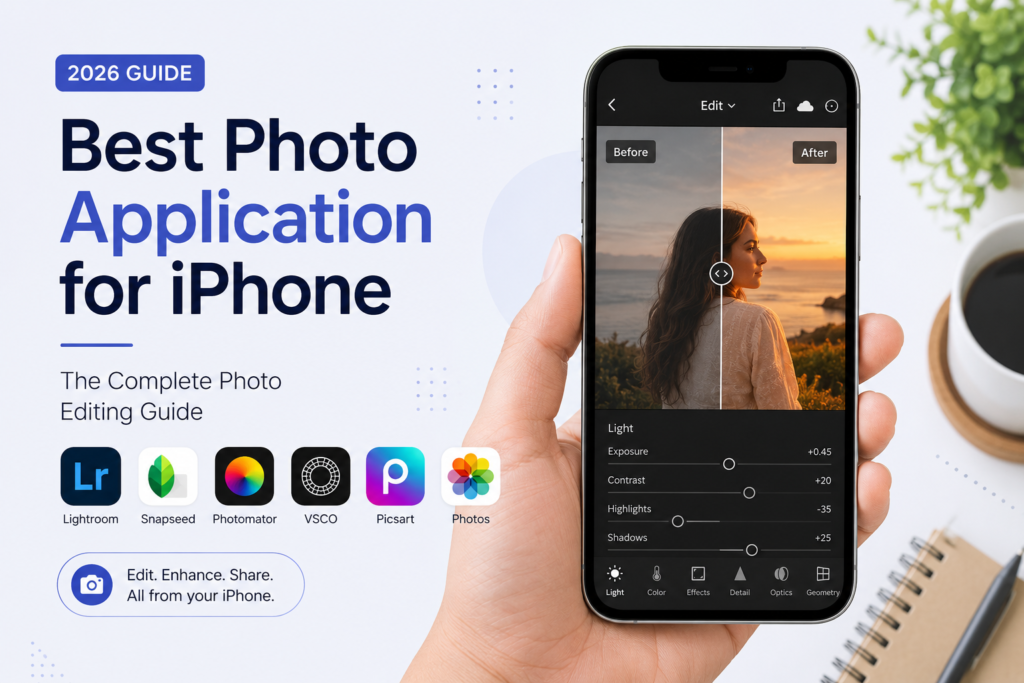
Your iPhone camera captures a great photo. Whatever app you open next decides whether that photo actually looks good. That gap between what the camera captures and what your feed, website, or client sees is where photo editing on iPhone matters most.
Choosing the right photo application for iPhone can feel harder than it should be. The App Store lists dozens of editors each promising AI powered results and the differences between them (RAW support, subscription traps, export limits) aren’t always obvious until you’ve already downloaded five of them.
This guide breaks down the best photo editing apps for iPhone in 2026 how to choose between free and paid tools a step-by-step editing workflow and the mistakes that make edits look worse instead of better. By the end you’ll know exactly which app fits your workflow and how to get professional looking results without a steep learning curve.
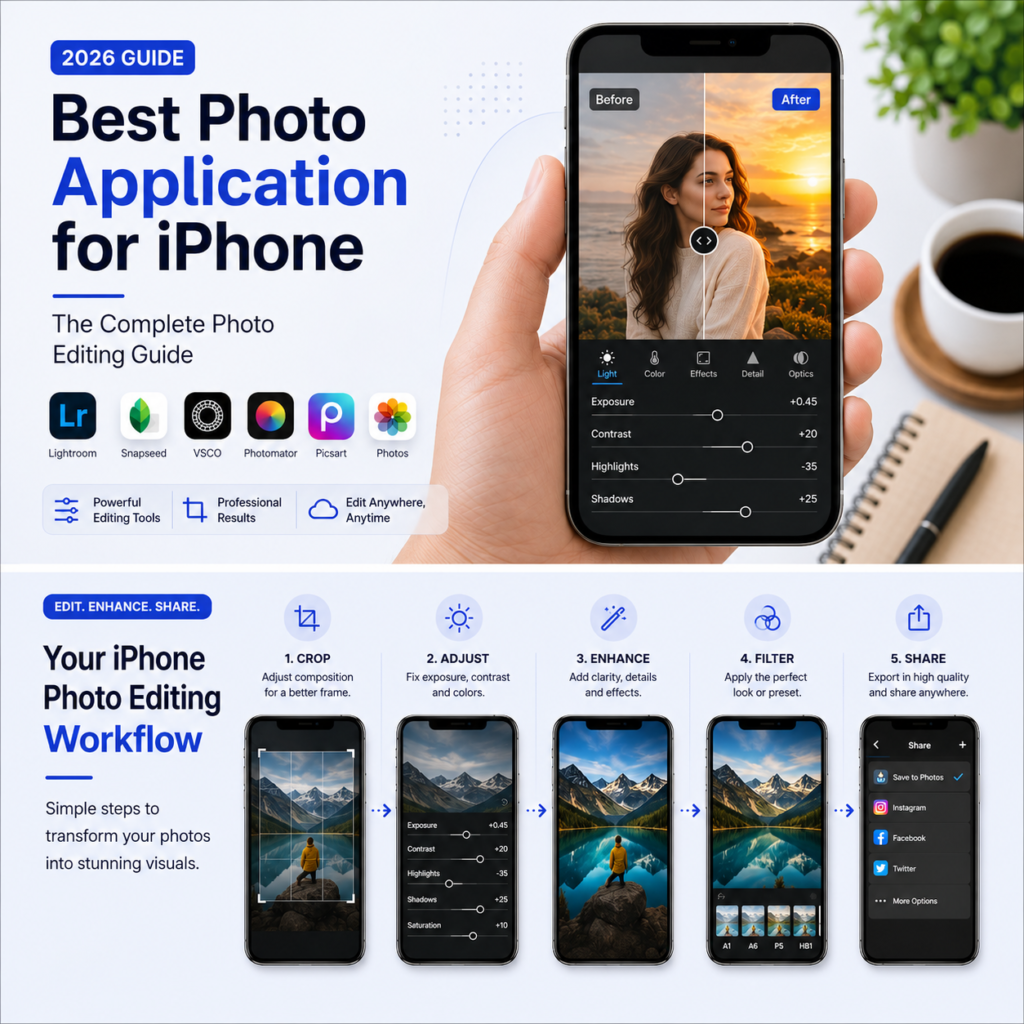
Table of Contents
- Quick Answer / Key Takeaways
- What Makes a Good Photo Editing App for iPhone
- Best Photo Editing Apps for iPhone in 2026 (Comparison)
- Free vs. Paid Photo Editing Apps
- How to Edit Photos on iPhone: Step-by-Step
- Common Photo Editing Mistakes to Avoid
- Tips for Better iPhone Photo Edits
- Visual Opportunities
- FAQ
- Conclusion
Quick Answer / Key Takeaways
- There’s no single “best” photo application for iPhone the right choice depends on whether you want quick filters professional RAW editing or design style graphics.
- Adobe Lightroom Mobile is the strongest all around pick for photographers who want non destructive editing and cloud sync across devices.
- Snapseed remains the best completely free option for detailed manual adjustments with no subscription.
- Apple’s built in Photos app is enough for quick crops, filters, and light corrections without installing anything.
- For background removal, resizing, compressing, or converting photo formats before or after editing free browser based tools can save you an extra app download.
- Good editing starts with good habits shoot in good light, edit in moderation, and always keep an unedited backup of your original photo.
What Makes a Good Photo Editing App for iPhone
Before comparing specific apps it helps to know what actually separates a good photo editing app from a mediocre one. Look for these core qualities:
- Non destructive editing your original photo stays untouched so you can always undo or re-edit later.
- Selective adjustments the ability to edit specific areas (a face, sky, or background) rather than the whole image at once.
- RAW file support important if you shoot in ProRAW on newer iPhone models and want full control over exposure and color.
- Export quality and limits – some free apps cap resolution add watermarks or limit daily saves.
- Learning curve a tool with more sliders isn’t better if you never learn to use them match the app to your skill level.
- Sync across devices useful if you start an edit on your iPhone and want to finish it on an iPad or Mac.
Best Photo Editing Apps for iPhone in 2026
Here’s how the most widely recommended photo editing apps for iPhone compare across cost, platform support, and standout features.
| App | Best For | Platform | Starting Price | Standout Feature |
| Adobe Lightroom Mobile | Non-destructive RAW editing & presets | iOS, Android | Free / $9.99+ per month | Professional color grading and cloud sync |
| Snapseed | Free, detailed manual editing | iOS, Android | Free | Selective U Point adjustments |
| Photomator | Mac + iPhone workflow one time purchase | iOS, iPadOS, macOS, Vision Pro | Free / $119.99 lifetime | Cross device editing by the Pixelmator team |
| VSCO | Film style presets and cohesive aesthetics | iOS, Android | Free / $29.99 per year | 200+ film inspired presets |
| Apple Photos | Quick edits with zero setup | iOS (built in) | Free | Instant access, no download needed |
| Picsart | Creative graphic style edits and collages | iOS, Android | Free (limited) / paid tiers | AI backgrounds and design templates |
Comparison of leading photo editing apps for iPhone based on published pricing and feature information as of 2026.
Adobe Lightroom Mobile Best for Professional Control
Lightroom Mobile is the standard choice for photographers who want precise color grading, masking tools, and non destructive RAW editing with cloud sync across devices. It has a steeper learning curve than simpler apps but the depth of control is unmatched among mobile editors.
Snapseed (Best Free Option)
Snapseed is developed by Google and remains completely free with no subscriptions or ads. Its selective adjustment tool known as U Points lets you brighten, darken, or recolor specific areas of a photo in a few taps a feature usually locked behind paid plans in other apps. It’s a strong pick if you want manual control without paying for it.
Photomator (Best for Apple Ecosystem Users)
Built by the Pixelmator team (now part of Apple) Photomator runs across iPhone, iPad, Mac, and Vision Pro under a single license including a one time lifetime purchase option for people who prefer to avoid subscriptions.
VSCO (Best for Cohesive, Film Style Aesthetics)
VSCO is built around film inspired presets and a consistent visual style making it popular with creators who want their photos to look cohesive across a feed rather than individually edited.
Apple Photos ( Best for Quick, No Install Edits)
The Photos app already on your iPhone covers crop exposure color and basic filters. For everyday adjustments before sharing a photo it’s often all you need.
Picsart (Best for Creative, Design Style Edits)
Picsart leans toward graphic design style editing collages, backgrounds, and templates rather than traditional photo adjustments, making it a good fit for social media graphics rather than pure photography.
Free vs Paid Photo Editing Apps
Photo Editing Apps for iPhone Free apps cover most everyday editing needs. Paid apps become worth it once you need more control higher resolution exports or a workflow across multiple devices.
| Free Photo Editing Apps | Paid Photo Editing Apps | |
| Cost | $0 to start some in app purchases | $0–$15/month or a one time license |
| Editing depth | Good for everyday touch ups and filters | Full manual control, RAW support, layers |
| Export limits | Some apps cap daily saves or add watermarks | Usually unlimited, watermark free exports |
| Best for | Casual users, social media posts | Content creators, photographers, small businesses |
Table: General differences between free and paid photo editing tiers. Exact pricing and limits vary by app and change over time always confirm current details on the app’s official page before subscribing.
How to Edit Photos on iPhone: Step-by-Step
Whichever photo application for iPhone you choose this general workflow applies across most editors:
- Start with the best possible original check lighting and framing before you shoot since editing can’t fully fix a blurry or badly exposed photo.
- Crop and straighten first so later adjustments apply to the final composition instead of parts you’ll cut out.
- Fix exposure and white balance to correct brightness and color temperature before touching creative filters.
- Adjust contrast and color selectively using local adjustment tools where available instead of applying one filter to the whole image.
- Remove distractions such as photobombers dust spots, or a busy background using a healing brush or background removal tool.
- Sharpen and export at the resolution you actually need oversharpening or over compressing can undo earlier work.
- Save a copy of the original unedited photo before exporting so you can always start over if a later edit doesn’t work out.
Common Photo Editing Mistakes to Avoid
- Over saturating colors until skin tones and skies look artificial.
- Applying heavy filters to every photo instead of adjusting each image on its own merits.
- Skipping the crop and straighten step then trying to fix composition with filters.
- Exporting at a lower resolution than the platform requires which causes blurry uploads.
- Editing on a screen at low brightness which leads to over brightening photos that look washed out elsewhere.
- Not comparing before and after side by side which makes it easy to over edit without noticing.
Tips for Better iPhone Photo Edits
- Edit in natural light when possible screen glare changes how colors and brightness appear.
- Make small adjustments and check the result before making another edits compound quickly.
- Use presets as a starting point not a finished result fine tune settings for each photo.
- If you’re preparing photos for a website ID document, or online store, resize and compress after editing so file sizes stay web friendly without losing visible quality.
- Keep a consistent editing style across a set of photos if they’ll be viewed together such as a product gallery or social feed.
Visual Opportunities
To strengthen this article further consider adding:
- A before and after slider image showing a raw iPhone photo next to an edited version.
- A simple infographic summarizing the step-by-step editing workflow above.
- Screenshots of the selective adjustment tools mentioned (for example, Snapseed’s U Points) once you have permission or your own screenshots to use.
FAQ
What is the best free photo application for iPhone?
Snapseed is widely regarded as the best free photo editing app for iPhone because it offers detailed manual controls including selective adjustments with no subscription or watermark.
Does the iPhone already have a good photo editing app built in?
Yes. The built in Photos app supports cropping exposure and color adjustments, filters, and basic markup, which covers most everyday editing needs without installing anything extra.
Which photo editing app is best for professionals?
Adobe Lightroom Mobile is the most commonly recommended option for professional level control offering non destructive RAW editing, precise masking, and cloud sync across devices.
Is it better to use a free or paid photo editing app?
It depends on your needs. Free apps handle everyday touch ups well while paid apps are worth it if you need higher resolution exports, advanced tools like layers or masking, or a workflow that syncs across multiple devices.
Can I edit RAW or ProRAW photos on an iPhone?
Yes, apps such as Adobe Lightroom Mobile and Photomator support RAW and ProRAW files giving you more flexibility to adjust exposure and color than editing a standard JPEG.
How do I remove the background from a photo taken on my iPhone?
Some editing apps include a background removal or object removal tool. If your app doesn’t a free browser based background remover can isolate the subject without needing extra software.
Why do my edited photos look blurry after uploading them online?
This usually happens when a photo is exported at a lower resolution than the platform requires or compressed too heavily. Resizing and compressing correctly after editing helps keep photos sharp online.
Conclusion
The right photo application for iPhone depends on what you’re trying to achieve. If you want fast no cost edits Apple’s built in Photos app or Snapseed will cover most everyday needs. If you’re building a consistent aesthetic, editing professionally, or working across multiple devices Lightroom Mobile or Photomator are worth the investment. Whichever app you choose the fundamentals matter more than the software: start with a good original edit with restraint and keep your file sizes appropriate for where the photo is going.
Keep exploring: browse more free photo editing guides and tools on BGImageSnap.
→ Read More Guide

lslipqwkopruodrofxjdxtmijodlhu