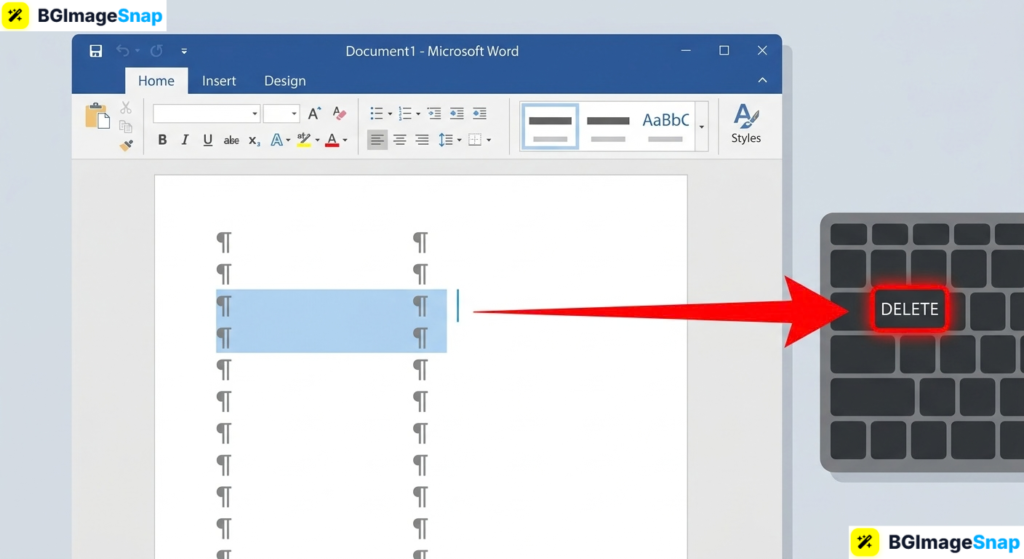
A rogue blank page can ruin an otherwise polished document it messes up page numbers, looks unprofessional, and refuses to disappear no matter how many times you hit Delete. Learning how to delete blank page in Word takes less than a minute once you know where these phantom pages come from. In this guide, you’ll learn every method to remove blank pages in Word, whether they’re hiding at the end, middle, or start of your document.
Key Takeaways
- Blank pages are usually caused by hidden paragraph marks, page breaks, or section breaks.
- Pressing Ctrl+Shift+8 reveals the invisible formatting marks causing the problem.
- The fastest fix is to select the hidden marks on the blank page and press Delete.
- Tables at the end of a document force a blank final page that needs a special trick.
- Anyone searching how to delete blank page in Word can fix it in under 60 seconds with the steps below.
Why Blank Pages Appear in Word
Before you learn how to delete blank page in Word, it helps to understand why these pages exist. Word doesn’t create blank pages randomly something invisible is always causing them.
Word hides formatting characters by default. Paragraph marks, page breaks, and section breaks all take up space, but you can’t see them in normal editing view. When these invisible characters pile up, they push content onto a fresh page that looks completely empty.
That’s why pressing Delete on a blank page often does nothing. You’re deleting visible content, but the blank page isn’t caused by visible content it’s caused by hidden formatting.
The fix always follows the same logic: reveal the invisible characters, find the one causing the blank page, and remove it. Once you understand this, deleting blank pages in Word becomes a 60 second task instead of an hour of frustration.
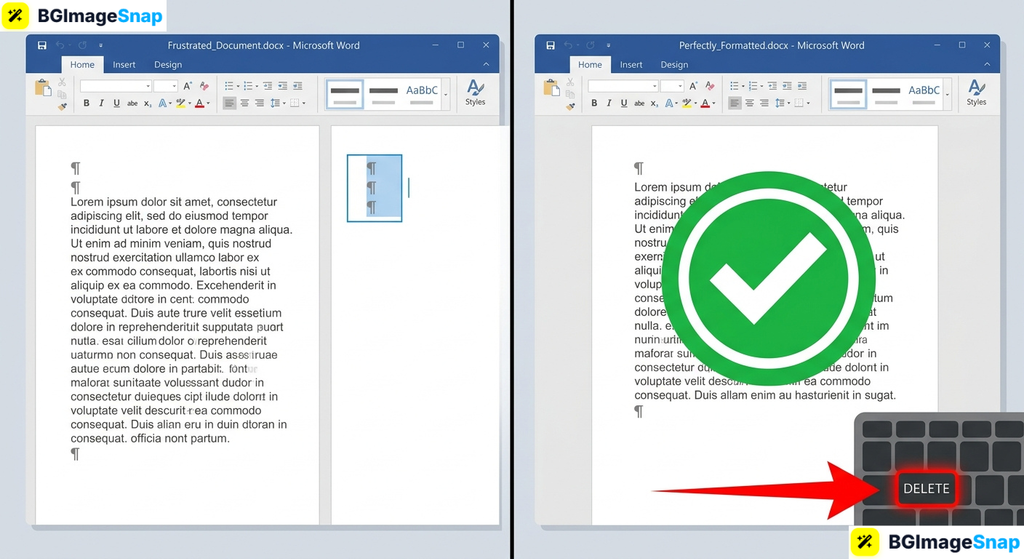
Common Causes of Blank Pages and How to Fix Each One
Different causes require slightly different fixes. This table covers every common culprit, so you can identify your exact situation when figuring out how to delete blank page in Word.
| Cause | How to Spot It | The Fix |
|---|---|---|
| Extra paragraph marks | ¶ symbols scattered across the blank page | Select the ¶ marks and press Delete |
| Manual page break | A line labeled “Page Break” | Click on it and press Delete |
| Section break (Next Page) | A line labeled “Section Break (Next Page)” | Delete it, or change it to “Continuous” |
| Table at document’s end | A table reaching the bottom of the last real page | Shrink the hidden ¶ after the table to 1pt font |
| Odd/even section start | Blank page appears before a new chapter or section | Change section start type in Layout settings |
| Oversized images | A large image sits near the end of the previous page | Resize or compress the image so content fits |
Two of these deserve a closer look:
The table problem confuses almost everyone. Word requires a paragraph mark after every table, and if your table ends exactly at the bottom of a page, that mandatory mark spills onto a new page. You can’t delete it but you can shrink it to 1pt font so it fits on the previous page.
Oversized images are a sneakier cause. A huge photo near the end of your text can push the final paragraph mark onto a fresh page. Compressing and resizing images before inserting them prevents this entirely free tools at bgimagesnap shrink image files in seconds without losing visible quality.
For most people, though, the culprit is simply a handful of stray paragraph marks left behind from aggressive Enter key pressing. The good news: those delete in seconds.
How to Delete Blank Page in Word Step by Step
This is the universal method that solves how to delete blank page in Word in almost every situation. It works on Windows, Mac, and Word for the web:
- Reveal hidden formatting marks. Press Ctrl+Shift+8 on Windows (or Cmd+8 on Mac). You’ll now see ¶ symbols, page breaks, and section breaks that were invisible before.
- Navigate to the blank page. Press Ctrl+End to jump straight to the end of your document, or open View > Navigation Pane and click the blank page thumbnail.
- Select everything on the blank page. Click and drag your cursor over all the ¶ marks and break lines on the empty page, or click just before the first mark and hold Shift while clicking after the last one.
- Press Delete or Backspace. The blank page disappears instantly. If the marks were on the previous page pushing content over, the page collapses back together.
- Handle stubborn pages with the special fixes. If the page survives, check for a table at the document’s end (shrink the final ¶ to 1pt) or a section break (change it to Continuous under Layout > Breaks).
That’s the complete process. Most blank pages vanish at step four the special fixes only apply to the stubborn minority.
Who Needs This Skill? Real Use Cases
Knowing how to delete blank page in Word saves the day in more situations than you’d expect. Here are four people who rely on it regularly:
Students submitting essays. A blank final page makes a printed essay look sloppy and throws off page counts for assignments with strict requirements. Students remove blank pages before printing or submitting PDFs to keep formatting clean and professional.
Office workers finalizing reports. Reports, contracts, and proposals often end up with phantom pages after heavy editing. Nobody wants to email a client a 15 page proposal where page 15 is mysteriously empty it signals carelessness.
Freelancers sending invoices and contracts. Independent professionals live in Word documents. A blank page in the middle of a contract can separate terms from signatures, creating genuine confusion. Quick formatting fixes keep client documents airtight.
Job seekers polishing resumes. A resume with a trailing blank page looks unfinished to recruiters. Worse, some applicant tracking systems mangle documents with odd pagination. Removing blank pages keeps resumes tight at exactly one or two pages.
Tips for Keeping Your Word Documents Clean
- Master the reveal shortcut. Ctrl+Shift+8 (Windows) or Cmd+8 (Mac) is the single most useful Word shortcut for formatting problems. Toggle it on whenever a document behaves strangely.
- Don’t delete section breaks blindly. Section breaks control headers, footers, margins, and page orientation. Deleting one merges two sections’ formatting often it’s safer to change the break type to Continuous instead.
- Use the Navigation Pane to spot blank pages fast. Go to View > Navigation Pane > Pages to see thumbnails of every page. Blank pages stand out immediately in long documents.
- Press Enter less, use page breaks properly. Instead of hammering Enter to reach a new page, use Ctrl+Enter for a clean single page break. It prevents the stray ¶ pileup that causes most blank pages.
- Optimize images before inserting them. Large images cause pagination chaos and bloat file size. Resize and compress photos at bgimagesnap before adding them to documents your files stay lean and pages stay put.
- Check pagination in Print Preview before finalizing. File > Print shows exactly how your document will look on paper. A quick scroll catches blank pages before your boss or professor does.
- Convert to PDF for the final check. Exporting to PDF locks pagination in place and reveals exactly what recipients will see, according to Microsoft’s Word help resources.
FAQs
Why can’t I delete the blank page at the end of my Word document?
Word requires a final paragraph mark after any table or at the document’s end, and you can’t delete it. Instead, select that final ¶ mark, set its font size to 1, and it shrinks enough to fit on the previous page.
How do I delete a blank page in Word on a Mac?
The same method works. Press Cmd+8 to reveal formatting marks, select the marks or breaks on the blank page, and press Delete. The interface looks slightly different, but the logic is identical.
How do I delete a blank page in the middle of a document?
Middle of document blank pages almost always come from a manual page break or empty paragraphs. Reveal formatting marks with Ctrl+Shift+8, locate the break or ¶ cluster, and delete it.
Will deleting a section break ruin my formatting?
It can. Section breaks store the formatting of the section above them, so deleting one may change headers, margins, or orientation. Changing the break to “Continuous” removes the blank page while keeping your formatting intact.
Does the same method work in Google Docs?
The concept is similar but simpler. In Google Docs, check Insert > Break for stray page breaks, and watch for large paragraph spacing pushing content over. There’s no formatting mark toggle, so deleting usually means selecting the empty space directly.
Conclusion
Now you know how to delete blank page in Word no matter what’s causing it reveal the hidden marks, select the culprit, and press Delete. Whether it’s stray paragraphs, page breaks, or that stubborn end of document table, every blank page has a fix that takes under a minute. And if oversized images are wreaking havoc on your document layout, visit bgimagesnap to compress and resize them free before your next insert!