Creating original visuals for blogs, social media, or product mockups often means paying for stock photos or spending hours in complex design software. Dezgo solves this problem by letting anyone turn a simple text description into a finished image in seconds using free AI models directly in the browser. Paired with the editing and background tools on Bgimagesnap, you can generate, refine, and polish stunning graphics without downloading a single program.
Key Takeaways
- Dezgo is a free, browser based AI image generator that turns written prompts into pictures using open source diffusion models.
- The platform includes text to image, image to image, inpainting, background removal, upscaling, and short video generation tools.
- Basic generation works without an account, while a paid “Power Mode” unlocks faster processing, higher resolutions, and premium models.
- Writing specific prompts with style, lighting, and composition details produces dramatically better results.
- Bgimagesnap’s resizer and background remover help you prepare AI generated images for print, web, and social media.
What Dezgo Does and How It Works
Dezgo is an online AI art platform built on top of open source image generation models such as Stable Diffusion, SDXL, and Flux. Instead of drawing or photographing a scene, you describe what you want to see in plain language. The system then renders a brand new image that matches your description.
Under the hood, the tool uses a process called diffusion. The AI starts with a canvas full of random visual noise and gradually removes that noise step by step. At each step, it steers the image closer to the meaning of your text prompt until a clear picture emerges.
What makes Dezgo popular is its simplicity. There is no account requirement for basic use, no software installation, and no confusing interface. You type a sentence, choose a model, click generate, and download your picture.
The platform also goes beyond basic text prompts. It can edit existing photos, extend or repaint selected areas, remove backgrounds, sharpen low resolution images, and even create short animated clips. This range makes it a flexible starting point for both hobbyists and working creators.
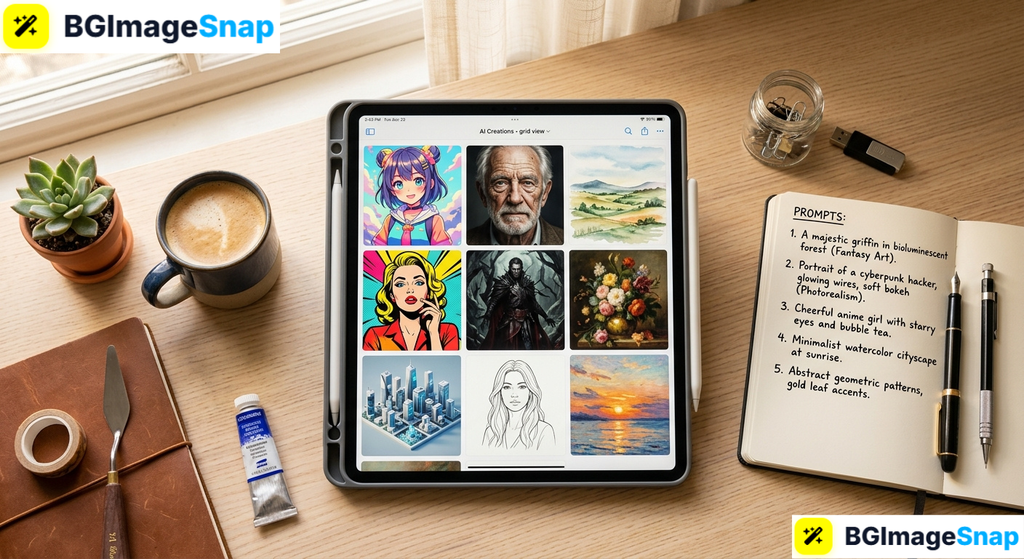
Full List of Dezgo Tools Features and Options
Understanding what each tool does helps you pick the right workflow for your project. Below is a detailed breakdown of the main features available on the platform.
Core Generation Tools
- Text to Image: Type a written prompt and receive an original picture. This is the most widely used feature and the best place for beginners to start.
- Image to Image: Upload a reference photo or sketch and describe how you want it changed. The AI keeps the general composition while applying your new style or subject.
- Inpainting: Paint a mask over part of an existing image and tell the AI what to place there. This is useful for swapping objects, fixing hands, or removing unwanted details.
- Outpainting (Image Extension): Expand the borders of a picture by generating new content that blends seamlessly with the original edges.
- Text to Video: Generate short animated clips from a written description for social posts and motion previews.
- Image Upscaling: Increase the resolution of a small or blurry image while adding realistic detail.
- Background Removal: Automatically isolate a subject and export it with a transparent background.
- Edit Image by Text: Describe a change in plain words, such as “make the sky pink,” and let the AI apply it directly.
Available AI Models
- Stable Diffusion 1.5 and 2.1: Fast, lightweight models suited for quick concepts and stylized art.
- SDXL and SDXL Lightning: Higher detail models that handle realistic lighting, textures, and complex scenes.
- Flux models: Newer models known for strong prompt understanding and accurate text rendering inside images.
- Community fine tuned models: Specialized versions trained for anime, photorealism, fantasy art, product renders, and more.
Generation Settings You Can Control
- Prompt and Negative Prompt: Describe what you want and, separately, what you want the AI to avoid.
- Aspect Ratio and Resolution: Choose square, portrait, landscape, or custom dimensions.
- Guidance Scale: Controls how strictly the AI follows your prompt versus how creative it gets.
- Sampling Steps: More steps generally improve detail at the cost of slower generation.
- Seed Number: Locking the seed lets you reproduce or slightly vary a specific image.
- Sampler Method: Different algorithms produce subtle changes in sharpness and style.
Free vs. Power Mode
- Free Mode: Access to standard models, standard resolutions, and normal queue speeds with no account needed.
- Power Mode: A paid option offering priority processing, larger image sizes, premium models, private generations, and higher usage limits.
- API Access: Developers can integrate Dezgo generation into their own apps, websites, and automated pipelines.
How to Use Dezgo Step by Step Instructions
Generating your first AI image takes less than a minute. Follow these simple steps to get started:
Step 1: Open the Dezgo Website
Visit dezgo.com in any modern browser on your desktop, tablet, or phone. Select the Text to Image tool from the main menu to begin without creating an account.
Step 2: Write a Detailed Prompt
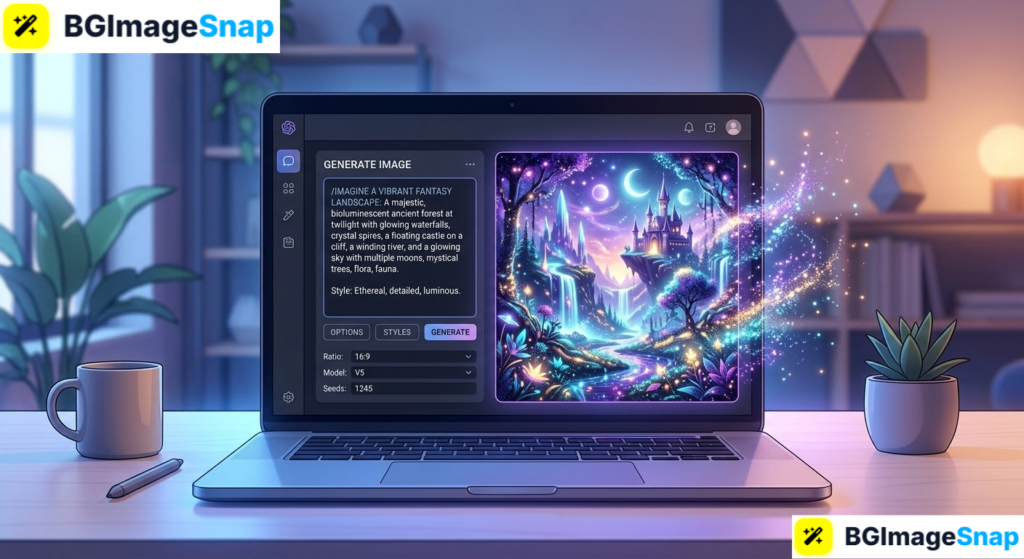
Type a clear description of the image you want in the prompt box. Instead of writing “a cat,” try “a fluffy orange cat sitting on a sunlit windowsill, soft morning light, cozy watercolor illustration.” Add unwanted elements like “blurry, distorted hands, text” to the negative prompt field.
Step 3: Choose Your Model and Settings
Pick an AI model that matches your goal, such as SDXL for realism or an anime model for stylized art. Set your aspect ratio, adjust the guidance scale if desired, and leave the other settings at their defaults if you are a beginner.
Step 4: Generate and Review Your Image
Click the Generate button and wait a few seconds for the AI to render your picture. If the result is close but not perfect, tweak your prompt wording, change the seed, or adjust the guidance scale and generate again.
Step 5: Download and Polish the Result
Save your finished image to your device. To prepare it for a specific platform, upload it to Bgimagesnap to resize it to exact dimensions, remove the background, or convert the file format before publishing.
Real Use Cases Who Uses Dezgo and Why
AI image generation is useful across a wide range of personal, academic, and business projects.
1. Bloggers and Content Creators
Writers who publish articles regularly need fresh featured images without paying stock photo fees. With Dezgo, a blogger can generate a custom header illustration that matches the exact topic and color scheme of each post. Resizing the result to 1200 × 630 pixels on Bgimagesnap makes it ready for social sharing.
2. E-Commerce Sellers and Marketers
Online store owners use AI images to create lifestyle scenes, seasonal banners, and ad concept mockups quickly. A seller can generate a stylish background scene, then use Bgimagesnap’s background remover to place a real product photo on top. This produces professional looking marketing visuals without renting a studio.
3. Students and Educators
Students working on presentations, science projects, or creative writing assignments use AI art to illustrate ideas visually. Teachers create custom diagrams, storybook scenes, and worksheet graphics that fit their lessons exactly. The free, no signup access makes it practical for classroom use.
4. Freelance Designers and Indie Game Developers
Freelancers use Dezgo for rapid concept art, mood boards, and client presentations before committing hours to final artwork. Indie developers generate placeholder characters, environment sketches, and texture ideas during early prototyping. The image to image tool lets them evolve rough sketches into polished references.
Practical Tips for Better Results with Dezgo
To get sharper, more accurate images from the platform, keep these practical tips in mind:
- Be specific and descriptive. Include the subject, setting, lighting, camera angle, art style, and mood. Specific prompts consistently outperform short, vague ones.
- Use the negative prompt. Adding terms like “blurry, low quality, extra fingers, watermark, text” helps the AI avoid common flaws.
- Try multiple models. The same prompt can look completely different across SDXL, Flux, and community models. Experiment to find the one that suits your style.
- Lock the seed when refining. Once you get a composition you like, keep the seed number fixed and make small prompt changes to fine tune details.
- Start with a moderate guidance scale. Values around 7 to 9 usually balance creativity and accuracy. Very high values can create harsh, over saturated results.
- Upscale before printing. Generate at standard resolution first, then use the upscaling tool to prepare files for print or large displays.
- Check licensing and usage rights. Review the platform’s terms before using generated images commercially, and avoid recreating copyrighted characters or real people.
- Finish in Bgimagesnap. Crop to platform specific sizes, remove backgrounds, compress files, and convert formats so your AI art looks polished wherever you post it.
Frequently Asked Questions
Is Dezgo free to use?
Yes. The basic text to image and editing tools are free and do not require an account. A paid Power Mode is available for users who want faster generation, higher resolutions, premium models, and increased limits.
Do I need to sign up to use Dezgo?
No sign up is required for standard use. You can open the website and start generating immediately. Creating an account is only necessary if you upgrade to Power Mode or want to use the API.
What AI models does Dezgo support?
The platform runs open source diffusion models including Stable Diffusion, SDXL, Flux, and a variety of community fine tuned models specialized for anime, photorealism, and fantasy art.
Can I use Dezgo images commercially?
In many cases you can, but usage rights depend on the specific model and the platform’s current terms of service. Always review the licensing information before using AI images in products, ads, or client work.
How do I make Dezgo images higher resolution?
Use the built in upscaling tool to enlarge images while adding detail, or generate in Power Mode for larger native sizes. You can then resize and optimize the final file using Bgimagesnap.
Conclusion
Dezgo makes AI image generation accessible to everyone by removing costs, sign up barriers, and technical complexity. Whether you need blog illustrations, product mockups, presentation visuals, or concept art, a well written prompt and the right model can deliver impressive results in seconds. Ready to turn your AI creations into polished, platform ready graphics? Visit bgimagesnap today to resize, remove backgrounds, compress, and perfect your generated images for free!