Uploading a header that looks blurry, stretched, or cut off by your avatar makes your profile look sloppy and unpolished. Choosing the right discord banner size solves this issue by ensuring your artwork, logos, and custom graphics fit the screen seamlessly across both desktop and mobile apps. With the free editing and resizing tools on Bgimagesnap, formatting your custom headers to the perfect dimensions takes just seconds.
Key Takeaways
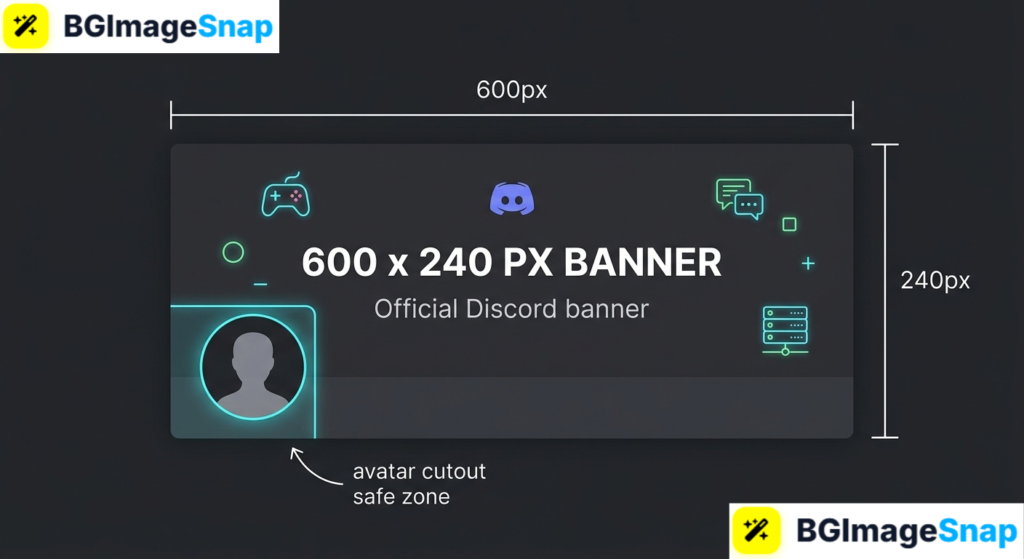
- The recommended personal discord banner size is 600 × 240 pixels with an aspect ratio of 5:2.
- Community server banners require a resolution of 960 × 540 pixels with a widescreen 16:9 aspect ratio.
- Discord supports PNG, JPG, and animated GIF formats with a maximum file upload limit of 10MB.
- Designing with safe zones in mind prevents your circular profile picture from blocking important text or logos on the bottom-left corner.
- Free browser tools on Bgimagesnap make it easy to resize images, remove backdrops, and create high-resolution banners without blur.
What It Does and How Discord Banners Work
A Discord banner is a prominent decorative header that displays at the top of your user profile card or server home screen. When other users click on your username in a server chat or friends list, your profile banner appears as the visual backdrop behind your avatar. Understanding the official discord banner size is essential if you want to showcase your personality, promote social channels, or build a recognizable gaming brand.
Discord displays banners across two distinct areas of the platform. The first is the personal user profile banner, which appears on your mini profile card and expanded user profile. The second is the community server banner, which sits above the channel directory on boosted community servers. Both options act as virtual billboards, but they require entirely different dimensions and aspect ratios to display properly.
At a technical level, Discord rescales and compresses uploaded graphics to ensure rapid loading times across mobile and desktop apps. If you upload an image with irregular proportions, the app automatically stretches or crops the file to fit its fixed viewport. Adapting your design to the optimal discord banner size prevents awkward distortions and ensures that visual details remain sharp on high-resolution displays.
While personal profile banners originally required a paid Discord Nitro subscription, basic color banners are now accessible to standard users. However, custom graphic banners and animated GIF headers remain a standout perk for Nitro members. Understanding how Discord renders these banners allows you to create designs that look intentional, clean, and professional.
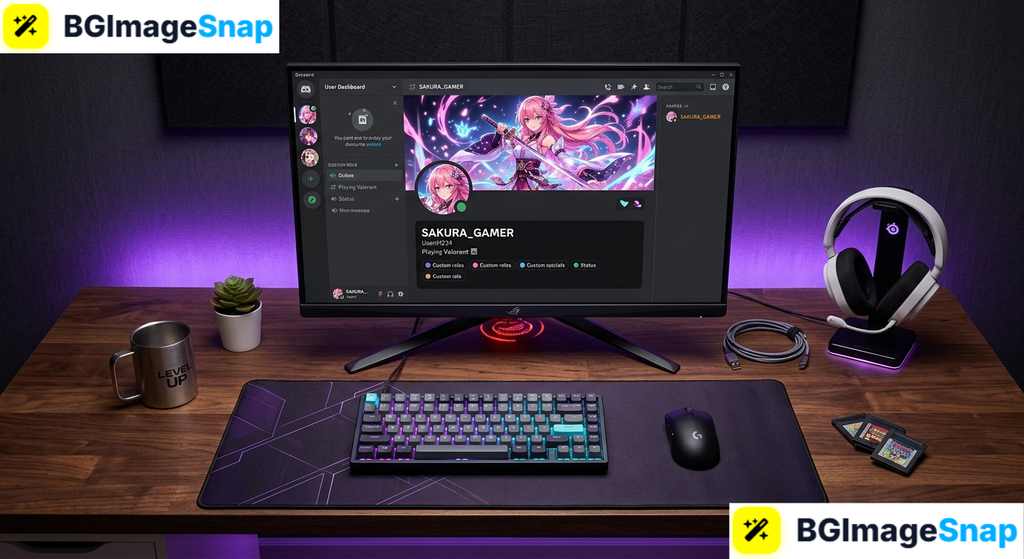
Standard Discord Banner Size and Technical Dimensions Breakdown
Setting up your artboard with precise pixel measurements is the easiest way to prevent pixelation. Below is a comprehensive breakdown of dimensions, formats, and design specifications for every type of Discord header.
1. Personal Profile Banner Specifications
Personal profile banners display behind your avatar, display name, and bio on your user account card:
- Recommended Dimensions: 600 × 240 pixels.
- Aspect Ratio: 5:2 (or 2.5:1).
- High-Definition Alternative: 1200 × 480 pixels (provides superior clarity on 4K and Retina screens while maintaining the exact 5:2 ratio).
- Supported File Formats: PNG, JPG, JPEG, and animated GIF.
- Maximum File Size: 10MB.
- Access Requirement: Custom image and animated banners require Discord Nitro or Nitro Basic.
2. Discord Server Banner Specifications
Server banners serve as the public visual branding header for community channels and appear above the text channel directory:
- Recommended Dimensions: 960 × 540 pixels.
- Aspect Ratio: 16:9 widescreen format.
- High-Definition Alternative: 1920 × 1080 pixels (ensures crisp details when viewed on large desktop displays).
- Supported File Formats: PNG, JPG, JPEG, and animated GIF.
- Maximum File Size: 10MB.
- Server Requirement: Server Level 2 boost (requires 7 server boosts) for static images, or Server Level 3 boost (requires 14 server boosts) for animated GIF headers.
3. Discord Server Invite Splash Specifications
The invite splash image appears as the background when prospective members click a custom invite link in a browser:
- Recommended Dimensions: 1920 × 1080 pixels.
- Aspect Ratio: 16:9 full widescreen.
- Supported File Formats: PNG and JPG.
- Maximum File Size: 10MB.
- Server Requirement: Server Level 1 boost (requires 2 server boosts).
4. Critical Safe Zone Guidelines
Discord places interactive user interface elements over your banner, which can obscure critical elements of your artwork:
- Avatar Cutout: The circular user avatar overlaps the lower-left section of your personal banner. Leave the bottom-left area clear of small text, logos, or faces.
- Status Indicator: The circular status badge (online, idle, do not disturb) sits near the lower-left border and cuts slightly into the banner area.
- Mobile Crop Margin: On smaller smartphone screens, Discord clips a thin strip from the left and right outer edges to fit narrow mobile viewports.
- Focal Zone: Position all vital artwork, slogans, and social handles in the top-right quadrant or dead center of the 600 × 240 pixel canvas.
How to Format Your Discord Banner Size Step by Step
Formatting your graphics to fit the platform does not require complicated design software. Follow these simple steps using the free online editing tools on Bgimagesnap:
Step 1: Choose Your Image or Theme
Select an aesthetic photograph, gaming illustration, or custom graphic that represents your online identity. Look for wide landscape artwork with plenty of empty negative space rather than tall vertical portraits.
Step 2: Upload to Bgimagesnap Image Resizer
Open your web browser and go to Bgimagesnap. Upload your source artwork directly into the browser tool without needing to sign up or install any desktop programs.
Step 3: Crop and Resize to the Exact Dimensions
Set your canvas to the official discord banner size of 600 × 240 pixels for personal accounts, or 960 × 540 pixels for servers. Frame your crop carefully, ensuring that your main character or graphic sits toward the center or right side to avoid the avatar overlap.
Step 4: Clean Up and Optimize Your File
If your image has a busy or distracting background, use the automated AI background remover to isolate your subject. Replace messy backgrounds with sleek gradients, aesthetic anime scenery, or minimalist solid tones that match your profile accent color.
Step 5: Export and Apply in Discord
Download your finished graphic as a high-resolution PNG file. Open Discord, click the gear icon to open User Settings, select Profiles, and click Change Banner to upload your new header.
Real Use Cases Who Relies on Custom Discord Banners?
Custom banners serve many practical purposes beyond simple decoration across personal and professional communities.
1. Streamers and Content Creators
Twitch streamers, YouTubers, and TikTok creators use their profile banners to cross-promote other social media channels. A banner formatted to the exact discord banner size can include social handles, streaming schedules, and sponsor logos cleanly. Keeping text away from the avatar cutout ensures that viewers can read stream times at a glance.
2. Gaming Guilds and Esports Teams
Competitive esports teams and gaming clans use coordinated server banners to establish team identity and recruit new members. Sizing community banners to 960 × 540 pixels guarantees that team crests and tournament trophies display sharply in the server directory. This gives community hubs an organized, official look that attracts active gamers.
3. Freelance Artists and Designers
Digital illustrators and graphic designers treat their Discord profile as an interactive portfolio. Because they interact with potential clients in commission servers, their banner acts as a showcase for their artistic style. An uncompressed, perfectly cropped header proves their technical attention to detail before a client ever places an order.
4. Students and Educational Study Groups
University study servers, coding bootcamps, and academic clubs use banners to share course titles, campus logos, and club rules. Designing banners to the standard discord banner size helps prevent cluttered server headers that look messy on student phones. Clean banners make academic hubs feel organized, welcoming, and easy to navigate.
Practical Tips for Designing with the Perfect Discord Banner Size
To make sure your profile header looks stunning across all devices, keep these practical design principles in mind:
- Double your canvas for Retina sharpness. Design your graphics at 1200 × 480 pixels instead of 600 × 240 pixels. This preserves the 5:2 aspect ratio while keeping text sharp on modern 4K monitors and high-DPI smartphone displays.
- Use PNG format for graphic art. Save digital illustrations, typography, and logos as PNG files rather than JPGs to avoid fuzzy compression artifacts around sharp edges.
- Match your profile theme color. Discord lets you choose a custom profile theme color. Select a hex color code directly from your banner artwork so your profile card feels cohesive.
- Keep animated GIFs subtle. If you upload an animated GIF banner, avoid fast, flashing lights that can strain the eyes. Gentle particle effects, floating clouds, or slow lighting shifts look far more aesthetic.
- Check mobile readability. Always open your profile on a smartphone after uploading your banner to verify that edge cropping has not cut off any words or character details.
- Compress large files below 10MB. If your high-resolution animated GIF exceeds Discord’s 10MB file limit, run it through an online compressor to shrink the file weight without reducing dimensions.
- Account for the profile badge shelf. Remember that Discord displays profile badges (like HypeSquad, Nitro, and server booster icons) directly beneath your banner on user cards.
FAQs
What is the official discord banner size in pixels?
The official discord banner size for user profiles is 600 × 240 pixels with a 5:2 aspect ratio. For Discord server headers, the official size is 960 × 540 pixels with a 16:9 widescreen ratio.
Can I get a custom Discord banner without having Discord Nitro?
Users without a Nitro subscription can select a custom solid color banner for their profile. However, uploading custom images, photographs, or animated GIFs requires an active Discord Nitro or Nitro Basic subscription.
Why does my Discord banner look blurry after uploading?
Blurriness usually occurs when you upload an image with dimensions smaller than 600 × 240 pixels, forcing Discord to stretch the pixels to fit the container. Designing your banner at 1200 × 480 pixels in PNG format prevents blur and keeps visuals sharp.
What is the maximum file size for a Discord banner?
The maximum file upload size for both profile and server banners is 10MB. If your animated GIF or high-resolution graphic exceeds this limit, you must compress the file before uploading.
What is the difference between a Discord profile banner and a server banner size?
A personal profile banner uses a compact 5:2 aspect ratio (600 × 240 px) designed for individual user cards. A server banner uses a standard 16:9 widescreen ratio (960 × 540 px) designed to fit above the channel list in boosted community servers.
Conclusion
Choosing the correct discord banner size is the easiest way to give your personal profile or community server a polished, professional look. By formatting your artwork to 600 × 240 pixels and designing around the avatar safe zone, you eliminate awkward crops and blurry graphics on every device. Ready to upgrade your Discord presence with a custom banner? Visit bgimagesnap today to test our free online image resizer, background remover, and photo editing tools to craft your perfect banner in seconds.