
Introduction
You have a photo you love. You want to print it. You send it to the lab. You get it back and it looks blurry. Grainy. Unprofessional. You check the file. It is 3000 pixels wide. That should be enough, right? But someone told you it needs to be 300 DPI. What does that even mean?
If you have ever asked yourself what is DPI in images, you are not alone. The term is thrown around in design, printing, and photography but rarely explained in plain terms. Most guides confuse it with resolution. Others claim it is the only thing that matters. The truth is simpler. And more important. This guide will show you exactly what DPI means, why it matters for print, why it does not matter for screens, and how to make sure your images look sharp no matter where they appear.
No jargon. No myths. Just clarity.
Quick Answer: What Is DPI in Images?
Short answer:
DPI stands for dots per inch. It is a measure of how many ink dots a printer places in one inch of space when printing an image. It does not change the image file itself it tells the printer how densely to lay down color.
Key Takeaways:
- DPI is about printing, not digital display
- A 300 DPI image printed at 4 inches wide needs to be 1200 pixels wide
- On screens, DPI is ignored only pixel dimensions matter
- Increasing DPI in software does not add detail it only changes print instructions
- 300 DPI is the standard for high quality print, but lower values work for large formats
What Does DPI Actually Mean?
DPI means dots per inch. It is a measurement used by printers to determine how closely to place colored ink dots on paper.
Think of it like this:
A printer uses tiny dots of cyan, magenta, yellow, and black ink to create an image. DPI tells the printer how many of those dots to fit into each inch.
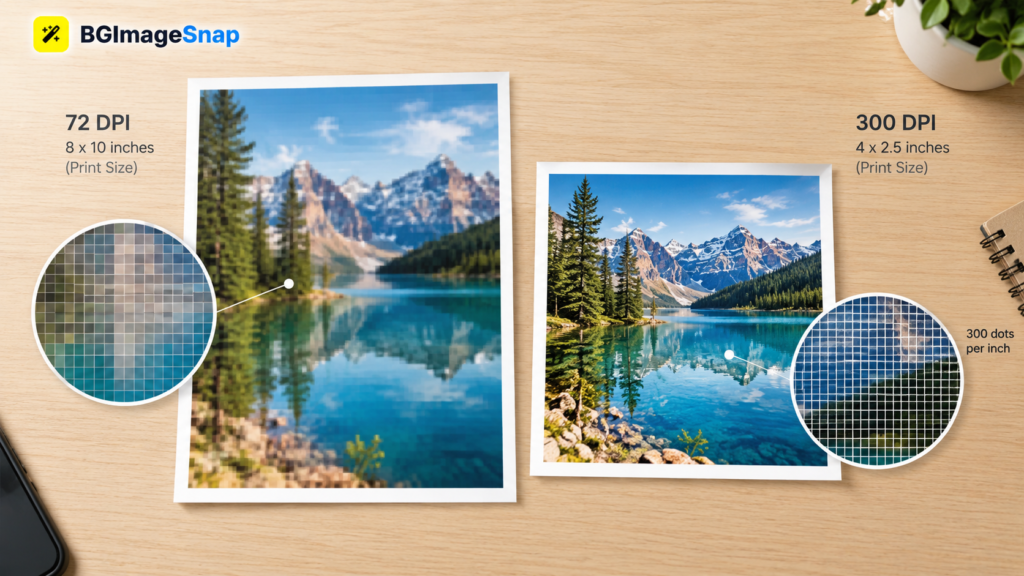
If you print a photo at 150 DPI, the printer places 150 dots of ink in every inch of width.
At 300 DPI, it places 300.
Higher DPI means more dots. More dots mean smoother gradients, finer detail, and less visible grain.
But here is the key point:
DPI does not change the number of pixels in your image. It only changes how those pixels are interpreted when printed.
For example:
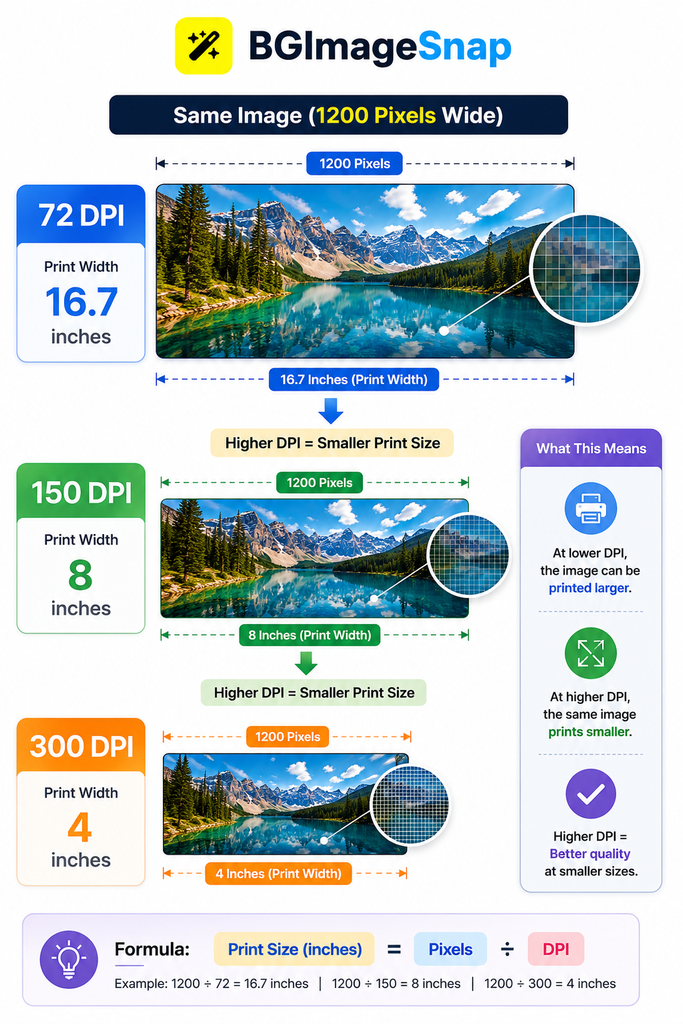
An image that is 1200 pixels wide printed at 300 DPI will be 4 inches wide.
The same image printed at 150 DPI will be 8 inches wide.
The image does not get sharper or blurrier. The size changes. The printer simply spreads the same pixels over a larger or smaller area.
DPI vs Resolution: The Critical Difference
Many people use DPI and resolution interchangeably. They are not the same.
Resolution is the total number of pixels in an image.
DPI is how those pixels are distributed when printed.
| Term | Meaning | Affects | Example |
|---|---|---|---|
| Resolution | Total pixels (width x height) | Digital display quality | 3000×2000 pixels |
| DPI | Dots per inch during printing | Physical print size and sharpness | 300 DPI |
If you have a 6000×4000 pixel image, it has high resolution.
You can print it at 300 DPI as an 8×5.3 inch photo or at 150 DPI as a 16×10.7 inch poster.
The image quality stays the same. Only the size changes.
On a screen, only resolution matters.
Your monitor does not care about DPI. It displays one pixel per screen pixel. A 1200 pixel wide image looks the same on any device, whether the file says 72 DPI or 300 DPI.
When DPI Matters (And When It Does Not)
When DPI Matters
DPI matters only when you are printing.
- You are printing photos, posters, or documents
- You are sending files to a professional printer
- You are preparing artwork for magazines, books, or brochures
When DPI Does Not Matter
Here are the times DPI does not matter:
- You are posting on Instagram, Facebook, or Twitter
- You are uploading to a website or blog
- You are viewing on a phone, tablet, or computer screen
- You are sharing via email or messaging apps
Screens have no concept of DPI. They only show pixels.
A 1000 pixel wide image will look identical on a phone, laptop, or TV no matter what DPI value is embedded in the file.
This is why you can send a 72 DPI image from your phone to a friend, and it looks perfect.
It is also why you cannot print a 72 DPI image at 8×10 inches and expect it to look sharp.
How to Check and Change DPI in Your Images
You do not need Photoshop. You do not need expensive software.
Here is how to check and adjust DPI on any device.
On Windows
- Right-click the image file and select Properties
- Go to the Details tab
- Look for Horizontal Resolution and Vertical Resolution
- These values are in DPI
To change DPI:
- Open the image in Paint
- Click Resize
- Under Units, select Percentage
- Leave the pixel dimensions unchanged
- Click OK
- Save as PNG or JPG
On Mac
- Open the image in Preview
- Click Tools then Adjust Size
- Look at the Resolution field (in DPI)
- Change the number to 300 if needed
- Make sure Scale Proportionally is checked
- Click OK
- Export the file
In Free Online Tools
Use a simple image editor like BGImageSnap to view and adjust DPI without installing anything.
Upload your file. Find the DPI setting. Change it to 300. Download.
Important: Changing DPI does not add detail.
If your image is only 800 pixels wide, changing DPI from 72 to 300 will not make it sharper. It will only make the print smaller.
Recommended DPI Settings for Common Uses
| Use Case | Recommended DPI | Why |
|---|---|---|
| High quality photo prints (6×4, 8×10) | 300 DPI | Standard for professional labs and magazines |
| Large format prints (posters, banners up to 24 inches) | 150–200 DPI | Viewed from a distance, so less detail needed |
| Billboards and outdoor signs (over 3 feet) | 72–100 DPI | Viewed from far away pixels are invisible |
| Digital display (websites, social media) | Any DPI | Screen ignores DPI. Only pixel dimensions matter |
| Professional publishing (books, magazines) | 300 DPI | Industry standard for crisp text and detail |
| Home inkjet printer | 300 DPI | Most printers perform best at this setting |
Tip: If you are unsure, use 300 DPI. It is the safest choice for print.
If you are printing something large and viewed from afar, 150 DPI is often enough.
Common Mistakes People Make with DPI
Mistake #1: Thinking Higher DPI Means Better Image Quality
You open a 1000 pixel wide image and change its DPI from 72 to 300. You think it will look better when printed.
It will not.
The image is still only 1000 pixels wide. At 300 DPI, it will print at 3.3 inches wide.
It will not be sharper. It will just be smaller.
Mistake #2: Resizing Pixels to Increase DPI
You try to make a small image bigger by increasing pixel dimensions in software.
You think this will help with print quality.
It will not.
Adding pixels through interpolation (upsampling) creates guesswork.
The result is blurry, soft, or artificially sharpened.
Mistake #3: Ignoring DPI When Printing
You send a 72 DPI image to a print shop and expect a large poster.
It comes back pixelated.
The print shop does not know your intent.
They assume 72 DPI means low quality.
Always check the print requirements before sending files.
Mistake #4: Believing DPI Affects Web Images
You spend hours making a 300 DPI JPEG for your website.
It loads slowly. It looks the same as a 72 DPI version.
DPI is ignored on screens.
Only pixel dimensions matter.
A 1200 pixel wide image will look identical whether it is 72 DPI or 300 DPI.
Mistake #5: Confusing DPI with PPI
PPI (pixels per inch) is what screens use.
DPI (dots per inch) is what printers use.
For most users, the difference does not matter.
Just remember: for print, use DPI. For screens, use pixel width.
FAQ: Your Top Questions About DPI Answered
What is the best DPI for printing photos?
For standard photo prints up to 11×14 inches, use 300 DPI. For larger prints viewed from a distance, 150–200 DPI is acceptable.
Can I change DPI without changing image size?
Yes. In most software, you can change the DPI setting while keeping pixel dimensions the same. This only affects print size, not visual quality.
Does DPI affect file size?
No. File size is determined by pixel dimensions and compression. DPI is metadata it does not change the amount of data.
Why do some printers say they need 600 DPI?
Some printers support higher dot densities for finer detail, especially with text or fine lines. But for photos, 300 DPI is enough. Higher settings may slow printing and use more ink.
Do I need to set DPI when saving for the web?
No. Web browsers and apps ignore DPI. Set your image to the pixel width you need for example, 1200 pixels wide for a full-width banner and save as JPG or PNG.
Is 72 DPI the standard for the web?
It is a common default, but not a rule. There is no such thing as a “web DPI.” Only pixel dimensions matter.
Can I print a 72 DPI image at 300 DPI?
You can change the setting, but the image will print smaller. To print large, you need enough pixels. A 72 DPI image must be at least 2400 pixels wide to print at 300 DPI and 8 inches wide.
Should I always use 300 DPI?
Only if you are printing small to medium sized photos or professional documents. For large banners, websites, or social media, it is unnecessary.
Conclusion
What is DPI in images?
It is a communication tool between your file and your printer.
It tells the printer how to spread your pixels across paper.
It does not make your image better.
It does not improve quality.
It does not affect how your image looks on a screen.
The only things that matter for image quality are:
- Pixel dimensions how many pixels you have
- File format whether you use PNG, JPG, or TIFF
- Compression how much detail you lose when saving
Use DPI to match your print size.
Do not use it to fix a low-resolution image.
And never waste time changing DPI for web use.
The best image is the one with enough pixels for its purpose.
The rest is noise.


[…] Want to Learn More About Photo Dimensions? Click here […]