Choosing the right dimensions for your pictures can be confusing, especially when different platforms require different measurements. Knowing the correct standard photo sizes helps you avoid blurry prints, cropped profile pictures, or rejected image uploads. With an easy online image resizer like the one on Bgimagesnap.com, you can quickly resize any photo to the exact dimensions you need without losing its quality.
Key Takeaways
- Standard photo sizes vary depending on whether you need them for printing, framing, social media, or documents.
- Print photos usually use inch-based sizes, while websites and apps use pixels (px) for accuracy.
- Using the correct photo dimensions prevents unwanted cropping, stretching, or poor image quality.
- DPI (dots per inch) plays a big role in whether a photo looks sharp when printed.
- Bgimagesnap makes it easy to resize any image to common photo dimensions in just a few clicks.
What Are Standard Photo Sizes and How Do They Work?
Standard photo sizes are the most widely used width and height measurements for images. These preset dimensions exist because printers, picture frames, websites, and apps are all designed to fit specific sizes. Instead of guessing your image dimensions, using these standards saves you time and prevents formatting issues.
These sizes work in two main measurement types. For printing, photos are measured in inches (in) or centimeters (cm). For digital use, they are measured in pixels (px). For example, a 4×6 inch print looks best at 1200×1800 pixels at 300 DPI, while an Instagram post uses pixel dimensions made for screens.
The biggest reason people run into problems is resolution. An image that looks perfect on your phone may appear blurry when printed if it is too small. On the other hand, very large images can be too big to upload to websites, job portals, or online stores.
This is where an online resizing tool helps. Instead of manually calculating dimensions in complex editing software, you can select or enter the correct photo size and resize your image instantly. Bgimagesnap takes the guesswork out of this process by letting you adjust your photos to any of the standard dimensions while keeping them clear and sharp.
Complete List of Standard Photo Sizes
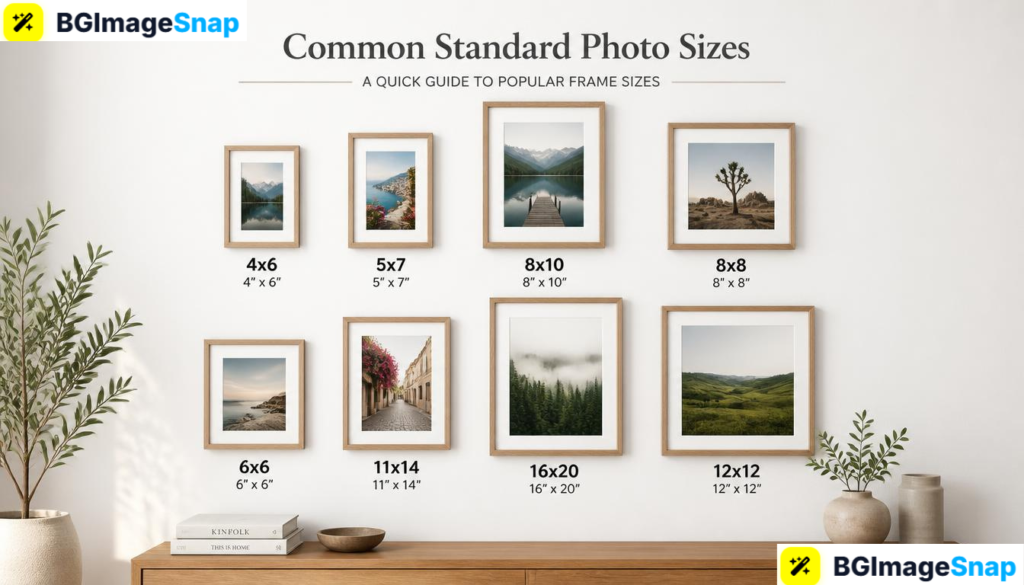
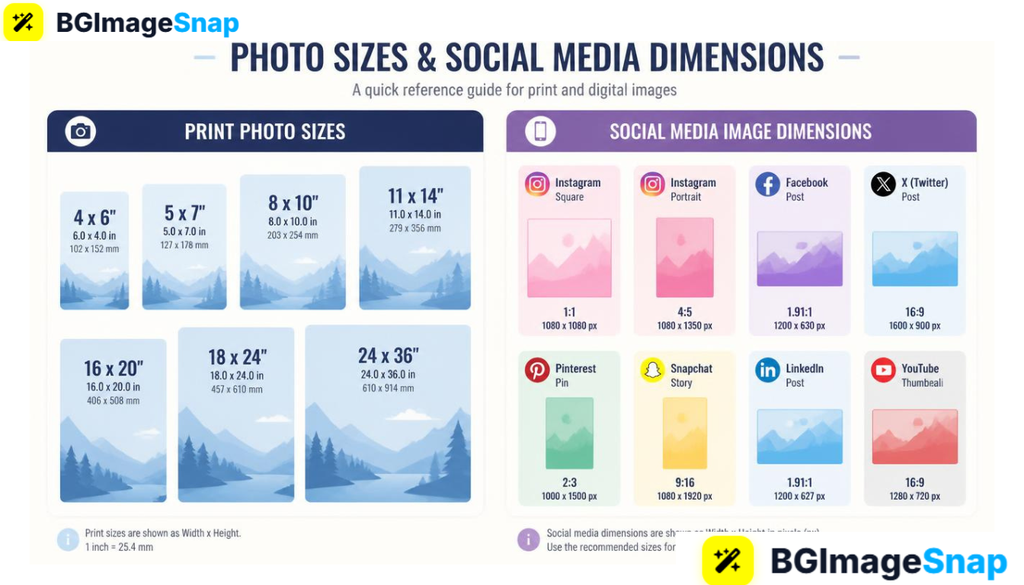
There are many different photo dimensions used across print, digital, documents, and social media. Below is a detailed breakdown to help you pick the right one for your needs.
1. Common Print Photo Sizes (Inches & Pixels at 300 DPI)
Print photos require 300 DPI (Dots Per Inch) to look sharp and professional. The table below shows the most common print sizes with their pixel equivalents:
| Print Size (Inches) | Pixels (300 DPI) | Best Used For |
|---|---|---|
| 2×2 | 600 × 600 px | Passports, ID cards, visas, and resumes |
| 2.5×3.5 | 750 × 1050 px | Wallet prints and business card photos |
| 3×5 | 900 × 1500 px | Postcards, notes, and small keepsakes |
| 4×6 | 1200 × 1800 px | Most popular photo prints and albums |
| 5×7 | 1500 × 2100 px | Greeting cards, frames, and portraits |
| 8×8 | 2400 × 2400 px | Square frames and modern wall art |
| 8×10 | 2400 × 3000 px | Family portraits, certificates, and framing |
| 11×14 | 3300 × 4200 px | Wall art, posters, and large portraits |
| 16×20 | 4800 × 6000 px | Large framed prints and gallery displays |
| 20×30 | 6000 × 9000 px | Posters, banners, and professional artwork |
2. Standard Photo Sizes for Social Media
Social media platforms update their image requirements often. Using the correct dimensions prevents your images from getting auto-cropped or stretched. Here are the most up-to-date recommended sizes:
| Platform | Photo Type | Size (Pixels) |
|---|---|---|
| Post (Square) | 1080 × 1080 px | |
| Portrait Post | 1080 × 1350 px | |
| Story/Reels Cover | 1080 × 1920 px | |
| Post Image | 1200 × 630 px | |
| Cover Photo | 1640 × 664 px | |
| Profile Picture | 180 × 180 px | |
| X (Twitter) | Post Image | 1600 × 900 px |
| Post Image | 1200 × 627 px | |
| Profile Picture | 400 × 400 px | |
| Pin Image | 1000 × 1500 px | |
| YouTube | Thumbnail | 1280 × 720 px |
| TikTok | Cover/Thumbnail | 1080 × 1920 px |
| WhatsApp/Display | Profile Picture | 500 × 500 px |
3. Document, Website, and Other Common Sizes
Aside from prints and social media, many official portals have their own required photo dimensions. These are considered standard photo sizes for documentation and web use:
- Passport Photo: 2×2 inches (600×600 px at 300 DPI) — required by most countries.
- Visa Photos: Vary by country, but 2×2 inches or 35×45 mm are very common.
- Resume/CV Headshot: 400×400 px to 500×500 px for a clean, professional look.
- Website Hero Images: 1920×1080 px (Full HD) is the most widely used.
- Blog Featured Images: 1200×630 px — perfect for SEO and social sharing.
- Ecommerce Product Images: 800×800 px or 1000×1000 px for clean, zoomable photos.
- Email Banner Images: 600×200 px to 700×400 px to fit most inboxes.
Knowing these preset dimensions helps you prepare images correctly the first time, without needing to resize repeatedly.
How to Resize Images to Standard Photo Sizes
You do not need expensive software like Photoshop to get the correct dimensions. With Bgimagesnap, you can resize your images online for free. Follow these simple steps:
Step 1: Open the Image Resizer
Go to Bgimagesnap.com and open the image resizer tool. It works on any modern browser, including Chrome, Safari, Firefox, and mobile browsers.
Step 2: Upload Your Photo
Click the upload button or drag and drop your image into the tool. It supports popular formats like JPG, JPEG, PNG, WebP, and BMP.
Step 3: Choose Your Desired Dimensions
Enter the exact width and height you need. You can use any of the standard photo sizes from the tables above. To avoid distortion, keep the “Maintain Aspect Ratio” option enabled when possible.
Step 4: Preview and Adjust
Check the preview of your resized image. This allows you to see how it will look before downloading, so you can avoid unwanted cropping or stretching.
Step 5: Download the Resized Photo
Click the Download button to save your newly resized image to your device. It will keep its clarity while matching your selected dimensions with no watermark added.
Real Use Cases: Who Uses Standard Photo Sizes and Why
Different people need correct photo dimensions for very different reasons. Here are some of the most common use cases:
1. Students and Job Seekers
Students applying for scholarships, visas, or study programs often need a perfect 2×2 inch passport photo. Job seekers also need professional headshots for resumes, LinkedIn, or portfolio websites. Using the correct size helps their applications meet strict upload requirements.
2. Online Sellers and E-Commerce Store Owners
Sellers on Etsy, Shopify, Amazon, and eBay need uniform product images. Most of these platforms recommend 800×800 px or 1000×1000 px images. Using consistent standard photo sizes makes product listings look clean, professional, and trustworthy to buyers.
3. Photographers and Print Shop Customers
Professional and hobby photographers regularly print their work in 4×6, 5×7, or 8×10 sizes. If they resize to the wrong pixel dimensions, their prints come out pixelated or blurry. Resizing to the correct DPI-based dimensions ensures gallery-quality results.
4. Freelancers, Bloggers, and Content Creators
Bloggers need 1200×630 px featured images for SEO and social sharing. Freelancers creating graphics for clients need preset dimensions for posts, covers, and ads. Content creators also rely on 1080×1920 px vertical sizes to create engaging Reels, Shorts, and TikToks.
Tips for Getting the Best Results With Photo Sizes
To get the sharpest results when resizing to any of the standard dimensions, keep these practical tips in mind:
- Resize from a larger image. Always start with the biggest version of your photo. Shrinking a large image keeps it sharp, but enlarging a small image will usually make it blurry.
- Pay attention to DPI. For screen use, 72–96 DPI is enough. For printing, always aim for 300 DPI to achieve crisp, professional-looking prints.
- Maintain aspect ratio. Locking the aspect ratio prevents your photo from looking stretched, squished, or unnaturally distorted after resizing.
- Use the right format. Save print-ready images as JPG for smaller file sizes. Use PNG when you need a transparent background or extra sharp edges.
- Crop before resizing. If your photo’s shape doesn’t match your target size, crop it first. For example, a 4×6 print has a different ratio than an 8×10 frame.
- Keep original backups. Always save a copy of your unedited original photo. This lets you resize it to different standard photo sizes later without losing quality.
Frequently Asked Questions
What are the most common standard photo sizes for printing?
The most popular print sizes are 4×6, 5×7, 8×10, and 2×2 inches. Out of these, 4×6 is the most widely used for everyday photo albums.
What size photo is best for social media?
It depends on the platform. Instagram portrait posts work best at 1080×1350 px, YouTube thumbnails at 1280×720 px, and Pinterest Pins at 1000×1500 px for maximum engagement.
How many pixels is a 4×6 photo?
A high-quality 4×6 print needs 1200×1800 pixels at 300 DPI. If you only use 72 DPI, it will appear blurry when printed.
Can I resize a photo without losing quality?
Yes. When you shrink a large, high-resolution image to smaller standard photo sizes, you can retain very good quality. Avoid enlarging small images, as that usually reduces sharpness.
Is it safe to resize photos online?
Yes. Trusted browser-based tools like Bgimagesnap process your images locally in most cases. This keeps your personal photos private while giving you fast results.
Conclusion
Understanding the correct standard photo sizes takes the stress out of printing, posting, or submitting images online. From 2×2 ID photos to 16×20 wall prints and vertical social media posts, using the right dimensions keeps every image looking clean and professional.
Ready to get the perfect fit for your images? Try Bgimagesnap’s free online image resizer today and resize your photos to any standard size in just a few clicks!
Want to Learn More About Photo Dimensions? Click here
See Our Pixels-to-Inches Guide. Click here