Whether you are sizing photos for Instagram, preparing thumbnails for YouTube, or cropping a banner for LinkedIn, getting the right image dimensions is critical. BGImageSnap.com free Image Resizer lets you resize any image to exact pixel dimensions or choose from built-in social media presets — without any server uploads.
Why Does Image Size Matter?
- Images that are too large slow down page loads and waste server bandwidth
- Images that are too small appear pixelated and unprofessional
- Wrong aspect ratios get cropped or stretched on social media platforms
Resizing correctly ensures your images display sharply on every platform and device.
How to Resize an Image Online — Step by Step
- Go to the Image Resizer on BGImageSnap.com.
- Upload your image (JPG, PNG, or WEBP).
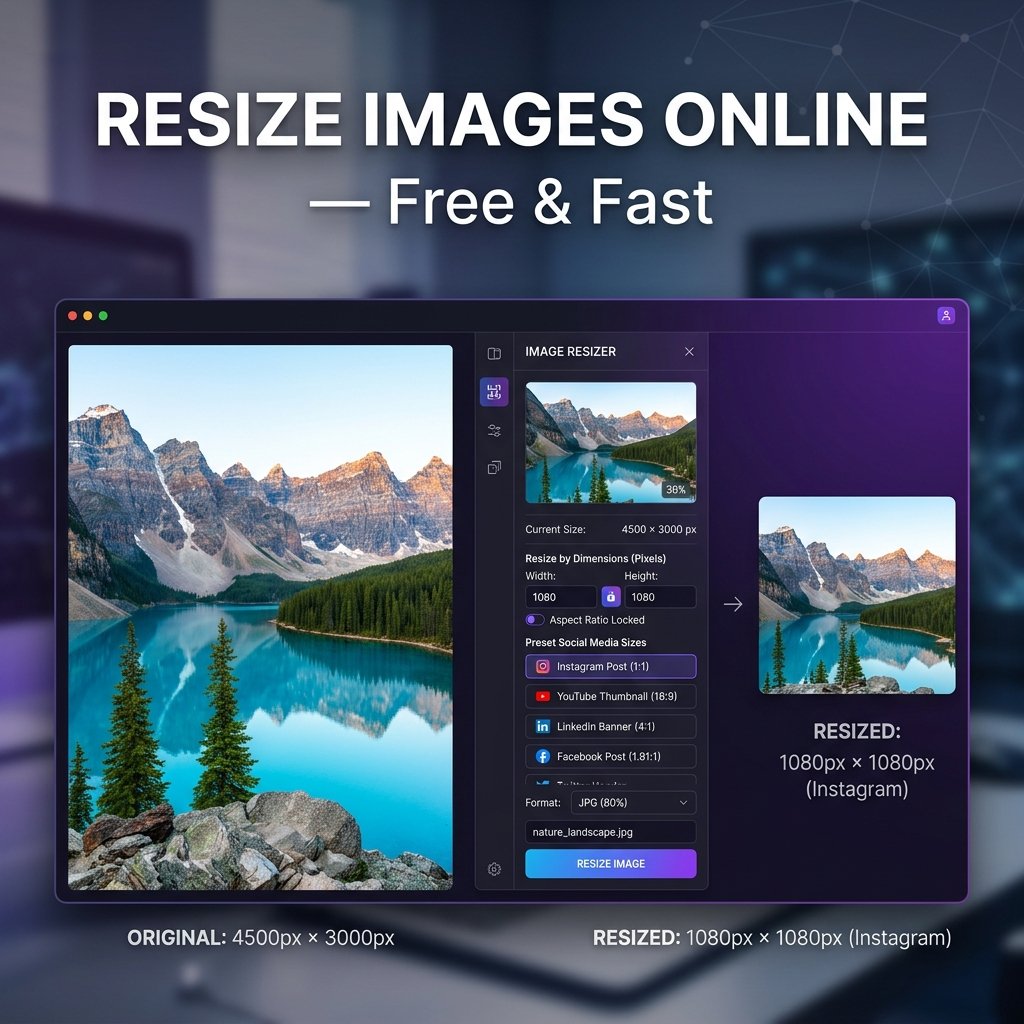
- Enter your target width and height in pixels. Toggle the Lock Aspect Ratio button to scale proportionally without distortion.
- Choose an output format: JPG, PNG, or WEBP.
- Click Resize Image and download your result.
Social Media Image Size Guide (2025)
- Instagram post (square): 1080×1080 pixels
- Instagram story and Reel: 1080×1920 pixels
- Facebook cover photo: 851×315 pixels
- Facebook post image: 1200×630 pixels
- YouTube thumbnail: 1280×720 pixels
- LinkedIn banner: 1584×396 pixels
- Twitter / X post: 1200×675 pixels
All of these presets are built into our Image Resizer. Click the platform button and your image is instantly sized correctly.
What Is Aspect Ratio Lock?
Aspect ratio is the proportional relationship between width and height (for example, 16:9 or 1:1). When locked, changing the width automatically adjusts the height to prevent distortion. This is essential for portrait and product photos where subjects must not appear stretched or squashed.
Resize vs. Compress: What Is the Difference?
Resizing changes pixel dimensions of an image. Compressing reduces the file size without necessarily changing dimensions. For maximum file size reduction, resize to the required dimensions first using the Image Resizer, then compress the result to reduce bytes further.
Frequently Asked Questions
Can I resize an image without losing quality?
Reducing an image (making it smaller) preserves quality well. Enlarging an image beyond its original size always reduces sharpness. Our tool uses high-quality Canvas API resampling for the best possible output.
What is the best image size for a website?
For full-width hero images, use 1920×1080 pixels. For blog featured images, 1200×630 pixels is ideal. After resizing, compress with our Image Compressor to reduce loading time.
Does resizing change the file format?
You can choose your output format (JPG, PNG, WEBP) when resizing. To convert without resizing, use our dedicated Format Converter.