Table of Contents
- What Is MP4 to PNG Conversion?
- Can You Convert an Entire MP4 into PNG?
- How to Convert MP4 to PNG
- How to Extract PNG Images from MP4
- MP4 to PNG vs MP4 to JPG
- How to Choose the Right Video Frame
- Tips for Better MP4 to PNG Results
- Common MP4 to PNG Problems
- When Should You Convert MP4 to PNG?
- Using PNG Frames for Background Removal
- Frequently Asked Questions
- Conclusion
What Is MP4 to PNG Conversion?
MP4 to PNG conversion means taking still frames from an MP4 video and saving those frames as PNG image files.
An MP4 contains a sequence of images that are displayed rapidly to create motion. When you extract a frame, you are essentially selecting one of those individual images.
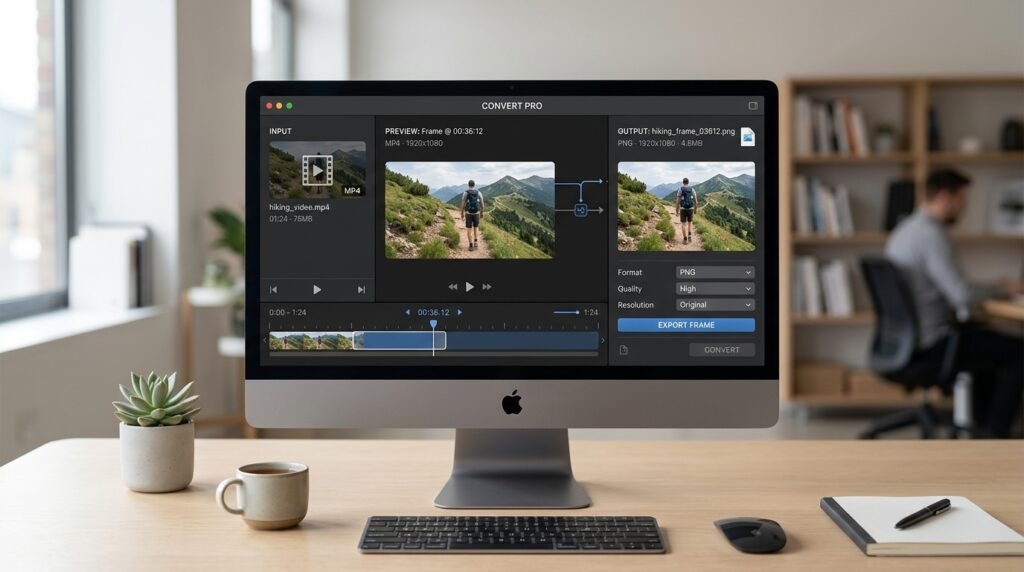
For example, imagine you have a 30 second MP4 video and want to save a picture that appears at the 12 second mark. Instead of taking a basic screenshot, an MP4 to PNG converter can extract the selected video frame and save it as a PNG file.
PNG is particularly useful when you want a high quality image for editing, design, graphics, or further processing.
Can You Convert an Entire MP4 into PNG?
Not in the same way that you convert one image format into another.
An MP4 is a video containing many frames, while PNG is an image format containing a single still image.
Therefore, when people search for an MP4 to PNG converter, they usually mean one of these things:
Extract One PNG Frame
You select a specific moment in the video and save that frame as a PNG image.
Extract Multiple PNG Frames
You select several moments from the video and save each selected frame as a separate PNG file.
Convert Every Video Frame to PNG
You can technically extract every frame from a video and save each one as a PNG. However, this can create a very large number of image files.
For most users, extracting selected frames is more practical.
How to Convert MP4 to PNG
The easiest method depends on what you need from the video.
Step 1: Choose Your MP4 Video
Start with the MP4 file that contains the image or scene you want to extract.
Make sure you have access to the original video whenever possible. A higher quality source generally produces a better extracted frame.
Step 2: Open an MP4 to PNG Converter
Use a suitable video conversion or frame extraction tool that supports MP4 input and PNG output.
Upload your video and wait for it to load.
Step 3: Select the Frame
Move through the video until you reach the exact moment you want to capture.
If the tool provides frame selection controls, use them to find the most suitable frame.
Step 4: Select PNG as the Output Format
Choose PNG as the output format.
PNG can be a useful choice when image quality and further editing are important.
Step 5: Export the Image
Start the conversion or frame extraction process.
The selected frame should be saved as a PNG image that you can use for editing, sharing, designing, or other projects.
How to Extract PNG Images from MP4
If you need several images rather than one frame, you can extract multiple frames from the same video.
For example, suppose you have a product demonstration video. You might want images showing:
Product Introduction
Extract a frame where the product is clearly visible.
Main Product Feature
Choose a frame that clearly demonstrates an important feature.
Final Product View
Extract a clean frame showing the complete product.
This approach allows you to create a collection of PNG images from a single MP4 video.
MP4 to PNG vs MP4 to JPG
Both PNG and JPG can be used for extracted video frames, but they serve different purposes.
| Feature | PNG | JPG |
|---|---|---|
| Image quality | High | Good |
| Compression | Usually lossless | Lossy |
| Transparency support | Yes | No |
| File size | Usually larger | Usually smaller |
| Editing | Excellent for graphics | Good for photographs |
| Best use | Graphics and editing | Photos and web images |
If you need an extracted frame for further editing or graphic design, PNG can be a better choice.
If you mainly want a smaller image file for general sharing, JPG may be more practical.
How to Choose the Right Video Frame
Extracting a PNG does not automatically make the image perfect. The quality of the original video and the selected frame both matter.
Look for Sharp Frames
Avoid frames where the subject is moving quickly or appears blurry.
Avoid Transition Frames
Video transitions can contain partial objects, fading effects, or motion artifacts.
Check the Lighting
Choose a frame with clear lighting and good visibility.
Look for a Clean Composition
If the image will be used for a website, thumbnail, product image, or social media post, choose a frame with a clear subject and useful composition.
Tips for Better MP4 to PNG Results
Use the Highest Quality MP4 Available
A high quality source video gives you a better starting point for frame extraction.
Select the Exact Moment
Small changes between frames can make a major difference, especially when a person, product, or object is moving.
Avoid Highly Compressed Videos
If the MP4 has already been heavily compressed, the extracted PNG cannot restore details that were removed from the original video.
Choose PNG When Editing Matters
PNG is useful when you plan to edit the extracted image or use it in graphic design.
Keep the Original Video
Always keep a copy of the original MP4. You may want to extract a different frame later.
Common MP4 to PNG Problems
The PNG Looks Blurry
The selected frame may contain motion blur, or the original video may have low resolution.
Solution: Try another frame and use the highest quality source video available.
The PNG File Is Too Large
PNG files can be considerably larger than compressed JPG images.
Solution: If file size is more important than lossless quality, consider JPG instead.
The Extracted Image Has Black Bars
Some videos use different aspect ratios from the display area. This can result in black bars around the video.
Solution: Crop the extracted image after conversion if the bars are not needed.
The Image Has Low Resolution
Extracting a frame does not increase the original video’s resolution.
Solution: Use a higher resolution source video whenever possible. An image enhancement tool can also be considered when appropriate, but it cannot recreate every detail perfectly.
The Wrong Frame Was Extracted
You may have selected a nearby frame instead of the exact moment you wanted.
Solution: Move through the video frame by frame when the converter provides that option.
When Should You Convert MP4 to PNG?
There are many practical situations where extracting PNG images from an MP4 makes sense.
Creating Video Thumbnails
You can select a strong frame from a video and use it as a thumbnail.
Saving Important Moments
If a video contains an important scene, you can save it as a still image.
Product Photography
A product demonstration video may contain useful product views that can be extracted as images.
Social Media Content
Selected video frames can be used as supporting graphics for social media posts.
Design Projects
PNG frames can be imported into graphic design and image editing software.
Creating Reference Images
Designers can extract useful visual references from existing video content.
Using PNG Frames for Background Removal
If your goal is related to background removal, extracting a PNG frame from an MP4 can be a useful first step.
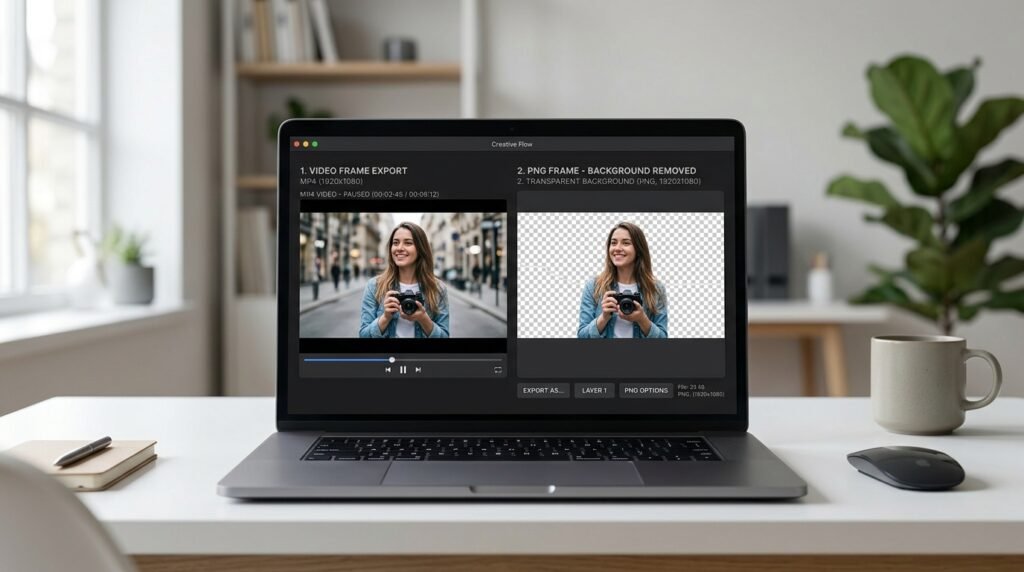
For example, you may have a video of a person, product, object, or other subject. First, extract the clearest frame from the MP4 and save it as PNG. You can then use a background remover to isolate the subject from its original background.
BGImageSnap can be useful when you want to continue editing an extracted image after converting it from video.
Recommended Workflow
- Select a high quality MP4.
- Find the clearest frame.
- Extract the frame as PNG.
- Remove the background if needed.
- Edit or enhance the resulting image.
- Export the final image for your intended use.
This workflow is particularly useful for product graphics, social media designs, thumbnails, and creative projects.
BGImageSnap for Image Editing
Once you have extracted a PNG frame, you may want to edit it further.
BGImageSnap is designed around image tools and creative workflows, making it useful when your extracted frame needs additional editing.
Try BGImageSnap
If you have an MP4 video and need a still PNG image, start by extracting the frame you need. If the resulting image also needs background removal or other image editing, continue the workflow with the appropriate BGImageSnap tool.
The goal is simple: extract the useful visual from your video and turn it into an image you can actually use.
Image Suggestions for This Article
MP4 to PNG Conversion Interface
Purpose: Show users what a video to image conversion workflow looks like.
Recommended placement: Near the section explaining how to convert MP4 to PNG.
SEO filename: mp4 to png converter interface.png
Alt text: MP4 to PNG converter interface for extracting video frames
Selecting a Video Frame
Purpose: Demonstrate how users can choose a specific moment from an MP4 video.
Recommended placement: Under the frame selection instructions.
SEO filename: select frame from mp4 video.png
Alt text: Selecting a frame from an MP4 video for PNG extraction
Extracted PNG Result
Purpose: Show the final PNG image after frame extraction.
Recommended placement: After the conversion steps.
SEO filename: extracted png from mp4.png
Alt text: PNG image extracted from an MP4 video frame
Background Removal Workflow
Purpose: Explain how an extracted PNG can be used for background removal.
Recommended placement: In the background removal section.
SEO filename: png background removal workflow.png
Alt text: PNG frame prepared for background removal
Frequently Asked Questions
Can I convert MP4 to PNG?
Yes. Instead of converting the entire video into one PNG file, the usual process is to extract one or more frames from the MP4 and save them as PNG images.
What is an MP4 to PNG converter?
An MP4 to PNG converter or frame extraction tool takes a video file and allows you to save selected video frames as PNG images.
Can I extract multiple PNG images from one MP4?
Yes. You can extract multiple selected frames from the same video. Some tools may also allow you to extract frames at regular intervals.
Can I convert every frame of an MP4 to PNG?
Technically, yes. Every video contains individual frames that can be extracted as images. However, a video can contain thousands of frames, so converting every frame may create a very large collection of PNG files.
Is PNG better than JPG for extracted video frames?
It depends on your purpose. PNG is generally better when you want lossless image storage or plan to edit the image. JPG is often more convenient when you need smaller file sizes.
Does converting MP4 to PNG improve image quality?
No. Extracting a frame does not add detail that was not present in the original video. The final image quality depends heavily on the video’s resolution, compression, lighting, and the selected frame.
Can I use an extracted PNG for background removal?
Yes. An extracted PNG can be used as the starting image for background removal. Choose a frame where the subject is sharp and clearly separated from the background for better results.
What is the best frame to extract from a video?
The best frame is usually sharp, well lit, free from motion blur, and clearly shows the subject. For people or moving objects, checking several nearby frames can help you find the cleanest result.
Conclusion
Converting MP4 to PNG is essentially the process of extracting still images from a video. Whether you need one important frame, several images, or a visual for a creative project, frame extraction provides a simple way to turn video content into usable PNG images.
For the best results, start with a high quality MP4, select a sharp frame, and choose PNG when you need a high quality image for editing or further processing.
If your extracted frame also needs background removal or image editing, you can continue the workflow with BGImageSnap and turn a simple video frame into a polished visual ready for your project.