Introduction
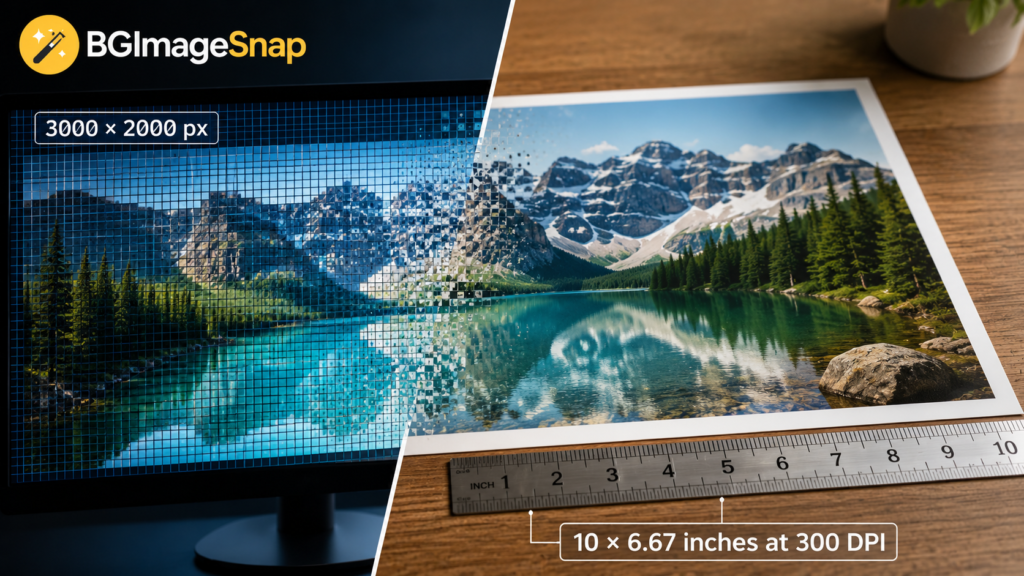
Pixel to inches conversion is simple once you know one key detail: the image’s PPI also called pixels per inch. If you have ever tried to print a photo design a flyer upload a product image or resize a graphic for social media you may have noticed that pixels and inches do not automatically mean the same thing.
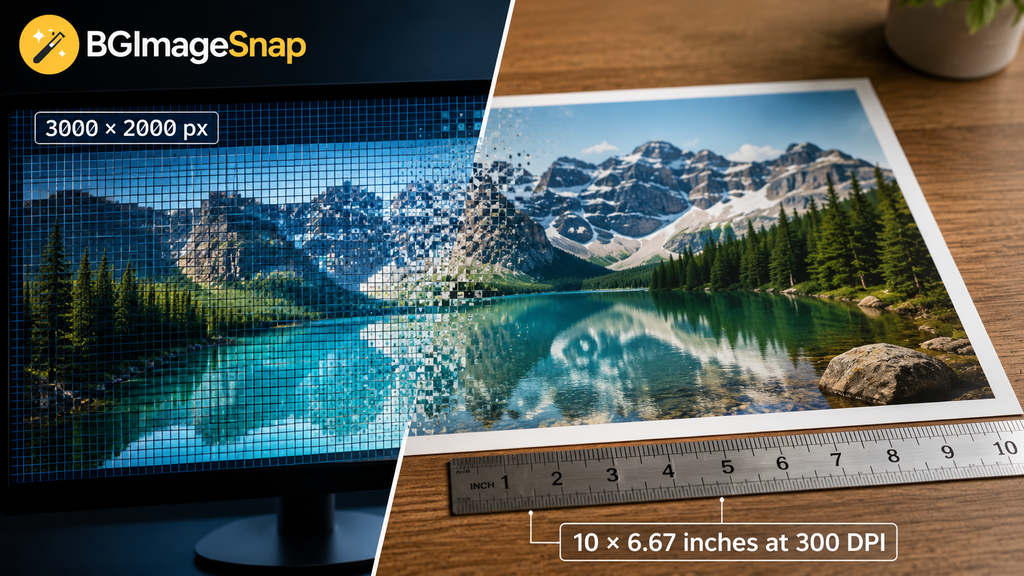
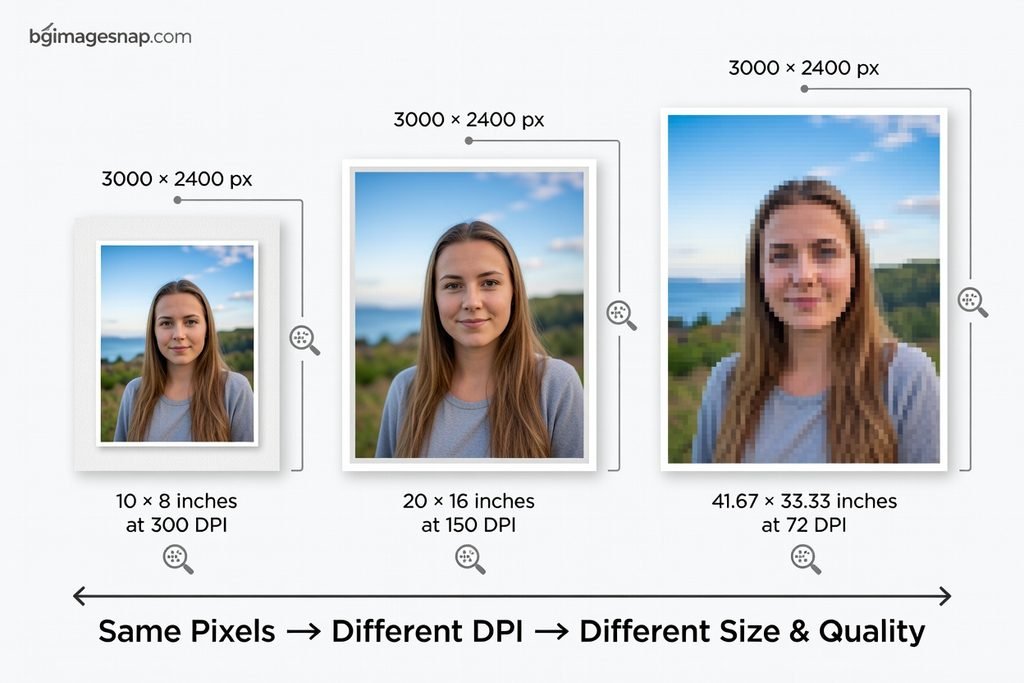
A photo that is 3000 pixels wide can print at 10 inches wide at 300 PPI but the same photo can print at 20 inches wide at 150 PPI. The pixel count stays the same but the print size changes.
In this guide from BGImageSnap, you’ll learn how to convert pixels to inches how PPI affects image quality which resolution to use for print or web and how to avoid common resizing mistakes.
Key Takeaways
- Pixel to inches formula: pixels ÷ PPI = inches
- Inches to pixels formula: inches × PPI = pixels
- 300 PPI is commonly used for high-quality prints.
- 72 or 96 PPI is often discussed for screens but web display depends mostly on pixel dimensions.
- A higher PPI creates a smaller but sharper print.
- A lower PPI creates a larger print but may reduce sharpness.
What Does Pixel to Inches Mean?
Pixel to inches means converting a digital image’s pixel dimensions into a physical size usually for printing.
A pixel is a tiny square of color in a digital image. An inch is a physical measurement. To connect the two you need PPI which tells you how many pixels will fit into one printed inch.
For example:
- 1200 pixels at 300 PPI = 4 inches
- 1200 pixels at 150 PPI = 8 inches
- 1200 pixels at 100 PPI = 12 inches
The number of pixels did not change. Only the density changed.
This is why a photo can look large on a screen but print smaller than expected. Screens show pixels; printers need pixels distributed across physical space.
For deeper technical background Adobe has a helpful explanation of image size and resolution.
Pixel to Inches Formula Explained
The basic pixel to inches formula is:
Pixels ÷ PPI = Inches
You apply the formula separately to width and height.
Example: Convert 2400 × 3000 Pixels to Inches
If the image resolution is 300 PPI:
- Width: 2400 ÷ 300 = 8 inches
- Height: 3000 ÷ 300 = 10 inches
So, the image prints as 8 × 10 inches at 300 PPI.
What if the PPI is 150?
- Width: 2400 ÷ 150 = 16 inches
- Height: 3000 ÷ 150 = 20 inches
So, the same image prints as 16 × 20 inches at 150 PPI.
Practical Advice
Use 300 PPI when you want sharp prints especially for photos brochures invitations product inserts and framed images. Use a lower PPI only when the image will be viewed from farther away such as posters or banners.
Pixel to Inches Conversion Chart
Here is a quick pixel to inches reference chart using common PPI values.
| Pixel Dimensions | At 300 PPI | At 150 PPI | Common Use |
|---|---|---|---|
| 600 × 600 px | 2 × 2 in | 4 × 4 in | Small icon or label |
| 1200 × 1800 px | 4 × 6 in | 8 × 12 in | Standard photo print |
| 1500 × 2100 px | 5 × 7 in | 10 × 14 in | Photo print |
| 2400 × 3000 px | 8 × 10 in | 16 × 20 in | Portrait print |
| 3000 × 3600 px | 10 × 12 in | 20 × 24 in | Wall print |
| 3600 × 5400 px | 12 × 18 in | 24 × 36 in | Poster print |
This chart shows why PPI matters. The same image can create different physical sizes depending on resolution.
Best PPI Settings for Print and Web
Choosing the right PPI depends on where the image will appear.
For High-Quality Prints
Use 300 PPI for:
- Photo prints
- Invitations
- Business cards
- Product packaging
- Brochures
- Art prints
This setting gives you strong detail when the viewer sees the image up close.
For Posters and Large Prints
Use 150–200 PPI when:
- The print is large
- The viewer stands farther away
- File size needs to stay manageable
Large prints do not always need 300 PPI because people usually view them from a distance.
For Websites and Social Media
For websites pixel dimensions matter more than physical inches. A browser displays images based on screen pixels CSS and layout rules.
For web use focus on:
- Correct width and height in pixels
- Fast loading
- Compression
- Responsive display
- Proper format such as JPG, PNG, WebP, or SVG
The W3C explains how CSS uses absolute units including how CSS pixels relate to inches in its CSS Values and Units specification.
If you need to resize or prepare images for online use you can use a tool like the BGImageSnap image editor to make quick adjustments.
How to Convert Pixel to Inches Step by Step
Follow this simple process to convert pixel to inches correctly.
Step 1: Find the Pixel Dimensions
Check your image size first. You might see something like:
3000 × 2400 pixels
The first number is usually the width. The second number is the height.
Step 2: Choose the PPI
Pick the resolution based on your use case:
- 300 PPI for sharp photo prints
- 150–200 PPI for larger posters
- 72 or 96 PPI for basic screen reference only
Step 3: Divide Pixels by PPI
Use the formula:
Pixels ÷ PPI = Inches
Example:
- Width: 3000 ÷ 300 = 10 inches
- Height: 2400 ÷ 300 = 8 inches
So, the final print size is 10 × 8 inches.
Step 4: Check the Aspect Ratio
Make sure the shape of the image fits your desired output.
For example, an 8 × 10 print has a different shape than a 4 × 6 print. If the aspect ratio does not match you may need to crop the image.
Step 5: Resize Without Stretching
Never stretch an image to force it into a size. Stretching can make people products or text look distorted.
Instead:
- Crop to the correct shape
- Resize proportionally
- Use a clean background if needed
- Export a copy not the original
For product photos or profile images try removing distractions with BGImageSnap’s background tools before resizing.
Pixel to Inches Example for Common Print Sizes
Here are common print sizes and the pixel dimensions needed at 300 PPI.
| Print Size | Pixel Size at 300 PPI |
|---|---|
| 4 × 6 in | 1200 × 1800 px |
| 5 × 7 in | 1500 × 2100 px |
| 8 × 10 in | 2400 × 3000 px |
| 8.5 × 11 in | 2550 × 3300 px |
| 11 × 14 in | 3300 × 4200 px |
| 12 × 18 in | 3600 × 5400 px |
If your image has fewer pixels than the recommended size it may still print but it may not look as sharp up close.
Common Mistakes to Avoid
1. Confusing PPI and DPI
PPI means pixels per inch and refers to digital image resolution. DPI means dots per inch and usually relates to printer output. People often use the terms interchangeably but they are not exactly the same.
2. Assuming Pixels Have a Fixed Inch Size
Pixels do not have one fixed physical size. A 1000-pixel image can be small or large depending on the PPI.
3. Enlarging Low-Resolution Images Too Much
If you enlarge a small image too far it can become blurry or pixelated. It is better to start with a larger original image.
4. Ignoring Cropping
A photo may have enough pixels but the wrong shape. Always check the aspect ratio before printing.
5. Exporting Over the Original File
Always save a copy. Keep the original image untouched in case you need another size later.
FAQ
1. How do I convert pixel to inches?
Use this formula: inches = pixels ÷ PPI. For example 1800 pixels divided by 300 PPI equals 6 inches.
2. How many pixels are in one inch?
It depends on the PPI. At 300 PPI one inch contains 300 pixels. At 150 PPI one inch contains 150 pixels.
3. What is 1920 pixels in inches?
At 300 PPI 1920 pixels equals 6.4 inches. At 96 PPI 1920 pixels equals 20 inches.
4. Is 300 PPI always required?
No. 300 PPI is ideal for high-quality close-up prints. Large posters may look fine at 150–200 PPI because they are usually viewed from farther away.
5. Does changing PPI change image quality?
Changing PPI alone does not add new detail. It changes how densely pixels are printed. If you resample the image then the software may add or remove pixels.
6. What pixel size do I need for an 8 × 10 print?
For a sharp 8 × 10 print at 300 PPI use 2400 × 3000 pixels.
7. Does pixel to inches matter for Instagram or websites?
Not as much as pixel dimensions. For web and social media focus on the image’s width, height, file size and format.
Conclusion
Understanding pixel to inches conversion helps you print sharper photos design better graphics and avoid blurry results. For high-quality prints use 300 PPI when possible. For web images focus more on pixel dimensions compression and responsive display.
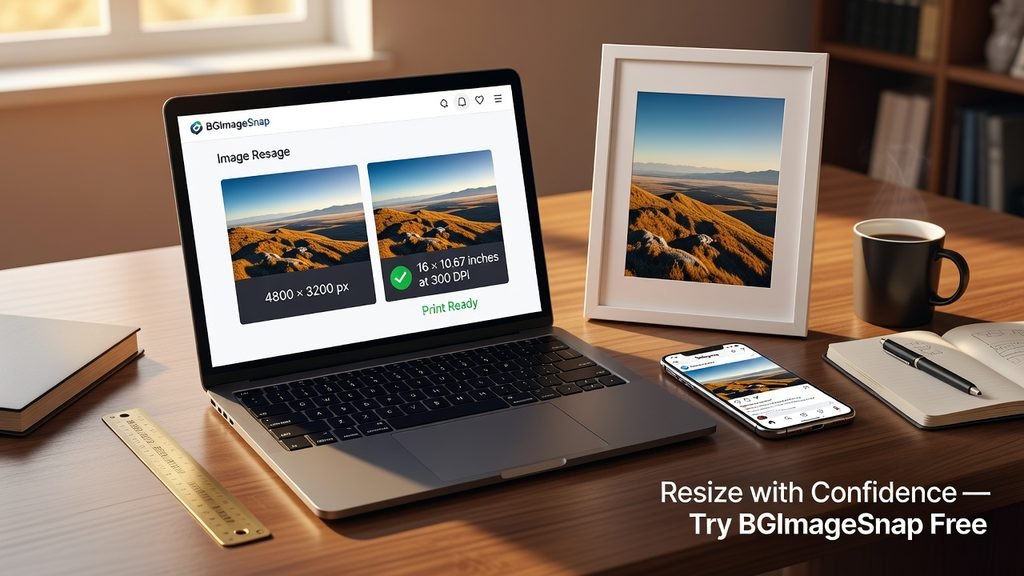
If you want to prepare images faster visit BGImageSnap to edit clean up and resize your visuals for print, web and social platforms.