
Managing business data and images on local hard drives is risky, expensive, and hard to scale. Moving your files to cloud computing services solves this by giving you secure, affordable storage that grows with your company. Before uploading your heavy image files to the cloud, use Bgimagesnap to compress and resize them, saving you valuable storage space and lowering your monthly bills.
Key Takeaways
- Cloud computing services keep your business data safe, accessible from anywhere, and easy to scale as you grow.
- Small businesses save money on expensive server hardware by paying only for the storage and computing power they actually use.
- Popular options for small businesses include Google Workspace, Microsoft 365, Amazon AWS, and Dropbox.
- Storing large, unoptimized images in the cloud eats up storage limits quickly and costs you more money.
- Bgimagesnap helps you compress, resize, and remove backgrounds from photos for free before moving them to the cloud.
What Cloud Computing Services Do and How They Work
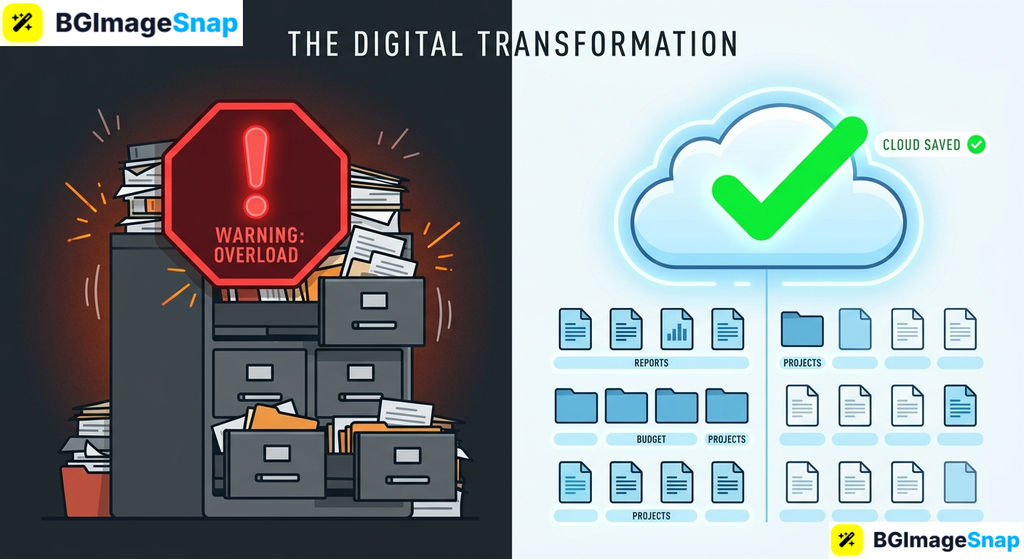
Cloud computing services deliver computing resources over the internet instead of from a local hard drive. In the past, businesses had to buy expensive servers and keep them in a cool, secure office. Now, you can rent storage, software, and processing power from massive data centers owned by companies like Google, Amazon, and Microsoft.
When you use these services, your files and applications live on remote servers. You access them through a web browser or a mobile app. If your computer crashes, your important business files are still safe in the cloud. You can simply log in from a new device and keep working.
For small businesses, the cloud works on a pay as you go model. You only pay for the exact amount of storage and power you use each month. This stops you from wasting money on hardware you do not need.
However, there is a catch. Cloud providers charge you based on how much data you store. Unoptimized, high resolution images take up a massive amount of space. A single raw photo can be 20 megabytes or more. If you upload thousands of these, you will quickly hit your storage limits and force your business to upgrade to a more expensive plan.
This is why optimizing your images before uploading is so important. By shrinking file sizes without losing quality, you can fit three to five times more images into the same cloud storage plan. Bgimagesnap gives you free, instant tools to compress and resize your photos so your cloud storage stays affordable.
Full List and Breakdown of Cloud Computing Services
There are three main types of cloud computing services. Understanding them helps you pick the right tools for your small business.
1. Software as a Service (SaaS)
SaaS gives you access to software applications over the internet. You do not have to install or update anything on your computer. You just log in and use it.
- Google Workspace: Includes Gmail, Google Drive, Docs, and Sheets. Perfect for team collaboration and storing files.
- Microsoft 365: Includes Outlook, Word, Excel, and OneDrive. Great for businesses that rely on traditional Microsoft tools.
- Dropbox: A simple, powerful file storage and sharing platform. Excellent for keeping large image folders synced across a team.
- Canva: A cloud based design tool where you can store brand assets and create graphics without using local memory.
2. Infrastructure as a Service (IaaS)
IaaS gives you the basic building blocks of IT. You rent virtual servers, storage, and networking. This is best if you have a developer building a custom app or a large website.
- Amazon Web Services (AWS): The largest cloud platform. Offers massive storage (S3) and powerful computing for very low prices.
- Google Cloud Platform (GCP): Highly reliable and great for businesses already using Google Workspace.
- Microsoft Azure: Deeply integrated with Windows and Microsoft software. A top choice for corporate businesses.
3. Platform as a Service (PaaS)
PaaS is mostly used by developers. It gives them a framework to build and host custom apps without worrying about the underlying servers. It is rarely needed by non technical small business owners, but it powers many apps you might use.
Cloud Storage Pricing and Image Impact Comparison
The table below shows popular cloud storage plans and how unoptimized images can hurt your budget.
| Cloud Provider | Free Tier | Paid Tier Cost (Approx) | Storage Limit | Images Stored (Raw 20MB) | Images Stored (Optimized 4MB) |
|---|---|---|---|---|---|
| Google Drive | 15 GB | $2/month (100GB) | 100 GB | 5,000 images | 25,000 images |
| Microsoft OneDrive | 5 GB | $2/month (100GB) | 100 GB | 5,000 images | 25,000 images |
| Dropbox | 2 GB | $10/month (2TB) | 2,000 GB | 100,000 images | 500,000 images |
| Amazon S3 | 5 GB | Pay per GB used | Unlimited | 50,000 per TB | 250,000 per TB |
As the table shows, optimizing your images with Bgimagesnap before uploading multiplies your storage power by five. This keeps your business on the cheapest cloud tiers for much longer.
How to Move Your Small Business to the Cloud Step by Step
Moving your files and workflows to the cloud is simple when you take it one step at a time. Follow these instructions to get set up without losing any data.
Step 1: Choose Your Cloud Computing Services
Decide what your business needs most. If you just need email and document sharing, Google Workspace or Microsoft 365 is perfect. If you need to store and share massive image libraries, Dropbox or Google Drive are great choices. Pick one main platform to start so your team is not confused.
Step 2: Prepare and Optimize Your Files
Before you upload anything, clean up your files. Sort them into clear folders. For your image files, go to Bgimagesnap and use the image compressor and resizer. Shrink large photos down to web friendly sizes. This step will save you hours of upload time and keep your cloud storage costs low.
Step 3: Upload Your Data to the Cloud
Install the desktop app for your chosen cloud service. Drag and drop your prepared folders into the app. It will sync them to the cloud automatically. Make sure your computer stays on and connected to the internet until the sync is complete.
Step 4: Set Permissions and Share with Your Team
Once your files are in the cloud, you do not want everyone to see everything. Set up folders with specific permissions. Give your designers access to the image folders, and give your accountants access to the finance folders. This keeps your business data secure.
Step 5: Train Your Team and Delete Local Copies
Show your team how to access files through the cloud app or web browser. Teach them how to use Bgimagesnap to optimize new photos before saving them to the cloud. Once everyone is comfortable, you can safely delete the old files from your local hard drives to free up space.
Real Use Cases Who Uses Cloud Computing Services and Why?
Small businesses of all kinds rely on the cloud to work faster and smarter. Here are a few common examples.
1. E-Commerce Store Owners
Online sellers have thousands of product images. Storing them on a hard drive is risky—if the drive breaks, the store loses its photos. Sellers use cloud computing services like Dropbox or Amazon S3 to back up every image. Before uploading, they use Bgimagesnap to remove the backgrounds and compress the files. This makes the images load faster on their website and saves them money on cloud storage fees.
2. Freelance Graphic Designers
Freelancers work from home, coffee shops, and client offices. They need their design files available everywhere. By storing portfolios and project files in Google Drive or OneDrive, they can access them from any device. Compressing large design previews with Bgimagesnap makes sharing files with clients much faster, even on slow Wi-Fi connections.
3. Real Estate Agents
Real estate agents take hundreds of high resolution photos for every property. These raw image files are huge and quickly fill up local drives. Agents use cloud storage to keep property photos organized by address. Before uploading, they use Bgimagesnap to resize the images to standard web dimensions and remove distracting backgrounds. This makes their cloud library neat and easy to share with buyers.
4. Marketing Agencies
Marketing teams create massive amounts of visual content. They use cloud computing services to collaborate on campaigns in real time. Instead of emailing large video and image files back and forth, they share a cloud link. Compressing assets before uploading ensures the agency does not pay for expensive enterprise storage tiers just because of bulky graphics.
Practical Tips for Managing Images in the Cloud
Using the cloud is easy, but managing it well takes a little planning. Follow these tips to keep your cloud storage clean and affordable.
- Always compress before uploading. Make Bgimagesnap your first stop before any file goes into the cloud. Shrinking a 10MB photo down to 2MB saves 80% of your storage space.
- Use a consistent folder structure. Create main folders for the year, and subfolders for months or projects. For example: “2024 > January > Product_Shoot”. This stops your cloud drive from becoming a messy junk drawer.
- Do not store duplicate files. If you have a photo with a background and the same photo without a background, delete the original. Use Bgimagesnap to remove the background, save the new file, and trash the old one.
- Take advantage of free tiers. If you only have a few thousand images, Google Drive’s free 15GB might be enough. Do not pay for a premium plan until you actually run out of space.
- Automate your syncing. Use the desktop apps provided by your cloud service instead of uploading through the web browser. Desktop apps sync automatically in the background, saving you time.
- Check your storage dashboard monthly. Cloud providers show you exactly what is taking up space. If a folder of unoptimized videos is eating your storage, you will know where to clean up.
- Backup your cloud data. The cloud is very safe, but accidents happen. If a employee deletes a folder, you want a backup. Keep a secondary copy on a different cloud service or an external hard drive just in case.
Frequently Asked Questions
What are cloud computing services in simple terms?
They are computers and storage drives that you rent over the internet. Instead of keeping files on your own machine, you keep them on servers owned by companies like Google or Amazon. You can access your files from anywhere.
Are cloud computing services safe for small businesses?
Yes, they are very safe. Cloud providers spend billions on security. Your data is encrypted, which means hackers cannot read it. It is much safer than keeping important files on a laptop that can be stolen or broken.
Why should I optimize images before putting them in the cloud?
Cloud providers charge you based on how much data you store. High resolution images have huge file sizes. By compressing them with Bgimagesnap first, you shrink the file size by up to 80%. This lets you store five times more images without upgrading to a more expensive cloud plan.
What happens if I go over my cloud storage limit?
Your provider will usually send you a warning email. If you do not upgrade your plan or delete files, you may lose the ability to add new files. Some providers might charge you extra fees for the overage. Optimizing images beforehand helps you avoid this completely.
Can I access my cloud files without the internet?
Most cloud services let you mark files for “offline access.” This downloads a copy to your device so you can view it without Wi-Fi. However, to sync changes or upload new files, you will need an internet connection.
Conclusion
Moving your data to cloud computing services is the smartest way to keep your small business files safe, organized, and accessible from anywhere. By paying only for what you use, you avoid the high costs of buying your own servers. Just remember that bulky image files will eat up your storage limits fast.
Before you upload your next batch of photos, visit bgimagesnap today to compress, resize, and remove backgrounds from your images for free. Save your cloud storage space and keep your business running smoothly!