Learning how to unzip a folder on Mac is the fastest way to open ZIP files extract documents and manage compressed folders without extra headaches. Whether you’re new to macOS or switching from Windows the built-in Archive Utility handles most standard ZIP files automatically.
This guide explains how to unzip a folder on Mac using built-in tools Terminal and third-party apps when needed. You’ll also find common fixes mistakes to avoid and a practical workflow for product photos after extraction.
Table of Contents
- What Does “Unzip a Folder” Mean on a Mac?
- How to Unzip a Folder on Mac with the Built-in Archive Utility
- How to Unzip a Folder on Mac Using Right-Click
- How to Unzip a Folder on Mac with Finder’s Open With Menu
- How to Open a ZIP Folder on Mac Using Terminal
- How to Unzip Multiple ZIP Folders on Mac
- Why Your Mac Won’t Unzip a Folder
- Quick Mistakes to Avoid
- Before You Unzip: Quick Security Check
- How to Open a ZIP Folder on Mac with Third-Party Tools
- After You Unzip: Managing Images and Product Photos
- Frequently Asked Questions
- Conclusion
What Does “Unzip a Folder” Mean on a Mac?
A ZIP folder is a compressed file container. It holds one or more files inside a single item with a .zip extension. When you unzip a folder on a Mac you extract the contents into a normal folder that you can open edit and share.
macOS includes a built-in tool called Archive Utility. In most cases you don’t need to download any extra software. Archive Utility creates ZIP archives and extracts standard ZIP files automatically.
The main problem beginners face is not knowing where the extracted folder appears or what to do when double-clicking doesn’t work. Once you understand the built-in options how to unzip a folder on Mac becomes a simple routine.
Apple’s official macOS guide explains the Archive Utility in more detail. Zip and unzip files and folders on Mac DoFollow status: verify in CMS
How to Unzip a Folder on Mac with the Built-in Archive Utility
This is the fastest method for most people. It works on macOS Ventura, Monterey, Sonoma, and earlier versions that support Archive Utility.
- Open Finder and go to the location where your ZIP folder is saved. This is often the Downloads folder.
- Find the ZIP file. It will have a
.zipextension and may look like a zipper folder icon. - Double-click the ZIP file.
- Wait a few seconds. Archive Utility creates a new folder in the same location with the same name but without the
.zipextension. - Open the new folder to see the extracted files.
If double-clicking opens a different app such as a third-party unzip tool or a preview utility use the right-click method below.
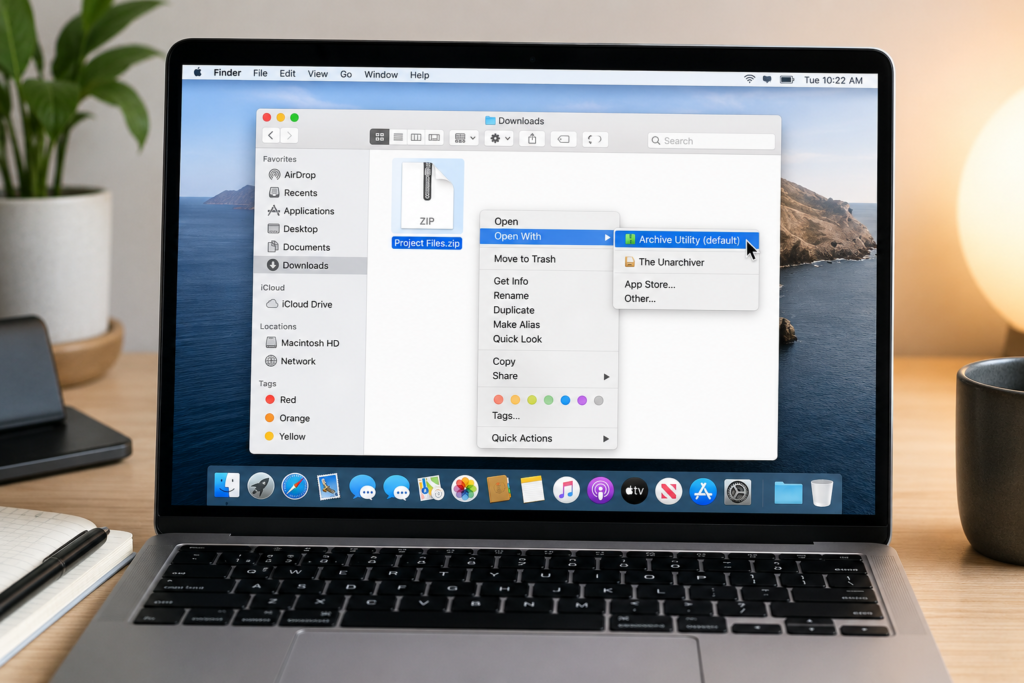
How to Unzip a Folder on Mac Using Right-Click
Right-click gives you more control when your Mac is not using Archive Utility as the default opener.
- Control-click the ZIP file. If you have a trackpad use a two-finger click. If you use a mouse right-click.
- Select Open With.
- Choose Archive Utility from the list.
- If Archive Utility is not listed click Other then select Archive Utility from the Applications Utilities folder.
- Wait for the extraction to finish. The unzipped folder appears next to the original ZIP file.
This method is especially useful when a third-party app has changed your default opener or when double-clicking does nothing.
How to Unzip a Folder on Mac with Finder’s Open With Menu
Finder’s menu bar is another reliable option.
- Click the ZIP file once to select it.
- Go to the top menu bar and click File.
- Select Open With.
- Choose Archive Utility.
- Check the same location for the extracted folder.
This produces the same result as double-clicking or right-clicking. It’s a good backup method if your trackpad right-click is not working or if you prefer using menus.
How to Open a ZIP Folder on Mac Using Terminal
If you prefer a command-line approach or need to extract into a specific folder Terminal works well.
- Open Terminal. You can find it in Applications > Utilities > Terminal or by searching Spotlight with Command + Space.
- Type the following command:
textunzip ~/Downloads/example.zip -d ~/Documents/Unzipped- Replace
example.zipwith the exact name of your ZIP file. - Replace
~/Documents/Unzippedwith your preferred destination folder. - Press Return.
- If the command succeeds the extracted files appear in the destination folder.
If your file path contains spaces wrap the path in quotes. For example:
textunzip "~/Downloads/My File.zip" -d "~/Documents/My Folder"Use the Tab key to autocomplete file and folder names. If you see an error such as unzip: cannot find or open double-check the file name and location.
How to Unzip Multiple ZIP Folders on Mac
If you have several ZIP archives macOS can process them in one batch.
- In Finder select all the ZIP files you want to extract. Hold Command while clicking each file.
- Control-click or right-click one of the selected files.
- Choose Open With Archive Utility.
- Archive Utility extracts each ZIP file into its own separate folder in the same location.
This saves time when you’ve downloaded multiple folders from a client course or image pack.
| Method | Best for | Difficulty | Requires extra apps |
|---|---|---|---|
| Double-click | One quick ZIP file | Beginner | No |
| Right-click > Open With | Fixing default app issues | Beginner | No |
| Finder File menu | Menu-bar users | Beginner | No |
| Terminal unzip | Specific destination, batch control | Intermediate | No |
| Third-party app | RAR, 7z, encrypted ZIPs | Beginner to intermediate | Yes |
Why Your Mac Won’t Unzip a Folder
Sometimes the extraction fails or the folder appears empty. Here are common reasons and quick fixes.
Corrupted download
If the ZIP file didn’t fully download it may be corrupted. Delete it and download it again from the original source.
Password-protected ZIP
Some encrypted ZIP files may not open in Archive Utility. You may need a dedicated unzip tool that supports the encryption format. Compatibility varies by app and ZIP encryption type. Needs verification for exact app support.
Unsupported compression format
A .rar or .7z file is not a standard ZIP. macOS Archive Utility does not handle all compression formats. You may need a tool like The Unarchiver or Keka.
Not enough disk space
If your Mac is low on storage extraction can fail. Free up space and try again.
Blocked file from quarantine
Files downloaded from the internet may carry a quarantine attribute. If macOS blocks the file right-click it and choose Open. This can trigger a warning that lets you confirm.
Strange file names
Very long names or special characters can occasionally cause extraction issues. Rename the ZIP file to something short and simple before unzipping.
Quick Mistakes to Avoid
- Double-clicking a
.rarfile as if it were a.zip - Expecting the extracted folder to appear on the desktop when the original file is in Downloads
- Using a third-party app without checking if Archive Utility can already do the job
- Deleting the original ZIP before confirming the extracted files are complete
- Ignoring macOS security warnings on downloaded files
Avoiding these mistakes makes how to unzip a folder on Mac much smoother.
Before You Unzip: Quick Security Check
ZIP folders can come from email messaging apps or the web. A few quick checks can prevent clutter or security problems.
- Check the sender or source. If you don’t recognize it don’t open the archive.
- Select the ZIP file and press Space to preview its contents on many Macs.
- If a very small ZIP file expands into an unusually large folder stop and delete it.
- After extraction scan the new files with your preferred malware tool if you downloaded them from an untrusted site.
These steps don’t replace antivirus software but they reduce common risks.
How to Open a ZIP Folder on Mac with Third-Party Tools
Most standard ZIP files don’t need a third-party app. However some formats and advanced archives need more power.
The Unarchiver and Keka are two popular options. They can open formats like RAR, 7z, and some older compression types. They’re useful when Archive Utility fails.
General steps:
- Download the app from the official website.
- Install it and open it once.
- Right-click the archive file.
- Choose Open With and select the third-party app.
- Wait for extraction to finish.
Always check the official website for current compatibility and safety information. https://support.apple.com/en-gb/guide/mac-help/mchlp2528/mac
After You Unzip: Managing Images and Product Photos
If your unzipped folder contains product photos stock images, or e-commerce assets, you may need to edit them before use.
For example: sellers often receive ZIP folders full of product shots with messy backgrounds. After you unzip a folder on Mac, you can open those images and clean them up.
BGImageSnap is useful here. It offers background removal white or transparent backgrounds image resizing and quality improvements for product photos. If you run an online store this can save time when preparing images for marketplaces or catalogs.
relevant BGImageSnap background remover tool or article
Suggested image: before-and-after product photo with a clean white background. Alt text: How to unzip a folder on Mac and prepare product images with BGImageSnap.
Frequently Asked Questions
How do I unzip a folder on Mac without extra software?
Use the built-in Archive Utility. Double-click the ZIP file in Finder or right-click and choose Open With > Archive Utility.
What is the keyboard shortcut to unzip a folder on Mac?
There is no single built-in keyboard shortcut for unzipping. You can select the file and press Command + O but the result depends on the default app. Right-click is usually more reliable.
Why can’t I unzip a folder on Mac?
The file may be corrupted password-protected or in a format such as RAR that Archive Utility doesn’t support. Try downloading the file again or use a compatible third-party tool.
Can I unzip a password-protected ZIP folder on Mac?
Some password-protected ZIP files open in Archive Utility and prompt for a password. Others use encryption formats that require a third-party app. Test with the built-in method first.
How do I unzip a RAR folder on Mac?
Archive Utility does not natively handle most RAR files. Use a reputable third-party tool like The Unarchiver or Keka. Check the official website for the current version and compatibility.
Where do unzipped files go on a Mac?
By default Archive Utility places the extracted folder in the same location as the original ZIP file. If you unzip a file in Downloads the new folder appears in Downloads.
How do I create a ZIP folder on Mac?
Select the files or folders in Finder, right-click, and choose Compress. macOS creates a new ZIP archive in the same location.
Does unzipping a folder on Mac delete the original ZIP?
No. Unzipping creates a new extracted folder and leaves the original ZIP file untouched. You can delete the ZIP later after verifying the extracted files.
Conclusion
Knowing how to unzip a folder on Mac gives you control over downloaded files compressed archives and shared project folders. The built-in Archive Utility is fast and reliable for standard ZIP files. Use double-click for speed right-click when the default app is wrong, and Terminal when you need a specific destination.
If your newly unzipped folder contains product photos or e-commerce images BGImageSnap can help you remove backgrounds resize images, and prepare clean visuals for your store.
Ready to clean up those extracted product photos? Try a BGImageSnap background removal tool today.