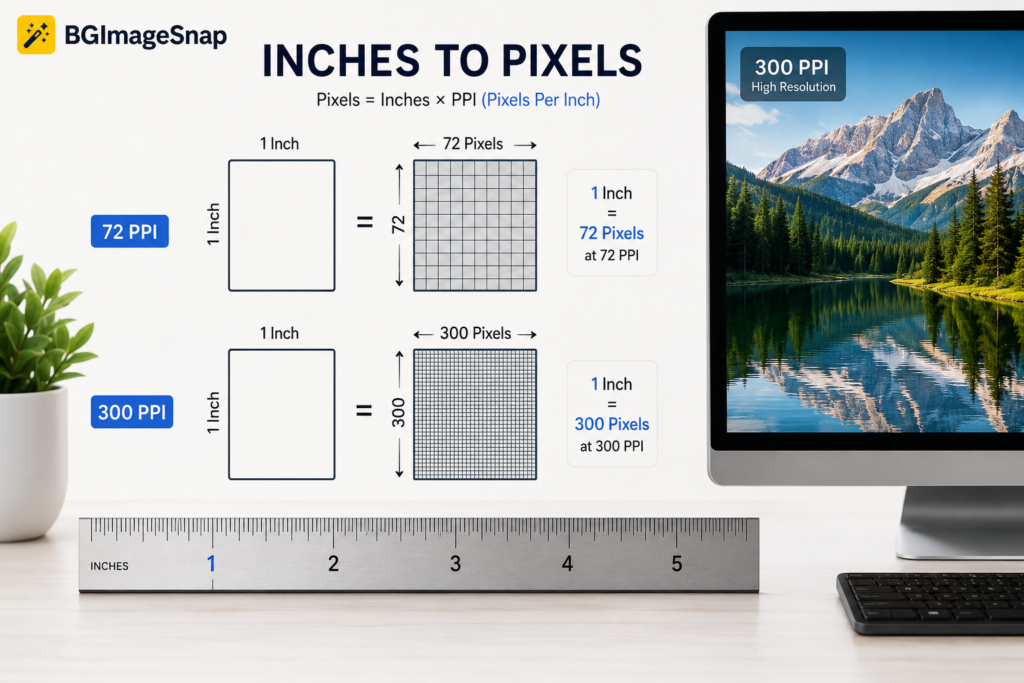
For example, an image prepared at 72 PPI has 72 pixels across one inch, while an image prepared at 300 PPI has 300 pixels across one inch. The important point is that a digital image does not automatically have a fixed physical size in inches. Its pixel dimensions and the intended display or print size determine the relationship.
Understanding this difference can help you choose the right image dimensions for printing photos, creating documents, designing graphics, or preparing images for websites.
In this guide, you’ll learn what pixels per inch means, how to calculate it, how PPI differs from DPI, what 72 and 300 PPI actually mean, and how to convert inches into pixels for common image sizes.
How Many Pixels in an Inch? Quick Answer
How many pixels in an inch depends on the PPI value.
| PPI | Pixels across 1 inch |
|---|---|
| 72 PPI | 72 pixels |
| 96 PPI | 96 pixels |
| 150 PPI | 150 pixels |
| 200 PPI | 200 pixels |
| 240 PPI | 240 pixels |
| 300 PPI | 300 pixels |
| 600 PPI | 600 pixels |
The formula is simple:
Pixels = Inches × PPI
So, at 300 PPI:
1 inch × 300 PPI = 300 pixels
For a square 1 × 1 inch image at 300 PPI, the image contains 300 × 300 pixels, or 90,000 pixels total. Adobe explains that PPI describes the number of pixels contained within each inch of a digital image.
What Does Pixel Per Inch Mean?
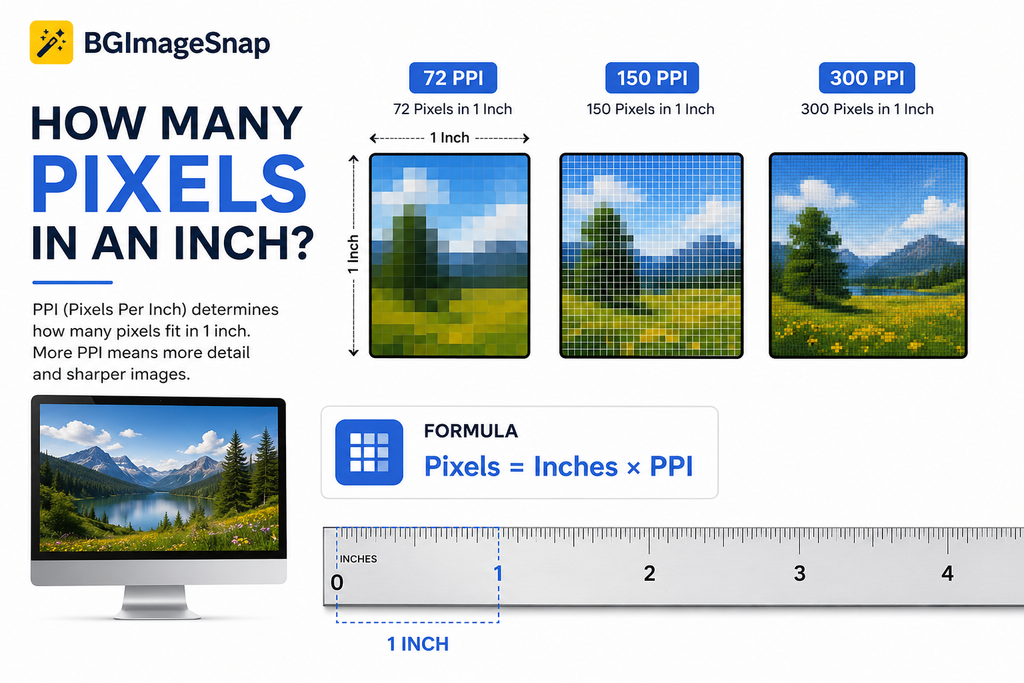
Pixels are the tiny picture elements that make up a digital image. PPI, or pixels per inch, describes pixel density how many pixels are placed across one physical inch when an image is displayed or printed at a particular size.
This is why asking how many pixels in an inch without specifying PPI can be misleading.
Consider a 1 inch wide image:
- At 72 PPI → 72 pixels wide
- At 150 PPI → 150 pixels wide
- At 300 PPI → 300 pixels wide
- At 600 PPI → 600 pixels wide
A higher PPI packs more pixels into the same physical space. For print, this can allow finer detail, provided the original image actually contains enough pixels.
Does a higher PPI automatically make an image better?
Not necessarily.
Changing a PPI value does not magically create missing image detail. If an image has limited pixel dimensions, simply changing its resolution setting cannot produce genuinely new photographic detail.
Adobe notes that increasing the PPI setting alone does not add pixels unless the image is resampled.
How to Calculate Pixels Per Inch
If you know the pixel width and the physical width of an image, you can calculate PPI using this formula:
PPI = Pixel width ÷ Physical width in inches
Example
Suppose a photograph is 1800 pixels wide and you want to print it 6 inches wide.
1800 ÷ 6 = 300 PPI
So the image would have an effective resolution of 300 PPI at a 6 inch print width.
You can use the same calculation for height:
PPI = Pixel height ÷ Physical height in inches
For accurate results, compare the pixel dimension with the corresponding physical dimension. Adobe gives the same basic relationship: the number of pixels divided by the image size in inches gives pixels per inch How Many Pixels in an Inch
How Many Pixels Are in an Inch at 72 PPI?
At 72 PPI, one inch contains 72 pixels across.
A 1 × 1 inch image at 72 PPI therefore measures:
72 × 72 pixels
That equals 5,184 pixels in total.
You may have heard that 72 PPI is the standard resolution for websites. However, modern screens vary considerably in pixel density, and web images are generally better specified by their actual pixel dimensions rather than relying on a PPI metadata value. Adobe also notes that the physical size of an on screen image can vary depending on the display How Many Pixels in an Inch
For web graphics, focus primarily on the required pixel dimensions, file format, image quality, and file size.How Many Pixels in an Inch
How Many Pixels Are in an Inch at 300 PPI?
At 300 PPI, one inch contains 300 pixels across.
A 1 × 1 inch image at 300 PPI contains:
300 × 300 pixels = 90,000 pixels
This is why 300 PPI is frequently used as a target for high quality photographic printing. Adobe identifies 300 PPI as a common choice for high quality print materials, although the ideal value can depend on the project and printing method.How Many Pixels in an Inch
For example:
- 2 × 2 inches at 300 PPI = 600 × 600 pixels
- 4 × 6 inches at 300 PPI = 1200 × 1800 pixels
- 5 × 7 inches at 300 PPI = 1500 × 2100 pixels
- 8 × 10 inches at 300 PPI = 2400 × 3000 pixels
PPI vs. DPI: What’s the Difference?
PPI and DPI are often used interchangeably, but technically they describe different things.
PPI (pixels per inch) describes the pixel density of a digital image or display How Many Pixels in an Inch
DPI (dots per inch) generally describes the physical dots produced by a printer.How Many Pixels in an Inch
In other words:
- PPI → digital image pixels
- DPI → printer output dots
Adobe similarly distinguishes image resolution in PPI from printer resolution in DPI.
This distinction matters when preparing an image for printing. If a printer or photo service asks for a particular DPI specification, check its requirements rather than assuming that changing an image’s PPI value alone will improve the final print. How Many Pixels in an Inch
How Many Pixels Do You Need for Printing?
The required pixel dimensions depend on the physical print size and the desired PPI.
The easiest calculation is How Many Pixels in an Inch How Many Pixels in an Inch
Required pixels = Print size in inches × Target PPI
For example, if you want an 8 × 10 inch photograph at 300 PPI:
- Width: 8 × 300 = 2400 pixels
- Height: 10 × 300 = 3000 pixels
Therefore, you would want an image of approximately 2400 × 3000 pixels for a 300 PPI 8 × 10 inch print.
If your image is much smaller, enlarging it may reduce visible sharpness. Adobe notes that images with fewer pixels can become pixelated when enlarged substantially.
What about passport photos?
Passport and ID photos are a good example of why both physical dimensions and pixel dimensions matter.
For a U.S. passport photo, the required physical size is 2 × 2 inches. At 300 PPI, that corresponds to 600 × 600 pixels.
If you need to prepare a passport photo, BGImageSnap’s free passport photo maker lets you work with physical dimensions and a resolution setting while preparing photos for different countries.
How to Convert Inches to Pixels
You can convert inches to pixels using one simple formula:
Pixels = Inches × PPI
Step by step
- Determine the physical size in inches.
- Choose the appropriate PPI for your purpose.
- Multiply the number of inches by the PPI.
- Repeat for the height if you need a complete image dimension.
Example: 3 × 5 inches at 300 PPI
Width:
3 × 300 = 900 pixels
Height:
5 × 300 = 1500 pixels
Your target image size would therefore be:
900 × 1500 pixels
Quick conversion table
| Physical Size | 72 PPI | 150 PPI | 300 PPI |
| 1 inch | 72 px | 150 px | 300 px |
| 2 inches | 144 px | 300 px | 600 px |
| 3 inches | 216 px | 450 px | 900 px |
| 4 inches | 288 px | 600 px | 1200 px |
| 5 inches | 360 px | 750 px | 1500 px |
| 6 inches | 432 px | 900 px | 1800 px |
| 8 inches | 576 px | 1200 px | 2400 px |
| 10 inches | 720 px | 1500 px | 3000 px |
Common Mistakes When Converting Pixels and Inches
1. Assuming one inch always equals 300 pixels
There is no universal conversion of one inch to 300 pixels. 300 pixels per inch is a PPI setting, not a permanent definition of an inch in digital imaging How Many Pixels in an Inch
2. Confusing PPI with image dimensions
A 3000 × 2000 pixel image tells you how many pixels the file contains. It does not, by itself, tell you how many physical inches the image will occupy.
3. Increasing PPI and expecting better detail
Changing the resolution metadata without adding genuine image information does not automatically improve a low resolution photograph.
4. Using print measurements for web images
A website image is normally specified by pixel dimensions, such as 1200 × 800 pixels. Its physical size in inches can vary across different displays and viewing conditions How Many Pixels in an Inch
5. Ignoring the final output size
A 2000 pixel wide image may look excellent at one print size but become less suitable when printed significantly larger. Always calculate the effective PPI at the final physical size.
Frequently Asked Questions
How many pixels in an inch at 300 PPI?
There are 300 pixels across one inch at 300 PPI. A 1 × 1 inch square at that resolution is 300 × 300 pixels.
Is 1 inch always 96 pixels?
No. 96 pixels equals one inch only when the PPI value is 96. The relationship depends on the selected pixel density.
How many pixels are in 1 inch at 72 PPI?
At 72 PPI, there are 72 pixels across one inch.
How many pixels do I need for a 2 × 2 inch photo?
At 300 PPI, a 2 × 2 inch image requires 600 × 600 pixels.
Is 300 PPI better than 72 PPI?
For many print projects, 300 PPI is a common target because it provides higher pixel density. For web images, however, the actual pixel dimensions and image optimization are generally more important than simply assigning a PPI value.
Does changing PPI increase image quality?
Not by itself. Changing the PPI setting does not create missing image detail. Increasing the actual pixel dimensions through resampling is a separate process How Many Pixels in an Inch
What is the formula for converting inches to pixels?
Use:
Pixels = Inches × PPI
For example, 4 inches at 300 PPI equals 1,200 pixels.
Conclusion
So, how many pixels in an inch? There isn’t one universal answer. The number depends on the PPI setting.
At 72 PPI, one inch corresponds to 72 pixels. At 150 PPI, it is 150 pixels. At 300 PPI, it is 300 pixels. The most useful formula to remember is:
Pixels = Inches × PPI
For digital images, concentrate on the actual pixel dimensions required by the platform or application. For printing, consider both the physical print size and the effective PPI.
If you’re preparing photos for official documents, printing, or online use, getting the dimensions right before editing can save time and prevent blurry or incorrectly sized results.
For practical image preparation, explore the BGImageSnap Passport Photo Maker or visit BGImageSnap for browser based image tools.