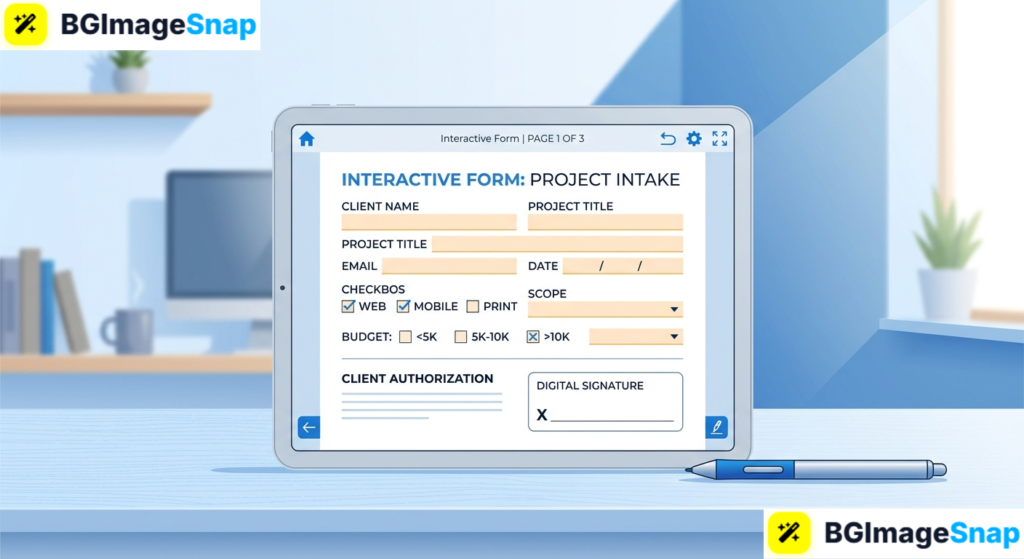
Printing out paper documents just to sign, scan, or type details by hand is slow and frustrating. Learning how to work with fillable PDFs solves this problem by allowing you to complete forms digitally, enter data cleanly, and collect signatures in seconds. With free web based utilities like Bgimagesnap, handling your everyday digital document tasks is fast, simple, and completely paperless.
Key Takeaways
- Fillable PDFs contain interactive form fields that allow users to enter text, check boxes, and sign documents directly on screen.
- You can create, edit, and fill interactive forms using standard web browsers without purchasing expensive desktop software.
- Interactive forms support diverse input elements such as text boxes, radio buttons, dropdown menus, and electronic signature blocks.
- Flattening completed forms protects entered data from accidental modification before sending it to clients or colleagues.
- Modern browser based tools keep file sizes small and make digital paperwork seamless across mobile devices and computers.
What Fillable PDFs Are and How Interactive Forms Work
A fillable PDF is an interactive electronic document designed with dynamic form fields built right into the page layout. Unlike static scanned documents that treat everything as an unchangeable picture, interactive forms recognize specific areas intended for user input. This means you can click into a text box, select dates from calendars, or check boxes using any mouse, stylus, or touchscreen.
Behind the scenes, these documents use standardized form technology often referred to as AcroForms or XFA architectures. When you open the file, your PDF reader or web browser detects the underlying data fields and highlights them for quick navigation. You can easily press the Tab key on your keyboard to jump from one entry field to the next without touching your mouse.
Modern online tools make working with fillable PDFs completely frictionless. Instead of installing massive, costly software packages like Adobe Acrobat Pro, modern users can process forms directly inside an updated internet browser. The tool loads the visual layers, renders the interactive form elements, and lets you input your details cleanly.
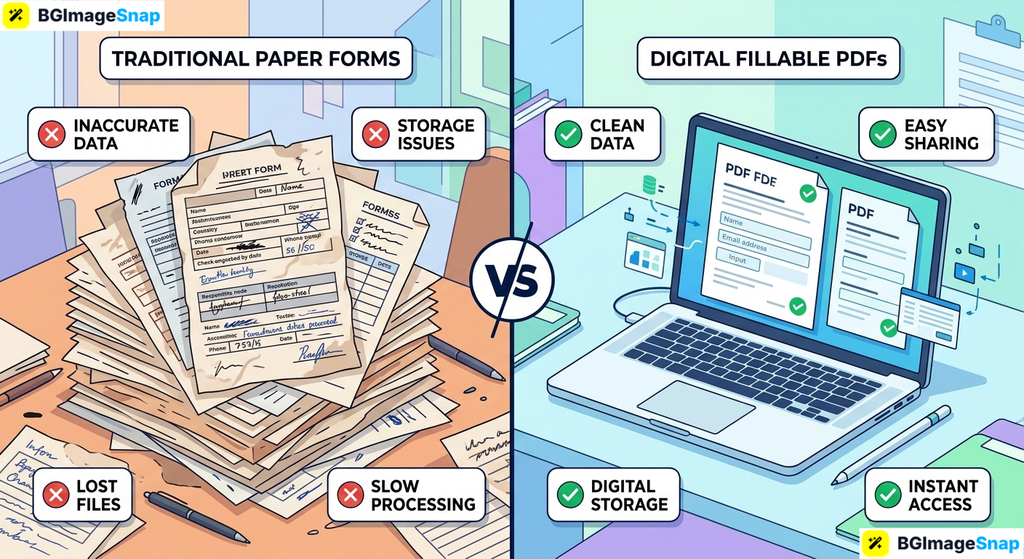
Once you enter your information, the document retains your entries inside structured metadata tags. You can save the file to finish later, submit the data over the internet, or export a flattened copy ready for printing. This process eliminates messy handwriting, avoids paper waste, and speeds up turnaround times for critical business and personal agreements.
Complete Breakdown of Fillable PDFs Features Fields and Formats
Understanding the various form fields available in fillable PDFs helps you design better documents and fill out incoming paperwork accurately. Below is a detailed breakdown of the components and technical features found in modern interactive forms.
Essential Form Field Elements
- Single Line & Multi Line Text Boxes: Ideal for names, email addresses, street addresses, and extended descriptive comments.
- Checkboxes: Allow respondents to select one or multiple options from a predefined list of choices.
- Radio Buttons: Force the user to choose only one exclusive option from a group, such as “Yes/No” answers.
- Dropdown Menus & Combo Boxes: Save valuable page space by displaying a scrollable list of selections only when clicked.
- Date Pickers: Pop up interactive mini calendars that standardize date formatting across all submissions.
- Digital & Electronic Signature Fields: Provide dedicated, secure spaces for signing via drawn signatures, typed cursive, or cryptographic certificates.
- Action & Submit Buttons: Enable one click actions such as clearing all field entries, printing the page, or emailing the document.
Static Flat PDFs vs. Interactive Fillable PDFs vs. Online Web Forms
The table below highlights how fillable PDFs compare to standard flat files and browser hosted web forms:
| Feature Criteria | Static Flat PDFs | Interactive Fillable PDFs | Online Web Forms |
|---|---|---|---|
| Direct On Screen Typing | No (requires third party markup) | Yes (native field input) | Yes (in browser window) |
| Offline Accessibility | Yes (view only) | Yes (can fill and save offline) | No (requires active internet) |
| Consistent Page Layout | High (fixed formatting) | High (identical across devices) | Variable (shifts with screen size) |
| Digital Signature Support | Difficult without extra tools | Built in native support | Requires external plugins |
| Print-Ready Fidelity | Standard | Exact 1:1 printable layout | Often prints unpredictably |
| Software Requirement | Any basic PDF reader | Any modern browser or viewer | Web browser only |
| Tamper Resistance | High (static visual) | High when flattened | Controlled by database |
Technical Specifications and Supported Environments
Modern fillable PDFs are engineered to operate across varied operating systems and software ecosystems:
- Document Standards: PDF 1.4 through PDF 2.0 specifications, including ISO standardized PDF/A formats for long term document archiving.
- Cross Platform Compatibility: Fully functional on Windows, macOS, Linux, ChromeOS, iOS, and Android.
- Viewer Support: Compatible with Google Chrome, Microsoft Edge, Mozilla Firefox, Apple Safari, Adobe Acrobat Reader, and mobile document viewers.
- Security & Privacy: Supports standard 128 bit and 256 bit AES encryption, user password permissions, and field locking controls.
How to Create and Edit Fillable PDFs Step by Step
Creating or completing an interactive document does not require technical coding skills. Follow these straightforward steps to prepare and manage your fillable PDFs online:
Step 1: Open Your Document in an Online PDF Editor
Launch your web browser and open an online PDF form editor or visit Bgimagesnap. Upload your existing static document, template, or scanned image file into the editor workspace.
Step 2: Add or Detect Interactive Form Fields
Use the form builder toolbar to place interactive elements onto your document. Drag and drop text fields over blank lines, place checkboxes next to listed items, and position a signature box at the bottom. Many modern editors automatically recognize blank form lines and convert them into active fields instantly.
Step 3: Customize Your Input Field Properties
Click on each placed field to define its behavior and appearance. Set custom placeholder text, adjust font sizes, mark essential sections as required, and set validation rules such as phone number or email formats.
Step 4: Fill In and Test Your Form Data
Switch to preview mode to verify that the tab order moves logically from top to bottom. Type in sample information, toggle checkboxes, and test dropdown menus to ensure every element works smoothly for end users.
Step 5: Sign, Flatten, and Download the Finished File
Apply your digital signature to authorize the document. If you are distributing the completed form and do not want anyone to alter your entries, choose the “Flatten PDF” option before downloading your final file to your device.
Real Use Cases Who Relies on Fillable PDFs Daily?
Because digital forms eliminate paperwork bottlenecks, fillable PDFs are essential tools across numerous personal and commercial sectors.
1. Freelancers, Contractors, and Independent Agencies
Freelance professionals routinely issue project proposals, non disclosure agreements, statements of work, and service contracts. Requiring clients to print, sign, and scan contracts slows down sales cycles significantly. Sending fillable PDFs allows prospective clients to review terms, input billing information, and electronically sign agreements on their mobile phones in minutes.
2. Online Retailers and E Commerce Merchants
E-commerce sellers frequently manage wholesale vendor applications, return authorization forms, and custom product order sheets. Using fillable PDFs standardizes incoming customer information, reducing order mistakes and delivery errors. The structured fields ensure that buyer addresses, tax IDs, and product quantities are submitted legibly every single time.
3. Academic Institutions, Students, and Teachers
Educational facilities process thousands of scholarship forms, course registration sheets, financial aid applications, and parent permission slips every semester. Students can complete administrative packets from home without needing campus printers or copiers. Teachers also use simple interactive forms to distribute digital worksheets, quizzes, and project evaluation rubrics directly to students.
4. Medical Clinics and Legal Practices
Healthcare providers use secure interactive intake forms to collect patient medical histories, insurance policy details, and emergency contacts before appointments. Similarly, legal offices utilize interactive forms for intake questionnaires, power of attorney authorizations, and lease agreements. This practice eliminates manual data entry mistakes and keeps sensitive personal information confidential.
Practical Tips for Designing and Managing Fillable PDFs
To deliver an exceptional experience for the people filling out your forms, apply these helpful design and management tips:
- Establish a logical tab sequence. Always arrange your form fields so pressing the Tab key moves the cursor sequentially from top left to bottom right across the page.
- Use clear placeholder text and field hints. Include brief instructional text inside or above empty fields to show users the exact data format you expect, such as “MM/DD/YYYY” for dates.
- Highlight required input areas. Mark critical fields with an asterisk or subtle color highlight so users do not accidentally skip mandatory questions.
- Flatten your forms after completion. Always convert dynamic fields into static content before public distribution to prevent unauthorized recipients from editing your typed data.
- Keep font sizes consistent across inputs. Set standard font sizes such as 10pt or 12pt so user entries appear clean and proportional alongside pre printed static labels.
- Optimize file weight before sharing. Large PDF attachments frequently get rejected by corporate email servers; use an online compressor like Bgimagesnap to shrink file sizes without losing clarity.
- Test the form across multiple devices. Always preview your interactive form on both desktop screens and mobile phones to confirm that buttons and text areas remain comfortable to tap.
FAQs
What is the difference between a static PDF and fillable PDFs?
A static PDF displays fixed text and imagery that cannot be clicked or edited without dedicated overlay markup tools. In contrast, fillable PDFs contain dedicated interactive fields that allow any user to type text, check boxes, select dropdown items, and sign digitally.
Why can’t I type into my PDF document?
If you cannot type directly into a form, the document is likely a flat or scanned image rather than an interactive form. To make it editable, you must open it in an online form editor and add interactive text fields over the blank lines.
How do I fill out fillable PDFs on an iPhone or Android phone?
You can open interactive PDF forms directly inside mobile web browsers or free default viewer applications like Apple Books, Google Drive, or Adobe Reader. Simply tap into any highlighted field to bring up your on-screen keyboard and enter your data.
What does it mean to flatten a fillable PDF?
Flattening merges the dynamic interactive form fields and typed text directly into the background visual layer of the document. Once flattened, the data becomes permanent, meaning other users cannot modify or erase the filled-in answers.
Conclusion
Learning how to create, edit, and distribute fillable PDFs is one of the easiest ways to eliminate paper clutter, improve data accuracy, and speed up business transactions. By replacing manual paperwork with interactive digital forms, you save valuable hours and deliver a modern experience for clients and colleagues alike. Ready to streamline your document workflow? Visit bgimagesnap today to discover our free suite of online document and image optimization tools and upgrade your digital productivity in seconds!