Introduction
If you’ve ever tried to print a photo and watched it come out blurry or resized a graphic for a client only to have them ask “but what size is this in inches?” you already know why it matters to convert pixels to inches correctly. Pixels measure screen resolution while inches measure physical real world size. The two only connect once you know your image’s DPI (dots per inch) or PPI (pixels per inch).
In this guide you’ll learn exactly how to convert pixels to inches the formulas behind it common DPI standards for web and print a free way to do the conversion instantly and the mistakes that quietly ruin print quality.
Table of Contents
- Quick Answer
- Pixels vs. Inches: What’s the Difference?
- The Pixels to Inches Formula
- Common DPI Standards (Web vs. Print)
- Step-by-Step: How to Convert Pixels to Inches
- Pixel to Inch Conversion Chart
- How to Convert Pixels to Inches Without Software
- Common Mistakes to Avoid
- FAQ
- Conclusion
Quick Answer / Key Takeaways
- Formula: Inches = Pixels ÷ DPI (or PPI)
- Web images typically use 72–96 DPI; print images need 300 DPI for sharp results.
- A 1200 × 1800 px image at 300 DPI equals 4 × 6 inches a standard photo print size.
- The same pixel dimensions can represent different physical sizes depending on the DPI setting.
- You can convert pixels to inches instantly using a browser based tool without installing software.
Pixels vs. Inches: What’s the Difference?
A pixel is a single point of color in a digital image a unit of screen resolution not physical size. An inch is a fixed unit of physical measurement. A 1000 pixel wide image can be tiny or huge in the real world; it all depends on how many pixels are packed into each inch.
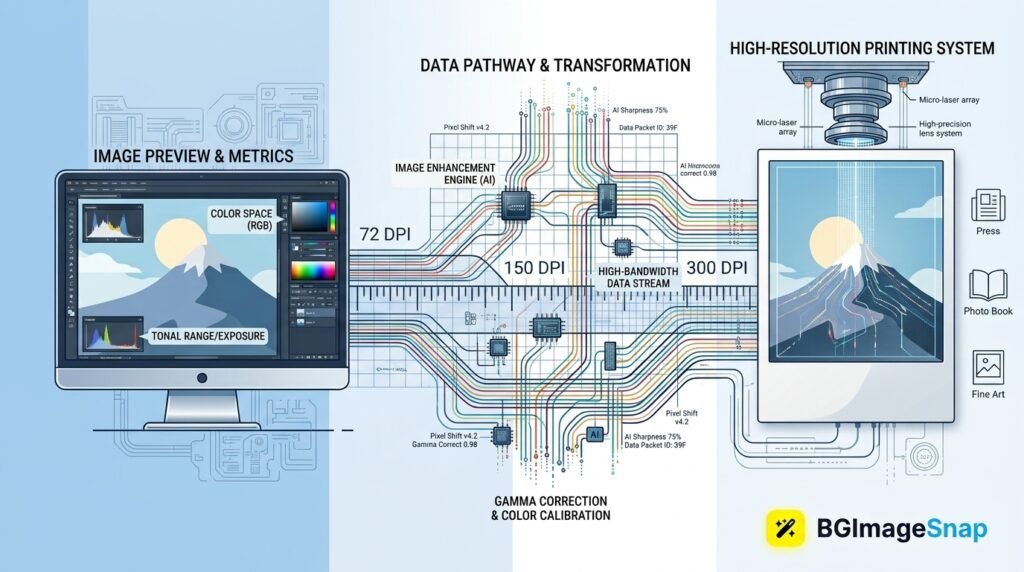
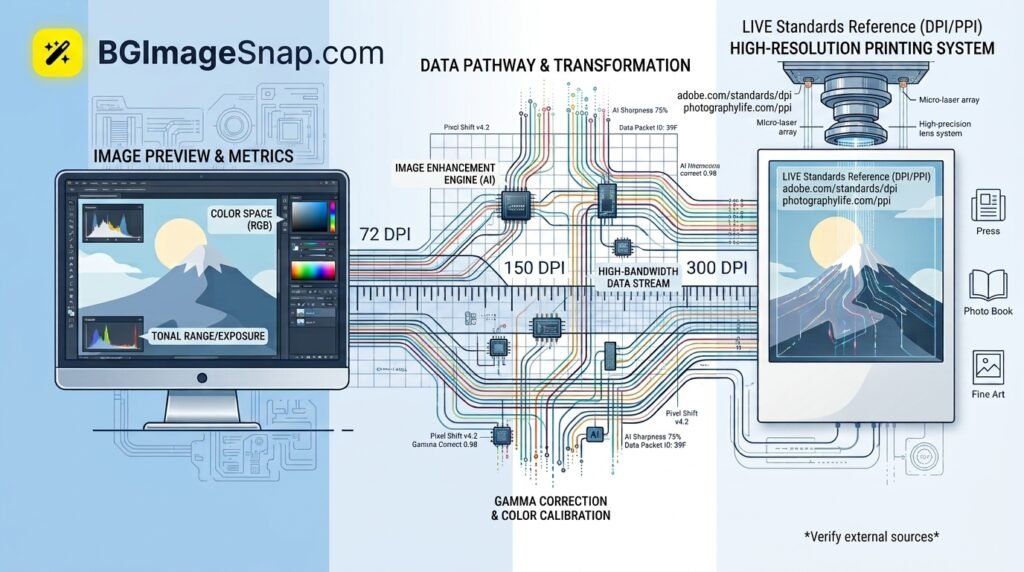
That’s where DPI (dots per inch) and PPI (pixels per inch) come in. These values tell you the density of pixels within a printed inch and they’re the bridge between the digital and physical worlds.
The Pixels to Inches Formula
The core formula to convert pixels to inches is:
Inches = Pixels ÷ DPIFor example, an image that is 1500 pixels wide at 150 DPI equals:
1500 ÷ 150 = 10 inchesTo go the other way and find pixels from inches:
Pixels = Inches × DPIThis formula is used for both width and height calculate each dimension separately.
Common DPI Standards (Web vs. Print)
Not every image uses the same DPI and this is the single biggest source of confusion when people convert pixels to inches.
| Use Case | Typical DPI/PPI | Notes |
|---|---|---|
| Website & social media images | 72–96 DPI | Screens display pixels directly; DPI is mostly irrelevant on screen |
| Standard document printing | 150 DPI | Acceptable quality for everyday printing |
| Professional photo printing | 300 DPI | Industry standard for sharp, print ready photos |
| Large format banners/posters | 100–150 DPI | Viewed from a distance so lower DPI still looks sharp |
Why this matters: the same 1200 × 1800 pixel file is roughly 12.5 × 18.75 inches at 96 DPI (screen) but only 4 × 6 inches at 300 DPI (print). Same pixels completely different physical size.
Step-by-Step: How to Convert Pixels to Inches
- Find your image’s pixel dimensions. Right click the file and check “Properties” (Windows) or “Get Info” (Mac) or open it in any image editor.
- Determine the DPI you need. Use 300 DPI for print 72–96 DPI for web/screen display.
- Divide width in pixels by DPI. This gives you the width in inches.
- Divide height in pixels by DPI. This gives you the height in inches.
- Round to a practical print size if you’re ordering physical prints (e.g., 4×6, 5×7, 8×10).
Pixel to Inch Conversion Chart
| Pixels (W × H) | At 72 DPI | At 150 DPI | At 300 DPI |
|---|---|---|---|
| 600 × 400 | 8.3 × 5.6 in | 4 × 2.7 in | 2 × 1.3 in |
| 1200 × 1800 | 16.7 × 25 in | 8 × 12 in | 4 × 6 in |
| 1500 × 2100 | 20.8 × 29.2 in | 10 × 14 in | 5 × 7 in |
| 2400 × 3000 | 33.3 × 41.7 in | 16 × 20 in | 8 × 10 in |
How to Convert Pixels to Inches Without Software
You don’t need Photoshop or a desktop program just to convert pixels to inches. A browser based image resizer lets you upload a photo see its pixel dimensions set your target DPI and get the inch measurements and a print ready file in seconds right from your phone or laptop. This is especially useful when you’re preparing images for printing, passport photos, or ID cards and need an exact physical size without guessing.
Common Mistakes to Avoid
- Assuming DPI is fixed. The same pixel file can be resized to any DPI; always check before printing.
- Using web images for print. A 72 DPI image that looks fine on screen will print blurry or pixelated.
- Ignoring the aspect ratio. Converting only one dimension without the other can distort the image.
- Confusing DPI with PPI. PPI refers to image resolution; DPI technically refers to printer output but the two are used interchangeably in most conversions.
- Upscaling low resolution images. Increasing DPI on a small pixel file doesn’t add real detail; it just stretches existing pixels.
FAQs
1. How do I convert pixels to inches for printing?
Divide the pixel width and height by 300 (the standard print DPI). For example, 1800 × 2400 pixels at 300 DPI equals 6 × 8 inches.
2. What DPI should I use to convert pixels to inches for a website?
Web images generally use 72–96 DPI since screens display pixels directly rather than printed dots.
3. How many pixels are in an inch?
It depends on the DPI setting. At 300 DPI there are 300 pixels per inch. At 72 DPI there are 72 pixels per inch.
4. Can I convert pixels to inches without knowing the DPI?
No DPI (or PPI) is required to convert pixels to inches since pixels alone only describe resolution not physical size.
5. What is 1080 x 1080 pixels in inches?
At 72 DPI that’s 15 × 15 inches. At 300 DPI (print quality) it’s 3.6 × 3.6 inches.
7. Is PPI the same as DPI?
Not technically PPI measures pixel density in a digital image while DPI measures dots printed per inch by a printer. In everyday conversion they’re used interchangeably.
Conclusion
Converting pixels to inches comes down to one simple formula divide pixels by DPI but getting it right depends on knowing which DPI standard your project needs. Use 72–96 DPI for anything staying on a screen and 300 DPI whenever an image is headed to print. Once you understand that relationship you’ll never be caught off guard by a blurry print or an oddly sized graphic again.