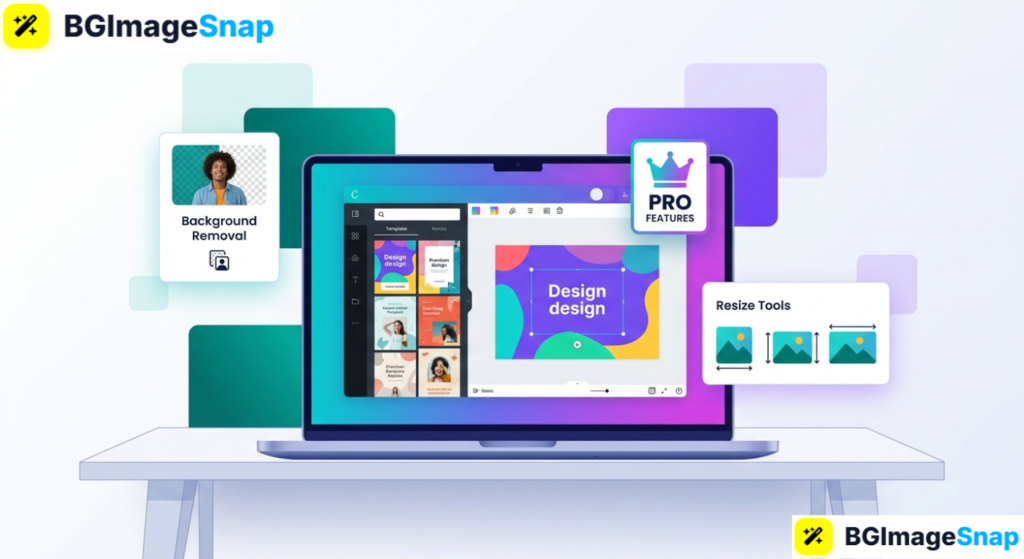
Creating professional designs shouldn’t require expensive software or years of training but the free version of Canva often leaves you hitting locked features right when you need them. Canva Pro removes those limits, unlocking premium templates, background removal, brand tools, and millions of assets. In this guide, you’ll learn exactly what Canva Pro offers, whether it’s worth the price, and free alternatives for the features you use most.
Key Takeaways
- Canva Pro is the paid upgrade to Canva, unlocking premium templates, assets, and pro only tools.
- Standout features include background removal, Brand Kit, Magic Resize, and 100+ GB of storage.
- It costs around $12.99/month or $119.99/year for individuals (pricing varies by region).
- A free 30 day trial lets you test every Pro feature before committing.
- Free tools at bgimagesnap can replace Canva Pro’s background remover at no cost.
What Is Canva Pro and How Does It Work?
Canva Pro is the premium subscription tier of Canva, the popular online graphic design platform. While the free version covers basic design needs, Canva Pro unlocks the professional tools, premium content, and time saving features that serious creators rely on.
Canva itself works through a simple drag and drop editor in your browser or app. You choose a template or blank canvas, add text, images, and elements, then export your finished design no design degree required.
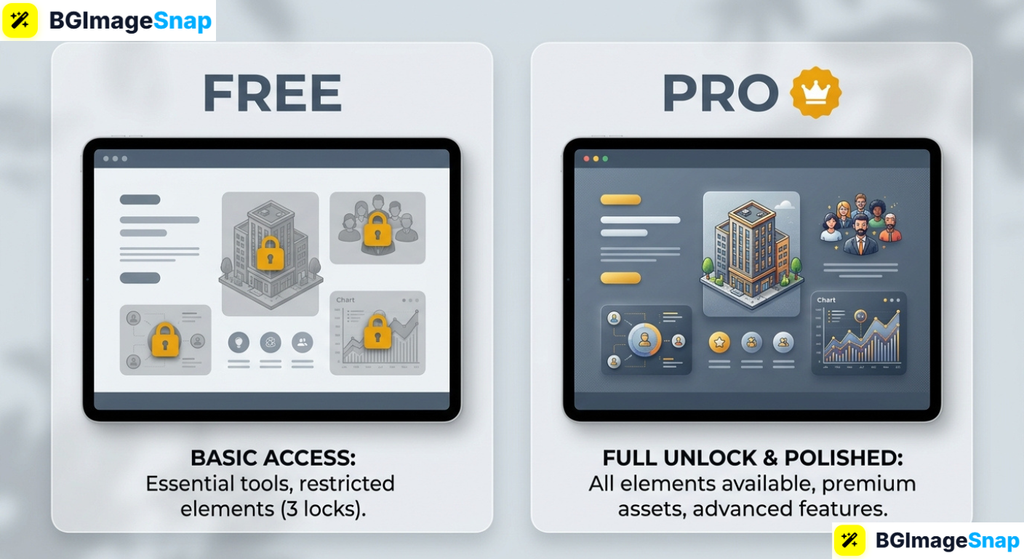
The difference with Canva Pro is access. The free version constantly nudges you toward locked premium templates, photos, and features marked with a small crown icon. Canva Pro removes every one of those locks.
Think of the free version as a well stocked starter kit and Canva Pro as the full professional studio. You get millions more assets, powerful automation tools, and features built specifically for brands, teams, and frequent creators.
For anyone who designs regularly whether for business, social media, or clients Canva Pro turns a good free tool into a genuinely professional one.
Canva Pro Features and Pricing A Full Breakdown
Here’s a complete look at what Canva Pro includes and what it costs, so you can decide if the upgrade fits your needs.
Premium Content Library
- 100+ million premium stock photos, videos, and graphics no extra licensing fees
- 610,000+ premium templates professionally designed for every use case
- 3,000+ premium fonts plus the ability to upload your own custom fonts
- Millions of premium elements icons, illustrations, stickers, and audio tracks
Pro Only Tools
- Background Remover erase photo backgrounds in one click
- Magic Resize instantly resize one design into multiple formats
- Brand Kit save your logos, colors, and fonts for consistent branding
- Magic Studio (AI tools) AI text to image, Magic Write, and Magic Edit
- Background music and video editing enhanced tools for motion content
Productivity and Storage
- 100 GB of cloud storage versus 5 GB on the free plan
- Content Planner schedule social media posts directly from Canva
- Team collaboration real time editing and sharing with team members
- Unlimited folders organize projects without limits
Canva Pro Pricing Individual Plan
- Monthly: around $12.99 per month
- Annual: around $119.99 per year (works out cheaper monthly)
- Free trial: 30 days with full access to all Pro features
- Canva for Teams: separate pricing for multiple users
- Note: prices vary by country and change over time check Canva’s site for current rates
Who Gets Canva Pro Free
- Nonprofits eligible organizations can access Canva Pro at no cost
- Educators and students Canva for Education is free for eligible schools
Two features stand out as the biggest value drivers. The Brand Kit saves hours by keeping your visual identity consistent across every design, while Magic Resize turns one graphic into a dozen platform ready sizes with a single click.
How to Get Started with Canva Pro Step by Step
Trying Canva Pro takes just a few minutes. Follow these five steps:
- Visit Canva and create a free account. Sign up with your email, Google, or Facebook account. You’ll start on the free plan by default.
- Start your Canva Pro free trial. Click the “Try Canva Pro” button and follow the prompts to begin your 30 day trial. You’ll get full access to every Pro feature immediately.
- Explore premium templates. Search for your project type Instagram post, presentation, flyer and browse the premium templates that were previously locked.
- Set up your Brand Kit. Upload your logo, add your brand colors, and choose your fonts. Now every future design can match your branding in one click.
- Design, resize, and export. Create your graphic, use Magic Resize to adapt it for other platforms, then download in high quality. Cancel before day 30 if you decide it’s not for you.
The free trial is genuinely full featured, so use it to test the tools you’d actually rely on before paying.
Who Uses Canva Pro Real Use Cases
Canva Pro serves a wide range of creators. Here are four groups who get the most value from it:
Small business owners and entrepreneurs. Running a business means constant content social posts, ads, flyers, and packaging. The Brand Kit keeps everything on brand automatically, while premium templates make a solo founder’s marketing look like it came from an agency.
Social media managers and marketers. Managing multiple platforms means resizing the same content endlessly. Magic Resize and the Content Planner save marketers hours every week, turning one design into a full scheduled campaign across every network.
Freelance designers and content creators. Freelancers use Canva Pro to deliver polished work fast without expensive software. The massive asset library means they rarely need to buy separate stock photos, protecting their profit margins.
Teachers and students. Educators create engaging worksheets, presentations, and classroom visuals, while students design projects and portfolios. Many access these tools free through Canva for Education, getting Pro level features at no cost.
Tips for Getting the Most from Canva Pro
- Maximize the free trial. Test every Pro feature during your 30 days, especially the ones you’d use daily, before deciding whether the subscription pays for itself.
- Choose annual billing to save. If you know you’ll keep it, the yearly plan costs noticeably less per month than paying monthly.
- Set up your Brand Kit first. Before designing anything, load your colors, logo, and fonts. It makes every project faster and more consistent from day one.
- Use Magic Resize religiously. Design once, then resize into every format you need. This single feature can replace hours of manual redesigning.
- Check for free access. If you’re a student, teacher, or work for a nonprofit, you may qualify for Canva’s free Pro level programs before you ever pay.
- Don’t pay just for background removal. If the background remover is the only Pro feature you need, the free tool at bgimagesnap does the same job at no cost.
- Organize with folders early. Set up a clean folder system for clients or projects so your growing library stays easy to navigate.
Frequently Asked Questions
How much does Canva Pro cost?
Canva Pro costs around $12.99 per month or $119.99 per year for individuals, though prices vary by region. The annual plan works out cheaper per month, and a free 30 day trial is available.
Is Canva Pro worth it?
For anyone who designs regularly businesses, marketers, freelancers, and creators yes. The time saved by Brand Kit, Magic Resize, and premium templates usually justifies the cost. Occasional users may be fine on the free plan.
Can I use Canva Pro for free?
You can try it free for 30 days. Additionally, eligible students, teachers, and nonprofit organizations can access Pro level features permanently at no cost through Canva’s education and nonprofit programs.
What’s the difference between Canva Free and Canva Pro?
Canva Free covers basic design with limited templates and 5 GB storage. Canva Pro unlocks 100+ million premium assets, background removal, Brand Kit, Magic Resize, AI tools, and 100 GB of storage.
Do I need Canva Pro just to remove image backgrounds?
No. While Canva Pro includes a background remover, you can get the same result for free at bgimagesnap without any subscription.
Conclusion
Canva Pro transforms a capable free tool into a full professional design studio with premium templates, powerful automation, and brand tools that save serious time. For frequent creators and businesses, it’s often well worth the price, especially with a 30 day free trial to test it risk free. And if you only need to remove backgrounds, skip the subscription and visit bgimagesnap to do it free with our browser based tools.