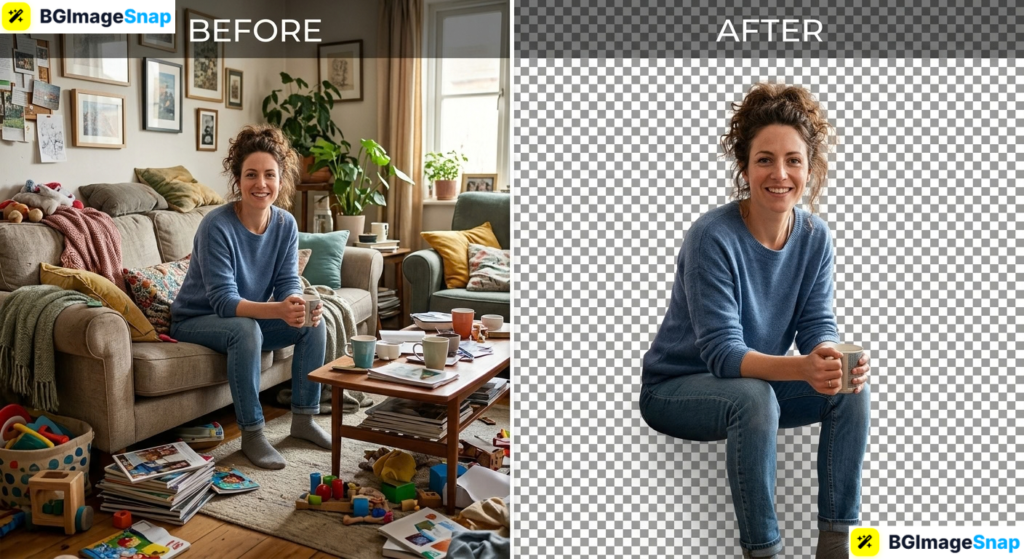
A cluttered background can ruin an otherwise perfect photo whether it’s a product shot, a profile picture, or a design asset. A background remover fixes this in seconds by automatically isolating your subject and erasing everything behind it. In this guide, you’ll learn how a background remover works, who benefits most, and how to get clean transparent images for free.
Key Takeaways
- A background remover uses AI to detect your subject and erase everything behind it automatically.
- Modern tools process images in under five seconds no manual tracing or design skills needed.
- Output files save as transparent PNGs, ready for websites, marketplaces, and designs.
- E-commerce sellers, content creators, and students all rely on background removal daily.
- The background remover at bgimagesnap is free, browser based, and requires no signup.
What Is a Background Remover and How Does It Work?
A background remover is a tool that separates the main subject of a photo from everything behind it. The result is a clean cutout a person, product, or object sitting on a transparent background, ready to place anywhere.
Years ago, this job required tedious manual work in Photoshop. Editors traced subjects pixel by pixel with selection tools, and a single portrait could take thirty minutes. AI changed everything.
Modern background remover tools use computer vision models trained on millions of images. The AI has learned what people, animals, products, and objects look like so it can instantly distinguish subject from background.
The process happens in three stages. First, the AI scans your image and identifies the foreground subject. Second, it draws a precise boundary around the edges, handling tricky details like hair strands and fur. Third, it deletes the background pixels and exports the cutout with a transparent alpha channel.
The entire sequence takes two to five seconds. What once demanded professional skills and expensive software now happens with a single upload which is why background remover tools have become essential for anyone who works with images.

Background Remover Features and Supported Formats
Here’s a complete breakdown of what a quality background remover offers, so you know exactly what to expect before uploading.
| Feature | Details |
|---|---|
| Supported input formats | JPG, PNG, WebP |
| Output format | Transparent PNG |
| Processing time | 2–5 seconds per image |
| Edge detection | AI powered, handles hair, fur, and fine details |
| Cost | 100% free |
| Signup required | None |
| Watermarks | None |
| Device support | Desktop, tablet, and mobile browsers |
| Installation | None runs entirely online |
| Privacy | Secure HTTPS upload; images deleted after processing |
A few of these features deserve extra explanation:
Transparent PNG output is the whole point. JPG files can’t store transparency they’d fill your cutout with white. PNG preserves the alpha channel, so your subject floats cleanly over any new background.
AI edge detection is where quality shows. Cheap tools leave jagged edges or chop off wisps of hair. A good background remover handles soft boundaries gracefully, keeping fine details intact.
Browser based processing means freedom. You can remove backgrounds on a work laptop, a phone on the train, or a borrowed tablet anywhere with a browser and internet connection.
How to Use a Background Remover Step by Step
Removing a background takes less than a minute from start to finish. Follow these five steps:
- Open the background remover at bgimagesnap The tool loads directly in your browser no account, download, or installation needed.
- Upload your image. Drag and drop your file onto the page, or click to browse your device. JPG, PNG, and WebP files all work.
- Let the AI process your photo. The background remover detects your subject and erases the background automatically in a few seconds.
- Preview the result. Check your cutout against the transparent checkerboard. Zoom in on edges like hair and fingers to confirm clean detection.
- Download your transparent PNG. Save the finished cutout to your device, ready for product listings, designs, presentations, or profile pictures.
That’s the entire workflow. No settings to configure, no brushes to master the AI handles the hard part every time.
Who Uses a Background Remover? Real Use Cases
Background removal serves nearly every visual profession. Here are four groups who use these tools daily:
E-commerce sellers. Amazon, eBay, and Etsy all recommend or require clean product photos on white or transparent backgrounds. Sellers use a background remover to transform casual tabletop shots into professional listings that meet platform standards and convert more buyers.
Content creators and YouTubers. Thumbnails drive clicks, and the best ones feature expressive cutouts over bold graphics. Creators remove backgrounds from their photos, then layer themselves over bright colors and text a formula behind countless viral videos.
Freelancers and marketers. Designers build ads, social posts, and client presentations constantly. A background remover turns any photo into a flexible asset that drops cleanly into layouts, saving hours of manual masking every week.
Students and teachers. Presentations look instantly more polished when images don’t carry messy backgrounds. Students cut out historical figures, diagrams, and project photos for slides, while teachers prepare cleaner worksheets and class materials.
Tips for Perfect Background Removal Results
- Start with good contrast. Subjects that stand out clearly from their backgrounds give the AI clean boundaries to detect. A dark product on a light surface works beautifully.
- Use the highest resolution available. More pixels mean more edge detail for the AI to work with, producing smoother cutouts especially around hair.
- Check the edges at 100% zoom. Before finalizing, inspect fingertips, hair wisps, and thin object parts. Most cutouts are perfect, but a quick check catches rare misses.
- Always save as PNG. Exporting as JPG destroys transparency and fills the background with white. PNG keeps your cutout flexible for any future use.
- Add a subtle shadow when placing cutouts. A soft drop shadow beneath your subject grounds it on new backgrounds, preventing the unnatural “floating sticker” look.
- Keep your original photos. Background removal is one way. Preserve originals so you can reprocess with different tools or settings later.
- Compress large PNGs before uploading to websites. Transparent PNGs can be heavy. Run finished files through a compressor to keep your pages loading fast.
FAQs
Is the background remover really free?
Yes. The tool at bgimagesnap is completely free with no watermarks, no signup, and no hidden limits on standard use.
Does background removal reduce image quality?
No. The process removes background pixels but leaves your subject untouched at full resolution. Your cutout stays exactly as sharp as the original.
Can it handle hair and fur?
Modern AI handles soft edges impressively well. While extremely wispy hair against busy backgrounds can challenge any tool, results are clean in the vast majority of photos.
Are my uploaded photos safe?
Yes. Images transfer over encrypted HTTPS connections and are deleted from servers shortly after processing. Your photos are never stored or shared.
Can I use a background remover on my phone?
Absolutely. Browser based tools work identically on mobile and desktop, so you can remove backgrounds from anywhere with an internet connection.
Conclusion
A background remover turns one of photo editing’s most tedious jobs into a five second task no skills, software, or budget required. Whether you’re polishing product photos, building thumbnails, or designing presentations, clean transparent cutouts elevate every project. Try the free background remover at bgimagesnap right now upload one photo and see the magic for yourself!