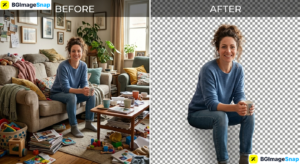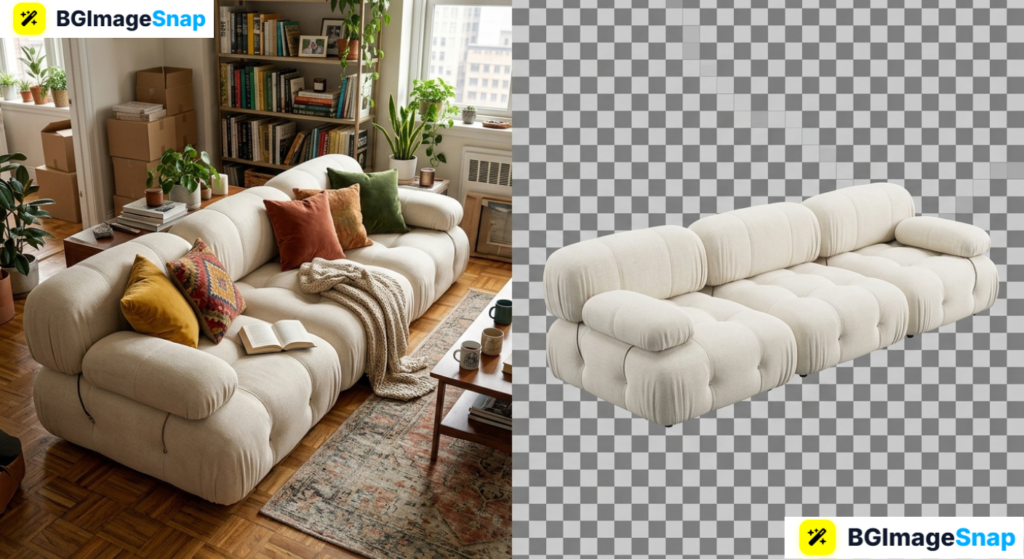
A cloud couch looks huge, soft, and expensive in real life then your listing photo shows a messy living room, a lamp growing out of the armrest, and a rug that fights the fabric color. Clean cutouts fix that. In this guide, you’ll learn how to photograph a cloud couch, remove the background, and export marketplace ready images with free tools.
Key Takeaways
- Shoppers judge a cloud couch by shape, depth, and fabric cluttered rooms hide all three.
- Shoot wide, keep even light, and leave space around every module before you edit.
- AI background removal turns a room shot into a transparent PNG you can drop on white or lifestyle scenes.
- Amazon, Shopify, and catalogs usually want white or light gray; social ads want styled rooms.
- Remove backgrounds free at bgimagesnap then resize for each channel.
What Background Removal Does for Cloud Couch Photos
Background removal isolates the sofa from the room. The cloud couch stays; walls, floors, pets, and laundry piles go. You get a cutout with a transparent background (usually PNG) you can place on pure white, marble, or a digital living room.
AI tools scan edges: cushions, piped seams, throw pillows, and the gap under the frame. Good light and contrast help the model see where fabric ends and the floor begins. Fuzzy boucle and deep slipcovers are harder than a leather cube, so extra care around the base matters.
Why bother? Marketplaces compare products side by side. A cloud couch on a busy patterned rug looks smaller and cheaper than the same sofa on white. Cutouts also let you show one sofa in gray, beige, and “in a loft” without reshooting every scene.
You are not faking the product if the sofa itself is honest. You are removing noise so buyers can see seat depth, chaise length, and how many seats they are paying for.
Cloud Couch Photo Specs, Angles, and Export Details
Use this as a shot list and file checklist for cloud couch listings.
Angles that sell a cloud couch
- Hero three quarter shows length, depth, and the “cloud” cushion stack
- Straight on honest width for apartment shoppers
- Top down or high corner modular layout (L-shape, U-shape, ottoman)
- Detail fabric texture, performance weave, seam, and sink in cushions
- Scale person sitting or a coffee table so the cloud couch does not look toy sized
- Chaise / corner module extra pieces people add later
Shooting setup
- Pull the sofa 1–2 feet from the wall so shadows do not glue it to the paint
- Use window light plus a white bounce (foam board) on the shadow side
- Turn off mixed yellow lamps if you can; one color temperature looks cleaner
- Hide remotes, shoes, and cables AI may keep them as “part of the product”
- Shoot extra space around the arms; cropping after removal is easier than cloning missing fabric
- For white or cream cloud couch fabric, use a slightly darker floor or backdrop so edges exist
File and format notes
- Input: JPG or PNG from phone or camera
- Output after removal: PNG with transparency
- Catalog / Amazon style: place PNG on #FFFFFF or very light gray
- Web hero: 1600–2000 px on the long side is plenty for most stores
- Thumbnails: keep the full sofa in frame; do not crop off the chaise
- Avoid JPG for the cutout JPG cannot store real transparency
What a background remover should handle
- Soft cushion edges and wrinkled slipcovers
- Thin legs or hidden glides
- Pillows you want to keep vs. styling you want gone
- Hair, rugs, and plants touching the skirt
- Batch friendly uploads if you have six modules
Common cloud couch listing sizes (check each store)
- Square 1:1 for many grid catalogs
- 4:3 for some furniture sites
- Vertical 4:5 or 9:16 for Reels and Stories (sofa still centered)
- Infographics: dimensions overlay next to the isolated cloud couch
When not to fake the room
- Do not add a mansion interior if you sell a compact apartment set
- Do not change fabric color in a way that misleads
- Keep true proportions; stretching a cloud couch to look longer is a return waiting to happen
Prep is half the edit. A well lit, uncluttered photo of a cloud couch removes in seconds; a dark, busy photo fights you for an hour.
How to Remove the Background from a Cloud Couch Photo Step by Step
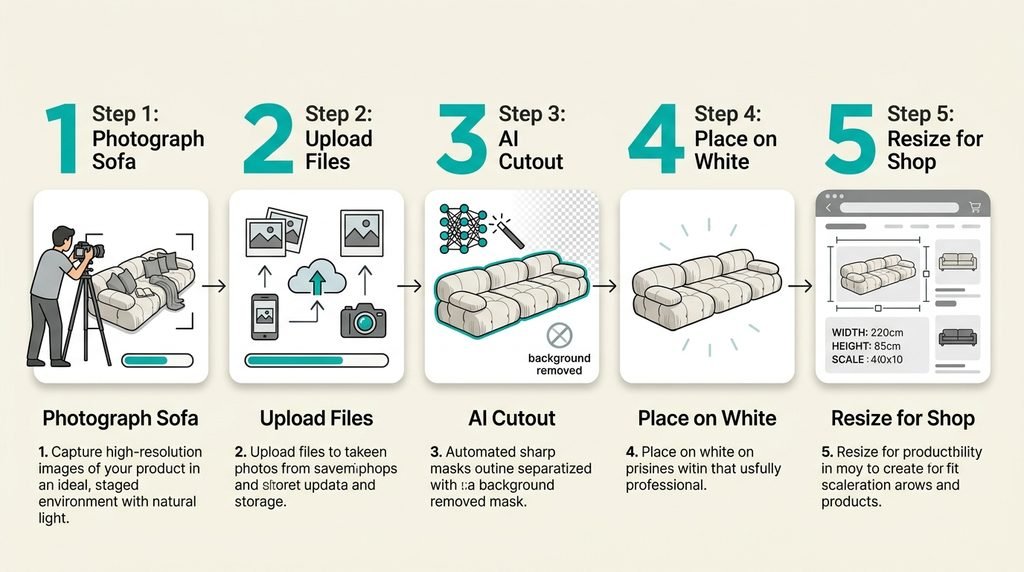
- Pick the cleanest source frame. Choose a sharp three quarter shot with the whole cloud couch visible, no motion blur, and light on the front cushions. Duplicate the file so you never overwrite the original.
- Open a background remover. Go to bgimagesnap upload the photo, and run remove background. Wait for the cutout; check legs, pillow edges, and the floor shadow.
- Fix the misses. If the tool ate a cushion corner or left a plant, use restore/erase brushes if available, or recrop tighter and run again. Cream fabric on a cream wall is the usual failure reshoot with a darker floor if needed.
- Export PNG, then place on white or a scene. Drop the cloud couch on white for the main SKU image. For ads, place it on a simple digital living room. Keep a drop shadow soft and under the base so it does not float.
- Resize for each channel. Make a square catalog crop, a wide website banner, and a vertical social crop. Compress for web without turning boucle into plastic.
Do one hero the slow way, then batch the rest of the module photos with the same crop and background so the store looks like one brand.
Who Needs Cloud Couch Cutouts? Real Use Cases
Furniture sellers on Amazon, Wayfair, or Shopify. Grids punish busy rooms. A white background cloud couch next to competitors looks bigger, cleaner, and easier to compare on price and size.
Interior stylists and content freelancers. They drop one sofa into several mock rooms for Pinterest and client decks without booking a warehouse studio every time.
Small workshops and upholsterers. Before and after slipcover photos work when both shots sit on the same white field. Buyers see the fabric, not the garage.
Students and apartment hunters. Class projects and “will this fit” mood boards need a cloud couch PNG dropped on a floor plan photo without the seller’s lifestyle clutter.
Tips for Better Cloud Couch Cutouts
- Light the front, not only the window behind. Backlight turns cushions into a silhouette and wrecks edge detection.
- Style fewer pillows. Extra throws become “product” the AI will keep. Keep the look you actually ship.
- Shoot modules separately if the full U-shape will not fit in frame. Composite later at correct scale.
- Watch white on white. A white cloud couch on a white rug needs a gray paper sweep or a slightly darker floor.
- Keep true color. Do not oversaturate beige into gold; returns start in the details.
- Add a faint ground shadow after removal so the sofa sits on the new background.
- Name files clearly.
cloud-couch-3seat-gray-hero-white.pngsaves you in a 200 SKU folder.
Frequently Asked Questions
Can I remove the background from a phone photo of a cloud couch?
Yes, if the sofa is sharp, well lit, and fully in frame. Step back; ultra wide distortion makes the cloud couch look huge in the middle and tiny at the arms.
Should furniture always be on a white background?
Main SKUs often yes. Lifestyle shots still sell emotion. Use the same cutout on white for the catalog and on a room for social.
Why did the tool delete part of my cushion?
Low contrast or a pillow matching the wall. Reshoot with a darker backdrop or paint the restore brush over the missing foam.
PNG or JPG for a cloud couch listing?
PNG for transparent cutouts. Flatten to JPG only after you place it on a solid white canvas if the marketplace requires JPG.
Is it honest to change the room behind a cloud couch?
Yes if the sofa, color, and size match what you ship. No if you imply a different fabric, extra modules, or a palace that misleads scale.
Conclusion
A cloud couch sells on softness and scale and those only show when the background is quiet. Shoot with space and even light, remove the room, and export a sharp PNG for every store. Start your next listing at bgimagesnap upload, remove the background, and download a clean cloud couch cutout in your browser.