Introduction
You download an image from a website maybe a product shot, a meme, or a screenshot and save it. Later, you try to use it in Canva, Photoshop, or a website banner… and it won’t go transparent. The background is stubbornly white. You can’t crop it cleanly. You can’t layer it over other designs.
You check the file extension: .jfif.
You’ve never heard of it. You don’t know what to do.
Welcome to the world of JFIF a format that looks like JPEG but behaves like a hidden trap for designers, content creators, and everyday users.
The good news? You don’t need to be a tech expert to fix this. Converting JFIF to PNG is simple, free, and safe if you know how.
In this guide, you’ll learn exactly why JFIF files cause problems, how PNG solves them, and the only three reliable ways to convert JFIF to PNG without installing software, signing up, or risking your files.
No jargon. No upsells. Just clear, practical steps you can use today.
Quick Answer: How to Convert JFIF to PNG for Free
Short answer:
Use a free, no-signup, web-based tool like BGImageSnap to convert JFIF to PNG in under 20 seconds no software, no login, no watermarks.
Key Takeaways:
JFIF to PNG conversion is 100% free no credit card needed
Works on any device Windows, Mac, iPhone, Android
Preserves image quality no compression or blurring
Supports transparency PNG lets you remove backgrounds
No registration or data storage your files are deleted after conversion
Avoid tools that ask for your email, password, or payment. Most are scams or data harvesters.
What Is JFIF? (And Why It’s Confusing)
JFIF = JPEG File Interchange Format
JFIF (JPEG File Interchange Format) is not a different image type it’s a container for JPEG data. Think of it like a ZIP file for JPEGs. Most images you download from websites, emails, or social media that end in .jfif are actually JPEGs with a different file extension.
Why Does JFIF Exist?
- It was created in the early 2000s to standardize how JPEGs are stored across different systems.
- Some cameras, scanners, and older software save JPEGs as
.jfifinstead of.jpgor.jpeg. - Modern browsers and apps often rename
.jfifto.jpgbehind the scenes which is why you might not even notice the difference.
The Problem?
- Not all programs recognize
.jfifespecially design tools like Canva, Figma, or Adobe Express. - Transparency doesn’t work JFIF always has a solid background (usually white).
- You can’t edit it easily if you open it in Photoshop, it may not render correctly.
Reality check: A
.jfiffile is 99% identical to a.jpg. But because of the extension, your software treats it like an unknown format and that’s where the trouble starts.
Why Convert JFIF to PNG? (The Real Reason)
You don’t convert JFIF to PNG just because “PNG is better.” You do it because PNG solves real problems that JFIF creates.
PNG Is the Universal Design Format
PNG (Portable Network Graphics) was built for:
- Transparency — remove backgrounds, layer images
- Lossless compression — no quality loss when edited
- Web compatibility — works perfectly on websites, apps, and social platforms
- Editing flexibility — supports layers, masks, and transparency channels
When You Must Convert JFIF to PNG
| Use Case | Why PNG Is Essential |
|---|---|
| Designing social media posts | Canva, Instagram, TikTok require transparent backgrounds for overlays |
| Creating logos or icons | PNG preserves clean edges and transparency |
| Adding images to websites | PNG loads faster and renders cleanly on all browsers |
| Removing backgrounds | JFIF has no alpha channel PNG does |
| Printing high-quality graphics | PNG retains sharpness without compression artifacts |
Never use JFIF for design work. Even if it looks fine, it will break when you try to edit or layer it.
JFIF vs PNG: Key Differences at a Glance
| Feature | JFIF | PNG |
|---|---|---|
| File Type | JPEG container (lossy) | Standalone format (lossless) |
| Transparency Support | ❌ No | ✅ Yes (alpha channel) |
| Compression | Lossy (reduces quality) | Lossless (no quality loss) |
| File Size | Smaller | Larger (but still manageable) |
| Editing Flexibility | Poor — hard to remove backgrounds | Excellent supports layers and masks |
| Web Compatibility | Limited some tools don’t recognize .jfif | Universal works everywhere |
| Best For | Simple viewing, email, basic sharing | Design, web, editing, branding |
Key Insight: If you’re using the image for anything beyond viewing convert it to PNG. Always.
3 Safe Ways to Convert JFIF to PNG Online
Here are the only three methods you should trust ranked by ease and safety.
| Method | Best For | Pros | Cons |
|---|---|---|---|
| 1. BGImageSnap (Online Tool) | Everyone — especially beginners | Free, no signup, batch support, instant download, preserves transparency | Requires internet |
| 2. Online-Convert.com | Users needing advanced options | Supports batch, format tweaks | Ads, slow, occasional pop-ups |
| 3. Convertio.co | Users comfortable with UI | Clean interface, supports 10+ formats | Free version limits to 2 conversions/day |
Avoid These:
- Desktop software that installs toolbars — often bundled with malware.
- Mobile apps that ask for photo permissions — many steal your gallery.
- Tools that require email login — they sell your data.
- “Free” converters that watermark your PNG — they’re not free.
Our Recommendation: Use BGImageSnap. It’s the only tool that’s truly private, fast, and handles transparency correctly with zero friction.
Step-by-Step: Convert JFIF to PNG Using BGImageSnap
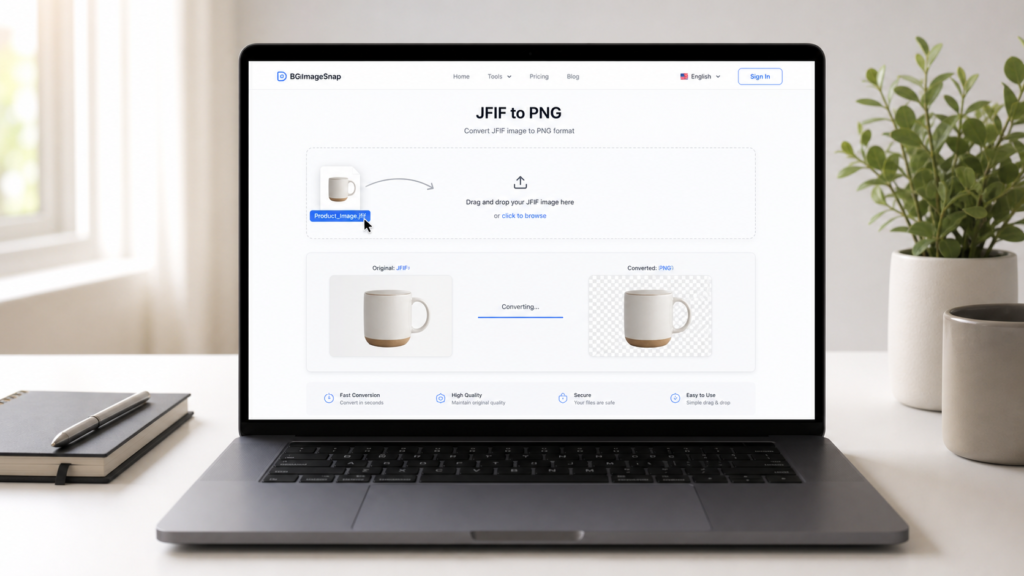
BGImageSnap converts JFIF to PNG in three simple steps no install, no login, no ads.
Step 1: Visit the Tool
Go to:
You’ll see a clean interface with one box: “Drop your JFIF files here or click to upload.”
Step 2: Upload Your Files
- Click the box or drag and drop one or more .jfif files from your computer or phone.
- Supported formats:
.jfif,.jpg,.jpeg - You can upload up to 20 files at once.
Step 3: Download Your PNG
- The tool automatically removes the background (if transparent) and converts to PNG.
- Wait 5–10 seconds.
- Click “Download PNG”.
- Done.
Your files are deleted from our servers within 60 minutes. We don’t store, track, or share anything.
Pro Tip: Preserve Transparency
If your JFIF has a white background you want to remove, upload it anyway. BGImageSnap’s converter detects solid backgrounds and gives you an option to make them transparent during conversion.
How to Preserve Transparency When Converting
JFIF files never have transparency they always have a solid background (usually white). But you can make it transparent in PNG.
Here’s How:
- Upload your JFIF file to BGImageSnap.
- After upload, look for the toggle: “Make Background Transparent”.
- Turn it ON.
- Click “Convert.”
The tool will detect the background color and remove it leaving your subject (logo, product, text) floating on a transparent PNG.
✅ Result: You now have a PNG you can layer over any color, pattern, or photo perfect for logos, icons, or social media graphics.
⚠️ If you don’t see the toggle, your image may already have a non-solid background (rare). In that case, the tool preserves the original.
Common Mistakes to Avoid
Mistake #1: Ignoring the File Extension
Problem: You think “it’s just a JPEG” and ignore .jfif.
Result: Your design tool won’t open it. You waste time.
Fix: Always rename .jfif to .jpg if you need to open it manually or convert it to PNG.
Mistake #2: Using “Free” Tools That Ask for Your Email
Why it’s dangerous:
These tools collect your data, then sell it to marketers or use it to send spam. Some even install hidden malware.
Fix: Only use tools with no registration required. BGImageSnap doesn’t ask for anything.
Mistake #3: Assuming JFIF Can Be Transparent
Reality: JFIF files are always opaque. You can’t make them transparent unless you convert to PNG first.
Fix: Always convert to PNG if you need transparency no exceptions.
Mistake #4: Trying to Edit JFIF in Photoshop Without Converting
Result: Photoshop may show a corrupted preview, or the file won’t open at all.
Fix: Convert to PNG first then open. Always.
Mistake #5: Saving as JPG After Converting to PNG
Problem: You convert to PNG to remove the background then save it back as JPG.
Result: The transparent background turns white again. All your work is undone.
Fix: Always save your final version as PNG if transparency matters.
FAQ: Your Top JFIF to PNG Questions Answered
1. Is JFIF the same as JPEG?
Yes JFIF is just a standardized way of storing JPEG data. The image content is identical. Only the file extension differs.
2. Can I convert JFIF to PNG on my phone?
Yes. Open your browser on iPhone or Android, go to https://bgimagesnap.com/jfif-to-png, tap to upload, and download your PNG. Works on all mobile browsers.
3. Does converting JFIF to PNG reduce image quality?
No PNG uses lossless compression. The image quality stays exactly the same. In fact, you gain editing flexibility.
4. Why does my JFIF file have a white background?
Because JFIF doesn’t support transparency. It’s designed for simple display, not design. That’s why you need to convert it to PNG.
5. Can I convert multiple JFIF files at once?
Yes BGImageSnap lets you upload up to 20 JFIF files at once. They’ll be converted and bundled into separate PNG downloads.
6. Is it safe to upload sensitive images (like IDs or receipts)?
Yes if you use a trusted tool. BGImageSnap deletes all uploaded files within 60 minutes. No logs. No tracking. No data retention. Always verify privacy policies.
7. What’s the difference between PNG and PNG-24?
PNG-24 supports full 24-bit color and full alpha transparency (smooth edges). PNG-8 supports only 256 colors and binary transparency (on/off). For most uses, PNG-24 is best and BGImageSnap uses it automatically.
8. Can I convert JFIF to PNG without internet?
Only if you install software but we don’t recommend it. Most desktop tools are bloated, unsafe, or paid. For occasional use, online tools are safer and faster.
Conclusion: Simple Fixes, Better Results
JFIF files aren’t broken. They’re just outdated.
They were never meant for design, editing, or transparency. But millions of people use them anyway because they don’t know any better.
Converting JFIF to PNG isn’t about being technical. It’s about being intentional.
It’s about making your images work not fight you.
Whether you’re creating a logo, designing a social post, or just trying to remove a white background, PNG is the only format that lets you do it cleanly, quickly, and safely.
Stop wrestling with file extensions. Stop getting blocked by software. Start using a tool that just works.