
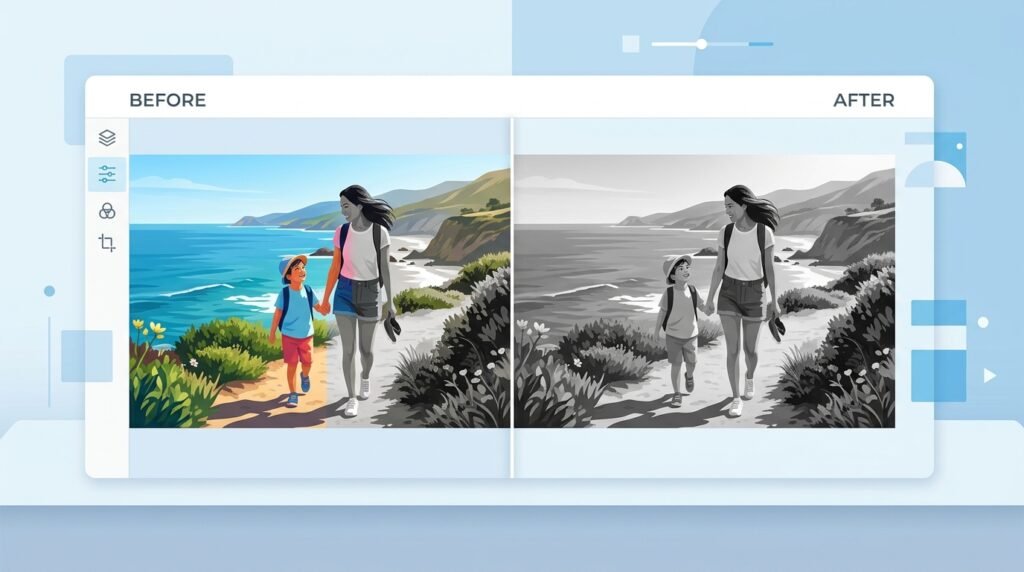
If you need to turn a regular JPEG image into an icon a JPEG to ICO converter can make the process much easier. JPEG files are designed mainly for photographs and general purpose images while ICO files are commonly used for icons such as website favicons Windows application icons and shortcuts.
In this guide you’ll learn what an ICO file is how to convert JPEG to ICO which image sizes work best common mistakes to avoid and how to prepare an icon that looks sharp across different devices.
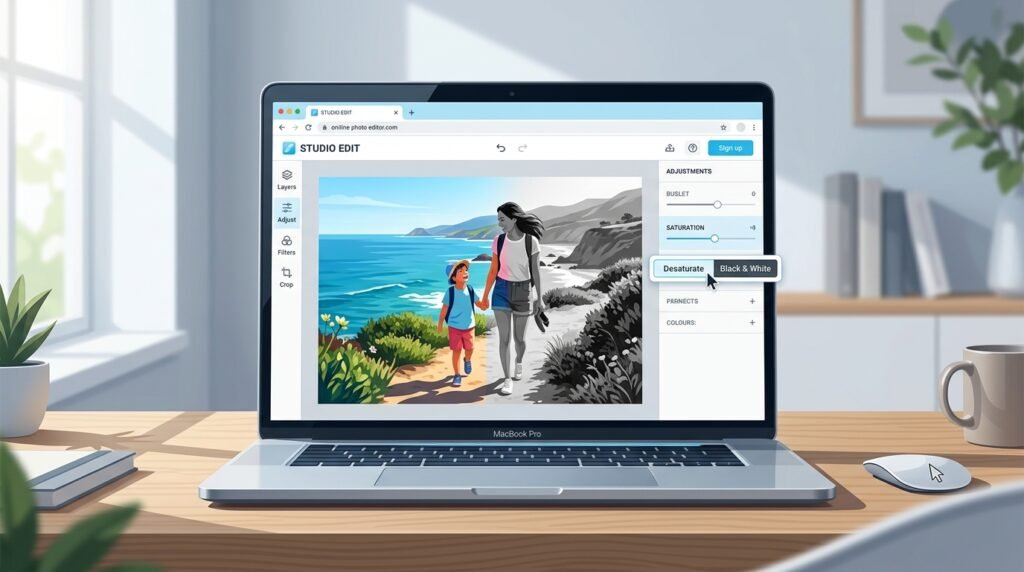
Table of Contents
- What Is a JPEG to ICO Conversion?
- Why Convert JPEG to ICO?
- How to Convert JPEG to ICO
- Best ICO Sizes to Use
- JPEG vs ICO
- Common Conversion Mistakes
- Tips for Better ICO Icons
- FAQ
- Conclusion
Quick Answer: How Do You Convert JPEG to ICO?
The easiest way to convert JPEG to ICO is to use an online image converter.
- Open a JPEG to ICO conversion tool.
- Upload your JPEG image.
- Choose ICO as the output format.
- Select an appropriate icon size if the tool provides the option.
- Convert the image.
- Download and test the resulting ICO file.
For a simple website favicon or application icon start with a square source image whenever possible.
What Is a JPEG to ICO Conversion?
A JPEG to ICO conversion changes an image from the .jpg or .jpeg format into an .ico file.
JPEG is a compressed image format that works particularly well for photographs. ICO on the other hand is an icon container format designed to store icon images at different resolutions and color depths.
This difference matters because an icon usually needs to remain recognizable when displayed at a very small size.
For example you might convert a company logo from JPEG to ICO before using it as a favicon or application icon.
Why Convert JPEG to ICO?
There are several practical reasons to convert JPEG images into ICO files.
1. Website Favicons
A favicon is the small icon associated with a website or browser tab. ICO is one of the formats commonly used for favicons.
2. Desktop and Application Icons
Windows applications and shortcuts can use ICO files for their visual icons.
3. Branding
If your logo is available only as a JPEG converting it to ICO can make it more suitable for icon based applications.
4. Better Icon Compatibility
ICO is specifically designed for icon use so it is more appropriate than JPEG when you’re creating an actual icon file.
How to Convert JPEG to ICO Online
Using an online converter is usually the simplest approach.
Step 1: Choose Your JPEG
Select the JPEG image you want to convert. A clean high resolution source will generally produce a better result.
Step 2: Upload the Image
Open a trusted image conversion tool and upload your JPEG.
For example you can use BGImageSnap for image processing tasks on your website: BGImageSnap.
Step 3: Select ICO
Choose ICO as the output format if the converter supports it.
Step 4: Select the Icon Size
If size options are available choose one appropriate for your intended use. A square image is generally easier to adapt into an icon.
Step 5: Convert and Download
Start the conversion and download the resulting ICO file.
Step 6: Test the Icon
Don’t stop after downloading. Open or install the ICO where you intend to use it and check whether the image remains recognizable at its actual display size.
What Is the Best ICO Size?
The best size depends on where the icon will be used.
Common icon dimensions include:
| Use Case | Useful Size |
|---|---|
| Small favicon | 16 × 16 px |
| Standard favicon | 32 × 32 px |
| Larger website/app icon | 48 × 48 px |
| Desktop/application use | 256 × 256 px |
An ICO file can contain multiple image sizes which can help an icon display appropriately in different contexts.
Practical tip: If your original JPEG is rectangular consider cropping it into a square before conversion. Otherwise the icon may appear stretched or have unwanted empty space.
JPEG vs ICO: What’s the Difference?
| Feature | JPEG | ICO |
| Main purpose | Photos and images | Icons |
| File extension | .jpg .jpeg | .ico |
| Compression | Lossy | Can contain different image representations |
| Typical use | Photography web images | Favicons application icons |
| Multiple icon sizes | No | Yes |
| Best for tiny icons | Usually no | Yes |
The important point is that converting JPEG to ICO isn’t simply about changing the filename extension. The image needs to be encoded as an actual ICO file.
Common JPEG to ICO Conversion Mistakes
Using a Low Resolution JPEG
A tiny or heavily compressed JPEG can produce a blurry icon.
Solution: Start with the highest quality source available.
Keeping a Complex Background
Detailed photographs often become difficult to recognize at 16 × 16 or 32 × 32 pixels.
Solution: Use a simple subject with strong contrast.
Ignoring the Aspect Ratio
A wide JPEG may not work well as a square icon.
Solution: Crop or resize the image before conversion.
Using Too Much Detail
Small icons have limited visual space. Fine text and complicated patterns can disappear.
Solution: Simplify the design and prioritize the main visual element.
Not Testing the Final Icon
An icon may look good at full size but become unclear when displayed at a small size.
Solution: Test the converted ICO at the actual size where you’ll use it.
Tips for Creating a Better ICO Icon
- Use a clear high quality source image.
- Prefer square dimensions.
- Keep the main subject centered.
- Use strong contrast.
- Avoid tiny text.
- Remove unnecessary visual details.
- Check the icon at multiple sizes.
- Keep an original copy of your JPEG before conversion.
Visual opportunity: Add a simple before and after infographic showing a JPEG logo on the left and the same logo as an ICO icon at 16 px 32 px and 256 px.
Frequently Asked Questions
Can I convert JPEG to ICO without installing software?
Yes. Online image converters can perform the conversion directly in a browser so desktop software isn’t necessarily required.
Can a JPEG be used as a favicon?
JPEG can be used in some modern browser contexts but ICO remains a common and practical choice for traditional favicon support.
Does converting JPEG to ICO improve image quality?
No. Changing the format doesn’t magically improve the original image. A poor quality JPEG will generally produce a poor quality icon.
What size should I use for a favicon?
A 32 × 32 pixel version is a useful starting point while 16 × 16 is another common favicon size. Supporting multiple sizes can be helpful when the format and implementation allow it.
Can I convert a logo from JPEG to ICO?
Yes. A logo can be converted to ICO but it should ideally be simple square and recognizable at small dimensions.
Why does my ICO look blurry?
The original JPEG may be too small or highly compressed or the image may contain details that don’t survive at icon size. Start with a higher quality source and simplify the design if necessary.
Conclusion
Converting JPEG to ICO is useful when you need to turn an existing image or logo into an icon for a website application shortcut or other interface.
For the best result begin with a high quality image use a square composition select an appropriate icon size and test the final ICO at its intended display size. Most importantly remember that a good icon needs to remain recognizable even when it becomes very small.
If you’re working with images for your website or other digital projects BGImageSnap can be part of your broader image processing workflow.
Ready to Work With Your Image?
Convert and prepare your image with BGImageSnap and create cleaner visuals for your digital projects. Try BGImageSnap



[…] JPEG to ICO […]