A boring, text heavy resume gets lost in a stack of hundreds but hiring a professional designer costs a fortune. A Canva resume solves this by giving you access to beautiful, ready made templates you can customize in minutes, completely free. In this guide, you’ll learn how to create a standout Canva resume step by step, which templates work best, and pro tips to make sure your resume beats the applicant tracking systems.
Key Takeaways
- A Canva resume uses free, professionally designed templates you customize with drag and drop editing.
- Canva offers hundreds of resume templates for every industry and experience level.
- You can download your finished resume as a PDF, PNG, or JPG for free.
- Simple, clean templates work best for passing applicant tracking systems (ATS).
- Free tools at bgimagesnap help you create a crisp, professional headshot for your resume.
What Is a Canva Resume and How Does It Work?
A Canva resume is a resume built using Canva, the free online design platform. Instead of wrestling with Word formatting or paying a designer, you pick a professionally designed template and customize it to fit your career.
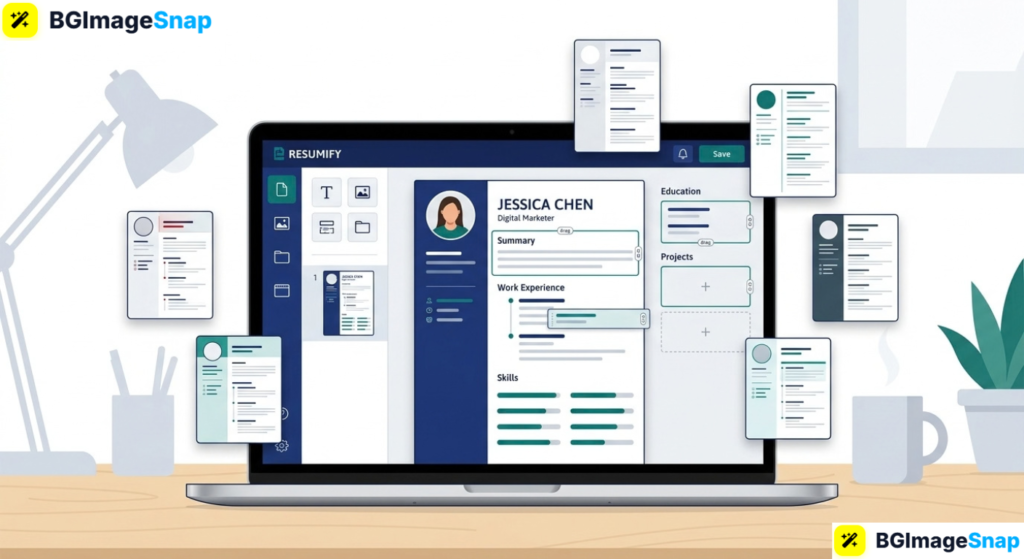
Canva works through a simple drag and drop editor in your browser or app. You choose a resume template, replace the placeholder text with your own details, adjust colors and fonts if you like, and download the finished result no design skills required.
The magic is in the templates. Each one is created by professional designers with proper spacing, typography, and visual hierarchy already built in. You just fill in the blanks, and your resume instantly looks polished.
Why does this matter? Recruiters spend only a few seconds scanning each resume. A clean, well designed Canva resume makes a strong first impression and helps your key information stand out at a glance.
Best of all, most resume templates are free. You can create, edit, and download a professional resume without spending a cent, making Canva one of the most popular resume tools for job seekers worldwide.
Canva Resume Features and Template Types A Full Breakdown
Here’s a complete look at what Canva offers for resume building, so you can pick the right approach for your job search.
Template Categories
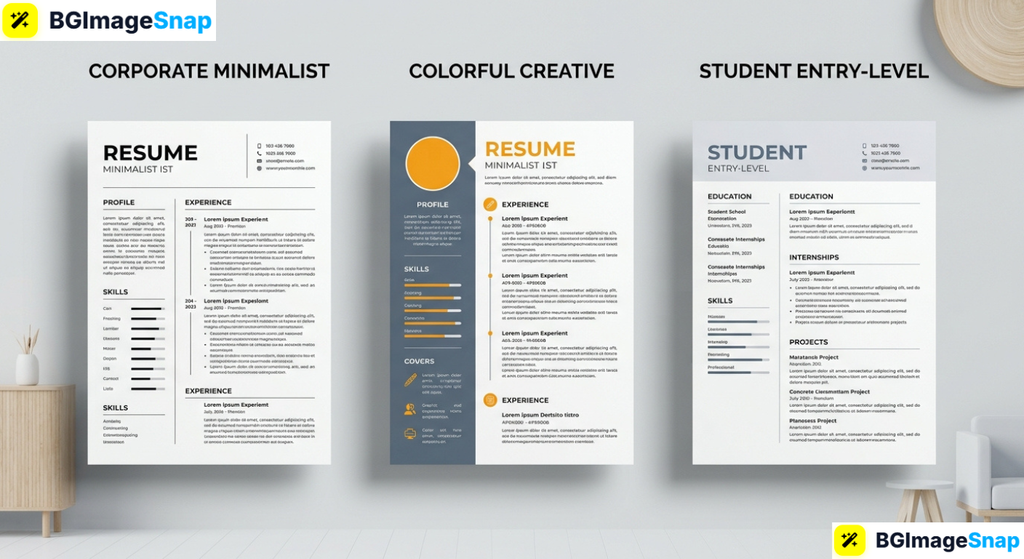
- Professional/Corporate clean, traditional layouts for office and business roles
- Creative bold, colorful designs for design, marketing, and media jobs
- Modern/Minimalist sleek, simple layouts that work across almost any industry
- Entry Level/Student templates that highlight education and skills over experience
- Executive sophisticated designs for senior and leadership positions
- Industry Specific tailored templates for nursing, teaching, tech, and more
Customization Tools
- Drag and drop editing move any element anywhere with a click
- Font library hundreds of fonts to match your personal style
- Color palettes adjust colors to fit your industry or personality
- Photo upload add a professional headshot where appropriate
- Icons and graphics visualize skills, contact info, and sections
- Section flexibility add, remove, or rearrange sections freely
Download and Sharing Options
- PDF Standard the most common format for job applications (free)
- PDF Print high quality version for printed copies
- PNG/JPG image formats for portfolios or LinkedIn
- Shareable link send your resume online directly
- Free downloads most templates and exports cost nothing
What Requires Canva Pro
- Some premium templates and elements (marked with a crown icon)
- Premium stock photos and certain fonts
- Note: plenty of excellent free templates exist without Pro
One important insight: while creative templates look stunning, they aren’t always right for every job. Traditional corporate roles often prefer simpler layouts, which also perform better with the automated screening systems we’ll cover next.
How to Create a Canva Resume Step by Step
Building your resume takes under an hour. Follow these five steps:
- Sign up and search for resumes. Create a free Canva account, then type “resume” in the search bar. Browse the template gallery and filter by style or industry.
- Choose a template that fits your field. Pick a clean, professional design for corporate jobs, or a creative one for design-focused roles. Make sure it has all the sections you need.
- Add your information. Replace the placeholder text with your name, contact details, work experience, education, and skills. Keep entries concise and results focused.
- Customize the look. Adjust colors and fonts to match your style, and upload a professional headshot if the role calls for one. Prepare a crisp, clean background photo free at bgimagesnap first.
- Download and apply. Export your finished Canva resume as a PDF Standard file, then attach it to your applications. Save the editable version so you can tweak it for each job.
The whole process is beginner friendly, and you can duplicate your resume to create tailored versions for different roles.
Who Uses a Canva Resume? Real Use Cases
A Canva resume works for job seekers at every stage. Here are four groups who benefit most:
Recent graduates and students. With limited work experience, new grads need resumes that highlight education, projects, and skills attractively. Canva’s entry level templates make a thin resume look complete and professional, helping students compete for their first roles.
Career changers. Switching industries means reframing your experience for a new field. A clean Canva resume lets career changers restructure sections to emphasize transferable skills, presenting themselves as a fresh fit rather than an outsider.
Creative professionals. Designers, marketers, writers, and artists are expected to show visual flair. A well designed creative Canva resume doubles as a mini portfolio, proving their skills before the interview even starts.
Freelancers and gig workers. Independent professionals often need polished resumes for proposals and client pitches. Canva lets them quickly produce professional documents that build trust and win contracts, without hiring a designer for each one.
Tips for a Winning Canva Resume
- Keep it to one page. Unless you have extensive experience, a single clean page is ideal. Recruiters prefer concise resumes they can scan quickly.
- Choose ATS friendly templates. Many companies use applicant tracking systems that struggle with heavy graphics and columns. For corporate jobs, pick simple, single column layouts.
- Use a professional headshot only when appropriate. Photos are welcomed in some countries and industries but discouraged in others (like the US for many roles). Research your field’s norms first.
- Prioritize readability over decoration. Stick to two clean fonts and a limited color palette. Fancy design should never make your resume harder to read.
- Quantify your achievements. Replace vague duties with measurable results “increased sales 30%” beats “responsible for sales.”
- Prepare a crisp headshot. If you include a photo, make it count. Remove the background and clean it up free at bgimagesnap.com for a polished, professional look.
- Save multiple versions. Duplicate your resume and tailor each copy to specific job descriptions, matching keywords from the posting.
Frequently Asked Questions
Is Canva resume free to use?
Yes. Canva offers hundreds of free resume templates you can customize and download as a PDF at no cost. Some premium templates require Canva Pro, but excellent free options are plentiful.
Are Canva resumes ATS friendly?
Some are, and some aren’t. Heavily designed templates with columns, graphics, and text boxes can confuse applicant tracking systems. For corporate applications, choose simple single column templates and export as a standard PDF.
Can I download my Canva resume as a Word document?
Canva doesn’t export directly to Word (.docx), but you can download a PDF, which most employers accept. If you specifically need Word format, you may need to recreate it or use a conversion tool.
Should I include a photo on my Canva resume?
It depends on your country and industry. Photos are common in parts of Europe and Asia but often discouraged in the US, UK, and Canada to avoid bias. Check the norms for your specific job market.
How long should a Canva resume be?
For most people, one page is ideal. Only extend to two pages if you have extensive relevant experience, and never pad a resume with filler just to fill space.
Conclusion
A Canva resume gives you professional, eye catching design without the cost of a designer perfect for standing out in a crowded job market. With the right template, clean formatting, and a polished headshot, you can create a resume that gets noticed and passes the screening systems. Ready to complete your resume with a professional photo? Visit bgimagesnap to remove the background and perfect your headshot with free browser based tools!