
Sharing your favorite memories one by one can quickly clutter your feed and cause followers to swipe away. Learning how to add multiple photos to instagram story posts solves this issue by letting you create eye catching collages, dynamic photo dumps, and side by side comparisons on a single screen. With modern browser based tools like Bgimagesnap, preparing and sizing your pictures before uploading makes every slide look clean and professional.
Key Takeaways
- You can combine multiple pictures on one story slide using Instagram’s native Photo Sticker, Layout grid mode, or clipboard shortcuts.
- Instagram’s multi select feature lets you post up to 10 photos across consecutive slides in one quick batch.
- Custom collages designed in external tools give you complete control over backgrounds, margins, and image quality.
- The ideal dimension for an Instagram Story is 1080 × 1920 pixels, which matches a vertical 9:16 aspect ratio.
- Pre cropping and removing distracting backgrounds before posting ensures your photos look sharp without unwanted compression.
What It Does and How Multi Photo Instagram Stories Work
Instagram Stories are vertical, temporary posts that disappear after 24 hours. While early versions of the app restricted users to a single photo per slide, modern updates provide flexible ways to layer images. When you understand how to add multiple photos to instagram story layouts, you unlock a dynamic canvas for storytelling and visual marketing.
At its core, the Instagram Story interface functions like a multi layered design board. You begin with a foundational background layer, such as a colored backdrop, a video clip, or a base photo. You can then place secondary graphic elements, custom stickers, and additional images directly over that base layer.
Each photo added to your screen behaves as an independent floating object. You can pinch with two fingers to shrink or enlarge the image, drag it to different positions, and rotate the angle freely. Tapping an added picture cycles through various geometric border styles, such as circles, hearts, stars, and rounded squares.
Alternatively, Instagram offers a built in grid tool known as Layout. This mode divides your screen into symmetrical sections, locking your pictures into neat rectangular or square frames. Understanding these options allows you to choose the exact design technique that suits your creative goals.
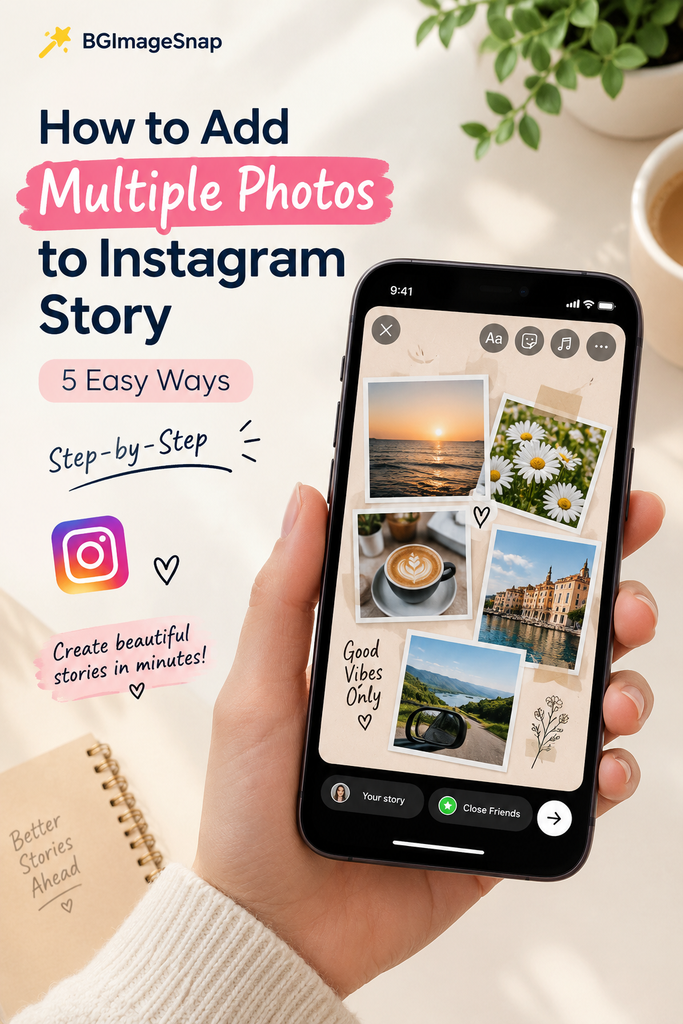
5 Easy Ways on How to Add Multiple Photos to Instagram Story
There are five primary methods for placing several pictures into your story updates. Below is a detailed breakdown of each method, including its features, benefits, and best applications.
1. The Photo Sticker Overlay Method
The Photo Sticker is the most popular built in feature for building freeform photo collages directly inside Instagram. It acts as an image overlay tool that places floating picture layers onto your base canvas.
- Capacity: Allows you to place up to 10 or more independent photos on a single story slide.
- Interactive Shape Masks: Tapping any placed photo switches its border to a circle, star, heart, square, rectangle, or stamp edge.
- Flexible Arrangement: Photos can overlap, rotate, scale up, or shrink down without fixed grid restrictions.
- Z Index Layering: Tapping and holding an image lets you bring it forward or push it behind other visual elements.
- Best For: Casual photo dumps, travel recaps, mood boards, and aesthetic scrapbooks.
2. The Native Instagram Layout Grid
If you prefer clean lines and neat symmetry over layered scrapbooking, the Layout camera mode provides structured templates. It slices your screen into predefined panels before you capture or import your content.
- Available Grid Configurations: Two photo vertical split, two photo horizontal split, three photo landscape rows, four photo quadrants, and six photo grid layouts.
- Capture Options: Snap live photos directly into each panel or upload existing pictures from your smartphone gallery.
- Uniform Proportions: Automatically applies identical aspect ratios across matching panels for a balanced look.
- One Tap Simplicity: Requires no manual resizing or precision finger adjustments to align borders.
- Best For: Before and after transformations, multi angle product showcases, and fashion outfit details.
3. The Copy and Paste Clipboard Shortcut
The clipboard shortcut lets you add images to your story directly from your smartphone’s native photo gallery. This method is fast and bypasses in app menus entirely.
- Apple iOS Workflow: Open the Apple Photos app, select a picture, tap the Share icon, choose “Copy Photo,” and switch back to Instagram to paste it as a sticker.
- Android Workflow: Use Google Gboard or Samsung Keyboard, open the text tool in Instagram Stories, select your keyboard clipboard, and paste your saved screenshots or photos.
- Transparency Preservation: Pasting PNG files with transparent backgrounds maintains full alpha transparency, eliminating unsightly white borders.
- Fast Layering: Allows you to copy and paste several pictures in rapid succession without reopening the sticker menu.
- Best For: Adding transparent product cutouts, digital stickers, and quick screenshots.
4. Bulk Multi Select Upload for Sequential Stories
When your photos deserve full screen visibility rather than being crammed onto one slide, multi select is the ideal method. It publishes a sequence of full sized stories in one upload step.
- Upload Limit: Select up to 10 individual photos simultaneously from your phone gallery.
- Sequential Progression: Automatically distributes each photo onto its own dedicated, consecutive story slide.
- Individual Slide Customization: You can add unique text, stickers, background audio, and interactive polls to each slide independently.
- Time Savings: Uploads an entire day of content in a single action instead of repeating the upload process ten separate times.
- Best For: Event highlights, step by step visual tutorials, and chronological travel stories.
5. Designing Custom Collages Online with Bgimagesnap
While mobile apps provide quick edits, preparing custom layouts in a browser based tool offers higher precision, sharper exports, and professional design control.
- Pixel Perfect Canvas: Set your canvas to 1080 × 1920 pixels to ensure zero stretching or awkward cropping by social algorithms.
- AI Background Removal: Strip away messy backgrounds from portraits or product shots before placing them into your collage.
- Advanced Composition: Position borders, add drop shadows, and balance negative space with precise controls rather than clumsy touchscreen dragging.
- Consistent Branding: Save custom templates featuring your brand colors, fonts, and watermarks for business use.
- Best For: Commercial promotions, product launch flyers, creator portfolios, and high end brand announcements.
Comparing the Methods for Multi Photo Stories
Choosing how to add multiple photos to instagram story posts depends entirely on your project goals and preferred aesthetic:
- For creative scrapbooking: Use the Photo Sticker because it provides freeform placement, rotation, and unique shape masks.
- For structured comparisons: Use the Layout Grid to keep lines straight and aspect ratios symmetrical across all panels.
- For transparent graphics and speed: Use the Copy and Paste Shortcut to drop isolated product PNGs directly onto your slides.
- For long visual narratives: Use the Bulk Multi Select tool to give every photograph full screen focus across a sequence of slides.
- For professional business graphics: Use Bgimagesnap to format, clean up backgrounds, and design polished marketing collateral before posting.
Step by Step: How to Add Multiple Photos to Instagram Story
The Photo Sticker overlay is the most versatile technique for daily sharing. Follow these clear steps to master how to add multiple photos to instagram story posts using the sticker tool:
Step 1: Open the Instagram Story Camera
Open the Instagram app on your smartphone and swipe right from your main feed, or tap your profile avatar marked with the plus icon in the upper left corner. This action launches the story creation screen.
Step 2: Create Your Base Canvas Layer
Select how you want your story foundation to look. You can snap a live photo, pick a wallpaper from your camera roll, or create a clean solid background. To make a solid background, take any photo, tap the three dots in the upper right corner, select “Draw,” choose your favorite color from the bottom palette, and hold your finger on the screen for two seconds.
Step 3: Open the Sticker Tray and Choose the Photo Sticker
Swipe upward from the bottom of your screen or tap the square smiley face icon in the top toolbar to reveal the sticker menu. Scroll down until you see the Photo Sticker icon, which displays a circular thumbnail of your latest gallery photo alongside a miniature card graphic. Tap this icon to open your device’s photo gallery.
Step 4: Position, Scale, and Shape Your Pictures
Select the first image you want to place on your canvas. Tap the photo once to cycle through different border shapes like circles, hearts, stars, or rounded rectangles. Use two fingers to pinch, resize, rotate, and drag the image into place. Reopen the sticker tray and repeat this exact process to add your remaining pictures.
Step 5: Add Finishing Details and Publish
Enhance your completed collage by adding text captions, trending background music, location tags, or interactive question boxes. Once you are satisfied with your visual layout, tap “Your Story” at the bottom of the screen to share your post with your audience.
Real Use Cases: Who Relies on Multi Photo Instagram Stories?
Combining several pictures into one story slide provides significant value across multiple personal, academic, and business pursuits.
1. E-Commerce Sellers and Boutique Retailers
Merchants selling apparel, jewelry, or handmade crafts on Shopify, Etsy, or Instagram Shopping use multi photo stories to drive sales. Instead of publishing six separate posts that test follower patience, a seller can post a single slide showing four color variations of a product. This layout makes comparisons easy for shoppers and reduces direct message inquiries.
2. Lifestyle Influencers and Travel Creators
Travelers visiting scenic cities or food bloggers dining at new restaurants take dozens of pictures throughout the day. Knowing how to add multiple photos to instagram story updates allows creators to curate beautiful mini-summaries. Combining a morning latte, an architecture detail, and an evening sunset onto one slide delivers an aesthetic story without flooding notifications.
3. Freelance Designers, Artists, and Photographers
Creative professionals need to showcase their skills, client results, and design drafts in an engaging format. Photographers use multi photo layouts to showcase before and after retouching work side by side. Freelance graphic designers place transparent logos over diverse background shades to prove brand flexibility to potential clients.
4. Students and Educational Clubs
Campus student organizations, study groups, and university clubs rely on Instagram Stories to announce meetings, fundraisers, and campus events. Combining guest speaker headshots, room numbers, dates, and event itineraries onto one slide ensures attendees find all essential details immediately. Followers can take a single screenshot that holds every piece of information.
Practical Tips for Designing Multi Photo Stories
To make sure your story collages look clean, engaging, and easy to read, keep these practical design suggestions in mind:
- Avoid the top and bottom danger zones. Keep all photos and text at least 200 pixels away from the top edge (where your profile handle sits) and 250 pixels away from the bottom edge (where the message reply box rests).
- Stick to three or four photos per slide. Adding too many photos onto a single smartphone display makes each image tiny and difficult to appreciate.
- Maintain a consistent color theme. Choose pictures that share similar lighting conditions, color temperatures, or aesthetic tones so your collage looks intentional and harmonious.
- Use transparent cutouts for visual depth. Run your portraits or products through an online background remover like Bgimagesnap before pasting them into your story to create an eye catching layered effect.
- Vary image sizes to guide the eye. Make your most important photo larger than the others, and flank it with two smaller supporting detail shots to create a natural visual hierarchy.
- Add subtle border outlines. Tapping your photo stickers to give them white borders helps separate overlapping images from busy background patterns.
- Save drafts to your camera roll. Before publishing your story, tap the three dots in the top right corner and hit “Save” so you retain a clean copy of your collage on your smartphone.
Frequently Asked Questions
Why is the photo sticker missing from my Instagram app?
If the photo sticker does not appear in your sticker tray, your Instagram application is likely running an outdated version. Update the app through the Apple App Store or Google Play Store. In the meantime, you can use the copy and paste clipboard shortcut to add multiple images.
How many photos can I add to a single Instagram story?
When using the Photo Sticker or clipboard paste method, you can technically add more than 10 photos to a single story canvas. However, adding more than four or five pictures tends to clutter the screen and makes details difficult for followers to see on mobile devices.
How do I change the shape of an added photo sticker on Instagram?
After placing an image onto your story canvas using the Photo Sticker, simply tap directly on the picture. Each tap cycles the image through various geometric shape masks, including circle, square, rounded rectangle, star, heart, and stamp-edged borders.
Will adding multiple photos reduce image quality on Instagram?
Instagram compresses all uploads to ensure fast loading speeds on mobile data networks. If you shrink high resolution photos excessively inside the story editor, visual details can soften. Pre cropping your images to clean dimensions using tools like Bgimagesnap preserves sharpness.
Can I add multiple photos to an Instagram Story on both iPhone and Android?
Yes. Both iOS and Android versions of Instagram fully support the Photo Sticker and Layout grid tools. Android users can also paste images directly from their gallery using keyboards like Google Gboard or Samsung Keyboard.
Conclusion
Learning how to add multiple photos to instagram story slides is one of the easiest ways to improve your social media presence, capture attention, and share memorable stories without cluttering your feed. Whether you use the creative Photo Sticker, clean Layout grids, or external editing tools like Bgimagesnap, combining pictures delivers rich visual storytelling in seconds. Ready to create stunning visuals for your social channels? Visit bgimagesnap today to use our free online image resizer, background remover, and photo editing tools to craft your perfect story layouts in seconds!