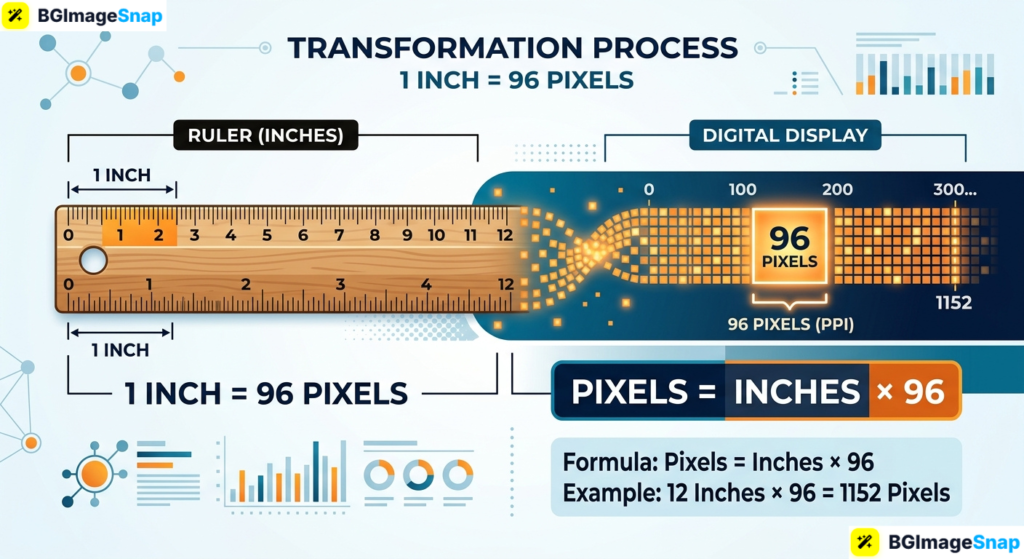
Designing a flyer, resizing a photo for print, or setting image dimensions for a website all require one tricky conversion. Converting inches to px confuses many people because the answer changes depending on resolution but the math is actually simple once you know the formula. In this guide, you’ll learn exactly how to convert inches to px for screens and print, complete with ready to use charts.
Key Takeaways
- The inches to px formula is simple: pixels = inches × PPI (pixels per inch).
- Screens use 96 PPI as the standard, so 1 inch equals 96 pixels on the web.
- Print uses 300 DPI for sharp quality, so 1 inch equals 300 pixels for printing.
- An 8.5×11 inch document needs 2550×3300 pixels for high quality printing.
- Free tools at bgimagesnap let you resize images to exact pixel dimensions in seconds.
What Does Inches to PX Mean and How Does the Conversion Work?
Converting inches to px means translating a physical measurement (inches) into a digital one (pixels). Inches measure real world size on paper, while pixels measure digital size on screens and image files.
Here’s the catch that trips everyone up: there is no single fixed answer. The number of pixels in one inch depends entirely on resolution, measured in PPI (pixels per inch) for screens or DPI (dots per inch) for print.
The formula itself is beautifully simple:
Pixels = Inches × PPI
At the web standard of 96 PPI, one inch equals 96 pixels. At the print standard of 300 DPI, one inch equals 300 pixels. Same inch, different pixel counts because resolution defines how densely pixels are packed.
Think of it like tiling a floor. An inch is the floor space, and pixels are the tiles. Use small tiles (high PPI) and you need more of them to cover the same inch. Use big tiles (low PPI) and you need fewer.
This is why the inches to px question always has a follow up: “At what resolution?” Once you know that, the conversion takes three seconds.
Inches to PX Conversion Charts 96 PPI and 300 DPI
Here are complete conversion tables for the two resolutions you’ll use most. Bookmark this page so you never have to calculate inches to px by hand again.
Inches to PX at 96 PPI (Web, Screens, and Digital Design)
| Inches | Pixels (at 96 PPI) | Common Use |
|---|---|---|
| 0.5 in | 48 px | Small icons, buttons |
| 1 in | 96 px | Base web measurement |
| 2 in | 192 px | Thumbnails |
| 3 in | 288 px | Small web graphics |
| 4 in | 384 px | Sidebar images |
| 5 in | 480 px | Blog images |
| 6 in | 576 px | Content images |
| 8 in | 768 px | Tablet screen height |
| 8.5 in | 816 px | Letter width (digital) |
| 10 in | 960 px | Classic website width |
| 11 in | 1056 px | Letter length (digital) |
| 12 in | 1152 px | Laptop screen width |
| 20 in | 1920 px | Full HD screen width |
Inches to PX at 300 DPI Print and High Quality Photos
| Inches | Pixels (at 300 DPI) | Common Use |
|---|---|---|
| 1 in | 300 px | Stamps, small labels |
| 2 in | 600 px | Wallet photos |
| 4 in | 1200 px | 4×6 photo width |
| 5 in | 1500 px | 5×7 photo width |
| 6 in | 1800 px | 4×6 photo length |
| 7 in | 2100 px | 5×7 photo length |
| 8 in | 2400 px | 8×10 photo width |
| 8.5 in | 2550 px | Letter paper width |
| 10 in | 3000 px | 8×10 photo length |
| 11 in | 3300 px | Letter paper length |
| 12 in | 3600 px | Calendar pages |
| 16 in | 4800 px | 16×20 poster width |
| 24 in | 7200 px | Large poster width |
Notice the pattern in both charts: every inch multiplies by the resolution. An 8.5×11 inch letter page becomes 816×1056 px on screen but needs 2550×3300 px for crisp printing over three times the pixels.
Other resolutions follow the same rule. Working with 150 DPI for draft prints? Multiply inches by 150. Designing for a 72 PPI legacy screen? Multiply by 72. The inches to px formula never changes.
How to Convert Inches to PX Step by Step
Whether you use the formula or an online converter, the process takes under a minute. Follow these steps:
- Determine your target resolution. Decide between 96 PPI for screens and digital use, or 300 DPI for anything you’ll print. When in doubt for print, always choose 300.
- Apply the formula. Multiply your inch measurement by the resolution. For example: 6 inches × 300 DPI = 1800 pixels. That’s your required dimension.
- Calculate both width and height. For paper sizes and photo prints, convert each dimension separately. An 8×10 print needs 2400×3000 px at 300 DPI.
- Check your image against the requirement. Open your image’s properties to see its current pixel dimensions. If it’s smaller than your target, printing at that size will look blurry.
- Resize if needed. If your image doesn’t match, use the free resizer at bgimagesnap.com to set exact pixel dimensions. Upload, enter your calculated width and height, and download.
For repeated conversions, keep the charts above handy they cover the most common inches to px values you’ll ever need.
Who Needs Inches to PX Conversion? Real Use Cases
This conversion comes up more often than you’d expect. Here are four groups who use it constantly:
Graphic designers preparing print files. A client asks for a 24×36 inch poster, and the designer must deliver a file at exact pixel dimensions. At 300 DPI, that’s 7200×10800 px get the inches to px math wrong, and the poster prints blurry.
E commerce sellers creating product images. Marketplace guidelines specify pixel dimensions, but sellers often think in inches from photographing physical products. Converting between the two ensures listing photos meet requirements and display sharply.
Students formatting documents and presentations. A professor wants a diagram “exactly 4 inches wide” in a report, but the image editor only shows pixels. A quick conversion (4 × 96 = 384 px, or 1200 px at print quality) solves the puzzle.
Web designers and developers. CSS and design mockups work in pixels, while clients describe sizes in inches. Designers convert inches to px at 96 PPI to translate physical expectations into screen measurements.
Tips for Accurate Inches to PX Conversions
- Always ask “at what resolution?” first. The inches to px answer is meaningless without knowing the PPI or DPI. Confirm this before calculating anything.
- Use 300 DPI as your print default. Some printers accept 240 DPI, but 300 guarantees sharp results for photos, flyers, and documents.
- Remember screens don’t care about DPI. A 1000 px image displays at 1000 px regardless of its DPI metadata. Only pixel dimensions matter on screens.
- Never upscale for print. Converting inches to px might reveal your image is too small. Stretching it adds fake pixels and prints blurry use a higher resolution original instead.
- Double the pixels for retina displays. Modern high density screens pack 2× the pixels, so web designers often export images at twice the displayed size for crispness.
- Round sensibly. Odd multiplications (like 3.7 inches × 300 = 1110 px) work fine just round to the nearest whole pixel since partial pixels don’t exist.
- Keep a conversion chart bookmarked. Save this page so the most common inches to px values are always one click away.
Frequently Asked Questions
How many pixels is 1 inch?
It depends on resolution. At the web standard of 96 PPI, 1 inch equals 96 pixels. At the print standard of 300 DPI, 1 inch equals 300 pixels.
What is 8.5×11 inches in pixels?
At 96 PPI, letter paper is 816×1056 px. At 300 DPI for printing, it’s 2550×3300 px. Always match the resolution to your purpose.
Is DPI the same as PPI?
They’re closely related but technically different. PPI describes pixel density on screens and in image files, while DPI describes dot density in printing. In everyday conversion talk, people use them interchangeably.
Why does my 300 DPI image look small on screen?
Screens display images by pixel count, not DPI. A 3000 px wide image fills a 3000 px wide space regardless of its DPI setting the metadata only matters for printing.
Can I convert px back to inches?
Yes just reverse the formula: inches = pixels ÷ PPI. A 960 px wide image at 96 PPI measures exactly 10 inches.
Conclusion
Converting inches to px comes down to one formula multiply inches by your resolution and two numbers worth memorizing: 96 for screens and 300 for print. With the charts above, you’ll never guess at image dimensions again. Ready to put your calculations to work? Visit bgimagesnap to resize your images to exact pixel dimensions with our free browser based tools.