
Knowing how to extract multiple zip files at once turns a slow click-by-click chore into a single action. If you have downloaded a batch of image packs, invoices, course files, or client assets opening each archive separately wastes real time.
This guide shows how to extract multiple zip files at once on Windows, Mac, and Linux using built-in tools free apps like 7-Zip and simple copy-paste commands. You will also learn how to send each archive into its own folder and how to avoid the mistakes that overwrite your files.

Table of Contents
- What Batch Extraction Actually Does
- How to Extract Multiple Zip Files at Once on Windows
- How to Extract Multiple Zip Files at Once on Mac
- How to Extract Multiple Zip Files at Once on Linux
- Extract Each Archive Into Its Own Folder
- Method Comparison at a Glance
- Common Mistakes to Avoid
- Problems That Break Batch Extraction
- What to Do After Extracting Image-Heavy Archives
- Frequently Asked Questions
- Conclusion
What Batch Extraction Actually Does
A ZIP file is a container. Extracting it copies the contents out into a normal folder. Batch extraction simply repeats that process across many archives without asking you to confirm each one.
There are two possible outcomes and choosing the wrong one causes most beginner headaches:
- Extract here: every file from every archive lands in the same folder. Fast but duplicate file names can overwrite each other.
- Extract to separate folders: each archive creates its own folder named after the ZIP file. Slightly more clutter but nothing is lost.
If your archives contain files with generic names such as image1.jpg, invoice.pdf, or data.csv, always choose separate folders.
How to Extract Multiple Zip Files at Once on Windows
Windows gives you three practical routes. The built-in one is the weakest so read all three before picking.
Using File Explorer
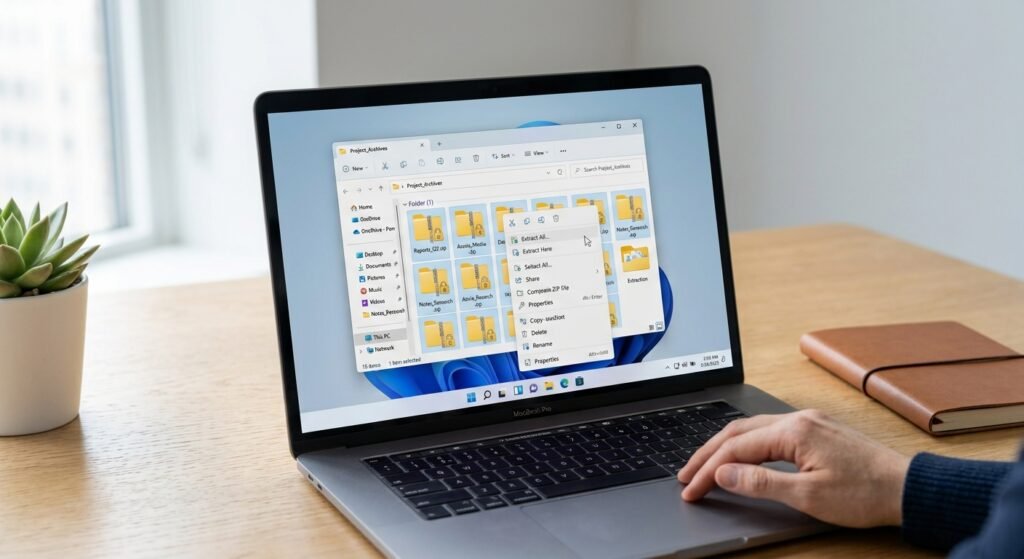
Windows File Explorer is built to handle one archive at a time. Selecting several ZIP files and choosing Extract All does not reliably process the whole batch and behavior differs between Windows versions.
- Open the folder containing your archives.
- Select a ZIP file.
- Click Extract All in the toolbar or right-click menu.
- Choose a destination and click Extract.
Use this only for two or three files. For anything larger the next two methods are far better. Exact multi-select behavior in your Windows build: needs verification on your own system.
Using 7-Zip
7-Zip is a free open-source archive manager and the simplest way to batch extract on Windows.
- Install 7-Zip from the official site: https://www.7-zip.org/
- Open the folder with your archives.
- Press Ctrl + A to select all or hold Ctrl and click specific files.
- Right-click the selection. On Windows 11 click Show more options first.
- Hover over 7-Zip.
- Choose one of these:
- Extract Here all contents go into the current folder.
- Extract to each archive gets its own folder automatically.
- Wait for the progress window to finish.
That Extract to "*\" option is the fastest way to extract multiple zip files at once while keeping everything organized.
Using WinRAR
If WinRAR is already installed it has a dedicated batch option.
- Select all the archives.
- Right-click the selection.
- Choose Extract each archive to separate folder.
WinRAR also handles RAR and several other formats that Windows cannot open natively.
Using PowerShell
PowerShell is ideal when you want repeatable scriptable extraction. Expand-Archive is built into PowerShell 5.0 and later.
To send everything into a single destination folder:
PowerShellGet-ChildItem "C:\Users\YourName\Downloads\*.zip" | Expand-Archive -DestinationPath "C:\Users\YourName\Downloads\Extracted" -ForceTo give each archive its own folder:
PowerShellGet-ChildItem "C:\Users\YourName\Downloads\*.zip" | ForEach-Object {
  Expand-Archive -Path $_.FullName -DestinationPath (Join-Path $_.DirectoryName $_.BaseName) -Force
}
Replace YourName with your actual user folder. The -Force switch overwrites existing files so remove it if you want to protect previous extractions.
Official command reference: Microsoft Learn — Expand-Archive
How to Extract Multiple Zip Files at Once on Mac
macOS makes this easier than Windows because Archive Utility already handles multiple selections.
Using Archive Utility
- Open Finder and go to the folder holding your archives.
- Select all the ZIP files. Hold Command and click each one or press Command + A.
- Control-click (right-click) any selected file.
- Choose Open With > Archive Utility.
- Each archive extracts into its own separate folder in the same location.
This is the default no-download way to extract multiple zip files at once on a Mac. Apple’s official reference on zipping and unzipping is here: Apple Support — Zip and unzip files and folders on Mac
Using Terminal
Terminal gives you more control over the destination.
- Open Terminal from Applications > Utilities.
- Move into the folder:
Bashcd ~/Downloads- Extract every archive into the current folder:
Bashunzip '*.zip'The single quotes matter. Without them the shell expands the wildcard and unzip throws an error.
- To give each archive its own folder:
Bashfor f in *.zip; do unzip -d "${f%.zip}" "$f"; doneUsing Keka
Keka is a popular macOS archive tool that supports formats Archive Utility cannot open such as RAR and 7z. Official site: https://www.keka.io/ — URL to verify. Drag your selected archives onto the Keka window or icon to extract them together.
How to Extract Multiple Zip Files at Once on Linux
Linux uses the same unzip syntax as macOS.
Install it first if needed on Debian or Ubuntu:
Bashsudo apt install unzipThen extract everything in place:
Bashunzip '*.zip'Or create one folder per archive:
Bashfor f in *.zip; do unzip -d "${f%.zip}" "$f"; doneAdd -q for quiet mode if the terminal output is too noisy:
Bashunzip -q '*.zip'Extract Each Archive Into Its Own Folder
This is the setting most people actually want so here it is in one place:
| Platform | Option to use |
|---|---|
| Windows + 7-Zip | Right-click > 7-Zip > Extract to “*\” |
| Windows + WinRAR | Right-click > Extract each archive to separate folder |
| Windows + PowerShell | The ForEach-Object loop shown above |
| Mac | Select all > Open With > Archive Utility (default behavior) |
| Mac / Linux Terminal | for f in *.zip; do unzip -d "${f%.zip}" "$f"; done |
Method Comparison at a Glance
| Method | Best for | Separate folders | Extra software |
|---|---|---|---|
| File Explorer | One or two archives | Yes, manually | No |
| 7-Zip | Large Windows batches | Yes, one click | Yes, free |
| WinRAR | Mixed formats on Windows | Yes | Yes |
| PowerShell | Repeatable, scripted jobs | Yes, with a loop | No |
| Archive Utility | Everyday Mac use | Yes, by default | No |
Terminal unzip | Precise destinations | Yes, with a loop | No |
Common Mistakes to Avoid
- Choosing Extract Here when archives contain identically named files. Later files silently overwrite earlier ones.
- Forgetting the quotes in
unzip '*.zip'which produces a “filename not matched” style error. - Deleting the original archives before confirming the extracted contents are complete.
- Extracting hundreds of archives into a synced cloud folder which can trigger long upload queues.
- Assuming
.rar,.7z, or.tar.gzfiles behave like ZIP archives. They need a tool that supports the format.
Problems That Break Batch Extraction
Password-protected archives. A batch job stops or skips when it hits an encrypted archive. Extract those separately and enter the password manually.
Split or multi-part archives. Files named archive.zip.001, .002, or part1.rar belong to one set. Select only the first part and extract that. Extracting each part individually will fail.
Nested archives. A ZIP inside a ZIP is not unpacked automatically. Run the batch process a second time on the newly extracted archives.
Not enough disk space. Compressed files can expand several times over. Check available storage before extracting a large batch.
Long file paths on Windows. Deeply nested folder structures can exceed path limits and cause errors. Extract to a short path such as C:\Temp and move the files afterward.
What to Do After Extracting Image-Heavy Archives
Batch extraction is common in e-commerce and design work. Suppliers, photographers, and marketplaces frequently deliver product photos as a set of ZIP files one per SKU or per shoot.
Once you extract multiple zip files at once you usually end up with dozens or hundreds of raw images that are not listing-ready. Typical cleanup tasks include:
- Removing cluttered or inconsistent backgrounds
- Creating a plain white or transparent background for marketplace requirements
- Resizing images to a consistent dimension
- Improving sharpness or resolution on low-quality supplier photos
Modern background removal is AI-based. The tool detects the subject edges automatically and separates the product from everything behind it so you do not need to trace outlines manually. Transparent PNG output keeps the cutout usable on any background color while a flat white background suits most product listings.
BGImageSnap covers these steps including background removal white or transparent backgrounds and image resizing for e-commerce photos.
- BGImageSnap background remover tool
- BGImageSnap image resizer tool
- BGImageSnap guide to white background product photos
Frequently Asked Questions
How do I extract multiple zip files at once on Windows without extra software?
Use PowerShell. Run Get-ChildItem "C:\Path\*.zip" | Expand-Archive -DestinationPath "C:\Path\Extracted" -Force. No installation is needed on PowerShell 5.0 or later.
Can Windows File Explorer batch extract archives?
File Explorer is designed to handle one archive at a time and multi-select results vary by Windows version. For batches use 7-Zip, WinRAR or PowerShell instead.
How do I extract multiple zip files at once into separate folders?
On Windows use 7-Zip’s Extract to “*\” option. On Mac or Linux run for f in *.zip; do unzip -d "${f%.zip}" "$f"; done.
Why does unzip *.zip fail on Mac or Linux?
The shell expands the wildcard before unzip sees it. Wrap it in quotes: unzip '*.zip', or escape it as unzip \*.zip.
Can I extract multiple RAR or 7z files at once?
Yes. 7-Zip and WinRAR on Windows and Keka or The Unarchiver on Mac support multi-select extraction for these formats. Check each tool’s official page for current format support.
What happens if two archives contain the same file name?
With “Extract Here” the later file overwrites the earlier one. Extract into separate folders to prevent data loss.
Is batch extracting archives safe?
It is as safe as the source. Only extract archives from senders you trust and scan unfamiliar downloads before opening the contents.
How do I extract multiple zip files at once on a phone?
Mobile file managers vary widely in batch support. Behavior differs by device and app version — needs verification for your specific file manager.
Conclusion
Once you know how to extract multiple zip files at once a folder of forty archives takes seconds instead of twenty minutes. On Windows 7-Zip’s “Extract to *\” option or a short PowerShell loop does the job. On Mac select everything and open it with Archive Utility. On Linux and Terminal, unzip '*.zip' handles the whole batch in one line.
The key decision is whether you want everything in one folder or each archive in its own. Choose separate folders whenever file names might repeat.
If your freshly extracted batch is full of product photos BGImageSnap can help you remove backgrounds add clean white or transparent backgrounds and resize the images for your store.
Ready to turn that pile of extracted photos into listing-ready images? Explore the BGImageSnap background remover and start with a single product shot.