If you need to unlock a Word document the solution is usually simpler than it looks. A locked file can stop you from editing printing or copying content. The lock may come from password protection editing restrictions or a file marked as read-only. This guide shows how to unlock a Word document on Windows, Mac, and online using built-in tools and practical workarounds.
Table of Contents
- Why a Word Document Becomes Locked
- How to Unlock a Word Document Using Built-In Word Tools
- Remove Editing Restrictions in Word
- Remove Password Protection in Word
- Use Save As to Create an Unlocked Copy
- How to Unlock a Word Document on Mac
- How to Unlock a Word Document Online
- Common Mistakes to Avoid
- What to Do After You Unlock a Word Document
- Frequently Asked Questions
- Conclusion
Why a Word Document Becomes Locked
A Word document may be locked for several reasons. Understanding the cause helps you choose the right method.
- The author enabled password protection for opening or modifying the file.
- The document is marked as final or read-only.
- Editing restrictions are turned on in the Review tab.
- The file is stored in a location that requires sign-in such as a company SharePoint site.
- The document was opened from an email or browser in Protected View.
In most cases you can unlock the file without third-party software.
How to Unlock a Word Document Using Built-In Word Tools
Microsoft Word includes several built-in ways to remove restrictions. Use these methods first.
Remove Editing Restrictions in Word
If the document opens but you cannot type or select text editing restrictions are probably active.
- Open the locked document in Microsoft Word.
- Go to the Review tab.
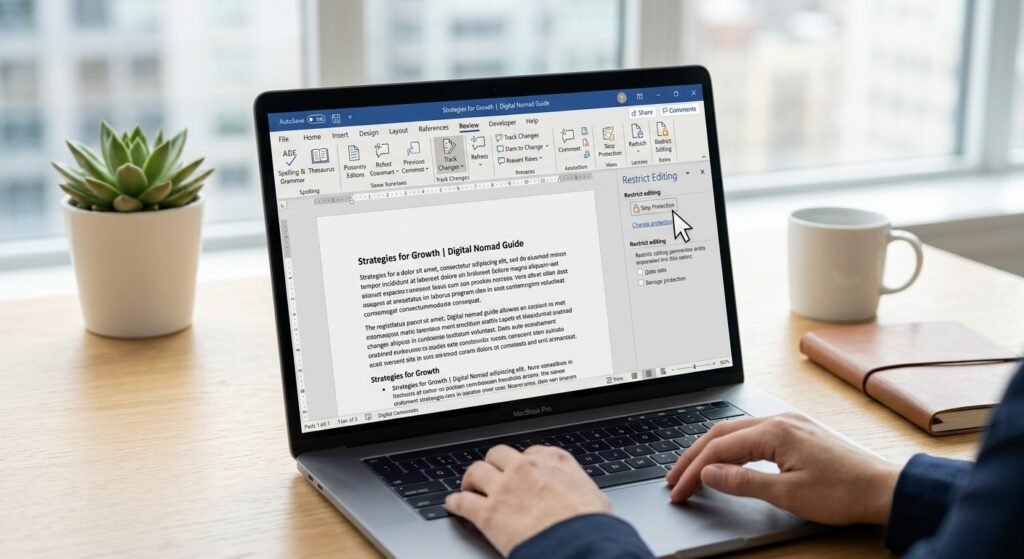
- Look for the Restrict Editing panel. If it is not visible click Restrict Editing in the ribbon.
- In the panel click Stop Protection at the bottom.
- If prompted enter the password. If you do not have the password you cannot remove the restriction using this method.
- Save the document with a new name if needed.
Suggested image: screenshot of the Restrict Editing panel in Word with the Stop Protection button highlighted. Alt text: How to unlock a Word document by stopping protection in the Review tab.
Remove Password Protection in Word
If the file asks for a password when you open it you need the password. If you have it you can remove it permanently.
- Open the document and enter the password.
- Click File > Info.
- Select Protect Document.
- Choose Encrypt with Password.
- Delete the password from the field and click OK.
- Save the document. The password is now removed.
This works only if you already know the password. Microsoft does not provide a built-in password recovery tool. Microsoft Support Remove a password from a document
Use Save As to Create an Unlocked Copy
If the document opens read-only creating a new copy can sometimes remove the lock.
- Open the file.
- Click File > Save As.
- Choose a new location or new file name.
- Save.
- Open the new file and check if editing is allowed.
This method works for files marked as final or for temporary locks caused by Protected View.
How to Unlock a Word Document on Mac
If you are using Microsoft Word for Mac the steps are similar but the menu looks slightly different.
- Open the locked document in Word for Mac.
- Go to the Review tab.
- Click Protect Document or Protect Form.
- Choose Remove Protection or turn off protection options.
- Enter the password if asked.
- Save the file.
On a Mac you can also check the file information. Select the file in Finder press Command + I and look for a Locked checkbox. If that box is checked uncheck it. This lock is separate from Word’s internal password protection.
Suggested video: short screen recording showing how to unlock a Word document on Mac using the Review tab and Finder file info.
How to Unlock a Word Document Online
If you do not have Microsoft Word installed you can use the free online version.
- Go to Office.com or your Microsoft 365 account.
- Upload the locked document.
- Open it in Word for the web.
- If editing is restricted go to the Review tab and check for protection options.
- Choose Stop Protection if available.
- Download a new copy.
Some advanced password features may not work in Word for the web. For these you need the desktop version.
Table: Quick Method Comparison
| Method | Best For | Requires Password? | Difficulty |
|---|---|---|---|
| Restrict Editing > Stop Protection | Editing restrictions | Yes, if set | Beginner |
| Encrypt with Password > remove password | Opening password | Yes | Beginner |
| Save As new copy | Read-only or final files | No | Beginner |
| Mac Finder Locked checkbox | macOS file lock | No | Beginner |
| Word for the web | No desktop app | Yes, if restricted | Beginner |
Common Mistakes to Avoid
When trying to unlock a Word document avoid these errors.
- Trying to remove a password without knowing it is not possible in Word.
- Ignoring the Finder or File Explorer read-only attribute.
- Forgetting to save the file after removing protection.
- Using unknown online password removers that may compromise your document.
- Assuming every locked file is password-protected. Sometimes the issue is Protected View or a read-only recommendation.
Check the simple fixes first before looking for advanced tools.
What to Do After You Unlock a Word Document
Once the document is unlocked you may need to clean up the content. If the Word file contains product photos screenshots or e-commerce images you can extract them and prepare them for use.
For example you might unlock a document that includes product images with cluttered backgrounds. After you unlock a Word document you can save the images and use a background removal tool to create clean white or transparent backgrounds for a store or catalog. AI image-editing tools can remove backgrounds automatically but they still work best on images you extract from documents first.
BGImageSnap offers background removal image resizing and image quality improvements. If your unlocked document contains images that need editing this can save time.
relevant BGImageSnap background remover tool or article
Suggested image: before-and-after screenshot of a product photo extracted from a Word document and cleaned with BGImageSnap. Alt text: How to unlock a Word document and prepare product images with BGImageSnap.
Frequently Asked Questions
How do I unlock a Word document without the password?
You cannot unlock a password-protected Word document without the password using built-in tools. If you lost the password you may need a third-party recovery service but compatibility and safety vary. Needs verification.
Why can’t I edit a Word document even though it opens?
The document may have editing restrictions enabled. Go to the Review tab open Restrict Editing and click Stop Protection. If a password is required you need it.
How do I remove read-only from a Word document?
Right-click the file choose Properties and uncheck Read-only. Or go to File > Save As and create a new copy.
Can I unlock a Word document on Mac without Word?
Yes you can use Word for the web or check Finder’s Locked checkbox. For password-protected files you still need the password.
What is the difference between editing restrictions and password protection?
Password protection prevents opening or modifying the file. Editing restrictions allow opening but limit specific actions like formatting or editing.
How do I unlock a Word document in Google Docs?
Upload the file to Google Drive open with Google Docs and choose File > Download as Microsoft Word. This creates an unlocked copy but it may not work for encrypted files.
Why does Word open in Protected View?
Protected View opens files from potentially unsafe locations such as email attachments. You can click Enable Editing if you trust the source.
Is it safe to use online unlockers?
Many online unlockers claim to remove Word passwords. Some are unsafe or require uploading sensitive files. Use official Microsoft tools first.
Conclusion
You can usually unlock a Word document by removing editing restrictions deleting a known password or saving a new copy. The method depends on the type of lock and whether you have the password. Avoid unknown online tools and always check simple read-only or Protected View settings first.
Once your document is unlocked you may need to edit the images inside. BGImageSnap can help you remove backgrounds resize images and improve quality for professional documents or product listings.
Try BGImageSnap to clean up any images from your newly unlocked Word document.