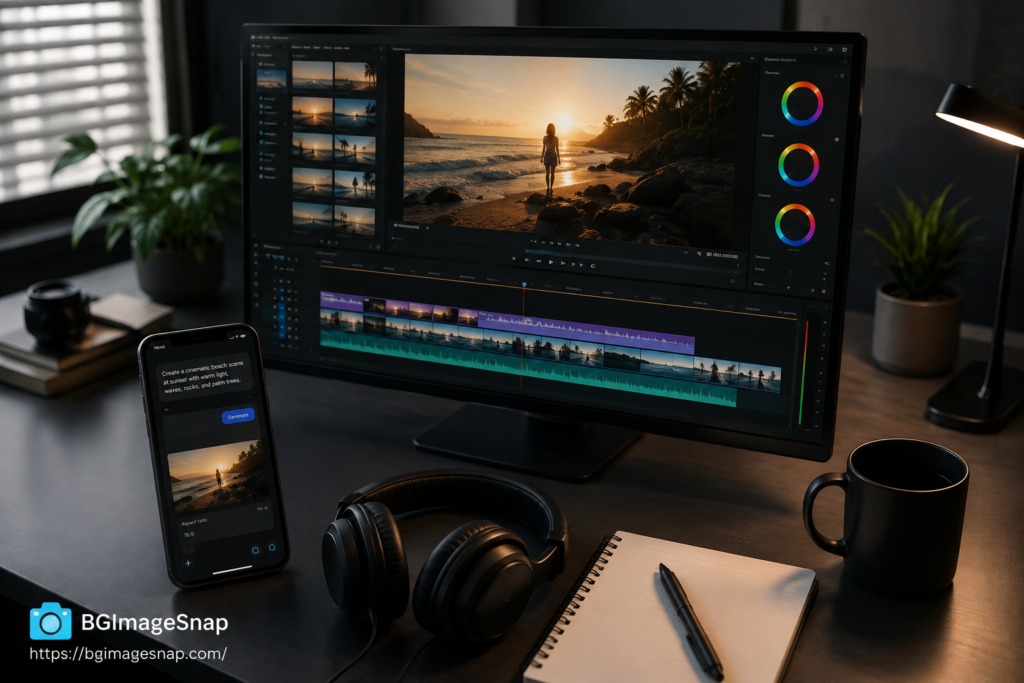
Veo AI video generator is Google’s tool for turning a text prompt or still image into a short realistic video clip complete with camera movement natural motion and in the newer versions synced audio and dialogue. If you’ve already used an AI image generator to create visuals the veo ai video generator is Google’s answer to the next step: bringing those visuals to life.
This guide covers what the Veo AI video generator actually is where to log in safely how to write prompts that get better results and what to do with your Veo clips once they’re ready to publish.
What Is the Veo AI Video Generator
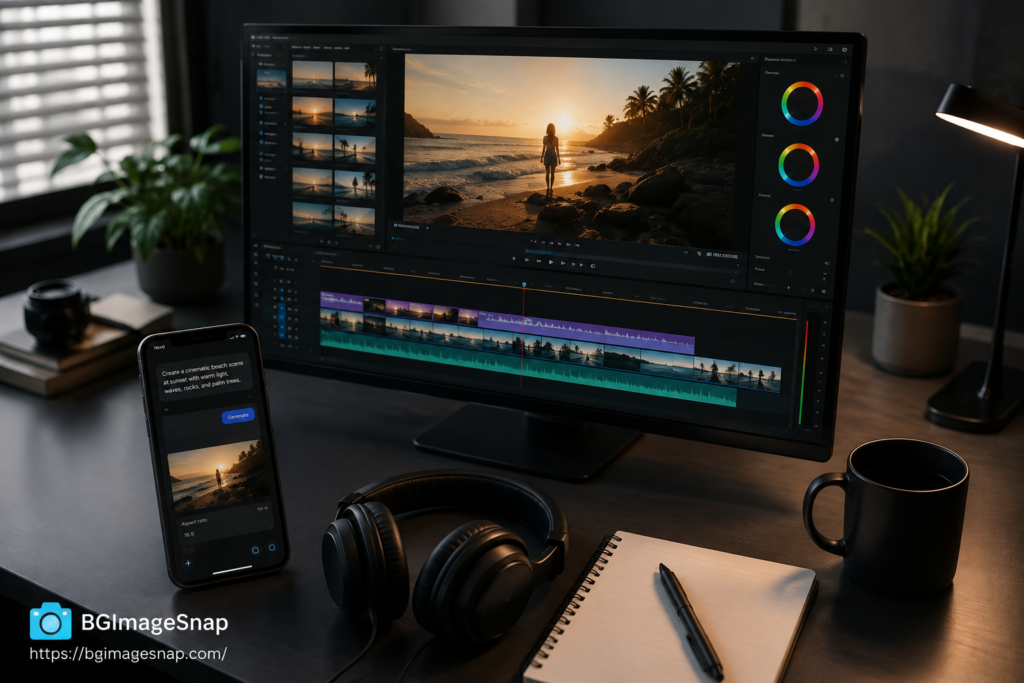
The Veo AI video generator is Google DeepMind’s AI model for creating video from text descriptions or images. Instead of filming or animating a scene by hand you describe what should happen the subject the action the camera movement the mood and the Veo AI video generator produces a short clip that matches it.
You can also upload a still image and ask the Veo AI video generator to animate it turning a static product photo or illustration into motion. The current version Veo 3.1 is known for realistic physics natural human movement and cinematic camera work.
Veo AI Video Generator vs Gemini’s Image Tools
If you’ve used Gemini’s AI image generator the Veo AI video generator will feel familiar in spirit but different in output. The image generator creates a single still frame from a prompt. The Veo AI video generator creates a short moving clip typically a few seconds long often with matching audio built in.
Many creators use both together: generate a still image first to lock in a look then feed that image into the Veo AI video generator as the starting frame for a video.
Tip One: Log In to the Veo AI Video Generator the Safe Way
There’s no separate “Veo account” to create. You access the Veo AI video generator through your existing Google account via one of a few official routes:
- Gemini app sign in at gemini.google.com or in the mobile app then select the video creation tool if it’s available on your plan.
- Google Flow Google’s dedicated AI filmmaking tool built specifically around Veo for longer multi shot projects.
- Vertex AI Media Studio the developer and enterprise route for teams generating video through Google Cloud.
For the technical details on accessing Veo through Google’s developer tools see Google’s official Veo documentation and for the creative, filmmaking focused version, see Google’s official announcement of Flow.
Tip Two: Understand What You’re Paying For
Some free rate limited access to the Veo AI video generator is available directly through your Google account. Full features higher resolution longer clips and more generations per month are gated behind a paid Google AI subscription.
Exact pricing tiers change fairly often so verify current numbers on Google’s own pricing page rather than relying on older articles before you budget a project around it.
Tip Three: Write Prompts Like a Shot List
Prompts for the Veo AI video generator work best when they read like a shot description rather than a vague idea. A strong prompt usually includes the subject and action the setting the camera movement and the mood or lighting.
- Describe the subject and what it’s doing not just what it is.
- Specify the camera behavior a slow push in a tracking shot a static wide shot.
- Set the scene indoor or outdoor time of day weather.
- Add a style or mood word cinematic documentary handheld dreamlike.
- If you want dialogue or sound describe it directly in the prompt.
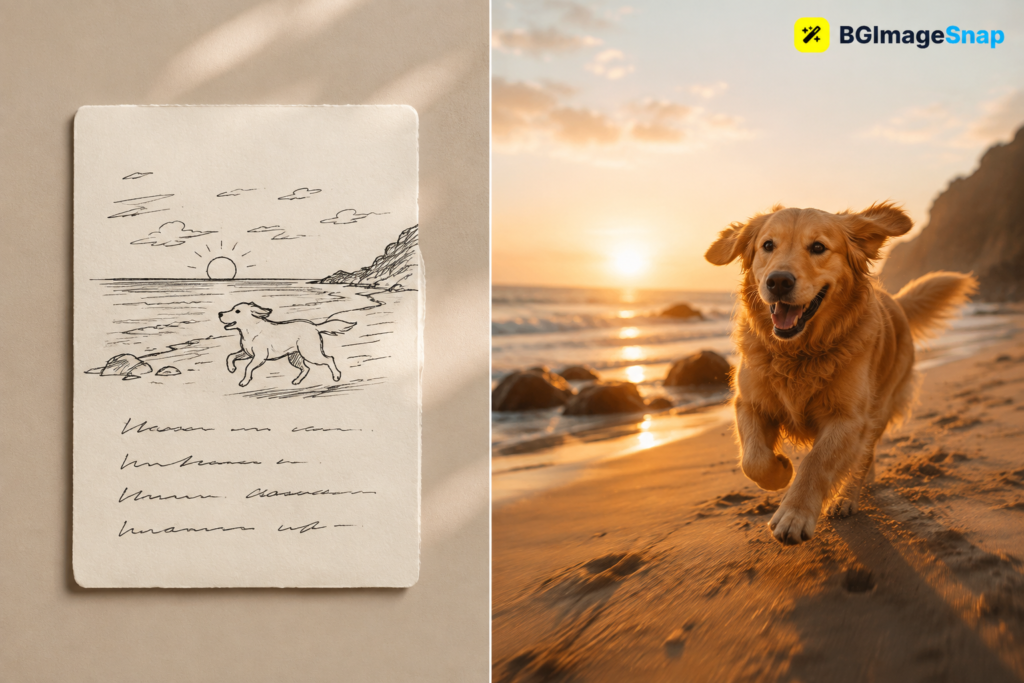
For example, rather than “a dog running” a stronger prompt for the Veo AI video generator would describe a golden retriever sprinting across a sunlit beach at sunset camera tracking alongside at ground level waves crashing softly in the background.
Tip Four: Plan for Short Clips Not Long Videos
A single generation from the Veo AI video generator typically produces a clip only a few seconds long. Longer videos are built by generating multiple clips and stitching them together which means budgeting more time and credits than a single take suggests.
Tip Five: Avoid the Most Common Veo Mistakes
- Writing prompts that only describe the subject and skip the camera and setting.
- Expecting one generation to produce a long video instead of chaining several together.
- Not budgeting credits or minutes before a project then running out mid way through a campaign.
- Publishing a raw Veo clip without pulling a clean still frame or thumbnail for use elsewhere on the page.
- Signing into unofficial third party “free Veo” sites instead of Google’s own tools.
Tip Six: Turn Veo Stills Into Web Ready Images
Video isn’t always the final format you need. A lot of creators use the Veo AI video generator to build a scene then pull a still frame from it to use as a thumbnail a blog header or a product visual. That still frame usually needs the same cleanup any AI generated image does before it’s ready to publish.
If your Veo still frame has a busy or distracting background BGImageSnap’s free background remover can strip it out in seconds leaving a clean or transparent background suited for product listings and marketing graphics.
From there BGImageSnap’s image resizer and image compressor get the frame down to a web friendly file size without losing visible quality and the format converter can save it as WebP for faster page loads.
Tip Seven: Match the Tool to the Job
The Veo AI video generator is genuinely powerful but it isn’t always the right tool. For a single static product photo a still image AI generator paired with a background remover is faster and cheaper. Save the Veo AI video generator for moments that specifically benefit from motion a product in use a scene with atmosphere or social content built for video first platforms.
Frequently Asked Questions About the Veo AI Video Generator
Is the Veo AI video generator free to use
Google offers limited rate limited access to the Veo AI video generator through a free Google account. Higher resolution longer clips and more monthly generations require a paid Google AI subscription.
How do I log in to the Veo AI video generator
There’s no separate Veo account you sign in with your existing Google account through the Gemini app Google Flow or Vertex AI Media Studio.
How long can a video from the Veo AI video generator be
A single generation typically produces a clip a few seconds long. Longer videos are made by generating multiple clips and stitching them together.
Does the Veo AI video generator create audio and dialogue
Yes. Veo 3.1 can generate synchronized audio sound effects and spoken dialogue directly in the clip not just silent video.
Can I turn a still image into a video with the Veo AI video generator
Yes. You can upload an existing image and use it as the starting frame and the Veo AI video generator will animate it based on your prompt.
What’s the difference between the Veo AI video generator and Google’s image generator
The image generator produces a single still image from a prompt while the Veo AI video generator produces a short moving video clip optionally with audio.
Are the free Veo login sites that show up in search safe to use
Be cautious with third party sites promising free unlimited access to the Veo AI video generator. They aren’t run by Google and signing in with your Google account on an unfamiliar site carries real risk. Stick to Google’s official tools.
How do I get a clean image from a Veo AI video generator frame
Export or screenshot the frame you want then run it through a background remover and image resizer to get a clean web ready still image.
Conclusion
The Veo AI video generator makes short cinematic AI video accessible without a camera crew or editing suite you describe the shot and it builds the scene. Just remember to access it only through Google’s official tools and if you pull a still frame for your website or store clean it up first.
Run your Veo AI video generator stills through BGImageSnap’s free background remover, resizer, and compressor to turn them into polished publish ready images in a few clicks.