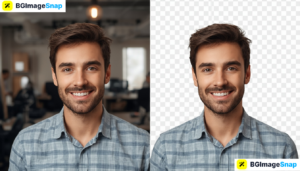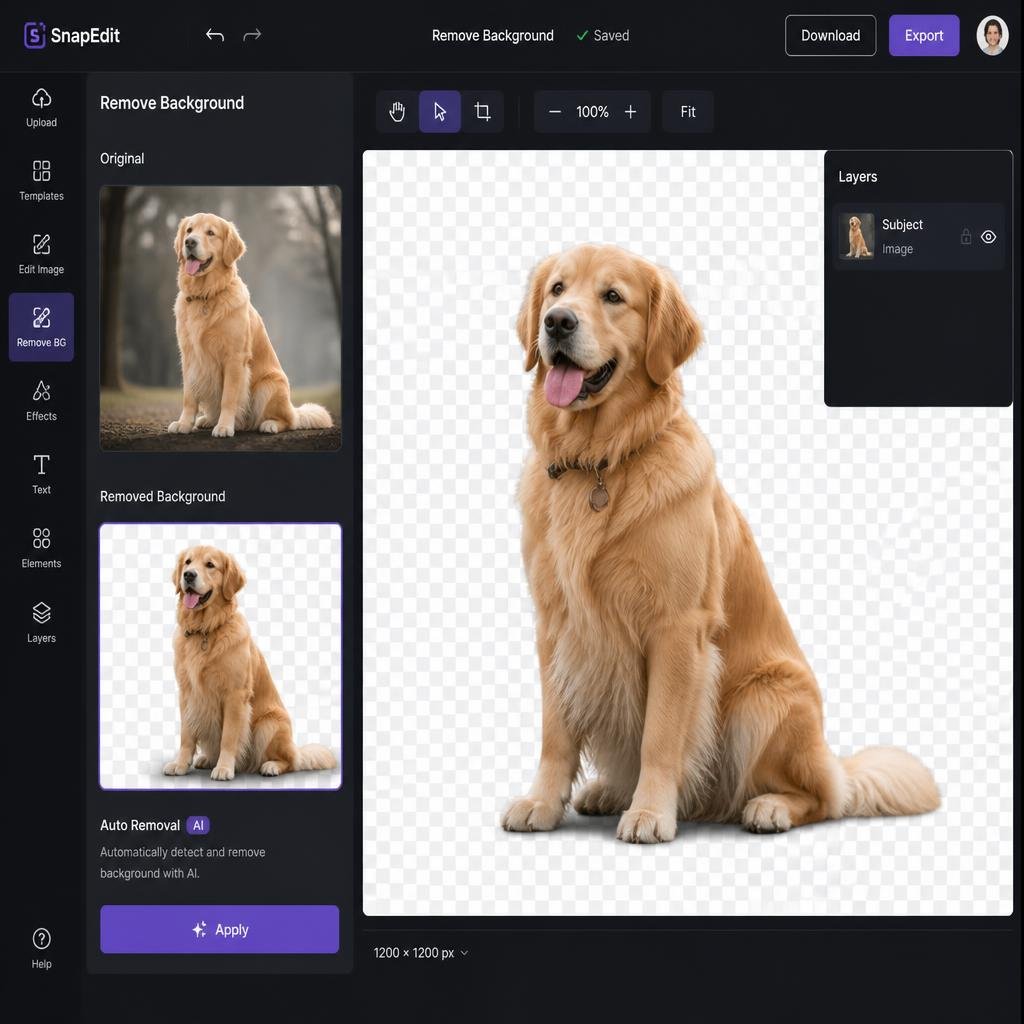
Isolating a subject from a busy background can take hours of tedious manual erasing if you don’t have the right software. Using a bg remover Adobe tool speeds up this process using machine learning to cut out subjects automatically. In this detailed guide we will explore how Adobe background removal works how to use it step by step and how free online alternatives can deliver fast results without high software costs
Key Takeaways
- The bg remover Adobe features rely on Adobe Sensei AI technology to identify subjects and delete backgrounds instantly.
- Adobe Express offers a free quick action background remover tool online while Photoshop provides advanced desktop control.
- Free web alternatives like bgimagesnap allow users to remove backgrounds instantly without creating an Adobe account.
- Exporting cutouts as transparent PNG files is essential to preserve clean backgrounds for future graphic design projects.
- Automatic tools save creative professionals hours of manual tracing, selection masking, and path cutting.
How the BG Remover Adobe Tools Work
Adobe uses an artificial intelligence framework called Adobe Sensei to power its background removal tools. When you apply a background remover feature in apps like Adobe Express or Photoshop, the AI analyzes the pixel values across your image.
The algorithm identifies central subjects such as people, animals, vehicles, or product items by analyzing contrast patterns, sharp edge boundaries, and color distributions. Once identified, it isolates the subject pixels and deletes or masks the background automatically.
In web based apps like Adobe Express, this process is automated and takes just a few seconds on cloud servers. In professional desktop programs like Photoshop, the tool creates a layer mask so editors can fine tune tricky selections manually.
Because edge detection relies on pixel contrast, automated tools perform best on photos with clear subjects. Complex subjects like frizzy hair or transparent glassware may require minor brush adjustments for perfect results.
Whether you use Adobe’s web tools or desktop software, the final output gives you an isolated subject set against a transparent canvas, ready for graphic design work.
BG Remover Adobe Features, Formats, and Options Breakdown
Understanding supported file formats, software limitations, and account requirements helps you pick the right tool for your project. Here is a feature comparison between Adobe background removal workflows and free web alternatives.
| Feature / Detail | Adobe Express (Web Tool) | Adobe Photoshop (Desktop) | Free Web Alternative (bgimagesnap.com) |
|---|---|---|---|
| Access Cost | Free (requires account sign in) | Paid Subscription ($22.99/mo+) | 100% Free (No account needed) |
| Primary Technology | Adobe Sensei AI | Sensei AI + Manual Selection | Instant Edge AI Processing |
| Supported File Formats | JPG, PNG, WebP | JPG, PNG, WebP, TIFF, PSD | JPG, PNG, WebP |
| Export Options | PNG (Transparent background) | PSD, PNG, TIFF, JPG | PNG (Transparent background) |
| Manual Refinement | Basic brush controls | Advanced Select & Mask workspace | Instant web quick edit options |
| Processing Location | Cloud server | Local computer hardware | Secure browser/cloud processing |
| Ease of Use | Beginner friendly | Professional level | Extremely easy (One click) |
Adobe Express provides a simple web interface designed for casual users who need quick edits. However, downloading your finished image requires you to sign in with an Adobe account or social login.
Professional software like Photoshop provides granular control over refine edge settings, layer masks, and feathering tools. But it requires an expensive monthly Creative Cloud subscription and a powerful computer to run smoothly.
For users who want fast results without signing up for accounts or managing subscriptions, free tools like bgimagesnap.com streamline the background removal process into one quick step.
How to Use the BG Remover Adobe Tools (Step by Step)
Removing backgrounds using Adobe tools is simple, whether you use their free web apps or desktop software. Follow these step by step instructions:
Method 1: Using Adobe Express Online
- Go to the Adobe Express Quick Action page. Open your web browser and navigate to the free Adobe background remover tool page.
- Upload your image file. Drag and drop your JPG or PNG image directly onto the page, or click to browse files from your computer.
- Let the AI clear the background. The automated system processes the image and removes the background in 3 to 5 seconds.
- Sign in to download. Click the download button, sign into your free Adobe account (or create one), and save your transparent PNG file.
Method 2: Using Adobe Photoshop Desktop
- Open your image in Photoshop. Launch Photoshop, open your project file, and unlock the background layer in the Layers panel.
- Open the Properties panel. Go to Window > Properties to display quick actions for your active layer.
- Click Remove Background. Under Quick Actions, click the Remove Background button to generate an automatic layer mask around your subject.
- Export as a PNG. Go to File > Export > Save for Web or Quick Export as PNG to save your image with transparency.
If you don’t want to register for an Adobe account or install heavy software, simply use bgimagesnap.com to remove image backgrounds free in one click.
Real Use Cases for Background Removal Tools
Removing backgrounds is an important skill across many creative and commercial fields. Here are four common scenarios where professionals rely on background removal software:
E-commerce merchants. Online sellers listing products on Amazon, Shopify, or eBay must display products against clean, neutral backgrounds. Removing cluttered backgrounds ensures product photos look professional and meet site listing rules.
Graphic designers and marketers. Creative teams build banner ads, social media graphics, and printed flyers daily. Removing photo backgrounds lets designers place team photos, logos, and product graphics over custom brand colors and backgrounds smoothly.
Content creators and YouTubers. Successful creators design bold video thumbnails to capture attention. Isolating portrait photos allows creators to layer high contrast text and graphic elements behind themselves easily.
Job seekers and professionals. Building a resume, LinkedIn profile, or personal website often requires a polished headshot. Removing distracting home or outdoor backgrounds lets professionals create clean headshots instantly.
Tips for Best Results with Background Removal
Follow these practical tips to ensure your background removals look clean and natural every time:
- Use high contrast source photos. Pick images where the subject stands out clearly from the background. High contrast makes it easier for AI algorithms to trace precise subject edges.
- Pay attention to lighting consistency. When placing your isolated subject onto a new background, match the lighting angle and brightness. Mismatched shadows can make your cutout look unconvincing.
- Add subtle drop shadows. Subject cutouts can sometimes look flat when pasted onto new solid backgrounds. Adding a soft, low opacity drop shadow creates depth and makes your subject fit naturally into the new scene.
- Always save your work as a PNG. JPG files do not support background transparency and will automatically insert a white background when saved. Always save your isolated subjects in PNG format.
- Use free web tools to save time. If you only need to remove backgrounds occasionally, skip expensive software licenses and sign in paywalls by using free web editors at bgimagesnap.com.
Frequently Asked Questions
Is the bg remover Adobe tool completely free to use?
Adobe Express offers a free quick action background remover online, but downloading your transparent file requires you to register and log in with an Adobe account. Professional desktop apps like Photoshop require a paid Creative Cloud subscription.
How do I save a transparent background in Adobe Photoshop?
Make sure your image uses a layer mask instead of a flat background layer. Go to File > Export > Quick Export as PNG to save your isolated subject with transparency preserved.
What is the best free alternative to Adobe background remover?
Online editors like bgimagesnap.com provide free, instant AI background removal. You can upload any image, clear the background in seconds, and download high resolution transparent PNG files without creating an account.
Why does my subject have rough or jagged edges after background removal?
Jagged edges happen when the original photo has low contrast or low resolution. Using high resolution source images with clear subject separation helps AI tools produce smooth, sharp edges.
Can I remove backgrounds on a mobile phone?
Yes. You can use mobile web browsers to access free online background removers, or download mobile apps like Adobe Express for iOS and Android devices.
Conclusion
Using an AI powered background remover turns complex image masking into a simple, seconds long task. Whether you choose a bg remover Adobe workflow or a free online alternative, removing unwanted backgrounds helps you create clean, eye catching graphics for any project. Visit bgimagesnap.com today to try our free background remover tool and download high quality transparent PNGs instantly!