
A crashed laptop, a lost USB stick, or software that only runs on one office PC can stop a small company overnight. Cloud computing fixes that by running your apps, files, and website on remote servers you open from any device with internet. In this guide, you’ll learn how cloud computing works, what small businesses actually use, and how to start without a technical team.
Key Takeaways
- Cloud computing means you rent software, storage, and processing power over the internet instead of buying office servers.
- Data lives in provider data centers, then syncs to laptops, phones, and tablets.
- Most small firms start with SaaS tools: email, drives, accounting, and online stores.
- Security depends on strong logins, permissions, and backups not just “being in the cloud.”
- Fast cloud sites still need optimized photos; prepare images free at bgimagesnap
What Is Cloud Computing and How Does It Work?
Cloud computing is a way to use computers you do not own. The provider keeps racks of servers in secure buildings called data centers. You connect through a browser or app, and those servers store files, run software, and host websites for you.
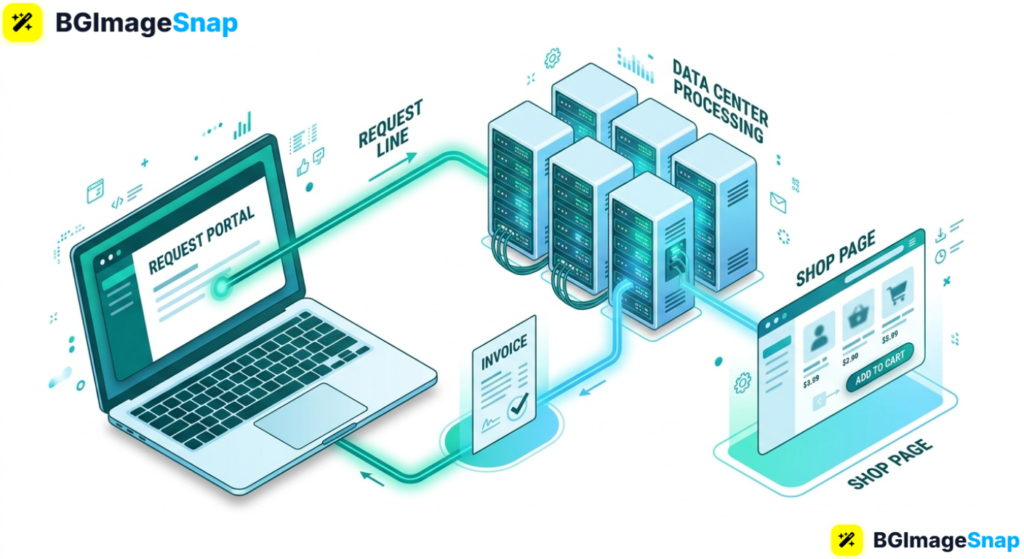
Here is the simple loop. Your device sends a request open an invoice, save a photo, load a shop page. The internet carries that request to the data center. The server does the work and sends the result back in seconds.
You usually pay monthly or by usage. That beats buying hardware, hiring someone to patch it, and hoping the hard drive never fails. If one laptop dies, the work still sits in the cloud.
There are three common layers. SaaS is ready made software (email, bookkeeping). IaaS is rented virtual machines and storage. PaaS is a platform for building custom apps. Small businesses almost always start with SaaS.
Cloud computing still needs good internet and tidy files. Huge product photos make even a powerful cloud site feel slow, so compress images before you upload them.
Cloud Computing Building Blocks Small Businesses Use
This breakdown covers how cloud computing is put together in real shops without a jargon dump.
The three service types
- SaaS (Software as a Service) Gmail style email, QuickBooks style books, Shopify style stores
- IaaS (Infrastructure as a Service) virtual servers if you outgrow simple apps
- PaaS (Platform as a Service) tools developers use to ship custom software faster
What happens behind the login
- Data centers buildings with power backup, cooling, and physical security
- Virtualization one physical machine split into many isolated “virtual” computers
- Redundancy extra copies of data so one failed disk does not erase your invoices
- APIs apps talking to each other, like your store sending orders to accounting
- CDNs copies of images closer to customers so pages load faster worldwide
Everyday cloud computing tools
- Business email on your own domain
- Shared drives with version history
- Video calls and team chat
- Invoicing, payroll, and tax reports
- CRM lists and email marketing
- Website hosting and ecommerce carts
- Automatic backup and two factor login
Features worth paying for
- Access from phone, tablet, and laptop
- Permission levels (owner, editor, viewer)
- Audit logs of who changed a file
- Uptime promises and human support
- Easy export if you switch providers later
Costs and limits
- Per user fees for office and email suites
- Extra storage after the free gigabytes
- Transaction fees on some online stores
- Slow sites if images are enormous
- Work pauses during a total internet outage unless the app has offline mode
Files and photos in the cloud
- Common uploads: PDF, DOCX, JPG, PNG, WebP
- Logos stay sharp as transparent PNGs
- Product photos should be resized before they hit cloud storage
- Use bgimagesnap.com to crop, compress, and remove backgrounds first
The practical takeaway: cloud computing is not magic. It is someone else’s computer, professionally run, plus apps designed so a two person team can look organized.
How to Use Cloud Computing in a Small Business Step by Step
You can roll out cloud computing in a week if you keep the stack small.
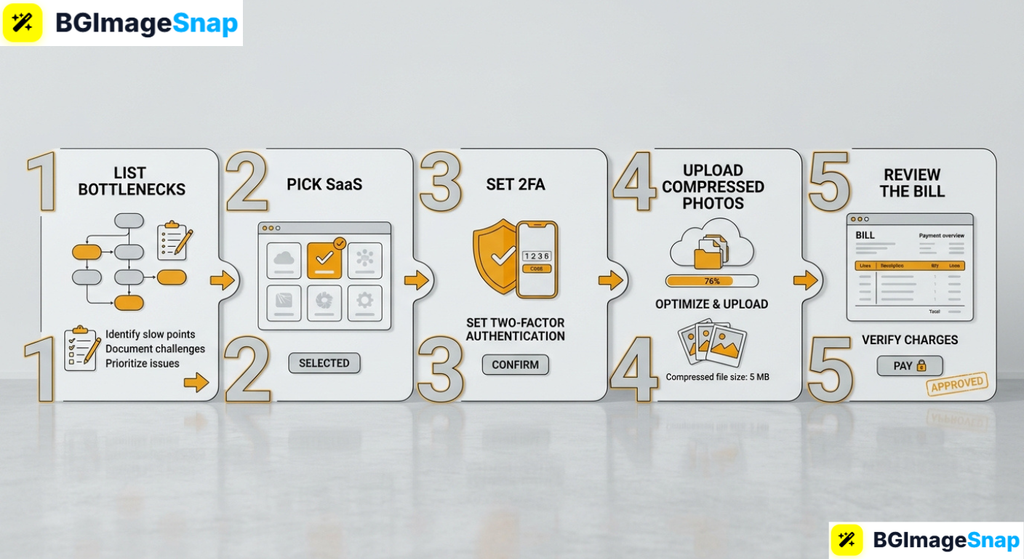
- Write down what breaks today. Lost files, messy invoices, no backups, or a website only one person can edit. Those problems tell you which cloud apps to buy first.
- Choose a core trio. Pick cloud email, one shared drive, and accounting. Add a shop or booking tool only if you sell or take appointments.
- Set the admin and lock the doors. One owner controls billing. Everyone else gets the least access they need. Turn on two factor authentication on day one.
- Migrate in a clean order. Create folders by year, client, or product. Upload compressed photos and PDFs so cloud computing storage stays cheap and fast.
- Train, then review the bill in 30 days. Show staff how to share a link instead of emailing “final_v3.” Cancel leftover desktop software you no longer open.
After a month, check who actually logs in. Unused seats are the quiet tax of cloud computing.
Who Uses Cloud Computing Real Use Cases
Cafés and local shops. A bakery runs orders on a tablet, saves recipes in a shared drive, and checks sales from home. If the counter device dies, cloud computing keeps the day’s numbers.
Online sellers. A maker stores product photos, packing lists, and customer messages in the cloud so anyone in the house can pack orders. Optimized images keep the store quick on phones.
Freelancers and tiny agencies. A designer shares proofs from a cloud folder, invoices from a browser app, and never mails a USB stick. Version history saves the file a client accidentally overwrote.
Students with side hustles. A tutor books sessions, sends Zoom links, and stores worksheets in the cloud without buying a server or office PC.
Tips to Get Cloud Computing Right
- Use a password manager. Unique passwords beat one reused phrase on every cloud app.
- Name files so search works.
2026-04-invoice-acme.pdfbeatsscan(3).pdf. - Shrink images before upload. Cloud computing hosts the file; it does not magically make a 12 MB photo load fast.
- Turn on version history and backups. Ransomware and “I deleted the wrong folder” still happen.
- Remove access the day someone leaves. Old phones should not open the books.
- Keep a hotspot. Short internet drops should not mean zero invoices.
- Test a restore once a year. A backup you have never opened is a hope, not a plan.
Frequently Asked Questions
Is cloud computing safe for small business?
It can be, with strong passwords, two factor login, and a known provider. Most trouble starts with stolen logins, not Hollywood hacks on the data center.
How does cloud computing work if the internet is down?
Live tools pause unless they cache files offline. A phone hotspot covers short outages; keep PDF copies of key contracts anyway.
How much does cloud computing cost?
Many apps start at a few dollars per user per month. Storage, extra mailboxes, and checkout fees add up, so start small.
Do I still need an office server?
Usually no. Email, files, and accounting run well as SaaS. Keep local hardware only for software that cannot move yet.
Can I leave a cloud computing provider later?
Yes if you can export data. Ask about export before you migrate years of invoices and photos.
Conclusion
Cloud computing puts email, files, software, and websites on remote servers so a small business is not trapped on one PC. Start with the apps you will open every day, lock the logins, and keep folders boringly clear. When you upload banners and product shots into those tools, visit bgimagesnap to crop, compress, and remove backgrounds with free browser based editors.
