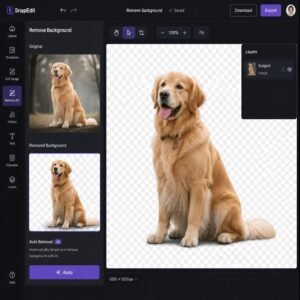
Busy creators, animators, and social media managers often struggle to remove backgrounds from animated GIFs frame by frame. Using an automated bg remover gif tool solves this problem by processing every frame in seconds while keeping the motion intact. In this detailed guide, you will learn how animated GIF background removal works, who needs it, and how to get clean transparent GIFs online for free.
Key Takeaways
- An automated bg remover gif tool processes every frame of an animated GIF to isolate moving subjects from their backgrounds.
- Removing GIF backgrounds allows you to layer animated stickers, reactions, and logos over videos or website pages.
- Frame-by-frame AI analysis preserves edge quality, transparency, and timing speed across the entire animation loop.
- Web-based background removers let you edit GIFs directly in your browser without installing heavy video editing software.
- Saving transparent animations as GIF or WebM formats maintains motion and alpha transparency for digital sharing.
How a BG Remover GIF Tool Works
Removing the background from a static photo is simple because the tool only evaluates a single image frame. An animated GIF, however, contains a series of dozens or hundreds of sequential images stored inside a single file container.
A dedicated bg remover gif tool unpacks the animated file into individual frames behind the scenes. Its artificial intelligence algorithms analyze each frame, identifying moving subjects, character edges, and foreground objects against static or dynamic backgrounds.
The software strips away background pixels across every frame simultaneously while locking pixel coordinates in place. This guarantees that subject movement, frame rates, and animation timing remain synchronized from start to finish.
Once frame processing completes, the tool re-assembles the frames back into an animated file with transparent background data. The final output acts like a digital animated sticker that seamlessly overlays any background color, video layer, or layout design.
Because animation processing requires analyzing multiple image layers at once, advanced AI algorithms ensure that edge details remain smooth without create distracting flickering effects between frames.
Full Details: Formats, Features, and Technical Breakdown
Removing background layers from animated media requires handling unique format constraints. Here is a detailed breakdown of features, supported inputs, and output specs when using an animated background remover tool.
| Feature / Detail | Specification |
|---|---|
| Supported Input Formats | Animated GIF, MP4, WebM, MOV |
| Supported Output Formats | Transparent GIF, Transparent WebM, APNG, MP4 (Green Screen) |
| Max File Size | Depends on browser memory (Typically up to 50MB to 100MB) |
| Frame Rate Preservation | Keeps original FPS (Frames Per Second) intact |
| Transparency Method | Alpha channel transparency or single-color index keying |
| Processing Technology | Automated AI computer vision frame-by-frame analysis |
| Platform Compatibility | Windows, macOS, Linux, iOS, Android (All major web browsers) |
| Cost & Sign-up | 100% Free on bgimagesnap.com, no software installation needed |
Working with animated files presents technical choices. Standard GIF formats use 256-color indexed transparency, which can leave faint outlines or matte borders around soft edges like hair or smoke.
Modern output formats like Animated PNG (APNG) or transparent WebM video preserve full 8-bit alpha transparency. This means semi-transparent elements like shadows, glass, or glow effects display smoothly without rough edges.
Choosing an online tool that automatically balances file size, frame rate retention, and transparency settings saves hours compared to manually editing frames inside complex software suites.
How to Use a BG Remover GIF Tool (Step by Step)
Removing the background from an animated GIF takes just a few quick actions in your web browser. Follow these step-by-step instructions to create transparent animations:
- Visit bgimagesnap.com. Open the free background remover tool on your desktop computer, tablet, or mobile phone browser.
- Upload your animated GIF file. Drag and drop your GIF into the upload zone, or click to choose a file directly from your device storage.
- Let the AI process the animation frames. The system automatically extracts frames, detects the moving subject, and strips away the background layer across the entire animation cycle.
- Preview your transparent animation. Check the playback loop against the transparent grid background to make sure subject edges look smooth and timing remains steady.
- Download your transparent GIF. Click download to save your updated transparent GIF or video asset, instantly ready for use in web projects, overlay graphics, or social posts.
Following this workflow lets you turn heavy, flat animations into light, flexible assets in under a minute without spending money on specialized tools.
Who Uses a BG Remover GIF Tool? Real Use Cases
Animated background removal opens creative opportunities across digital marketing, content creation, and web design. Here are four common groups who use this technology daily:
Streamers and video creators. Content creators on Twitch, YouTube, and TikTok use transparent GIFs as animated alerts, webcam overlays, and lower-third graphic animations. Removing background blocks allows alerts to float neatly over live gameplay or video footage without blocking content.
Social media managers. Marketing teams build animated stickers and reaction GIFs for Instagram Stories, GIPHY libraries, and social campaign feeds. Transparent GIFs grab attention, blend naturally into feed layouts, and build brand awareness.
UI/UX and web designers. Website developers use lightweight animated icons and illustrations to guide user interactions. Clearing background pixels ensures micro-animations match dark mode or light mode web themes dynamically.
Game developers and digital artists. Indie game designers use transparent GIF cutouts to quickly prototype character sprite sheets and UI motion. Artists turn 3D models or video clips into lightweight, transparent motion graphics for digital portfolios.
Tips for Best Results with Animated GIF Background Removal
Getting perfect results when removing backgrounds from animated files requires attention to video quality and frame settings. Here are expert tips to optimize your animations:
- Use source GIFs with high subject contrast. Choose animations where moving subjects stand out clearly against background colors. High contrast helps AI models pinpoint outline boundaries accurately across every single frame.
- Keep source file lengths reasonable. Shorter animation loops with fewer frames process much faster and result in smaller download file sizes for web pages.
- Convert transparent GIFs to WebM for websites. If you plan to embed transparent animations on modern websites, export or convert your result to WebM format. WebM files deliver smaller file sizes and cleaner edge blending than traditional 256-color GIFs.
- Check playback loop speed after processing. Review your processed file to ensure background extraction did not skip frames or slow down original playback timing.
- Pair transparent GIFs with complimentary background colors. Avoid placing dark-edged GIF animations over pitch-black backgrounds unless lighting effects are tested for contrast harmony.
Frequently Asked Questions
Can I remove the background from an animated GIF without losing quality?
Yes. Modern AI processing isolates subjects frame by frame without lowering original file resolution. Choosing WebM or APNG output options preserves full alpha transparency without color banding.
How does a bg remover gif tool differ from static photo background removers?
A static photo background remover only processes one single image layer. A bg remover gif tool extracts, cleans, and re-assembles every individual frame in an animation loop to maintain fluid motion.
Why does my transparent GIF have pixelated edges around the subject?
Traditional GIF formats only support binary transparency, meaning a pixel is either 100% visible or 100% transparent. For smoother edges with soft anti-aliasing, export your transparent animation as an APNG or WebM file instead.
Can I use a bg remover gif tool on mobile phones?
Yes. Web-based background removal tools at bgimagesnap.com work seamlessly inside modern mobile web browsers on both iOS and Android devices.
Is it free to remove backgrounds from GIFs online?
Yes. You can upload files, remove animated backgrounds, and download clean transparent GIF assets for free without signing up for accounts or installing software.
Conclusion
Removing backgrounds from animated GIFs no longer requires tedious frame-by-frame manual editing. Automated AI processing makes it fast and effortless to turn flat animations into versatile transparent stickers for videos, websites, and social posts. Visit bgimagesnap.com today to try our free bg remover gif tools and upgrade your animation workflow in seconds.