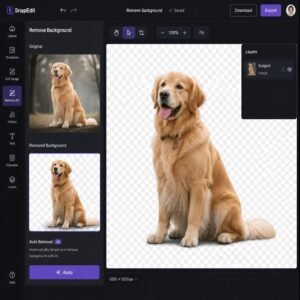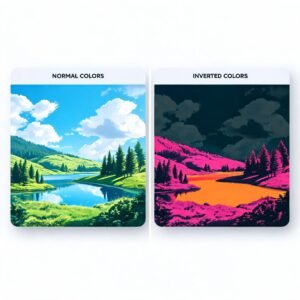
Busy creators and business owners often need clean, cut-out photos for ads, graphics, and social media posts. Using a bg remover canva tool makes isolating subjects fast, though the native Canva feature requires a paid Canva Pro subscription. In this complete guide, you will learn how background removal works, how to use it step-by-step, and how to get high-quality transparent images for free.
Key Takeaways
- The native bg remover canva tool lets users clear image backgrounds in one click inside the design editor.
- Canva limits automatic background removal to paid Canva Pro, Canva for Teams, and Canva for Education accounts.
- AI background removers detect subject edges by analyzing contrast, colors, and textures across image pixels.
- Free online alternatives like bgimagesnap.com deliver instant background removal without paid subscriptions or account signups.
- Saving your cutout images as PNG files is essential to preserve transparent backgrounds for future design work.
How the BG Remover Canva Feature Works
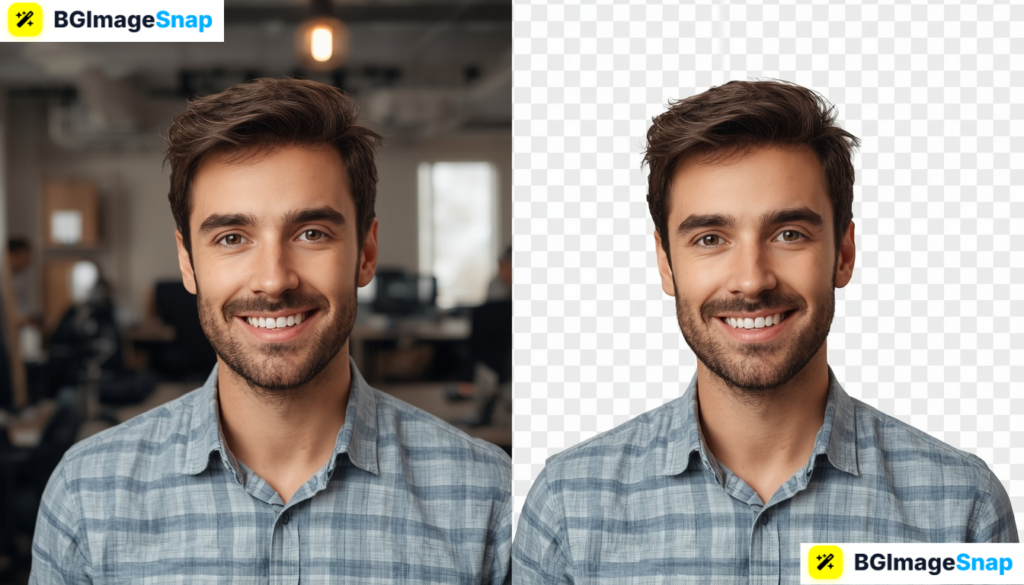
Background removal technology relies on artificial intelligence (AI) and computer vision algorithms. When you apply a background remover tool, the software scans your photo to separate the foreground subject from the background elements.
The AI identifies key visual boundaries by calculating sharp color changes, edge contrast, and lighting differences. Foreground elements like people, products, logos, or pets are kept crisp while unnecessary pixels are stripped away.
In Canva, this feature works seamlessly directly on your layout canvas. Once the background vanishes, your image retains a transparent canvas behind the main subject, allowing you to layer text, shapes, or new scenery underneath.
While the bg remover canva system works smoothly, it processes images on cloud servers. This means you need a stable internet connection to run the tool without processing delays or connection drops.
For standard photos with clear subjects, automatic tools achieve precise edge detection in under five seconds. For photos with messy lighting or low contrast, fine-tuning brushes help refine tricky edges manually.
BG Remover Canva Features, Formats, and Options Breakdown
Understanding the tools, supported file formats, and features available helps you choose the right background remover for your workflow. Here is a detailed comparison of features between Canva’s tool and free web alternatives.
| Feature / Detail | BG Remover Canva (Pro Feature) | Free Web Alternative (bgimagesnap.com) |
|---|---|---|
| Access Requirement | Requires paid Canva Pro ($12.99/mo) | 100% Free, no signup required |
| Supported File Formats | PNG, JPG, WebP, HEIC | PNG, JPG, WebP |
| Processing Speed | 3 to 10 seconds | 2 to 5 seconds |
| Output File Format | PNG (Transparent), PDF, SVG, JPG | PNG (Transparent) |
| Manual Erase / Restore | Available via brush controls | Available via quick edit options |
| Batch Processing | Available on desktop app | Fast single & sequence uploads |
| Device Compatibility | Browser, iOS, Android, Desktop App | Any Web Browser (Mobile & Desktop) |
| Download Resolution | Full HD (depends on design canvas) | High-Resolution HD Downloads |
Canva handles many format types directly inside its visual workspace. When you upload a JPG photo, the software converts the image layer dynamically so you can apply edits without destroying your original file.
However, saving your final design with a transparent background in Canva still requires checking the “Transparent Background” box during PNG export. If you skip that option, Canva fills empty background space with solid white by default.
Free dedicated tools streamline this exact step by producing a ready-to-use transparent PNG instantly. You simply upload your image, let the AI remove the background, and download the clean asset directly to your device.
Both options support popular file formats, but keeping your original images in high resolution ensures cleaner edges regardless of which tool you choose.
How to Use the BG Remover Canva Tool Step by Step
Removing image backgrounds in Canva takes just a few clicks if you hold an active Canva Pro account. Follow these step-by-step instructions to clear backgrounds inside your projects:
- Open your Canva workspace and upload your photo. Log into your account, open an existing design or create a new custom canvas size, then drag your photo onto the project page.
- Select your photo to open the editing bar. Click directly on the image you placed on the canvas so a purple bounding box appears around it, then click the Edit Photo option on the top toolbar.
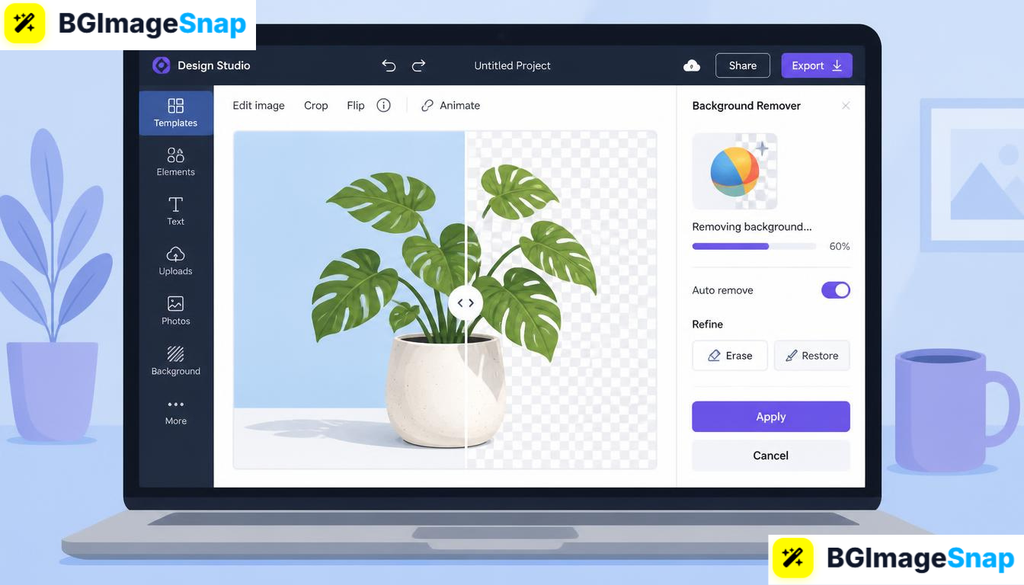
- Click the BG Remover tool. Locate the Magic Studio tool panel on the left side of your screen and select BG Remover to start automatic AI background extraction.
- Refine your cutout edges if necessary. If the AI accidentally erased a detail or left behind unwanted spots, use the manual Erase and Restore brush tools to touch up the edges.
- Download your design with a transparent background. Click the Share button in the top right corner, select Download, set your file format to PNG, check the Transparent background box, and click Download.
If you do not have a paid subscription, you can skip these paid steps entirely. Upload your image to bgimagesnap.com, let the tool automatically strip the background for free, and download your transparent PNG directly into your free Canva account.
Real Use Cases for Background Removal Tools
Background removal is an essential editing step across many industries. Here are four common practical scenarios where users rely on these tools daily.
E-commerce sellers. Online shop owners on platforms like Shopify, eBay, and Etsy need clean product photos with pure white or transparent backgrounds. Removing distracting studio backgrounds helps products stand out, meets platform listing guidelines, and boosts buyer trust.
Content creators and YouTubers. Video creators constantly design eye-catching video thumbnails and channel banners. Isolating facial expressions, gestures, or objects allows creators to place subjects over vibrant custom graphic backgrounds.
Social media managers and freelancers. Marketing professionals build branded promotional graphics, story templates, and ad banners for clients every day. Removing image backgrounds lets marketers layer team portraits, brand logos, and product shots over custom brand colors smoothly.
Students and educators. Teachers and students build visual presentation slides, science posters, and school reports. Isolating historical figures, animal subjects, or diagrams makes educational materials cleaner and easier for audiences to read.
Pro Tips for Perfect Background Removal Results
Achieving professional cutouts requires more than just clicking a button. Follow these practical tips to improve edge sharpness and quality every time you remove a background:
- Choose high-contrast source photos. Pick photos where your main subject stands out clearly against the background. Bright subjects against dark backgrounds (or vice versa) give AI tools strong contrast borders to detect.
- Pay close attention to hair and fur edges. Fine details like hair, fur, or semi-transparent glass are naturally harder for automated edge detection tools. Zoom in close after processing to make sure fine strands look natural instead of blocky.
- Always save as a PNG file. JPG files do not support alpha channel transparency, meaning they will automatically add a solid white background when saved. Always export your isolated cutouts in PNG format to keep backgrounds transparent.
- Fix lighting mismatches on new backgrounds. When placing your isolated subject onto a new graphic background, match the lighting direction and color temperature. Adding a soft drop shadow beneath your subject prevents it from floating unrealistically.
- Use free web tools to avoid paywalls. If you only need occasional cutouts, using dedicated free editors at bgimagesnap.com saves you money while delivering high-definition transparent PNG files in seconds.
Frequently Asked Questions
Is the bg remover canva feature completely free?
No. The native background remover in Canva is locked behind Canva Pro, Canva for Teams, and Canva for Education accounts. Free Canva users must upgrade or use a free third-party editor like bgimagesnap.com to remove backgrounds.
How do I save an image with a transparent background in Canva?
Select Share in the upper toolbar, click Download, choose PNG as your file type, and check the box next to Transparent background before downloading. Without checking this box, Canva exports your image with a solid white background.
Can I restore parts of an image that were removed by mistake?
Yes. In Canva, click on the BG Remover tool icon again to open manual brush controls. Select the Restore brush to paint over and bring back any details that were accidentally deleted by the automated AI.
What is the best free alternative to Canva background remover?
Online tools like bgimagesnap.com provide free, instant AI background removal. You can upload any image, remove the background in seconds, and download high-resolution PNG files without signing up or paying monthly subscription fees.
Why does my exported background remover image still have a white background?
This usually happens if you saved the file as a JPG instead of a PNG, or forgot to check the transparent background option during export. Make sure your final file format supports transparency.
Conclusion
Using a background removal tool turns complex image editing into a fast, one-click process. Whether you use the native bg remover canva feature or a free alternative, isolating your subjects helps you craft clean, professional graphics for any project. Visit bgimagesnap.com today to try our free background remover tool and create transparent PNG images instantly without paying for monthly subscriptions!