Why Convert Word to PDF
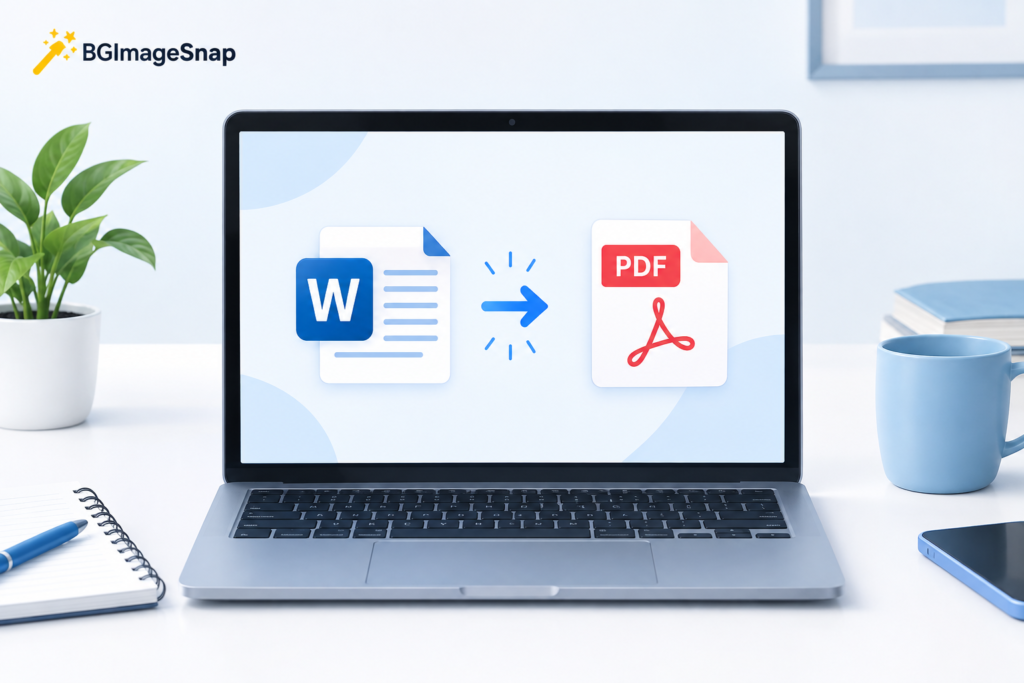
Learning how to save a Word doc as PDF is worth it because a PDF keeps your formatting locked in place. Fonts spacing images, and page breaks stay exactly the way you designed them, no matter what device or software opens the file. That’s why resumes, contracts, invoices and reports are almost always shared as PDFs instead of Word files. A .docx can look different depending on the version of Word someone has installed. A PDF looks the same everywhere, on every screen.
If you want more background on how the format works, Adobe’s guide to the PDF format is a solid resource.
How to Save Word Doc as PDF on Windows
Here’s how to save a Word doc as PDF on a Windows computer:
- Open your document in Microsoft Word.
- Click File in the top menu.
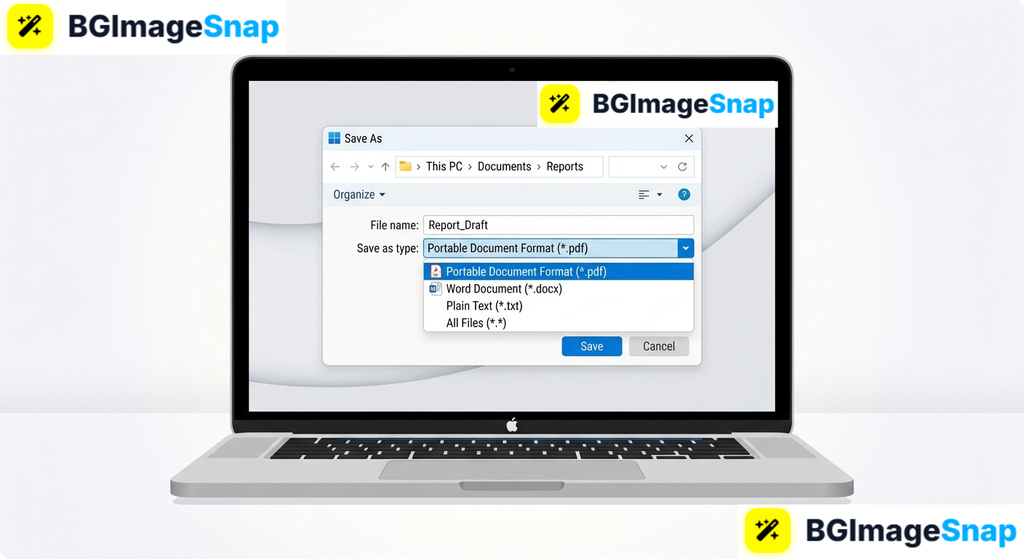
- Select Save As.
- Choose the folder where you want to save the file.
- Click the dropdown menu labeled Save as type and select PDF.
- Click Save.
Word converts the file instantly. Your original .docx stays untouched, and a new PDF version appears in the folder you picked.
How to Save Word Doc as PDF on Mac
The steps to save a Word doc as PDF on Mac are almost identical:
- Open the document in Word.
- Click File in the menu bar.
- Select Save As.
- In the File Format dropdown choose PDF.
- Click Export.
Word for Mac handles the conversion the same way as the Windows version so formatting stays consistent either way.
How to Save Word Doc as PDF Using the Export Menu
Some versions of Word use “Export” instead of “Save As.” If you don’t see a PDF option under Save As this is another way to save your Word doc as PDF:
- Click File.
- Select Export.
- Choose Create PDF/XPS Document.
- Click Create PDF/XPS.
- Pick a save location and click Publish.
This does the same job. Microsoft just labels it differently depending on the Word version you’re running. You can check Microsoft’s official support page for version specific menus.
How to Save Word Doc as PDF from Google Docs
If your document lives in Google Docs instead of Microsoft Word saving it as a PDF is even shorter:
- Open the document in Google Docs.
- Click File.
- Hover over Download.
- Select PDF Document (.pdf).
The file downloads straight to your device ready to share or print.
How to Save Word Doc as PDF on Mobile
Working from your phone? Here’s how to save a Word doc as PDF using the Word mobile app:
- Open the document in the Word app.
- Tap the three dot menu (or the File icon depending on your device).
- Select Save As or Export.
- Choose PDF.
- Save it to your phone or cloud storage.
This is handy when you’ve edited a document on the go and need to send a clean uneditable copy right away.
Converting Word to PDF Without Microsoft Word
Don’t have Word installed? You can still save a Word doc as PDF using a few free options:
- Google Docs: Upload the .docx file to Google Drive open it with Google Docs then download it as a PDF using the steps above.
- LibreOffice: This free office suite opens .docx files and lets you export directly to PDF through File > Export As > PDF.
- Free online converters: Several websites let you upload a Word file and download a converted PDF within seconds no installation required.
Any of these work well for a one off conversion. If you’re converting Word files often having Word or Google Docs set up is usually more convenient long term. And if your finished PDF includes large images our free image compressor can shrink those images beforehand to keep the whole file lighter.
Common Issues When You Save Word Doc as PDF
The PDF looks different from the Word doc. This usually happens with unusual fonts that aren’t installed on the PDF viewer’s device. Stick to common fonts like Arial Calibri or Times New Roman to avoid this.
Images or tables get cut off. Check your page margins and print layout in Word before exporting. If content is set outside the page boundary it will be cut off in the PDF too.
The file size is too large. High resolution images inside a Word doc can make the PDF large. Compressing images before conversion keeps the file size manageable for email attachments.
Save As doesn’t show a PDF option. This can happen on very old versions of Word. Updating Word to the latest version usually adds the PDF export option back. The Export menu method above also works as a backup.
FAQ
Will the formatting stay the same when I save a Word doc as PDF?
Yes. Saving as PDF locks in your fonts, layout, and images exactly as they appear in the document. This is the main reason people convert to PDF before sharing.
Can I save a Word doc as PDF without Word installed?
Yes. Google Docs, LibreOffice, and most free online converters can open a .docx file and export it as PDF without needing Microsoft Word.
Does this work on Mac?
Yes. The idea is the same on Mac — File > Save As > PDF — just through Word’s Mac interface instead of Windows.
Can I convert multiple Word documents to PDF at once?
Word converts one file at a time. For batch conversion, an online tool or LibreOffice’s command-line export is faster if you’re converting many files together.
Is the PDF editable after I save my Word doc as PDF?
Not directly. A PDF is meant to be a fixed, final version. If you need to make changes, edit the original Word document and export a new PDF.
Do I lose the original Word file after converting?
No. Saving as PDF creates a separate file. Your original .docx stays exactly as it was.
Now you know how to save a Word doc as PDF on any device, so your file is ready to share, print, or upload anywhere a PDF is needed.