Introduction
You have a PDF. Maybe it’s a scanned contract a product catalog or a document with important images. You need to use those pages as pictures for social media email or a website. But you can’t copy and paste from PDFs. You can’t right-click and save. You don’t want to take screenshots they’re blurry and messy.
You need to convert PDF to JPG. This is a common problem. And it’s easy to fix if you know how. In this guide you’ll learn five simple safe ways to convert PDF to JPG. No software. No signup. No watermark. Just clear steps you can follow right now. Whether you’re converting one page or ten you’ll find the best method for your needs.
Quick Answer: What Is PDF to JPG Conversion?
Short answer:
PDF to JPG conversion turns each page of a PDF file into a separate JPG image. This lets you use the content as a picture for sharing, posting or editing.
Key Takeaways:
JPG files work everywhere phones websites social media
You can convert one page or all pages at once
Online tools are faster than installing software
Always choose a tool that keeps image quality high
Never use tools that ask for your email or payment
Pro Tip: You don’t need to open the PDF in Adobe Reader. Use a free online converter instead.
Why Convert PDF to JPG?
PDFs are great for documents. But they’re not great for everything.
Here’s when you need to convert PDF to JPG:
- Posting on Instagram or Facebook platforms don’t display PDFs
- Adding to a website images load faster than PDFs
- Editing in Canva or Photoshop you can’t edit text or images inside a PDF without special tools
- Sending via email some email systems block PDFs
- Printing individual pages easier to print JPGs than PDFs
If you need to use the content as a visual not a file convert it to JPG.
5 Easy Ways to Convert PDF to JPG Online
Here are five reliable methods ranked by ease and safety.
| Method | Best For | Pros | Cons |
|---|---|---|---|
| 1. BGImageSnap | Everyone fast, free, no login | No signup batch support, high quality | Requires internet |
| 2. Smallpdf | Users who need extra tools | Clean interface, supports PDF editing | Free version limits to 2 conversions/day |
| 3. ILovePDF | Users with multiple file types | Free, supports 10+ formats | Ads, slower processing |
| 4. Adobe Acrobat Online | Adobe users | Trusted, high quality | Requires Adobe account |
| 5. Preview (Mac) or Print to JPG (Windows) | Users with no internet | Built-in, no third-party tools | Only converts one page at a time |
Avoid These:
- Tools that ask for your password
- Sites that install software on your computer
- “Free” converters that watermark your images
Best Choice: BGImageSnap simple, fast and truly free.
Step-by-Step: Convert PDF to JPG with BGImageSnap
You don’t need to install anything. You don’t need to sign up. Here’s how it works.
Step 1: Go to the Tool
Visit: https://bgimagesnap.com/
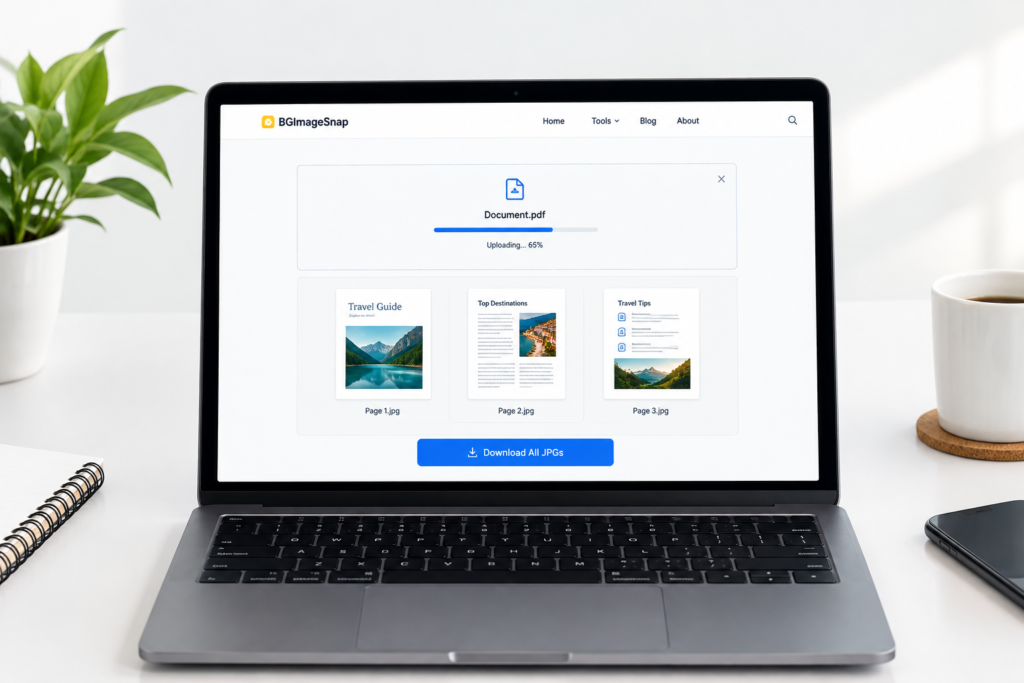
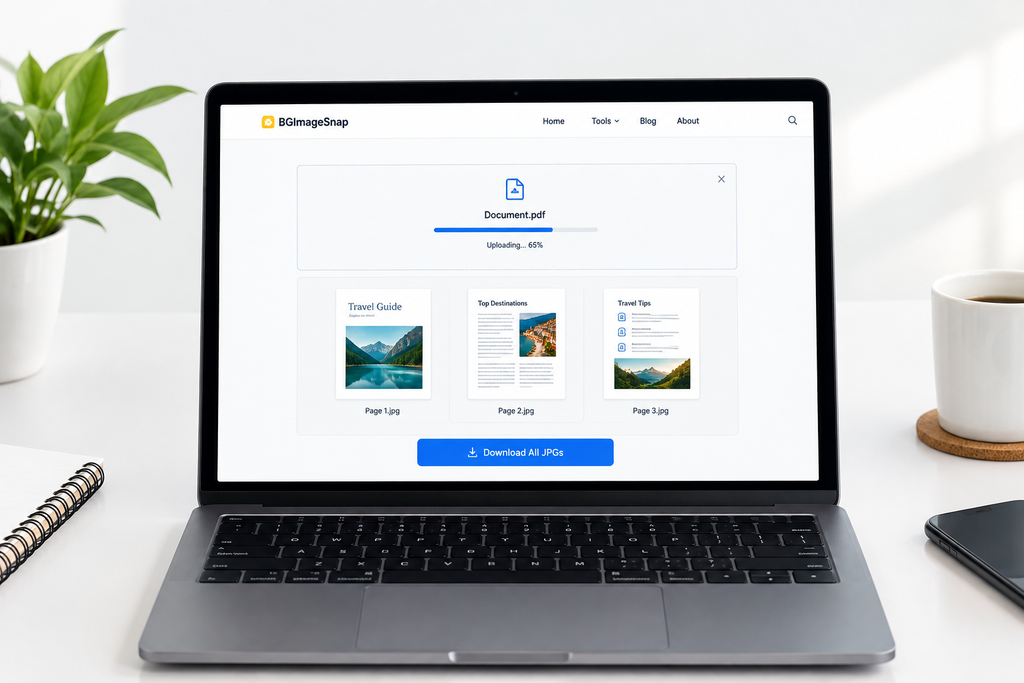
You’ll see a clean page with one box: Drop your PDF file here.
Step 2: Upload Your PDF
Click the box or drag and drop your PDF file.
You can upload one page or a full document.
Step 3: Wait for Processing
The tool reads each page and converts it to a JPG image.
This takes 5–15 seconds.
Step 4: Download Your Files
You’ll see a preview of each page.
Click “Download All” to get a ZIP file.
Or click “Download” next to each page to save one image.
That’s it.
Your files are deleted from our servers within 60 minutes. We never store, track, or share your data.
PDF to JPG vs JPG to PDF: Know the Difference
People mix these up. Here’s how they’re different.
| Feature | PDF to JPG | JPG to PDF |
|---|---|---|
| Goal | Turn pages into images | Turn images into one document |
| Use Case | Share pages as pictures | Combine photos into one file |
| Result | Multiple JPG files | One PDF file |
| Quality | Preserves image detail | May compress images |
| Best For | Social media, editing | Printing, sending as one file |
You convert PDF to JPG when you need to use the content as a picture.
You convert JPG to PDF when you want to bundle images into one file.
Common Mistakes When Converting PDF to JPG
Mistake #1: Using Low-Quality Tools
Some free converters compress images too much. The text becomes blurry. The details vanish.
Fix: Use BGImageSnap or Adobe. Avoid tools that say “optimize for size.”
Mistake #2: Converting Scanned PDFs Without Checking Resolution
Scanned PDFs may be low resolution. If you convert them to JPG, they’ll still be blurry.
Fix: Open the PDF first. If text looks fuzzy, the original scan was poor. No tool can fix that.
Mistake #3: Saving as JPG When You Need Text
If you want to copy text from the image JPG won’t help. You need OCR.
Fix: Use a PDF to text tool if you need to edit words not images.
Mistake #4: Uploading Sensitive Documents to Unknown Sites
Some sites collect your files and sell them.
Fix: Only use trusted tools. BGImageSnap deletes files automatically. No login needed.
Mistake #5: Not Checking Page Order
If your PDF has 10 pages, the JPGs might come out in the wrong order.
Fix: Rename your PDF pages before uploading (e.g., page_01.pdf, page_02.pdf). Or rename the JPGs after download.
FAQ: Your Top PDF to JPG Questions Answered
1. Can I convert PDF to JPG for free?
Yes. BGImageSnap and other trusted tools let you convert PDF to JPG for free no payment, no signup.
2. Can I convert multiple pages at once?
Yes. Most tools, including BGImageSnap, convert all pages into separate JPG files in one go.
3. Will the image quality be good?
Yes if you use a good tool. BGImageSnap keeps full resolution. Avoid tools that say “reduce file size.”
4. Do I need to install software?
No. Online tools work in your browser. No download needed.
5. Can I convert PDF to JPG on my phone?
Yes. Open your browser on iPhone or Android. Go to BGImageSnap.com. Upload and download.
6. Is it safe to convert personal documents?
Only if you use a trusted tool. BGImageSnap deletes files after 60 minutes. No one else can see them.
7. Why do some JPGs look stretched?
This happens if the PDF page was not square. The tool may stretch it to fit. Always check the preview before downloading.
8. Can I convert a password-protected PDF?
No. You must unlock the PDF first. Most online tools can’t open locked files.
Conclusion: Fast, Free, and Simple
Converting PDF to JPG doesn’t have to be hard.
You don’t need Adobe. You don’t need to learn software.
You just need the right tool. Whether you’re sending a page to a client, posting a receipt on social media, or editing a scanned form converting to JPG makes it easier. The best method? Use a simple, secure, free tool that just works.
BGImageSnap does that. No ads. No login. No waste.