Introduction
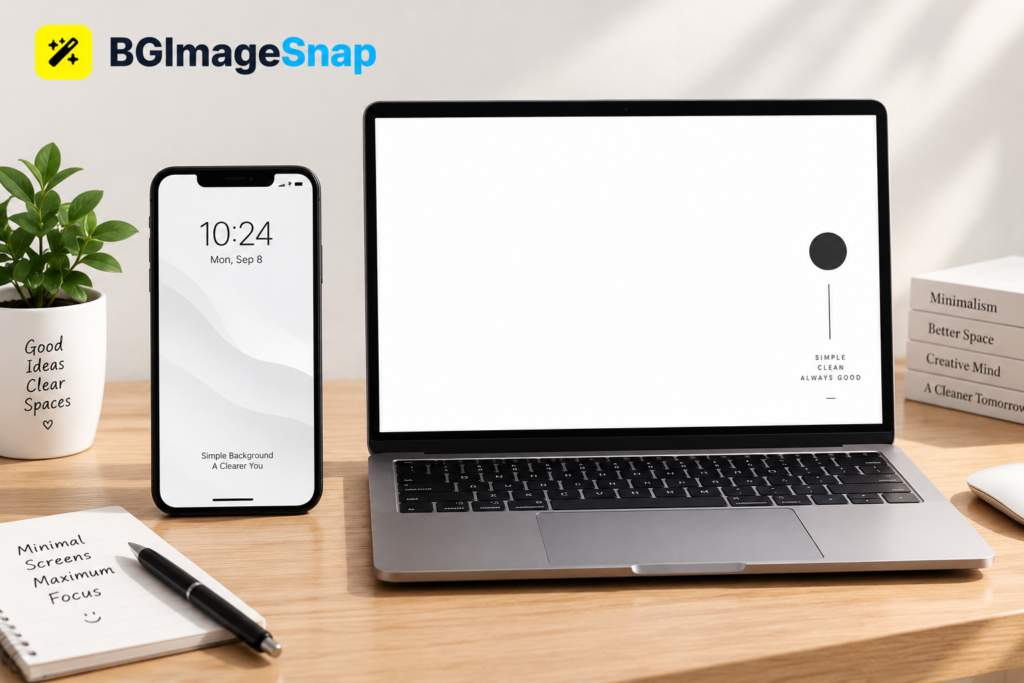
White wallpaper is the ultimate tool for digital minimalists seeking a distraction free screen. When you unlock your phone or boot up your computer, a cluttered background can immediately overwhelm your senses. A crisp, clean background changes that experience entirely. It brings focus to your apps, highlights your widgets, and creates a sense of calm in your digital life.
In this guide, we will explore the best minimalist concepts for your devices. You will learn how to choose the perfect white wallpaper, how it affects your screen visibility, and how to set it up across all your devices. Whether you prefer pure snow white or soft off white textures, we have the exact ideas you need to transform your screens today.
Quick Answer: Why Choose a White Wallpaper?
A white wallpaper provides a clean, distraction free background that makes app icons and widgets stand out. It is ideal for users who want a bright, airy aesthetic that mimics the look of physical paper. For the best results, choose high resolution images with subtle textures to avoid harsh screen glare.
The Benefits of Using a White Wallpaper
Switching to a white wallpaper offers several practical and aesthetic advantages for your daily digital experience.
First, it enhances visual clarity. Dark backgrounds can sometimes cause colorful app icons to clash or vibrate visually. A white background acts as a neutral canvas, making your interface look organized and intentional.
Second, it performs exceptionally well in bright environments. If you frequently use your phone outdoors or in well lit offices, a white wallpaper maximizes screen reflectivity and readability. You can learn more about how screen brightness and color affect digital eye strain from the American Academy of Ophthalmology.
Finally, it promotes digital minimalism. By removing busy photographs or chaotic patterns from your background, you reduce visual noise. This simple change can help you stay focused on the task at hand rather than getting distracted by your screen.
10 Minimalist White Wallpaper Ideas for Your Phone and Desktop
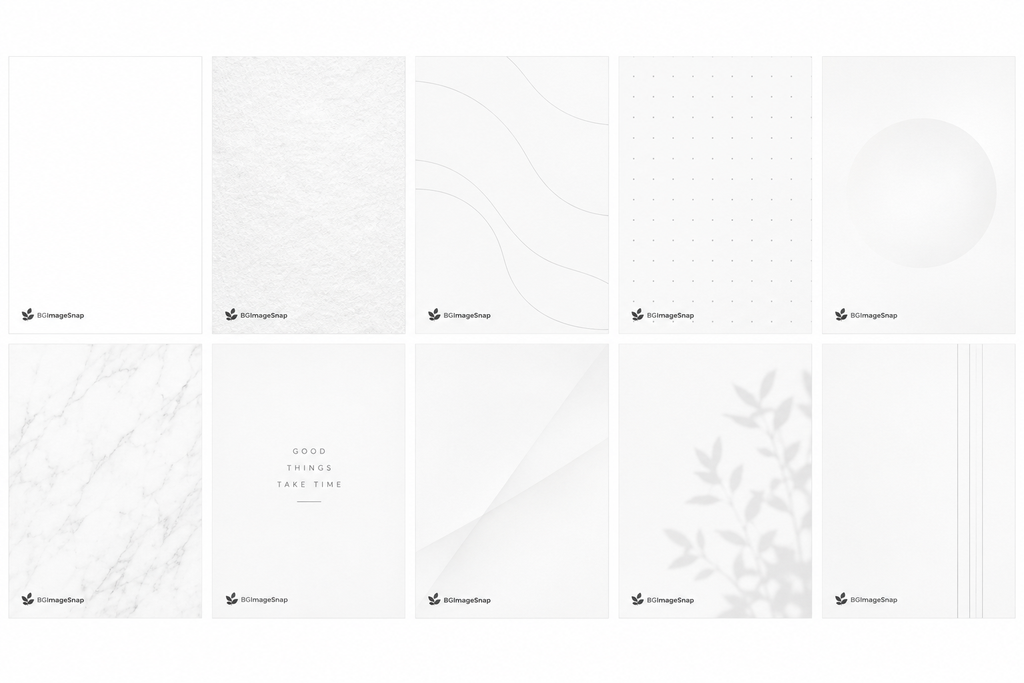
Finding the right aesthetic is crucial. Pure white can sometimes be too harsh, so exploring different variations is highly recommended. Here are ten stunning concepts to try.
1. Pure Snow White
This is the absolute minimalist standard. A completely blank, pure white canvas with no gradients or textures. It is perfect for users who want their app icons to be the only source of color on their screen.
2. Soft Cloud Textures
For a more organic feel, look for high resolution photography of soft, white cumulus clouds against a pale sky. This adds depth to your screen without introducing distracting colors.
3. Geometric White Patterns
Subtle 3D geometric shapes rendered in varying shades of white and light gray create a modern, architectural look. The soft shadows give your device a premium, tactile feel.
4. White Marble
White marble with faint gray veining offers a luxurious and sophisticated background. It works exceptionally well on large desktop monitors where the intricate details can be fully appreciated.
5. Minimalist Line Art
A solid white background featuring a single, continuous black or gray line drawing. Whether it is a face, a plant, or an abstract shape, this style is highly artistic yet unobtrusive.
6. White Sand Dunes
High contrast black and white photography of desert sand dunes provides beautiful, sweeping curves. The interplay of light and shadow is mesmerizing but remains entirely monochrome.
7. Frosted Glass Effect
A blurred, translucent white background that mimics frosted glass. This is an excellent choice if you use widgets with transparent backgrounds, as it creates a seamless, layered interface.
8. White Botanical Shadows
A crisp white background featuring the sharp, dark shadow of a single palm leaf or fern. This brings a touch of nature to your device while maintaining a strict minimalist color palette.
9. Off-White Canvas Texture
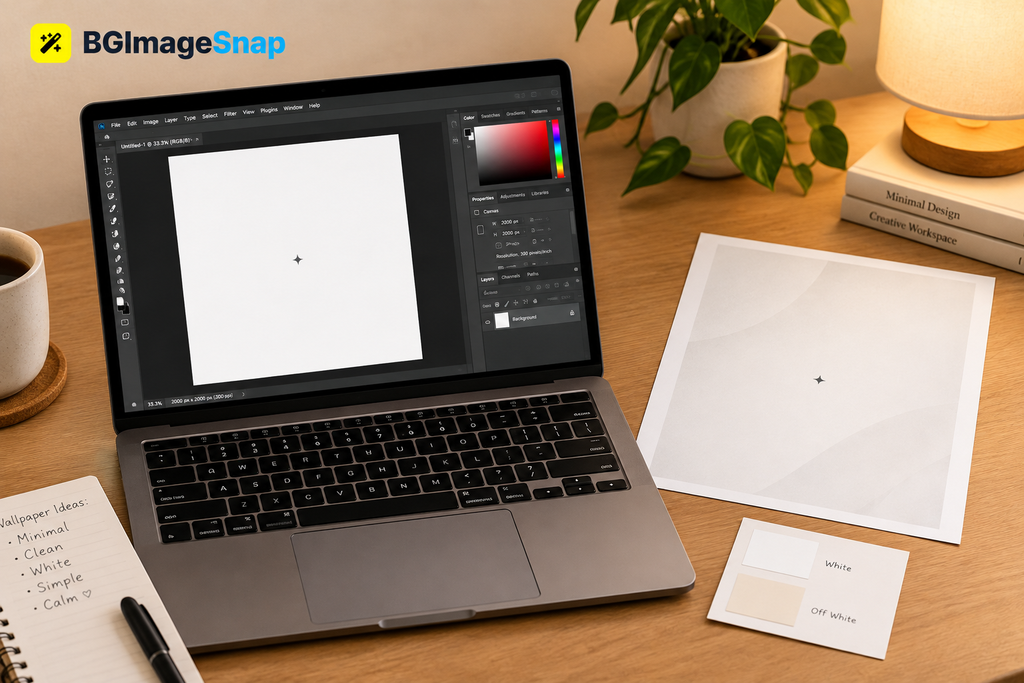
Pure white can cause eye strain in dim rooms. An off white or cream canvas texture mimics the look of heavy watercolor paper, providing warmth and reducing screen glare.
10. White Gradient
A smooth transition from pure white at the top to a very light silver or pale gray at the bottom. This subtle gradient helps distinguish the top status bar from the rest of your home screen.
How to Set a White Wallpaper on Your Devices
Once you have found or created your ideal white wallpaper, applying it is simple. You can use tools like BGImageSnap to ensure your image is perfectly resized for your specific device before setting it.
On iPhone and iPad
- Open the Settings app.
- Tap on Wallpaper.
- Tap Add New Wallpaper.
- Select Photos and choose your downloaded white wallpaper.
- Adjust the crop and tap Done.
On Android Devices
- Open the Settings app.
- Tap on Wallpaper and style.
- Select My photos or choose from your gallery.
- Pick your white wallpaper and adjust the positioning.
- Tap Set wallpaper and choose Home screen, Lock screen, or both.
On Mac Computers
- Click the Apple menu and select System Settings.
- Click Wallpaper in the sidebar.
- Click Add Photo or Folder to locate your downloaded image.
- Select the image to apply it to your desktop immediately.
On Windows PCs
- Right click anywhere on your desktop.
- Select Personalize.
- Click on Background.
- Choose Picture from the dropdown menu.
- Click Browse photos and select your white wallpaper.
Common Mistakes When Choosing a White Wallpaper
While minimalism is simple, there are a few pitfalls to avoid to ensure the best experience.
Ignoring Screen Glare
Pure white backgrounds emit maximum light. If you use your device in dark rooms, this can cause severe eye strain. Opt for off-white or cream textures for nighttime use.
Using Low-Resolution Images
A pixelated or compressed white image will look gray and muddy. Always source high resolution files, ideally matching the exact pixel dimensions of your device screen.
Clashing with Light Mode Apps
If you use a white wallpaper but have your apps set to Dark Mode, the transition between the home screen and the apps can be jarring. Consider matching your system theme to your wallpaper for a cohesive look.
Frequently Asked Questions About White Wallpaper
Does a white wallpaper drain battery life?
On devices with OLED screens, displaying white pixels requires maximum power, which can drain the battery faster than a black wallpaper. However, on LCD screens, the backlight is always on, so the color of your wallpaper does not significantly impact battery life.
Where can I download high quality white wallpapers?
You can find high-resolution, perfectly sized backgrounds at BGImageSnap. Our platform allows you to search, crop, and adjust the brightness of images to create the perfect custom background for any device.
Is a white wallpaper bad for your eyes?
Not necessarily. In well-lit environments, a white background mimics physical paper and is very comfortable to read. However, in dark rooms, it can cause glare. Adjusting your screen brightness or using an off-white texture can mitigate this.
What is the best resolution for a desktop white wallpaper?
For standard monitors, 1920×1080 pixels is the minimum. For modern displays, look for 4K resolution, which is 3840×2160 pixels, to ensure the texture remains crisp and sharp.
Can I make my own white wallpaper?
Yes. You can take a photo of a white surface, like paper or a wall, and use an online editor to increase the brightness and contrast. Alternatively, you can use design software to create custom gradients or geometric patterns.
Conclusion
A white wallpaper is a powerful design choice that brings clarity, focus, and elegance to your digital life. By selecting the right texture and shade for your environment, you can reduce visual clutter and create a calming interface. Whether you prefer the starkness of pure snow white or the warmth of a canvas texture, the minimalist approach never goes out of style. Take control of your screen today and experience the difference a clean background makes.