Can You Smile in a Passport Photo Ultimate Rules for a Perfect Submission
Quick Answer / Key Takeaways
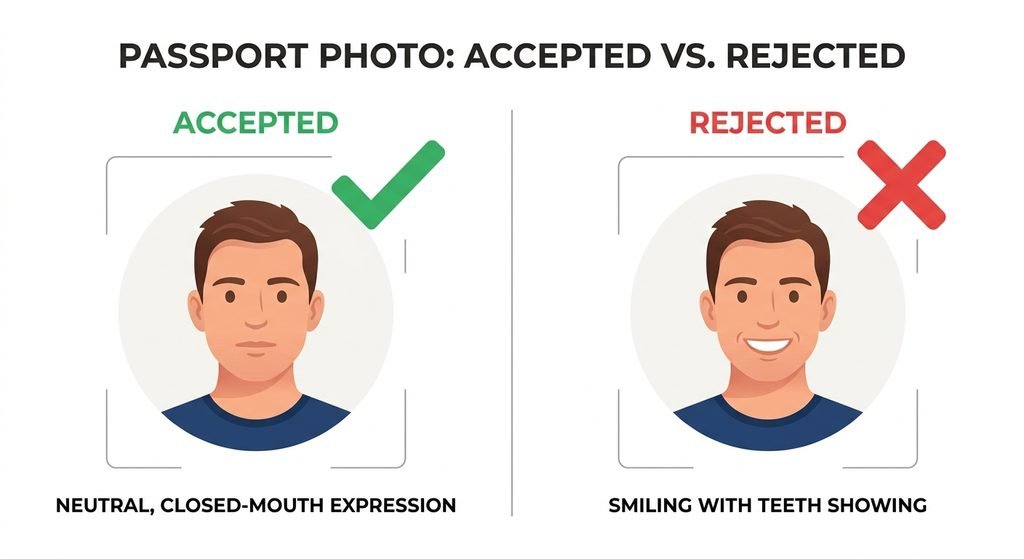
USA: No. The US Department of State requires a neutral expression with mouth closed. No smiling even a slight smile.
UK: A natural slight smile is allowed as long as the mouth is closed and teeth are not showing.
Canada: No. Canada requires a neutral expression with mouth closed and no smiling.
The expression must be consistent for facial recognition systems and to prevent misidentification.
If you are unsure take a neutral photo. It is accepted everywhere.
Use a plain white or off white background correct dimensions and good lighting to avoid rejection.
Can You Smile in a Passport Photo? The Short Answer by Country
Rules are set by the issuing authority not by photo booth operators.
USA Passport Photo Smile Rules
The US Department of State is the strictest. The official photo requirements state the facial expression must be neutral mouth closed both eyes open and visible. Smiling is not permitted even if teeth are not showing. The goal is consistency for identity verification.
A neutral expression is the safest choice for US passport visa and Global Entry photos.
UK Passport Photo Smile Rules
UKVI and HM Passport Office allow a natural expression. A slight smile is acceptable provided the mouth remains closed and no teeth are visible. The eyes must be open and the face must be unobstructed.
Canada Passport Photo Smile Rules
Canada requires a neutral expression. The mouth must be closed and no smiling is permitted. The head must be upright and the face fully visible against a plain background.
Why Passport Photo Expressions Are Strictly Regulated
Passport photos are not for social media. They are biometric identifiers. A consistent neutral expression makes automated facial recognition more reliable and ensures a person can be identified over many years. Smiling changes the shape of the cheeks the position of the eyes and the distance between facial features. That variation can cause mismatches at border control. For that reason all three countries prioritize a closed mouth neutral look as the default standard.
What a Compliant Smile Actually Looks Like
There is a difference between a smile and a natural expression.
Acceptable: Lips together, relaxed face, no teeth showing eyes open and natural. This is what the UK accepts as a natural expression.
Not acceptable: Upturned corners of the mouth visible teeth squinted eyes or a broad smile. This will be rejected in the USA and Canada and may be rejected in the UK.
When in doubt think “neutral”. You can look calm and pleasant without smiling.
How to Take a Passport Photo That Will Be Accepted
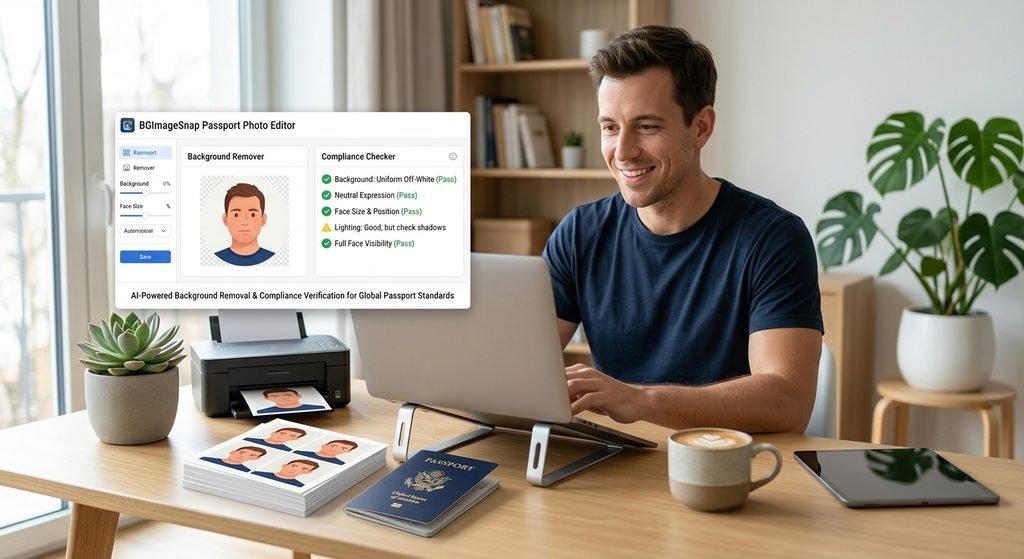
Choose the right background. Use plain white off white or light grey. BGImageSnap offers a passport background remover and replacement tool to ensure compliance.
Set up even lighting. Avoid shadows on the face and background. Natural window light facing you works well.
Position your face correctly. Head upright full face forward shoulders visible. Keep a neutral expression with mouth closed.
Check technical specs. USA: 2×2 inches 600×600 pixels minimum. UK: 45mm x 35mm. Canada: 50mm x 70mm. No red eyes no filters.
Review before submitting. Check eyes open mouth closed no smile no headwear unless for religious reasons no glasses unless medically required.
If you already have a photo with a slight smile you can use a tool to check compliance before printing. This saves time and postage.
Common Mistakes That Get Photos Rejected
Smiling with teeth showing or mouth open
Squinting or closing one eye
Wearing expressions like frowning or raising eyebrows
Shadows across face or background
Incorrect background color or pattern
Photo too old over 6 months for USA
Head tilted or rotated
Avoiding these issues is easier when you follow the neutral expression rule.
Passport Photo Smile Rules: US vs UK vs Canada Comparison
Requirement
USA
UK
Canada
Smile allowed
No. Neutral only
Yes, slight natural smile mouth closed
No. Neutral only
Mouth
Closed
Closed
Closed
Teeth visible
No
No
No
Expression
Neutral
Natural neutral
Neutral
Background
White or off white
Light coloured plain
White or light coloured, plain
Can you smile in a passport photo in the USA?
No. The US Department of State requires a neutral expression with mouth closed. Any smile will lead to rejection.
Can you smile in a UK passport photo?
A slight natural smile is allowed as long as the mouth stays closed and teeth are not visible. A broad smile is not allowed.
Is a closed mouth smile okay for Canada?
No. Canada requires a neutral expression with no smiling.
Will a small smile get my passport rejected?
In the USA and Canada, yes. In the UK, a very slight smile is usually accepted if the mouth is closed.
How long is a passport photo valid?
The USA recommends photos be less than 6 months old. The UK and Canada also prefer recent photos that reflect your current appearance.
Conclusion
Can you smile in a passport photo? It depends on where you’re applying. For USA and Canada, the answer is no. For the UK, a very slight natural smile is permitted. The safest approach for all three countries is a neutral, closed mouth expression with even lighting and a plain background. Getting the expression right the first time prevents delays and resubmissions.
Black and White Photos 7 Powerful Reasons They Still Captivate Us in 2026
Quick Answer / Key Takeaways
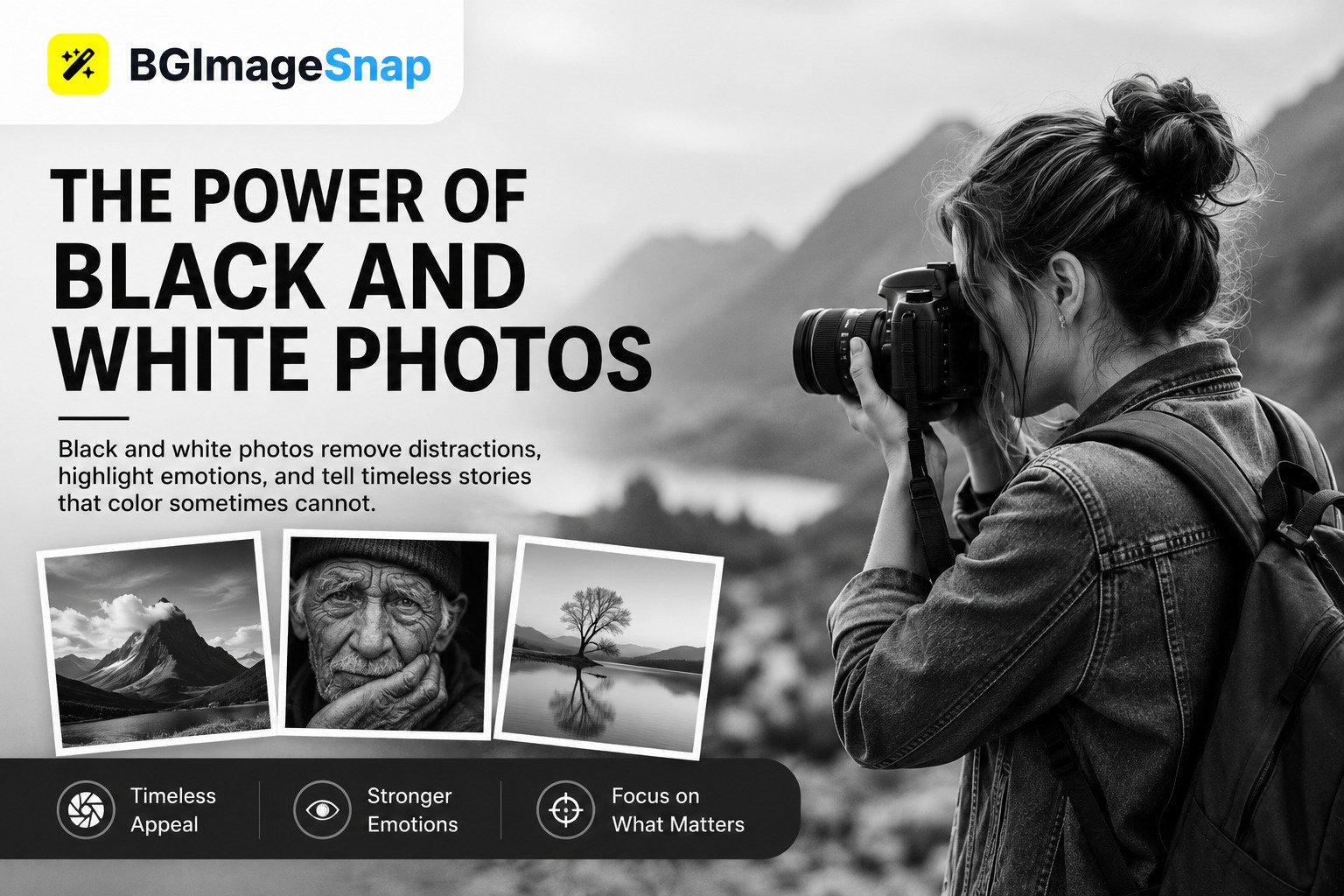
Black and white photos remain one of the most powerful forms of visual storytelling in 2026. They strip away color distractions to reveal emotion texture and composition in their purest form. Whether you’re a professional photographer or someone looking to convert personal images understanding monochrome photography can transform how you see and capture the world.
Key takeaways:
Black and white photography emphasizes light, shadow, texture, and emotion over color
Modern tools make it easy to convert any color image to stunning monochrome
The best black and white photos start with intentional composition and lighting
Monochrome images create stronger emotional connections with viewers
Professional conversion requires understanding tonal range and contrast
Why Black and White Photos Still Matter
In an era of vibrant 4K displays and HDR photography black and white photos continue to captivate audiences worldwide. But why does this century-old medium still resonate so deeply?
The answer lies in simplicity. When you remove color from an image you’re left with the essential elements of visual storytelling: light, shadow, form and texture. These elements speak directly to human emotion in ways that color sometimes cannot.
The Timeless Appeal of Monochrome
Black and white photography has a unique ability to transcend time. A well-crafted monochrome image from 1920 can feel just as relevant and powerful today as it did a century ago. This timeless quality makes black and white photos particularly valuable for:
Portraits that reveal character and emotion
Street photography that captures authentic moments
Landscapes that emphasize natural drama
Architecture that highlights structural beauty
Fine art that explores abstract concepts
According to photography experts at Digital Photography School black and white images force viewers to engage more deeply with the subject creating a more contemplative viewing experience.
The Psychology Behind Monochrome Photography
Understanding why black and white photos affect us psychologically can help you create more impactful images.
How the Brain Processes Monochrome Images
When viewing black and white photography the human brain shifts from automatic color processing to more interpretive analysis. This change creates several psychological effects:
Increased attention span – Viewers spend more time examining details
Stronger emotional response – Without color cues emotions feel more direct
Enhanced memory retention – Monochrome images are often remembered more vividly
Universal appeal – Removes cultural color associations
Research from visual psychology experts suggests that black and white photos activate different neural pathways than color images leading to deeper engagement and more personal interpretation.
Emotional Impact
The absence of color amplifies emotional content. A portrait in black and white can convey:
Nostalgia and timelessness
Drama and intensity
Intimacy and vulnerability
Mystery and intrigue
Elegance and sophistication
This emotional depth is why many professional photographers still choose monochrome for important projects from wedding photography to documentary work.
How to Turn Color Images Into Black and White Photos
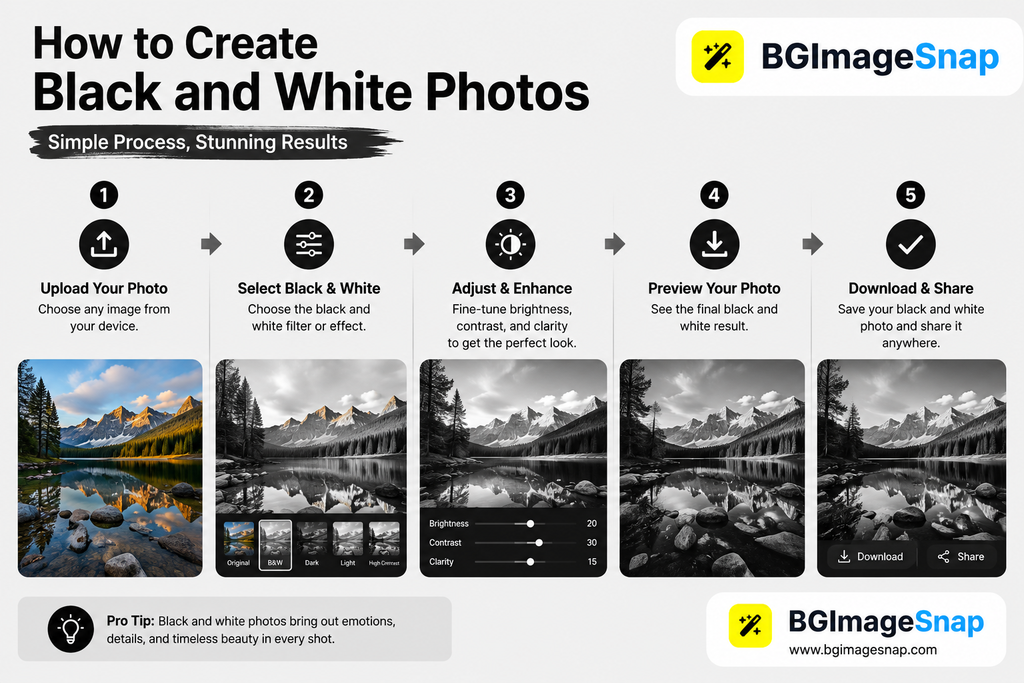
Converting color images to black and white photos is both an art and a science. Here’s a step-by-step guide to achieving professional results.
Method 1: Professional Software Conversion
Adobe Photoshop remains the gold standard for black and white conversion:
Open your color image in Photoshop
Go to Layer > New Adjustment Layer > Black & White
Use the color sliders to control how each color converts to gray
Adjust the red slider to brighten or darken skin tones
Use the blue slider to control sky brightness
Fine-tune with Curves or Levels for perfect contrast
Pro tip: Always work on a duplicate layer to preserve your original color image.
Method 2: Lightroom’s Black & White Panel
For photographers using Adobe Lightroom:
Import your image and switch to the Develop module
Click Black & White in the Basic panel
Use the B&W Mix panel to adjust individual color channels
Add contrast with the Tone Curve
Use Clarity to enhance texture
Apply Sharpening selectively to key areas
Method 3: Free Online Tools
Several free tools can convert images to black and white photos:
Canva – One-click Mono filters with intensity control
Silver Efex Pro (Part of Nik Collection) – Film emulation presets
Alien Skin Exposure – Vintage film looks
VSCO Film – Authentic analog aesthetics
7 Powerful Techniques for Stunning Black and White Photos
Master these techniques to elevate your black and white photos from ordinary to extraordinary.
1. See in Tones Not Colors
Train your eye to visualize scenes in grayscale before shooting. Look for:
Strong contrast between light and shadow
Interesting textures and patterns
Clear geometric shapes
Leading lines and visual flow
Practice exercise: Set your camera to monochrome mode and shoot for a week. This trains your brain to “see” in black and white.
2. Master the Histogram
Your histogram is your best friend in monochrome photography:
Zone 0-3: Deep shadows (pure black to dark gray)
Zone 4-6: Midtones (medium gray)
Zone 7-10: Highlights (light gray to pure white)
Aim for a full tonal range without clipping at either end.
3. Use Directional Lighting
Light direction dramatically affects black and white images:
Side lighting creates dramatic shadows and reveals texture
Backlighting produces silhouettes and rim lighting
Front lighting minimizes shadows for flat even tones
Rembrandt lighting creates classic portrait drama
4. Emphasize Texture
Without color texture becomes a primary visual element:
Rough surfaces like stone wood or fabric
Skin details in portraits
Natural patterns in landscapes
Architectural details and materials
5. Control Contrast in Post-Processing
Contrast is the soul of black and white photography:
High contrast creates drama and impact
Low contrast produces soft dreamy effects
Local contrast (clarity) enhances texture
Tonal contrast separates different gray values
6. Dodge and Burn Strategically
This classic darkroom technique remains powerful in digital editing:
Dodge (lighten) areas you want viewers to notice
Burn (darken) distracting elements
Guide the viewer’s eye through the composition
Create depth and dimension
7. Choose Your Subjects Wisely
Some subjects naturally excel in black and white:
Works well:
Strong shadows and light patterns
Textured surfaces
Emotional portraits
Architectural details
Stormy skies
Often better in color:
Sunset landscapes (unless emphasizing clouds)
Colorful flowers or foliage
Food photography
Fashion with important color details
Common Mistakes to Avoid
Even experienced photographers make these errors with black and white photos:
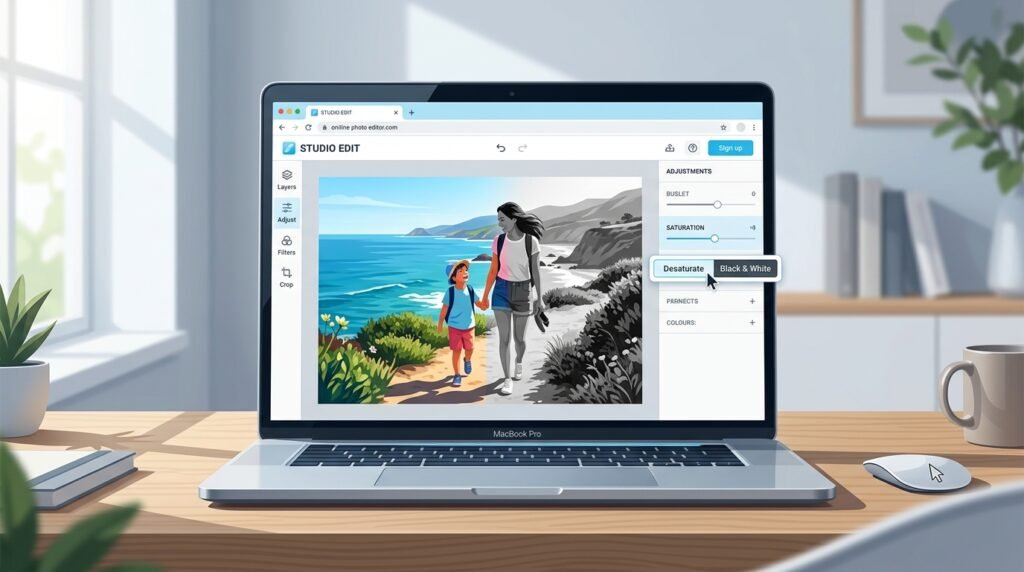
1. Simply Desaturating Color Images
The mistake: Removing all color saturation without adjusting tones.
The fix: Use proper conversion tools that let you control how each color translates to gray.
2. Ignoring Composition
The mistake: Assuming black and white will “fix” a poorly composed image.
The fix: Compose intentionally. Without color composition becomes even more critical.
3. Over-Processing
The mistake: Pushing contrast clarity and sharpening too far.
The fix: Subtlety is key. Aim for natural-looking tonal transitions.
4. Neglecting the Histogram
The mistake: Not checking for clipped highlights or shadows.
The fix: Always review your histogram. Recoverable shadows are better than blown highlights.
5. Converting Every Image
The mistake: Assuming all images look better in black and white.
The fix: Choose images that benefit from monochrome. Some scenes need color.
Black and White vs. Color: When to Choose Which
Understanding when to use black and white photos versus color is crucial for visual storytelling.
Choose Black and White When:
The scene has strong contrast and interesting light
You want to emphasize texture and form
Color is distracting or unimportant
You’re aiming for a timeless classic feel
The emotional content is more important than literal representation
You’re working with mixed or unflattering lighting
Choose Color When:
Color is essential to the story or subject
You’re shooting vibrant saturated scenes
The image relies on color contrast for impact
You need accurate documentation
The subject is naturally colorful (flowers, food, fashion)
Hybrid Approach
Many photographers shoot in RAW with a monochrome preview allowing them to decide later. This approach gives you maximum flexibility.
1. What makes a good black and white photo?
A strong black and white photo has clear tonal range from deep blacks to bright whites interesting texture good composition and emotional impact. The best monochrome images use light and shadow to tell a story that color would only distract from.
2. Should I shoot in black and white mode or convert later?
Always shoot in RAW format even if you preview in monochrome. RAW files retain all color data giving you maximum control during conversion. Set your camera’s picture style to monochrome for a black and white preview on your LCD.
3. How do I convert color photos to black and white professionally?
Use professional software like Adobe Photoshop or Lightroom with the Black & White adjustment layer. This lets you control how each color converts to gray rather than simply removing saturation. Adjust individual color channels to fine-tune skin tones skies and other elements.
4. What’s the best free tool for black and white conversion?
Snapseed (mobile) and GIMP (desktop) are excellent free options. For quick online conversion Canva and ResizePixel work well. However professional software offers more control over the conversion process.
5. Why do black and white photos often look more emotional?
Without color the brain focuses on facial expressions body language, light, and shadow. This creates a more direct emotional connection. Monochrome also evokes nostalgia and timelessness which can intensify emotional responses.
6. Can I print black and white photos at home?
Yes but use high-quality photo paper and ensure your printer has separate black and gray ink cartridges. For professional results consider using a dedicated photo printing service that specializes in fine art prints.
7. How do I avoid muddy-looking black and white photos?
Ensure you have true blacks and true whites in your image. Use the Levels or Curves adjustment to set black and white points. Add local contrast with the Clarity slider and consider selective sharpening on key details.
8. What camera settings work best for black and white photography?
Shoot in RAW at the lowest ISO possible for clean images. Use aperture priority mode: f/8-f/11 for landscapes f/1.8-f/2.8 for portraits. Protect your highlights slightly underexposed images are easier to recover than blown-out ones.
Conclusion
Black and white photos remain one of photography’s most powerful forms of expression. In 2026 they continue to captivate viewers by stripping away the distractions of color and revealing the essential elements of visual storytelling: light, shadow, texture and emotion.
Whether you’re a professional photographer seeking to master monochrome techniques or someone looking to convert cherished family photos understanding the principles of black and white photography will transform how you see and capture the world. The tools available today from professional software to free mobile apps make it easier than ever to create stunning monochrome images. But remember: the best black and white photos start with intentional composition, thoughtful lighting and a clear vision of what you want to communicate. Ready to explore the timeless art of monochrome photography? Start by converting one of your favorite color images to black and white and see how it transforms the emotional impact. You might be surprised at what you discover.
Photo Passport Studio vs. OnlineMaker How to Choose the Best Option for Your Passport Application.
Photo Passport Studio vs Online Maker Discover 8 key differences between professional studios and online makers passport applications in 2026
Quick Answer / Key Takeaways
A photo passport studio offers the highest acceptance rate because staff control lighting background and framing in real time.
Online makers work best only when you already understand official sizing, background rules and high quality printing.
The USA requires a 2×2 inch image; the UK requires 35×45 mm; Canada requires 50×70 mm.
Background shadows, wrong head sizing, and outdated photos are the leading causes of rejection.
For babies first time applicants or urgent deadlines a professional studio is usually the safer investment.
What Is a Photo Passport Studio?
A photo passport studio is a dedicated physical location often inside a pharmacy chain photography shop or independent portrait studio where trained staff capture identification images using professional cameras standardized backdrops and uniform lighting. Unlike casual selfies these studios understand country specific framing head size ratios and background requirements. Photo Passport Studio vs. Online Maker. If you search for a photo passport studio near you prioritize providers that explicitly list government compliant passport services. A reliable location will ask which country you are applying to and confirm whether you need the USA’s 2×2 inch format the UK’s biometric size or Canada’s 50×70 mm standard. They should also provide printed copies on photo grade paper within minutes reducing the risk of home printing errors.
Photo Passport Studio vs Online Passport Photo Maker: Which Is Better?
This is the central decision for modern applicants. Both options can produce valid images but the risk profile, speed and quality control differ significantly.
Factor
Photo Passport Studio
Online Passport Photo Maker
Typical Cost (USA)
Usually $10–$25 for a printed set
Often free to $10 for digital files
Turnaround
Immediate prints in minutes
Minutes to hours for digital delivery
Background Control
Physical white/off white backdrop; shadow free by design
Depends on user environment and editing accuracy
Lighting
Professional, even illumination across the face
Natural or room light; high risk of uneven shadows
Sizing Accuracy
Precise country specs verified by staff
Automated crop; requires manual verification
Print Quality
Professional photo paper correct finish
Home printer or mail service; color variance possible
Rejection Risk
Low, when staff are experienced
Moderate to high without expert guidance
Best For
First-time applicants, children urgent travel
Tech comfortable users with quality cameras and perfect lighting
A photo passport studio removes guesswork. The photographer positions your head within the required frame checks that your background image is pure white or off white with zero shadows and prints on correct paper stock. Online makers rely on algorithms. While some platforms automatically crop and adjust backgrounds they cannot always detect a faint wall texture uneven lighting behind your ears or a subtle gray tint. For applicants in the USA where non compliant photos remain one of the more common processing delays the studio option often pays for itself by avoiding resubmission fees and rushed travel adjustments.
Passport Photo Requirements in the USA, UK, and CA
Rules vary by country and a reputable photo passport studio should maintain current knowledge of each format.
USA (U.S. Department of State)
Size: 2×2 inches (51 × 51 mm)
Head Size: Between 1 and 1 3/8 inches (25–35 mm) from bottom of chin to top of head
Background: Plain white or off white; no shadows, textures or patterns
Expression: Neutral; mouth closed; both eyes open
Validity: Taken within the last 6 months
Glasses: Generally prohibited unless accompanied by a signed medical statement
Because these dimensions and background rules are not interchangeable confirming that your photo passport studio serves your specific destination is essential before the shutter clicks.
Why Your Background Image Is the Hidden Risk Factor
Your passport photo background is not decorative it is a regulatory requirement. In the USA the background must be white or off-white with no shadows, textures or visible objects. The UK allows light cream or light gray but patterns and gradients still fail. Canada requires a plain white or light colored surface.
A photo passport studio achieves compliance with physical backdrops and diffused studio strobes. If you choose an online route you must manage your own background image environment. Even high quality background removal software can leave artifacts faint halos, uneven edges or gray spots that automated government checks flag. Before submitting any digitally edited photo inspect the background image at 100% zoom. The surface should be completely uniform with no gradient.
If you need help cleaning up a background image, checking purity or understanding editing limits for official documents resources like BG Image Snap provide practical guidance on creating compliant background images for identification.
Preparation takes less than five minutes and significantly improves results.
Wear dark solid colored clothing. Avoid white shirts that blend into the background.
Remove glasses, large earrings and headphones. Most countries restrict eyewear.
Keep hair away from your face and eyes. No strands across eyebrows or cheeks.
Maintain a neutral expression. Mouth closed, eyes open facing the camera directly.
Skip filters and digital smoothing. Studios capture raw accurate images for government verification.
Arriving prepared allows the photographer to focus entirely on framing, lighting and background uniformity reducing the chance of a costly retake.
Common Mistakes That Cause Rejection
Even at a professional photo passport studio errors happen if communication fails.
Wrong country format: Requesting a US 2×2 image when you actually need UK 35×45 mm.
Shadow on the background: Usually caused by standing too close to the backdrop.
Incorrect head size: Too much space above the crown or cropping too tightly at the chin.
Outdated photo: Most countries reject images older than six months.
Incorrect paper or finish: Some applications require matte paper; others need gloss.
White clothing on white background: Creates a “floating head” effect that fails automated checks.
When using an online maker risk increases further. Home printers may apply incorrect color profiles and automated cropping can misalign your head within the frame.
Step-by-Step: How to Get a Compliant Passport Photo
Choose your path based on experience, equipment and deadline pressure.
Path A: Visiting a Photo Passport Studio
Search for local providers and confirm they offer services for your destination country.
Confirm pricing includes the correct size, background color and print finish.
Dress in dark solids and follow the preparation checklist above.
Review the printed proof for background uniformity, head sizing and shadow absence before leaving.
Request extra copies if submitting by mail.
Path B: Using an Online Passport Photo Maker
Set up near a large window with indirect even daylight; avoid overhead bulbs that cast shadows downward.
Hang a plain white or off-white sheet with no wrinkles behind you.
Use a high-resolution camera or smartphone mounted on a tripod at eye level.
Frame the shot with space above your head and both shoulders visible.
Apply background editing only if it produces a pure shadow free result without gray halos.
Print on high quality photo paper at the exact millimeter dimensions required do not rely on automatic “fit to page” settings.
If you need to verify or edit your background image before printing visit BG Image Snap for practical tools designed for official photo compliance.
When Should You Skip the Studio?
An online maker makes sense if you already understand framing rules own quality lighting and need only digital files for an electronic application. However consider visiting a photo passport studio if:
You are applying for a baby or young child who must keep eyes open with no parent hands visible.
Your travel deadline is within days and you cannot risk resubmission.
You are unsure which country’s rules apply.
Your home environment has poor natural light or textured walls.
In these cases the cost of a studio session is usually lower than the cost of delaying your application.
Supports USA-targeted readers with precise specifications
Frequently Asked Questions
Q: How much does a photo passport studio charge in the USA?
A: Prices typically range from about $10 to $25 for a standard printed set though costs vary by city and whether digital files are included. Confirm that the price includes country-specific formatting.
Q: Can I wear glasses at a photo passport studio?
A: The USA generally prohibits glasses unless you provide a signed medical statement. The UK and Canada also restrict eyewear that obscures the eyes. Most studios will ask you to remove them.
Q: What background image color is correct?
A: The USA accepts white or off-white. The UK prefers cream or light gray. Canada requires white or light-colored backgrounds. A professional studio keeps all compliant options available.
Q: Why do online passport photos fail?
A: Common failures include background shadows incorrect head sizing poor print resolution outdated images and using filters. Automated tools do not always catch these errors before submission.
Q: Is a photo passport studio necessary for babies?
A: Parents can take baby photos at home but many find a studio easier because staff understand infant positioning manage lighting without startling the child and capture an alert expression with open eyes.
Q: How recent must my passport photo be?
A: The USA, UK, and Canada generally require images taken within the last six months. A studio can confirm the session date on the print or receipt.
Q: Can I use my phone instead of visiting a studio?
A: Yes but only if your camera is high resolution your background is perfectly uniform and you print at exact dimensions with correct color balance. Many applicants prefer a studio to avoid these variables.
Q: Does my background image need editing?
A: If taken in a studio editing is usually unnecessary. If taken at home you may need precise background removal and color correction to meet official standards.
Conclusion
Choosing between a photo passport studio and an online maker comes down to risk tolerance experience and urgency. A studio provides controlled lighting accurate framing and immediate verification critical for first-time applicants, families and anyone with a tight deadline. Online makers offer flexibility but require you to manage lighting background images and printing with precision. No matter which route you choose verify that your final image matches your destination country exactly: correct dimensions neutral expression uniform background and a recent capture date. Inspect your background image closely before submission uniformity is not optional; it is required.
Pixel Sizes in Inches: The Ultimate 2026 Guide to Easy Image Dimensions.
Introduction
Understanding pixel sizes in inches can be confusing because pixels and inches measure different things. Pixels describe the digital dimensions of an image while inches describe its physical size when printed or displayed at a specific resolution. The good news is that converting between them is straightforward once you understand PPI (pixels per inch). Whether you are preparing a passport photo printing a family picture designing marketing material or resizing an image for a professional project knowing the relationship between pixels and inches helps you avoid blurry or incorrectly sized results.
In this guide you will learn how pixel sizes in inches are calculated see common conversion examples understand PPI and learn how to choose the right dimensions for digital and print projects.
Quick Answer: How Do Pixel Sizes in Inches Work?
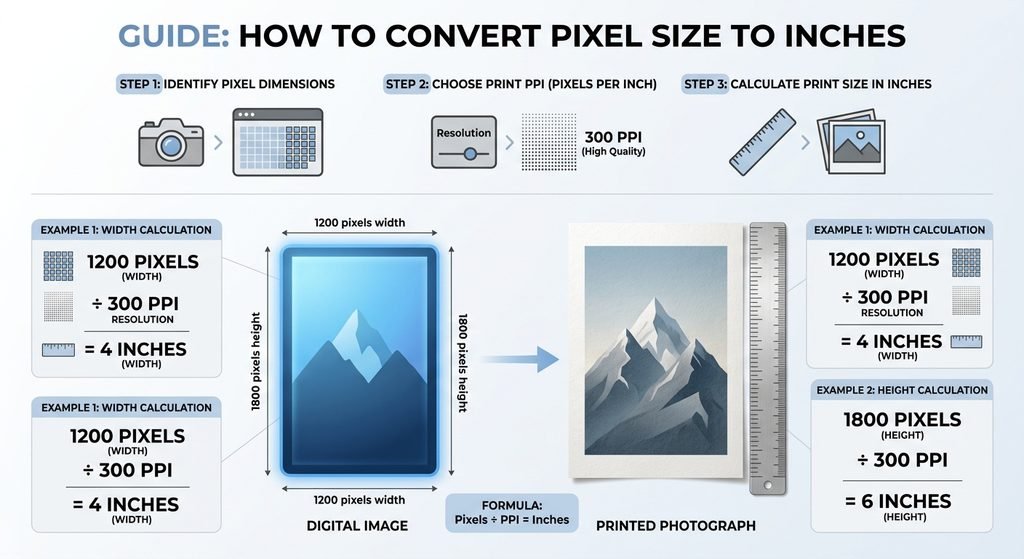
To calculate inches from pixels use this formula:
Inches = Pixels ÷ PPI
For example, an image that is 1200 pixels wide at 300 PPI has a physical width of:
1200 ÷ 300 = 4 inches
This means the same 1200 pixel image could represent different physical sizes depending on its PPI setting. For example:
Pixels
At 72 PPI
At 150 PPI
At 300 PPI
300 px
4.17 in
2 in
1 in
600 px
8.33 in
4 in
2 in
900 px
12.5 in
6 in
3 in
1200 px
16.67 in
8 in
4 in
1500 px
20.83 in
10 in
5 in
1800 px
25 in
12 in
6 in
2400 px
33.33 in
16 in
8 in
3000 px
41.67 in
20 in
10 in
The important point is that pixels alone do not determine physical size. You also need the PPI value.
What Are Pixel Sizes in Inches?
Pixel sizes in inches describe the physical dimensions an image will have when a specific pixel count is printed or rendered at a certain resolution. A pixel is a tiny unit used to represent digital images. An inch is a physical measurement. They become directly related through PPI.
For example:
600 pixels at 300 PPI = 2 inches
1200 pixels at 300 PPI = 4 inches
1800 pixels at 300 PPI = 6 inches
2400 pixels at 300 PPI = 8 inches
This is especially important for printing because an image can have plenty of pixels but still be printed at different physical sizes.
How to Convert Pixel Sizes in Inches
The basic formula is simple:
Pixel width ÷ PPI = width in inches
And for height:
Pixel height ÷ PPI = height in inches
Example: 1200 × 1800 Pixels
Suppose you have a portrait image measuring 1200 × 1800 pixels and want to print it at 300 PPI.
Width:
1200 ÷ 300 = 4 inches
Height:
1800 ÷ 300 = 6 inches
So the physical print size is:
4 × 6 inches
This is a common example of how a digital image can be translated into a real world print dimension.
Pixel Sizes in Inches Conversion Chart
Here are more examples to make conversions easier:
Digital Image
150 PPI
200 PPI
300 PPI
300 × 300 px
2 × 2 in
1.5 × 1.5 in
1 × 1 in
600 × 600 px
4 × 4 in
3 × 3 in
2 × 2 in
900 × 1200 px
6 × 8 in
4.5 × 6 in
3 × 4 in
1200 × 1800 px
8 × 12 in
6 × 9 in
4 × 6 in
1500 × 2100 px
10 × 14 in
7.5 × 10.5 in
5 × 7 in
2400 × 3000 px
16 × 20 in
12 × 15 in
8 × 10 in
These are mathematical conversions based on the stated PPI. Your actual print quality can also depend on the printer, image quality paper and viewing distance.
Why Does PPI Matter?
PPI stands for pixels per inch. It indicates how many pixels are assigned to each inch of physical output. A higher PPI generally places more image detail into a smaller physical area. A lower PPI spreads the same number of pixels over a larger physical area.
For example, a 2400 pixel wide image can be:
8 inches wide at 300 PPI
12 inches wide at 200 PPI
16 inches wide at 150 PPI
The pixel count stays the same but the physical size changes. This is why simply saying that an image is “2400 pixels” is incomplete when discussing printing.
Common Pixel to Inch Examples
600 Pixels in Inches
At 300 PPI:
600 ÷ 300 = 2 inches
At 150 PPI:
600 ÷ 150 = 4 inches
1200 Pixels in Inches
At 300 PPI:
1200 ÷ 300 = 4 inches
At 200 PPI:
1200 ÷ 200 = 6 inches
At 150 PPI:
1200 ÷ 150 = 8 inches
2400 Pixels in Inches
At 300 PPI:
2400 ÷ 300 = 8 inches
At 200 PPI:
2400 ÷ 200 = 12 inches
At 150 PPI:
2400 ÷ 150 = 16 inches
These examples show why the PPI value should always be included when someone asks for pixel sizes in inches.
Pixels vs. Inches: Which Measurement Should You Use?
The right measurement depends on what you are doing.
Use Case
Best Measurement
Website images
Pixels
Social media graphics
Pixels
Mobile and desktop graphics
Pixels
Photo printing
Inches + PPI
Posters
Inches + PPI
Physical marketing materials
Inches + PPI
Digital screen layouts
Pixels
For online content designers normally work with pixel dimensions because screens display digital pixels directly. For printed materials physical measurements such as inches become more useful together with a suitable resolution.
How to Check and Change Image Size
You can usually check image dimensions through your image editor or operating system.
Step 1: Check the pixel dimensions
Look for the image’s width and height such as:
1920 × 1080 pixels
Step 2: Check the PPI or resolution setting
Depending on the software this may appear under image size properties, resize, or print settings.
Step 3: Calculate the physical dimensions
Use:
Width in inches = pixel width ÷ PPI
Height in inches = pixel height ÷ PPI
Step 4: Decide whether you need resizing
If your physical dimensions are not suitable you may need to resize the image. Avoid enlarging a low resolution photo more than necessary because increasing dimensions cannot automatically recreate missing original detail. For quick image adjustments you can also use BGImageSnap to work with your images before preparing them for your final use.
Common Mistakes When Converting Pixels to Inches
1. Assuming Pixels Always Equal a Fixed Number of Inches
They do not. The conversion depends on PPI.
2. Ignoring the Image’s Aspect Ratio
Changing width and height independently can stretch or distort a photo.
3. Confusing DPI and PPI
PPI describes image pixels per inch while DPI is commonly associated with printer output. The terms are often used interchangeably in everyday image discussions but they are not technically identical.
4. Enlarging Small Images Too Much
Making a small image much larger can reduce visible quality. Starting with sufficient original resolution is usually better.
5. Using Print Measurements for Web Images
A website generally cares about pixel dimensions rather than a physical inch measurement.
Visual Opportunities
A useful visual for this article would be a pixel to inch infographic showing:
Pixels → PPI → Inches
A second graphic could show the same image at 150, 200 and 300 PPI to demonstrate how physical dimensions change. A short screen recording video showing how to check image dimensions in a common image editor would also improve usability.
FAQs
How many pixels are in 1 inch?
There is no single answer because it depends on PPI. At 300 PPI 1 inch corresponds to 300 pixels.
What is 3000 pixels in inches?
At 300 PPI 3000 pixels equals 10 inches. At 150 PPI it equals 20 inches.
Is 1 inch always 96 pixels?
No. A 96 pixel per inch value may be used in certain digital or software contexts but image to inch conversion for printing depends on the PPI you specify.
What pixel size is 4 × 6 inches?
No. A 96 pixel per inch value may be used in certain digital or software contexts but image to inch conversion for printing depends on the PPI you specify.
Does changing PPI increase image quality?
Changing the PPI metadata alone does not create new image detail. Image quality depends heavily on the actual pixel dimensions and original image information.
Should I use pixels or inches for a website image?
Use pixels for most web images because digital layouts are defined by pixel dimensions and responsive display behavior.
Can I convert pixels to inches without PPI?
Not accurately. You need a PPI value to calculate a physical size in inches.
Conclusion
Understanding pixel sizes in inches becomes much easier once you remember one formula:
Inches = Pixels ÷ PPI
The same image can have different physical dimensions depending on its resolution setting. For digital content pixel dimensions are usually the most practical measurement. For printing combine the pixel dimensions with the required physical size and PPI. Before printing or resizing an important image check its width, height, aspect ratio and resolution. That simple step can help you avoid unexpected sizing and quality problems. For convenient image preparation and editing visit BGImageSnap and prepare your image before using it in your next digital or print project.
Green Screen Remover: How to Remove Green Backgrounds Quickly and Cleanly
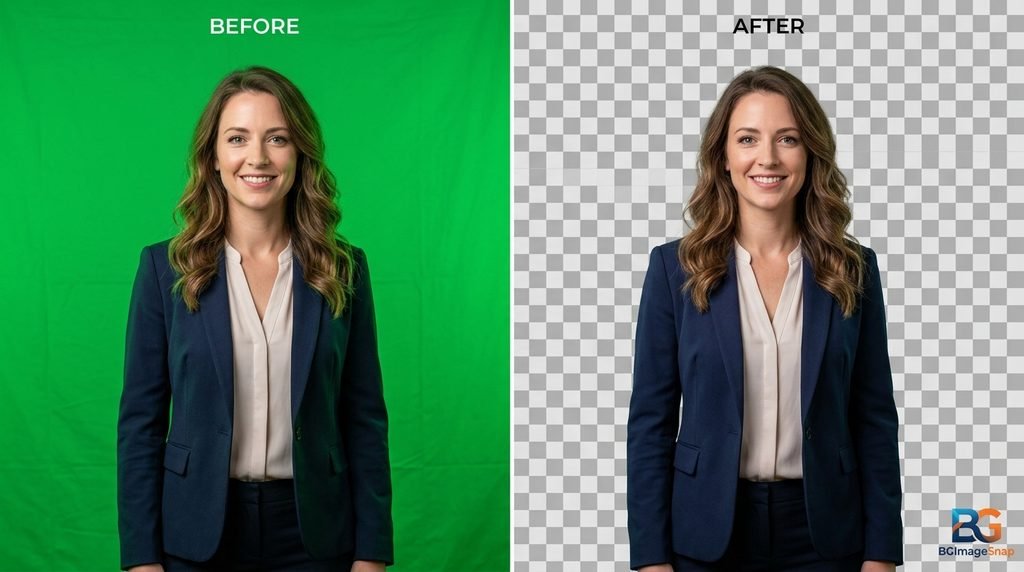
A green screen makes it possible to place a person product animal or other subject into almost any environment. It is widely used in video production, photography, gaming, social media content advertising, presentations and online marketing. But after recording or taking a photo against a green background you still need to separate the subject from that background.That is where a green screen remover becomes useful.A green screen remover is a tool or editing technique that removes a green background while keeping the main subject visible. Depending on the tool you can replace the green area with another image a different color a video or a transparent background.
Traditional chroma key editing can require professional software and careful adjustments. Modern AI powered background removal tools can make the process considerably easier especially for people who want quick results without learning complicated editing software.
This guide explains what a green screen remover is how it works how to remove green backgrounds from images what causes poor results and how to get cleaner edges and more professional looking results.
What Is a Green Screen Remover?
A green screen remover is an image or video editing tool designed to separate a foreground subject from a green background. The traditional method is called chroma keying. It identifies a specific color usually bright green and makes that color transparent. Editors can then place a new background behind the subject. For example, imagine a photograph of a football player standing in front of a green screen. A green screen remover can isolate the player and remove the green background. The player can then be placed inside a stadium on a promotional poster or over a graphic design.
The same technique can be used for:
Product photography
YouTube thumbnails
Social media graphics
Sports posters
Gaming content
Online advertisements
Educational videos
Presentations
E commerce product images
Profile pictures
Creative photography
Modern tools can also use artificial intelligence to identify the subject automatically instead of relying entirely on a specific green color.
What Makes Green Useful for Background Removal?
Green is commonly used because it is significantly different from most natural skin tones and many objects people normally record. A strong contrast between the subject and background makes it easier for editing software to determine what should stay and what should disappear. However green screens are not automatically perfect. Shadows wrinkles uneven lighting reflections and green color spilling onto the subject can make removal more difficult.
How Does a Green Screen Remover Work?
There are two primary approaches: chroma key removal and AI powered background removal.
Chroma Key Removal
Chroma keying works by detecting a selected color range.The editor chooses green as the key color. The software then examines the image and removes pixels that fall within the selected green range.
Editors can adjust settings such as:
Color tolerance
Similarity
Edge softness
Spill suppression
Transparency
Feathering
The advantage is control. An experienced editor can fine tune the result very precisely. The disadvantage is that manual adjustment can take time particularly when the green background contains different shades or when the subject has complicated edges.
AI Background Removal
AI powered tools approach the problem differently. Instead of simply asking “Which pixels are green?” an AI system attempts to determine which parts of an image belong to the foreground subject and which belong to the background.
This can be especially helpful when the image contains:
Hair
Fur
Small objects
Irregular shapes
Clothing
Transparent areas
Shadows
For many everyday editing tasks an AI background remover can be faster than traditional chroma key software.
Green Screen Removal vs. AI Background Removal
Although these terms are sometimes used interchangeably they are not exactly the same. A green screen remover is specifically associated with removing a green background generally using chroma key technology or AI. An AI background remover can remove many types of backgrounds including white, gray, outdoor, indoor, textured and complex backgrounds. For example, if you have a product photographed against a green screen either method may work well. But if your product was photographed in a room with furniture behind it an AI background remover may be more appropriate because there is no single background color to target.
Which Method Should You Choose?
Choose chroma key removal when:
Your background is consistently green.
You are editing video.
You need precise color control.
You already use professional editing software.
Choose AI background removal when:
You want a fast workflow.
You are editing individual images.
You do not have professional editing experience.
Your background is not perfectly uniform.
You want automatic subject detection.
For many casual users AI is the easiest starting point.
How to Remove a Green Screen From an Image
Removing a green background can be a simple process when the original image is well prepared.
Step 1: Choose a Good Image
Start with the highest quality image available. A high resolution original gives the remover more visual information to work with. Avoid repeatedly compressed images because compression can create artifacts around the subject. If possible, use an image with clear separation between the subject and the green background.
Step 2: Upload the Image
Open your preferred green screen or background removal tool and upload the image. Many online tools support common image formats such as JPG, JPEG, and PNG.
Step 3: Remove the Green Background
If the tool offers automatic background removal allow it to detect the subject. For chroma key tools select the green background color and adjust the tolerance until most of the green disappears without damaging the subject.
Step 4: Inspect the Edges
Do not immediately download the result.
Zoom in and inspect areas where problems are common:
Hair
Fingers
Clothing edges
Shoes
Ears
Product corners
Thin objects
If green pixels remain use additional cleanup tools if available.
Step 5: Replace or Keep the Background Transparent
Once the green screen has been removed you can choose what happens next.
You can:
Keep a transparent background.
Add a new photograph.
Add a solid color.
Add a gradient.
Place the subject over a video.
Create a promotional graphic.
PNG is generally useful when you need to preserve transparency.
Step 6: Download and Review
Export the final image at the highest suitable quality. Open the downloaded file independently to make sure transparency edges and image quality look correct.
How to Get Better Green Screen Removal Results
The quality of the final result depends heavily on the original image.
Use Even Lighting
Lighting is one of the most important parts of green screen photography. An unevenly illuminated background can contain several shades of green. This makes chroma key removal more difficult. Try to illuminate the background evenly and avoid strong shadows.
Keep the Subject Away From the Green Screen
When possible create some distance between the subject and the background. This can reduce green light reflecting onto the subject. That unwanted green reflection is commonly called green spill or color spill. Green spill is particularly noticeable around hair shoulders and reflective objects.
Avoid Green Clothing
If your subject wears green clothing against a green screen the software may struggle to distinguish the clothing from the background. This is one of the classic problems with chroma key editing. If green clothing is unavoidable an AI based tool or manual masking may provide better results.
Use High Resolution Images
Higher resolution files generally preserve more detail around important edges. This matters particularly when the subject has curly hair, fur, thin wires or small accessories.
Avoid Heavy Compression
JPEG compression can introduce blocky artifacts and color changes. If you are shooting specifically for background removal retain the original file whenever possible.
Common Green Screen Removal Problems
Even a good green screen remover can produce imperfect results.
Green Halo Around the Subject
A green outline around the subject is one of the most common problems. It usually happens because green light reflects from the background onto the subject.
Solution: Increase the distance between the subject and green screen during shooting. During editing use spill suppression or edge refinement.
Hair Looks Jagged
Hair is difficult because individual strands can be extremely fine. A simple color based remover may accidentally remove hair or leave green pixels between strands.
Solution: Use edge refinement, AI segmentation or a dedicated hair selection feature when available.
Parts of the Subject Disappear
If clothing or an object contains colors similar to the green screen the remover may incorrectly classify those areas as background.
Solution: Reduce the color tolerance or manually restore the affected area using a mask or brush.
Shadows Remain
Shadows on the green screen may contain dark green or gray areas that are not removed completely.
Solution: Use more even lighting when capturing the original image or refine the mask during editing.
Background Looks Gray or Dirty
This can happen when the green screen is poorly lit, wrinkled or contaminated with other colors. AI removal can sometimes handle these situations better than basic chroma keying.
Best Uses for a Green Screen Remover
A green screen remover is useful across many industries and creative workflows.
Sports Content
Sports creators can isolate athletes from green screen footage and place them into dramatic stadium environments.
For example, a football player photographed in front of green can be placed on a professional match day graphic.
Basketball, cricket, soccer, tennis and other sports can use the same approach for:
Player posters
Match previews
Social media graphics
Tournament promotions
Thumbnail designs
Player announcements
E Commerce
Online sellers can remove colored backgrounds from product photos and create consistent product images. A transparent product image can then be placed on a clean website background or promotional banner.
Social Media
Creators can remove themselves from a green screen and add:
Trending backgrounds
Travel locations
News screenshots
Educational graphics
Product advertisements
Creative effects
This makes green screen content particularly popular on short form video platforms.
YouTube
YouTubers can use green screen removal for thumbnails, intros, tutorials, commentary videos and reaction content. A creator might photograph themselves against green and then place their cutout over a screenshot or custom designed background.
Marketing and Advertising
Businesses can isolate products, employees, presenters or models and reuse them across different marketing campaigns. This can save time when the same subject needs to appear in several designs.
Practical Examples
Example 1: Removing a Green Background From a Product
Suppose an online store photographs a pair of headphones against a green background. After removing the background the headphones can be exported as a transparent PNG and placed on a white product page. The same cutout could also be used in an Instagram advertisement without photographing the product again.
Example 2: Creating a Sports Poster
Imagine a cricket player photographed in front of green. The background can be removed and the player’s cutout can be placed over a stadium image with team colors match information and promotional text. The result can become a social media post match announcement or promotional poster.
Example 3: Creating a Video Thumbnail
A creator records themselves against a green screen. After removing the background the creator can be placed beside a large headline or another image. This makes the subject visually stand out and can create a stronger thumbnail composition.
Green Screen Remover: What Should You Look For?
Not every tool provides the same quality.
When choosing a green screen remover consider these features:
Automatic detection: Useful for quick editing.
Transparent PNG export: Important if you want to reuse the cutout elsewhere.
Edge refinement: Helpful for hair, fur and complicated shapes.
Manual editing: Useful when automatic removal makes mistakes.
High resolution output: Important for professional designs.
Batch processing: Valuable when working with many images.
Privacy considerations: Check how uploaded images are handled particularly when working with sensitive or private photographs.
A tool should not only remove the background but also preserve the subject’s natural edges.
Frequently Asked Questions
1. What is a green screen remover?
A green screen remover is a tool or editing method that removes a green background from an image or video while keeping the foreground subject. It can use chroma key technology, AI, or a combination of both.
2. Can I remove a green screen from a photo online?
Yes. Online background removal tools can process many images without requiring traditional desktop editing software. The typical workflow is to upload an image remove the background refine the result if necessary and download the finished file.
3. Can a green screen remover create a transparent background?
Yes. If the tool supports transparency and exports the result as PNG the green background can be replaced with transparent pixels. This allows the subject to be placed over another image or design.
4. Why is there still green around my subject?
Green edges usually occur because of green spill, poor lighting, low image quality or inaccurate edge detection. Better lighting and more distance from the green screen can reduce the problem.
5. Is AI better than traditional chroma key?
It depends on the image. Chroma key gives editors detailed control over a consistent green background while AI can be easier for automatic subject detection and complicated backgrounds. For simple green screen images both approaches can work well.
6. Can I remove green backgrounds from videos?
Yes. Green screen video removal is commonly performed using chroma key tools in video editing applications. Some modern AI powered video editors can also detect and remove backgrounds automatically.
7. What image format should I use after removing the green screen?
PNG is often the best choice when you need a transparent background because it supports transparency. JPG is useful when you want a normal image with a solid background.
8. How can I get cleaner edges after removing green?
Use a high resolution original, even lighting, sufficient distance between the subject and green screen and edge refinement or spill suppression tools. Always inspect hair, clothing, fingers and other detailed areas before exporting.
A green screen remover can turn a simple green screen photograph or video into a flexible creative asset. Traditional chroma key technology provides detailed control over color selection while modern AI powered background removal can simplify the process for users who want fast results.The best results start before editing. Use even lighting keep the subject away from the green screen avoid green clothing when possible and capture the highest quality image available. After removing the background carefully inspect hair, clothing, fingers, product edges and other detailed areas. For sports creators e commerce businesses, YouTubers, social media managers photographers and marketers removing a green background can make the same subject reusable across many different designs.
How to Fix an Unfocused Picture: 7 Proven Methods.
Introduction
A great moment ruined by a soft blurry shot is one of the most frustrating parts of taking photos. Whether it’s a shaky phone snap a missed autofocus lock or a photo taken in low light the result is the same: a picture you wish you could use but can’t. Learning how to fix an unfocused pictures doesn’t require expensive software or professional editing skills a handful of simple techniques and the right tools can turn a soft image into one you’re proud to share.
In this guide you’ll learn what actually causes photo blur whether an out of focus picture can really be fixed after it’s taken and seven practical methods from free online sharpening tools to smarter camera habits that will help you rescue your photos and avoid blur next time.
Quick Answer / Key Takeaways
Unfocused pictures are usually caused by camera shake incorrect autofocus low shutter speed or shooting in poor light.
Mild to moderate blur can often be improved using sharpening and AI enhancement tools severe heavily out of focus shots have limits to how much can be recovered.
Free browser based tools can fix unfocused pictures without installing software or learning complex editing programs.
Preventing blur at the moment of capture (steady hands, correct focus point, enough light) is more effective than fixing it afterward.
What Causes Unfocused Pictures?
Before fixing a blurry photo it helps to understand why it happened in the first place.
Camera shake is the most common cause even a slight hand movement during the shot can soften the entire image especially in low light where the shutter stays open longer.
Incorrect focus point happens when the camera or phone locks focus on the background instead of the subject leaving the main subject unfocused while everything behind it looks sharp.
Fast-moving subjects can outrun the shutter speed producing motion blur rather than a true focus issue.
Low light conditions force the camera to use a slower shutter speed or a wider aperture both of which increase the chance of an unfocused picture.
Dirty or scratched lenses can also soften images in a way that looks like a focus problem but is actually a hardware issue.
Knowing the cause matters because it determines whether a photo can be meaningfully improved or whether it’s better to reshoot.
Can You Really Fix an Unfocused Picture After It’s Taken?
Short answer: partially in most cases.
Digital sharpening and AI based enhancement tools work by increasing edge contrast and reconstructing fine detail using pattern recognition. This can noticeably improve pictures affected by slight softness minor camera shake or low resolution compression. However no tool can fully recover detail that was never captured a severely out of focus photo where the subject is a soft blur will not become tack sharp no matter what software is used. The realistic goal when you fix unfocused pictures is improvement not perfection. For social media print at smaller sizes, e-commerce listings, or casual sharing, a well sharpened photo is often more than good enough.
How to Fix Unfocused Pictures: 7 Proven Methods
1. Use an Online Photo Sharpening Tool
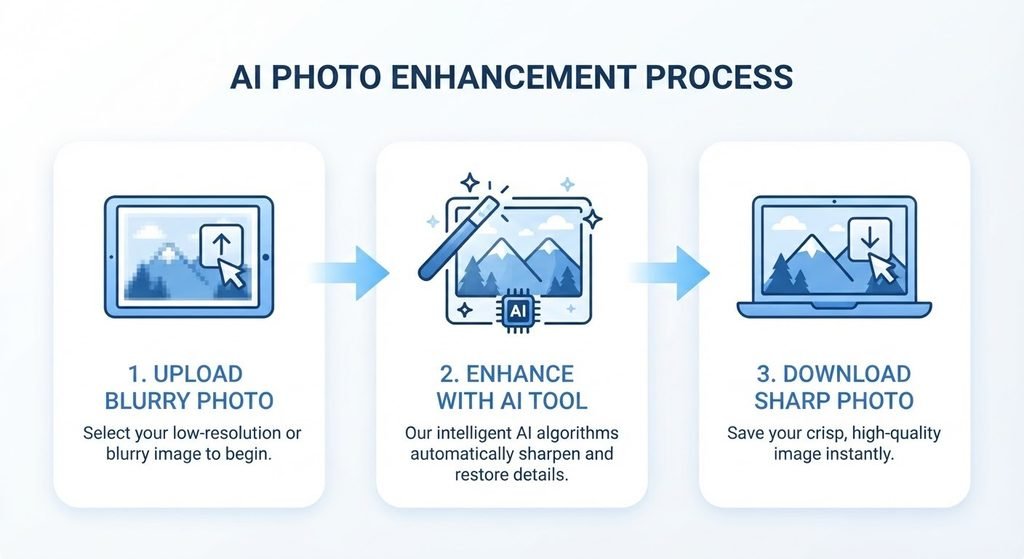
The fastest way to fix unfocused pictures is with a browser-based sharpening tool. These tools analyze the image and enhance edges and fine detail without requiring you to download or install anything. This is ideal if you just need a quick fix for one or two photos.
2. Try AI-Powered Photo Enhancers
AI enhancement tools go a step further than basic sharpening. They use machine learning models trained on millions of images to intelligently reconstruct texture especially useful for faces, text, and fine patterns in an unfocused picture.
3. Adjust Contrast and Clarity Manually
If you have access to basic editing tools increasing local contrast and clarity can make a soft image appear sharper to the eye, even without true detail recovery. This works well for landscapes and product photos.
4. Crop Out the Softest Areas
Sometimes only part of a photo is unfocused. Cropping tightly around the sharpest region of the image can salvage a usable shot from one that would otherwise be discarded.
5. Reduce Image Size for Display
Downscaling a blurry photo for web or social media use makes softness far less noticeable since detail loss becomes less visible at smaller dimensions.
6. Convert to Black and White
Removing color can distract the eye from softness and draw attention to composition and contrast instead a simple trick photographers have used for decades on imperfect shots.
7. Use Noise Reduction Alongside Sharpening
Blurry photos taken in low light often have visible grain. Applying gentle noise reduction before sharpening prevents the sharpening process from exaggerating that grain giving a cleaner final result.
Free vs. Paid Tools to Fix Unfocused Pictures
Feature
Free Online Tools
Paid Desktop Software
Cost
Free
Often a monthly subscription
Installation
None works in browser
Requires download and setup
Learning curve
Low beginner friendly
Moderate to steep
Best for
Quick fixes casual use
Professional batch editing
Speed
Fast instant results
Depends on system hardware
For most everyday needs resharing a photo prepping an image for a listing or fixing a family photo a free online tool is usually the more practical choice.
Common Mistakes When Fixing Blurry Photos
Over sharpening: pushing sharpening too far creates harsh unnatural edges and visible artifacts.
Ignoring resolution: trying to fix an unfocused picture that’s also low resolution rarely gives a satisfying result.
Skipping noise control: sharpening without addressing grain first often makes photos look worse not better.
Expecting full recovery: treating enhancement tools as a total fix rather than an improvement leads to disappointment.
Editing a compressed copy: always start from the highest quality version of the photo available not a version that’s already been compressed or resized down.
Tips to Prevent Unfocused Pictures in the Future
Tap or click directly on your subject to set the focus point before shooting.
Keep both hands steady, or use a wall, table, or tripod for support in low light.
Increase available light whenever possible instead of relying on a slow shutter.
Clean your camera or phone lens regularly.
Take a couple of extra shots of important moments as a backup.
FAQs
1. Why are my pictures always slightly unfocused?
This is usually due to camera shake an incorrect focus point or shooting in low light all of which reduce sharpness.
2. Can blurry photos be fixed for free?
Yes. Free online sharpening and enhancement tools can noticeably improve mild to moderate blur without any cost.
3. Does cropping help fix an unfocused picture?
Cropping doesn’t add sharpness but it can isolate the sharpest part of a photo and remove the softest areas.
4. Is it possible to fully un blur a very out of focus photo?
Not completely. Software can improve softness but detail that was never captured cannot be fully restored.
5. What’s the difference between motion blur and unfocused blur?
Motion blur comes from movement during the shot while unfocused blur comes from the camera locking focus on the wrong point or distance.
6. Do I need Photoshop to fix unfocused pictures?
No. Browser based tools can handle most everyday sharpening needs without any paid or installed software.
7. Why does sharpening sometimes make a photo look worse?
Over sharpening or sharpening a noisy image without noise reduction first can introduce harsh artifacts.
Conclusion
Unfocused pictures don’t have to end up deleted. Understanding what causes blur and knowing which of these seven methods fits your situation makes it possible to fix unfocused pictures quickly and get a usable shareable result. For everyday photos a free online sharpening tool is often the simplest and fastest way to bring a soft image back to life.
Baby Passport Photo: The Complete 2026 Guide to Getting It Right the First Time.
Introduction
Getting a baby passport photo right sounds simple until you’re standing in a pharmacy line with a squirming infant who refuses to keep their eyes open. Unlike adult passport photos a baby passport photo has to meet the exact same strict government standards correct size plain background neutral expression no other people in frame but babies can’t sit still hold a pose or follow instructions.
This guide walks you through what a compliant baby passport photo actually requires the most common reasons these photos get rejected and how to take one at home without a professional photographer. You’ll also learn how a free online tool can fix background and sizing issues in seconds if your first attempt isn’t quite passport ready.
Quick Answer / Key Takeaways
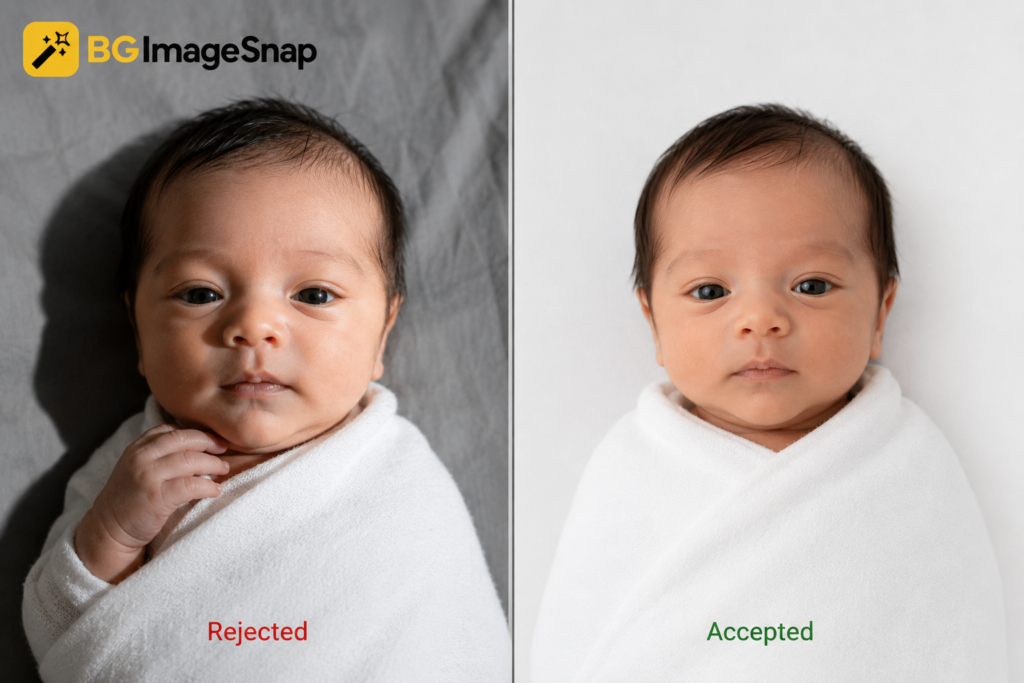
A baby passport photo must show the infant alone eyes open facing forward against a plain white or off white background.
No one may hold or support the baby in a way that’s visible in the frame.
For the US the required size is 2×2 inches with the head measuring 1 to 1⅜ inches from chin to crown.
Newborns are exempt from the “eyes open” rule in the US, UK, and Canada, but the photo must still be taken lying down or in a car seat with a plain background behind the baby.
A photo taken at home with a phone camera is acceptable as long as it meets size lighting and background rules a free photo editing tool can correct backgrounds and cropping afterward.
What Makes a Baby Passport Photo Valid
Every passport issuing authority applies the same core rules to a baby passport photo as it does to an adult one with a few practical adjustments for infants.
A valid baby passport photo generally needs:
A plain white or off white background with no patterns, shadows, or textures
The baby’s face centered and facing the camera not tilted or turned
No other person, hand or object visible in the frame including a parent’s fingers holding the chin
Neutral or naturally relaxed expression smiling isn’t required for infants
No pacifiers, toys, hats, or blankets covering the baby’s face or head
Even natural lighting with no glare, shadows or red eye
Because babies can’t be posed the way adults can most passport agencies allow the photo to be taken while the baby is lying down in a car seat or in a bassinet as long as the background behind them appears plain and unbroken.
Baby Passport Photo Requirements by Country
Country
Photo Size
Background
Eyes Open Rule for Newborns
USA
2 x 2 inches
Plain white/off white
Exempt
UK
45mm x 35mm
Plain cream or light grey
Exempt
Canada
50mm x 70mm
Plain white
Exempt
These are the baseline dimensions most applicants need but always confirm current requirements on your country’s official passport or visa agency website before submitting since specifications are updated periodically.
How to Take a Baby Passport Photo at Home (Step-by-Step)
You don’t need a studio to get a compliant baby passport photo. A phone camera natural light and a plain sheet are usually enough.
Lay a plain white sheet or blanket on a flat surface such as a bed changing table or the floor making sure it’s wrinkle free and extends beyond the camera frame.
Position the baby on their back directly on the white sheet with their head centered in the space where the photo will be cropped.
Use natural indirect daylight a window with soft light works best. Avoid direct sun or flash which creates harsh shadows.
Shoot from directly above holding the phone parallel to the baby so their face isn’t distorted by angle.
Wait for a calm alert moment when the baby’s eyes are open (if age appropriate) and their face is relaxed.
Take several shots in quick succession to increase your chances of one clean frame.
Crop and check proportions so the head size matches your country’s required measurements before printing or uploading.
If a parent’s hand is visible supporting the baby’s head in any shot that photo will need to be cropped tightly or retaken since visible hands are one of the most common reasons a baby passport photo gets rejected.
Common Mistakes That Get Baby Passport Photos Rejected
Visible hands or fingers propping up the baby’s head or chin
Wrinkled or patterned fabric behind the baby instead of a smooth plain surface
Shadows across the face from harsh overhead lighting or flash
Head tilted at an angle rather than facing straight at the camera
Photo taken too close cutting off part of the head, or too far leaving too much empty space
Low resolution or blurry images from moving too quickly while shooting
Incorrect print size or digital dimensions that don’t match the passport office’s exact specifications
Most rejections come down to background and framing issues rather than the baby’s expression which is why reviewing the photo carefully or running it through a background and sizing tool before submission saves a second trip.
Newborn vs. Older Baby: What Changes
A newborn baby passport photo has more flexibility than one for an older infant. Newborns and very young babies are typically allowed to have their eyes closed since keeping a two week old awake and alert on command isn’t realistic. However the same background framing and no other person rules still apply.Once a baby is a few months old and can hold their head up agencies generally expect eyes open and a forward facing pose closer to what’s required for older children and adults. A baby passport photo for a toddler who can sit independently should follow the same standard as an adult photo as closely as possible.
Fixing Your Photo Digitally
Even a well composed baby passport photo taken at home can have an uneven background a slightly off crop or shadows that need correcting. Rather than retaking the entire shoot a background removal and passport photo sizing tool can adjust the image to meet official dimensions and produce a clean uniform white background without professional editing software. This step is especially useful for a baby passport photo since it’s harder to control the background perfectly with a moving infant than with a cooperative adult subject.
FAQs
Does a baby passport photo need the eyes open?
In the US, UK, and Canada, babies under one year old are typically exempt from the eyes open requirement though the photo should still show the face clearly and without obstruction.
Can I hold my baby while taking the passport photo?
You can support your baby just outside the frame but no part of your hand, arm or body should be visible in the final cropped photo.
What background do I need for a baby passport photo?
A plain white or off white background with no shadows, patterns or textures is required by most passport issuing authorities.
Can I use a photo taken on my phone?
Yes, as long as the resolution is high enough and the photo meets the size, background and lighting requirements for your country.
Why do baby passport photos get rejected most often?
Visible hands wrinkled backgrounds, shadows, and incorrect sizing are the leading causes of rejection.
How soon after birth can I get a passport photo taken?
There’s no minimum age a baby passport photo can be taken shortly after birth as long as the requirements for background, framing, and (where applicable) eyes open are met.
Conclusion
A baby passport photo doesn’t require a professional studio but it does require attention to the same details every passport photo needs: a plain background correct framing no visible hands and accurate sizing. Taking the photo at home with natural light and a plain sheet works well for most parents and any background or cropping issues can be corrected afterward without retaking the shoot.
JPEG to ICO: 7 Easy Ways to Convert Images Easily and Correctly.
If you need to turn a regular JPEG image into an icon a JPEG to ICO converter can make the process much easier. JPEG files are designed mainly for photographs and general purpose images while ICO files are commonly used for icons such as website favicons Windows application icons and shortcuts.
In this guide you’ll learn what an ICO file is how to convert JPEG to ICO which image sizes work best common mistakes to avoid and how to prepare an icon that looks sharp across different devices.
Table of Contents
What Is a JPEG to ICO Conversion?
Why Convert JPEG to ICO?
How to Convert JPEG to ICO
Best ICO Sizes to Use
JPEG vs ICO
Common Conversion Mistakes
Tips for Better ICO Icons
FAQ
Conclusion
Quick Answer: How Do You Convert JPEG to ICO?
The easiest way to convert JPEG to ICO is to use an online image converter.
Open a JPEG to ICO conversion tool.
Upload your JPEG image.
Choose ICO as the output format.
Select an appropriate icon size if the tool provides the option.
Convert the image.
Download and test the resulting ICO file.
For a simple website favicon or application icon start with a square source image whenever possible.
What Is a JPEG to ICO Conversion?
A JPEG to ICO conversion changes an image from the .jpg or .jpeg format into an .ico file.
JPEG is a compressed image format that works particularly well for photographs. ICO on the other hand is an icon container format designed to store icon images at different resolutions and color depths.
This difference matters because an icon usually needs to remain recognizable when displayed at a very small size.
For example you might convert a company logo from JPEG to ICO before using it as a favicon or application icon.
Why Convert JPEG to ICO?
There are several practical reasons to convert JPEG images into ICO files.
1. Website Favicons
A favicon is the small icon associated with a website or browser tab. ICO is one of the formats commonly used for favicons.
2. Desktop and Application Icons
Windows applications and shortcuts can use ICO files for their visual icons.
3. Branding
If your logo is available only as a JPEG converting it to ICO can make it more suitable for icon based applications.
4. Better Icon Compatibility
ICO is specifically designed for icon use so it is more appropriate than JPEG when you’re creating an actual icon file.
How to Convert JPEG to ICO Online
Using an online converter is usually the simplest approach.
Step 1: Choose Your JPEG
Select the JPEG image you want to convert. A clean high resolution source will generally produce a better result.
Step 2: Upload the Image
Open a trusted image conversion tool and upload your JPEG.
For example you can use BGImageSnap for image processing tasks on your website: BGImageSnap.
Step 3: Select ICO
Choose ICO as the output format if the converter supports it.
Step 4: Select the Icon Size
If size options are available choose one appropriate for your intended use. A square image is generally easier to adapt into an icon.
Step 5: Convert and Download
Start the conversion and download the resulting ICO file.
Step 6: Test the Icon
Don’t stop after downloading. Open or install the ICO where you intend to use it and check whether the image remains recognizable at its actual display size.
What Is the Best ICO Size?
The best size depends on where the icon will be used.
Common icon dimensions include:
Use Case
Useful Size
Small favicon
16 × 16 px
Standard favicon
32 × 32 px
Larger website/app icon
48 × 48 px
Desktop/application use
256 × 256 px
An ICO file can contain multiple image sizes which can help an icon display appropriately in different contexts.
Practical tip: If your original JPEG is rectangular consider cropping it into a square before conversion. Otherwise the icon may appear stretched or have unwanted empty space.
JPEG vs ICO: What’s the Difference?
Feature
JPEG
ICO
Main purpose
Photos and images
Icons
File extension
.jpg.jpeg
.ico
Compression
Lossy
Can contain different image representations
Typical use
Photography web images
Favicons application icons
Multiple icon sizes
No
Yes
Best for tiny icons
Usually no
Yes
The important point is that converting JPEG to ICO isn’t simply about changing the filename extension. The image needs to be encoded as an actual ICO file.
Common JPEG to ICO Conversion Mistakes
Using a Low Resolution JPEG
A tiny or heavily compressed JPEG can produce a blurry icon.
Solution: Start with the highest quality source available.
Keeping a Complex Background
Detailed photographs often become difficult to recognize at 16 × 16 or 32 × 32 pixels.
Solution: Use a simple subject with strong contrast.
Ignoring the Aspect Ratio
A wide JPEG may not work well as a square icon.
Solution: Crop or resize the image before conversion.
Using Too Much Detail
Small icons have limited visual space. Fine text and complicated patterns can disappear.
Solution: Simplify the design and prioritize the main visual element.
Not Testing the Final Icon
An icon may look good at full size but become unclear when displayed at a small size.
Solution: Test the converted ICO at the actual size where you’ll use it.
Tips for Creating a Better ICO Icon
Use a clear high quality source image.
Prefer square dimensions.
Keep the main subject centered.
Use strong contrast.
Avoid tiny text.
Remove unnecessary visual details.
Check the icon at multiple sizes.
Keep an original copy of your JPEG before conversion.
Visual opportunity: Add a simple before and after infographic showing a JPEG logo on the left and the same logo as an ICO icon at 16 px 32 px and 256 px.
Frequently Asked Questions
Can I convert JPEG to ICO without installing software?
Yes. Online image converters can perform the conversion directly in a browser so desktop software isn’t necessarily required.
Can a JPEG be used as a favicon?
JPEG can be used in some modern browser contexts but ICO remains a common and practical choice for traditional favicon support.
Does converting JPEG to ICO improve image quality?
No. Changing the format doesn’t magically improve the original image. A poor quality JPEG will generally produce a poor quality icon.
What size should I use for a favicon?
A 32 × 32 pixel version is a useful starting point while 16 × 16 is another common favicon size. Supporting multiple sizes can be helpful when the format and implementation allow it.
Can I convert a logo from JPEG to ICO?
Yes. A logo can be converted to ICO but it should ideally be simple square and recognizable at small dimensions.
Why does my ICO look blurry?
The original JPEG may be too small or highly compressed or the image may contain details that don’t survive at icon size. Start with a higher quality source and simplify the design if necessary.
Conclusion
Converting JPEG to ICO is useful when you need to turn an existing image or logo into an icon for a website application shortcut or other interface.
For the best result begin with a high quality image use a square composition select an appropriate icon size and test the final ICO at its intended display size. Most importantly remember that a good icon needs to remain recognizable even when it becomes very small.
If you’re working with images for your website or other digital projects BGImageSnap can be part of your broader image processing workflow.
Ready to Work With Your Image?
Convert and prepare your image with BGImageSnap and create cleaner visuals for your digital projects. Try BGImageSnap
How to Remove Color From Image: 7 Easy Methods for Clean Professional Results.
Introduction
Remove color from image editing is useful when you need to make a specific color transparent create a clean background isolate an object or prepare a graphic for a new design. For example, you may want to remove a white background from a product photo eliminate a green screen or turn one unwanted color into transparency.
The good news is that you do not always need advanced photo editing skills. With the right tool and a simple workflow you can remove a selected color while keeping the main subject sharp and natural.
In this guide you will learn how to remove color from image files which methods work best for different situations common editing mistakes and how BGImageSnap can help simplify the process.
Table of Contents
Quick Answer
What Does Removing a Color From an Image Mean?
How to Remove Color From Image With BGImageSnap
Other Ways to Remove a Color
When Should You Remove a Specific Color?
Common Mistakes to Avoid
Tips for Better Results
FAQ
Conclusion
Quick Answer
To remove color from image upload your image to a color removal or background editing tool select the unwanted color adjust the selection tolerance if necessary, preview the result, and download the edited image. For simple backgrounds and isolated objects an online tool such as BGImageSnap can make the process much faster.
What Does Removing a Color From an Image Mean?
Removing a color usually means selecting one specific color or color range and making it transparent or replacing it with another background.
This is different from converting an image to black and white. A black and white effect changes the entire image while color removal targets a specific color.
For example, suppose you have a product photographed against a plain white background. You can remove the white color and make that area transparent. The product remains visible while the background disappears.
This technique is commonly used for:
Product images
Logos
Social media graphics
Website assets
Presentations
Digital artwork
Green screen images
How to Remove Color From Image With BGImageSnap
BGImageSnap can be useful when you want a simple online workflow instead of working through complicated desktop editing software.
Step 1: Choose Your Image
Start with a clear image that contains the color you want to remove. A simple background usually produces cleaner results because the selected color is easier to separate from the subject.
Step 2: Upload the Image
Open the BGImageSnap website and upload your image.
For the best results use a reasonably high quality image. Low resolution images may contain blurry edges or compression artifacts that make color selection less precise.
Step 3: Select the Color
Identify the unwanted color in the image. This might be white, green, blue, or another solid background color.
Select the color you want to remove and preview the result.
Step 4: Adjust the Selection
Some images contain several shades of the same color because of lighting shadows or compression.
If parts of the background remain visible increase the color tolerance gradually. Be careful not to increase it too much because nearby colors belonging to your main subject could also disappear.
Step 5: Check the Edges
Zoom in around hair, clothing, product edges, text, and other detailed areas.
A good result should preserve the important parts of your subject without leaving obvious color halos around the edges.
Step 6: Download the Result
Once the image looks clean export it in a format that supports transparency when needed such as PNG.
A transparent PNG is especially useful when you plan to place the edited subject over a different background.
Other Ways to Remove a Color
Online tools are not the only option. You can also remove selected colors through professional image editing software.
Adobe Photoshop
Photoshop offers advanced selection and masking tools for detailed color removal. It is useful when you need greater control over edges, shadows, gradients, and complex subjects.
Adobe provides official documentation for its image editing and selection features through the Adobe Photoshop Help Center.
GIMP
GIMP is another option for users who want a free desktop image editor. It includes selection tools that can help isolate colors and remove backgrounds.
For complicated images manual selection can sometimes produce better results than automatic color removal. This approach takes more time but gives you greater control over exactly which pixels remain visible.
When Should You Remove a Specific Color?
Removing a color is particularly helpful when the unwanted color is concentrated in a clear area.
Product Photography
Online stores often need products isolated from plain backgrounds. Removing a background color can create cleaner product listings and make images easier to reuse.
Logos and Graphics
A logo designed on a solid background may need that background removed before it is placed on a website, video, presentation, or marketing design.
Green Screen Editing
Green backgrounds are commonly removed from photos and videos so that another scene can be inserted behind the subject.
Website Design
Transparent image assets can blend more naturally with different website backgrounds instead of displaying a visible rectangular background.
Common Mistakes to Avoid
Removing Too Much Color
One of the most common problems is using an overly broad color range. This can remove parts of the subject that are similar to the selected background.
Ignoring Shadows
A shadow may contain several shades of the same background color. Removing the main color without checking the shadow can leave visible patches behind.
Using a Low Quality Image
Highly compressed images often have fuzzy edges and color artifacts. These can make precise removal more difficult.
Forgetting Transparency
If the goal is to create a transparent background make sure the final export format supports transparency. Saving the result as a format that replaces transparency with a solid background can undo part of the editing process.
Tips for Better Results
Use images with clear separation between the subject and background whenever possible.
Start with a small color tolerance and increase it slowly.
Always inspect detailed edges before downloading the final file.
Use PNG when transparency is important.
For complex photographs combine automatic selection with manual cleanup.
Keep an original copy of the image before making major edits.
Visual Opportunities
A before and after comparison would help readers understand how color removal works.
A simple three step infographic could also show:
Original Image → Color Selection → Transparent Result
For an educational example a visual showing a product with a white background removed would be especially useful.
FAQs
How do I remove one color from a picture?
Upload the image to a color selection or editing tool choose the unwanted color adjust the tolerance preview the result and export the edited image.
Can I remove white from an image?
Yes. White backgrounds are often easier to remove when the subject has clear contrast against the background.
How do I make one color transparent?
Select the color and replace or delete it while preserving transparency. Exporting the final image as PNG is often appropriate when transparency must be retained.
Can I remove a background without Photoshop?
Yes. Online tools can handle many common background removal and color selection tasks without requiring Photoshop.
What image format is best for a transparent background?
PNG is a common choice because it supports transparent areas while maintaining image quality.
Why does part of my subject disappear when I remove a color?
The selected color range may be too broad. Reduce the tolerance or use more precise masking around areas of the subject that contain similar colors.
Is removing color the same as making an image black and white?
No. Removing a color targets a selected color or range while black and white conversion changes the appearance of the entire image.
Can I remove color from a complex photograph?
Yes, but complex images usually require more careful selection and edge cleanup because the target color may appear in multiple areas of the photo.
Conclusion
Learning how to remove color from image files can make product photos, logos, graphics, and creative assets much easier to reuse. The key is to select the unwanted color carefully control the selection range and inspect the final edges before export.
For simple editing tasks BGImageSnap provides a convenient way to work with image backgrounds and color based editing without relying entirely on complicated software. For highly detailed images professional tools such as Photoshop or GIMP may provide additional control.
The best results come from using a high quality source image and making small adjustments rather than removing a large color range all at once.
How to Resize an Image to 500×500 Image Size in Seconds Free Guide.
Introduction
If a website marketplace or app has ever rejected your photo for being the wrong dimensions you’ve likely run into the 500×500 image size requirement. This square format is one of the most common upload standards on the web used for profile pictures, product thumbnails, app icons and social media avatars and getting it wrong usually means a blurry, stretched, or cropped result.
This guide explains exactly what a 500×500 image size is where it’s required and how to resize any photo to it correctly without losing quality or distorting the subject. You’ll also learn the difference between resizing and cropping common mistakes to avoid and a free step-by-step method you can use right now.
Table of Contents
Quick Answer
What Does 500×500 Image Size Mean?
Where Is a 500×500 Image Size Required?
Resizing vs. Cropping: What’s the Difference?
How to Resize an Image to 500×500 Pixels (Step-by-Step)
Common Mistakes When Resizing to 500×500
Tips for Keeping Image Quality Sharp
Visual Opportunities
FAQ
Conclusion
Quick Answer / Key Takeaways
A 500×500 image size means an image that is exactly 500 pixels wide and 500 pixels tall a perfect square.
It’s commonly required for profile photos, product images, app icons and marketplace listings eBay, Etsy, Shopify, etc.
The safest way to resize is to crop to a square first then scale to 500×500, rather than stretching a rectangular photo directly.
Free browser based tools can do this in seconds without installing software.
What Does 500×500 Image Size Mean?
A 500×500 image size refers to an image’s pixel dimensions 500 pixels across and 500 pixels down. Because both numbers are equal the image is a square regardless of the file format (JPG, PNG, or WebP).
This differs from resolution or file size. Two images can both be 500×500 pixels but have very different file sizes (in KB or MB) depending on compression. When a platform asks for a 500×500 image it is almost always referring to pixel dimensions not file weight.
Where Is a 500×500 Image Size Required?
Many platforms specify square image formats close to or exactly at 500×500 pixels including:
E-commerce product photos Shopify, Etsy, and Amazon listings often recommend square thumbnails for consistent grid layouts.
Profile and avatar pictures many apps and forums request square uploads that get automatically cropped if the wrong shape is submitted.
App icons and favicons square dimensions are the standard starting point before platform-specific resizing.
Social media profile photos most platforms display profile images as circles or squares cropped from a square source.
Because requirements vary slightly by platform it’s worth checking the exact specification before uploading but resizing to a clean 500×500 image size is a safe baseline for most square image requirements.
Resizing vs. Cropping: What’s the Difference?
These two actions are often confused but they do different jobs:
Resizing changes the pixel dimensions of the whole image scaling everything down or up proportionally.
Cropping removes parts of the image to change its shape without necessarily changing the remaining resolution.
If your original photo isn’t already square resizing it directly to 500×500 will stretch or squash the image distorting faces, logos, or products. The correct approach for a clean 500×500 image size is:
Crop the image to a 1:1 (square) aspect ratio first keeping the important subject centered.
Resize the cropped square to exactly 500×500 pixels.
This two step process preserves proportions and avoids the “stretched photo” look.
How to Resize an Image to 500×500 Pixels (Step-by-Step)
Crop to a square if your photo isn’t already 1:1 centering the subject you want to keep.
Set the output dimensions to 500 pixels wide by 500 pixels tall.
Choose your file format JPG for photos PNG for images needing transparency.
Download the resized file and check that it displays correctly at 500×500 before uploading it to your platform.
This process works the same whether you’re preparing one image or several batch resizing tools can apply the same 500×500 image size to multiple files at once.
Common Mistakes When Resizing to 500×500
Stretching a rectangular photo directly to 500×500 instead of cropping first which distorts the subject.
Ignoring the background especially for product photos where a busy or uneven background looks worse once cropped tightly.
Over compressing the file which can make a 500×500 image size look blurry or pixelated even though the dimensions are correct.
Not checking the platform’s actual requirement some sites want 500×500 exactly while others accept a minimum size and crop automatically.
Tips for Keeping Image Quality Sharp
Start with a source image that’s equal to or larger than 500×500 pixels; enlarging a small image will reduce sharpness.
Keep the subject centered before cropping since square crops remove the sides or top/bottom of a rectangular photo.
Use PNG format if the image needs a transparent background (common for logos and product cutouts).
Preview the final 500×500 version at actual size before publishing since small distortions are easier to spot at full scale.
Visual Opportunities
Before/after diagram: a rectangular photo next to its correctly cropped and resized 500×500 version.
Comparison table: platforms and their typical square image requirements (for editorial reference verified against each platform’s current guidelines before publishing).
Step screenshots: the upload, crop, and resize steps within the tool interface.
Helps readers reduce file size after resizing without losing the 500×500 dimensions
FAQs
Is 500×500 pixels a good image size for a website?
Yes for square format uses like thumbnails avatars and product grids 500×500 image size is a solid balance between visual clarity and file weight on most modern displays.
Will resizing to 500×500 reduce my image quality?
Reducing a larger image down to 500×500 pixels generally preserves quality well. Enlarging a smaller image up to 500×500 is more likely to introduce blurriness.
What file format should I use for a 500×500 image?
Use JPG for photographs where small file size matters and PNG when you need a transparent background such as for logos or product cutouts.
Can I resize multiple images to 500×500 at once?
Yes many free online tools support batch resizing letting you apply the same 500×500 image size to a whole folder of photos at once.
Do I need design software to resize an image to 500×500?
No. Free browser based resizers can crop and resize images to 500×500 pixels without installing any software.
Is 500×500 the same as a “square image”?
500×500 is one specific square size. Any image where width and height are equal is square but not every square image measures exactly 500×500 pixels.
Conclusion
A 500×500 image size is one of the most widely used square formats across e-commerce social platforms and app stores and getting it right is mostly about avoiding one mistake: resizing a rectangular photo directly instead of cropping it to a square first. Following the crop then resize approach above will give you a clean undistorted 500×500 image ready for upload on almost any platform.