
Large JPG images can slow down your website and increase page load time. Learning how to convert JPG to WEBP helps reduce image size while maintaining excellent quality. This guide explains everything you need to know about converting JPG images to WEBP for better website performance and SEO.
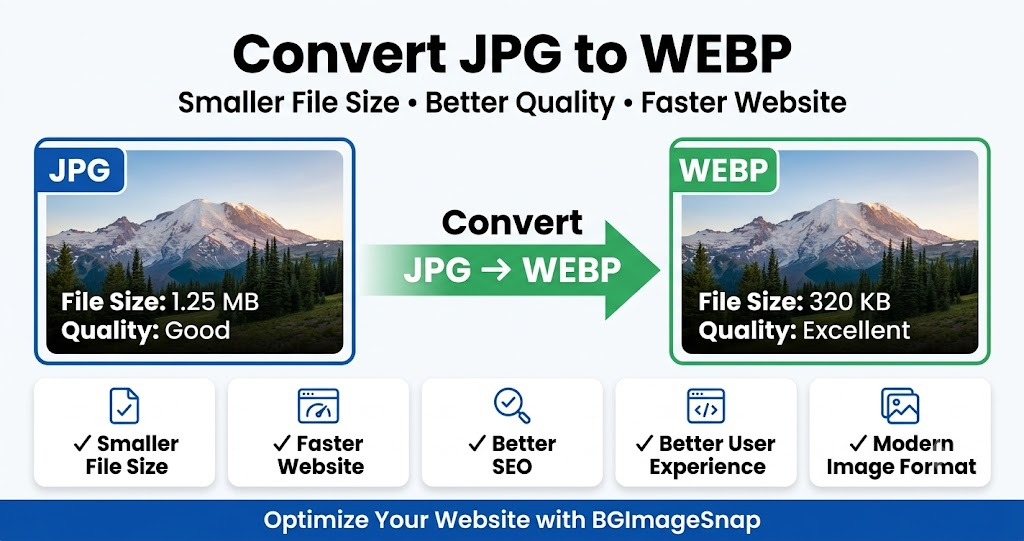
What is JPG?
JPG (also known as JPEG) is one of the most popular image formats used on the internet. It has been the standard image format for many years because it offers a good balance between image quality and file size.
JPG images are widely supported by almost every web browser, operating system, smartphone, and image editing software. Because of this compatibility, many website owners still use JPG images for blogs, business websites, eCommerce stores, and digital marketing.
JPG is mainly designed for photographs because it uses lossy compression, which reduces the file size by removing some image data. In most cases, the quality loss is difficult to notice, making JPG a practical format for everyday use.
JPG images are commonly used for:
- Blog featured images
- Website banners
- Product photos
- Social media graphics
- Digital photography
- Marketing materials
Although JPG is still an excellent image format, its compression technology is older than modern formats. As websites become faster and users expect pages to load quickly, many website owners now convert JPG to WEBP to achieve better performance.
What is WEBP?
WEBP is a modern image format developed by Google specifically for websites.
Its purpose is simple:
Provide smaller image files without noticeably reducing image quality.
Unlike JPG, WEBP supports both lossy and lossless compression. It also supports transparent backgrounds, making it suitable for logos, graphics, product images, and website design.
Today, all major browsers, including Chrome, Firefox, Edge, and Safari, support WEBP. This makes it a reliable format for blogs, WordPress websites, online stores, portfolios, and business websites.
Many website owners choose to convert JPG to WEBP because smaller image files help pages load faster, improve user experience, and reduce bandwidth usage.
JPG vs WEBP
| Feature | JPG | WEBP |
|---|---|---|
| Image Quality | Good | Excellent |
| File Size | Larger | Smaller |
| Transparency | ❌ No | ✅ Yes |
| Compression | Lossy | Lossy & Lossless |
| Website Speed | Good | Better |
| SEO Performance | Good | Better for optimized websites |
| Browser Support | Excellent | Excellent (Modern Browsers) |
If your goal is better website performance, WEBP is usually the better choice because it provides smaller files while maintaining high image quality.
Why Convert JPG to WEBP?
Many people think changing an image format only changes the file extension. In reality, image optimization plays an important role in website performance.
When you convert JPG to WEBP, the image file usually becomes much smaller while maintaining nearly the same visual quality. Smaller images require less data to load, helping websites perform better on both desktop and mobile devices.
For example, imagine your homepage contains ten JPG images, each around 500 KB. Visitors would need to download almost 5 MB of image data before the page fully loads.
If you convert JPG to WEBP, those same images may use significantly less storage space while looking almost identical. This means:
- Faster page loading
- Better browsing experience
- Lower bandwidth usage
- Improved mobile performance
- Better website optimization
Whether you run a personal blog, business website, WooCommerce store, or portfolio, making it a habit to convert JPG to WEBP before uploading images is a smart optimization strategy.
Benefits of WEBP
1. Smaller File Size
One of the biggest advantages of WEBP is its efficient compression.
Compared to JPG, WEBP usually creates much smaller image files without noticeably reducing quality.
Smaller images provide several benefits:
- Faster uploads
- Less storage usage
- Reduced bandwidth consumption
- Better website performance
If your website contains hundreds of images, these savings become significant over time.
2. Faster Website Speed
Website speed directly affects user experience.
Large image files are one of the most common reasons websites become slow.
When you convert JPG to WEBP, browsers download less image data, allowing pages to load much faster.
Faster websites often lead to:
- Better user experience
- More page views
- Lower bounce rates
- Happier visitors
3. Better SEO Performance
Although WEBP does not directly increase Google rankings, faster websites generally provide a better user experience.
Optimized images help improve page speed, which supports technical SEO and Core Web Vitals.
Many SEO professionals recommend that website owners convert JPG to WEBP as part of their image optimization strategy.
4. Better User Experience
Visitors expect websites to load quickly.
Fast-loading images create a smoother browsing experience on desktops, tablets, and mobile devices.
Smaller image files also help users with slower internet connections access your content more easily.
5. Better Core Web Vitals
Large images can slow down loading performance, especially the largest visible image on a page.
When you convert JPG to WEBP, you reduce image weight, making it easier for browsers to display content quickly.
Although image optimization alone will not solve every performance issue, it is one of the easiest ways to improve your website’s loading speed.
📌 Important Tip
Always resize your images before converting them to WEBP. Uploading a 4000-pixel image when your website only displays it at 1200 pixels wastes storage space and slows down your website.
How to Convert JPG to WEBP
Converting JPG images to WEBP is simple and does not require any technical skills. You can use an online image converter like BGImageSnap to complete the process in just a few clicks.
Step 1: Open the JPG to WEBP Converter
Visit the BGImageSnap JPG to WEBP Converter and select the option to convert JPG to WEBP.
Step 2: Upload Your JPG Image
Click the Upload Image button or drag and drop your JPG file into the upload area.
The tool supports images commonly used for:
- Blog posts
- Product photos
- Website banners
- Social media graphics
- Portfolio images
Step 3: Select WEBP as the Output Format
Choose WEBP as the output format.
This tells the converter to create a modern WEBP version of your original JPG image.
Step 4: Convert the Image
Click the Convert button.
The tool will process your image in just a few seconds.
Step 5: Download Your WEBP Image
Once the conversion is complete, download your optimized WEBP image.
Before uploading it to your website, compare it with the original JPG to make sure the quality looks good.
Best Practices When You Convert JPG to WEBP
Following these simple tips will help you get the best results.
Resize Images Before Converting
Always resize your image before you convert JPG to WEBP.
For example, if your website displays images at 1200 pixels, there is no need to upload a 4000-pixel image.
Smaller dimensions combined with WEBP compression create much faster-loading pages.
Use Descriptive File Names
Instead of using file names like:
❌ IMG_1024.webp
Use descriptive names such as:
✅ convert-jpg-to-webp-guide.webp
This makes your images easier to organize and also helps with image SEO.
Write Meaningful ALT Text
Every image should include descriptive ALT text.
Example:
ALT Text:
Convert JPG to WEBP for faster website performance
Good ALT text improves accessibility and helps search engines understand your images.
Compress Images When Needed
If your WEBP image is still larger than expected, compress it after conversion.
Combining image compression with WEBP provides the best balance between quality and file size.
Test Images Before Publishing
Before publishing your content, check your images on:
- Desktop
- Mobile
- Tablet
Make sure they appear sharp and load quickly on every device.
💡 Pro Tip
For the best website performance, always convert JPG to WEBP after resizing your images. This simple workflow reduces file size while maintaining excellent image quality.
⚠️ Warning
Avoid converting the same image repeatedly between JPG and WEBP.
Each lossy conversion can reduce image quality.
Always keep your original JPG file as a backup so you can edit or create new versions later.
Common Mistakes to Avoid
Many beginners accidentally reduce image quality or slow down their websites by making simple mistakes.
Here are the most common ones.
Uploading Very Large Images
Large images slow down websites even after conversion.
Resize your images before uploading them.
Using Very Low Quality Settings
Trying to create the smallest possible file can make your images blurry.
Choose balanced compression settings that keep images looking clear.
Deleting the Original JPG File
Never delete your original image.
Keep it safely stored so you can edit it later if needed.
Ignoring Mobile Users
More than half of website visitors browse using smartphones.
Always test how your images look on mobile devices.
Forgetting ALT Text
Images without ALT text miss an important SEO opportunity.
Always describe your images naturally instead of stuffing keywords.
Forgetting to Convert Images Before Uploading
Many website owners upload large JPG files directly to their websites.
Instead, make it a habit to convert JPG to WEBP before uploading images. This simple step helps improve loading speed, saves bandwidth, and creates a better experience for your visitors.
Frequently Asked Questions (FAQs)
1. Is WEBP better than JPG?
For most websites, yes. WEBP usually provides smaller file sizes while maintaining excellent image quality. If you want to improve website speed, it’s a good idea to convert JPG to WEBP before uploading images.
2. Does converting JPG to WEBP reduce image quality?
WEBP uses advanced compression to reduce file size. In most cases, the difference in quality is so small that visitors won’t notice it, especially when balanced compression settings are used.
3. Can I convert JPG to WEBP online for free?
Yes. Many online tools, including BGImageSnap, allow you to convert JPG to WEBP quickly and free of charge without installing any software.
4. Does WEBP improve SEO?
WEBP does not directly improve Google rankings. However, smaller image files help websites load faster, which improves user experience and supports technical SEO and Core Web Vitals.
5. Can WordPress upload WEBP images?
Yes. Modern versions of WordPress support WEBP images, making it easy to upload optimized images to your website.
6. Should I keep the original JPG image?
Yes. Always keep the original JPG file as a backup. If you ever need to edit the image again, you will have the highest-quality version available.
7. Is WEBP supported by all browsers?
Most modern browsers, including Google Chrome, Mozilla Firefox, Microsoft Edge, and Safari, fully support WEBP images.
8. When should I convert JPG to WEBP?
You should convert JPG to WEBP before uploading images to your website. This helps reduce file size, improve loading speed, and create a better browsing experience for your visitors.
Final Thoughts
If your website contains many images, learning how to convert JPG to WEBP is one of the easiest ways to improve website performance.
Smaller image files load faster, use less bandwidth, and create a smoother browsing experience. Whether you manage a personal blog, business website, WooCommerce store, or portfolio, using WEBP images is a smart optimization strategy.
Making it a habit to convert JPG to WEBP before publishing images can also help improve page speed and overall website efficiency.
After you convert JPG to WEBP, you can further reduce file size using our Image Compressor.
Learn more about image optimization from Google Search Central.
You can also read Google’s performance recommendations on web.dev.
Ready to Convert JPG to WEBP?
Ready to optimize your website images?
Use the BGImageSnap JPG to WEBP Converter to convert JPG to WEBP in just a few clicks. Our free online tool helps reduce image size while maintaining excellent quality, making your website faster and more user-friendly.
Start optimizing your images today and enjoy better performance without compromising quality.
