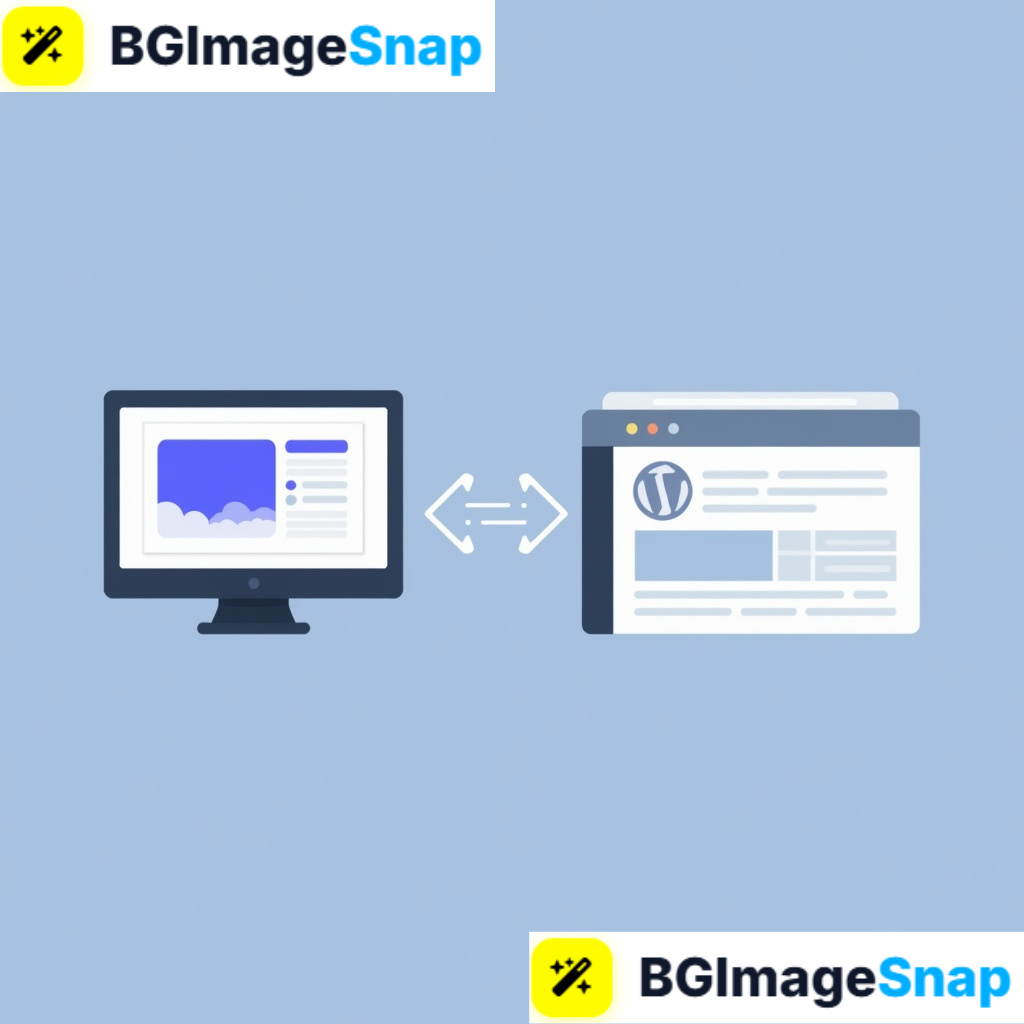
Managing images and media across different platforms can be time consuming, especially if you’re constantly downloading and uploading files. WP Connect is a simple solution that helps bridge the gap between your workflow and WordPress by making connections faster and more efficient. Instead of dealing with multiple steps to move your optimized images to your website the right connection can save you hours of work every week.
Key Takeaways
- WP Connect allows you to link your tools and workflow directly with your WordPress website.
- It helps you save time by reducing the need to manually download and upload media files.
- You can streamline your image optimization process and send files straight to your Media Library.
- It is useful for bloggers, sellers, freelancers, and website owners who publish content often.
- A secure connection keeps your website safe while improving your overall productivity.
What WP Connect Does and How It Works
WP Connect is a simple integration feature that helps connect an external tool to your WordPress website. In simple terms, it creates a secure link between the platform you’re using and your WordPress site. This link allows certain actions, like sending images directly to your Media Library, without needing to log into WordPress separately every time.
The main idea behind WP Connect is to remove unnecessary steps from your workflow. For example, if you optimize or edit images on an online tool, you usually have to download them first, then open WordPress, go to the Media Library, and upload them again. With a proper connection in place, this process becomes much faster with just one click.
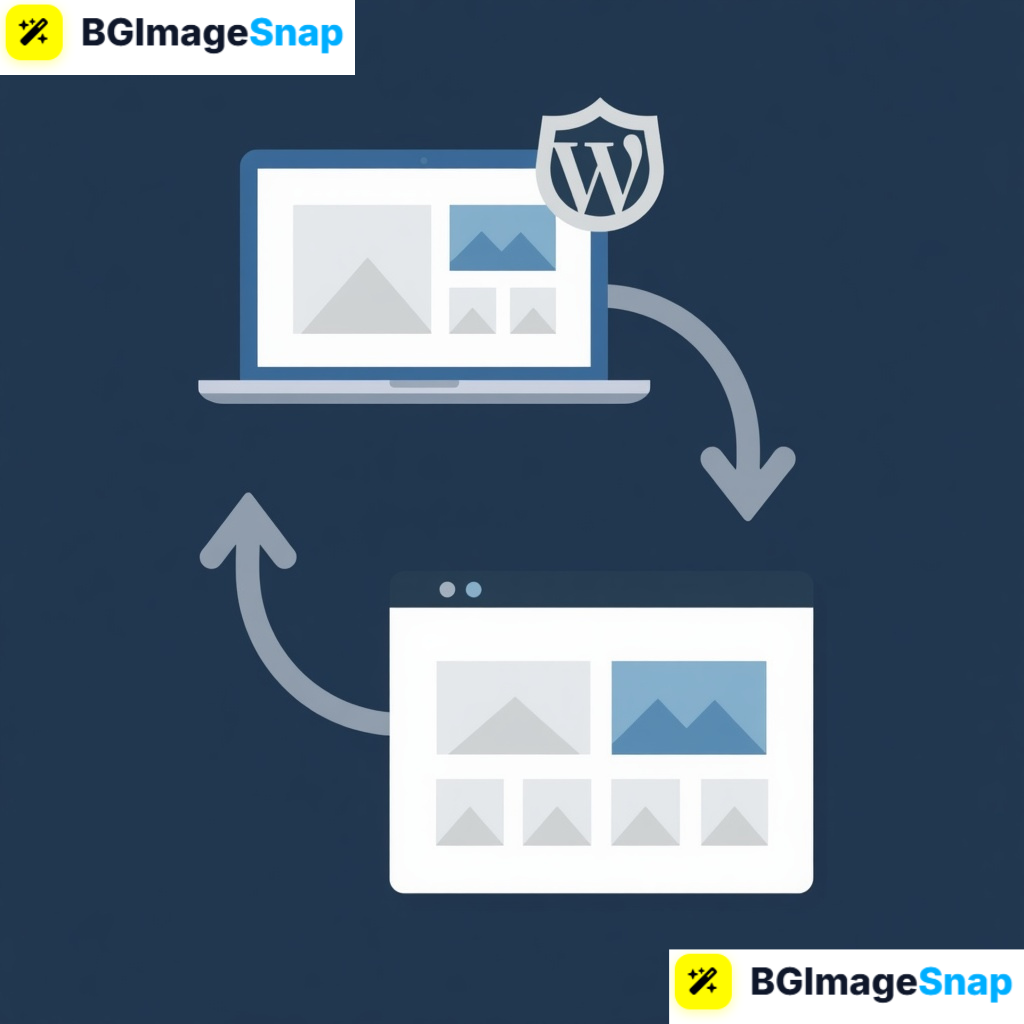
WP Connect works by using a secure authorization process. When you connect your website, it gives permission to the approved tool to access only what it needs. It does not give full control of your website. This keeps your login details safe while still allowing smooth communication between both platforms.
The best part about WP Connect is its simplicity. You do not need any coding knowledge or technical experience to use it. Once the connection is set up, it stays active until you choose to disconnect it. This makes it a convenient option for anyone who regularly uploads images, graphics, or media to their WordPress website.
Full List of Features and Details of WP Connect
To understand the value of WP Connect, it helps to look at its features and what it offers for everyday WordPress users. Below is a detailed breakdown of its capabilities:
Supported Use Cases
- WordPress Posts and Pages – Send optimized images directly while writing content.
- Media Library Integration – Add images straight to your WordPress Media Library.
- Blogging Workflows – Perfect for writers who publish posts with many images.
- Ecommerce Websites – Useful for store owners uploading product images regularly.
- Multi Task Workflows – Connect once and save time on every upload.
Key Features
- One click connection – Link your WordPress site securely in just a few steps.
- Secure authorization – Uses safe login access without sharing your password directly.
- Direct media transfer – Send images from an external tool to WordPress without manual downloads.
- Time saving automation – Cuts out repeated upload steps from your daily work.
- Easy to disconnect – You can revoke access anytime from your WordPress settings.
- User friendly interface – Designed for beginners with no technical knowledge needed.
- Stable integration – Stays connected until you choose to end it.
- Works with modern WordPress – Compatible with most updated WordPress versions and themes.
- Improves productivity – Helps you focus more on content creation instead of file management.
- Safe permissions – Only grants the access needed to complete its task.
WP Connect Feature Comparison
| Feature | WP Connect | Manual Upload | Third Party Plugins |
|---|---|---|---|
| One Click Transfer | Yes | No | Varies |
| No Coding Required | Yes | Yes | Sometimes |
| Secure Access | Yes | Yes | Varies |
| Saves Upload Time | High | Low | Medium |
| Easy to Disconnect | Yes | Not Needed | Varies |
| Beginner Friendly | Yes | Yes | Medium |
With these features, WP Connect helps create a smoother workflow for anyone who manages media heavy WordPress websites on a regular basis.
How to Use WP Connect: Step by Step Instructions
Setting up WP Connect is quick and simple. You do not need any technical skills to get it working. Just follow these easy steps:
Step 1: Open the Connection Option
Go to the tool or feature that offers WP Connect on Bgimagesnap.com. Look for the “Connect to WordPress” or WP Connect option. This is usually found when you’re ready to save or send an image.
Step 2: Add Your WordPress Website
Click the WP Connect button and enter your WordPress website URL. Make sure you type the full website address, including https://, for a secure connection.
Step 3: Authorize the Connection
You will be redirected to your WordPress login or authorization screen. Log in to your website if prompted, and approve the permission request. This allows the tool to connect securely to your site without sharing your password.
Step 4: Confirm the Successful Connection
Once authorized, you will be redirected back to the tool. You will see a confirmation message showing that your WordPress site is now connected through WP Connect.
Step 5: Send Files Directly to WordPress
Now you’re ready to use it. After editing or optimizing any image, click the option to send it to WordPress. It will be uploaded directly to your Media Library, ready to insert into posts, pages, or product listings.
After setup, you won’t need to repeat these steps again unless you disconnect or change websites.
Real Use Cases Who Uses WP Connect and Why
WP Connect is helpful for many different types of website owners. Here are some real life examples of how people use it:
1. Bloggers and Content Writers
Bloggers often add featured images, infographics, or photos to every post. With WP Connect, they can optimize their images and send them straight to WordPress without downloading and re uploading them. This helps them publish articles much faster.
2. E-Commerce Sellers
Store owners on WordPress using WooCommerce upload many product images every week. Manually uploading each image takes time, especially for large inventories. WP Connect simplifies this by allowing them to send optimized product photos directly to their Media Library.
3. Freelancers and Web Designers
Freelancers creating graphics, banners, or website images for clients often need to upload them to the client’s WordPress site. WP Connect helps them speed up delivery by cutting out repetitive upload steps while keeping their workflow smooth and professional.
4. Students and Website Owners
Students managing blogs for projects, or small business owners handling their own websites, benefit from simple tools. WP Connect is beginner friendly, so they don’t need to learn technical processes to manage their media more efficiently.
Tips for Getting the Best Results With WP Connect
To get the most out of WP Connect, keep these practical tips in mind:
- Connect only trusted tools. Always authorize WP Connect with tools you trust. Only grant access to platforms you use for your website work.
- Disconnect when not needed. If you no longer use the integration, revoke its access from your WordPress “Connected Applications” or authorized apps section for extra security.
- Use it with optimized images. Combine WP Connect with an image optimizer. This lets you compress, resize, or edit images and send them to WordPress in their best web ready size.
- Check your Media Library after transfer. After sending an image through WP Connect, quickly verify it in your WordPress Media Library. You can add alt text, titles, or captions right after uploading.
- Keep WordPress updated. To ensure a smooth and secure connection, always keep your WordPress core, theme, and plugins updated to their latest versions.
- Test with one image first. If you’re connecting for the first time, send a single test image. This confirms the connection is working properly before transferring many files.
Frequently Asked Questions
What is WP Connect used for?
WP Connect is used to securely link an external online tool with your WordPress website. It allows you to send images and media directly to your WordPress Media Library without manual downloading and uploading.
Is WP Connect safe to use?
Yes. WP Connect uses a secure authorization process. It does not ask for your WordPress username or password directly. Instead, it uses WordPress’s built in approval system to grant limited, safe permissions.
Do I need coding skills to set up WP Connect?
No. WP Connect is designed for beginners. The setup only takes a few clicks, and no technical or coding knowledge is required.
Can I disconnect WP Connect anytime?
Yes. You can revoke access at any time. Simply go to your WordPress dashboard, check authorized applications or connections, and remove the access for that tool.
Will WP Connect work on any WordPress website?
WP Connect works on most standard WordPress websites, including self hosted WordPress.org sites. Some very restricted hosting environments with disabled authorization features may have limitations, but most modern hosts support it.
Conclusion
WP Connect is a simple yet powerful way to speed up your WordPress workflow. By creating a secure connection between your favorite online tool and your website, it removes the repetitive steps of downloading and uploading media files. Ready to save time on every upload? Try the WP Connect feature on Bgimagesnap today and start sending your images directly to your WordPress Media Library with just one click!