Need to flip the colors in a picture maybe a scanned film negative, a dramatic photo effect, or a quick design check? A free online color inverter does it instantly, right in your browser, with no software to install and no signup required. In this guide, you’ll learn how color inversion works, who uses it, and how to invert any image in under a minute.
Key Takeaways
- A color inverter flips every pixel to its opposite color black becomes white, blue becomes yellow, and so on.
- It works with PNG, JPG, WebP, GIF, and BMP files, straight from any modern browser.
- Inversion is lossless and reversible: invert the same image twice and you get the exact original back.
- Popular uses include digitizing film negatives, creating artistic effects, testing UI contrast, and building eye-catching thumbnails.
- The tool is free, requires no account, and processes your images securely in your browser.
What Is a Color Inverter and How Does It Work?
A color inverter is a simple tool that flips every color in an image to its exact opposite. Think of it as a digital photo negative. Bright areas become dark, dark areas become bright, and every hue shifts to the other side of the color wheel.
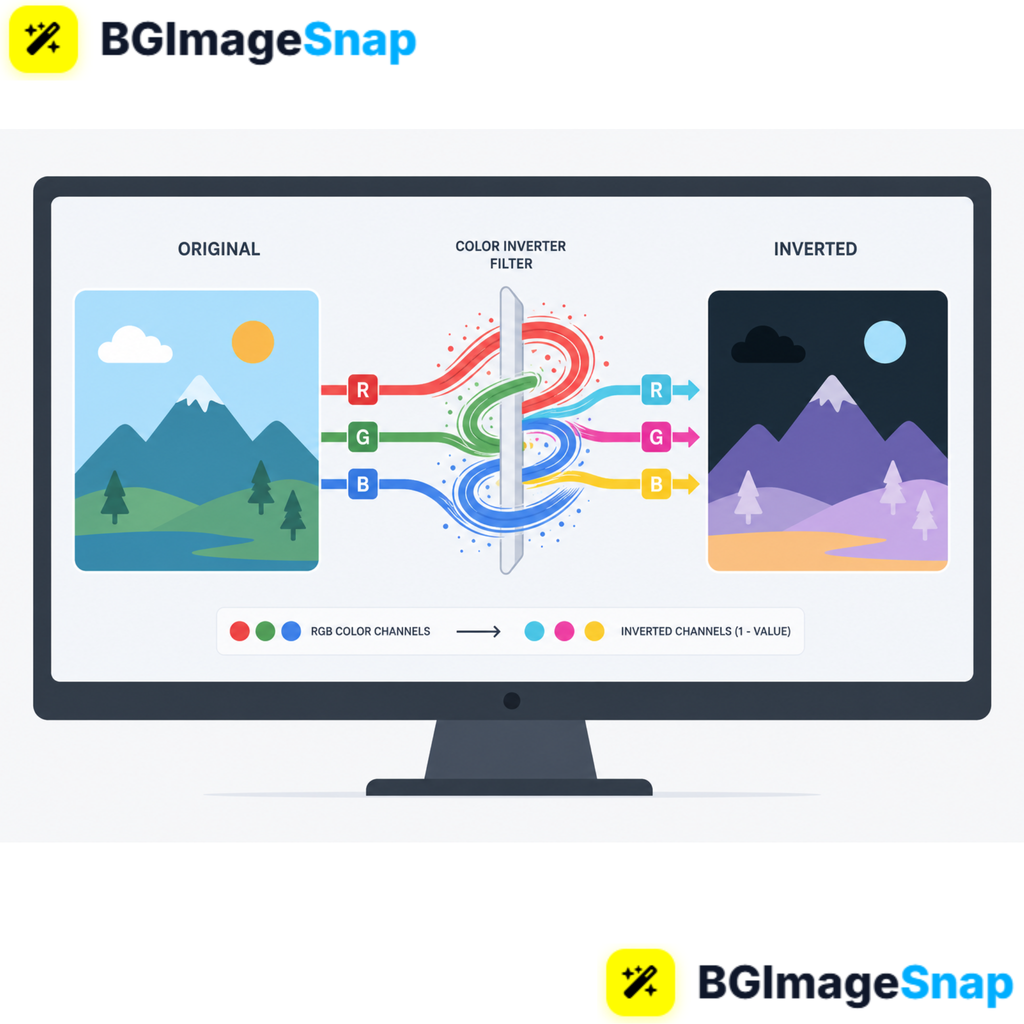
To understand how it works, you only need one fact: every pixel in a digital image is built from three color channels red, green, and blue (RGB color model). Each channel holds a value from 0 to 255. Pure black is (0, 0, 0), pure white is (255, 255, 255), and every shade your screen displays is a mix of those three numbers.
The color inverter runs one small calculation on every pixel: it subtracts each channel’s value from 255. Black (0, 0, 0) becomes white (255, 255, 255). Dark red (150, 0, 0) becomes light cyan (105, 255, 255). This happens across millions of pixels in a fraction of a second.
Here’s what happens to the colors you see most often:
| Original Color | Inverted Color |
|---|---|
| Black | White |
| White | Black |
| Red | Cyan |
| Green | Magenta |
| Blue | Yellow |
| 50% Gray | 50% Gray |
Notice that middle grays barely change. Since 255 minus 128 is 127, neutral tones stay almost identical. That’s why inverted images keep their overall structure shapes and outlines survive, while colors transform around them.
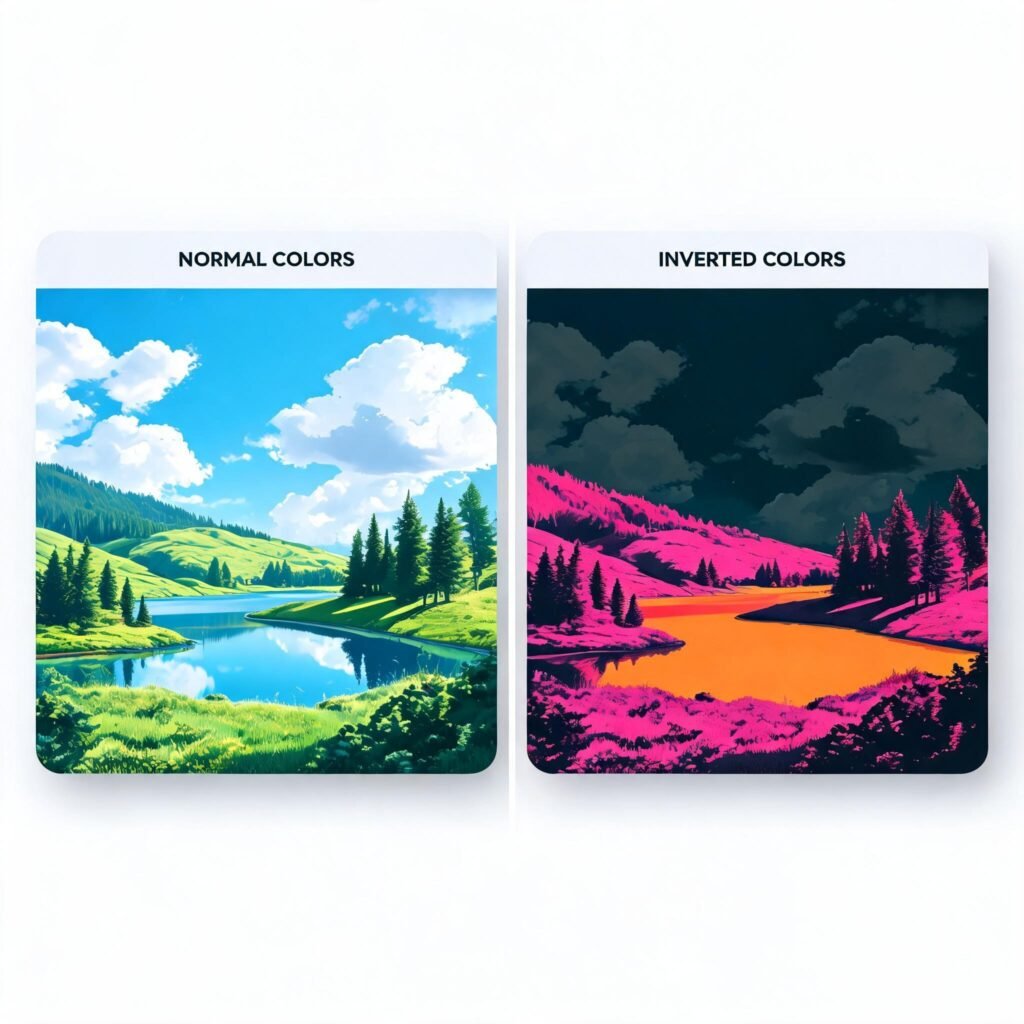
Try it with a landscape photo: a blue sky turns golden orange, green grass turns pink, and clouds remain recognizable shapes in opposite tones. The result looks like a scene from another planet, yet every detail is still there.
One more nice property: inversion is perfectly reversible. Invert an image, then invert it again, and you’re back to the exact original no quality lost anywhere in the process.
Supported Formats and Features
Before you start, here’s the full breakdown of what the online color inverter supports:
| Feature | Details |
|---|---|
| Supported formats | PNG, JPG/JPEG, WebP, GIF, and BMP |
| Cost | 100% free |
| Signup | Not required |
| Installation | None runs entirely in your web browser |
| Devices | Desktop, laptop, tablet, and smartphone |
| Transparency | Alpha channels in PNG files are preserved |
| Quality | Lossless pixel values are recalculated, not compressed |
| Batch support | Invert multiple images, one after another |
| Watermarks | None |
A few of these deserve a closer look:
- Transparency stays intact. If your PNG has a transparent background, those areas remain transparent. Only the visible colors are flipped.
- Quality is preserved. Inversion isn’t compression. The tool recalculates pixel values instead of squeezing the file, so no detail disappears.
- Nothing to install. Unlike Photoshop or GIMP, there’s no download, no update, and no learning curve. Open the page and start inverting.
Why use an online color inverter instead of desktop software? Photoshop’s Invert command does the same thing, but it costs money, takes time to launch, and lives on one machine. An online tool is one browser tab away on any device you own and the results are identical, because the math behind inversion never changes.
How to Use the Color Inverter Tool
Ready to try it? Here’s how to invert colors in any image in five quick steps:
- Open the color inverter on bgimagesnap.com. No account and no download needed the tool loads in any modern browser, on desktop or mobile.
- Upload your image. Drag and drop your file onto the page, or click to browse your device. PNG, JPG, WebP, GIF, and BMP are all supported.
- Click “Invert Colors.” The tool flips every pixel to its opposite instantly. Even high-resolution images process in a second or two.
- Preview the result. Compare the before and after side by side. Not happy with the look? One more click returns the image to normal.
- Download your image. Save the inverted version to your device, and you’re done.
That’s the entire process under a minute from upload to download. And because everything runs in your browser, you can invert images on your phone during a commute or on a work laptop without installing anything.
Who Uses a Color Inverter? Real Use Cases
Color inversion sounds like a niche trick, but people from all kinds of backgrounds rely on it every day. Here are four common examples.
Photographers and film collectors. Old film negatives hold decades of memories, but they’re nearly impossible to enjoy as-is. Photographers scan their negatives, then run them through a color inverter to turn them into normal positive photos. One click reveals the image as it was meant to look then a quick brightness and contrast adjustment finishes the restoration.
Graphic designers and digital artists. Inversion is a powerful creative shortcut. Flipping a photo’s colors produces striking, otherworldly looks that would take hours to build by hand. Designers also invert their work to check tonal balance if the inverted version looks flat or muddy, the original probably needs a contrast boost.
Web developers and UI designers. Building a dark mode for an app or website? Inverting a light mockup creates an instant first draft of a dark theme and exposes contrast problems early. Developers also use inversion to spot text that’s too faint to meet accessibility guidelines.
Students and teachers. Art classes use color inversion to demonstrate complementary colors and the RGB model in a visual, memorable way. Science teachers use it to explain how photographic negatives work. Students also love inverted images for posters, slides, and creative school projects the effect always turns heads.
Tips for the Best Results
A few smart habits will help you get more out of every inversion:
- Start with your best file. Inversion preserves quality, but it can’t rescue a blurry or over-compressed original. Always work from the highest-resolution version you have.
- Keep the original safe. Inversion is reversible, but only if you still have the source file. Store your originals before you start experimenting.
- Export as PNG when quality matters. PNG is lossless, so every inverted pixel stays exact. Saving as JPG can soften fine details if the file gets re-compressed along the way.
- Audit your designs with inversion. Flipping colors reveals tonal problems your eyes have grown used to. It’s a quick sanity check before publishing anything visual.
- Fine-tune scanned negatives after inverting. Scanned negatives often look washed out or flat once inverted. A small brightness and contrast adjustment usually brings them back to life.
- Invert thumbnails for attention. Inverted images stand out in social feeds because they look unusual. Try one for your next video thumbnail or social post and watch the clicks.
- Pair inversion with other free tools. After inverting, crop, resize, or rotate your image with bgimagesnap.com’s other editing tools to finish the job without leaving your browser.
Frequently Asked Questions
Is the color inverter free to use?
Yes completely free, with no limits, no watermarks, and no hidden fees. There’s no signup form to fill in, either.
Does inverting colors reduce image quality?
No. Inversion recalculates pixel values; it doesn’t compress anything. Export as PNG and your inverted image stays pixel-perfect.
Can I invert the image back to its original colors?
Yes. Inversion is fully reversible run the inverted image through the tool once more and you get back the exact original, with no quality loss.
What’s the difference between inverting colors and applying a grayscale filter?
Inverting flips each color to its opposite, so colors stay colorful. Grayscale removes color entirely, leaving only light and dark tones. They produce very different results.
Are my images safe?
Yes. The tool processes images right in your browser, and nothing is stored once you’re finished. Your files stay your files.
Conclusion: Invert Colors Online in One Click
A color inverter is one of those rare tools that’s simple, free, and genuinely useful whether you’re restoring old film negatives, auditing a design, or chasing a bold creative effect. It works on any device, takes seconds, and won’t cost you a thing. Head over to bgimagesnap.com and try the color inverter with one of your own images one click is all it takes.