A low quality image maker is exactly what it sounds like: a tool that intentionally reduces a photo’s resolution sharpness or file size. That might sound backwards in a world obsessed with 4K everything but there are real practical reasons people search for this faster website loading smaller email attachments, retro aesthetics, meme culture, or testing how a design performs under poor conditions.
This guide walks through the best free tools for deliberately lowering image quality how to do it step by step and since quality often needs to go both directions how to make high quality images when that’s the actual goal. By the end you’ll know exactly which approach fits your project.
A low quality image maker reduces resolution compression quality or sharpness either for smaller file sizes or a deliberate degraded look.
Common use cases include faster page load times, retro/glitch aesthetics, meme formatting, and file-size limits for email or forms.
Free browser-based tools can do this in seconds without installing software.
If your real goal is the opposite sharper cleaner images the process is different and covered later in this guide.
Always keep an original high-resolution copy before compressing or degrading an image.
What Is a Low Quality Image Maker?
A low quality image maker is any tool web app, plugin, or software feature that lets you reduce an image’s visual fidelity on purpose. This usually happens through one or more of these methods:
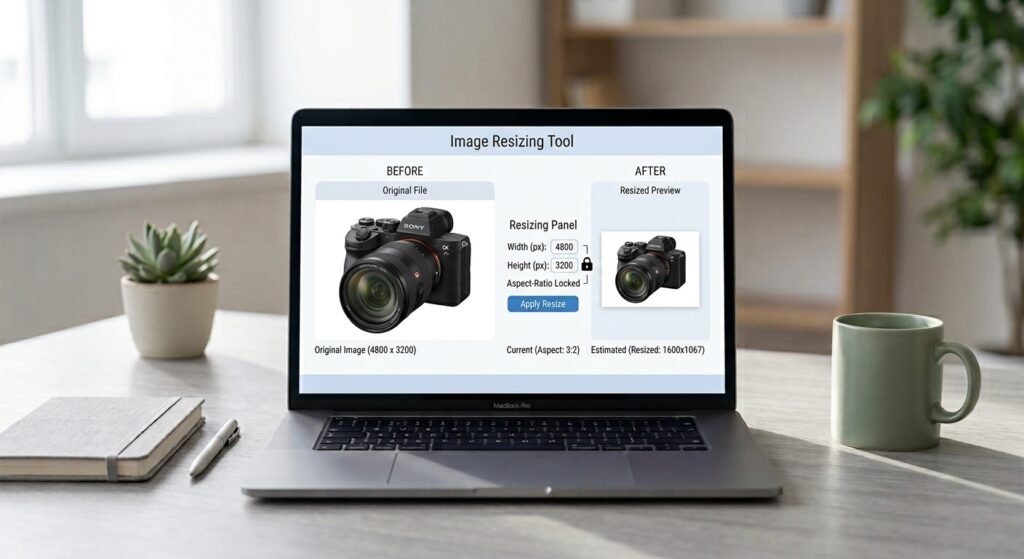
Lowering resolution (reducing pixel dimensions e.g., 4000×3000 down to 800×600)
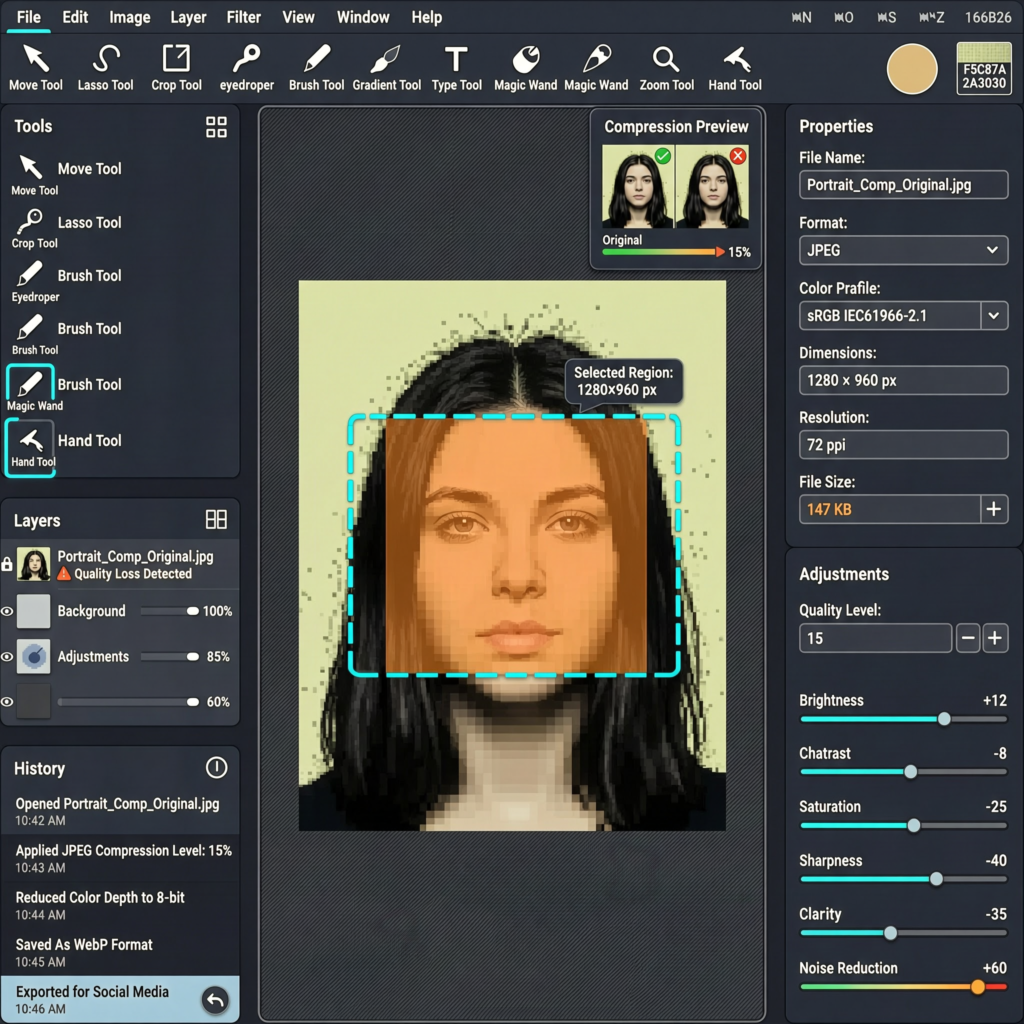
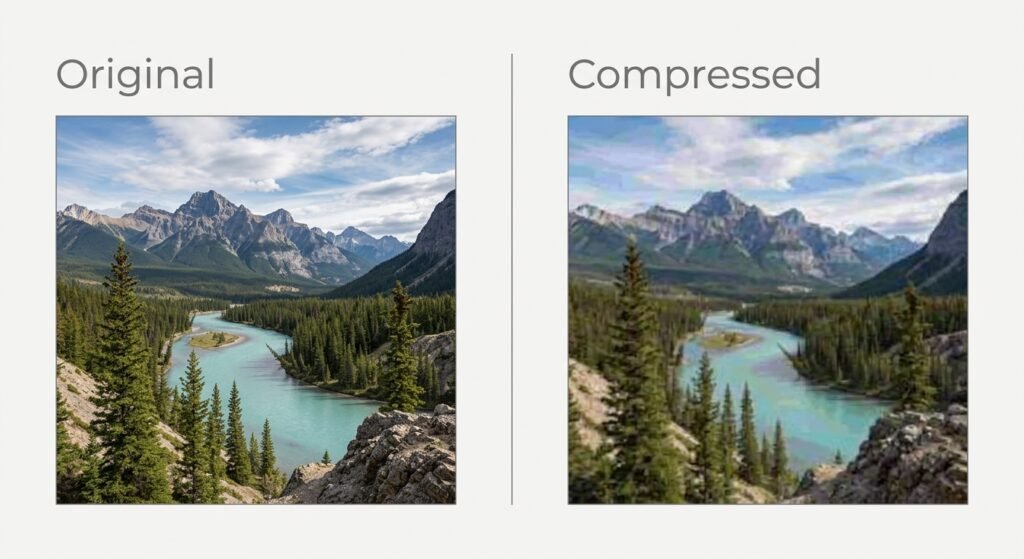
Increasing compression (higher JPEG compression ratio more visible artifacts)
Reducing bit depth or color palette (fewer colors banding effects)
Adding pixelation or blur filters for a stylized low-res look
Unlike a photo editor that focuses on enhancement a low quality image maker focuses on controlled degradation shrinking the file while keeping the image usable for its intended purpose.
Why Would Anyone Want Lower Image Quality?
It’s a fair question. Here are the most common legitimate reasons:
Web performance: Smaller images load faster which improves Core Web Vitals and user experience.
Storage and bandwidth limits: Forms email attachments and some CMS platforms cap file size.
Retro or vaporwave aesthetics: Pixelated low-fidelity visuals are a deliberate creative choice in design and social content.
Placeholder or draft assets: Designers often use low-res placeholders before final assets are ready.
Testing and QA: Developers test how apps or sites handle poor-quality or slow-loading images.
Best Free Low Quality Image Maker Tools
Below are widely used free tools that can reduce image quality quickly. None of these require design experience.
Tip: For batch jobs (multiple images at once) TinyPNG or Squoosh are the fastest options. For creative pixelation effects GIMP or Photopea give more control.
How to Use a Low Quality Image Maker (Step-by-Step)
Upload your original image to the tool of choice. Always keep a backup of the original file.
Choose a compression level or quality percentage. Most tools use a slider (e.g., 100% = original quality, 20% = heavily compressed).
Adjust resolution if needed. Reduce pixel dimensions for a smaller blurrier result.
Preview the result. Compare file size versus visible quality loss before exporting.
Export and download the new lower-quality image.
Test it in context on your website in an email or wherever it will be used to confirm it meets your size or aesthetic goal.
How to Make High Quality Images Instead
If you landed here needing the opposite result here’s how to make high quality images that look sharp and professional:
Start with the highest-resolution source available. You can’t add detail that isn’t there.
Use lossless or minimal compression (PNG or high-quality JPEG/WebP settings).
Avoid repeated re-saving, which compounds compression artifacts over time.
Use upscaling tools carefully. AI upscalers can improve resolution, but results vary depending on the original image.
Match the export format to the use case WebP for web speed without major quality loss, PNG for graphics with transparency, JPEG for photos.
For background-specific edits, image retouching, and export at full resolution a purpose-built platform like BGimageSnap simplifies this without needing separate compression and enhancement tools.
Common Mistakes to Avoid
Overwriting the original file. Once compressed heavily quality can’t be fully restored.
Compressing too aggressively for the use case. A blog thumbnail can handle more compression than a print-ready photo.
Ignoring format differences. PNG and JPEG compress very differently; using the wrong one wastes file size or quality.
Skipping a final preview before publishing or sending the image.
FAQ
1. What does a low quality image maker actually change in a file? It typically reduces pixel resolution increases compression or lowers color depth all of which shrink file size at the cost of visual detail.
2. Is lowering image quality the same as reducing file size? Not always. File size can also be reduced without visible quality loss using efficient formats like WebP or lossless compression.
3. Can I undo image compression later? No. Once detail is compressed away it can’t be fully recovered. Always keep the original file.
4. What’s the best format for small file size with decent quality? WebP generally offers smaller file sizes than JPEG or PNG at similar visual quality making it popular for web use.
5. Why would a business want a low quality image maker? Mainly for speed smaller images improve page load times which affects both user experience and search rankings.
6. Do these tools work on mobile? Most browser-based tools like Squoosh and TinyPNG work on mobile browsers though desktop offers more precise control.
7. How do I make high quality images if I only have a low-res source? Use an AI upscaling tool as a starting point but expect limitations no tool can perfectly reconstruct detail that was never captured.
Conclusion
Whether you need a low quality image maker for faster load times a stylized aesthetic or file-size limits the tools and steps above cover the most common scenarios. And if your actual goal is the reverse producing sharp high quality images the same principles of resolution compression and format choice apply just in the opposite direction.
Ready to edit or optimize your images the easy way? Try BGimageSnap for fast no-fuss image editing and export.
Resize Image Without Losing Quality Online Free: 7 Smart Methods That Actually Work.
Resize image without losing quality online free is exactly what most people search for after a photo comes out too large for a website too small for printing or the wrong dimensions for a marketplace listing. The frustration is always the same: you shrink or stretch the picture and suddenly it looks soft blocky, or washed out.
The good news is that you can resize image without losing quality online free using browser-based tools no Photoshop no subscription and no design experience needed. This beginner-friendly guide explains why quality loss happens which free tools avoid it and the exact steps to follow.
Every photo is a grid of tiny colored squares called pixels. When you change an image’s dimensions software has to add or remove pixels and how it does that determines whether your photo stays sharp.
Downscaling (making an image smaller) is usually safe. The tool merges existing pixels so detail is preserved and file size drops.
Upscaling (making an image bigger) is where problems appear. There is no extra detail hiding in the file so the software has to invent new pixels. Basic tools guess by copying nearby colors which creates blur and soft edges.
A second cause of quality loss is re-compression. Every time a JPG is saved again a little detail is discarded permanently. Resize once, save once that habit alone solves most quality complaints.
How to Resize Image Without Losing Quality Online Free
The general process is nearly identical across most free web tools. Here is the workflow that gives the best results:
Start with the original file. Never resize a version that has already been compressed cropped or screenshotted.
Open a trusted online resizer in your browser.
Upload your image by dragging it into the upload area.
Enter your target dimensions in pixels width height or a percentage.
Keep “maintain aspect ratio” or “lock proportions” enabled. This is the single most important setting.
Choose the output format. PNG for graphics and transparency JPG for photographs.
Preview the result at full size before downloading.
Download and check the image on the device or platform where it will actually appear.
Following these steps you can resize image without losing quality online free in under a minute per photo.
Best Free Online Tools for Resizing Images
Several browser-based tools handle resizing well without requiring payment or installation.
Squoosh deserves a special mention for beginners who care about quality. It shows the original and resized version side by side with a slider so you can see exactly what changes before downloading. It also lets you pick the resampling method Lanczos3 generally produces the sharpest results for photos.
Half of all quality problems come from picking the wrong target size. Resize once to the correct dimensions instead of guessing and redoing it.
Common reference points:
Website hero images: typically 1920 px wide
Blog featured images: commonly 1200 × 675 px
Social profile pictures: usually square 400 × 400 px or larger
Email attachments: aim to keep files under a few megabytes
Marketplace requirements vary by platform. Amazon, Etsy, Shopify, and eBay each publish their own image specifications, and these change over time. Always check the current guidelines on the platform’s official seller documentation rather than relying on numbers from a blog post.
Practical tip: Resize to the largest size you will actually display not larger. A 4000 px image squeezed into a 600 px slot wastes bandwidth and slows your page without looking any better.
How AI Upscaling Helps When Enlarging Photos
If you genuinely need a bigger image than your original traditional resizing will disappoint you. This is where AI upscaling comes in.
In simple terms: an AI upscaler has been trained on huge numbers of image pairs small versions and their sharp full-size counterparts. From that training it learns what realistic detail looks like: how skin texture behaves how fabric weaves how edges should stay crisp. When you feed it a small photo it predicts believable new detail instead of just blurring existing pixels outward.
What AI upscaling does well:
Recovering usable detail from moderately small photos
Keeping edges and text legible when enlarging
Reducing the soft mushy look of traditional enlargement
What it cannot do:
Restore detail that was never captured
Fix a heavily blurred or badly out-of-focus photo
Guarantee accuracy AI invents detail which matters for product photos where accuracy is a legal and trust issue
Beginner rule of thumb: upscaling roughly 2× usually looks convincing. Pushing to 4× or beyond often produces plastic-looking textures and strange artifacts.
Several free browser-based AI upscalers exist though free tiers usually limit resolution or the number of images per day.
Common Mistakes That Ruin Image Quality
Avoiding these five errors will fix most quality problems on its own.
Unlocking the aspect ratio. Entering both a width and a height that do not match the original proportions stretches or squashes the image. Set one dimension and let the tool calculate the other.
Resizing the same file repeatedly. Each save-and-resize cycle on a JPG destroys a little more detail. Always go back to the original and resize once.
Saving photos as PNG unnecessarily. PNG is lossless but for photographs it creates enormous files with no visible benefit. Use JPG for photos, PNG for logos, icons, and anything with transparency.
Enlarging a small image with a basic resizer. A 300 px image stretched to 1500 px will look soft no matter which free tool you use. Use AI upscaling or re-shoot the photo.
Skipping the preview. Always view the result at 100% zoom. Thumbnails hide blur artifacts and edge problems.
Resizing Product Photos for E-commerce
Product images have stricter demands than casual photos. Marketplaces expect consistent dimensions clean backgrounds and sharp detail and shoppers judge quality within seconds.
A reliable order of operations:
Edit first crop, adjust brightness, correct color.
Remove or replace the background to get a clean white or transparent backdrop.
Resize last to the exact dimensions the platform requires.
Compress only if the file is still too large after resizing.
Doing background removal before resizing matters because background tools work more accurately with more pixels to analyze. Resize at the end and you keep the cleanest possible edges.
If your catalog needs consistent white or transparent backgrounds alongside correct sizing BGImageSnap handles background removal in the browser so your product shots come out uniform and listing-ready. BGImageSnap background remover tool.
Keep a master copy. Store your originals in a separate folder and only ever work on duplicates.
Resize in one step. Going 4000 px → 2000 px → 1000 px loses more detail than going straight to 1000 px.
Apply light sharpening after downscaling. Shrinking softens edges slightly; a small sharpening pass restores crispness.
Match dimensions to the display slot. Serving a 3000 px image into a 400 px container helps nobody.
Batch similar images together. If you have twenty product shots at the same size use a tool with batch support to keep them perfectly consistent.
Test on mobile. Most traffic is mobile and quality issues often show differently on small high-density screens.
FAQs
Can I really resize image without losing quality online free? Yes when shrinking an image. Downscaling with a good tool preserves detail almost perfectly. Enlarging is different it always involves some quality trade-off unless you use AI upscaling.
Which free online tool gives the sharpest results? Squoosh is excellent because it shows a live before-and-after comparison and lets you choose the resampling method. For quick everyday resizing ILoveIMG is simpler and supports batches.
Does resizing reduce file size? Making an image smaller in pixel dimensions almost always reduces file size significantly. If you need to shrink the file further without changing dimensions use compression instead.
Should I use JPG or PNG after resizing? Use JPG for photographs smaller files no visible difference. Use PNG for logos, screenshots, line art, or anything requiring a transparent background.
Is it safe to upload photos to free online resizers? Reputable tools are fine for ordinary images. Squoosh processes files locally in your browser which is the safest option. For confidential or client-sensitive photos use offline software instead.
How do I resize an image to exact pixel dimensions without stretching it? Crop the image to the correct aspect ratio first then resize. Trying to force mismatched dimensions in one step is what causes distortion.
Can I resize several images at once for free? Yes. Tools like ILoveIMG support batch uploads which is the fastest way to make a full product catalog consistent.
Why does my resized image still look blurry? The three usual causes are enlarging beyond what the original supports resizing an already-compressed copy or a browser displaying the image at a size different from its actual dimensions.
Conclusion
You can absolutely resize image without losing quality online free the key is understanding that shrinking is safe enlarging needs AI help and every extra save cycle costs you detail. Start from the original file lock the aspect ratio resize once to the correct dimensions and preview at full size before you download.
For product photos remember the order: edit remove the background, resize, then compress. If your images also need clean white or transparent backgrounds try the BGImageSnap background remover to get consistent listing-ready results or browse our other image-editing guides for your next step.
AI Images: The Complete Guide to Free and Paid Tools for Creating Stunning Visuals.
AI images have changed the way individuals and businesses produce visual content. Instead of hiring a photographer or spending hours in Photoshop anyone can now type a short description and generate a finished image in seconds. Whether you need product photos for an online store illustrations for a blog or artwork for social media AI images make the process faster and far more accessible than traditional design work.
This guide explains what AI images are how they are generated which free and paid tools are worth using and how to edit and optimize your AI images once they are created. If you run an online store or a content-heavy website you will also find practical tips on preparing AI images for real-world use including background removal and resizing for different platforms.
What Are AI Images and Why People Search for Them
AI images are pictures created by artificial intelligence models rather than a camera or a human illustrator. A user types a text prompt describing what they want to see and the AI model interprets that description and generates a matching image. The technology behind this is called text-to-image generation and it relies on models trained on massive datasets of images and their descriptions.
Most people searching for ai images fall into a few groups. Some want to understand what the technology is and how it works. Others are looking for the best tools free or paid to generate images for a specific purpose such as marketing blogging or social media. A smaller group already has AI-generated images and needs help editing, resizing, or cleaning them up before publishing. This article is written to cover all three needs in one place.
How AI Image Generation Actually Works
Understanding the basic mechanics of AI images helps you get better results even if you never look at the underlying code. Most modern image generators use a method called diffusion where the model starts with random visual noise and gradually refines it into a coherent picture that matches your text prompt.
The Role of the Text Prompt
The prompt is the instruction you give the AI model. It typically includes the subject the style the setting the lighting and sometimes the camera angle or color palette. A vague prompt like “a dog” produces a generic result while a detailed prompt like “a golden retriever sitting on a wooden porch during golden hour shallow depth of field” gives the model far more to work with and usually produces a more accurate ai image.
Training Data and Style
AI image models learn patterns from enormous collections of images paired with text captions. This is why certain models are better at photorealism while others excel at illustration, anime, or 3D-rendered styles. Knowing which model matches the style you want will save you time and reduce the number of attempts needed to get a usable ai image.
Free Tools for Creating AI Images
Free tools are a good starting point if you are experimenting with ai images for the first time or working with a limited budget. Most free plans come with daily generation limits watermarks or lower resolution output but they are more than enough for learning the basics or producing casual content.
Bing Image Creator: Uses a version of the DALL-E model and is free with a Microsoft account making it an easy entry point for beginners.
Leonardo AI: Offers a generous free daily token allowance and is popular for game assets, concept art, and stylized illustrations.
Playground AI: Provides a free tier with a simple interface useful for quick social media graphics and experimentation.
Craiyon: A lightweight browser-based option that produces lower-resolution results but requires no account setup.
Stable Diffusion (self-hosted or via free community platforms): Open-source and highly customizable though it has a steeper learning curve for beginners.
Free tools are ideal for testing prompts learning what works and producing images for personal projects. For commercial use especially product photography or client work a paid tool usually delivers more consistent and higher-resolution results.
Paid Tools for Creating Professional AI Images
Paid ai image generators typically offer higher resolution output commercial usage rights faster generation speeds and more control over style and composition. If ai images will be part of your business, brand, or client deliverables a paid subscription is usually worth the investment.
Midjourney: Known for highly artistic polished results and a strong community; runs through Discord or its own web app.
OpenAI’s DALL-E (via ChatGPT Plus or the API): Strong at following detailed prompts and producing clean coherent compositions.
Adobe Firefly: Integrated directly into Photoshop and Adobe Express which makes it convenient for designers who already edit images in Adobe tools.
Canva’s AI image generator: Useful if you want to generate an image and immediately drop it into a template for social media or marketing materials.
When comparing paid plans look closely at the commercial license terms. Some subscriptions only grant personal use rights at the lowest tier while commercial rights require a higher plan. This matters if you plan to use ai images for products, advertising, or a business website.
Choosing the Right AI Image Tool for Your Needs
For E-commerce and Product Visuals
If you need ai images for product mockups, lifestyle shots, or marketing banners, prioritize tools with high-resolution output and commercial licensing. After generating the image, you will often need to remove the background so the product sits cleanly on a white or transparent background which is a common requirement for marketplaces like Amazon, Etsy, and Shopify stores.
For Blogs and Content Marketing
Bloggers usually need ai images that are fast to produce and easy to resize for featured images, social sharing, and in-article graphics. Free or mid-tier tools are often sufficient here since the goal is visual support for written content rather than a polished standalone artwork.
For Illustration and Concept Art
Artists and designers exploring ai images for concept work or illustration benefit from tools like Midjourney or Leonardo AI which offer strong stylistic control and the ability to fine-tune a consistent look across a series of images.
Editing and Optimizing Your AI Images After Generation
Generating the ai image is only the first step. Most images need some post-processing before they are ready to publish especially for e-commerce or web use. Common adjustments include cropping to the right aspect ratio compressing the file size for faster page loading and removing or replacing the background.
Removing Backgrounds from AI Images
AI-generated images often come with busy or inconsistent backgrounds that do not fit a clean product listing or a professional website. Removing the background and replacing it with a plain white or transparent one is one of the most common edits needed after generating an ai image.
This is where a free browser-based tool like BGImageSnap’s background remover becomes useful. You can upload your AI-generated image remove the background in a few seconds and download a clean transparent PNG ready for a product listing a logo or a marketing graphic — no software installation required.
Resizing and Compressing for the Web
Large AI-generated files can slow down a website if uploaded without compression. Resizing the ai image to the correct dimensions for its intended use whether that is a blog featured image a social media post or a product thumbnail keeps pages loading quickly and looking sharp on every device.
Tools such as BGImageSnap’s image resizer and compressor let you adjust dimensions and file size in the browser without losing noticeable quality which is especially helpful when you are publishing several ai images at once.
Common Mistakes When Working with AI Images
Using vague prompts and expecting a specific detailed result — always describe subject, style, lighting, and composition.
Ignoring commercial usage rights before publishing an ai image on a business website or product listing.
Skipping post-processing such as background cleanup or resizing before publishing the final image.
Uploading oversized image files that slow down page load time and hurt SEO performance.
Relying on a single tool for every style of image instead of matching the tool to the desired output such as photorealistic versus illustrated.
Step-by-Step: Creating and Preparing an AI Image for Your Website
Choose a tool that matches your desired style such as Midjourney for artistic results or DALL-E for precise prompt following.
Write a detailed prompt describing the subject, setting, lighting, and style you want the ai image to have.
Generate a few variations and select the closest match to your vision.
Remove or clean up the background if the image will be used for a product or a transparent graphic.
Resize the image to match the platform requirements such as a featured image size for a blog or a square format for social media.
Compress the file before uploading it to your website to keep page speed fast.
Add descriptive alt text to the image for accessibility and SEO.
Frequently Asked Questions About AI Images
What are AI images used for?
AI images are used for blog graphics social media content product mockups marketing materials concept art and personal creative projects. Businesses increasingly use ai images to reduce the cost and time involved in traditional photography and illustration.
Are AI images free to use commercially?
It depends on the tool and the plan you use. Many free tiers only grant personal use rights while commercial use often requires a paid subscription. Always check the specific license terms of the tool before using an ai image in a business or product context.
Which tool creates the most realistic AI images?
Photorealism varies by model and prompt but tools like Midjourney and DALL-E are widely used for their ability to produce detailed realistic-looking results when given a well-written prompt.
Can I edit an AI image after it is generated?
Yes. Most ai images benefit from post-processing such as background removal, cropping, resizing, and compression before they are published especially for e-commerce or web use.
How do I remove the background from an AI-generated image?
You can upload the image to a background removal tool and download the result with a transparent or white background in a few seconds without needing design software.
Why do some AI images look distorted or unrealistic?
Distortions often happen with complex details like hands text or overlapping objects which are historically difficult for AI models to render accurately. Using a more detailed prompt or generating multiple variations usually improves the result.
Do AI images count as original content for SEO?
Search engines generally treat properly optimized unique images as valid visual content provided they are relevant to the page and given descriptive file names and alt text. Always verify the licensing terms of the tool you used before publishing.
What is the difference between free and paid AI image tools?
Paid tools typically offer higher resolution faster generation more consistent quality commercial licensing and greater control over style and parameters. Free tools are suitable for learning, experimentation, and casual, non-commercial projects.
Conclusion
AI images have made high-quality visual content accessible to anyone regardless of design experience or budget. Whether you choose a free tool to experiment or a paid platform for professional results the key to a great ai image is a detailed prompt the right tool for your style and proper post-processing before publishing.
Gemini AI Photo Prompt: 30+ Best Ready to Use Prompts for Stunning Photos.
If you have ever wanted studio quality photos without hiring a photographer a good Gemini AI photo prompt is the fastest way to get there. Gemini can create brand new images from text or edit the photos you already have all based on the instructions you type.
With the right prompts you can:
Create new images from scratch
Edit and enhance existing photos
Change backgrounds instantly
Swap outfits and hairstyles
Build cinematic portraits
Make social media ready images
Restore and colorize old photos
This guide gives you 30+ original copy and paste Gemini AI photo prompts plus a simple formula step-by-step editing tutorial and beginner tips. Let’s dive in.
What Is a Gemini AI Photo Prompt?
A Gemini AI photo prompt is a text instruction you give to Google Gemini so it can generate or edit an image for you. Think of it as describing exactly what you want to see the subject style lighting and mood in plain words.
There are two main ways to use these prompts:
Generating a new image: You describe a scene and Gemini creates it from nothing. No photo needed.
Editing an existing photo: You upload a picture and tell Gemini what to change while keeping the rest intact.
Short example:
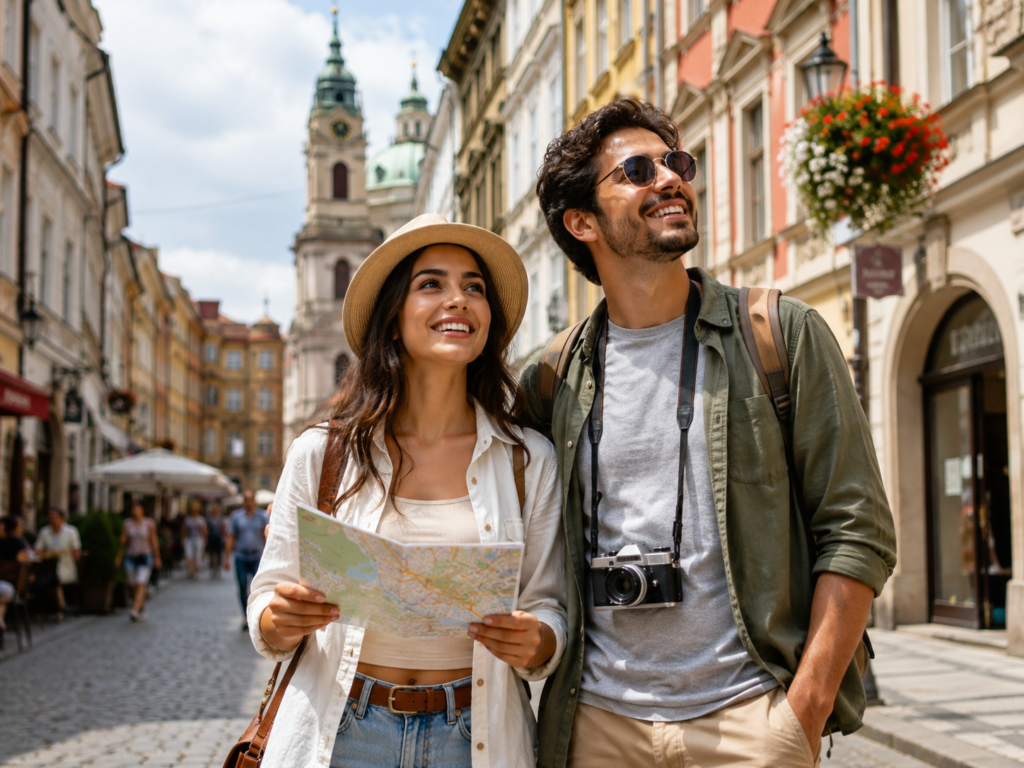
Create a travel photo of a couple exploring a scenic city street, casual outfits, smiling and looking around. Bright natural light, colorful urban background, candid and joyful mood, realistic and sharp detail.
The more clearly you describe your idea the better your result.
How Do Gemini AI Photo Prompts Work?
Using Gemini for photos is simple even if you have never tried AI image tools before. Here’s the basic process:
Open Gemini in your browser or the app.
Upload a photo if you want to edit an existing image. Skip this step if you’re creating something new.
Enter your prompt describing what you want.
Generate the image and review the result.
Refine the prompt if the output isn’t quite right add details or remove anything that confused the model.
The first result won’t always be perfect and that’s normal. Small tweaks to your wording usually make a big difference.
Lighting – golden hour, soft studio light, neon glow
Camera style – close up, portrait lens, wide shot
Mood – calm, dramatic, joyful, moody
Image quality – realistic, high detail, sharp
Composition – centered, rule of thirds, symmetrical
Aspect ratio – vertical for Instagram, square, landscape
Identity preservation – critical when editing a real person’s photo
Reusable Prompt Formula
Use this simple template whenever you edit a real photo:
Edit the uploaded photo. Keep [what should remain unchanged]. Change [what should be changed]. Add [style], [lighting], [background], [camera/composition], and [mood]. Keep the result realistic and natural.
Best Gemini AI Photo Prompts
Below are original, ready to copy prompts organized by category. Pick one, paste it into Gemini, and adjust the details to match your idea.
Gemini AI Prompts for Girls
Soft Glam Portrait Great for a polished, elegant look with flattering light.
Create a soft glam portrait of a young woman with subtle makeup, glowing skin, gentle smile, wearing a pastel outfit. Soft diffused lighting, blurred neutral background, portrait lens, warm and elegant mood, realistic and high detail.
Aesthetic Selfie Perfect for a clean, modern social feed.
Create an aesthetic selfie of a girl with natural makeup, casual outfit, holding the camera at a slight angle. Soft window light, minimal cozy room background, warm tones, candid and relaxed mood, realistic quality, vertical format.
Saree / Ethnic Portrait Ideal for festive or traditional posts.
Create an elegant portrait of a woman wearing a richly detailed saree with traditional jewelry. Soft golden lighting, decorative indoor background, graceful pose, cinematic warm tones, high detail and realistic finish, vertical composition.
Golden Hour Portrait For a warm, dreamy outdoor vibe.
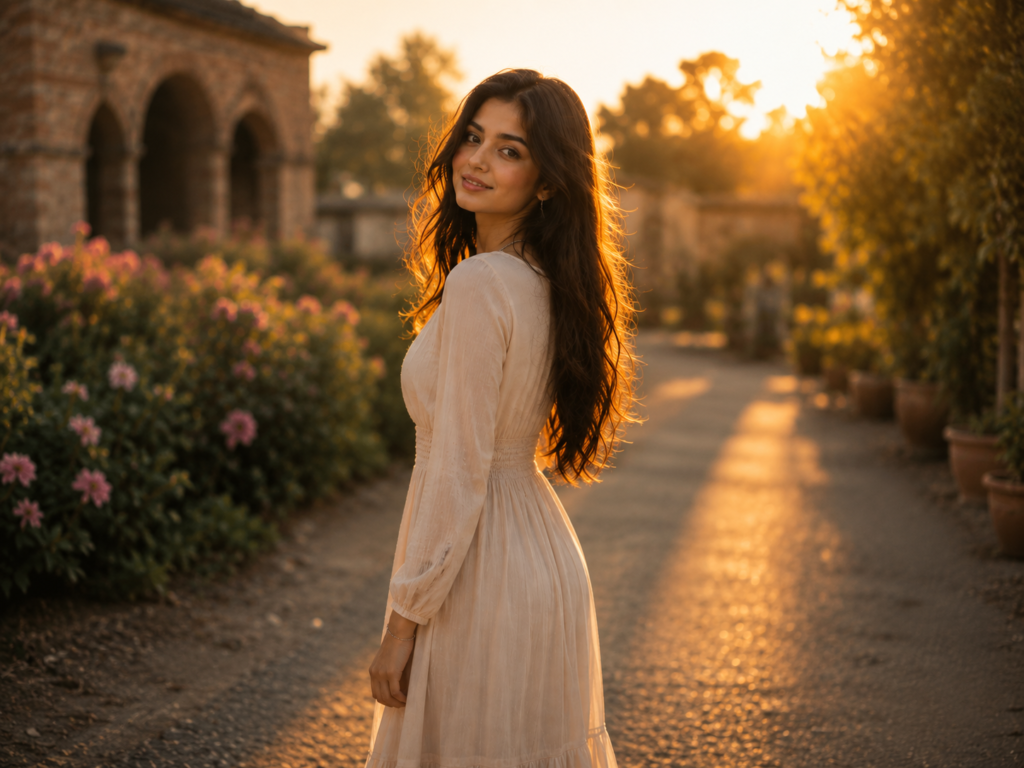
Create a golden hour portrait of a young woman standing outdoors with sunlight glowing behind her. Warm backlight, soft flare, casual summer outfit, shallow depth of field, calm and dreamy mood, realistic and detailed.
Instagram Profile Picture A clean, friendly headshot for your profile.
Create a clean Instagram profile picture of a girl smiling naturally, simple stylish outfit, soft even lighting, plain light background, centered composition, sharp and realistic, square format.
Café Portrait For a cozy, lifestyle feel.
Create a café portrait of a young woman sitting by a window with a coffee cup, wearing casual chic clothing. Soft daylight, warm cozy café background with gentle bokeh, relaxed candid mood, realistic and detailed.
Gemini AI Prompts for Boys
Cinematic Street Portrait For a bold, film like street look.
Create a cinematic street portrait of a young man in a stylish jacket, standing on a city street at dusk. Moody lighting, blurred city lights in the background, confident pose, film style color grading, realistic and high detail, vertical format.
Luxury Fashion Portrait For a high end editorial style.
Create a luxury fashion portrait of a man in a tailored suit, confident stance, premium studio setting. Dramatic directional lighting, clean dark background, sharp details, high fashion editorial mood, realistic quality.
Casual Café Portrait Relaxed and approachable.
Create a casual café portrait of a young man sitting with a coffee, wearing a simple t-shirt and jacket. Soft natural light, warm café background with bokeh, relaxed smile, candid and friendly mood, realistic and detailed.
Professional Headshot Perfect for LinkedIn or résumés.
Create a professional headshot of a man in business attire, neutral background, soft even lighting, confident and approachable expression, centered composition, sharp and realistic, suitable for a professional profile.
Black and White Portrait Timeless and dramatic.
Create a black and white portrait of a young man with strong facial features, dramatic side lighting, plain dark background, thoughtful expression, high contrast, fine detail, classic and timeless mood.
Gemini AI Couple Photo Prompts
Romantic Cinematic Couple For a movie poster feel.
Create a romantic cinematic portrait of a couple standing close together, soft warm lighting, gentle expressions. Blurred atmospheric background, film style color grading, intimate and warm mood, realistic and highly detailed.
Café Date Sweet and lifestyle focused.
Create a photo of a couple on a café date sitting across a small table with coffee cups. Soft daylight, cozy café background with bokeh, natural smiles, warm candid mood, realistic and detailed.
Sunset Couple Dreamy golden hour romance.
Create a sunset portrait of a couple holding hands on a beach with the sun low on the horizon. Warm golden backlight, soft flare, calm and romantic mood, shallow depth of field, realistic and cinematic.
Wedding Style Portrait Elegant and formal.
Create an elegant wedding style portrait of a couple in formal attire, soft romantic lighting, tasteful floral background, graceful poses, warm and joyful mood, high detail and realistic finish, vertical format.
Travel Couple Adventurous and vibrant.
Create a travel photo of a couple exploring a scenic city street, casual outfits, smiling and looking around. Bright natural light, colorful urban background, candid and joyful mood, realistic and sharp detail.
Gemini AI Selfie Prompts
Mirror Selfie Classic and trendy.
Create a mirror selfie of a person holding a phone, stylish casual outfit, clean modern room in the background. Soft natural light, relaxed pose, realistic detail, vertical format.
Luxury Selfie For an upscale, glossy look.
Create a luxury selfie of a person in an elegant outfit inside a stylish interior with premium decor. Soft flattering light, glossy high end mood, sharp details, realistic quality, vertical composition.
Clean Aesthetic Selfie Minimal and modern.
Create a clean aesthetic selfie with minimal background, neutral tones, soft even lighting, natural makeup, calm expression, sharp and realistic, vertical format.
Soft Light Selfie Flattering and gentle.
Create a soft light selfie taken near a window, warm gentle daylight on the face, cozy background with subtle blur, relaxed natural expression, realistic and detailed.
Travel Selfie Fun and location focused.
Create a travel selfie with a scenic landmark visible in the background, casual outfit, bright natural light, cheerful expression, candid mood, realistic and sharp, vertical format.
Cinematic Gemini AI Photo Prompts
Movie Style Portrait For dramatic, film like results.
Create a movie style portrait with cinematic color grading, dramatic lighting, shallow depth of field, atmospheric background, intense expression, high detail and realistic finish, widescreen composition.
Neon City Bold and futuristic.
Create a portrait of a person standing in a neon lit city street at night, colorful reflections on wet pavement, glowing signs in the background, moody cyberpunk mood, cinematic and realistic detail.
Rainy Street Moody and atmospheric.
Create a cinematic photo of a person walking on a rainy street holding an umbrella, soft reflections, muted cool tones, atmospheric fog, thoughtful mood, realistic and detailed.
Golden Hour Cinematic Scene Warm and film like.
Create a cinematic golden hour scene of a person outdoors bathed in warm sunlight, soft flare, film style color grading, calm and reflective mood, shallow depth of field, realistic quality.
Moody Studio Portrait Dark, artistic, and dramatic.
Create a moody studio portrait with dramatic single source lighting, deep shadows, dark background, intense expression, high contrast, fine detail, artistic and realistic finish.
Gemini AI Photo Editing Prompts
Background Replacement Swap any background instantly.
Edit the uploaded photo. Keep the person and their outfit exactly the same. Replace the background with a clean modern studio backdrop. Match the lighting naturally and keep the result realistic.
Outfit Change Try a new look without a photoshoot.
Edit the uploaded photo. Keep the person's face, pose, and body unchanged. Change the outfit to a tailored formal suit. Match the lighting and keep the edit realistic and natural.
Hairstyle Change Preview a fresh hairstyle.
Edit the uploaded photo. Keep the face and expression unchanged. Change the hairstyle to a modern shoulder length cut. Blend it naturally with the lighting and keep the result realistic.
Lighting Improvement Fix dull or flat photos.
Edit the uploaded photo. Keep everything unchanged but improve the lighting to soft, flattering, well balanced light. Enhance clarity without over processing. Keep the result natural and realistic.
Photo Enhancement General cleanup and sharpening.
Edit the uploaded photo. Keep the subject and composition unchanged. Enhance sharpness, colors, and overall clarity. Remove noise and keep the result clean and realistic.
Professional Headshot Edit Turn a casual photo into a headshot.
Edit the uploaded photo. Keep the person's face and identity unchanged. Convert it into a professional headshot with business attire, neutral background, and soft even lighting. Keep it realistic and natural.
Old Photo Restoration Prompts
Restore Damaged Photo Bring old memories back to life.
Edit the uploaded old photo. Repair visible damage, reduce fading, and restore lost detail while keeping the original faces and features accurate. Keep the result natural and realistic.
Colorize Black and White Photo Add lifelike color.
Edit the uploaded black and white photo. Add realistic, natural colors to skin tones, clothing, and background. Preserve the original faces and details. Keep the result authentic and realistic.
Remove Scratches Clean up surface damage.
Edit the uploaded photo. Remove scratches, spots, and creases while keeping the original faces and details intact. Keep the restoration subtle and realistic.
Improve Blurry Photo Sharpen soft or unclear images.
Edit the uploaded blurry photo. Improve sharpness and clarity while keeping the faces and features accurate. Avoid over processing and keep the result natural.
Enhance Old Family Photo Refresh a treasured memory.
Edit the uploaded old family photo. Restore detail, correct fading, and gently enhance clarity while preserving everyone's original faces and expressions. Keep the result warm and realistic.
Viral / Trending Gemini AI Photo Ideas
These creative concepts work well for eye catching, shareable posts.
Double Exposure Portrait
Create a double exposure portrait blending a person's silhouette with a scenic landscape inside the outline. Artistic tones, smooth transitions, creative and realistic detail, vertical format.
Miniature World Effect
Create a tilt shift style photo that makes a real city scene look like a tiny miniature model. Bright saturated colors, shallow focus, playful and creative mood, realistic detail.
Vintage Film Look
Create a portrait with a vintage film look, warm faded tones, subtle grain, retro styling, nostalgic mood, realistic and detailed, vertical format.
Reflection Shot
Create a creative portrait using a reflection in water or glass, symmetrical composition, soft lighting, artistic and moody feel, realistic and detailed.
How to Edit Your Own Photo With Gemini AI
Editing your own photo is easier than it sounds. Follow these steps:
Upload your photo to Gemini.
Tell Gemini what to keep unchanged usually the face, identity, and expression.
Explain what to modify background, outfit, lighting, or hairstyle.
Add the style you want (cinematic, clean, natural).
Describe the lighting and background you’d like.
Complete example:
Edit the uploaded photo. Keep my face, expression, and identity exactly the same. Change my outfit to a smart navy blazer. Replace the background with a soft blurred office setting. Add clean professional lighting and a natural, realistic finish suitable for a LinkedIn profile.
If the result isn’t perfect, adjust one detail at a time and generate again.
Gemini AI Photo Prompt Formula
Use this fill in the blank structure to build any prompt quickly:
Edit/Create – Are you making a new image or editing one?
Subject – Who or what is in the photo.
Appearance – Clothing, hairstyle, expression.
Pose – What the subject is doing.
Background – The setting or location.
Lighting – Type and direction of light.
Style – Cinematic, clean, vintage, editorial.
Camera – Close up, portrait, wide shot.
Mood – The emotion or atmosphere.
Quality – Realistic, high detail, sharp.
Restrictions – What must stay the same (like your face).
Tips for Getting Better Results
Use a clear source photo with good lighting when editing.
Be specific about what you want.
State what must NOT change, especially the face.
Describe lighting clearly for a natural finish.
Specify the background you want.
Avoid conflicting instructions that confuse the model.
Generate and refine expect a couple of tries.
Use realistic details to keep results believable.
Mention aspect ratio (vertical, square, landscape) when it matters.
Common Mistakes to Avoid
Vague prompts like “make it nice” give weak results.
Too many conflicting instructions confuse the output.
Forgetting to preserve identity when editing a real person.
Over editing faces, which looks unnatural.
Not specifying a style, leaving the result generic.
Expecting perfection in one try refining is part of the process.
Gemini AI Photo Prompts for Different Uses
Here’s a practical prompt for each popular use case.
Instagram
Create a vertical aesthetic portrait with soft natural light, stylish outfit, minimal background, and warm tones, perfect for an Instagram feed. Realistic and sharp.
Facebook
Create a friendly, well lit portrait with a natural smile and clean background, suitable for a Facebook profile picture. Realistic and balanced.
TikTok
Create a vibrant vertical portrait with bold lighting, trendy outfit, and a dynamic background, ideal for eye catching TikTok content. Realistic and detailed.
LinkedIn
Create a professional headshot in business attire, neutral background, soft even lighting, confident expression, centered composition, sharp and realistic.
Dating / Profile Photos
Create a natural, approachable portrait with a genuine smile, soft daylight, and a simple pleasant background, ideal for a dating profile. Realistic and flattering.
E-commerce / Product Photos
Create a clean product photo on a plain white background with soft even lighting, sharp focus, and accurate colors, suitable for an online store.
Personal Portraits
Create a warm personal portrait with soft lighting, natural expression, and a cozy background, realistic and detailed.
Birthday Photos
Create a cheerful birthday portrait with festive decorations, warm lighting, joyful expression, and a celebratory background. Realistic and vibrant.
Travel Photos
Create a travel portrait with a scenic backdrop, bright natural light, casual outfit, and a happy candid mood. Realistic and sharp, vertical format.
FAQ
What is a Gemini AI photo prompt? It’s a text instruction you give Gemini to create a new image or edit an existing one. The prompt describes the subject, style, lighting, and mood you want.
How do I use a Gemini AI photo prompt? Open Gemini, upload a photo if you’re editing, paste your prompt, and generate the image. Refine your wording if the first result isn’t right.
Can Gemini edit my existing photo? Yes. Upload your photo and tell Gemini what to keep and what to change, such as the background, outfit, or lighting.
What is the best prompt for Gemini AI photos? The best prompts are specific and include the subject, background, lighting, style, and mood. Use the formula in this guide for consistent results.
How do I make realistic photos with Gemini? Add words like “realistic,” “natural lighting,” and “high detail,” and avoid over editing. A clear source photo also helps a lot.
Can Gemini change clothes in a photo? Yes. Ask it to keep the face and pose unchanged while swapping the outfit, and specify the new clothing style.
Can Gemini change a photo background? Absolutely. Tell Gemini to keep the subject the same and replace the background with your desired setting, matching the lighting naturally.
Can Gemini restore old photos? Yes. It can repair damage, remove scratches, colorize black and white images, and enhance faded or blurry old photos.
How do I keep my face unchanged in an AI edit? Include a clear instruction like “keep my face, expression, and identity exactly the same” in your prompt.
Why does my Gemini photo look unrealistic? This usually happens from vague prompts, over editing, or conflicting instructions. Add realistic details and refine your prompt step by step.
Conclusion
A well written Gemini AI photo promptgives you the power to create striking portraits, edit your photos, swap backgrounds and outfits, and even restore old memories all without special software or a professional studio.
The secret is simple: be specific, describe the details, and refine as you go. Start with one prompt from this guide, then customize the subject, lighting, and style to match your vision.
Ready to create something amazing? Pick a prompt above, paste it into Gemini, and start experimenting with your own AI photo ideas today.
Best Photo Application for iPhone in 2026: The Complete Photo Editing Guide.
Your iPhone camera captures a great photo. Whatever app you open next decides whether that photo actually looks good. That gap between what the camera captures and what your feed, website, or client sees is where photo editing on iPhone matters most.
Choosing the right photo application for iPhone can feel harder than it should be. The App Store lists dozens of editors each promising AI powered results and the differences between them (RAW support, subscription traps, export limits) aren’t always obvious until you’ve already downloaded five of them.
This guide breaks down the best photo editing apps for iPhone in 2026 how to choose between free and paid tools a step-by-step editing workflow and the mistakes that make edits look worse instead of better. By the end you’ll know exactly which app fits your workflow and how to get professional looking results without a steep learning curve.
Table of Contents
Quick Answer / Key Takeaways
What Makes a Good Photo Editing App for iPhone
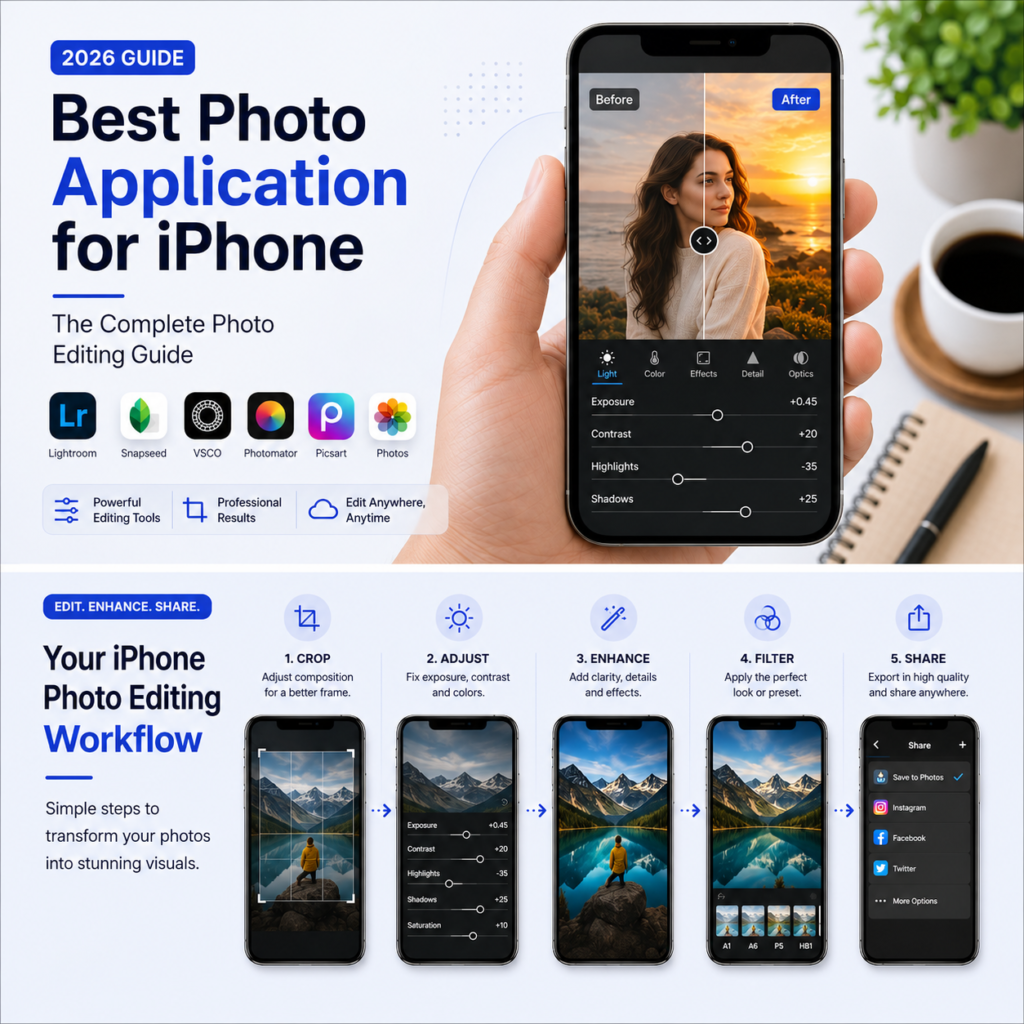
Best Photo Editing Apps for iPhone in 2026 (Comparison)
Free vs. Paid Photo Editing Apps
How to Edit Photos on iPhone: Step-by-Step
Common Photo Editing Mistakes to Avoid
Tips for Better iPhone Photo Edits
Visual Opportunities
FAQ
Conclusion
Quick Answer / Key Takeaways
There’s no single “best” photo application for iPhone the right choice depends on whether you want quick filters professional RAW editing or design style graphics.
Adobe Lightroom Mobile is the strongest all around pick for photographers who want non destructive editing and cloud sync across devices.
Snapseed remains the best completely free option for detailed manual adjustments with no subscription.
Apple’s built in Photos app is enough for quick crops, filters, and light corrections without installing anything.
For background removal, resizing, compressing, or converting photo formats before or after editing free browser based tools can save you an extra app download.
Good editing starts with good habits shoot in good light, edit in moderation, and always keep an unedited backup of your original photo.
What Makes a Good Photo Editing App for iPhone
Before comparing specific apps it helps to know what actually separates a good photo editing app from a mediocre one. Look for these core qualities:
Non destructive editing your original photo stays untouched so you can always undo or re-edit later.
Selective adjustments the ability to edit specific areas (a face, sky, or background) rather than the whole image at once.
RAW file support important if you shoot in ProRAW on newer iPhone models and want full control over exposure and color.
Export quality and limits – some free apps cap resolution add watermarks or limit daily saves.
Learning curve a tool with more sliders isn’t better if you never learn to use them match the app to your skill level.
Sync across devices useful if you start an edit on your iPhone and want to finish it on an iPad or Mac.
Best Photo Editing Apps for iPhone in 2026
Here’s how the most widely recommended photo editing apps for iPhone compare across cost, platform support, and standout features.
Comparison of leading photo editing apps for iPhone based on published pricing and feature information as of 2026.
Adobe Lightroom Mobile Best for Professional Control
Lightroom Mobile is the standard choice for photographers who want precise color grading, masking tools, and non destructive RAW editing with cloud sync across devices. It has a steeper learning curve than simpler apps but the depth of control is unmatched among mobile editors.
Snapseed (Best Free Option)
Snapseed is developed by Google and remains completely free with no subscriptions or ads. Its selective adjustment tool known as U Points lets you brighten, darken, or recolor specific areas of a photo in a few taps a feature usually locked behind paid plans in other apps. It’s a strong pick if you want manual control without paying for it.
Photomator (Best for Apple Ecosystem Users)
Built by the Pixelmator team (now part of Apple) Photomator runs across iPhone, iPad, Mac, and Vision Pro under a single license including a one time lifetime purchase option for people who prefer to avoid subscriptions.
VSCO (Best for Cohesive, Film Style Aesthetics)
VSCO is built around film inspired presets and a consistent visual style making it popular with creators who want their photos to look cohesive across a feed rather than individually edited.
Apple Photos ( Best for Quick, No Install Edits)
The Photos app already on your iPhone covers crop exposure color and basic filters. For everyday adjustments before sharing a photo it’s often all you need.
Picsart (Best for Creative, Design Style Edits)
Picsart leans toward graphic design style editing collages, backgrounds, and templates rather than traditional photo adjustments, making it a good fit for social media graphics rather than pure photography.
Free vs Paid Photo Editing Apps
Photo Editing Apps for iPhone Free apps cover most everyday editing needs. Paid apps become worth it once you need more control higher resolution exports or a workflow across multiple devices.
Free Photo Editing Apps
Paid Photo Editing Apps
Cost
$0 to start some in app purchases
$0–$15/month or a one time license
Editing depth
Good for everyday touch ups and filters
Full manual control, RAW support, layers
Export limits
Some apps cap daily saves or add watermarks
Usually unlimited, watermark free exports
Best for
Casual users, social media posts
Content creators, photographers, small businesses
Table: General differences between free and paid photo editing tiers. Exact pricing and limits vary by app and change over time always confirm current details on the app’s official page before subscribing.
How to Edit Photos on iPhone: Step-by-Step
Whichever photo application for iPhone you choose this general workflow applies across most editors:
Start with the best possible original check lighting and framing before you shoot since editing can’t fully fix a blurry or badly exposed photo.
Crop and straighten first so later adjustments apply to the final composition instead of parts you’ll cut out.
Fix exposure and white balance to correct brightness and color temperature before touching creative filters.
Adjust contrast and color selectively using local adjustment tools where available instead of applying one filter to the whole image.
Remove distractions such as photobombers dust spots, or a busy background using a healing brush or background removal tool.
Sharpen and export at the resolution you actually need oversharpening or over compressing can undo earlier work.
Save a copy of the original unedited photo before exporting so you can always start over if a later edit doesn’t work out.
Common Photo Editing Mistakes to Avoid
Over saturating colors until skin tones and skies look artificial.
Applying heavy filters to every photo instead of adjusting each image on its own merits.
Skipping the crop and straighten step then trying to fix composition with filters.
Exporting at a lower resolution than the platform requires which causes blurry uploads.
Editing on a screen at low brightness which leads to over brightening photos that look washed out elsewhere.
Not comparing before and after side by side which makes it easy to over edit without noticing.
Tips for Better iPhone Photo Edits
Edit in natural light when possible screen glare changes how colors and brightness appear.
Make small adjustments and check the result before making another edits compound quickly.
Use presets as a starting point not a finished result fine tune settings for each photo.
If you’re preparing photos for a website ID document, or online store, resize and compress after editing so file sizes stay web friendly without losing visible quality.
Keep a consistent editing style across a set of photos if they’ll be viewed together such as a product gallery or social feed.
Visual Opportunities
To strengthen this article further consider adding:
A before and after slider image showing a raw iPhone photo next to an edited version.
A simple infographic summarizing the step-by-step editing workflow above.
Screenshots of the selective adjustment tools mentioned (for example, Snapseed’s U Points) once you have permission or your own screenshots to use.
FAQ
What is the best free photo application for iPhone?
Snapseed is widely regarded as the best free photo editing app for iPhone because it offers detailed manual controls including selective adjustments with no subscription or watermark.
Does the iPhone already have a good photo editing app built in?
Yes. The built in Photos app supports cropping exposure and color adjustments, filters, and basic markup, which covers most everyday editing needs without installing anything extra.
Which photo editing app is best for professionals?
Adobe Lightroom Mobile is the most commonly recommended option for professional level control offering non destructive RAW editing, precise masking, and cloud sync across devices.
Is it better to use a free or paid photo editing app?
It depends on your needs. Free apps handle everyday touch ups well while paid apps are worth it if you need higher resolution exports, advanced tools like layers or masking, or a workflow that syncs across multiple devices.
Can I edit RAW or ProRAW photos on an iPhone?
Yes, apps such as Adobe Lightroom Mobile and Photomator support RAW and ProRAW files giving you more flexibility to adjust exposure and color than editing a standard JPEG.
How do I remove the background from a photo taken on my iPhone?
Some editing apps include a background removal or object removal tool. If your app doesn’t a free browser based background remover can isolate the subject without needing extra software.
Why do my edited photos look blurry after uploading them online?
This usually happens when a photo is exported at a lower resolution than the platform requires or compressed too heavily. Resizing and compressing correctly after editing helps keep photos sharp online.
Conclusion
The right photo application for iPhone depends on what you’re trying to achieve. If you want fast no cost edits Apple’s built in Photos app or Snapseed will cover most everyday needs. If you’re building a consistent aesthetic, editing professionally, or working across multiple devices Lightroom Mobile or Photomator are worth the investment. Whichever app you choose the fundamentals matter more than the software: start with a good original edit with restraint and keep your file sizes appropriate for where the photo is going.
Keep exploring: browse more free photo editing guides and tools on BGImageSnap. → Read More Guide
1920×1080 White Solid Background: The Complete Guide to Getting the Perfect Plain White Image.
A plain white background sounds simple until you actually need one that is the exact size the exact shade of white and free of the faint gray tint or JPEG noise that shows up the moment you zoom in. Search “1920×1080 white solid” and you’ll find a mix of stock photo sites forum threads and tools that don’t quite give you a clean ready-to-use file.
This guide covers what a 1920×1080 white solid background actually is why that resolution is the default for so many screens and templates and the different ways to get one whether you want to download a ready-made file create one from scratch in design software or turn an existing photo into a clean white-background image.
You’ll also find a comparison of white versus off-white versus transparent backgrounds the most common mistakes people make when creating them and a short FAQ covering the questions that come up most often.
Table of Contents
What Is a 1920×1080 White Solid Background?
Why 1920×1080 Is the Standard Resolution
Common Uses for White Solid Backgrounds
How to Create a 1920×1080 White Solid Background
White vs. Off-White vs. Transparent Backgrounds
Common Mistakes to Avoid
Best Practices for a Clean White Background
Frequently Asked Questions
Quick Answer: Key Takeaways
1920×1080 is a 16:9 widescreen resolution (Full HD) the same aspect ratio used by most laptop screens YouTube videos and presentation templates.
A “white solid” background means every pixel in the image is the same pure white value (typically hex #FFFFFF) with no gradient, texture, or shadow.
The fastest way to get one is to generate it directly in an image editor or online tool rather than searching stock sites since a generated file has no compression artifacts.
For product photos or portraits it’s usually easier to remove the existi
ng background and replace it with solid white than to start from a blank canvas.
Pure white (#FFFFFF) can look harsh in photography; many professionals use an off-white (#F8F8F8 or similar) that still reads as “white” but is gentler on the eyes.
File format matters: PNG preserves a perfectly flat white with no compression noise while JPEG can introduce faint blotches at high compression.
For print use check whether you need RGB or CMYK color mode a screen-perfect white can shift slightly when printed.
What Is a 1920×1080 White Solid Background?
A 1920×1080 white solid background is an image exactly 1,920 pixels wide by 1,080 pixels tall filled entirely with a single uniform white color. There’s no gradient no vignette no texture just one flat color across every pixel. It’s the digital equivalent of a blank sheet of white paper sized to match a standard widescreen display.
The “1920×1080” part refers to the resolution commonly called Full HD or 1080p. The “white solid” part refers to the content: a single flat color rather than a photo pattern or gradient. Together the two describe one of the most requested background specs online used everywhere from video editing to online forms.
Why 1920×1080 Is the Standard Resolution
1920×1080 became the default resolution for a simple reason: it matches the 16:9 aspect ratio that most laptop screens monitors, TVs, and video platforms settled on over a decade ago. Because so much hardware and software is built around this ratio, a background sized to 1920×1080 will fit cleanly as a desktop wallpaper a Zoom or Teams virtual background a YouTube thumbnail canvas or a slide in PowerPoint and Google Slides without cropping or stretching.
Using a different resolution isn’t wrong but it usually means the image gets automatically resized or cropped by whatever platform you’re uploading it to which can introduce blur or cut off content near the edges. Starting at 1920×1080 avoids that problem for most common uses.
Common Uses for White Solid Backgrounds
A plain white background is one of the most versatile assets in digital work. Here are the situations where it comes up most often.
Product Photography and E-Commerce Listings
Most online marketplaces including Amazon and Etsy require or strongly recommend a pure white background for the main product image. It keeps the focus entirely on the product and creates visual consistency across a whole catalog.
ID Photos, Passport Photos, and Official Documents
Passport, visa, and ID photo requirements almost always specify a plain white or off-white background so the applicant’s face and outline are clearly separated from the surroundings. This is one of the strictest use cases even a light shadow behind the subject can cause a photo to be rejected.
Video Calls and Virtual Backgrounds
A solid white background works well as a virtual background for Zoom, Google Meet, or Teams calls when someone wants a clean distraction-free look without a busy room behind them.
YouTube Thumbnails, Presentations, and Templates
Designers frequently start a thumbnail or slide with a flat white canvas at 1920×1080 because it’s easy to layer text icons and graphics on top without background clutter competing for attention.
Print Materials
Flyers, business cards, and posters often use white as the base layer before print-ready color adjustments are applied since most printed materials start from a white substrate anyway.
How to Create a 1920×1080 White Solid Background
There are three practical ways to get this file depending on whether you’re starting from scratch or working with an existing photo.
Method 1: Generate a Blank Canvas with an Online Tool
This is the fastest option if you just need an empty white rectangle at the right size.
Open a browser-based image tool that lets you set a custom canvas size.
Enter 1920 for width and 1080 for height in pixels.
Set the fill or background color to pure white (#FFFFFF) or an off-white shade if you prefer a softer tone.
Export as PNG to avoid compression artifacts or JPEG at maximum quality if file size matters more.
Create a new document and set the dimensions to 1920 x 1080 px.
Set the resolution to 72 DPI for screen use or 300 DPI if the file will be printed.
Fill the entire background layer with white then flatten the image before exporting.
Double-check there’s no drop shadow, border, or subtle gradient left over from a template.
Method 3: Remove the Background from an Existing Photo
If you already have a photo of a product, person, or object and want it isolated on solid white rather than starting from a blank canvas the quicker route is to remove the existing background from the photo and replace it with solid white. This is the standard workflow for product listings and ID photos since it keeps the subject but swaps out whatever was originally behind them.
White vs. Off-White vs. Transparent Backgrounds
“White” isn’t always the right choice. Depending on where the image will be used an off-white tone or a transparent background may work better.
Can look harsh or clinical in photography; shows dust and lens flare easily
Off-white (#F5F5F5–#FAFAFA)
Professional photography, portraits, brand imagery
May be rejected by platforms that require exact pure white
Transparent (PNG with alpha)
Layering over other designs, logos, overlays
Not accepted for ID photos or most marketplace listings; needs a PNG or WebP file not JPEG
Common Mistakes to Avoid
Using a JPEG at low quality: Heavy JPEG compression introduces faint gray blotches on flat white areas that are invisible until you zoom in use PNG for a perfectly flat background or JPEG at maximum quality only.
Leaving a soft shadow or vignette: Many photo templates add a subtle drop shadow around the edges by default. On a true “solid” background this needs to be removed or flattened out.
Mismatched color mode: A background that looks pure white in RGB on screen can print with a faint tint if it isn’t converted to CMYK correctly for physical materials.
Wrong aspect ratio for the platform: 1920×1080 fits 16:9 uses well but a passport photo or Instagram post has its own required dimensions always check the exact spec before exporting.
Skipping a final zoom-in check: Compression artifacts and stray pixels are often only visible at 100% zoom or higher so it’s worth checking before publishing or submitting the file.
Best Practices for a Clean White Background
Export as PNG whenever the background needs to stay perfectly flat with no compression noise.
Use pure white (#FFFFFF) for official/ID uses and a slightly off-white tone for photography that will be viewed on screen for long periods.
Keep a master file at 1920×1080 and resize down for smaller platforms rather than resizing up which causes blur.
If you’re isolating a subject from a photo check the edges closely stray pixels of the old background are the most common giveaway of a rushed edit.
Save a transparent PNG version alongside the solid white version if you might need to place the subject on a different background later.
Frequently Asked Questions
What size is 1920×1080 in inches?
At 72 DPI (standard screen resolution) 1920×1080 pixels works out to roughly 26.7 x 15 inches. For print it’s typically scaled down and reworked at 300 DPI instead since 1920×1080 alone is too low-resolution for large-format printing.
Is #FFFFFF the only correct white for a background?
No. #FFFFFF is pure white and is often required for ID photos and marketplace listings but many designers use a very light off-white (around #F8F8F8) for photography and branding because it’s softer on the eyes while still reading as “white” to most viewers.
Can I use a 1920×1080 white background as a Zoom virtual background?
Yes. Most video call platforms accept a plain image at this resolution as a custom virtual background and 1920×1080 matches the aspect ratio most webcams and screens use by default.
What’s the difference between a solid white and a transparent background?
A solid white background fills every pixel with white and works in any file format including JPEG. A transparent background has no fill at all in the empty areas and requires a format that supports transparency such as PNG or WebP it’s used when you plan to place the subject over a different background later.
Do I need special software to create a white background, or can I use a free online tool?
A free browser-based tool is usually enough for a plain white canvas or for removing a background from an existing photo. Design software like Photoshop or GIMP is more useful when you need finer control such as custom color modes for print.
Why does my white background look gray or blotchy after saving?
This is almost always JPEG compression. Flat colors like solid white are especially prone to visible compression artifacts at lower quality settings. Re-exporting as PNG or as JPEG at maximum quality usually fixes it.
Conclusion
A 1920×1080 white solid background is a simple asset with a specific set of requirements: the right pixel dimensions a truly flat and uniform color and a file format that won’t introduce compression noise. Whether you’re building one from a blank canvas for a presentation or stripping the background out of an existing product photo the fastest path is usually a purpose-built online tool rather than manually editing pixel by pixel.
Don’t Stop Here! Discover More Expert Tips & Guides
How to Fix Grainy Photos: The Complete 2026 Fix-It Guide.
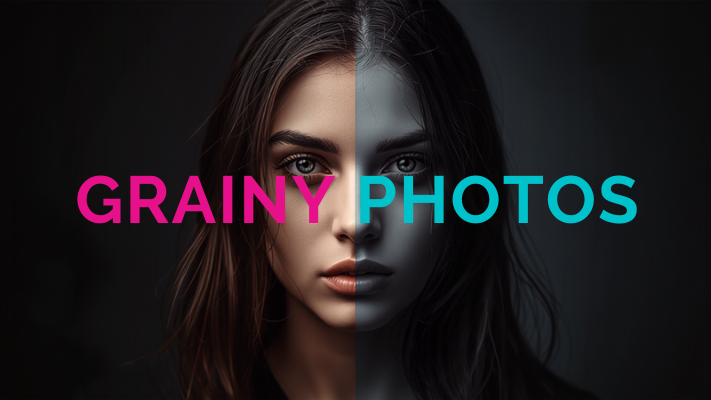
You finally got the shot. The lighting felt right the moment was perfect and then you zoomed in and saw it: a speckled sandpaper-like texture covering the whole image. That’s photo grain and it’s one of the most common complaints photographers parents and everyday phone users search for a fix to.
The good news is that grainy photos are almost always fixable or at least noticeably improved without buying expensive gear. This guide walks through exactly how to fix grainy photos using your phone desktop software and free online tools plus how to stop the problem before it starts.
Table of Contents
1. What Causes Grainy Photos?
2. How to Fix Grainy Photos on Your Phone
3. How to Fix Grainy Photos in Lightroom
4. How to Fix Grainy Photos in Photoshop
5. Free Online Tools to Fix Grainy Photos
6. Best AI Tools to Fix Grainy Photos in 2026
7. How to Prevent Grainy Photos Before You Shoot
8. Common Mistakes When Fixing Grainy Photos
9. When Grain Can’t Be Fully Removed
10. FAQs
What Causes Grainy Photos?
Before fixing grainy photos it helps to know what “grain” actually is. In digital photography grain is usually called noise. It shows up as random flecks of brightness or color that weren’t part of the actual scene. Understanding the cause helps you pick the right fix instead of guessing.
High ISO Settings
ISO controls how sensitive your camera sensor is to light. A higher ISO brightens dark scenes but it also amplifies the sensor’s electronic signal and that amplification creates visible noise. This is the single biggest cause of grainy photos.
Low Light Conditions
Shooting indoors at night or in shade forces your camera to either slow the shutter widen the aperture or raise the ISO to capture enough light. Phones especially tend to lean on ISO which is why night shots often look grainy even on newer devices.
Small Camera Sensors
Smartphone sensors are tiny compared to those in dedicated cameras. Smaller sensors collect less light per pixel so they need more amplification in dim conditions which produces more visible grain than a larger sensor would in the same setting.
Over-Compression
Sending a photo through multiple apps messaging platforms or repeated saves compresses the file each time. Compression artifacts can look like grain or make existing noise more obvious by breaking up smooth areas like skies and skin tones.
How to Fix Grainy Photos on Your Phone
You don’t need a laptop to clean up a grainy shot. Both iPhone and Android photo editors include noise-reduction tools that work well for everyday fixes.
On iPhone
Open the photo in the Photos app and tap Edit.
Tap the sliders icon to open adjustments then scroll to Noise Reduction if using a third-party app like Snapseed or Photoshop Express since the native editor doesn’t include a dedicated noise slider.
Slightly reduce sharpness first sharpening amplifies grain so backing it off softens the noise.
Apply a light Denoise or Smart Sharpen filter and compare before/after at 100% zoom.
On Android
Open Google Photos and tap Edit then Tools.
Look for a Denoise or Detail slider depending on your device.
Reduce the effect gradually heavy noise reduction can make photos look smeared or plastic.
Save as a copy so you keep the original file in case you want to try a different tool later.
For phone photos less is more. A photo with mild grain and full detail almost always looks better than one that’s been over-smoothed.
How to Fix Grainy Photos in Lightroom
Lightroom remains the go-to tool for photographers who want precise control over noise reduction without losing detail.
Open the photo and go to the Detail panel.
Under Noise Reduction raise the Luminance slider first this targets brightness-based grain which is the most common type.
Increase Detail and Contrast slightly to bring back texture the Luminance slider softened.
If you see colored speckles (red, green, or blue dots), raise the Color slider under the same panel.
Zoom to 100% while adjusting so you can see the real effect not a blurry preview.
A good starting point is Luminance around 30–40 for moderately grainy photos adjusted up or down depending on how much detail you’re willing to trade for smoothness.
How to Fix Grainy Photos in Photoshop
Photoshop offers more manual control which is useful for photos with uneven noise like a portrait with a clean face but a grainy background.
Duplicate the layer so you always have the original to fall back on.
Go to Filter then Noise then Reduce Noise.
Increase Strength and Preserve Details carefully pushing Strength too high softens edges and fine textures.
For portraits add a layer mask and paint noise reduction only onto the skin or background keeping eyes and hair sharp.
Alternatively use Camera Raw Filter for a Lightroom-style Luminance and Color noise slider directly inside Photoshop.
Masking noise reduction instead of applying it globally is the difference between a photo that looks professionally retouched and one that looks obviously edited.
Free Online Tools to Fix Grainy Photos
Not everyone owns Lightroom or Photoshop and that’s fine. Several free browser-based tools can reduce grain in seconds without installing anything.
Upload the photo directly in your browser no account or software download required
Most free tools apply an automatic noise-reduction pass then let you compare before and after
Look for tools that also offer resizing or compression since a smaller file size can reduce how visible noise appears on screen
Always download the result at full resolution; some free tools compress the output which can reintroduce artifacts
Browser-based editors are a solid option for quick social media posts or one-off fixes where installing desktop software isn’t worth the time.
Best AI Tools to Fix Grainy Photos in 2026
AI-powered denoising has improved dramatically. Instead of just blurring noise away modern tools use machine learning to rebuild fine detail while removing grain which is why they now outperform manual sliders for heavily noisy images.
If you’re fixing one or two photos, a free browser tool or Snapseed is usually enough. If you’re processing dozens of low-light event or wedding photos, a dedicated AI tool like Topaz or Lightroom’s Denoise feature saves significant time and produces cleaner results.
How to Prevent Grainy Photos Before You Shoot
Fixing grain after the fact always involves some trade-off in detail. Preventing it in the first place gives you a cleaner starting point.
Keep ISO as low as the lighting allows and only raise it when the shutter speed drops too low to hand-hold
Use a tripod or steady surface so you can lower ISO and slow the shutter instead
Shoot in RAW format when possible since RAW files hold more detail for noise reduction later
Add more light to the scene even a single lamp or window rather than relying on ISO to compensate
On phones avoid digital zoom in low light since it crops into a smaller noisier part of the sensor
A well-lit, well-exposed photo shot at a lower ISO will almost always need less correction than a dark photo brightened after the fact.
Common Mistakes When Fixing Grainy Photos
A few habits make grainy photos harder to fix or worse after editing.
Applying maximum noise reduction which smooths skin and hair into a waxy artificial look
Sharpening before denoising which amplifies the very grain you’re trying to remove
Editing a photo that’s already been compressed multiple times which locks in noise as part of the file
Ignoring color noise while only adjusting luminance leaving red or green speckles behind
Skipping a 100% zoom check then noticing the smearing only after posting or printing
Fixing grain is a balance between smoothness and detail. The goal is a photo that looks clean at normal viewing size not one that’s flawless at 400% zoom but mushy everywhere else.
When Grain Can’t Be Fully Removed
Some photos are too far gone for a full fix. Extremely dark heavily compressed or very low-resolution images may only improve partially no matter which tool you use.
In these cases a few realistic options work better than chasing a perfect fix:
Convert the photo to black and white which often makes grain look intentional and stylistic instead of like a flaw
Crop tighter to the subject so the noisiest areas of the frame are less visible
Accept some grain as texture rather than over-processing the image into an unnatural smeared version of itself
Professional photographers sometimes add grain deliberately for a film-like aesthetic which is a good reminder that a small amount of grain isn’t always a mistake to erase.
FAQs
Can grainy photos be fixed completely?
Mild to moderate grain can usually be reduced to the point where it’s barely noticeable at normal viewing size. Severe grain from very dark or heavily compressed photos can be improved but rarely removed entirely without some loss of detail.
What causes a photo to look grainy in the first place?
Grain or noise mainly comes from high ISO settings low light small camera sensors and repeated file compression. Any of these can introduce visible speckling and they often combine in low-light phone photos.
Does Photoshop or Lightroom do a better job removing grain?
Lightroom’s newer AI Denoise feature is faster and often cleaner for whole-photo noise reduction. Photoshop gives more manual control which helps when you only want to reduce noise in specific areas like a background while keeping the subject sharp.
Can I fix a grainy photo for free?
Yes. Free browser-based tools Google Photos and Snapseed all include noise-reduction features that work well for everyday photos without any cost.
Why does noise reduction make my photo look blurry?
Noise reduction works by softening small variations in the image and grain is one of those variations. Push the effect too far and it softens real detail too which is why gradual adjustments and zoomed-in checks matter.
Is grain the same thing as pixelation?
No. Grain is random speckling caused by sensor noise while pixelation happens when an image is enlarged or compressed beyond its actual resolution creating visible square blocks instead of specks.
Should I remove grain from every photo?
Not necessarily. Some grain adds a natural film-like texture that many photographers keep intentionally especially in black-and-white or moody shots. Reserve heavy noise reduction for photos where grain is clearly distracting.
Do AI photo tools actually work better than manual editing?
For heavily noisy images yes. AI tools are trained to distinguish real detail from noise so they can often recover sharpness that manual sliders would blur away. For light grain manual adjustments in Lightroom or a phone app are usually enough.
Final Thoughts
Grainy photos are frustrating but they’re rarely a lost cause. Start with the lightest fix that solves the problem: a quick phone edit or free online tool for casual shots and Lightroom, Photoshop, or a dedicated AI denoiser for photos that matter more. Whichever route you choose, adjust gradually and check your results at full zoom so you keep real detail while cutting the noise.
Ready to clean up your photos? Pick one image with visible grain and try the phone or browser method above first. You’ll usually see a noticeable improvement in under two minutes no software purchase required.
Don’t Stop Here! Discover More Expert Tips & Guides → Click Here
Best Image Size for a Website in 2025 (Complete Optimization Guide)
Using the wrong image size is the single biggest cause of slow websites. Too large and your pages load slowly. Too small and images look pixelated and unprofessional. This guide covers the ideal dimensions and file sizes for every image type on a modern website.
Recommended Image Sizes for Website 2025
Full-width hero / banner: 1920 x 1080 pixels, under 200KB
Blog featured image: 1200 x 630 pixels, under 100KB
Product image: 800 x 800 pixels minimum, under 200KB
Thumbnail / card image: 600 x 400 pixels, under 50KB
Logo: SVG preferred. PNG at 300 x 100 pixels, under 20KB
Best Image Format for Each Use Case
Photographs: WEBP (best) or JPG
Logos and icons: SVG (best) or PNG
Screenshots with text: PNG
How to Optimize Images for Website Speed
Resize first: Use our Image Resizer to set exact dimensions — no larger than needed.
Convert to WEBP: Use our Format Converter to convert JPG/PNG to WEBP for 25-35% smaller files.
Under 100KB for most images. Hero images can be up to 200KB if using WEBP. Use our Image Compressor to hit these targets.
Should I use JPG or PNG for website images?
WEBP is best for both. If WEBP is not an option, use JPG for photos and PNG for graphics with transparency.
How to Reduce Photo File Size for Online Forms (50KB 100KB 200KB)
Almost every online form — from government portals to university applications — has a photo file size limit. If your file is too large, you cannot submit. BGImageSnap.com tools help you meet any file size requirement in under a minute, completely free.
What You Need to Check Before Uploading
Maximum file size (e.g., 50KB, 100KB, 200KB, 500KB)
No. Compression reduces file size only. To change pixel dimensions, use our Image Resizer separately.
How to Compress Image Below 100KB Online Free (JPG and PNG)
Many government portals, job application forms, university admissions, and email systems require photos under a specific file size — commonly 50KB, 100KB, or 200KB. BGImageSnap.com free Image Compressor reduces any image below your target file size directly in your browser, with no quality loss visible to the human eye.
Move the quality slider down gradually. Watch the estimated output size update in real time.
Stop when the estimated size is below your target (e.g., 95KB for a 100KB limit).
Click Compress and download your file.
Target File Sizes for Common Forms
Indian passport application: 10KB to 500KB for photo, 10KB to 300KB for signature
UPSC / SSC applications: Usually 20KB to 100KB for photo
Bank KYC / account opening: Usually under 100KB to 200KB
Tips to Get Smaller File Size Without Quality Loss
Convert from PNG to JPG first using our Format Converter — this alone can reduce size by 60-70%
Resize to exactly the required dimensions using our Image Resizer before compressing
Set JPG quality to 70-80% — visually identical to 100% at half the size
Frequently Asked Questions
How do I reduce photo size to exactly 50KB?
Use the real-time size estimator in our Image Compressor. Adjust the quality slider until the estimated output shows approximately 45-50KB, then compress.
Can I compress a passport photo below 50KB without losing face clarity?
Yes. Convert to JPG first using our Format Converter, then compress. JPG at 80% quality will be well under 50KB with clear facial detail.