Matching PFP Ideas 25 Cute Profile Pictures to Try

Finding the right avatar to share with your partner, best friend, or gaming buddy can take hours of endless scrolling. Using a creative matching PFP solves this problem by giving you and your favorite person a stylish, coordinated identity across Discord, Instagram, and TikTok. With simple online tools like Bgimagesnap, you can easily crop, resize, and edit any pair of images into the ultimate matching profile set in seconds.

Key Takeaways

  • A matching PFP (profile picture) is a paired avatar set split across two accounts to showcase a relationship, friendship, or shared hobby.
  • Popular styles include anime duos, funny cartoon characters, aesthetic photography, cute animals, and gaming icons.
  • Using an online image editor helps you crop single widescreen images into two balanced, square 1:1 icons.
  • Background removers let you place both characters onto unified, custom aesthetic backgrounds for a cohesive look.
  • Matching profile pictures work smoothly across Discord, Steam, TikTok, Instagram, and messaging platforms.
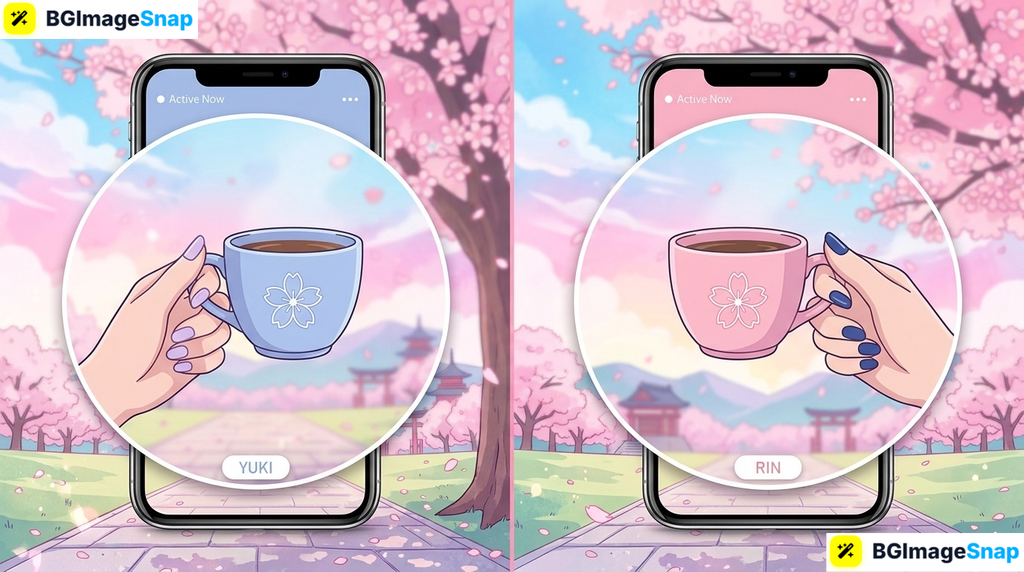
Matching PFP phone mockups showing coordinated profile avatars side by side

What It Does and How a Matching PFP Works

A matching PFP is a coordinated set of two or more profile pictures designed to complement each other visually. Most commonly, a single widescreen artwork or photograph is sliced right down the middle into two separate square images. When both accounts appear side by side in a server chat or comment thread, the two pictures connect into one complete visual story.

Another popular approach uses complementary character designs or color palettes rather than a split photo. In this style, one person might display the sun while the other displays the moon, or two friends might choose different characters from the same anime series. The visual connection comes from shared color grading, art styles, or matching aesthetic themes.

Modern online photo editors make preparing a matching PFP fast and accessible for anyone. Instead of struggling with expensive software, you can upload any image to a browser based tool and split it with precision. Built in background removers also let you erase messy real life backgrounds, replacing them with pastel tones, gradient textures, or transparent spaces.

Once you format both halves into square dimensions, they are ready to upload to your favorite platforms. The end result is a polished avatar duo that stands out in community chats and profile grids.

Full List of 25 Cute Matching PFP Ideas Across Top Categories

Choosing the right theme depends on your shared personality and the platform you use most. Below is a curated collection of 25 creative matching PFP concepts, organized by aesthetic style.

1. Cute Anime & Manga Duos

Anime provides some of the most dynamic artwork for couples and close friends. These pairs feature expressive emotions and beautiful lighting that translate cleanly into tiny circular avatars.

  • 1. Howl and Sophie (Howl’s Moving Castle): A timeless romantic aesthetic featuring soft pastel skies and classic Studio Ghibli magic.
  • 2. Taki and Mitsuha (Your Name): Ideal for long distance friendships or couples, capturing the twilight sky split between two profiles.
  • 3. Loid and Yor (Spy x Family): A stylish pick for duos who love a balance of sophisticated elegance and quirky action.
  • 4. Naruto and Sasuke (Naruto): The quintessential best friend rivalry dynamic, perfect for gaming duos and competitive buddies.
  • 5. Anya and Bond (Spy x Family): An adorable choice for friends who want wholesome, meme worthy, lighthearted energy.

2. Adorable Animals and Wholesome Characters

If you prefer cute and cozy vibes, animal themed avatars offer instant charm. They fit casual social platforms like TikTok and Instagram exceptionally well.

  • 6. Milk and Mocha Bears: The internet’s favorite animated bears delivering warm hugs, coffee sips, and sweet everyday moments.
  • 7. Black and White Yin Yang Kittens: Two curling kittens forming a heart or circle, representing balance between opposite personalities.
  • 8. Corgi Face and Corgi Tail: A humorous split image where one friend takes the smiling face and the other takes the fluffy backside.
  • 9. Frogs with Mushroom Hats: A charming cottagecore favorite featuring tiny illustrated amphibians sheltered under toadstools.
  • 10. Bunny and Bear Teacup Duo: Gentle storybook illustrations drinking tea across two matching circular frames.

3. Aesthetic Photography & Minimalist Silhouettes

For users who prefer real life photography over illustrations, minimalist real world scenes look sophisticated and understated.

  • 11. The Half Heart Hand Sign: Each person poses with half of a finger heart or full arm heart that connects when placed next to each other.
  • 12. Golden Hour Beach Silhouettes: Warm sunset silhouettes standing along the ocean shoreline with matching amber tones.
  • 13. Vintage Disposable Camera Swap: Photos of each person pointing a retro camera directly back at the viewer.
  • 14. Coffee Cheers at a Cozy Cafe: Two hands holding matching iced lattes or ceramic mugs over a wooden table.
  • 15. Sun and Moon Minimalist Line Art: Clean geometric celestial designs that symbolize complementary day and night energies.

4. Nostalgic Cartoons & Playful Comedy

Funny avatars bring personality to gaming channels and lively community servers. These nostalgic pairs are instantly recognizable to anyone scrolling past.

  • 16. SpongeBob and Patrick Star: The ultimate chaotic friendship duo, whether making funny faces or holding jellyfish nets.
  • 17. Tom and Jerry: Perfect for siblings or friends who playfully argue constantly but remain inseparable.
  • 18. Finn and Jake (Adventure Time): Wholesome fantasy best friends celebrating loyalty, fun, and adventurous spirits.
  • 19. Bubbles and Buttercup (The Powerpuff Girls): A cute split for two friends who balance sweet gentleness with feisty attitude.
  • 20. Lilo and Stitch: A heartwarming celebration of family, loyalty, and tropical island adventures.

5. Gaming Duos and Fantasy Pairs

Gamers on Discord, Twitch, and Steam often want avatars that reflect their favorite virtual team compositions.

  • 21. Mario and Luigi: The classic retro gaming brothers, providing immediate retro charm and bright primary colors.
  • 22. Minecraft Steve and Alex: Blocky, iconic avatars standing back to back with pixelated diamond swords.
  • 23. Jett and Phoenix (Valorant): High energy tactical shooter agents representing wind and fire mechanics.
  • 24. Pikachu and Eevee: Two beloved Pokémon mascots showing cheerful expressions side by side.
  • 25. Lumine and Aether (Genshin Impact): The traveling twins, ideal for siblings or co op RPG companions.

Recommended Dimensions for Your Matching PFP

To ensure your avatars look crisp without awkward borders or blurry pixels, match your exports to these platform specifications:

PlatformRecommended DimensionsAspect RatioDisplay Shape
Discord128×128 px (512×512 px recommended)1:1 SquareCircle
Instagram320×320 px1:1 SquareCircle
TikTok200×200 px1:1 SquareCircle
Steam184×184 px1:1 SquareRounded Square
Twitter / X400×400 px1:1 SquareCircle
WhatsApp500×500 px1:1 SquareCircle

How to Create and Crop a Custom Matching PFP Online

Creating your own personalized matching avatars is straightforward when using browser based image tools. Follow these simple steps to split and format any image:

Step 1: Choose Your Source Artwork
Select a high resolution horizontal photograph or wide digital illustration featuring both subjects. Look for an image where both figures are spaced evenly so neither gets clipped when cropped into a square.

Step 2: Upload to an Online Image Editor
Open your web browser and navigate to the image editing tools on Bgimagesnap. Upload your widescreen source image directly into the workspace without needing to install external software.

Step 3: Crop Into Two 1:1 Squares
Use the cropping tool set to a fixed 1:1 square aspect ratio. Frame the first person or character, save that crop as the first avatar, then repeat the process on the second side of the image for the partner avatar.

Step 4: Enhance or Unify Backgrounds
If your subjects were photographed in different locations, use an automated background remover. Drop both subjects onto matching pastel solid colors, paper textures, or gradient backgrounds to create instant visual harmony.

Step 5: Preview and Download Both Avatars
Review both cropped circles side by side to ensure eye levels and head sizes match proportionally. Download both high resolution PNG or JPG files to your devices and upload them to your profiles.

Real Use Cases: Who Uses Matching Avatars and Why?

A matching PFP is a creative digital badge that serves various social relationships and digital communities.

1. Gaming Duos and Co Op Teammates
Competitive gamers on Steam, Discord, and Twitch love using matching avatars to intimidate opponents and display teamwork. When two duo partners join a lobby sporting coordinated avatars, it shows strong communication and dedication. It also helps teammates quickly identify duo partners in busy Discord voice channels.

2. Couples in Long Distance Relationships
Couples separated by distance frequently use a matching PFP set to feel closer throughout daily online routines. Seeing a partner’s complementary avatar in chat feeds offers a sweet visual reminder of their bond. It serves as a gentle public signal of their relationship across shared social media spaces.

3. Best Friends and Sibling Duos
Close friends use matching avatars to celebrate milestones, shared fandoms, or inside jokes. Whether celebrating an anime release or posting concert memories, paired avatars reflect shared interests. Siblings also enjoy using funny rival cartoon characters to tease one another affectionately online.

4. Content Creators and Podcast Co Hosts
Creative partners running joint streaming channels, TikTok accounts, or community forums often use coordinated branding. Using matching avatars across professional handles builds recognizable brand consistency. It tells followers that both creators represent two equal halves of the same digital show.

Practical Tips for the Perfect Matching PFP Look

Keep these practical styling suggestions in mind to ensure your paired avatars look visually stunning across all social feeds:

  • Account for circular cropping. Most social media apps display profile pictures inside circles, so keep essential faces centered and away from outer corners.
  • Match lighting and contrast. If combining two separate photos, adjust brightness and color temperature so both avatars appear to inhabit the same space.
  • Coordinate eye directions. Position images so the character on the left looks right and the character on the right looks left, creating an interactive connection.
  • Keep backgrounds simple. Busy real life backgrounds distract from small mobile avatars; use a background eraser to isolate subjects cleanly.
  • Export at high resolutions. Always save your final icons at 512×512 pixels or higher so they remain crisp on high-density smartphone displays.
  • Test your avatars side-by-side. Place both exported files next to each other on your desktop screen before uploading to verify that scaling feels balanced.

Frequently Asked Questions About Matching PFPs

What does matching PFP mean?
A matching PFP refers to two or more coordinated profile pictures used by partners, friends, or gaming teammates. When viewed together across chats or server lists, they complete a unified image or theme.

How do you split one picture into a matching PFP set?
You can use a free online photo editor like Bgimagesnap. Simply upload your horizontal image, crop a 1:1 square over the left subject, export it, and repeat the square crop over the right subject.

Will my matching avatar get blurry when uploaded to Discord?
Your avatar will remain sharp as long as you upload a square image of at least 512×512 pixels. Avoid uploading small low-resolution thumbnails that require the platform to stretch the image.

Can three or more friends use matching profile pictures?
Yes. Groups of friends often select avatars representing trio teams, such as the Powerpuff Girls, legendary Pokémon trios, or character groups from shows like Jujutsu Kaisen.

Do matching avatars have to be romantic?
Not at all. While many couples enjoy them, countless matching avatars celebrate platonic best friends, gaming teammates, siblings, or shared pop culture hobbies.

Conclusion

Choosing a creative matching PFP is an enjoyable way to celebrate a meaningful friendship, relationship, or shared gaming hobby online. With the right source image and a few seconds in an easy online photo editor, you can create a seamless pair of avatars that look amazing on any platform. Ready to craft your custom avatar duo? Visit bgimagesnap today to crop, edit, and optimize your matching PFP for free in just a few clicks!
Video Compressor App for iPhone How to compress Videos Without Losing Quality

Modern iPhones shoot stunning 4K video but a single minute of footage can swallow 400MB of storage and be far too large to email or message. A video compressor app for iPhone solves this in seconds, shrinking oversized clips into shareable files while keeping them looking sharp. In this guide, you’ll learn how these apps work, which settings actually matter, and how to compress any video in just a few taps.

Key Takeaways

  • One minute of 4K iPhone footage can consume 170–400MB compression cuts that by 50–90%.
  • A video compressor app for iPhone shrinks files by adjusting resolution, bitrate, and codec.
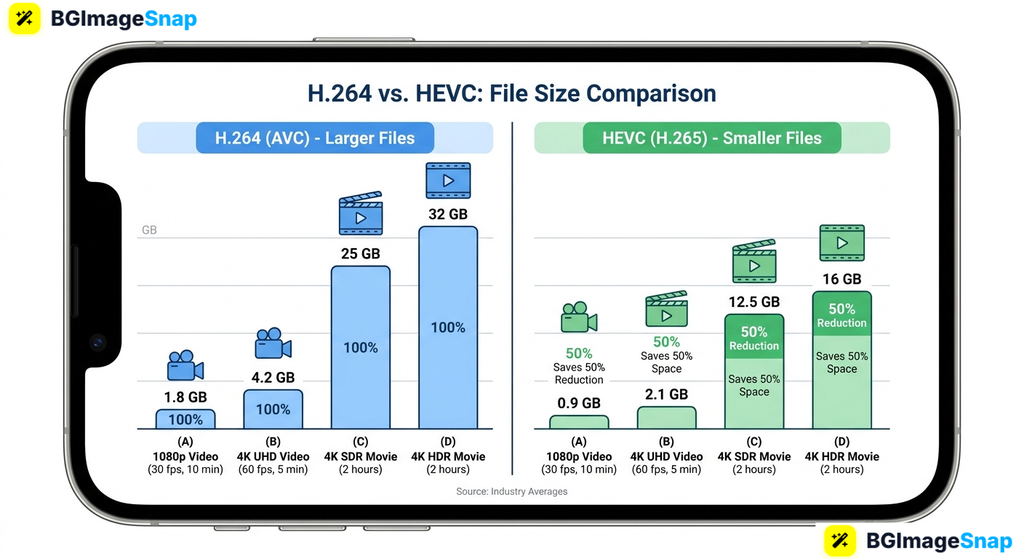
  • HEVC (H.265) delivers roughly half the file size of H.264 at similar visual quality.
  • The best apps offer batch compression, target file sizes, and direct sharing to Messages or social apps.
  • Recording in High Efficiency mode prevents oversized files before they’re even created.

What Is a Video Compressor App for iPhone and How Does It Work?

A video compressor app for iPhone is a tool that re encodes your videos into smaller files. It takes the large video your camera records and rebuilds it using smarter settings, so it takes up less space without looking noticeably worse.

Every video’s file size comes down to three factors. Resolution is the number of pixels 4K packs four times the pixels of 1080p. Bitrate is how much data describes each second of footage. Codec is the compression technology used to store everything.

A compressor app adjusts these three levers together. Dropping 4K to 1080p, lowering the bitrate, and switching to a more efficient codec can shrink a 400MB clip to under 50MB.

The codec choice matters most on iPhone. Apple’s devices record in either H.264 or HEVC (H.265). HEVC is newer and roughly twice as efficient the same clip looks nearly identical at half the file size.

Best of all, modern compressor apps process everything directly on your device. Your videos never leave your phone, which keeps them private and makes compression fast even without internet.

Video compressor app for iPhone comparing H.264 and HEVC file sizes

Full Details iPhone Video Sizes and Features to Look For

Before choosing a video compressor app for iPhone, it helps to know how big your files really are and which features separate great apps from mediocre ones.

Typical iPhone Video File Sizes

Recording SettingCodecApproximate Size
4K at 60fpsH.264~440MB
4K at 30fpsH.264~350MB
4K at 30fpsHEVC~170MB
1080p at 30fpsH.264~130MB
1080p at 30fpsHEVC~65MB
720p at 30fpsH.264~40MB
Compressed for email/messagingHEVC, lower bitrate~15–40MB

Features to Look for in a Compressor App

FeatureWhy It Matters
Supported formatsShould handle MP4, MOV, and HEVC the formats iPhones record in
Batch compressionShrink dozens of clips at once instead of one by one
Target file sizeTell the app “make this under 25MB” and it calculates settings automatically
Resolution presetsOne tap options for 1080p, 720p, or social media sizes
Built in trimmingCut unwanted footage before compressing for even smaller files
Quality previewCompare before and after before you commit
No watermarksFree versions shouldn’t stamp logos on your videos
On device processingKeeps your footage private and works offline

The target size feature deserves special attention. If you know your email limit is 25MB or your messaging app caps videos at 100MB, the app works backward from that number no guesswork about bitrates or resolutions.

How to Use a Video Compressor App for iPhone Step by Step

Compressing a video takes less than a minute once you know the workflow. Follow these five steps:

  1. Download a well rated compressor from the App Store. Search for a video compressor app for iPhone with strong recent reviews, or open a trusted online compressor in Safari if you prefer not to install anything.
  2. Grant access to your Photos library. The app needs permission to read your videos. You can limit access to selected items if you prefer tighter privacy.
  3. Select your video and choose your settings. Pick a preset like “Email” or “Social Media,” enter a target file size, or manually set resolution and bitrate. When in doubt, 1080p with HEVC is the sweet spot.
  4. Preview and compress. Most apps show the estimated output size before starting. Compression usually takes a few seconds to a couple of minutes depending on clip length.
  5. Save or share directly. Export the compressed video back to your Photos library, or share it straight to Messages, Mail, WhatsApp, or your favorite social platform.

That’s the whole process. Keep the original until you’ve confirmed the compressed version plays perfectly, then delete the large file to reclaim your storage.

Who Needs a Video Compressor App for iPhone? Real Use Cases

Video compression isn’t just for tech enthusiasts. Here are four groups who rely on it every week:

Parents and families. Kids’ birthdays, school plays, and vacations fill an iPhone’s storage faster than anything else. Parents compress older memories to keep thousands of clips without paying for larger iCloud plans, and share highlights with grandparents over messaging apps instantly.

Content creators and vloggers. Creators shooting on iPhone need to move footage quickly to editors, clients, or social platforms. A video compressor app for iPhone turns a ten minute upload into a two minute one, and faster uploads mean faster publishing schedules.

Real estate agents. Property walkthrough videos are essential for listings, but raw 4K tours are too heavy for email and slow to send on mobile data. Agents compress walkthroughs to send polished previews to clients within minutes of filming.

Students and teachers. Video assignments often face strict upload limits on school portals. Students compress presentations and project footage to fit under submission caps, avoiding last minute deadline panic.

Tips for Better Video Compression on iPhone

  • Record in High Efficiency mode from the start. Go to Settings > Camera > Formats and choose High Efficiency. Your iPhone records in HEVC, cutting file sizes in half before you ever need a compressor.
  • Trim before you compress. Cutting thirty seconds of unusable footage saves more space than any bitrate setting. Most compressor apps include a basic trimmer.
  • Match resolution to the destination. Social media feeds display at 1080p or lower, so compressing 4K footage to 1080p loses nothing your audience will ever see.
  • Keep originals backed up. Compression is permanent. Save master copies to iCloud or a computer before shrinking the versions on your phone.
  • Never compress the same video twice. Each pass degrades quality a little more. Always compress from the original file.
  • Polish your thumbnails too. If you’re uploading to YouTube, a sharp custom thumbnail matters as much as the video itself. Create one free at bgimagesnap using browser based image tools.
  • Compress big batches while charging. Long compression queues drain battery and generate heat. Plug in first for smooth, uninterrupted processing.

Frequently Asked Questions

Does compressing a video reduce its quality?

Slightly, yes but modern codecs make the difference nearly invisible at sensible settings. Compressing 4K to 1080p with HEVC typically looks identical on phone screens and social feeds.

Can I compress a video on iPhone without an app?

Only partially. You can trim videos in Photos and change future recordings to High Efficiency, but iOS has no built in “compress this video” button. A video compressor app for iPhone or a browser based tool is needed for real file size reduction.

Should I choose HEVC or H.264 when compressing?

Choose HEVC for the smallest files it halves file size at equal quality. Choose H.264 only if you’re sharing with someone using very old devices or software that may not support HEVC.

Are video compressor apps free?

Most offer free versions that handle everyday compression, often with ads or daily limits. Paid upgrades typically add unlimited batch processing, higher resolutions, and watermark removal.

How much can I compress a video before it looks bad?

Expect clean results at 50–70% reduction with standard settings. Pushing past 80–90% introduces visible artifacts like blockiness and smearing, especially in fast motion scenes.

Conclusion

A video compressor app for iPhone turns storage anxiety into a non issue massive 4K clips become lightweight, shareable files in seconds, with quality your viewers will never question. Whether you’re a parent drowning in family footage or a creator racing to publish, compression keeps your phone fast and your videos moving. And for everything visual beyond video, visit bgimagesnap to edit, resize, and enhance your thumbnails and images with free browser based tools!

Applications of Web How Browser Based Tools Transform Everyday Tasks

Installing heavy desktop software for simple digital jobs slows down your computer and drains your productivity. Modern applications of web tools solve this challenge by allowing anyone to edit images, manage data, and collaborate straight from a web browser without installing anything. With instant browser solutions like Bgimagesnap, complex digital tasks are now accessible to everyone in seconds.

Key Takeaways

  • Practical applications of web software replace bulky desktop programs with fast, browser accessible alternatives.
  • Cloud powered web applications run directly in Chrome, Safari, Edge, or Firefox without requiring manual updates.
  • Popular web tools handle everything from image background removal and photo editing to file conversion and team collaboration.
  • Online tools protect storage space, reduce hardware costs, and allow seamless access across all devices.
  • Bgimagesnap showcases how dedicated browser tools simplify media editing for daily personal and professional use.

What It Does and How It Work

Web applications are software programs that run inside an internet browser rather than being installed on your local computer hard drive. When you use web based tools, your browser communicates directly with a cloud server or processes tasks instantly on your device using client side scripts. This modern approach eliminates the need for installation disks, setup wizards, and ongoing storage clutter.

Behind the scenes, modern applications of web technology rely on standard web languages such as HTML5, CSS3, and JavaScript, paired with powerful frameworks like WebAssembly. When you perform a task such as erasing an image background or compressing a photo the tool handles the computation either on the remote server or right inside your browser memory. You get instant results without exhausting your computer’s CPU or battery.

Unlike old fashioned programs that forced users to pay for upgrades or download large setup packages, browser apps update automatically in the cloud. Every time you open your browser and visit the site, you immediately access the newest features and security patches. This seamless delivery makes modern applications of web software accessible to anyone with an internet connection, regardless of whether they use a high end laptop or a budget smartphone.

Key Categories and Applications of Web Tools Today

The reach of internet based software expands every year into nearly every aspect of work and education. Below is a detailed breakdown of the most critical types and features of web applications used today.

Core Categories of Browser Based Applications

  • Media Editing & Graphic Design: Browser apps allow creators to edit photos, remove backgrounds, resize dimensions, convert file types, and create banners without expensive graphics suites.
  • Office Productivity & Document Collaboration: Cloud word processors, spreadsheets, and presentation decks allow multiple team members to edit identical files simultaneously in real time.
  • E-Commerce & Digital Storefronts: Modern applications of web platforms let merchants manage customer orders, process digital payments, track shipments, and showcase catalog photos.
  • Communication & Video Conferencing: Messaging and meeting applications run smoothly within browser tabs, eliminating the requirement for separate desktop chat clients.
  • Cloud Storage & File Management: Online file lockers let users store, organize, preview, and share documents safely from any device with an active connection.
  • Data Analytics & Dashboard Monitoring: Web tools collect real time data, display visual metrics, and export reporting charts for businesses of all sizes.

Web Applications vs. Traditional Desktop Software

Evaluation MetricModern Applications of Web ToolsTraditional Desktop Software
Installation RequirementZero installation; runs directly in browserRequires manual installer download and setup
System Storage UseMinimal to none; data resides in the cloudConsumes gigabytes of local storage space
Device AccessibilityWorks on PC, Mac, Chromebook, and mobileTypically limited to one operating system
Software UpdatesHandled automatically in real timeRequires manual patch downloads and restarts
Hardware DemandsRuns smoothly on low end and budget devicesDemands fast processors and dedicated memory
Cost & LicensingOften free or low cost subscription modelHigh upfront purchase fees or costly licenses
Collaboration CapabilityInstant sharing and multi user live editingRequires exporting and emailing file versions

Supported Standards and Technical Features

High performance applications of web platforms support a broad range of standard file extensions, device environments, and data protocols:

  • Supported Image & Graphic Formats: PNG, JPG, JPEG, WebP, SVG, GIF, BMP, and TIFF.
  • Supported Document Types: PDF, DOCX, XLSX, CSV, and plain TXT.
  • Cross Browser Compatibility: Full operational support on Google Chrome, Apple Safari, Mozilla Firefox, Microsoft Edge, and Opera.
  • Security & Privacy Standards: 256 bit SSL/TLS transport encryption, local in browser caching, automatic temporary file deletion, and GDPR compliance.
  • Responsive Mobile Layouts: Fluid layouts optimized for touch interaction on tablets and smartphones.

How to Use Modern Web Applications Step by Step

Using web applications is simple because they do not require complex configurations or administrative privileges. Follow these straightforward steps to run browser based tools effectively:

Step 1: Open Your Preferred Web Browser
Launch any modern web browser on your computer, tablet, or smartphone. Ensure your browser is up to date so it can handle modern web technologies like WebAssembly and HTML5 canvas processing.

Step 2: Navigate to the Web Tool URL
Enter the website address of the service you want to use, such as visiting Bgimagesnap for image editing. The application loads instantly on your screen without triggering installer popups or system security warnings.

Step 3: Upload Your File or Input Your Data
Drag and drop your file into the designated upload zone, or click the upload button to select a file from your device. Many modern applications of web utilities process media directly inside your browser cache to ensure optimal speed and privacy.

Step 4: Apply Your Edits or Actions
Select your desired action, such as removing a background, resizing dimensions, or applying filters. The browser tool executes the command immediately and displays a live interactive preview of the outcome.

Step 5: Download or Export the Final Result
Click the download button to save the completed file directly to your local storage folder. You can immediately share the exported file, upload it to your website, or drop it into a presentation deck.

Real Use Cases Who Relies on Web Applications and Why

The diverse applications of web services make them invaluable across a wide range of industries, learning environments, and daily personal routines.

1. E-Commerce Merchants and Store Owners
Online sellers on platforms like Shopify, Amazon, and Etsy need crisp, professional product listings to attract buyers. Instead of buying expensive desktop photo studios, merchants use online background removers and compressors to prepare clear product catalog shots. These browser utilities allow sellers to upload, enhance, and export dozens of product photos in minutes.

2. Freelancers and Independent Graphic Designers
Freelancers often work from coffee shops, co working offices, or client sites using portable laptops. Reliable applications of web platforms allow designers to convert image formats, create social media graphics, and generate client proofs without draining their battery life. They can jump between devices seamlessly since their toolset lives conveniently inside the cloud.

3. Students and Academic Researchers
Students frequently work on school issued Chromebooks or shared library computers that restrict software installations. Cloud word processors, online citation generators, and web based image resizers give students full creative capability without administrator permissions. They can complete complex homework assignments, design slides, and format research papers directly inside their browser.

4. Small Business Operators and Startup Teams
Small business owners must keep overhead costs low while maintaining fast operational workflows. Rather than paying expensive software license fees for every employee, companies rely on secure web based billing, media processing, and team communication dashboards. This approach keeps operations nimble, cost effective, and easy to scale as team sizes expand.

Practical Tips for Getting the Best From Web Applications

To ensure a smooth, fast, and secure experience while using different applications of web platforms, keep these expert tips in mind:

  • Keep your browser updated. Running the latest version of Chrome, Safari, or Firefox guarantees you have the fastest JavaScript engine and the newest security protections.
  • Clear cache when experiencing glitches. If a web app seems slow or fails to process a file, clear your browser cache and refresh the page to load fresh assets.
  • Bookmark essential online tools. Organize your most frequently used browser utilities into dedicated bookmark folders for instant one click access throughout your workday.
  • Check internet stability for cloud uploads. When using web tools that upload large assets to external servers, ensure you have a stable network connection to avoid interrupted transfers.
  • Verify platform privacy policies. Always use reputable online services that process files securely and delete temporary assets automatically after download.
  • Leverage keyboard shortcuts. Most productive applications of web software support standard keyboard shortcuts that dramatically accelerate your daily editing speed.
  • Enable hardware acceleration in browser settings. Turning on hardware acceleration allows your web browser to use your computer graphics card for smoother photo and video processing.
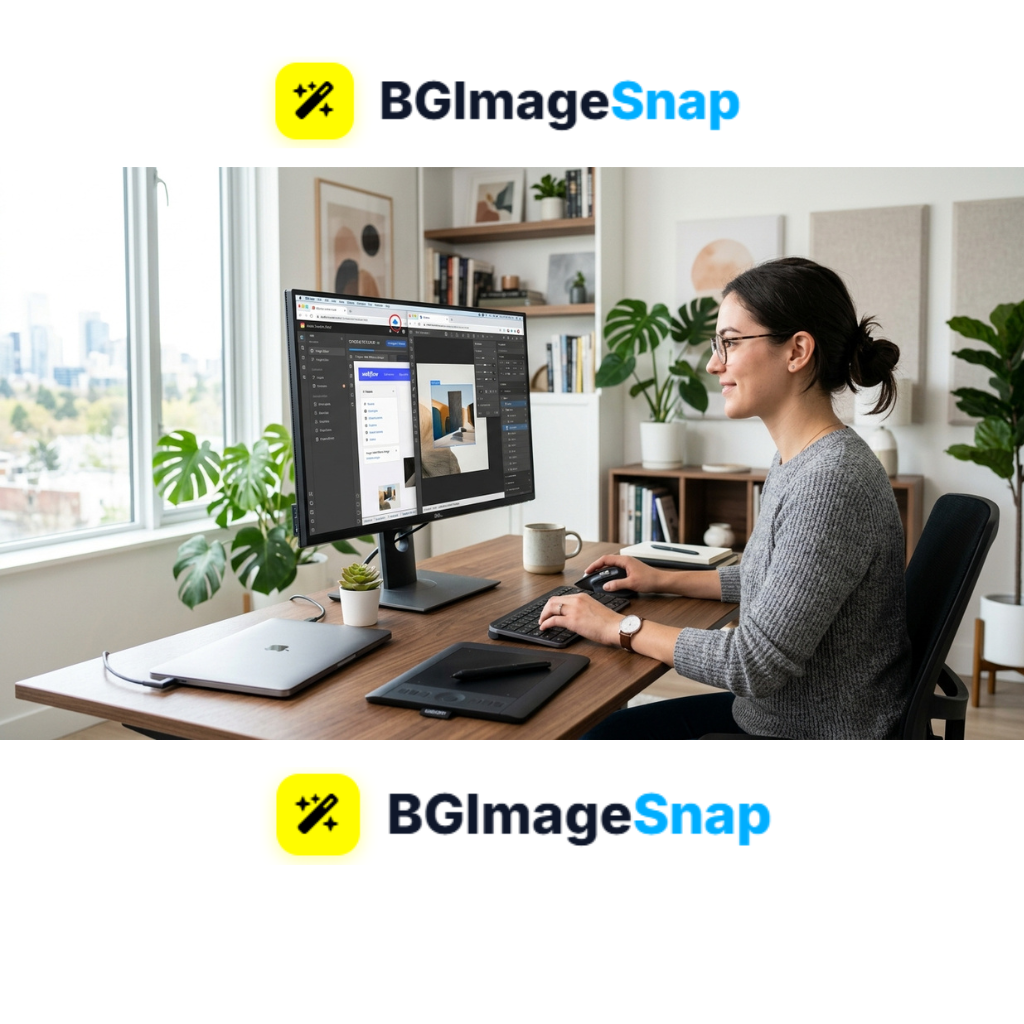
User utilizing modern applications of web services for digital design on a computer screen

Frequently Asked Questions

What are the primary applications of web technology today?

The most common applications of web technology include online image editors, cloud office suites, e commerce stores, streaming services, and real time collaboration dashboards. These tools allow users to accomplish tasks inside a standard browser without installing traditional desktop software.

Are applications of web tools safe for sensitive files?

Yes, trustworthy web applications use advanced SSL encryption and secure communication channels to protect your files. Many modern utilities, like client side photo editors, process your images directly in your local browser memory so your data never touches an external server.

Can web applications work when offline?

Many progressive web applications (PWAs) feature offline functionality using browser service workers. While online processing offers complete feature access, offline web tools still allow you to edit documents, view stored records, and prepare drafts without an active internet connection.

Why are applications of web tools replacing traditional desktop software?

Web based tools are replacing desktop software because they require no local installation, update automatically, and work seamlessly across Windows, Mac, Linux, iOS, and Android. They also drastically reduce licensing expenses and save valuable storage space on user devices.

Do I need a high end computer to run web applications?

No. One of the greatest advantages of web applications is that the heavy processing takes place in the cloud or via optimized browser engines. Even lightweight laptops, tablets, and budget smartphones can effortlessly run modern browser tools.

Conclusion

The widespread applications of web platforms have fundamentally changed how individuals and businesses create, edit, and collaborate online. By moving powerful digital tools into the browser, users can bypass heavy software installations, reduce storage consumption, and work efficiently from any location. Ready to experience effortless browser editing? Visit bgimagesnap today to test our free suite of online image tools and streamline your creative workflow in seconds!

Aesthetic PFP How to Make a Stylish Profile Picture From Any Photo

A plain selfie or cluttered photo rarely stands out in crowded social media feeds and chat apps. Creating an aesthetic PFP helps you showcase your personal brand, match current visual trends, and look professional across every platform. In this guide, you will learn how to turn any standard photo into a clean, stylish profile picture using free online tools.

Key Takeaways

  • An aesthetic PFP combines clear subject isolation, balanced color tones, and custom background graphics to create a memorable avatar.
  • Removing messy photo backgrounds is the essential first step to building a custom profile picture.
  • Popular aesthetics include minimalist pastel backgrounds, dark synthwave tones, vintage film textures, and vibrant neon gradients.
  • Social media platforms require different profile picture dimensions and circular framing rules.
  • Free web tools at bgimagesnap allow you to cut out subjects, crop ratios, and edit photos without complex design software.

What Is an Aesthetic PFP and How Do You Make One?

An aesthetic PFP (profile picture) is a custom digital avatar designed to look visually appealing, cohesive, and expressive. Unlike standard snapshots, an aesthetic avatar uses color harmony, artistic lighting, clean cropping, and thoughtful backdrops to project a unique online identity.

Creating one starts with separating your main subject — usually your face, body, pet, or character icon — from distracting background noise. Once you isolate the subject, you gain complete freedom to place yourself over artistic patterns, color blocks, or atmospheric landscapes.

Modern AI editing tools streamline this process into a few quick steps. Computer vision algorithms automatically trace around hair, shoulders, and clothing edges to clip out your subject cleanly.

After background removal, you can adjust color saturation, apply subtle shadow borders, and crop your portrait into standard circular frame formats. This turns a simple phone photo into an eye-catching visual anchor for your digital profiles.

Whether you prefer low-key dark themes or bright Y2K style visuals, mastering basic photo editing steps lets you refresh your online presence whenever trends evolve.

Examples of different stylish aesthetic PFP designs for social media apps

Full Details Popular Styles Features and Platform Specs

Designing a powerful avatar requires picking the right visual style and matching platform display specs. Here is a comprehensive breakdown of trending aesthetic styles, platform dimensions, and recommended editing options.

Trending Profile Picture Aesthetics

Aesthetic StyleKey Visual ElementsPopular PlatformsMood / Impression
Minimalist PastelSoft solid colors, cream tones, subtle drop shadowsLinkedIn, Twitter/X, NotionProfessional, clean, friendly
Cyberpunk / NeonGlowing neon outlines, dark backdrops, cyan and magenta huesDiscord, Twitch, Gaming forumsFuturistic, high-energy, gamer
Vintage Film / RetroWarm grainy textures, muted colors, soft film burn overlaysInstagram, Pinterest, TikTokNostalgic, artistic, casual
Dark Mode CyberHigh contrast, dark gray/black backdrops, sharp subject lightingGitHub, Discord, Tech forumsSleek, mysterious, modern
Anime / IllustratedClean cutout outlines, pastel pop colors, graphic patternsDiscord, Reddit, VTuber channelsCreative, fun, expressive

Major Social Platform PFP Specifications

Social PlatformRecommended Upload SizeFrame ShapeDisplay Resolution Notes
Discord128 × 128 px (Upload 512 × 512 px)CircleSupports animated GIF PFPs for Nitro users
Instagram320 × 320 pxCircleDisplays at 110 × 110 px on mobile feeds
TikTok200 × 200 pxCircleSupports quick video PFP uploads
Twitter / X400 × 400 pxCircleSquare framing applies to verified business accounts
YouTube800 × 800 pxCircleDisplays next to videos and comments
LinkedIn400 × 400 pxCircleHigh resolution recommended for web zoom

Using high-resolution original source files (at least 800×800 pixels) ensures your final design stays crisp when platforms scale down your upload across smaller screens.

How to Make an Aesthetic PFP

Turning any raw photo into a stylish profile picture takes just a few quick steps using free online editors. Follow this simple step-by-step workflow:

  1. Pick a sharp source photo. Choose a photo with good lighting where your face or subject is in sharp focus. Photos with strong contrast between the subject and background deliver the cleanest cutouts.
  2. Remove the original background on bgimage. Upload your photo to our free background remover tool. The AI will isolate your portrait from the cluttered background in seconds.
  3. Add a custom background color or pattern. Place your isolated portrait over a solid pastel shade, vibrant color gradient, or artistic texture image that matches your targeted visual style.
  4. Crop to a square 1:1 aspect ratio. Center your portrait subject within a square frame. Make sure to keep your face centrally positioned so no critical details get cut off when social apps apply circular framing.
  5. Download and update your profile. Save your newly created transparent PNG or high-res JPG file, then upload your fresh visual avatar across your favorite social accounts.

This quick editing routine allows you to experiment with multiple artistic styles in minutes without buying expensive illustration software.

Who Uses an Aesthetic PFP? Real Use Cases

A striking visual avatar helps different kinds of users build recognition across digital platforms. Here are four common groups who use customized profile pictures daily:

Gamers and live streamers. Streamers on Twitch, Kick, and Discord use glowing neon avatars to match their channel themes and overlay branding. A distinctive aesthetic PFP helps viewers recognize their comments instantly in fast-moving chat feeds.

Freelancers and remote workers. Professionals on LinkedIn, Upwork, and Twitter replace plain headshots with clean minimalist portraits over warm pastel backgrounds. Modern color accents make business profiles feel personal, approachable, and polished.

Content creators and influencers. YouTubers, TikTokers, and bloggers match their profile aesthetics to their overall channel color palettes. Cohesive branding across platforms reinforces account identity and makes marketing campaigns look professional.

Students and online community members. Discord and Reddit users love switching up their visual avatars to reflect favorite anime styles, seasonal moods, or pop culture trends. Custom avatars offer a fun way to express personality online while maintaining personal privacy.

Pro Tips for Designing the Perfect Profile Picture

Follow these helpful design tips to make sure your avatar looks sharp, balanced, and attractive across all mobile apps and desktop platforms:

  • Mind the circle crop zone. Most modern social platforms crop square uploads into circles. Keep your main facial features, eyes, and key graphics centered so nothing gets cut off by rounded frame edges.
  • Maintain high visual contrast. Ensure your portrait subject stands out clearly against your chosen background color. Dark hair looks best against lighter or neon-accented backdrops, while bright hair pops against dark mode backgrounds.
  • Avoid cluttered backgrounds. Keep background graphics simple. Busy patterns or complex photo backdrops compete with your portrait, making your avatar hard to read at small mobile screen sizes.
  • Use soft drop shadows for depth. Adding a soft, transparent shadow layer right behind your cutout subject separates you from flat background colors, giving your avatar a subtle 3D depth effect.
  • Keep color palettes consistent. Align your PFP color tones with your social media banner, cover photo, or link-in-bio page for a seamless, professional brand aesthetic.

Frequently Asked Questions

What is the best file format to save an aesthetic PFP?

PNG is the best overall file format for profile pictures. It preserves sharp line edges, supports full alpha channel transparency, and prevents compression blur across web platforms.

How do I make my PFP look aesthetic without Photoshop?

You can easily create stylish profile pictures using free browser tools. Use bgimagesnap.com to remove background clutter, then layer your cutout photo over solid colors or gradient designs.

What dimensions should I use for a square profile picture?

A square ratio of 800×800 pixels or 1080×1080 pixels works best. Uploading high-resolution square files guarantees your avatar looks crisp whether displayed on small phone apps or large desktop monitors.

Why does my profile picture look blurry after uploading?

Social media platforms compress large files automatically upon upload. Starting with exact 1:1 square aspect ratios and crisp PNG files prevents platforms from applying heavy compression filters.

How can I make my background transparent for a custom PFP design?

Upload your portrait photo to a free online AI background remover. The software automatically erases background pixels, allowing you to save a transparent PNG file ready for custom design layering.

Conclusion

Creating an aesthetic PFP is the fastest way to upgrade your online identity, capture attention, and stand out in social media feeds. By stripping away distracting background noise and adding custom colors or textures, you can transform any ordinary photo into a stylish digital avatar. Visit bgimagesnap.com today to test our free editing tools and build your next profile picture in seconds!

SorryWatermark The Ultimate 7 Step Guide to Removing Image Watermarks Online

Introduction

You found the perfect image. Then you noticed the text across it. A logo in the corner. A repeating pattern over the center. The watermark ruins the design you planned.You search for help. You find complicated software, expensive subscriptions, or risky downloads. You want something simpler.

SorryWatermark offers a direct solution for removing unwanted marks from images using online tools. In this guide, you will learn what SorryWatermark represents, how online watermark removal works, the exact steps to clean your images, common errors that waste time, and best practices for professional results. Whether you work with personal photos, marketing materials, or design projects, you will finish with a clear process that protects your original files and delivers clean results.

No confusion. No hidden steps. Just practical guidance.

Quick Answer

SorryWatermark refers to the approach and online methods used to remove unwanted text, logos, or patterns from digital images without destroying the background. It works by analyzing surrounding pixels and blending them over the marked area.

Key takeaways:

  • SorryWatermark methods work best on flat, simple backgrounds
  • Always save an unedited copy before starting any removal
  • Online tools process files quickly without requiring software installation
  • Complex backgrounds with textures or gradients need more careful adjustments
  • The result quality depends on the original image resolution and watermark placement

What Is SorryWatermark

SorryWatermark describes the category of online tools and manual techniques focused on eliminating visible watermarks from photographs and graphics. A watermark is any overlaid text, symbol, or pattern added by owners to claim ownership or restrict unauthorized use.

Watermarks appear in stock photos, preview images, and shared content. They serve a legal purpose for photographers and agencies. However, when you have the right to use an image or need to prepare materials for authorized projects, removing the overlay becomes necessary.

SorryWatermark tools do not erase the underlying image data. They use algorithms to sample nearby colors and textures, then reconstruct the area hidden beneath the mark. The process requires accuracy to avoid leaving blurry patches or visible seams.

This approach differs from simply cropping out a corner logo. It addresses marks placed in the center, across subjects, or spread across the entire frame.

Why You Need This Approach

Removing watermarks serves many practical purposes beyond simple aesthetics.

Marketing teams need clean product images for catalogs. Designers require unmarked backgrounds for composite layouts. Educators prepare presentation slides without distracting logos. Personal users restore family photos scanned from watermarked sources.

Using a dedicated online method saves time compared to manual painting in complex software. It also avoids the cost of professional editing services for simple cases.

The key is knowing when this approach is appropriate. You should only remove watermarks from images where you hold the rights, own the original, or have explicit permission from the creator.

How SorryWatermark Works

The technology behind SorryWatermark relies on content-aware filling. When you upload an image and select a watermarked region, the tool examines the pixels immediately surrounding that selection.

It then calculates patterns in color, texture, and lighting. Using this data, it generates new pixels to replace the marked area. The result blends into the background if the area is uniform or naturally textured.

Some advanced implementations allow manual adjustments. You can guide the sampling direction, refine edges, or apply smoothing filters after the initial removal.

The process does not recover hidden image data beneath the watermark. If the original photo is lost, the tool creates a plausible reconstruction, not a perfect restoration.

The Seven-Step Process

Follow this sequence for consistent results when using SorryWatermark or similar online methods.

Step One. Save Your Original

Before making any change, duplicate your file. Rename the copy clearly. Once you apply removal edits, reversing the process requires the unaltered source.

Step Two. Choose Your Image

Select a file with clear resolution. Low-resolution originals make reconstruction harder because the tool has fewer surrounding pixels to sample.

Step Three. Upload to the Online Tool

Open the SorryWatermark interface or your chosen platform. Upload the file through the secure browser form. Most services delete uploads automatically after processing.

Step Four. Select the Watermark Area

Use the selection brush, lasso, or rectangle tool to mark the overlay exactly. Avoid selecting too much of the background, as larger selections reduce accuracy.

Step Five. Apply the Removal

Initiate the processing command. Wait for the algorithm to complete its analysis and reconstruction. Preview the result carefully.

Step Six. Refine If Needed

If the area shows visible seams or incorrect textures, use the manual touch-up option. Adjust sampling points or apply a slight blur to blend edges naturally.

Step Seven. Download and Verify

Save the result in a high-quality format such as PNG. Open it at full size to confirm no traces of the original mark remain.

Comparing Removal Methods

Different situations call for different techniques.

MethodBest ForTime NeededSkill Level
Online automatic removalSimple logos on flat backgroundsUnder two minutesBeginner
Manual clone stamp editingComplex textures and gradientsTen to thirty minutesIntermediate
Professional software repairHigh-value commercial restorationSeveral hoursAdvanced
Cropping and resizingMarks near edges or cornersOne minuteBeginner

For most users, the online automatic method provides the right balance of speed and acceptable quality.

Common Errors to Avoid

Many users make the same mistakes that reduce result quality.

Over-Selecting the Area. Choosing too large a region forces the tool to guess more data. Keep selections tight around the watermark only.

Working on Compressed Originals. Heavily compressed JPEG files contain artifacts that confuse sampling algorithms. Use the highest quality source available.

Ignoring Background Patterns. Striped, textured, or gradient backgrounds require more precision. Rushing the selection creates visible patches.

Skipping the Preview. Always review before downloading. Small errors become obvious only at full scale.

Failing to Back Up. Without the original, you cannot retry with different settings.

Using Low Resolution Exports. Save final results at full resolution to preserve the reconstructed detail.

Best Practices for Professional Results

These habits improve outcomes consistently.

Match Lighting Before Saving. Check that reconstructed areas share the same brightness and shadow direction as the rest of the image.

Use PNG for Final Storage. This format preserves sharp edges without adding new compression artifacts.

Process in Good Light. View your screen in balanced lighting to spot color mismatches that artificial light hides.

Work on Copies Only. Never risk your master file. Organize folders clearly between originals and edited versions.

Test Multiple Tools. Different algorithms handle textures differently. Compare results when quality is critical.

Respect Ownership Rights. Only apply these methods to images you have permission to edit. Unauthorized removal violates terms of service and copyright protections.

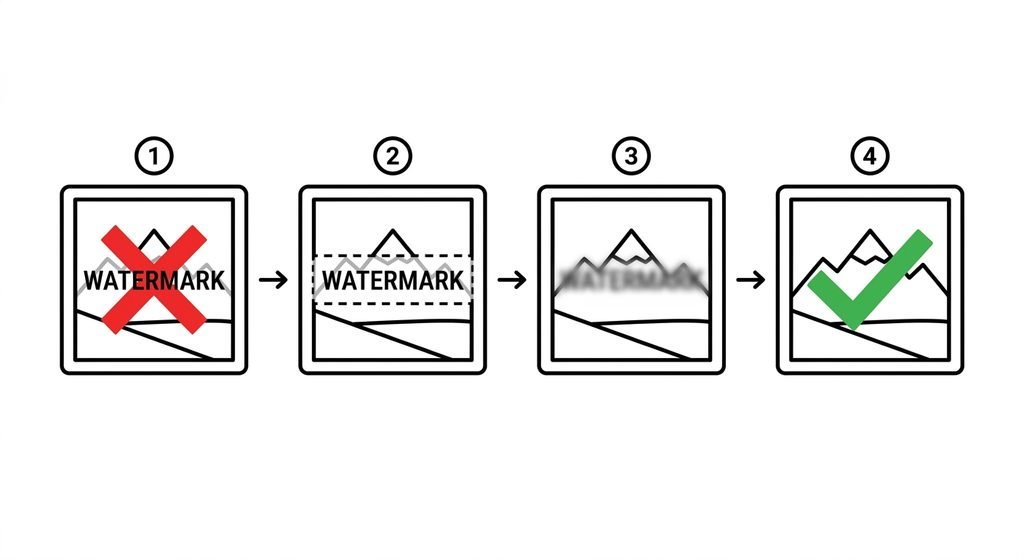
 SorryWatermark step diagram showing selection and removal stages for cleaning watermarks from photos

FAQ

What does SorryWatermark mean?

SorryWatermark represents the online approach and tools designed specifically to eliminate unwanted overlays from digital images while maintaining background integrity.

Can this method restore a hidden original image?

No. The process reconstructs the background using nearby pixels. It does not recover the original photograph that existed beneath the mark.

Is it safe to upload private photos?

Reputable services process files in the browser and delete them immediately after. Review the privacy policy before uploading sensitive content.

Will this work on every image?

Results vary. Flat skies, plain walls, and simple textures respond well. Complex patterns, detailed faces, and busy scenes present more challenges.

How long does the process take?

Most online tools complete the removal in under one minute. Manual refinements may add several minutes.

Can I remove watermarks from videos?

These specific methods apply to still images. Video requires frame-by-frame processing or specialized software.

What file formats work best?

JPEG and PNG work with all standard tools. TIFF files preserve the highest quality but create larger uploads.

Should I pay for removal services?

Many effective online options are free for standard use. Paid services typically offer batch processing or advanced manual controls.

Conclusion

SorryWatermark provides a practical path for cleaning images without installing complex software or investing in expensive tools. You now understand what the method involves, why it works, how to apply it step by step, and which errors to avoid. The key to success is patience, careful selection, and respect for original files and ownership rights. Start with a high-quality source. Protect your original. Apply the removal precisely. Review the result at full scale. These steps deliver consistent, professional outcomes. The technology continues to improve. As algorithms become more accurate, the gap between reconstructed and natural backgrounds will continue to narrow.

How to Download TikTok PFP Complete Guide to Saving Profile Pictures in HD

Introduction

Ever stumbled upon a TikTok profile with an amazing profile picture that you wanted to save for inspiration, reference, or creative projects? You’re not alone. Thousands of users search daily for ways to download TikTok profile pictures, but the platform doesn’t offer a built in option to save these images directly.

Whether you’re a content creator looking to analyze competitor branding, a designer seeking inspiration, or simply want to save a friend’s profile picture, learning how to use a TikTok PFP downloader can save you time and frustration. The challenge? Most methods result in low resolution, pixelated images that are practically useless.

In this comprehensive guide, you’ll discover 5 proven methods to download TikTok profile pictures in HD quality, understand the legal considerations, explore the best tools available, and learn step by step processes that work in 2024. We’ll also cover common mistakes to avoid and answer the most frequently asked questions about TikTok profile picture downloading.

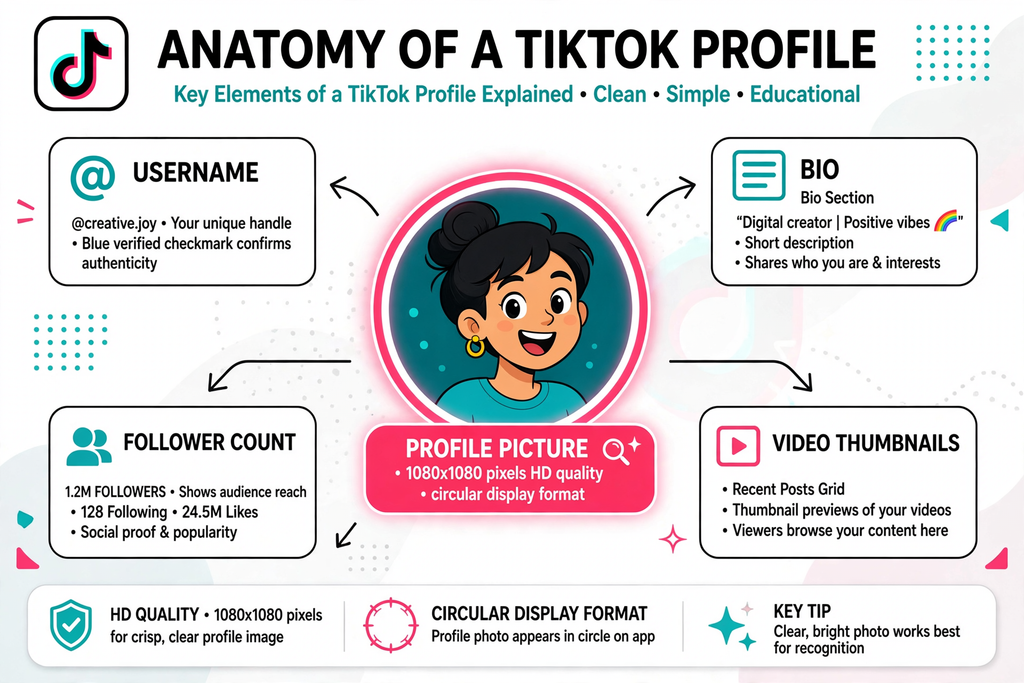
 Diagram explaining what a TikTok Profile picture downloader is and its dimensions

Quick Answer: Best Way to Download TikTok PFP

The fastest method to download a TikTok profile picture in HD is using a dedicated TikTok PFP downloader tool. Here’s the quick process:

Key Takeaways:

 Copy the TikTok username or profile URL
 Paste it into a TikTok Profile picture downloader like BGImageSnap
Download the image in HD quality (up to 1080×1080 pixels)
 No app installation required  works directly in your browser
 100% free for most reputable tools
 Works on all devices iPhone, Android, PC, Mac

Average time: Less than 30 seconds
Image quality: Up to full HD resolution
Cost: Free

What is a TikTok PFP and Why Download It?

Understanding TikTok Profile picture

PFP stands for “Profile Picture” – the circular image that represents a TikTok user’s account. This image appears next to every comment, video, and interaction the user makes on the platform. TikTok profile pictures are typically square images (usually 200×200 to 1080×1080 pixels) that get cropped into a circular format for display.

Why People Download TikTok Profile Pictures

Content Creators:

  • Analyze competitor branding strategies
  • Create collaboration graphics
  • Study visual trends in their niche

Designers & Marketers:

  • Build case studies
  • Create presentation materials
  • Conduct brand analysis

Personal Use:

  • Save memories of friends’ profiles
  • Use as inspiration for own profile pictures
  • Reference for artistic projects

Businesses:

  • Monitor influencer partnerships
  • Track brand ambassadors
  • Create marketing reports

5 Proven Methods to Download TikTok Profile Pictures

Best for: Quick, high quality downloads without software installation

Online tools like BGImageSnap provide the easiest way to download TikTok profile pictures in full HD resolution. These web based services work directly in your browser without requiring any downloads or registrations.

Advantages:

  • No software installation needed
  • Works on all devices and operating systems
  • Usually provides HD quality images
  • Fast and user friendly
  • Free to use

Limitations:

  • Requires internet connection
  • Some tools may have ads

Method 2: Screenshot and Crop (Basic Method)

Best for: Emergency situations when no tools are available

This manual method involves taking a screenshot of the profile and cropping the image.

Advantages:

  • Works offline
  • No third party tools needed
  • Universal method

Limitations:

  • Lower image quality
  • Time consuming
  • Requires manual editing
  • Results in compressed images

Method 3: Browser Developer Tools (Advanced)

Best for: Tech savvy users who want maximum control

This method involves using browser inspection tools to locate the direct image URL.

Advantages:

  • Direct access to source files
  • No third party services
  • Often provides highest available quality

Limitations:

  • Requires technical knowledge
  • Time consuming
  • Not mobile friendly
  • Can be complicated for beginners

Method 4: Mobile Apps (iOS/Android)

Best for: Users who frequently download profile pictures

Several mobile applications specialize in downloading TikTok content, including profile pictures.

Advantages:

  • Convenient on mobile devices
  • Often includes batch download features
  • May offer additional TikTok tools

Limitations:

  • Requires app installation
  • Some apps contain intrusive ads
  • Privacy concerns with some apps
  • Storage space required

Method 5: TikTok Profile Picture Downloader Browser Extensions

Best for: Regular users who need quick access

Browser extensions integrate directly into your browsing experience.

Advantages:

  • One click convenience
  • Fast access
  • Works while browsing TikTok

Limitations:

  • Only works on desktop browsers
  • Requires installation
  • May slow down browser
  • Potential security risks with unknown extensions

How to Use BGImageSnap’s TikTok PFP Downloader

BGImageSnap offers a streamlined, user friendly TikTok profile picture downloader that delivers HD quality images in seconds.

Features of BGImageSnap TikTok PFP Downloader:

  • 100% Free  No hidden costs or subscriptions
  • HD Quality  Download up to 1080×1080 resolution
  • No Registration  Start downloading immediately
  • All Devices  Works on desktop, mobile, and tablet
  • Fast Processing  Get your image in under 10 seconds
  • Privacy Focused  No data storage or tracking
  • Clean Interface  No intrusive ads or pop ups

Why Choose BGImageSnap?

BGImageSnap specializes in image downloading tools with a focus on quality and user experience. Unlike many competitors that compromise on image resolution or bombard users with advertisements, BGImageSnap maintains a clean, efficient service that prioritizes your needs.

Step-by-Step: Downloading TikTok Profile Pictures on Different Devices

How to Download TikTok PFP on iPhone/iPad

Step 1: Open the TikTok app on your iPhone or iPad

Step 2: Navigate to the profile whose picture you want to download

Step 3: Tap the three dot menu icon and select “Copy Link” or simply copy the username

Step 4: Open Safari or your preferred browser and visit BGImageSnap.com

Step 5: Paste the username or link into the TikTok PFP downloader input field

Step 6: Tap the “Download” button

Step 7: The HD profile picture will appear – tap and hold the image

Step 8: Select “Add to Photos” or “Save Image” from the menu

Time Required: 30,45 seconds

How to Download TikTok PFP on Android Devices

Step 1: Launch the TikTok app on your Android phone or tablet

Step 2: Go to the target profile

Step 3: Tap “Share” and select “Copy Link” (or copy the @username)

Step 4: Open Chrome, Firefox, or your default browser

Step 5: Navigate to https://bgimagesnap.com/

Step 6: Paste the link or username into the TikTok profile picture downloader tool

Step 7: Click “Download PFP”

Step 8: Long press the displayed image and choose “Download image”

Time Required: 30-45 seconds

How to Download TikTok PFP on PC/Mac (Desktop)

Step 1: Open TikTok in your web browser (or use the desktop app)

Step 2: Navigate to the profile page of the user

Step 3: Copy the profile URL from the address bar or copy the username

Step 4: Open a new tab and visit BGImageSnap’s TikTok Profile picture downloader

Step 5: Paste the URL or username into the input field

Step 6: Click “Download Profile Picture”

Step 7: Right click the displayed HD image

Step 8: Select “Save image as…” and choose your download location

Time Required: 20-30 seconds

Using Browser Developer Tools (Advanced Method)

For those comfortable with technical approaches:

Step 1: Open TikTok in Chrome, Firefox, or Edge

Step 2: Navigate to the profile page

Step 3: Right click the profile picture and select “Inspect” or “Inspect Element”

Step 4: In the developer console, locate the <img> tag containing the profile picture

Step 5: Find the src attribute – this contains the image URL

Step 6: Copy the full URL (look for the highest resolution version)

Step 7: Paste the URL in a new browser tab

Step 8: Right click and save the image

Time Required: 1-2 minutes (for experienced users)

Understanding Image Quality: SD vs HD Downloads

What Determines TikTok Profile Picture Quality?

TikTok stores multiple versions of each profile picture:

  • Thumbnail version: 100×100 pixels (low quality)
  • Standard version: 200×200 pixels (medium quality)
  • HD version: 720×720 to 1080×1080 pixels (high quality)

Why Quality Matters

Use CaseMinimum Recommended Resolution
Social media sharing200×200 pixels
Printing720×720 pixels minimum
Professional presentations1080×1080 pixels
Digital displays720×720 pixels
Web thumbnails200×200 pixels

How to Ensure Maximum Quality

  1. Use dedicated downloader tools rather than screenshots
  2. Choose services that specifically advertise HD downloads like BGImageSnap
  3. Avoid compressing the image after download
  4. Save in PNG format when possible for better quality retention
  5. Check the file size  larger files typically indicate better quality

Short answer: It depends on how you use the downloaded image.

Permitted Uses:

  • Personal reference and inspiration
  • Educational purposes
  • Analysis and research
  • Fair use commentary and criticism

Prohibited Uses:

  • Impersonating the profile owner
  • Commercial use without permission
  • Creating fake accounts with someone else’s image
  • Harassment or defamation
  • Redistribution claiming ownership

TikTok’s Terms of Service

TikTok’s Community Guidelines and Terms of Service prohibit:

  • Impersonation
  • Unauthorized use of intellectual property
  • Creating misleading content using others’ identities

Best Practices for Ethical Use:

 Ask for permission when using for commercial purposes
 Give proper credit when sharing or referencing
 Respect privacy and personal boundaries
 Use responsibly and within legal frameworks
 Avoid impersonation under all circumstances

Profile pictures may be protected by copyright, even if publicly accessible. The creator of the image (not necessarily the TikTok user) holds the copyright. Always respect intellectual property rights.

Common Mistakes to Avoid When Downloading TikTok PFP

Mistake #1: Using Screenshot Only Methods

Why it’s problematic:

  • Results in significantly lower quality
  • Captures unnecessary elements
  • Requires additional editing
  • Wastes time

Better approach: Use a dedicated TikTok Profile picture downloader tool for clean, high resolution images.

Mistake #2: Downloading from Untrusted Websites

Risks include:

  • Malware and virus infections
  • Privacy breaches
  • Data theft
  • Poor quality downloads
  • Intrusive advertising

Solution: Stick to reputable services like BGImageSnap with verified security and privacy practices.

Mistake #3: Installing Unnecessary Software

Problems:

  • Takes up device storage
  • May contain adware or spyware
  • Often requires permissions that compromise privacy
  • Updates and maintenance burden

Better option: Use web based tools that require no installation.

Mistake #4: Ignoring Image Resolution

Consequences:

  • Unusable for printing
  • Pixelated appearance when enlarged
  • Unprofessional results
  • Wasted effort if quality is insufficient

Prevention: Always verify the resolution before downloading and choose HD options.

Legal risks:

  • Copyright infringement claims
  • Terms of service violations
  • Potential legal action
  • Account suspension
  • Reputation damage

Protection: Always use downloaded images ethically and within legal boundaries.

Mistake #6: Not Verifying the Username

Issues:

  • Downloading wrong profile picture
  • Wasting time
  • Confusion in projects

Fix: Double check the username or profile URL before downloading.

Best TikTok Profile Picture Downloader Tools Comparison

Comprehensive Tool Comparison Table

ToolQualitySpeedDevice SupportCostEase of UsePrivacyRating
BGImageSnapHD (1080p)Very FastAllFreeExcellentHigh⭐⭐⭐⭐⭐
Generic Web Tool ASD-HDFastAllFree with adsGoodMedium⭐⭐⭐⭐
Mobile App BHDMediumMobile onlyFreemiumFairLow⭐⭐⭐
Browser Extension CHDFastDesktop onlyFreeGoodMedium⭐⭐⭐⭐
Screenshot MethodLowSlowAllFreePoorHigh⭐⭐

Why BGImageSnap Stands Out

Superior Quality:
BGImageSnap consistently delivers the highest available resolution, ensuring your downloaded TikTok profile pictures are crisp and clear.

No Compromises:
Unlike competitors that trade user experience for ad revenue, BGImageSnap maintains a clean, distraction free interface.

Universal Compatibility:
Works seamlessly across all devices and operating systems without requiring downloads or registrations.

Privacy First:
No data collection, no tracking, and no storage of your download history.

Frequently Asked Questions

1. Can I download TikTok profile pictures without the user knowing?

Yes, downloading a TikTok profile picture is a passive action that doesn’t notify the user. However, remember to use downloaded images ethically and respect privacy. The profile owner won’t receive any notification when you download their picture using a TikTok Profile picture downloader tool.

2. What is the maximum resolution for TikTok profile pictures?

TikTok profile pictures are typically stored at a maximum resolution of 1080×1080 pixels. However, the displayed version is often smaller (around 200×200 pixels). Using a quality TikTok Profile picture downloader like BGImageSnap ensures you get the highest available resolution, which is usually 720×720 to 1080×1080 pixels depending on what the user originally uploaded.

3. Do I need to create an account to download TikTok profile pictures?

No, reputable TikTok profile picture downloader tools like BGImageSnap don’t require account creation or registration. You can simply paste the username or profile link and download immediately. Avoid services that demand registration, as this is often unnecessary and may be a data collection tactic.

4. Can I download private TikTok account profile pictures?

Generally, no. If an account is set to private, most TikTok PFP downloader tools cannot access the profile picture unless you’re an approved follower. Some tools may work if you’re logged into TikTok and have access to view the private profile, but this varies by tool and TikTok’s privacy settings.

5. Is using a TikTok profile picture downloader against TikTok’s rules?

Using a TikTok PFP downloader to save profile pictures for personal reference isn’t explicitly prohibited, but using downloaded images to impersonate others, create fake accounts, or violate copyright is against TikTok’s Terms of Service. Always use downloaded content responsibly and within legal parameters.

6. Why are some downloaded TikTok profile pictures blurry?

Blurry images typically result from:
Using screenshot methods instead of proper downloaders
The original uploaded image being low resolution
Using a poor quality downloader tool
Downloading a thumbnail version instead of the full size image
Solution: Use a reliable TikTok PFP downloader like BGImageSnap that specifically retrieves the HD version.

7. Can I download multiple TikTok profile pictures at once?

Most basic online TikTok profile picture downloader tools process one image at a time. Some premium services or dedicated software may offer batch downloading features, but for occasional use, single downloads through BGImageSnap are typically sufficient and faster.

8. How do I find someone’s TikTok username if I only have their video?

Navigate to the video on TikTok, and the username will be displayed at the top of the screen or in the video caption. The username always starts with “@” symbol. You can copy this username and paste it directly into a TikTok PFP downloader tool.

Conclusion

Downloading TikTok profile pictures in HD quality doesn’t have to be complicated or risky. With the right TikTok PFP downloader tool, you can save high resolution profile images in seconds without installing software, creating accounts, or compromising your privacy.

Throughout this guide, we’ve explored five proven methods for downloading TikTok profile pictures, with online tools like BGImageSnap emerging as the clear winner for speed, quality, and user experience. Whether you’re a content creator analyzing competitor branding, a designer seeking inspiration, or simply wanting to save a memorable profile picture, the process is straightforward when you use the right approach.

YouTube PFP Downloader 5 Ultimate Free Tools to Download HD Profile Pictures

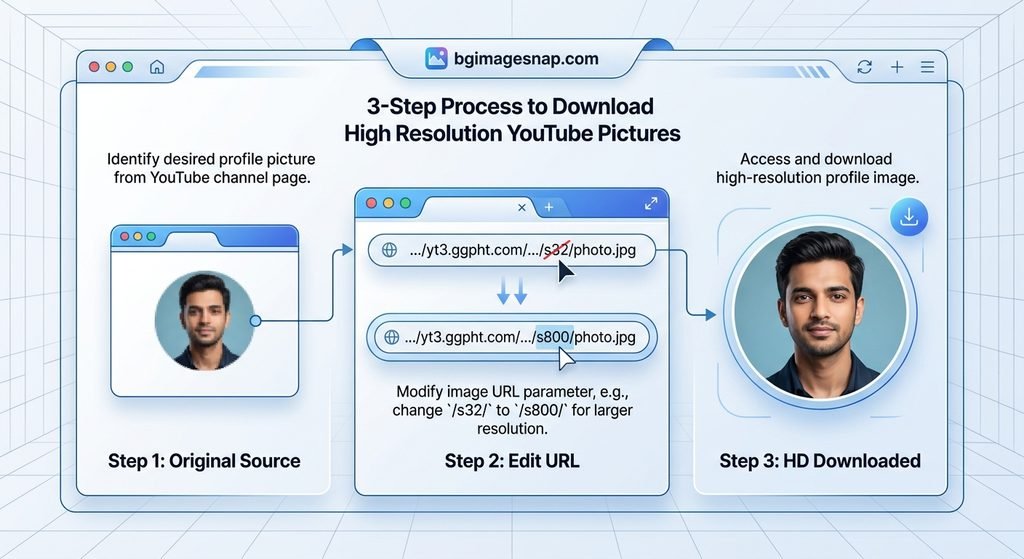
Step-by-step comparison using a YouTube PFP Downloader to extract HD avatar images

If you have ever tried to save a creator’s profile image from YouTube you already know the platform does not offer a direct “Save Image” button for avatars. That is exactly where a YouTube PFP Downloader becomes useful. Whether you want a high-quality wallpaper need to reference a channel’s branding or are curating visual assets for a creative project knowing how to download YouTube profile pictures in full resolution saves time and frustration.

In this guide you will learn exactly how a YouTube PFP Downloader works which methods actually deliver HD results and how to stay safe while doing it. We cover manual techniques web-based extractors and practical steps you can use today.

Quick Answer / Key Takeaways

  • A YouTube PFP Downloader extracts the high resolution source file of a channel avatar not just a compressed thumbnail.
  • Most reliable methods are browser based and do not require software installation.
  • You can often recover images from 200px up to 800px+ by using the correct URL parameters inside a YouTube PFP Downloader.
  • Always respect copyright and do not use downloaded avatars for commercial merchandise or ads without permission.

What Is a YouTube PFP Downloader?

A YouTube PFP Downloader is a tool or technique that lets you retrieve the original image file behind a YouTube channel’s profile picture. YouTube serves these avatars through Google’s content delivery network which means the image exists at a direct URL. A downloader either automates that retrieval or guides you to manipulate the URL to request a larger version.

This is different from taking a screenshot. A screenshot captures your screen resolution and adds compression artifacts. A proper YouTube PFP Downloader targets the source file which is why it can deliver sharp high definition results faster.

Can You Download YouTube Profile Pictures Without Tools?

Yes. Experienced users can locate the image URL within the page source or browser developer tools. Once you have the direct link you can sometimes change size parameters to request a larger format. However this requires comfort with web browsers and is not always intuitive for beginners.

Why Use a YouTube PFP Downloader for HD Images?

People seek HD YouTube profile pictures for several legitimate reasons. Content creators may need reference material for design mood boards. Marketers might collect brand assets for competitive analysis. Fans sometimes want a clearer version of a favorite creator’s avatar for personal wallpapers.

The key point is quality. YouTube compresses images for fast loading. If you rely on the small thumbnail shown on the channel page you miss detail. A YouTube PFP Downloader aims at the underlying file to recover that detail.

How to Use a YouTube PFP Downloader: Step-by-Step

If you prefer a direct approach follow these steps. They work for most web based extractors and manual methods.

  1. Open YouTube and navigate to the channel whose profile picture you need.
  2. Copy the channel URL from the address bar (for example, youtube.com/@ChannelName).
  3. Open your chosen YouTube PFP Downloader or image extraction service.
  4. Paste the channel URL into the input field.
  5. Wait for the tool to scan the page and locate the avatar source file.
  6. Select the highest available resolution (usually labeled HD 400×400 or Max).
  7. Right click the result and choose “Save Image As” or use the download button.

This process takes under 30 seconds once you know the steps. If a YouTube PFP Downloader asks for unnecessary permissions asks you to install unknown software or requires account creation treat it as a red flag.

5 Best Free Methods to Download YouTube Profile Pictures

Because needs vary here are five practical approaches rather than one size fits all software.

  1. Web Based URL Extractors: These are the simplest option. You paste a YouTube link and the service returns the image file. Look for sites that do not require installation and clearly state they do not store files.
  2. Browser Inspector Method: Right click the profile picture select “Inspect,” find the img tag URL and open it in a new tab. You can often request a larger size by adjusting URL parameters.
  3. Direct URL Adjustment: Some avatars use parameters like /s32-c/ or similar CDN sizing tags. Changing those identifiers to larger values (for example, /s128-c/ or /s256-c/) can yield a bigger file. Results vary by source.
  4. Trusted Browser Extensions: Some reputable extensions for Chrome or Firefox can capture media elements on a page. Use only extensions with high review counts and transparent privacy policies.
  5. Archive Services: Platforms like the Wayback Machine sometimes store older versions of profile pictures at higher resolutions if they were previously indexed.

Remember a YouTube PFP Downloader does not mean you need a dedicated app. Often the easiest path is a clean web tool with no ads.

Safety depends on your source. Avoid suspicious downloaders that prompt you to install unknown executables or grant camera access.

From a legal standpoint profile pictures are usually copyrighted by the creator. Downloading for personal use typically falls under fair use in many jurisdictions but distributing altering for merch or using in commercial campaigns requires permission. YouTube’s Terms of Service also prohibit scraping content at scale.

For individual non commercial retrieval the risk is generally low but always credit creators when appropriate. If you need legal high resolution visuals for backgrounds or design work explore our HD Background Collection at BG Image Snap for ready to use assets.

Common Mistakes to Avoid

  • Trusting pop up ads: Many “free downloader” pages push malware through fake download buttons. Close unexpected pop ups.
  • Assuming private profiles are accessible: If a channel is private or unlisted the avatar URL may be inaccessible to public extractors.
  • Ignoring resolution limits: Some profiles are uploaded at low resolution by design. No YouTube PFP Downloader can invent pixels that do not exist.
  • Skipping copyright checks: Always verify whether your intended use requires a license.
High definition YouTube profile pictures downloaded with a YouTube PFP Downloader

Frequently Asked Questions About YouTube PFP Downloader

Q1: Is a YouTube PFP Downloader free?

Most web-based tools are free for single downloads. Some offer batch features or faster speeds through paid tiers.

Q2: What is the best resolution I can get?

It depends on what the creator uploaded. Common results range from 200px to 800px, though some high-quality uploads can exceed 1000px.

Q3: Do I need to install software?

No. Many reliable methods work entirely in your browser.

Q4: Can I download a YouTube profile picture for commercial use?

Only if you have permission from the rights holder. Downloading is not the same as licensing.

Q5: Why is the image blurry after download?

The source file may be small, or the site you used delivered a compressed copy. Use a YouTube PFP Downloader that explicitly offers a full-resolution option.

Q6: How do I find the direct profile picture URL?

Use your browser’s inspect tool on the avatar image element or paste the channel link into a reputable extractor.

Q7: Are these downloaders legal?

Using them for personal, non-commercial retrieval is generally acceptable. Systematic scraping or redistribution violates YouTube’s terms.

Q8: Can I use this for background images?

Yes, many users save YouTube avatars to use as phone or desktop backgrounds though you should ensure personal-use compliance.

Final Thoughts

A YouTube PFP Downloader is a practical way to preserve high quality profile images when YouTube’s interface limits direct saving. By combining browser based extractors with a basic understanding of image URLs you can get sharp results without risking your device.

If you are looking for more high quality visuals to pair with your download visit BG Image Snap for curated HD backgrounds wallpapers and digital assets designed for creators and enthusiasts.

Create Better Images in Seconds → Try BGImageSnap

Looking for more helpful image editing tips? Explore our latest guides and learn how to resize, convert, remove backgrounds and improve your photos. → click here

The 10 Best Instagram Picture Editing Apps to Transform Your Feed in 2026

Comparison of the 10 best Instagram picture editing apps for 2025 with edited photo examples

Quick Answer / Key Takeaways 

  • Best overall: VSCO – professional grade edits with a vast filter library
  • Best for beginners: Snapseed – intuitive easy to use and free
  • Best for stories: PicsArt – creative stickers, text and animated effects
  • Best for batch editing: Lightroom – edit multiple photos quickly
  • Best for vintage aesthetics: Radiant – retro filters and film grain effects

Why Use Instagram Picture Editing Apps? 

The Power of a Polished Feed

Instagram is a platform where first impressions matter. A well curated aesthetically pleasing feed can:

  • Increase engagement (likes, comments, saves)
  • Attract brand collaborations
  • Build a strong personal brand
  • Grow your follower base organically

But here’s the truth: not every photo will be perfect. That’s where Instagram picture editing apps come in. These apps offer everything from basic adjustments (like brightness and contrast) to advanced tools (like selective color editing and AI powered enhancements).

Whether you’re a travel blogger food photographer or lifestyle influencer the right app can turn a good photo into a standout post.

The 10 Best Instagram Picture Editing Apps in 2026

Below is a curated list of the top Instagram picture editing apps that dominate the market in 2026 and why they’re worth your attention.

1. VSCO (Best Overall)

Best For: Professional grade edits moody filters and cinematic looks
Platform: iOS, Android
Price: Free with premium features ($19.99/month)

Why It’s Great:

  • Massive library of handcrafted filters
  • Advanced tools like curves selective color and grain effects
  • Smooth intuitive interface for both beginners and pros

Best Use Case:
If you want your photos to look like they were shot on film or edited in a professional studio VSCO is your go to.

2. Snapseed (Best for Beginners)

Best For: Easy to use drag and drop editing
Platform: iOS, Android
Price: Free

Why It’s Great:

  • Simple visual sliders for brightness, contrast, saturation, and more
  • Selective editing to tweak specific areas of a photo
  • Built in filter presets for quick transformations

Best Use Case:
Perfect for anyone new to photo editing who wants fast beautiful results without a steep learning curve.

3. Lightroom (Best for Batch Editing)

Best For: Editing multiple photos in one go
Platform: iOS, Android
Price: Free with optional Adobe Creative Cloud subscription

Why It’s Great:

  • Batch editing – apply the same adjustments to a group of photos
  • Powerful RAW editing capabilities
  • Syncs across devices if you use Lightroom on your desktop

Best Use Case:
Ideal for influencers or creators who post daily and need to edit large volumes of photos quickly.

4. PicsArt (Best for Stories & Creative Effects)

Best For: Adding stickers text and animated effects to stories
Platform: iOS, Android
Price: Free with premium content ($29.99/year)

Why It’s Great:

  • Massive library of stickers GIFs and text templates
  • Collage maker and background remover
  • Fun animated effects for Instagram Reels and Stories

Best Use Case:
Best for lifestyle influencers meme creators or anyone who wants to add a playful engaging touch to their stories.

5. Radiant (Best for Vintage Aesthetics)

Best For: Retro film style filters and grain effects
Platform: iOS
Price: Free with in app purchases

Why It’s Great:

  • Unique vintage filters inspired by old film cameras
  • Film grain overlay and light leaks for a nostalgic feel
  • Easy to use interface with smooth transitions

Best Use Case:
If your feed has a retro or minimalist aesthetic Radiant will help you maintain that vibe.

6. AIDA (Best AI-Powered App)

Best For: AI enhanced photo editing
Platform: iOS, Android
Price: Free with premium features ($9.99/month)

Why It’s Great:

  • AI powered background remover
  • Smart subject selection for portraits
  • One tap enhancements that adjust lighting color, and clarity

Best Use Case:
Great for influencers who post a lot of portraits or product photos and want quick polished edits.

7. Facetune (Best for Portraits)

Best For: Enhancing facial features in portraits
Platform: iOS, Android
Price: $139.99/year

Why It’s Great:

  • Skin smoothing, blemish removal and eye brightening
  • Facial contouring and nose slimming tools
  • Portrait lighting adjustments for studio quality photos

Best Use Case:
Perfect for fashion influencers beauty bloggers and anyone who frequently shares portraits or selfies.

8. Colorcinch (Best One Tap Filters)

Best For: Quick stylish filters with minimal effort
Platform: iOS, Android
Price: Free with premium filters ($4.99/month)

Why It’s Great:

  • One tap filters that instantly elevate your photos
  • Color matching to ensure consistency across your feed
  • Light editing tools for fine tuning

Best Use Case:
If you want a consistent stylish look across your feed without spending hours editing Colorcinch is perfect.

9. UNUM (Best for Mood and Atmosphere)

Best For: Enhancing the mood and atmosphere of photos
Platform: iOS
Price: $4.99/month

Why It’s Great:

  • Atmospheric filters that add depth and emotion
  • Lighting enhancements for dramatic cinematic shots
  • Color grading tools for creators who love storytelling through visuals

Best Use Case:
Ideal for travel photographers landscape lovers and creators who want their photos to tell a story.

10. BGImageSnap (Best for Background Editing)

Best For: Quick background removals and replacements
Platform: Web, iOS, Android
Price: Free with premium features

Why It’s Great:

  • One click background remover
  • Custom background library
  • Easy to use for e-commerce, portraits and product photos

Best Use Case:
If you’re selling products on Instagram Shop or need clean distraction free portraits BGImageSnap is a must have.

instagram picture editing apps transforming photos for a polished feed in 2026

How to Choose the Right App for Your Style 

Ask Yourself These Questions

  1. What’s your editing skill level?
    • Beginner? Try Snapseed or Colorcinch
    • Advanced? Go with VSCO or Lightroom
  2. What type of content do you post?
    • Portraits? Use Facetune or AIDA
    • Landscapes? Try UNUM or Radiant
    • Stories? Pick PicsArt
  3. How much time do you have?
    • Quick edits? Use Colorcinch or BGImageSnap
    • In-depth editing? Choose VSCO or Lightroom
  4. Do you need batch editing?
    • If you post daily Lightroom is your best bet.

Step-by-Step: Editing Your First Photo 

Using Snapseed (Beginner Friendly)

Step 1: Open the App & Import Your Photo
Tap “+” to select a photo from your gallery.

Step 2: Choose a Filter
Start with a filter that matches your aesthetic try “Drama” or “Classic”.

Step 3: Adjust Sliders
Tweak brightness, contrast saturation and sharpening to your liking.

Step 4: Use Selective Editing
Tap “Selective” to adjust specific areas brighten the sky or darken the shadows.

Step 5: Save & Export
Save the edited photo and upload it directly to Instagram.

AppProsCons
VSCOProfessional tools huge filter libraryPremium features cost money
SnapseedEasy to use, freeLimited batch editing
LightroomBatch editing RAW supportRequires Adobe subscription
PicsArtGreat for stories fun stickersCan be overwhelming for beginners
BGImageSnapOne-click background removerLimited advanced tools

Common Mistakes to Avoid 

  1. Over-editing  Don’t fall in love with every slider. Subtlety is key.
  2. Inconsistent editing  Use the same filters and adjustments across posts for a cohesive feed.
  3. Ignoring mobile screen sizes  Make sure your edits look good on small screens.
  4. Using low quality images  Even the best app can’t fix a blurry or pixelated photo.
  5. Neglecting metadata  Some apps compress images and reduce quality always check before posting.

FAQs

1. Are free Instagram picture editing apps good enough?

Yes! Apps like Snapseed Colorcinch and BGImageSnap offer powerful tools at no cost.

2. Can I use the same app for all my Instagram content?

It depends on your needs. For example use VSCO for feed posts and PicsArt for stories.

3. Do these apps support Instagram Reels editing?

Yes many apps like PicsArt and AIDA allow you to edit videos for Reels.

4. How do I keep my Instagram feed consistent?

Use the same filter or color grading across all your photos apps like Colorcinch help with this.

5. Which app is best for removing backgrounds from product photos?

BGImageSnap offers a one-click background remover perfect for e-commerce.

6. Is Lightroom better than VSCO?

It depends  Lightroom is better for batch editing and RAW files while VSCO offers more stylized filters.

7. Can I edit Instagram carousel posts with these apps?

Yes all these apps allow you to edit multiple photos perfect for carousels.

8. How often are these apps updated?

Most top apps update monthly or biweekly to add new features and improve performance.

Conclusion

Choosing the right Instagram picture editing apps can transform your feed from ordinary to extraordinary. Whether you’re a beginner looking for quick edits or a pro aiming for cinematic visuals there’s an app for every style and need. From VSCO’s professional grade filters to BGImageSnap’s one click background remover the tools are out there all you need is a little creativity.

AI Images: The Complete Guide to Free and Paid Tools for Creating Stunning Visuals.

AI images have changed the way individuals and businesses produce visual content. Instead of hiring a photographer or spending hours in Photoshop anyone can now type a short description and generate a finished image in seconds. Whether you need product photos for an online store illustrations for a blog or artwork for social media AI images make the process faster and far more accessible than traditional design work.

This guide explains what AI images are how they are generated which free and paid tools are worth using and how to edit and optimize your AI images once they are created. If you run an online store or a content-heavy website you will also find practical tips on preparing AI images for real-world use including background removal and resizing for different platforms.

What Are AI Images and Why People Search for Them

AI images are pictures created by artificial intelligence models rather than a camera or a human illustrator. A user types a text prompt describing what they want to see and the AI model interprets that description and generates a matching image. The technology behind this is called text-to-image generation and it relies on models trained on massive datasets of images and their descriptions.

Most people searching for ai images fall into a few groups. Some want to understand what the technology is and how it works. Others are looking for the best tools free or paid to generate images for a specific purpose such as marketing blogging or social media. A smaller group already has AI-generated images and needs help editing, resizing, or cleaning them up before publishing. This article is written to cover all three needs in one place.

How AI Image Generation Actually Works

Understanding the basic mechanics of AI images helps you get better results even if you never look at the underlying code. Most modern image generators use a method called diffusion where the model starts with random visual noise and gradually refines it into a coherent picture that matches your text prompt.

The Role of the Text Prompt

The prompt is the instruction you give the AI model. It typically includes the subject the style the setting the lighting and sometimes the camera angle or color palette. A vague prompt like “a dog” produces a generic result while a detailed prompt like “a golden retriever sitting on a wooden porch during golden hour shallow depth of field” gives the model far more to work with and usually produces a more accurate ai image.

Training Data and Style

AI image models learn patterns from enormous collections of images paired with text captions. This is why certain models are better at photorealism while others excel at illustration, anime, or 3D-rendered styles. Knowing which model matches the style you want will save you time and reduce the number of attempts needed to get a usable ai image.

Free Tools for Creating AI Images

Free tools are a good starting point if you are experimenting with ai images for the first time or working with a limited budget. Most free plans come with daily generation limits watermarks or lower resolution output but they are more than enough for learning the basics or producing casual content.

  • Bing Image Creator: Uses a version of the DALL-E model and is free with a Microsoft account making it an easy entry point for beginners.
  • Leonardo AI: Offers a generous free daily token allowance and is popular for game assets, concept art, and stylized illustrations.
  • Playground AI: Provides a free tier with a simple interface useful for quick social media graphics and experimentation.
  • Craiyon: A lightweight browser-based option that produces lower-resolution results but requires no account setup.
  • Stable Diffusion (self-hosted or via free community platforms): Open-source and highly customizable though it has a steeper learning curve for beginners.

Free tools are ideal for testing prompts learning what works and producing images for personal projects. For commercial use especially product photography or client work a paid tool usually delivers more consistent and higher-resolution results.

Paid Tools for Creating Professional AI Images

Paid ai image generators typically offer higher resolution output commercial usage rights faster generation speeds and more control over style and composition. If ai images will be part of your business, brand, or client deliverables a paid subscription is usually worth the investment.

  • Midjourney: Known for highly artistic polished results and a strong community; runs through Discord or its own web app.
  • OpenAI’s DALL-E (via ChatGPT Plus or the API): Strong at following detailed prompts and producing clean coherent compositions.
  • Adobe Firefly: Integrated directly into Photoshop and Adobe Express which makes it convenient for designers who already edit images in Adobe tools.
  • Stability AI’s paid API and DreamStudio: Gives more control over parameters like steps, guidance scale, and image dimensions.
  • Canva’s AI image generator: Useful if you want to generate an image and immediately drop it into a template for social media or marketing materials.

When comparing paid plans look closely at the commercial license terms. Some subscriptions only grant personal use rights at the lowest tier while commercial rights require a higher plan. This matters if you plan to use ai images for products, advertising, or a business website.

Choosing the Right AI Image Tool for Your Needs

For E-commerce and Product Visuals

If you need ai images for product mockups, lifestyle shots, or marketing banners, prioritize tools with high-resolution output and commercial licensing. After generating the image, you will often need to remove the background so the product sits cleanly on a white or transparent background which is a common requirement for marketplaces like Amazon, Etsy, and Shopify stores.

For Blogs and Content Marketing

Bloggers usually need ai images that are fast to produce and easy to resize for featured images, social sharing, and in-article graphics. Free or mid-tier tools are often sufficient here since the goal is visual support for written content rather than a polished standalone artwork.

For Illustration and Concept Art

Artists and designers exploring ai images for concept work or illustration benefit from tools like Midjourney or Leonardo AI which offer strong stylistic control and the ability to fine-tune a consistent look across a series of images.

Editing and Optimizing Your AI Images After Generation

Generating the ai image is only the first step. Most images need some post-processing before they are ready to publish especially for e-commerce or web use. Common adjustments include cropping to the right aspect ratio compressing the file size for faster page loading and removing or replacing the background.

Removing Backgrounds from AI Images

AI-generated images often come with busy or inconsistent backgrounds that do not fit a clean product listing or a professional website. Removing the background and replacing it with a plain white or transparent one is one of the most common edits needed after generating an ai image.

This is where a free browser-based tool like BGImageSnap’s background remover becomes useful. You can upload your AI-generated image remove the background in a few seconds and download a clean transparent PNG ready for a product listing a logo or a marketing graphic — no software installation required.

Resizing and Compressing for the Web

Large AI-generated files can slow down a website if uploaded without compression. Resizing the ai image to the correct dimensions for its intended use whether that is a blog featured image a social media post or a product thumbnail keeps pages loading quickly and looking sharp on every device.

Tools such as BGImageSnap’s image resizer and compressor let you adjust dimensions and file size in the browser without losing noticeable quality which is especially helpful when you are publishing several ai images at once.

Common Mistakes When Working with AI Images

  • Using vague prompts and expecting a specific detailed result — always describe subject, style, lighting, and composition.
  • Ignoring commercial usage rights before publishing an ai image on a business website or product listing.
  • Skipping post-processing such as background cleanup or resizing before publishing the final image.
  • Uploading oversized image files that slow down page load time and hurt SEO performance.
  • Relying on a single tool for every style of image instead of matching the tool to the desired output such as photorealistic versus illustrated.

Step-by-Step: Creating and Preparing an AI Image for Your Website

  • Choose a tool that matches your desired style such as Midjourney for artistic results or DALL-E for precise prompt following.
  • Write a detailed prompt describing the subject, setting, lighting, and style you want the ai image to have.
  • Generate a few variations and select the closest match to your vision.
  • Remove or clean up the background if the image will be used for a product or a transparent graphic.
  • Resize the image to match the platform requirements such as a featured image size for a blog or a square format for social media.
  • Compress the file before uploading it to your website to keep page speed fast.
  • Add descriptive alt text to the image for accessibility and SEO.

Frequently Asked Questions About AI Images

What are AI images used for?

AI images are used for blog graphics social media content product mockups marketing materials concept art and personal creative projects. Businesses increasingly use ai images to reduce the cost and time involved in traditional photography and illustration.

Are AI images free to use commercially?

It depends on the tool and the plan you use. Many free tiers only grant personal use rights while commercial use often requires a paid subscription. Always check the specific license terms of the tool before using an ai image in a business or product context.

Which tool creates the most realistic AI images?

Photorealism varies by model and prompt but tools like Midjourney and DALL-E are widely used for their ability to produce detailed realistic-looking results when given a well-written prompt.

Can I edit an AI image after it is generated?

Yes. Most ai images benefit from post-processing such as background removal, cropping, resizing, and compression before they are published especially for e-commerce or web use.

How do I remove the background from an AI-generated image?

You can upload the image to a background removal tool and download the result with a transparent or white background in a few seconds without needing design software.

Why do some AI images look distorted or unrealistic?

Distortions often happen with complex details like hands text or overlapping objects which are historically difficult for AI models to render accurately. Using a more detailed prompt or generating multiple variations usually improves the result.

Do AI images count as original content for SEO?

Search engines generally treat properly optimized unique images as valid visual content provided they are relevant to the page and given descriptive file names and alt text. Always verify the licensing terms of the tool you used before publishing.

What is the difference between free and paid AI image tools?

Paid tools typically offer higher resolution faster generation more consistent quality commercial licensing and greater control over style and parameters. Free tools are suitable for learning, experimentation, and casual, non-commercial projects.

Conclusion

AI images have made high-quality visual content accessible to anyone regardless of design experience or budget. Whether you choose a free tool to experiment or a paid platform for professional results the key to a great ai image is a detailed prompt the right tool for your style and proper post-processing before publishing.

Once your ai image is ready finish the job with a quick edit. Try BGImageSnap’s free background remover and image resizer to get your AI-generated visuals clean properly sized and ready to publish in seconds.

Gemini AI Photo Prompt: 30+ Best Ready to Use Prompts for Stunning Photos.

If you have ever wanted studio quality photos without hiring a photographer a good Gemini AI photo prompt is the fastest way to get there. Gemini can create brand new images from text or edit the photos you already have all based on the instructions you type.

With the right prompts you can:

  • Create new images from scratch
  • Edit and enhance existing photos
  • Change backgrounds instantly
  • Swap outfits and hairstyles
  • Build cinematic portraits
  • Make social media ready images
  • Restore and colorize old photos

This guide gives you 30+ original copy and paste Gemini AI photo prompts plus a simple formula step-by-step editing tutorial and beginner tips. Let’s dive in.

What Is a Gemini AI Photo Prompt?

A Gemini AI photo prompt is a text instruction you give to Google Gemini so it can generate or edit an image for you. Think of it as describing exactly what you want to see the subject style lighting and mood in plain words.

There are two main ways to use these prompts:

  • Generating a new image: You describe a scene and Gemini creates it from nothing. No photo needed.
  • Editing an existing photo: You upload a picture and tell Gemini what to change while keeping the rest intact.

Short example:

Create a travel photo of a couple exploring a scenic city street, casual outfits, smiling and looking around. Bright natural light, colorful urban background, candid and joyful mood, realistic and sharp detail. 
Gemini Ai photo Promt

The more clearly you describe your idea the better your result.

How Do Gemini AI Photo Prompts Work?

Using Gemini for photos is simple even if you have never tried AI image tools before. Here’s the basic process:

  1. Open Gemini in your browser or the app.
  2. Upload a photo if you want to edit an existing image. Skip this step if you’re creating something new.
  3. Enter your prompt describing what you want.
  4. Generate the image and review the result.
  5. Refine the prompt if the output isn’t quite right add details or remove anything that confused the model.

The first result won’t always be perfect and that’s normal. Small tweaks to your wording usually make a big difference.

For official capabilities and updates check the Google Gemini documentation.

AI Photo Editing Guide

What Makes a Good Gemini AI Photo Prompt?

Strong Gemini AI image prompts share a few key ingredients. The more of these you include the more control you get:

  • Subject – who or what is in the photo
  • Action/pose – standing, walking, smiling, looking away
  • Clothing – outfit style and color
  • Background – location or setting
  • Lighting – golden hour, soft studio light, neon glow
  • Camera style – close up, portrait lens, wide shot
  • Mood – calm, dramatic, joyful, moody
  • Image quality – realistic, high detail, sharp
  • Composition – centered, rule of thirds, symmetrical
  • Aspect ratio – vertical for Instagram, square, landscape
  • Identity preservation – critical when editing a real person’s photo

Reusable Prompt Formula

Use this simple template whenever you edit a real photo:

Edit the uploaded photo. Keep [what should remain unchanged]. Change [what should be changed]. Add [style], [lighting], [background], [camera/composition], and [mood]. Keep the result realistic and natural.

Best Gemini AI Photo Prompts

Below are original, ready to copy prompts organized by category. Pick one, paste it into Gemini, and adjust the details to match your idea.

Gemini AI Prompts for Girls

Soft Glam Portrait
Great for a polished, elegant look with flattering light.

Create a soft glam portrait of a young woman with subtle makeup, glowing skin, gentle smile, wearing a pastel outfit. Soft diffused lighting, blurred neutral background, portrait lens, warm and elegant mood, realistic and high detail.

Aesthetic Selfie
Perfect for a clean, modern social feed.

Create an aesthetic selfie of a girl with natural makeup, casual outfit, holding the camera at a slight angle. Soft window light, minimal cozy room background, warm tones, candid and relaxed mood, realistic quality, vertical format.

Saree / Ethnic Portrait
Ideal for festive or traditional posts.

Create an elegant portrait of a woman wearing a richly detailed saree with traditional jewelry. Soft golden lighting, decorative indoor background, graceful pose, cinematic warm tones, high detail and realistic finish, vertical composition.

Golden Hour Portrait
For a warm, dreamy outdoor vibe.

Create a golden hour portrait of a young woman standing outdoors with sunlight glowing behind her. Warm backlight, soft flare, casual summer outfit, shallow depth of field, calm and dreamy mood, realistic and detailed.

Instagram Profile Picture
A clean, friendly headshot for your profile.

Create a clean Instagram profile picture of a girl smiling naturally, simple stylish outfit, soft even lighting, plain light background, centered composition, sharp and realistic, square format.

Café Portrait
For a cozy, lifestyle feel.

Create a café portrait of a young woman sitting by a window with a coffee cup, wearing casual chic clothing. Soft daylight, warm cozy café background with gentle bokeh, relaxed candid mood, realistic and detailed.

Gemini AI Prompts for Boys

Cinematic Street Portrait
For a bold, film like street look.

Create a cinematic street portrait of a young man in a stylish jacket, standing on a city street at dusk. Moody lighting, blurred city lights in the background, confident pose, film style color grading, realistic and high detail, vertical format.

Luxury Fashion Portrait
For a high end editorial style.

Create a luxury fashion portrait of a man in a tailored suit, confident stance, premium studio setting. Dramatic directional lighting, clean dark background, sharp details, high fashion editorial mood, realistic quality.

Casual Café Portrait
Relaxed and approachable.

Create a casual café portrait of a young man sitting with a coffee, wearing a simple t-shirt and jacket. Soft natural light, warm café background with bokeh, relaxed smile, candid and friendly mood, realistic and detailed.

Professional Headshot
Perfect for LinkedIn or résumés.

Create a professional headshot of a man in business attire, neutral background, soft even lighting, confident and approachable expression, centered composition, sharp and realistic, suitable for a professional profile.

Black and White Portrait
Timeless and dramatic.

Create a black and white portrait of a young man with strong facial features, dramatic side lighting, plain dark background, thoughtful expression, high contrast, fine detail, classic and timeless mood.

Gemini AI Couple Photo Prompts

Romantic Cinematic Couple
For a movie poster feel.

Create a romantic cinematic portrait of a couple standing close together, soft warm lighting, gentle expressions. Blurred atmospheric background, film style color grading, intimate and warm mood, realistic and highly detailed.

Café Date
Sweet and lifestyle focused.

Create a photo of a couple on a café date sitting across a small table with coffee cups. Soft daylight, cozy café background with bokeh, natural smiles, warm candid mood, realistic and detailed.

Sunset Couple
Dreamy golden hour romance.

Create a sunset portrait of a couple holding hands on a beach with the sun low on the horizon. Warm golden backlight, soft flare, calm and romantic mood, shallow depth of field, realistic and cinematic.

Wedding Style Portrait
Elegant and formal.

Create an elegant wedding style portrait of a couple in formal attire, soft romantic lighting, tasteful floral background, graceful poses, warm and joyful mood, high detail and realistic finish, vertical format.

Travel Couple
Adventurous and vibrant.

Create a travel photo of a couple exploring a scenic city street, casual outfits, smiling and looking around. Bright natural light, colorful urban background, candid and joyful mood, realistic and sharp detail.

Gemini AI Selfie Prompts

Mirror Selfie
Classic and trendy.

Create a mirror selfie of a person holding a phone, stylish casual outfit, clean modern room in the background. Soft natural light, relaxed pose, realistic detail, vertical format.

Luxury Selfie
For an upscale, glossy look.

Create a luxury selfie of a person in an elegant outfit inside a stylish interior with premium decor. Soft flattering light, glossy high end mood, sharp details, realistic quality, vertical composition.

Clean Aesthetic Selfie
Minimal and modern.

Create a clean aesthetic selfie with minimal background, neutral tones, soft even lighting, natural makeup, calm expression, sharp and realistic, vertical format.

Soft Light Selfie
Flattering and gentle.

Create a soft light selfie taken near a window, warm gentle daylight on the face, cozy background with subtle blur, relaxed natural expression, realistic and detailed.

Travel Selfie
Fun and location focused.

Create a travel selfie with a scenic landmark visible in the background, casual outfit, bright natural light, cheerful expression, candid mood, realistic and sharp, vertical format.

Cinematic Gemini AI Photo Prompts

Movie Style Portrait
For dramatic, film like results.

Create a movie style portrait with cinematic color grading, dramatic lighting, shallow depth of field, atmospheric background, intense expression, high detail and realistic finish, widescreen composition.

Neon City
Bold and futuristic.

Create a portrait of a person standing in a neon lit city street at night, colorful reflections on wet pavement, glowing signs in the background, moody cyberpunk mood, cinematic and realistic detail.

Rainy Street
Moody and atmospheric.

Create a cinematic photo of a person walking on a rainy street holding an umbrella, soft reflections, muted cool tones, atmospheric fog, thoughtful mood, realistic and detailed.

Golden Hour Cinematic Scene
Warm and film like.

Create a cinematic golden hour scene of a person outdoors bathed in warm sunlight, soft flare, film style color grading, calm and reflective mood, shallow depth of field, realistic quality.

Moody Studio Portrait
Dark, artistic, and dramatic.

Create a moody studio portrait with dramatic single source lighting, deep shadows, dark background, intense expression, high contrast, fine detail, artistic and realistic finish.

Gemini AI Photo Editing Prompts

Background Replacement
Swap any background instantly.

Edit the uploaded photo. Keep the person and their outfit exactly the same. Replace the background with a clean modern studio backdrop. Match the lighting naturally and keep the result realistic.

Outfit Change
Try a new look without a photoshoot.

Edit the uploaded photo. Keep the person's face, pose, and body unchanged. Change the outfit to a tailored formal suit. Match the lighting and keep the edit realistic and natural.

Hairstyle Change
Preview a fresh hairstyle.

Edit the uploaded photo. Keep the face and expression unchanged. Change the hairstyle to a modern shoulder length cut. Blend it naturally with the lighting and keep the result realistic.

Lighting Improvement
Fix dull or flat photos.

Edit the uploaded photo. Keep everything unchanged but improve the lighting to soft, flattering, well balanced light. Enhance clarity without over processing. Keep the result natural and realistic.

Photo Enhancement
General cleanup and sharpening.

Edit the uploaded photo. Keep the subject and composition unchanged. Enhance sharpness, colors, and overall clarity. Remove noise and keep the result clean and realistic.

Professional Headshot Edit
Turn a casual photo into a headshot.

Edit the uploaded photo. Keep the person's face and identity unchanged. Convert it into a professional headshot with business attire, neutral background, and soft even lighting. Keep it realistic and natural.

Old Photo Restoration Prompts

Restore Damaged Photo
Bring old memories back to life.

Edit the uploaded old photo. Repair visible damage, reduce fading, and restore lost detail while keeping the original faces and features accurate. Keep the result natural and realistic.

Colorize Black and White Photo
Add lifelike color.

Edit the uploaded black and white photo. Add realistic, natural colors to skin tones, clothing, and background. Preserve the original faces and details. Keep the result authentic and realistic.

Remove Scratches
Clean up surface damage.

Edit the uploaded photo. Remove scratches, spots, and creases while keeping the original faces and details intact. Keep the restoration subtle and realistic.

Improve Blurry Photo
Sharpen soft or unclear images.

Edit the uploaded blurry photo. Improve sharpness and clarity while keeping the faces and features accurate. Avoid over processing and keep the result natural.

Enhance Old Family Photo
Refresh a treasured memory.

Edit the uploaded old family photo. Restore detail, correct fading, and gently enhance clarity while preserving everyone's original faces and expressions. Keep the result warm and realistic.

Viral / Trending Gemini AI Photo Ideas

These creative concepts work well for eye catching, shareable posts.

Double Exposure Portrait

Create a double exposure portrait blending a person's silhouette with a scenic landscape inside the outline. Artistic tones, smooth transitions, creative and realistic detail, vertical format.

Miniature World Effect

Create a tilt shift style photo that makes a real city scene look like a tiny miniature model. Bright saturated colors, shallow focus, playful and creative mood, realistic detail.

Vintage Film Look

Create a portrait with a vintage film look, warm faded tones, subtle grain, retro styling, nostalgic mood, realistic and detailed, vertical format.

Reflection Shot

Create a creative portrait using a reflection in water or glass, symmetrical composition, soft lighting, artistic and moody feel, realistic and detailed.

How to Edit Your Own Photo With Gemini AI

Editing your own photo is easier than it sounds. Follow these steps:

  1. Upload your photo to Gemini.
  2. Tell Gemini what to keep unchanged usually the face, identity, and expression.
  3. Explain what to modify background, outfit, lighting, or hairstyle.
  4. Add the style you want (cinematic, clean, natural).
  5. Describe the lighting and background you’d like.

Complete example:

Edit the uploaded photo. Keep my face, expression, and identity exactly the same. Change my outfit to a smart navy blazer. Replace the background with a soft blurred office setting. Add clean professional lighting and a natural, realistic finish suitable for a LinkedIn profile.

If the result isn’t perfect, adjust one detail at a time and generate again.

Gemini AI Photo Prompt Formula

Use this fill in the blank structure to build any prompt quickly:

Edit/Create + Subject + Appearance + Pose + Background + Lighting + Style + Camera + Mood + Quality + Restrictions

Here’s what each part means:

  • Edit/Create – Are you making a new image or editing one?
  • Subject – Who or what is in the photo.
  • Appearance – Clothing, hairstyle, expression.
  • Pose – What the subject is doing.
  • Background – The setting or location.
  • Lighting – Type and direction of light.
  • Style – Cinematic, clean, vintage, editorial.
  • Camera – Close up, portrait, wide shot.
  • Mood – The emotion or atmosphere.
  • Quality – Realistic, high detail, sharp.
  • Restrictions – What must stay the same (like your face).

Tips for Getting Better Results

  • Use a clear source photo with good lighting when editing.
  • Be specific about what you want.
  • State what must NOT change, especially the face.
  • Describe lighting clearly for a natural finish.
  • Specify the background you want.
  • Avoid conflicting instructions that confuse the model.
  • Generate and refine expect a couple of tries.
  • Use realistic details to keep results believable.
  • Mention aspect ratio (vertical, square, landscape) when it matters.

Common Mistakes to Avoid

  • Vague prompts like “make it nice” give weak results.
  • Too many conflicting instructions confuse the output.
  • Forgetting to preserve identity when editing a real person.
  • Over editing faces, which looks unnatural.
  • Not specifying a style, leaving the result generic.
  • Expecting perfection in one try refining is part of the process.

Gemini AI Photo Prompts for Different Uses

Here’s a practical prompt for each popular use case.

Instagram

Create a vertical aesthetic portrait with soft natural light, stylish outfit, minimal background, and warm tones, perfect for an Instagram feed. Realistic and sharp.

Facebook

Create a friendly, well lit portrait with a natural smile and clean background, suitable for a Facebook profile picture. Realistic and balanced.

TikTok

Create a vibrant vertical portrait with bold lighting, trendy outfit, and a dynamic background, ideal for eye catching TikTok content. Realistic and detailed.

LinkedIn

Create a professional headshot in business attire, neutral background, soft even lighting, confident expression, centered composition, sharp and realistic.

Dating / Profile Photos

Create a natural, approachable portrait with a genuine smile, soft daylight, and a simple pleasant background, ideal for a dating profile. Realistic and flattering.

E-commerce / Product Photos

Create a clean product photo on a plain white background with soft even lighting, sharp focus, and accurate colors, suitable for an online store.

Personal Portraits

Create a warm personal portrait with soft lighting, natural expression, and a cozy background, realistic and detailed.

Birthday Photos

Create a cheerful birthday portrait with festive decorations, warm lighting, joyful expression, and a celebratory background. Realistic and vibrant.

Travel Photos

Create a travel portrait with a scenic backdrop, bright natural light, casual outfit, and a happy candid mood. Realistic and sharp, vertical format.

FAQ

What is a Gemini AI photo prompt?
It’s a text instruction you give Gemini to create a new image or edit an existing one. The prompt describes the subject, style, lighting, and mood you want.

How do I use a Gemini AI photo prompt?
Open Gemini, upload a photo if you’re editing, paste your prompt, and generate the image. Refine your wording if the first result isn’t right.

Can Gemini edit my existing photo?
Yes. Upload your photo and tell Gemini what to keep and what to change, such as the background, outfit, or lighting.

What is the best prompt for Gemini AI photos?
The best prompts are specific and include the subject, background, lighting, style, and mood. Use the formula in this guide for consistent results.

How do I make realistic photos with Gemini?
Add words like “realistic,” “natural lighting,” and “high detail,” and avoid over editing. A clear source photo also helps a lot.

Can Gemini change clothes in a photo?
Yes. Ask it to keep the face and pose unchanged while swapping the outfit, and specify the new clothing style.

Can Gemini change a photo background?
Absolutely. Tell Gemini to keep the subject the same and replace the background with your desired setting, matching the lighting naturally.

Can Gemini restore old photos?
Yes. It can repair damage, remove scratches, colorize black and white images, and enhance faded or blurry old photos.

How do I keep my face unchanged in an AI edit?
Include a clear instruction like “keep my face, expression, and identity exactly the same” in your prompt.

Why does my Gemini photo look unrealistic?
This usually happens from vague prompts, over editing, or conflicting instructions. Add realistic details and refine your prompt step by step.

Conclusion

A well written Gemini AI photo prompt gives you the power to create striking portraits, edit your photos, swap backgrounds and outfits, and even restore old memories all without special software or a professional studio.

The secret is simple: be specific, describe the details, and refine as you go. Start with one prompt from this guide, then customize the subject, lighting, and style to match your vision.

Ready to create something amazing? Pick a prompt above, paste it into Gemini, and start experimenting with your own AI photo ideas today.

More AI Photo Editing Ideas

More AI Photo Editing Ideas

FFF