How to Unzip a Folder on Mac: A Beginner-Friendly Guide.

Learning how to unzip a folder on Mac is the fastest way to open ZIP files extract documents and manage compressed folders without extra headaches. Whether you’re new to macOS or switching from Windows the built-in Archive Utility handles most standard ZIP files automatically.

This guide explains how to unzip a folder on Mac using built-in tools Terminal and third-party apps when needed. You’ll also find common fixes mistakes to avoid and a practical workflow for product photos after extraction.

Table of Contents

  • What Does “Unzip a Folder” Mean on a Mac?
  • How to Unzip a Folder on Mac with the Built-in Archive Utility
  • How to Unzip a Folder on Mac Using Right-Click
  • How to Unzip a Folder on Mac with Finder’s Open With Menu
  • How to Open a ZIP Folder on Mac Using Terminal
  • How to Unzip Multiple ZIP Folders on Mac
  • Why Your Mac Won’t Unzip a Folder
  • Quick Mistakes to Avoid
  • Before You Unzip: Quick Security Check
  • How to Open a ZIP Folder on Mac with Third-Party Tools
  • After You Unzip: Managing Images and Product Photos
  • Frequently Asked Questions
  • Conclusion
How to unzip  folder in mac

What Does “Unzip a Folder” Mean on a Mac?

A ZIP folder is a compressed file container. It holds one or more files inside a single item with a .zip extension. When you unzip a folder on a Mac you extract the contents into a normal folder that you can open edit and share.

macOS includes a built-in tool called Archive Utility. In most cases you don’t need to download any extra software. Archive Utility creates ZIP archives and extracts standard ZIP files automatically.

The main problem beginners face is not knowing where the extracted folder appears or what to do when double-clicking doesn’t work. Once you understand the built-in options how to unzip a folder on Mac becomes a simple routine.

Apple’s official macOS guide explains the Archive Utility in more detail. Zip and unzip files and folders on Mac DoFollow status: verify in CMS

How to Unzip a Folder on Mac with the Built-in Archive Utility

This is the fastest method for most people. It works on macOS Ventura, Monterey, Sonoma, and earlier versions that support Archive Utility.

  1. Open Finder and go to the location where your ZIP folder is saved. This is often the Downloads folder.
  2. Find the ZIP file. It will have a .zip extension and may look like a zipper folder icon.
  3. Double-click the ZIP file.
  4. Wait a few seconds. Archive Utility creates a new folder in the same location with the same name but without the .zip extension.
  5. Open the new folder to see the extracted files.

If double-clicking opens a different app such as a third-party unzip tool or a preview utility use the right-click method below.

How to Unzip a Folder on Mac Using Right-Click

Right-click gives you more control when your Mac is not using Archive Utility as the default opener.

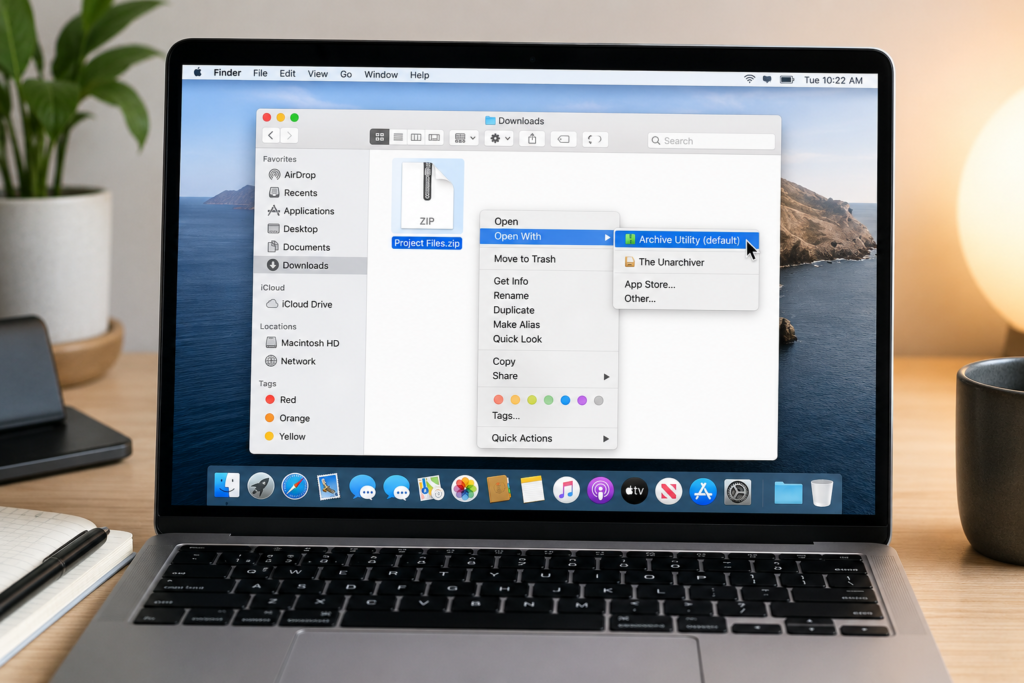
  1. Control-click the ZIP file. If you have a trackpad use a two-finger click. If you use a mouse right-click.
  2. Select Open With.
  3. Choose Archive Utility from the list.
  4. If Archive Utility is not listed click Other then select Archive Utility from the Applications Utilities folder.
  5. Wait for the extraction to finish. The unzipped folder appears next to the original ZIP file.

This method is especially useful when a third-party app has changed your default opener or when double-clicking does nothing.

How to Unzip a Folder on Mac with Finder’s Open With Menu

Finder’s menu bar is another reliable option.

  1. Click the ZIP file once to select it.
  2. Go to the top menu bar and click File.
  3. Select Open With.
  4. Choose Archive Utility.
  5. Check the same location for the extracted folder.

This produces the same result as double-clicking or right-clicking. It’s a good backup method if your trackpad right-click is not working or if you prefer using menus.

How to Open a ZIP Folder on Mac Using Terminal

If you prefer a command-line approach or need to extract into a specific folder Terminal works well.

  1. Open Terminal. You can find it in Applications > Utilities > Terminal or by searching Spotlight with Command + Space.
  2. Type the following command:
textunzip ~/Downloads/example.zip -d ~/Documents/Unzipped
  1. Replace example.zip with the exact name of your ZIP file.
  2. Replace ~/Documents/Unzipped with your preferred destination folder.
  3. Press Return.
  4. If the command succeeds the extracted files appear in the destination folder.

If your file path contains spaces wrap the path in quotes. For example:

textunzip "~/Downloads/My File.zip" -d "~/Documents/My Folder"

Use the Tab key to autocomplete file and folder names. If you see an error such as unzip: cannot find or open double-check the file name and location.

How to Unzip Multiple ZIP Folders on Mac

If you have several ZIP archives macOS can process them in one batch.

  1. In Finder select all the ZIP files you want to extract. Hold Command while clicking each file.
  2. Control-click or right-click one of the selected files.
  3. Choose Open With  Archive Utility.
  4. Archive Utility extracts each ZIP file into its own separate folder in the same location.

This saves time when you’ve downloaded multiple folders from a client course or image pack.

MethodBest forDifficultyRequires extra apps
Double-clickOne quick ZIP fileBeginnerNo
Right-click > Open WithFixing default app issuesBeginnerNo
Finder File menuMenu-bar usersBeginnerNo
Terminal unzipSpecific destination, batch controlIntermediateNo
Third-party appRAR, 7z, encrypted ZIPsBeginner to intermediateYes

Why Your Mac Won’t Unzip a Folder

Sometimes the extraction fails or the folder appears empty. Here are common reasons and quick fixes.

Corrupted download
If the ZIP file didn’t fully download it may be corrupted. Delete it and download it again from the original source.

Password-protected ZIP
Some encrypted ZIP files may not open in Archive Utility. You may need a dedicated unzip tool that supports the encryption format. Compatibility varies by app and ZIP encryption type. Needs verification for exact app support.

Unsupported compression format
A .rar or .7z file is not a standard ZIP. macOS Archive Utility does not handle all compression formats. You may need a tool like The Unarchiver or Keka.

Not enough disk space
If your Mac is low on storage extraction can fail. Free up space and try again.

Blocked file from quarantine
Files downloaded from the internet may carry a quarantine attribute. If macOS blocks the file right-click it and choose Open. This can trigger a warning that lets you confirm.

Strange file names
Very long names or special characters can occasionally cause extraction issues. Rename the ZIP file to something short and simple before unzipping.

Quick Mistakes to Avoid

  • Double-clicking a .rar file as if it were a .zip
  • Expecting the extracted folder to appear on the desktop when the original file is in Downloads
  • Using a third-party app without checking if Archive Utility can already do the job
  • Deleting the original ZIP before confirming the extracted files are complete
  • Ignoring macOS security warnings on downloaded files

Avoiding these mistakes makes how to unzip a folder on Mac much smoother.

Before You Unzip: Quick Security Check

ZIP folders can come from email messaging apps or the web. A few quick checks can prevent clutter or security problems.

  • Check the sender or source. If you don’t recognize it don’t open the archive.
  • Select the ZIP file and press Space to preview its contents on many Macs.
  • If a very small ZIP file expands into an unusually large folder stop and delete it.
  • After extraction scan the new files with your preferred malware tool if you downloaded them from an untrusted site.

These steps don’t replace antivirus software but they reduce common risks.

How to Open a ZIP Folder on Mac with Third-Party Tools

Most standard ZIP files don’t need a third-party app. However some formats and advanced archives need more power.

The Unarchiver and Keka are two popular options. They can open formats like RAR, 7z, and some older compression types. They’re useful when Archive Utility fails.

General steps:

  1. Download the app from the official website.
  2. Install it and open it once.
  3. Right-click the archive file.
  4. Choose Open With and select the third-party app.
  5. Wait for extraction to finish.

Always check the official website for current compatibility and safety information. https://support.apple.com/en-gb/guide/mac-help/mchlp2528/mac

After You Unzip: Managing Images and Product Photos

If your unzipped folder contains product photos stock images, or e-commerce assets, you may need to edit them before use.

For example: sellers often receive ZIP folders full of product shots with messy backgrounds. After you unzip a folder on Mac, you can open those images and clean them up.

BGImageSnap is useful here. It offers background removal white or transparent backgrounds image resizing and quality improvements for product photos. If you run an online store this can save time when preparing images for marketplaces or catalogs.

relevant BGImageSnap background remover tool or article

Suggested image: before-and-after product photo with a clean white background. Alt text: How to unzip a folder on Mac and prepare product images with BGImageSnap.

Frequently Asked Questions

How do I unzip a folder on Mac without extra software?

Use the built-in Archive Utility. Double-click the ZIP file in Finder or right-click and choose Open With > Archive Utility.

What is the keyboard shortcut to unzip a folder on Mac?

There is no single built-in keyboard shortcut for unzipping. You can select the file and press Command + O but the result depends on the default app. Right-click is usually more reliable.

Why can’t I unzip a folder on Mac?

The file may be corrupted password-protected or in a format such as RAR that Archive Utility doesn’t support. Try downloading the file again or use a compatible third-party tool.

Can I unzip a password-protected ZIP folder on Mac?

Some password-protected ZIP files open in Archive Utility and prompt for a password. Others use encryption formats that require a third-party app. Test with the built-in method first.

How do I unzip a RAR folder on Mac?

Archive Utility does not natively handle most RAR files. Use a reputable third-party tool like The Unarchiver or Keka. Check the official website for the current version and compatibility.

Where do unzipped files go on a Mac?

By default Archive Utility places the extracted folder in the same location as the original ZIP file. If you unzip a file in Downloads the new folder appears in Downloads.

How do I create a ZIP folder on Mac?

Select the files or folders in Finder, right-click, and choose Compress. macOS creates a new ZIP archive in the same location.

Does unzipping a folder on Mac delete the original ZIP?

No. Unzipping creates a new extracted folder and leaves the original ZIP file untouched. You can delete the ZIP later after verifying the extracted files.

Conclusion

Knowing how to unzip a folder on Mac gives you control over downloaded files compressed archives and shared project folders. The built-in Archive Utility is fast and reliable for standard ZIP files. Use double-click for speed right-click when the default app is wrong, and Terminal when you need a specific destination.

If your newly unzipped folder contains product photos or e-commerce images BGImageSnap can help you remove backgrounds resize images, and prepare clean visuals for your store.

Ready to clean up those extracted product photos? Try a BGImageSnap background removal tool today.
Veo AI Video Generator: 7 Essential Tips for Stunning AI Videos.

Veo AI video generator is Google’s tool for turning a text prompt or still image into a short realistic video clip complete with camera movement natural motion and in the newer versions synced audio and dialogue. If you’ve already used an AI image generator to create visuals the veo ai video generator is Google’s answer to the next step: bringing those visuals to life.

This guide covers what the Veo AI video generator actually is where to log in safely how to write prompts that get better results and what to do with your Veo clips once they’re ready to publish.

What Is the Veo AI Video Generator

The Veo AI video generator is Google DeepMind’s AI model for creating video from text descriptions or images. Instead of filming or animating a scene by hand you describe what should happen the subject the action the camera movement the mood and the Veo AI video generator produces a short clip that matches it.

You can also upload a still image and ask the Veo AI video generator to animate it turning a static product photo or illustration into motion. The current version Veo 3.1 is known for realistic physics natural human movement and cinematic camera work.

Veo AI Video Generator vs Gemini’s Image Tools

If you’ve used Gemini’s AI image generator the Veo AI video generator will feel familiar in spirit but different in output. The image generator creates a single still frame from a prompt. The Veo AI video generator creates a short moving clip typically a few seconds long often with matching audio built in.

Many creators use both together: generate a still image first to lock in a look then feed that image into the Veo AI video generator as the starting frame for a video.

Tip One: Log In to the Veo AI Video Generator the Safe Way

There’s no separate “Veo account” to create. You access the Veo AI video generator through your existing Google account via one of a few official routes:

  • Gemini app sign in at gemini.google.com or in the mobile app then select the video creation tool if it’s available on your plan.
  • Google Flow Google’s dedicated AI filmmaking tool built specifically around Veo for longer multi shot projects.
  • Vertex AI Media Studio the developer and enterprise route for teams generating video through Google Cloud.

For the technical details on accessing Veo through Google’s developer tools see Google’s official Veo documentation and for the creative, filmmaking focused version, see Google’s official announcement of Flow.

Tip Two: Understand What You’re Paying For

Some free rate limited access to the Veo AI video generator is available directly through your Google account. Full features higher resolution longer clips and more generations per month are gated behind a paid Google AI subscription.

Exact pricing tiers change fairly often so verify current numbers on Google’s own pricing page rather than relying on older articles before you budget a project around it.

Tip Three: Write Prompts Like a Shot List

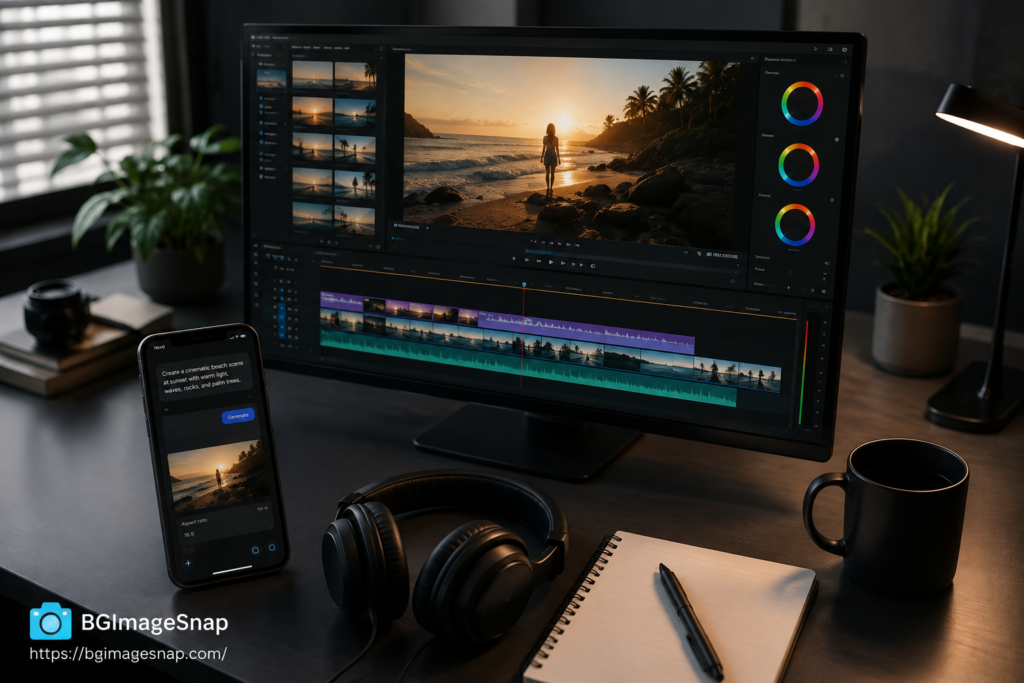
Prompts for the Veo AI video generator work best when they read like a shot description rather than a vague idea. A strong prompt usually includes the subject and action the setting the camera movement and the mood or lighting.

  • Describe the subject and what it’s doing not just what it is.
  • Specify the camera behavior a slow push in a tracking shot a static wide shot.
  • Set the scene indoor or outdoor time of day weather.
  • Add a style or mood word cinematic documentary handheld dreamlike.
  • If you want dialogue or sound describe it directly in the prompt.

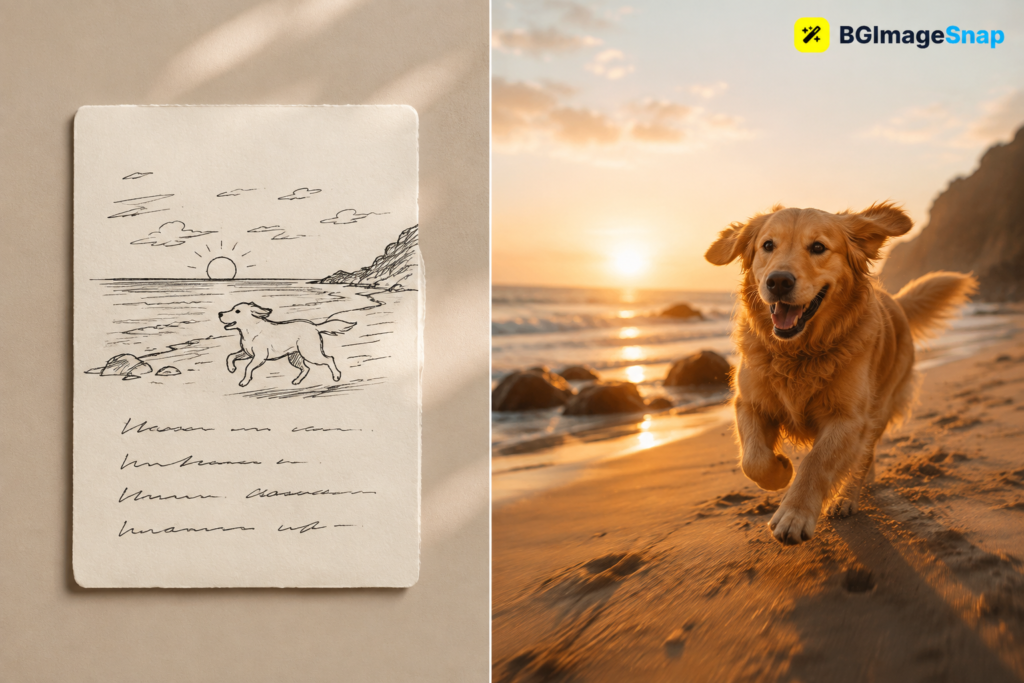
For example, rather than “a dog running” a stronger prompt for the Veo AI video generator would describe a golden retriever sprinting across a sunlit beach at sunset camera tracking alongside at ground level waves crashing softly in the background.

Tip Four: Plan for Short Clips Not Long Videos

A single generation from the Veo AI video generator typically produces a clip only a few seconds long. Longer videos are built by generating multiple clips and stitching them together which means budgeting more time and credits than a single take suggests.

Tip Five: Avoid the Most Common Veo Mistakes

  • Writing prompts that only describe the subject and skip the camera and setting.
  • Expecting one generation to produce a long video instead of chaining several together.
  • Not budgeting credits or minutes before a project then running out mid way through a campaign.
  • Publishing a raw Veo clip without pulling a clean still frame or thumbnail for use elsewhere on the page.
  • Signing into unofficial third party “free Veo” sites instead of Google’s own tools.

Tip Six: Turn Veo Stills Into Web Ready Images

Video isn’t always the final format you need. A lot of creators use the Veo AI video generator to build a scene then pull a still frame from it to use as a thumbnail a blog header or a product visual. That still frame usually needs the same cleanup any AI generated image does before it’s ready to publish.

If your Veo still frame has a busy or distracting background BGImageSnap’s free background remover can strip it out in seconds leaving a clean or transparent background suited for product listings and marketing graphics.

From there BGImageSnap’s image resizer and image compressor get the frame down to a web friendly file size without losing visible quality and the format converter can save it as WebP for faster page loads.

Tip Seven: Match the Tool to the Job

The Veo AI video generator is genuinely powerful but it isn’t always the right tool. For a single static product photo a still image AI generator paired with a background remover is faster and cheaper. Save the Veo AI video generator for moments that specifically benefit from motion a product in use a scene with atmosphere or social content built for video first platforms.

Frequently Asked Questions About the Veo AI Video Generator

Is the Veo AI video generator free to use

Google offers limited rate limited access to the Veo AI video generator through a free Google account. Higher resolution longer clips and more monthly generations require a paid Google AI subscription.

How do I log in to the Veo AI video generator

There’s no separate Veo account you sign in with your existing Google account through the Gemini app Google Flow or Vertex AI Media Studio.

How long can a video from the Veo AI video generator be

A single generation typically produces a clip a few seconds long. Longer videos are made by generating multiple clips and stitching them together.

Does the Veo AI video generator create audio and dialogue

Yes. Veo 3.1 can generate synchronized audio sound effects and spoken dialogue directly in the clip not just silent video.

Can I turn a still image into a video with the Veo AI video generator

Yes. You can upload an existing image and use it as the starting frame and the Veo AI video generator will animate it based on your prompt.

What’s the difference between the Veo AI video generator and Google’s image generator

The image generator produces a single still image from a prompt while the Veo AI video generator produces a short moving video clip optionally with audio.

Are the free Veo login sites that show up in search safe to use

Be cautious with third party sites promising free unlimited access to the Veo AI video generator. They aren’t run by Google and signing in with your Google account on an unfamiliar site carries real risk. Stick to Google’s official tools.

How do I get a clean image from a Veo AI video generator frame

Export or screenshot the frame you want then run it through a background remover and image resizer to get a clean web ready still image.

Conclusion

The Veo AI video generator makes short cinematic AI video accessible without a camera crew or editing suite you describe the shot and it builds the scene. Just remember to access it only through Google’s official tools and if you pull a still frame for your website or store clean it up first.

Run your Veo AI video generator stills through BGImageSnap’s free background remover, resizer, and compressor to turn them into polished publish ready images in a few clicks.

1920×1080 White Solid Background: The Complete Guide to Getting the Perfect Plain White Image.

A plain white background sounds simple until you actually need one that is the exact size the exact shade of white and free of the faint gray tint or JPEG noise that shows up the moment you zoom in. Search “1920×1080 white solid” and you’ll find a mix of stock photo sites forum threads and tools that don’t quite give you a clean ready-to-use file.

This guide covers what a 1920×1080 white solid background actually is why that resolution is the default for so many screens and templates and the different ways to get one whether you want to download a ready-made file create one from scratch in design software or turn an existing photo into a clean white-background image.

You’ll also find a comparison of white versus off-white versus transparent backgrounds the most common mistakes people make when creating them and a short FAQ covering the questions that come up most often.

Table of Contents

  1. What Is a 1920×1080 White Solid Background?
  2. Why 1920×1080 Is the Standard Resolution
  3. Common Uses for White Solid Backgrounds
  4. How to Create a 1920×1080 White Solid Background
  5. White vs. Off-White vs. Transparent Backgrounds
  6. Common Mistakes to Avoid
  7. Best Practices for a Clean White Background
  8. Frequently Asked Questions

Quick Answer: Key Takeaways

  • 1920×1080 is a 16:9 widescreen resolution (Full HD) the same aspect ratio used by most laptop screens YouTube videos and presentation templates.
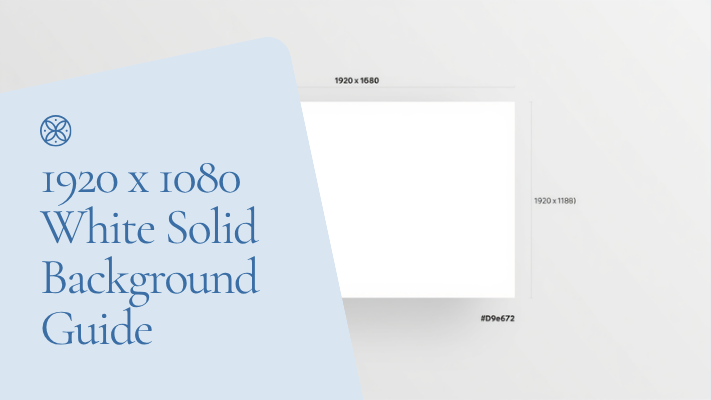
  • A “white solid” background means every pixel in the image is the same pure white value (typically hex #FFFFFF) with no gradient, texture, or shadow.
  • The fastest way to get one is to generate it directly in an image editor or online tool rather than searching stock sites since a generated file has no compression artifacts.
  • For product photos or portraits it’s usually easier to remove the existi
  • ng background and replace it with solid white than to start from a blank canvas.
  • Pure white (#FFFFFF) can look harsh in photography; many professionals use an off-white (#F8F8F8 or similar) that still reads as “white” but is gentler on the eyes.
  • File format matters: PNG preserves a perfectly flat white with no compression noise while JPEG can introduce faint blotches at high compression.
  • For print use check whether you need RGB or CMYK color mode a screen-perfect white can shift slightly when printed.

What Is a 1920×1080 White Solid Background?

A 1920×1080 white solid background is an image exactly 1,920 pixels wide by 1,080 pixels tall filled entirely with a single uniform white color. There’s no gradient no vignette no texture just one flat color across every pixel. It’s the digital equivalent of a blank sheet of white paper sized to match a standard widescreen display.

The “1920×1080” part refers to the resolution commonly called Full HD or 1080p. The “white solid” part refers to the content: a single flat color rather than a photo pattern or gradient. Together the two describe one of the most requested background specs online used everywhere from video editing to online forms.

Why 1920×1080 Is the Standard Resolution

1920×1080 became the default resolution for a simple reason: it matches the 16:9 aspect ratio that most laptop screens monitors, TVs, and video platforms settled on over a decade ago. Because so much hardware and software is built around this ratio, a background sized to 1920×1080 will fit cleanly as a desktop wallpaper a Zoom or Teams virtual background a YouTube thumbnail canvas or a slide in PowerPoint and Google Slides without cropping or stretching.

Using a different resolution isn’t wrong but it usually means the image gets automatically resized or cropped by whatever platform you’re uploading it to which can introduce blur or cut off content near the edges. Starting at 1920×1080 avoids that problem for most common uses.

Common Uses for White Solid Backgrounds

A plain white background is one of the most versatile assets in digital work. Here are the situations where it comes up most often.

Product Photography and E-Commerce Listings

Most online marketplaces including Amazon and Etsy require or strongly recommend a pure white background for the main product image. It keeps the focus entirely on the product and creates visual consistency across a whole catalog.

ID Photos, Passport Photos, and Official Documents

Passport, visa, and ID photo requirements almost always specify a plain white or off-white background so the applicant’s face and outline are clearly separated from the surroundings. This is one of the strictest use cases even a light shadow behind the subject can cause a photo to be rejected.

Video Calls and Virtual Backgrounds

A solid white background works well as a virtual background for Zoom, Google Meet, or Teams calls when someone wants a clean distraction-free look without a busy room behind them.

YouTube Thumbnails, Presentations, and Templates

Designers frequently start a thumbnail or slide with a flat white canvas at 1920×1080 because it’s easy to layer text icons and graphics on top without background clutter competing for attention.

Print Materials

Flyers, business cards, and posters often use white as the base layer before print-ready color adjustments are applied since most printed materials start from a white substrate anyway.

How to Create a 1920×1080 White Solid Background

There are three practical ways to get this file depending on whether you’re starting from scratch or working with an existing photo.

Method 1: Generate a Blank Canvas with an Online Tool

This is the fastest option if you just need an empty white rectangle at the right size.

  • Open a browser-based image tool that lets you set a custom canvas size.
  • Enter 1920 for width and 1080 for height in pixels.
  • Set the fill or background color to pure white (#FFFFFF) or an off-white shade if you prefer a softer tone.
  • Export as PNG to avoid compression artifacts or JPEG at maximum quality if file size matters more.

Method 2: Create It in Design Software

If you’re already working in Photoshop, Canva, GIMP, or a similar tool:

  1. Create a new document and set the dimensions to 1920 x 1080 px.
  2. Set the resolution to 72 DPI for screen use or 300 DPI if the file will be printed.
  3. Fill the entire background layer with white then flatten the image before exporting.
  4. Double-check there’s no drop shadow, border, or subtle gradient left over from a template.

Method 3: Remove the Background from an Existing Photo

If you already have a photo of a product, person, or object and want it isolated on solid white rather than starting from a blank canvas the quicker route is to remove the existing background from the photo and replace it with solid white. This is the standard workflow for product listings and ID photos since it keeps the subject but swaps out whatever was originally behind them.

White vs. Off-White vs. Transparent Backgrounds

“White” isn’t always the right choice. Depending on where the image will be used an off-white tone or a transparent background may work better.

Background TypeBest ForWatch Out For
Pure white (#FFFFFF)E-commerce listings, passport photos, presentation slidesCan look harsh or clinical in photography; shows dust and lens flare easily
Off-white (#F5F5F5–#FAFAFA)Professional photography, portraits, brand imageryMay be rejected by platforms that require exact pure white
Transparent (PNG with alpha)Layering over other designs, logos, overlaysNot accepted for ID photos or most marketplace listings; needs a PNG or WebP file not JPEG

Common Mistakes to Avoid

Using a JPEG at low quality: Heavy JPEG compression introduces faint gray blotches on flat white areas that are invisible until you zoom in use PNG for a perfectly flat background or JPEG at maximum quality only.

Leaving a soft shadow or vignette: Many photo templates add a subtle drop shadow around the edges by default. On a true “solid” background this needs to be removed or flattened out.

Mismatched color mode: A background that looks pure white in RGB on screen can print with a faint tint if it isn’t converted to CMYK correctly for physical materials.

Wrong aspect ratio for the platform: 1920×1080 fits 16:9 uses well but a passport photo or Instagram post has its own required dimensions always check the exact spec before exporting.

Skipping a final zoom-in check: Compression artifacts and stray pixels are often only visible at 100% zoom or higher so it’s worth checking before publishing or submitting the file.

Best Practices for a Clean White Background

  • Export as PNG whenever the background needs to stay perfectly flat with no compression noise.
  • Use pure white (#FFFFFF) for official/ID uses and a slightly off-white tone for photography that will be viewed on screen for long periods.
  • Keep a master file at 1920×1080 and resize down for smaller platforms rather than resizing up which causes blur.
  • If you’re isolating a subject from a photo check the edges closely stray pixels of the old background are the most common giveaway of a rushed edit.
  • Save a transparent PNG version alongside the solid white version if you might need to place the subject on a different background later.

Frequently Asked Questions

What size is 1920×1080 in inches?

At 72 DPI (standard screen resolution) 1920×1080 pixels works out to roughly 26.7 x 15 inches. For print it’s typically scaled down and reworked at 300 DPI instead since 1920×1080 alone is too low-resolution for large-format printing.

Is #FFFFFF the only correct white for a background?

No. #FFFFFF is pure white and is often required for ID photos and marketplace listings but many designers use a very light off-white (around #F8F8F8) for photography and branding because it’s softer on the eyes while still reading as “white” to most viewers.

Can I use a 1920×1080 white background as a Zoom virtual background?

Yes. Most video call platforms accept a plain image at this resolution as a custom virtual background and 1920×1080 matches the aspect ratio most webcams and screens use by default.

What’s the difference between a solid white and a transparent background?

A solid white background fills every pixel with white and works in any file format including JPEG. A transparent background has no fill at all in the empty areas and requires a format that supports transparency such as PNG or WebP it’s used when you plan to place the subject over a different background later.

Do I need special software to create a white background, or can I use a free online tool?

A free browser-based tool is usually enough for a plain white canvas or for removing a background from an existing photo. Design software like Photoshop or GIMP is more useful when you need finer control such as custom color modes for print.

Why does my white background look gray or blotchy after saving?

This is almost always JPEG compression. Flat colors like solid white are especially prone to visible compression artifacts at lower quality settings. Re-exporting as PNG or as JPEG at maximum quality usually fixes it.

Conclusion

A 1920×1080 white solid background is a simple asset with a specific set of requirements: the right pixel dimensions a truly flat and uniform color and a file format that won’t introduce compression noise. Whether you’re building one from a blank canvas for a presentation or stripping the background out of an existing product photo the fastest path is usually a purpose-built online tool rather than manually editing pixel by pixel.

Don’t Stop Here! Discover More Expert Tips & Guides

How to Fix Grainy Photos: The Complete 2026 Fix-It Guide.

LinkedIn Profile Photo Size and Tips: Complete 2025 Guide.

How to Convert WEBP to JPG Free Online (Fast, No Software)