Convert Pixels to Inches: The Ultimate Free Guide (2026).

Introduction

If you’ve ever tried to print a photo and watched it come out blurry or resized a graphic for a client only to have them ask “but what size is this in inches?” you already know why it matters to convert pixels to inches correctly. Pixels measure screen resolution while inches measure physical real world size. The two only connect once you know your image’s DPI (dots per inch) or PPI (pixels per inch).

In this guide you’ll learn exactly how to convert pixels to inches the formulas behind it common DPI standards for web and print a free way to do the conversion instantly and the mistakes that quietly ruin print quality.

Table of Contents

  1. Quick Answer
  2. Pixels vs. Inches: What’s the Difference?
  3. The Pixels to Inches Formula
  4. Common DPI Standards (Web vs. Print)
  5. Step-by-Step: How to Convert Pixels to Inches
  6. Pixel to Inch Conversion Chart
  7. How to Convert Pixels to Inches Without Software
  8. Common Mistakes to Avoid
  9. FAQ
  10. Conclusion

Quick Answer / Key Takeaways

  • Formula: Inches = Pixels ÷ DPI (or PPI)
  • Web images typically use 72–96 DPI; print images need 300 DPI for sharp results.
  • A 1200 × 1800 px image at 300 DPI equals 4 × 6 inches a standard photo print size.
  • The same pixel dimensions can represent different physical sizes depending on the DPI setting.
  • You can convert pixels to inches instantly using a browser based tool without installing software.
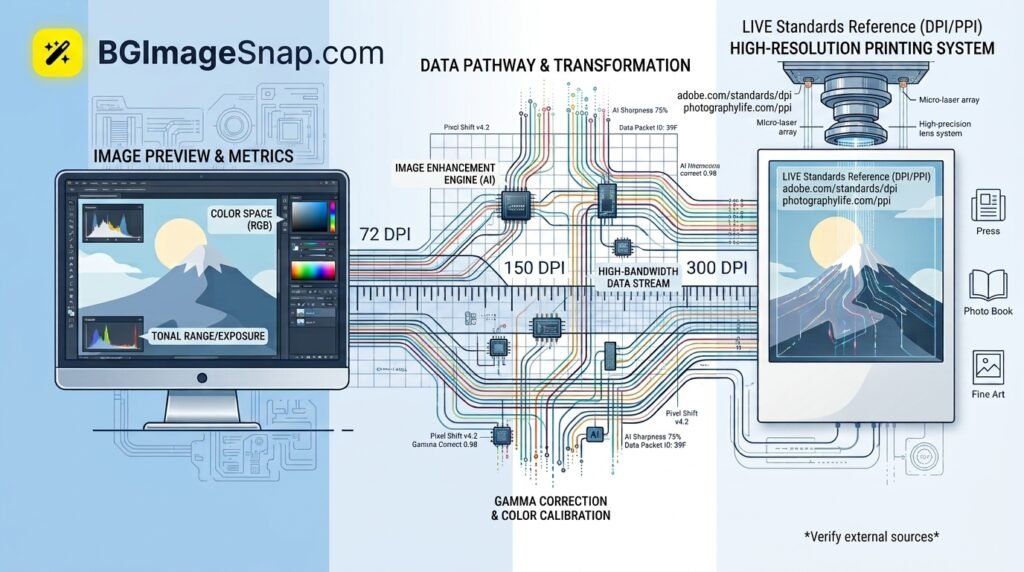
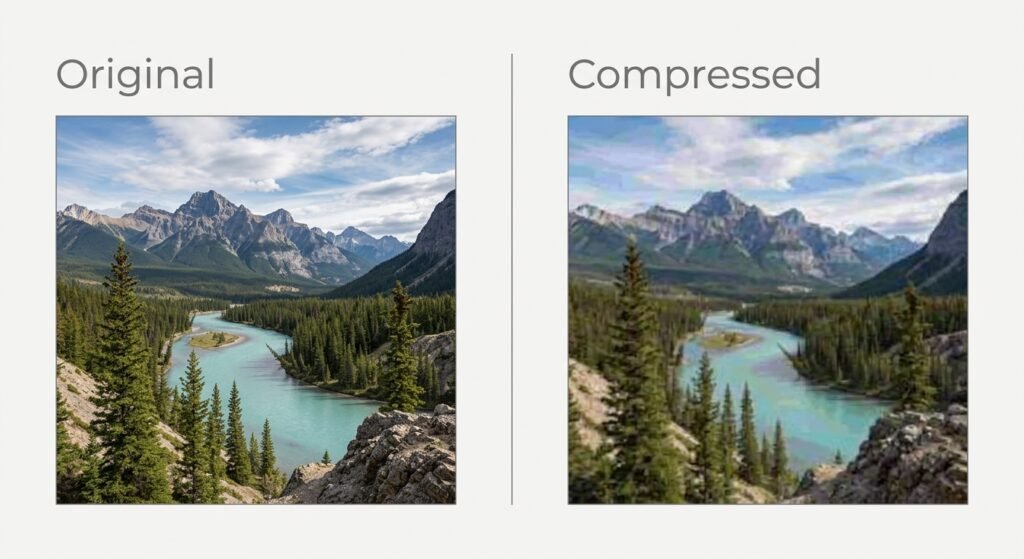
Convert pixels to inches — visual chart showing pixel-to-inch conversion at 72, 96, and 300 DPI

Pixels vs. Inches: What’s the Difference?

A pixel is a single point of color in a digital image a unit of screen resolution not physical size. An inch is a fixed unit of physical measurement. A 1000 pixel wide image can be tiny or huge in the real world; it all depends on how many pixels are packed into each inch.

That’s where DPI (dots per inch) and PPI (pixels per inch) come in. These values tell you the density of pixels within a printed inch and they’re the bridge between the digital and physical worlds.

The Pixels to Inches Formula

The core formula to convert pixels to inches is:

Inches = Pixels ÷ DPI

For example, an image that is 1500 pixels wide at 150 DPI equals:

1500 ÷ 150 = 10 inches

To go the other way and find pixels from inches:

Pixels = Inches × DPI

This formula is used for both width and height calculate each dimension separately.

Common DPI Standards (Web vs. Print)

Not every image uses the same DPI and this is the single biggest source of confusion when people convert pixels to inches.

Use CaseTypical DPI/PPINotes
Website & social media images72–96 DPIScreens display pixels directly; DPI is mostly irrelevant on screen
Standard document printing150 DPIAcceptable quality for everyday printing
Professional photo printing300 DPIIndustry standard for sharp, print ready photos
Large format banners/posters100–150 DPIViewed from a distance so lower DPI still looks sharp

Why this matters: the same 1200 × 1800 pixel file is roughly 12.5 × 18.75 inches at 96 DPI (screen) but only 4 × 6 inches at 300 DPI (print). Same pixels completely different physical size.

Step-by-Step: How to Convert Pixels to Inches

  1. Find your image’s pixel dimensions. Right click the file and check “Properties” (Windows) or “Get Info” (Mac) or open it in any image editor.
  2. Determine the DPI you need. Use 300 DPI for print 72–96 DPI for web/screen display.
  3. Divide width in pixels by DPI. This gives you the width in inches.
  4. Divide height in pixels by DPI. This gives you the height in inches.
  5. Round to a practical print size if you’re ordering physical prints (e.g., 4×6, 5×7, 8×10).

Pixel to Inch Conversion Chart

Pixels (W × H)At 72 DPIAt 150 DPIAt 300 DPI
600 × 4008.3 × 5.6 in4 × 2.7 in2 × 1.3 in
1200 × 180016.7 × 25 in8 × 12 in4 × 6 in
1500 × 210020.8 × 29.2 in10 × 14 in5 × 7 in
2400 × 300033.3 × 41.7 in16 × 20 in8 × 10 in

How to Convert Pixels to Inches Without Software

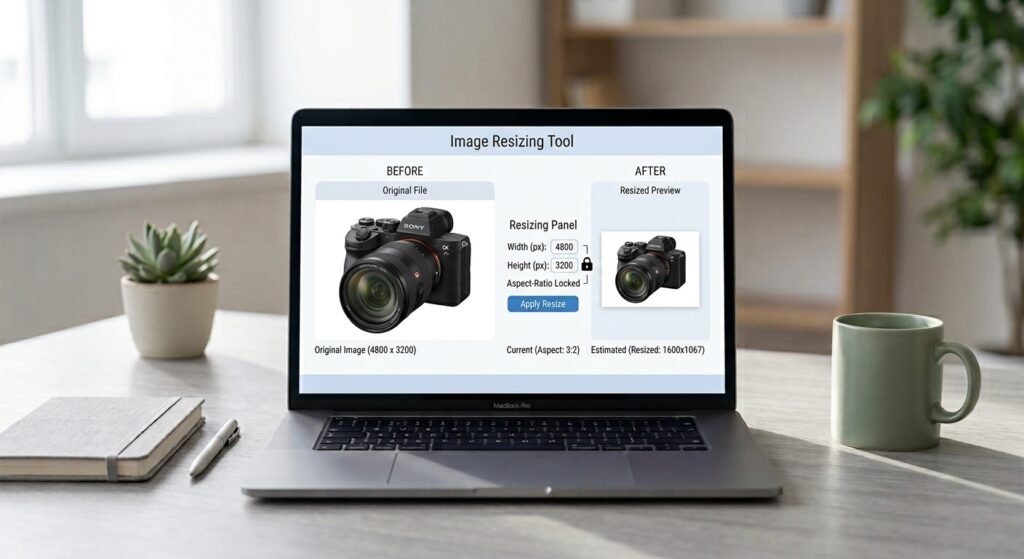
You don’t need Photoshop or a desktop program just to convert pixels to inches. A browser based image resizer lets you upload a photo see its pixel dimensions set your target DPI and get the inch measurements and a print ready file in seconds right from your phone or laptop. This is especially useful when you’re preparing images for printing, passport photos, or ID cards and need an exact physical size without guessing.

Common Mistakes to Avoid

  • Assuming DPI is fixed. The same pixel file can be resized to any DPI; always check before printing.
  • Using web images for print. A 72 DPI image that looks fine on screen will print blurry or pixelated.
  • Ignoring the aspect ratio. Converting only one dimension without the other can distort the image.
  • Confusing DPI with PPI. PPI refers to image resolution; DPI technically refers to printer output but the two are used interchangeably in most conversions.
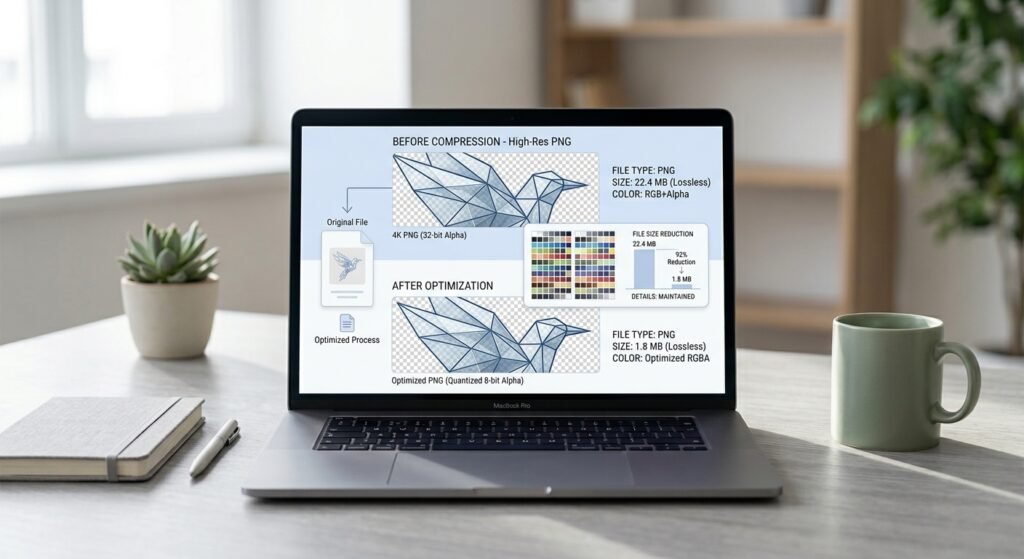
  • Upscaling low resolution images. Increasing DPI on a small pixel file doesn’t add real detail; it just stretches existing pixels.

FAQs

1. How do I convert pixels to inches for printing?

Divide the pixel width and height by 300 (the standard print DPI). For example, 1800 × 2400 pixels at 300 DPI equals 6 × 8 inches.

2. What DPI should I use to convert pixels to inches for a website?

Web images generally use 72–96 DPI since screens display pixels directly rather than printed dots.

3. How many pixels are in an inch?

It depends on the DPI setting. At 300 DPI there are 300 pixels per inch. At 72 DPI there are 72 pixels per inch.

4. Can I convert pixels to inches without knowing the DPI?

No DPI (or PPI) is required to convert pixels to inches since pixels alone only describe resolution not physical size.

5. What is 1080 x 1080 pixels in inches?

At 72 DPI that’s 15 × 15 inches. At 300 DPI (print quality) it’s 3.6 × 3.6 inches.

7. Is PPI the same as DPI?

Not technically PPI measures pixel density in a digital image while DPI measures dots printed per inch by a printer. In everyday conversion they’re used interchangeably.

Conclusion

Converting pixels to inches comes down to one simple formula divide pixels by DPI but getting it right depends on knowing which DPI standard your project needs. Use 72–96 DPI for anything staying on a screen and 300 DPI whenever an image is headed to print. Once you understand that relationship you’ll never be caught off guard by a blurry print or an oddly sized graphic again.
How to Remove Shadow From Photo: Easy Background Editing Guide.

Removing unwanted shadows can make a photo look cleaner brighter and more professional. Whether you are preparing a product image editing a social media photo creating a presentation or improving a personal picture knowing how to remove shadow from photo can make a noticeable difference.

Shadows are often created by lighting nearby objects camera position or the original background. While natural shadows can add depth unwanted shadows may distract viewers or make an image look uneven.

In this guide you will learn what unwanted shadows are why people remove them how to remove shadow from photo which editing methods are useful, and how BGImageSnap can make image editing easier for beginners.

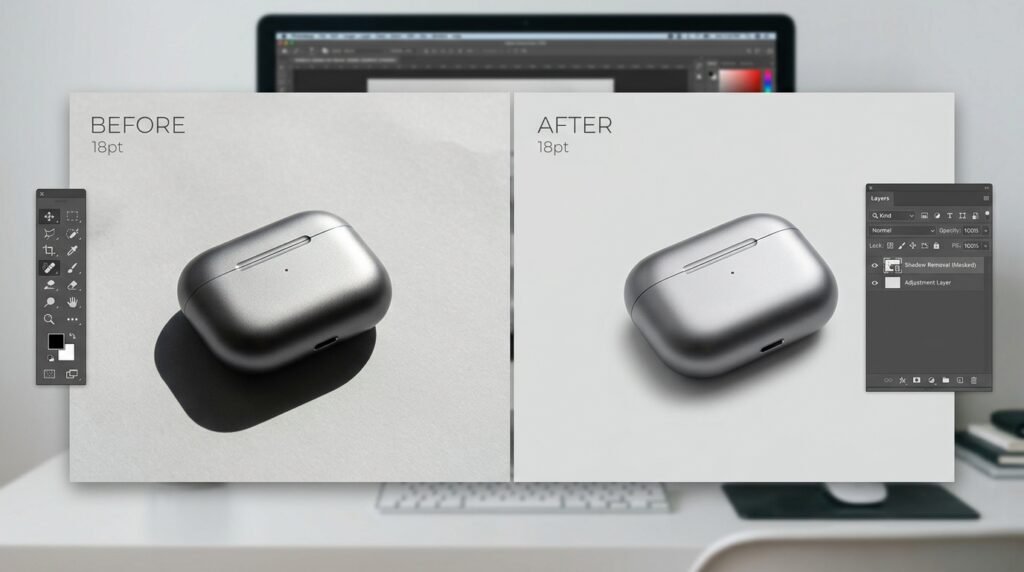
Before and after photo showing a product with an unwanted shadow removed

What Does It Mean to Remove Shadow From Photo?

To remove shadow from photo means reducing or completely eliminating unwanted dark areas caused by lighting or objects in the image.

A shadow can appear behind a person underneath a product around an object or across a surface. The best editing method depends on the type of shadow and the result you want.

Some shadows are easy to remove because they are located on a plain background. Others require more detailed editing because they overlap with the subject.

The goal is usually to create a cleaner image while keeping the main subject natural and realistic.

Why Remove Shadow From Photo?

There are many reasons someone may want to remove unwanted shadows from an image.

Improve Product Photos

E commerce sellers often need clean product images. Strong shadows can make products look less polished or interfere with a simple product presentation.

Removing distracting shadows can help the product stand out more clearly.

Create Cleaner Social Media Images

Creators and marketers often use edited images for posts advertisements thumbnails and promotional graphics. Removing unnecessary shadows can create a cleaner visual appearance.

Prepare Professional Images

Photographers designers students and businesses may need images with a simple and consistent appearance. Removing unwanted shadows can help images fit better into documents presentations websites and promotional materials.

Improve Background Editing

When you are changing or removing a background shadows can sometimes remain around the subject. Cleaning these areas can make the final result look more natural.

How to Remove Shadow From Photo

The right technique depends on the type of image you are editing. Here are some practical approaches beginners can understand.

Use Background Removal

If the unwanted shadow is connected to the background removing the background can be one of the simplest solutions.

This approach separates the main subject from the original scene. You can then place the subject on a transparent or new background.

This is particularly useful for product photography profile images catalog images and marketing graphics.

Use an Eraser or Brush Tool

For small shadows a brush or eraser can sometimes work well.

Zoom into the image and carefully edit the unwanted dark area. Use a soft brush when necessary to avoid creating sharp or unnatural edges.

This method is useful when the shadow covers only a small part of the background.

Adjust Brightness and Exposure

Some shadows do not need to be completely removed. They may simply need to be reduced.

Increasing brightness exposure or shadows in an image editor can make dark areas less noticeable.

However excessive adjustments can make the entire image look washed out so make small changes and compare the result.

Replace the Background

If the original background contains heavy shadows replacing it may produce a cleaner result than trying to repair every dark area.

A new background can give the subject a consistent appearance while removing distracting elements from the original image.

How BGImageSnap Can Help With Background Editing

BGImageSnap is designed to make image editing easier for people who want a simple way to work with backgrounds.

What BGImageSnap Does

BGImageSnap helps users work with image backgrounds and create cleaner subject focused images.

Instead of spending a long time manually selecting every part of a subject users can use a simpler background editing workflow.

This can be especially useful when unwanted shadows are part of the original background and you want to separate the subject from that environment.

How to Use BGImageSnap

Start by selecting the image you want to edit.

Upload the image to BGImageSnap and allow the tool to process the background.

Review the result carefully. Check the edges around hair clothing products and other detailed areas.

If the result looks good use the processed image for your intended project.

For images where the shadow is attached closely to the subject inspect the result before using it commercially or publishing it.

Who Can Benefit From BGImageSnap?

BGImageSnap can be useful for:

• E commerce sellers preparing product images

• Students creating presentations

• Content creators editing social media graphics

• Marketers preparing promotional visuals

• Designers working with image assets

• Beginners who want a simpler editing workflow

What Should You Expect From the Result?

The quality of any automated image editing result depends on the original photo.

Images with clear subjects and strong contrast between the subject and background are generally easier to process.

After processing always inspect important details. Hair transparent objects thin edges product handles and areas with similar colors may require additional editing.

Tips for Better Shadow Removal

Getting a clean result is not only about choosing an editing tool. The original photo also matters.

Use Good Lighting

Good lighting can reduce harsh shadows before editing begins.

When taking product or portrait photos use soft and balanced lighting whenever possible.

Avoid Extremely Dark Backgrounds

A subject that blends into a dark background can be harder to separate during editing.

A clear difference between the subject and background usually makes background editing easier.

Check the Edges

Always inspect the edges after removing or reducing a shadow.

Look around hair fingers clothing product edges and other detailed areas. Small unwanted fragments can make an edited image look artificial.

Do Not Over Edit

Trying to remove every small variation can sometimes make a photo look unnatural.

The best editing usually preserves realistic details while reducing distractions.

Common Mistakes When Removing Shadows

Beginners often make a few common editing mistakes.

Removing Natural Shadows

Not every shadow is a problem. Natural shadows can give objects depth and make them appear grounded.

Removing all shadows from a product can sometimes make it look like it is floating.

Using Excessive Brightness

Increasing brightness too much can remove detail from the image.

Instead of making the entire picture brighter focus on the unwanted dark areas when possible.

Ignoring Fine Details

Hair thin objects transparent areas and complex product shapes can be difficult to edit.

Always zoom in and inspect these areas before finishing the image.

Choosing the Wrong Background

A replacement background should match the purpose of the image.

A simple background may work well for product photography while a creative background may be more appropriate for social media content.

When Should You Remove a Shadow?

You should consider removing a shadow when it distracts from the subject or makes the image unsuitable for its intended purpose.

For example removing a shadow can be useful when preparing:

• Product listings

• Online catalogs

• Marketing graphics

• Profile images

• Presentations

• Website images

• Social media content

However keeping a subtle natural shadow can sometimes make an image look more realistic.

Frequently Asked Questions

Can I Remove Shadow From Photo Without Professional Editing Skills?

Yes. Beginners can use automated background editing tools to simplify the process. BGImageSnap can help reduce the amount of manual work involved in background editing.

Can BGImageSnap Remove Every Shadow?

The result depends on the image. Shadows that belong to the background may be removed when the background is removed while shadows overlapping the subject may require additional editing.

How Do I Remove Shadow From Photo Without Making It Look Fake?

Avoid excessive brightness and aggressive editing. Preserve important subject details and inspect the image edges after processing.

Is Removing Shadows Useful for Product Photos?

Yes. Removing distracting background shadows can create cleaner product images and help the main product receive more visual attention.

Should I Remove Natural Shadows From a Product?

Not always. A subtle natural shadow can add depth and make the product appear grounded. The decision depends on the style and purpose of the image.

Can I Remove Shadow From Photo Online?

Yes. Online image editing and background removal tools can make this process easier without requiring advanced desktop editing software.

Why Does Shadow Removal Sometimes Look Uneven?

Complex shadows can overlap with the subject or contain colors similar to the subject. These situations can make automatic editing more difficult and may require additional adjustments.

Conclusion

Learning how to remove shadow from photo can help you create cleaner and more professional looking images for products social media websites presentations and other projects.

The best approach depends on the image. You can reduce shadows with brightness adjustments manually edit small areas replace the background or use an automated background removal solution.

If you want a simpler starting point try BGImageSnap for your background editing workflow. Upload your image review the processed result and make sure the important details and edges look natural before using the final image.

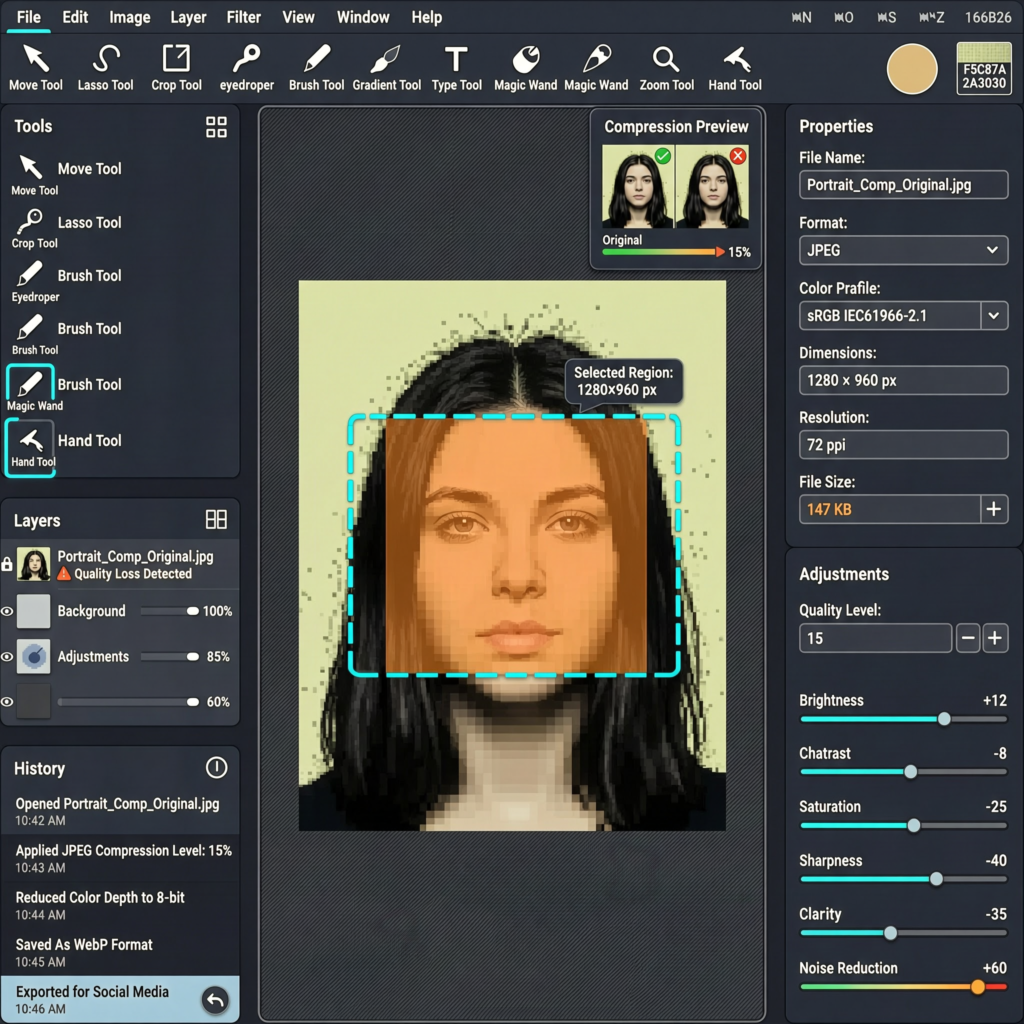
Low Quality Image Maker: 7 Free & Easy Tools to Instantly Lower Image Quality 2026 Guide.

Introduction

A low quality image maker is exactly what it sounds like: a tool that intentionally reduces a photo’s resolution sharpness or file size. That might sound backwards in a world obsessed with 4K everything but there are real practical reasons people search for this faster website loading smaller email attachments, retro aesthetics, meme culture, or testing how a design performs under poor conditions.

This guide walks through the best free tools for deliberately lowering image quality how to do it step by step and since quality often needs to go both directions how to make high quality images when that’s the actual goal. By the end you’ll know exactly which approach fits your project.

Table of Contents

  1. Quick Answer / Key Takeaways
  2. What Is a Low Quality Image Maker?
  3. Why Would Anyone Want Lower Image Quality?
  4. Best Free Low Quality Image Maker Tools
  5. How to Use a Low Quality Image Maker (Step-by-Step)
  6. How to Make High Quality Images Instead
  7. Common Mistakes to Avoid
  8. FAQ
  9. Conclusion

Quick Answer / Key Takeaways

  • A low quality image maker reduces resolution compression quality or sharpness either for smaller file sizes or a deliberate degraded look.
  • Common use cases include faster page load times, retro/glitch aesthetics, meme formatting, and file-size limits for email or forms.
  • Free browser-based tools can do this in seconds without installing software.
  • If your real goal is the opposite sharper cleaner images the process is different and covered later in this guide.
  • Always keep an original high-resolution copy before compressing or degrading an image.

What Is a Low Quality Image Maker?

A low quality image maker is any tool web app, plugin, or software feature that lets you reduce an image’s visual fidelity on purpose. This usually happens through one or more of these methods:

  • Lowering resolution (reducing pixel dimensions e.g., 4000×3000 down to 800×600)
  • Increasing compression (higher JPEG compression ratio more visible artifacts)
  • Reducing bit depth or color palette (fewer colors banding effects)
  • Adding pixelation or blur filters for a stylized low-res look

Unlike a photo editor that focuses on enhancement a low quality image maker focuses on controlled degradation shrinking the file while keeping the image usable for its intended purpose.

Why Would Anyone Want Lower Image Quality?

It’s a fair question. Here are the most common legitimate reasons:

  • Web performance: Smaller images load faster which improves Core Web Vitals and user experience.
  • Storage and bandwidth limits: Forms email attachments and some CMS platforms cap file size.
  • Retro or vaporwave aesthetics: Pixelated low-fidelity visuals are a deliberate creative choice in design and social content.
  • Placeholder or draft assets: Designers often use low-res placeholders before final assets are ready.
  • Testing and QA: Developers test how apps or sites handle poor-quality or slow-loading images.

Best Free Low Quality Image Maker Tools

Below are widely used free tools that can reduce image quality quickly. None of these require design experience.

ToolBest ForCost
Squoosh (by Google)Precise compression control with a live previewFree
TinyPNG / TinyJPGFast bulk compressionFree (limits apply)
GIMPFull control over resolution, pixelation, and filtersFree
PhotopeaBrowser-based Photoshop alternativeFree
CanvaQuick resizing and export quality settingsFree tier available

Tip: For batch jobs (multiple images at once) TinyPNG or Squoosh are the fastest options. For creative pixelation effects GIMP or Photopea give more control.

How to Use a Low Quality Image Maker (Step-by-Step)

  1. Upload your original image to the tool of choice. Always keep a backup of the original file.
  2. Choose a compression level or quality percentage. Most tools use a slider (e.g., 100% = original quality, 20% = heavily compressed).
  3. Adjust resolution if needed. Reduce pixel dimensions for a smaller blurrier result.
  4. Preview the result. Compare file size versus visible quality loss before exporting.
  5. Export and download the new lower-quality image.
  6. Test it in context on your website in an email or wherever it will be used to confirm it meets your size or aesthetic goal.

How to Make High Quality Images Instead

If you landed here needing the opposite result here’s how to make high quality images that look sharp and professional:

  • Start with the highest-resolution source available. You can’t add detail that isn’t there.
  • Use lossless or minimal compression (PNG or high-quality JPEG/WebP settings).
  • Avoid repeated re-saving, which compounds compression artifacts over time.
  • Use upscaling tools carefully. AI upscalers can improve resolution, but results vary depending on the original image.
  • Match the export format to the use case WebP for web speed without major quality loss, PNG for graphics with transparency, JPEG for photos.

For background-specific edits, image retouching, and export at full resolution a purpose-built platform like BGimageSnap simplifies this without needing separate compression and enhancement tools.

Common Mistakes to Avoid

  • Overwriting the original file. Once compressed heavily quality can’t be fully restored.
  • Compressing too aggressively for the use case. A blog thumbnail can handle more compression than a print-ready photo.
  • Ignoring format differences. PNG and JPEG compress very differently; using the wrong one wastes file size or quality.
  • Skipping a final preview before publishing or sending the image.

FAQ

1. What does a low quality image maker actually change in a file? It typically reduces pixel resolution increases compression or lowers color depth all of which shrink file size at the cost of visual detail.

2. Is lowering image quality the same as reducing file size? Not always. File size can also be reduced without visible quality loss using efficient formats like WebP or lossless compression.

3. Can I undo image compression later? No. Once detail is compressed away it can’t be fully recovered. Always keep the original file.

4. What’s the best format for small file size with decent quality? WebP generally offers smaller file sizes than JPEG or PNG at similar visual quality making it popular for web use.

5. Why would a business want a low quality image maker? Mainly for speed smaller images improve page load times which affects both user experience and search rankings.

6. Do these tools work on mobile? Most browser-based tools like Squoosh and TinyPNG work on mobile browsers though desktop offers more precise control.

7. How do I make high quality images if I only have a low-res source? Use an AI upscaling tool as a starting point but expect limitations no tool can perfectly reconstruct detail that was never captured.

Conclusion

Whether you need a low quality image maker for faster load times a stylized aesthetic or file-size limits the tools and steps above cover the most common scenarios. And if your actual goal is the reverse producing sharp high quality images the same principles of resolution compression and format choice apply just in the opposite direction.

Ready to edit or optimize your images the easy way? Try BGimageSnap for fast no-fuss image editing and export.

Resize Image Without Losing Quality Online Free: 7 Smart Methods That Actually Work.

Resize image without losing quality online free is exactly what most people search for after a photo comes out too large for a website too small for printing or the wrong dimensions for a marketplace listing. The frustration is always the same: you shrink or stretch the picture and suddenly it looks soft blocky, or washed out.

The good news is that you can resize image without losing quality online free using browser-based tools no Photoshop no subscription and no design experience needed. This beginner-friendly guide explains why quality loss happens which free tools avoid it and the exact steps to follow.

Table of Contents

Understanding Why Resizing Damages Image Quality

Every photo is a grid of tiny colored squares called pixels. When you change an image’s dimensions software has to add or remove pixels and how it does that determines whether your photo stays sharp.

Downscaling (making an image smaller) is usually safe. The tool merges existing pixels so detail is preserved and file size drops.

Upscaling (making an image bigger) is where problems appear. There is no extra detail hiding in the file so the software has to invent new pixels. Basic tools guess by copying nearby colors which creates blur and soft edges.

A second cause of quality loss is re-compression. Every time a JPG is saved again a little detail is discarded permanently. Resize once, save once that habit alone solves most quality complaints.

How to Resize Image Without Losing Quality Online Free

The general process is nearly identical across most free web tools. Here is the workflow that gives the best results:

  1. Start with the original file. Never resize a version that has already been compressed cropped or screenshotted.
  2. Open a trusted online resizer in your browser.
  3. Upload your image by dragging it into the upload area.
  4. Enter your target dimensions in pixels width height or a percentage.
  5. Keep “maintain aspect ratio” or “lock proportions” enabled. This is the single most important setting.
  6. Choose the output format. PNG for graphics and transparency JPG for photographs.
  7. Preview the result at full size before downloading.
  8. Download and check the image on the device or platform where it will actually appear.

Following these steps you can resize image without losing quality online free in under a minute per photo.

Best Free Online Tools for Resizing Images

Several browser-based tools handle resizing well without requiring payment or installation.

ToolBest ForBatch SupportNotes
ILoveIMGEveryday resizingYesSimple interface, resize by pixels or percentage
Squoosh (by Google)Quality controlNoLive side-by-side preview, advanced resize methods
PhotopeaFull editing controlNoFree browser-based editor similar to Photoshop
BGImageSnapProduct & e-commerce imagesNeeds verificationResizing alongside background cleanup

Squoosh deserves a special mention for beginners who care about quality. It shows the original and resized version side by side with a slider so you can see exactly what changes before downloading. It also lets you pick the resampling method Lanczos3 generally produces the sharpest results for photos.

Google’s Squoosh app https://squoosh.app

ILoveIMG resize tool https://www.iloveimg.com/

Choosing the Right Dimensions Before You Start

Half of all quality problems come from picking the wrong target size. Resize once to the correct dimensions instead of guessing and redoing it.

Common reference points:

  • Website hero images: typically 1920 px wide
  • Blog featured images: commonly 1200 × 675 px
  • Social profile pictures: usually square 400 × 400 px or larger
  • Email attachments: aim to keep files under a few megabytes

Marketplace requirements vary by platform. Amazon, Etsy, Shopify, and eBay each publish their own image specifications, and these change over time. Always check the current guidelines on the platform’s official seller documentation rather than relying on numbers from a blog post. 

Practical tip: Resize to the largest size you will actually display not larger. A 4000 px image squeezed into a 600 px slot wastes bandwidth and slows your page without looking any better.

How AI Upscaling Helps When Enlarging Photos

If you genuinely need a bigger image than your original traditional resizing will disappoint you. This is where AI upscaling comes in.

In simple terms: an AI upscaler has been trained on huge numbers of image pairs small versions and their sharp full-size counterparts. From that training it learns what realistic detail looks like: how skin texture behaves how fabric weaves how edges should stay crisp. When you feed it a small photo it predicts believable new detail instead of just blurring existing pixels outward.

What AI upscaling does well:

  • Recovering usable detail from moderately small photos
  • Keeping edges and text legible when enlarging
  • Reducing the soft mushy look of traditional enlargement

What it cannot do:

  • Restore detail that was never captured
  • Fix a heavily blurred or badly out-of-focus photo
  • Guarantee accuracy AI invents detail which matters for product photos where accuracy is a legal and trust issue

Beginner rule of thumb: upscaling roughly 2× usually looks convincing. Pushing to 4× or beyond often produces plastic-looking textures and strange artifacts.

Several free browser-based AI upscalers exist though free tiers usually limit resolution or the number of images per day. 

Common Mistakes That Ruin Image Quality

Avoiding these five errors will fix most quality problems on its own.

Unlocking the aspect ratio. Entering both a width and a height that do not match the original proportions stretches or squashes the image. Set one dimension and let the tool calculate the other.

Resizing the same file repeatedly. Each save-and-resize cycle on a JPG destroys a little more detail. Always go back to the original and resize once.

Saving photos as PNG unnecessarily. PNG is lossless but for photographs it creates enormous files with no visible benefit. Use JPG for photos, PNG for logos, icons, and anything with transparency.

Enlarging a small image with a basic resizer. A 300 px image stretched to 1500 px will look soft no matter which free tool you use. Use AI upscaling or re-shoot the photo.

Skipping the preview. Always view the result at 100% zoom. Thumbnails hide blur artifacts and edge problems.

Resizing Product Photos for E-commerce

Product images have stricter demands than casual photos. Marketplaces expect consistent dimensions clean backgrounds and sharp detail and shoppers judge quality within seconds.

A reliable order of operations:

  1. Edit first  crop, adjust brightness, correct color.
  2. Remove or replace the background to get a clean white or transparent backdrop.
  3. Resize last to the exact dimensions the platform requires.
  4. Compress only if the file is still too large after resizing.

Doing background removal before resizing matters because background tools work more accurately with more pixels to analyze. Resize at the end and you keep the cleanest possible edges.

If your catalog needs consistent white or transparent backgrounds alongside correct sizing BGImageSnap handles background removal in the browser so your product shots come out uniform and listing-ready. BGImageSnap background remover tool.

Related guides you may find useful:

Quick Tips for Sharper Results

  • Keep a master copy. Store your originals in a separate folder and only ever work on duplicates.
  • Resize in one step. Going 4000 px → 2000 px → 1000 px loses more detail than going straight to 1000 px.
  • Apply light sharpening after downscaling. Shrinking softens edges slightly; a small sharpening pass restores crispness.
  • Match dimensions to the display slot. Serving a 3000 px image into a 400 px container helps nobody.
  • Batch similar images together. If you have twenty product shots at the same size use a tool with batch support to keep them perfectly consistent.
  • Test on mobile. Most traffic is mobile and quality issues often show differently on small high-density screens.

FAQs

Can I really resize image without losing quality online free?
Yes when shrinking an image. Downscaling with a good tool preserves detail almost perfectly. Enlarging is different it always involves some quality trade-off unless you use AI upscaling.

Which free online tool gives the sharpest results?
Squoosh is excellent because it shows a live before-and-after comparison and lets you choose the resampling method. For quick everyday resizing ILoveIMG is simpler and supports batches.

Does resizing reduce file size?
Making an image smaller in pixel dimensions almost always reduces file size significantly. If you need to shrink the file further without changing dimensions use compression instead.

Should I use JPG or PNG after resizing?
Use JPG for photographs smaller files no visible difference. Use PNG for logos, screenshots, line art, or anything requiring a transparent background.

Is it safe to upload photos to free online resizers?
Reputable tools are fine for ordinary images. Squoosh processes files locally in your browser which is the safest option. For confidential or client-sensitive photos use offline software instead.

How do I resize an image to exact pixel dimensions without stretching it?
Crop the image to the correct aspect ratio first then resize. Trying to force mismatched dimensions in one step is what causes distortion.

Can I resize several images at once for free?
Yes. Tools like ILoveIMG support batch uploads which is the fastest way to make a full product catalog consistent.

Why does my resized image still look blurry?
The three usual causes are enlarging beyond what the original supports resizing an already-compressed copy or a browser displaying the image at a size different from its actual dimensions.

Conclusion

You can absolutely resize image without losing quality online free the key is understanding that shrinking is safe enlarging needs AI help and every extra save cycle costs you detail. Start from the original file lock the aspect ratio resize once to the correct dimensions and preview at full size before you download.

For product photos remember the order: edit remove the background, resize, then compress. If your images also need clean white or transparent backgrounds try the BGImageSnap background remover to get consistent listing-ready results or browse our other image-editing guides for your next step.

Compress PNG Without Losing Quality Online: 5 Proven Tools That Deliver Sharp Results.

Compress PNG without losing quality online is a common need for web developers e-commerce sellers and designers who want smaller file sizes without blurry or pixelated images. PNG files often contain transparency and crisp details that make them ideal for product photos and logos but their large size can slow down websites.

This guide shows exactly how to compress PNG without losing quality online using reliable free tools with step-by-step instructions and practical tips for beginners.

Table of Contents

Why Compress PNG Files Without Losing Quality

Large PNG files increase page load times and hurt user experience on websites. Compressing them reduces bandwidth use while keeping sharp edges transparency and color accuracy. This is especially important for product images in online stores where visual quality directly affects sales.

The goal is smart compression that removes unnecessary data without visible changes to the image.

How to Compress PNG Without Losing Quality Online

Online tools make the process simple and require no software installation. Most use lossless or near-lossless methods that target metadata and color information rather than image details.

General steps:

  1. Go to a trusted online compressor.
  2. Upload your PNG file or drag it into the upload area.
  3. Wait for the tool to process the image.
  4. Preview the result and compare file sizes.
  5. Download the compressed version.

These tools work directly in your browser and handle multiple files at once in most cases.

Best Free Tools to Compress PNG Without Losing Quality Online

Several reliable options exist. Here are the top choices for beginners:

ToolKey FeaturesBest ForLimits
TinyPNGSmart compression, batch supportProduct photosFree up to 20 images
Compressor.ioLossless mode optionHigh-detail imagesSingle file free
ImageOptim (web version)Simple interfaceQuick single filesBasic free tier
ILoveIMGBatch processing, resize optionsMultiple filesFree with daily limits

Choose based on your volume of images. All preserve transparency and sharpness when used correctly.

Step-by-Step Guide Using TinyPNG

TinyPNG is one of the most popular choices for lossless PNG compression.

Steps:

  1. Visit the TinyPNG website.
  2. Drag and drop your PNG files into the upload box.
  3. The tool automatically compresses them while keeping full quality.
  4. Compare original and new file sizes shown on screen.
  5. Click download for individual files or “Download all” for batches.

The process usually takes seconds and works on both desktop and mobile browsers.

Tip: If your PNG has many colors the tool may suggest slight adjustments. Always preview before final download.

Common Mistakes When Compressing PNG Files

  • Using lossy settings by accident which introduces visible artifacts.
  • Uploading files that already contain heavy compression from previous edits.
  • Ignoring transparency layers which some tools strip by default.
  • Compressing images that still need background removal or resizing afterward.

Always start with the original high-quality file and test the output on different screen sizes.

What to Do After Compressing Your PNG Images

Once you compress PNG without losing quality online the files are often ready for web use. However product images frequently need additional work such as background removal or creating white or transparent backgrounds for consistent e-commerce listings.

A tool like BGImageSnap can help refine these compressed images further by handling background edits quickly. [Internal link: relevant BGImageSnap tool/article — URL to verify]

Related resources you may find useful include:

Tips for Best Results

  • Compress in batches to save time.
  • Keep a copy of the original file before processing.
  • Test the compressed PNG on your actual website to confirm load speed improvements.
  • Combine compression with proper image dimensions for maximum benefit.
  • Use tools that offer side-by-side previews for easy quality checks.

FAQs

Can I really compress PNG without losing quality online?
Yes. Tools like TinyPNG use smart algorithms that remove metadata and optimize color data while keeping the visual appearance identical.

Which online tool is best for beginners?
TinyPNG offers the simplest drag-and-drop experience with reliable results and no sign-up required for basic use.

How much can I reduce PNG file size?
Most images see 50-80% reduction while staying visually identical depending on the original file’s complexity.

Is it safe to upload PNG files to online compressors?
Use reputable sites for non-sensitive images. For confidential product photos consider desktop alternatives.

Does compression affect transparency in PNG files?
Good tools preserve transparency. Always preview the result to confirm the background remains intact.

Can I compress multiple PNG files at once?
Yes. Most recommended tools support batch uploads of up to 20 files in the free version.

What if the compressed image looks different?
Switch to a different tool or use the lossless mode if available. Slight variations usually come from aggressive settings.

Do I need to compress PNG files before or after editing?
Compress after final edits including any background removal or resizing to avoid re-compressing later.

Conclusion

Learning to compress PNG without losing quality online helps create faster websites and better user experiences. With the right free tools and careful previewing you can achieve significant file size savings while keeping images sharp. After compression refine your product photos further with BGImageSnap or explore our other helpful articles for image-editing workflows.

Combiner Tools: 7 Powerful Ways to Merge Files Fast.

Combiner tools let you merge multiple files into one clean document or image without losing quality or formatting. Whether you need to combine PDFs, photos, or spreadsheets these tools save time and keep your work organized.

This guide explains how combiner tools work the best methods for different file types and practical tips for beginners who want fast reliable results.

Table of Contents

What Is a Combiner Tool

A combiner is software or an online service that joins separate files into a single output. People use combiner tools to:

  • Merge several PDFs into one report
  • Combine product photos into a single image sheet
  • Join audio tracks for podcasts
  • Create one video from multiple clips

Most combiner tools work in your browser or as a desktop app so no advanced skills are required. The key is choosing the right tool for your file type and output needs.

How to Use a Combiner for PDF Files

PDF combiner tools are the most popular type. Here is the typical process:

  1. Open your chosen combiner website or app.
  2. Drag and drop the PDF files into the upload area.
  3. Arrange the pages in the correct order.
  4. Click the merge or combine button.
  5. Download the final PDF.

Popular options include Adobe Acrobat online Smallpdf and ILovePDF. These services handle large files and preserve original formatting.

Tip: Always check the file size limit before uploading. Some free combiner tools compress files automatically which can reduce image quality.

How to Use a Combiner for Images and Photos

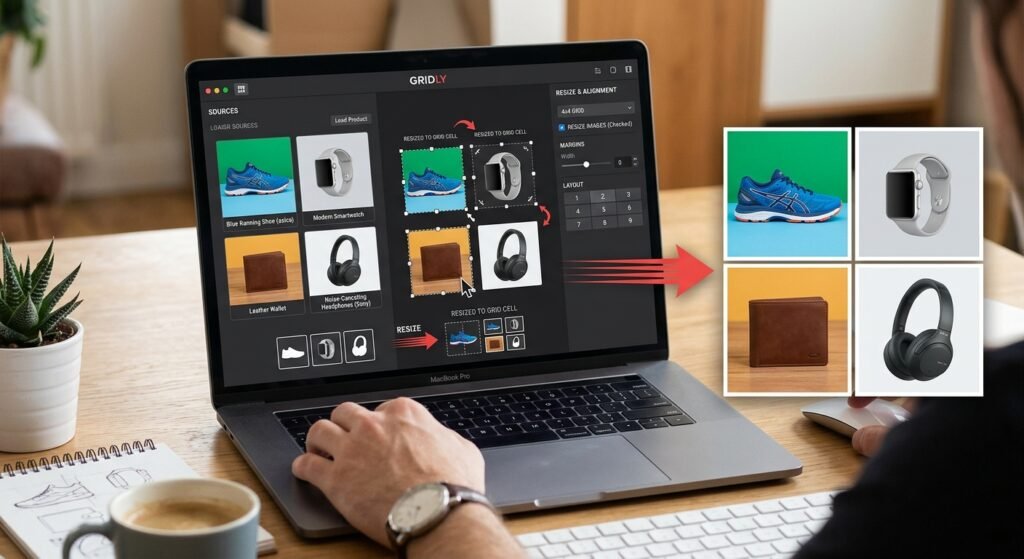
When you need to combine product photos or design assets an image combiner is useful. This is common in e-commerce when creating image sheets or mood boards.

Steps:

  1. Prepare your images (crop, resize, or remove backgrounds first if needed).
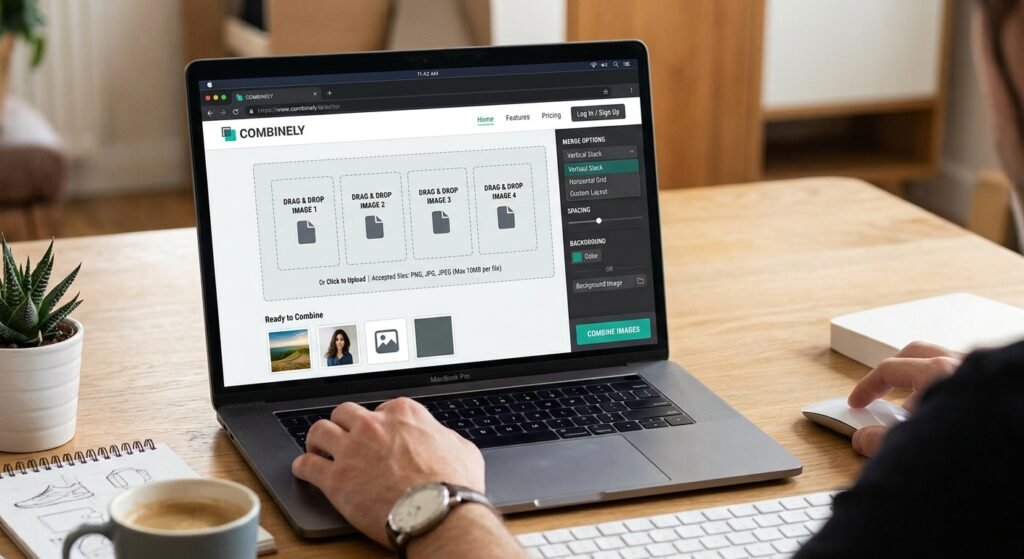
  2. Upload them to an image combiner such as Canva PhotoJoiner or PineTools.
  3. Choose layout options like grid or vertical stack.
  4. Adjust spacing and alignment.
  5. Export the combined image.

If your photos have uneven backgrounds clean them first with a background removal tool before combining.

How to Use a Combiner for Audio and Video

Audio and video combiner tools follow a similar pattern but often require more processing power.

Basic workflow:

  1. Select your clips or tracks.
  2. Upload them in the desired playback order.
  3. Add transitions or crossfades if the tool supports them.
  4. Preview the result.
  5. Export in your target format (MP3, MP4, etc.).

Free options include Clideo, Kapwing, and the built in features in DaVinci Resolve or Audacity.

Common mistake: Forgetting to match audio levels between clips which creates noticeable volume jumps in the final file.

Best Free Combiner Tools in 2027

ToolBest ForFile TypesNotes
SmallpdfPDFsPDFBrowser based, easy for beginners
ILovePDFPDFsPDFStrong mobile support
CanvaImages & PDFsImages, PDFGood design options
ClideoVideo & AudioMP4, MP3Simple interface
PineToolsImagesImagesNo sign up required

Choose based on your main file type. Always test with a small batch first.

Common Mistakes When Using a Combiner

  • Uploading files in the wrong order
  • Ignoring file size limits which causes failed uploads
  • Using low resolution source files that look blurry after combining
  • Forgetting to remove passwords from PDFs before merging
  • Not checking the final file on different devices

Double check order and preview the result before downloading.

What to Do After Combining Files

After using a combiner to merge product images you may still need to edit the final file. Common next steps include background removal resizing for e-commerce platforms or creating white backgrounds for consistent listings.

You may also find these related guides helpful:

FAQs

What is a combiner tool used for?
A combiner merges multiple files into one document image or media file while keeping the original content intact.

Can I use a combiner on my phone?
Yes. Most online combiner tools work in mobile browsers and dedicated apps are available for both Android and iOS.

Do combiner tools reduce file quality?
Some free tools compress files to save space. Choose higher quality settings or paid plans when image or video clarity matters.

Is it safe to upload files to an online combiner?
Only use trusted sites for non sensitive files. For confidential documents download a desktop combiner instead.

Can a combiner handle password protected PDFs?
Most tools require you to remove the password first. Unlock the file before uploading it to the combiner.

How many files can I combine at once?
Limits vary by tool. Free versions often allow 10–20 files while paid plans support larger batches.

What file formats work with a combiner?
Common formats include PDF, JPG, PNG, MP3, and MP4. Always check the tool’s supported formats before starting.

Are there completely free combiner tools with no limits?
Some open source desktop programs like PDFsam offer unlimited use though they require installation.

Conclusion

A good combiner makes merging files simple and efficient. Whether you work with PDFs, photos, or media, the right tool and a clear workflow will give you professional results quickly. After combining images clean them further with BGImageSnap or explore our other helpful articles for image-editing tips.

Combiner Tools Explained: How to Merge Images, PDFs, and Video Into One File.

A combiner is any tool that merges two or more separate files into a single file. That could mean stitching product photos side by side joining twelve invoice PDFs into one document or splicing video clips end to end.

The word itself is broad which is exactly why search results for it feel scattered. This guide sorts out what a combiner actually is which type you need how to use one properly and what to fix in your files before you merge them.

Table of Contents

  • What a Combiner Actually Does
  • The Main Types of Combiner Tools
  • Other Meanings of the Word
  • How to Use an Image Combiner Step by Step
  • How to Combine PDFs and Video Files
  • Combiner Comparison at a Glance
  • How to Choose the Right Combiner
  • Prepare Your Images Before You Merge Them
  • Where AI Fits Into Modern Combiner Tools
  • Common Mistakes to Avoid
  • Frequently Asked Questions
  • Conclusion

What a Combiner Actually Does

At its simplest a combiner takes multiple inputs and produces one output. How it does that depends on the file type.

  • Images are placed next to each other on a shared canvas horizontally, vertically, or in a grid.
  • PDFs are appended page after page in the order you set.
  • Video and audio are concatenated so one clip plays after the next.
  • Spreadsheets and CSV files are stacked so rows from every file sit in one sheet.

The distinction matters. An image combiner creates a new canvas. A PDF combiner preserves each original page as is. If you expect an image combiner to keep your files separate and browsable you will be disappointed it flattens everything into one picture.

The Main Types of Combiner Tools

Image Combiner

An image combiner merges photos into one file. Common uses:

  • Before and after comparison shots
  • Product grids and lifestyle collages for listings
  • Screenshot sequences for tutorials
  • Social media carousels flattened into a single post image

Key settings to look for: layout direction spacing between images background colour for gaps and output format. PNG preserves transparency; JPG produces smaller files but no transparency.

PDF Combiner

A PDF combiner joins documents in a set order. This is the most common business use merging scanned receipts contracts with signature pages or chapters into one report.

Good PDF combiners let you reorder pages before merging and rotate individual pages. Adobe offers a free browser based merge tool: Adobe Acrobat online Merge PDF 

Video Combiner

A video combiner joins clips into one timeline. The critical rule: clips should share the same resolution frame rate and codec. If they do not the tool has to re encode everything which takes longer and can soften quality.

FFmpeg is the free open source standard for this. Its official concatenation guide is here: FFmpeg Wiki Concatenate.

Audio Combiner

An audio combiner merges tracks end to end useful for podcast segments or voice recordings. Watch for volume mismatches between clips most basic combiners will not normalise levels for you.

Data Combiner

A CSV or spreadsheet combiner stacks rows from many files into one table. The one thing to check: every file must have identical column headers in the same order or rows will land in the wrong columns.

Other Meanings of the Word

If you landed here looking for something else here is the short version.

ContextWhat “combiner” means there
RF and antennasA passive device that merges multiple radio signals onto one feed line
Solar installationsA combiner box that joins several PV string outputs into one circuit
Hadoop / MapReduceAn optional step that aggregates mapper output locally before the reduce phase
Transformers franchiseMultiple robots that link into one larger figure

Those are genuinely different subjects with their own documentation. The rest of this guide covers the file merging meaning.

How to Use an Image Combiner Step by Step

Most online image combiners follow the same flow.

  1. Open the combiner tool in your browser and upload your images. Look for drag and drop support if you have several files.
  2. Set the order. Drag thumbnails into the sequence you want. Left to right for horizontal layouts top to bottom for vertical.
  3. Choose a layout. Horizontal works for before and after pairs. Vertical suits long screenshots. Grid suits four or more product shots.
  4. Match the dimensions. If your images are different sizes resize them first. Otherwise the combiner will stretch, crop, or pad them.
  5. Set spacing and background. A small gap of a few pixels keeps images visually distinct. Set the gap colour to white for clean product layouts.
  6. Pick the output format. PNG for transparency or sharp text. JPG for photos where file size matters.
  7. Preview then download. Always check the preview at full size before saving.

How to Combine PDFs and Video Files

For PDFs: upload the documents drag them into order delete any unwanted pages then export. If your PDFs came from scans check the page orientation before merging mixed orientations look sloppy in a combined document.

For video with FFmpeg: create a plain text file listing your clips.

textfile 'clip1.mp4'
file 'clip2.mp4'
file 'clip3.mp4'

Then run:

textffmpeg -f concat -safe 0 -i list.txt -c copy output.mp4

The -c copy flag joins the clips without re encoding which is fast and lossless. It only works when all clips share the same format and settings.

For images via command line: ImageMagick handles batch merging well. Its official documentation is at imagemagick.org.

Combiner Comparison at a Glance

Combiner typeTypical outputWatch out forBeginner difficulty
ImageSingle PNG or JPGMismatched dimensionsEasy
PDFOne multi-page documentPage order and orientationEasy
VideoOne continuous clipCodec and frame rate mismatchModerate
AudioOne trackUneven volume levelsEasy
DataOne spreadsheetInconsistent column headersModerate

How to Choose the Right Combiner

Ask four questions before picking a tool.

Does it handle my file type natively? A PDF combiner will not merge video. Generic “all in one” converters often do several jobs poorly.

Does it preserve quality? Some free combiners silently re compress your files. Compare the output file against the original at full zoom.

Where does the processing happen? Browser based tools that process locally never upload your file. Server based tools do. For contracts invoices or unreleased product photos this matters.

Is there a file limit? Free tiers often cap the number of files total size or daily uses. Check before you upload thirty images.

Prepare Your Images Before You Merge Them

This is the step most beginners skip and it is why merged images often look amateurish.

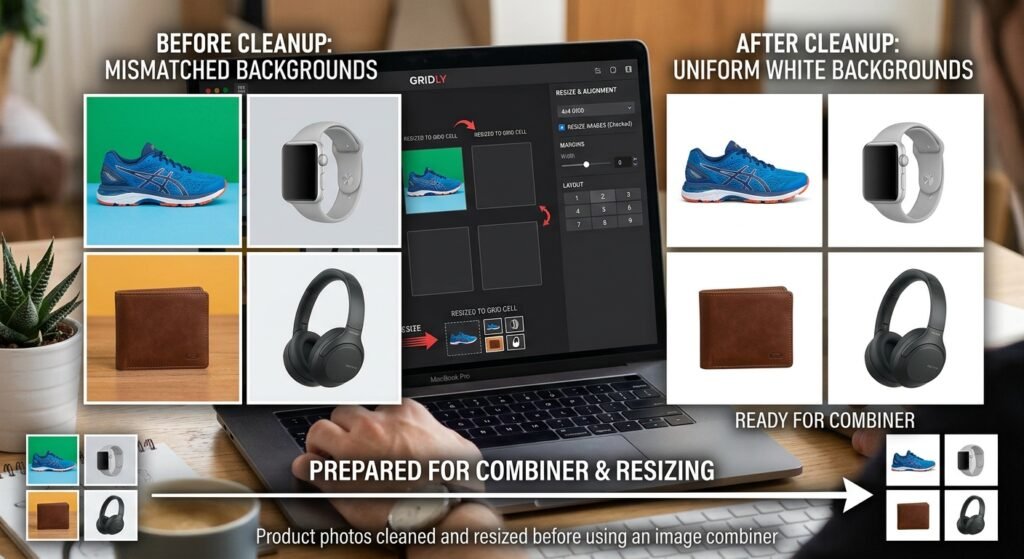
A combiner does not clean anything up. It faithfully preserves every flaw in every input file. If one product photo has a grey background and the next has a beige one the merged result shows both. If one image is 2000px wide and another is 600px the layout will look unbalanced.

Fix these before combining:

  • Inconsistent backgrounds. Remove the background from each photo and apply the same white or transparent background across all of them.
  • Mismatched sizes. Resize every image to identical dimensions so the grid lines up.
  • Uneven lighting or colour. Adjust brightness so photos taken on different days do not clash.
  • Low resolution. Upscale weak images before merging not after. Enlarging a merged file degrades everything at once.

BGImageSnap covers this prep work directly background removal white or transparent backgrounds resizing and image quality improvement for product photos.

Where AI Fits Into Modern Combiner Tools

A quick plain explanation for beginners.

Traditional combining is mechanical. The tool places image A next to image B on a canvas. No decisions are made about content.

AI background removal is different. The model has been trained on huge numbers of labelled photos so it can identify where the subject ends and the background begins including tricky edges like hair fur and glass. You get a cutout in seconds instead of tracing an outline by hand.

AI image generation creates new pixels from a text description. It does not merge your existing files. If you want your actual product photos in the output you need a combiner and an editor not a generator.

The practical workflow for e-commerce looks like this:

  1. Remove backgrounds from each product shot with an AI tool.
  2. Resize all cutouts to matching dimensions.
  3. Place them on a uniform white or transparent background.
  4. Run them through a combiner to build the final grid or comparison image.

Common Mistakes to Avoid

  • Merging before resizing. Fix dimensions first always.
  • Using JPG when you need transparency. JPG has no alpha channel. Transparent areas turn white or black.
  • Uploading confidential files to unknown web tools. Check the privacy policy or use an offline combiner.
  • Deleting originals right after merging. Keep source files until you have confirmed the output at full resolution.
  • Ignoring page or clip order. Reorder inside the combiner before exporting not after.
  • Combining video clips with different frame rates using a copy only command. The result can desync audio.

Frequently Asked Questions

What does combiner mean?

A combiner is a tool that merges multiple files into one. Most commonly it refers to image, PDF, video, or audio merging software. The word also has separate meanings in electronics solar installations and data processing.

What is the best free combiner for images?

That depends on your needs. Browser based combiners are fastest for one off jobs. ImageMagick or GIMP work offline and handle batches. Specific tool recommendations and current free tiers needs verification.

Is an online combiner safe for private documents?

Only if the tool processes files in your browser or clearly states that uploads are deleted. For contracts ID scans or unreleased product images use offline software instead.

Can a combiner merge different file types together?

Not directly. You cannot merge a JPG and an MP4 into one file. You can however convert images into PDF pages and then use a PDF combiner to join them with other documents.

Does using a combiner reduce image quality?

It can if the tool re compresses the output. Export as PNG for lossless results or set JPG quality to a high value. Merging at the original resolution avoids most quality loss.

How do I combine images into a single PDF?

Convert each image to a PDF page then run them through a PDF combiner. Many PDF tools accept image uploads directly and handle both steps at once.

Can I combine images that have transparent backgrounds?

Yes but export the merged file as PNG. Choosing JPG will fill every transparent area with a solid colour.

What is a combiner in electronics?

In RF and antenna systems a combiner is a passive device that merges multiple signal inputs onto a single output line. It is unrelated to file merging software. Consult manufacturer documentation for specifications.

Conclusion

A combiner solves one specific problem well: turning many files into one. The type you need depends entirely on your file format and the quality of your result depends far more on preparation than on the merging tool itself.

Match your dimensions clean up your backgrounds pick the right output format and check the preview before you export. Do that and almost any decent combiner will give you a professional result.

If your merge involves product photos the prep step is where the real difference is made. BGImageSnap can remove backgrounds apply clean white or transparent backgrounds and resize your images so they line up perfectly once combined.

Start with one product photo in the BGImageSnap background remover then bring your cleaned images into the combiner of your choice.

How to Extract Multiple Zip Files at Once

Knowing how to extract multiple zip files at once turns a slow click-by-click chore into a single action. If you have downloaded a batch of image packs, invoices, course files, or client assets opening each archive separately wastes real time.

This guide shows how to extract multiple zip files at once on Windows, Mac, and Linux using built-in tools free apps like 7-Zip and simple copy-paste commands. You will also learn how to send each archive into its own folder and how to avoid the mistakes that overwrite your files.

Table of Contents

  • What Batch Extraction Actually Does
  • How to Extract Multiple Zip Files at Once on Windows
  • How to Extract Multiple Zip Files at Once on Mac
  • How to Extract Multiple Zip Files at Once on Linux
  • Extract Each Archive Into Its Own Folder
  • Method Comparison at a Glance
  • Common Mistakes to Avoid
  • Problems That Break Batch Extraction
  • What to Do After Extracting Image-Heavy Archives
  • Frequently Asked Questions
  • Conclusion

What Batch Extraction Actually Does

A ZIP file is a container. Extracting it copies the contents out into a normal folder. Batch extraction simply repeats that process across many archives without asking you to confirm each one.

There are two possible outcomes and choosing the wrong one causes most beginner headaches:

  • Extract here: every file from every archive lands in the same folder. Fast but duplicate file names can overwrite each other.
  • Extract to separate folders: each archive creates its own folder named after the ZIP file. Slightly more clutter but nothing is lost.

If your archives contain files with generic names such as image1.jpg, invoice.pdf, or data.csv, always choose separate folders.

How to Extract Multiple Zip Files at Once on Windows

Windows gives you three practical routes. The built-in one is the weakest so read all three before picking.

Using File Explorer

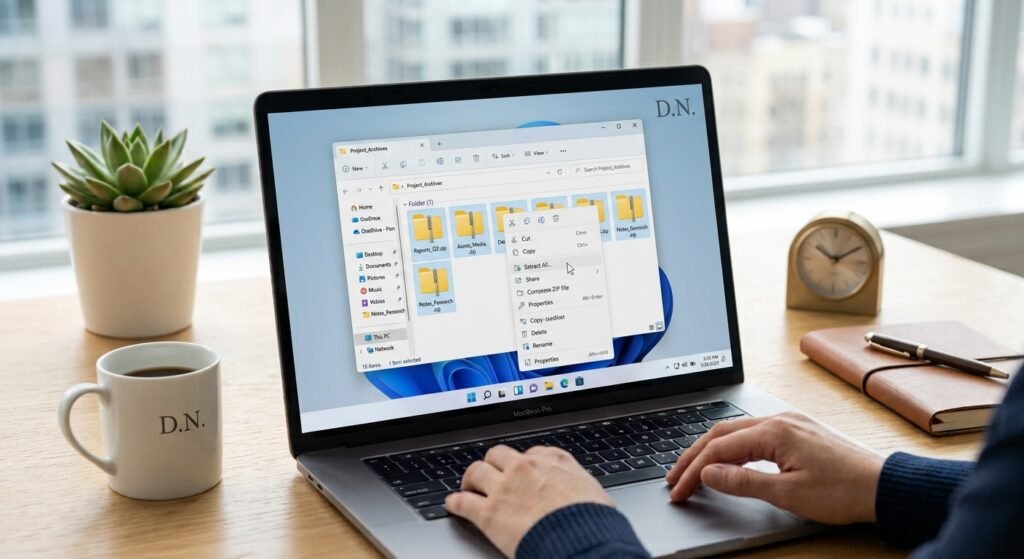
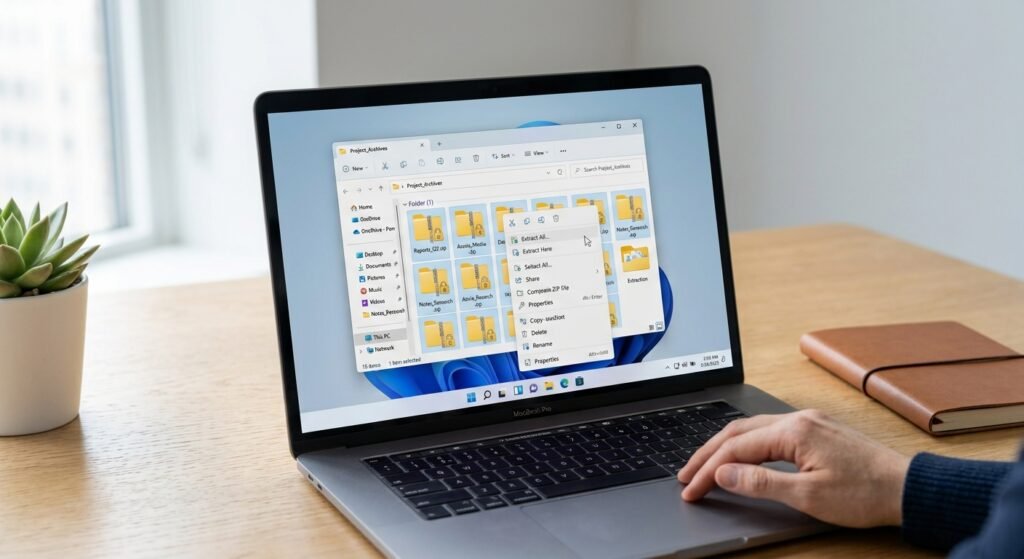
Windows File Explorer is built to handle one archive at a time. Selecting several ZIP files and choosing Extract All does not reliably process the whole batch and behavior differs between Windows versions.

  1. Open the folder containing your archives.
  2. Select a ZIP file.
  3. Click Extract All in the toolbar or right-click menu.
  4. Choose a destination and click Extract.

Use this only for two or three files. For anything larger the next two methods are far better. Exact multi-select behavior in your Windows build: needs verification on your own system.

Using 7-Zip

7-Zip is a free open-source archive manager and the simplest way to batch extract on Windows.

  1. Install 7-Zip from the official site: https://www.7-zip.org/
  2. Open the folder with your archives.
  3. Press Ctrl + A to select all or hold Ctrl and click specific files.
  4. Right-click the selection. On Windows 11 click Show more options first.
  5. Hover over 7-Zip.
  6. Choose one of these:
    • Extract Here  all contents go into the current folder.
    • Extract to each archive gets its own folder automatically.
  7. Wait for the progress window to finish.

That Extract to "*\" option is the fastest way to extract multiple zip files at once while keeping everything organized.

Using WinRAR

If WinRAR is already installed it has a dedicated batch option.

  1. Select all the archives.
  2. Right-click the selection.
  3. Choose Extract each archive to separate folder.

WinRAR also handles RAR and several other formats that Windows cannot open natively.

Using PowerShell

PowerShell is ideal when you want repeatable scriptable extraction. Expand-Archive is built into PowerShell 5.0 and later.

To send everything into a single destination folder:

PowerShellGet-ChildItem "C:\Users\YourName\Downloads\*.zip" | Expand-Archive -DestinationPath "C:\Users\YourName\Downloads\Extracted" -Force

To give each archive its own folder:

PowerShellGet-ChildItem "C:\Users\YourName\Downloads\*.zip" | ForEach-Object {
  Expand-Archive -Path $_.FullName -DestinationPath (Join-Path $_.DirectoryName $_.BaseName) -Force
}

Replace YourName with your actual user folder. The -Force switch overwrites existing files so remove it if you want to protect previous extractions.

Official command reference: Microsoft Learn — Expand-Archive

How to Extract Multiple Zip Files at Once on Mac

macOS makes this easier than Windows because Archive Utility already handles multiple selections.

Using Archive Utility

  1. Open Finder and go to the folder holding your archives.
  2. Select all the ZIP files. Hold Command and click each one or press Command + A.
  3. Control-click (right-click) any selected file.
  4. Choose Open With > Archive Utility.
  5. Each archive extracts into its own separate folder in the same location.

This is the default no-download way to extract multiple zip files at once on a Mac. Apple’s official reference on zipping and unzipping is here: Apple Support — Zip and unzip files and folders on Mac 

Using Terminal

Terminal gives you more control over the destination.

  1. Open Terminal from Applications > Utilities.
  2. Move into the folder:
Bashcd ~/Downloads
  1. Extract every archive into the current folder:
Bashunzip '*.zip'

The single quotes matter. Without them the shell expands the wildcard and unzip throws an error.

  1. To give each archive its own folder:
Bashfor f in *.zip; do unzip -d "${f%.zip}" "$f"; done

Using Keka

Keka is a popular macOS archive tool that supports formats Archive Utility cannot open such as RAR and 7z. Official site: https://www.keka.io/ — URL to verify. Drag your selected archives onto the Keka window or icon to extract them together.

How to Extract Multiple Zip Files at Once on Linux

Linux uses the same unzip syntax as macOS.

Install it first if needed on Debian or Ubuntu:

Bashsudo apt install unzip

Then extract everything in place:

Bashunzip '*.zip'

Or create one folder per archive:

Bashfor f in *.zip; do unzip -d "${f%.zip}" "$f"; done

Add -q for quiet mode if the terminal output is too noisy:

Bashunzip -q '*.zip'

Extract Each Archive Into Its Own Folder

This is the setting most people actually want so here it is in one place:

PlatformOption to use
Windows + 7-ZipRight-click > 7-Zip > Extract to “*\”
Windows + WinRARRight-click > Extract each archive to separate folder
Windows + PowerShellThe ForEach-Object loop shown above
MacSelect all > Open With > Archive Utility (default behavior)
Mac / Linux Terminalfor f in *.zip; do unzip -d "${f%.zip}" "$f"; done

Method Comparison at a Glance

MethodBest forSeparate foldersExtra software
File ExplorerOne or two archivesYes, manuallyNo
7-ZipLarge Windows batchesYes, one clickYes, free
WinRARMixed formats on WindowsYesYes
PowerShellRepeatable, scripted jobsYes, with a loopNo
Archive UtilityEveryday Mac useYes, by defaultNo
Terminal unzipPrecise destinationsYes, with a loopNo

Common Mistakes to Avoid

  • Choosing Extract Here when archives contain identically named files. Later files silently overwrite earlier ones.
  • Forgetting the quotes in unzip '*.zip' which produces a “filename not matched” style error.
  • Deleting the original archives before confirming the extracted contents are complete.
  • Extracting hundreds of archives into a synced cloud folder which can trigger long upload queues.
  • Assuming .rar, .7z, or .tar.gz files behave like ZIP archives. They need a tool that supports the format.

Problems That Break Batch Extraction

Password-protected archives. A batch job stops or skips when it hits an encrypted archive. Extract those separately and enter the password manually.

Split or multi-part archives. Files named archive.zip.001, .002, or part1.rar belong to one set. Select only the first part and extract that. Extracting each part individually will fail.

Nested archives. A ZIP inside a ZIP is not unpacked automatically. Run the batch process a second time on the newly extracted archives.

Not enough disk space. Compressed files can expand several times over. Check available storage before extracting a large batch.

Long file paths on Windows. Deeply nested folder structures can exceed path limits and cause errors. Extract to a short path such as C:\Temp and move the files afterward.

What to Do After Extracting Image-Heavy Archives

Batch extraction is common in e-commerce and design work. Suppliers, photographers, and marketplaces frequently deliver product photos as a set of ZIP files one per SKU or per shoot.

Once you extract multiple zip files at once you usually end up with dozens or hundreds of raw images that are not listing-ready. Typical cleanup tasks include:

  • Removing cluttered or inconsistent backgrounds
  • Creating a plain white or transparent background for marketplace requirements
  • Resizing images to a consistent dimension
  • Improving sharpness or resolution on low-quality supplier photos

Modern background removal is AI-based. The tool detects the subject edges automatically and separates the product from everything behind it so you do not need to trace outlines manually. Transparent PNG output keeps the cutout usable on any background color while a flat white background suits most product listings.

BGImageSnap covers these steps including background removal white or transparent backgrounds and image resizing for e-commerce photos.

Frequently Asked Questions

How do I extract multiple zip files at once on Windows without extra software?

Use PowerShell. Run Get-ChildItem "C:\Path\*.zip" | Expand-Archive -DestinationPath "C:\Path\Extracted" -Force. No installation is needed on PowerShell 5.0 or later.

Can Windows File Explorer batch extract archives?

File Explorer is designed to handle one archive at a time and multi-select results vary by Windows version. For batches use 7-Zip, WinRAR or PowerShell instead.

How do I extract multiple zip files at once into separate folders?

On Windows use 7-Zip’s Extract to “*\” option. On Mac or Linux run for f in *.zip; do unzip -d "${f%.zip}" "$f"; done.

Why does unzip *.zip fail on Mac or Linux?

The shell expands the wildcard before unzip sees it. Wrap it in quotes: unzip '*.zip', or escape it as unzip \*.zip.

Can I extract multiple RAR or 7z files at once?

Yes. 7-Zip and WinRAR on Windows and Keka or The Unarchiver on Mac support multi-select extraction for these formats. Check each tool’s official page for current format support.

What happens if two archives contain the same file name?

With “Extract Here” the later file overwrites the earlier one. Extract into separate folders to prevent data loss.

Is batch extracting archives safe?

It is as safe as the source. Only extract archives from senders you trust and scan unfamiliar downloads before opening the contents.

How do I extract multiple zip files at once on a phone?

Mobile file managers vary widely in batch support. Behavior differs by device and app version — needs verification for your specific file manager.

Conclusion

Once you know how to extract multiple zip files at once a folder of forty archives takes seconds instead of twenty minutes. On Windows 7-Zip’s “Extract to *\” option or a short PowerShell loop does the job. On Mac select everything and open it with Archive Utility. On Linux and Terminal, unzip '*.zip' handles the whole batch in one line.

The key decision is whether you want everything in one folder or each archive in its own. Choose separate folders whenever file names might repeat.

If your freshly extracted batch is full of product photos BGImageSnap can help you remove backgrounds add clean white or transparent backgrounds and resize the images for your store.

Ready to turn that pile of extracted photos into listing-ready images? Explore the BGImageSnap background remover and start with a single product shot.

How to Unlock a Word Document.

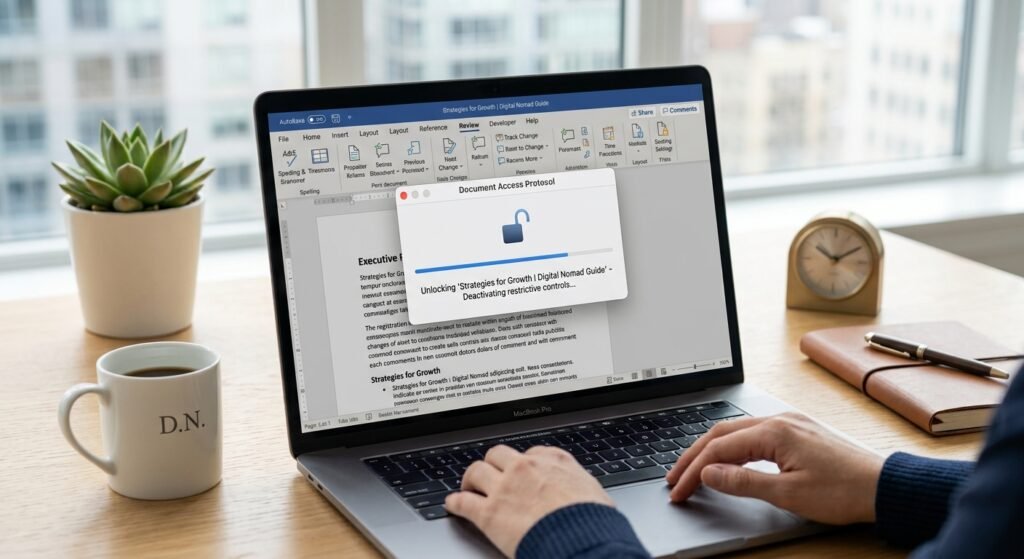
If you need to unlock a Word document the solution is usually simpler than it looks. A locked file can stop you from editing printing or copying content. The lock may come from password protection editing restrictions or a file marked as read-only. This guide shows how to unlock a Word document on Windows, Mac, and online using built-in tools and practical workarounds.

Table of Contents

  • Why a Word Document Becomes Locked
  • How to Unlock a Word Document Using Built-In Word Tools
  • Remove Editing Restrictions in Word
  • Remove Password Protection in Word
  • Use Save As to Create an Unlocked Copy
  • How to Unlock a Word Document on Mac
  • How to Unlock a Word Document Online
  • Common Mistakes to Avoid
  • What to Do After You Unlock a Word Document
  • Frequently Asked Questions
  • Conclusion

Why a Word Document Becomes Locked

A Word document may be locked for several reasons. Understanding the cause helps you choose the right method.

  • The author enabled password protection for opening or modifying the file.
  • The document is marked as final or read-only.
  • Editing restrictions are turned on in the Review tab.
  • The file is stored in a location that requires sign-in such as a company SharePoint site.
  • The document was opened from an email or browser in Protected View.

In most cases you can unlock the file without third-party software.

How to Unlock a Word Document Using Built-In Word Tools

Microsoft Word includes several built-in ways to remove restrictions. Use these methods first.

Remove Editing Restrictions in Word

If the document opens but you cannot type or select text editing restrictions are probably active.

  1. Open the locked document in Microsoft Word.
  2. Go to the Review tab.
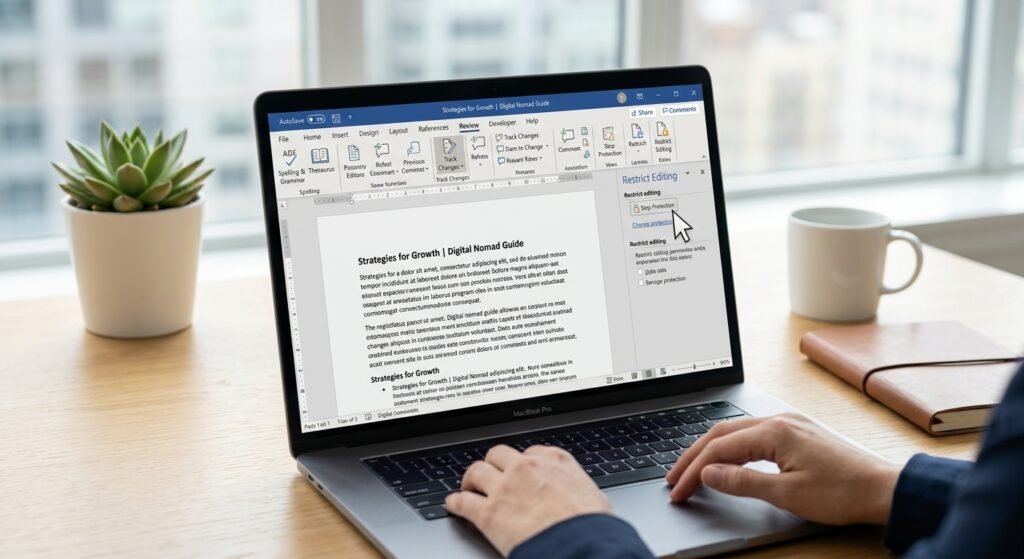
  3. Look for the Restrict Editing panel. If it is not visible click Restrict Editing in the ribbon.
  4. In the panel click Stop Protection at the bottom.
  5. If prompted enter the password. If you do not have the password you cannot remove the restriction using this method.
  6. Save the document with a new name if needed.

Suggested image: screenshot of the Restrict Editing panel in Word with the Stop Protection button highlighted. Alt text: How to unlock a Word document by stopping protection in the Review tab.

Remove Password Protection in Word

If the file asks for a password when you open it you need the password. If you have it you can remove it permanently.

  1. Open the document and enter the password.
  2. Click File > Info.
  3. Select Protect Document.
  4. Choose Encrypt with Password.
  5. Delete the password from the field and click OK.
  6. Save the document. The password is now removed.

This works only if you already know the password. Microsoft does not provide a built-in password recovery tool. Microsoft Support Remove a password from a document

Use Save As to Create an Unlocked Copy

If the document opens read-only creating a new copy can sometimes remove the lock.

  1. Open the file.
  2. Click File > Save As.
  3. Choose a new location or new file name.
  4. Save.
  5. Open the new file and check if editing is allowed.

This method works for files marked as final or for temporary locks caused by Protected View.

How to unlock a word document

How to Unlock a Word Document on Mac

If you are using Microsoft Word for Mac the steps are similar but the menu looks slightly different.

  1. Open the locked document in Word for Mac.
  2. Go to the Review tab.
  3. Click Protect Document or Protect Form.
  4. Choose Remove Protection or turn off protection options.
  5. Enter the password if asked.
  6. Save the file.

On a Mac you can also check the file information. Select the file in Finder press Command + I and look for a Locked checkbox. If that box is checked uncheck it. This lock is separate from Word’s internal password protection.

Suggested video: short screen recording showing how to unlock a Word document on Mac using the Review tab and Finder file info.

How to Unlock a Word Document Online

If you do not have Microsoft Word installed you can use the free online version.

  1. Go to Office.com or your Microsoft 365 account.
  2. Upload the locked document.
  3. Open it in Word for the web.
  4. If editing is restricted go to the Review tab and check for protection options.
  5. Choose Stop Protection if available.
  6. Download a new copy.

Some advanced password features may not work in Word for the web. For these you need the desktop version.

Table: Quick Method Comparison

MethodBest ForRequires Password?Difficulty
Restrict Editing > Stop ProtectionEditing restrictionsYes, if setBeginner
Encrypt with Password > remove passwordOpening passwordYesBeginner
Save As new copyRead-only or final filesNoBeginner
Mac Finder Locked checkboxmacOS file lockNoBeginner
Word for the webNo desktop appYes, if restrictedBeginner

Common Mistakes to Avoid

When trying to unlock a Word document avoid these errors.

  • Trying to remove a password without knowing it is not possible in Word.
  • Ignoring the Finder or File Explorer read-only attribute.
  • Forgetting to save the file after removing protection.
  • Using unknown online password removers that may compromise your document.
  • Assuming every locked file is password-protected. Sometimes the issue is Protected View or a read-only recommendation.

Check the simple fixes first before looking for advanced tools.

What to Do After You Unlock a Word Document

Once the document is unlocked you may need to clean up the content. If the Word file contains product photos screenshots or e-commerce images you can extract them and prepare them for use.

For example you might unlock a document that includes product images with cluttered backgrounds. After you unlock a Word document you can save the images and use a background removal tool to create clean white or transparent backgrounds for a store or catalog. AI image-editing tools can remove backgrounds automatically but they still work best on images you extract from documents first.

BGImageSnap offers background removal image resizing and image quality improvements. If your unlocked document contains images that need editing this can save time.

relevant BGImageSnap background remover tool or article

Suggested image: before-and-after screenshot of a product photo extracted from a Word document and cleaned with BGImageSnap. Alt text: How to unlock a Word document and prepare product images with BGImageSnap.

Frequently Asked Questions

How do I unlock a Word document without the password?

You cannot unlock a password-protected Word document without the password using built-in tools. If you lost the password you may need a third-party recovery service but compatibility and safety vary. Needs verification.

Why can’t I edit a Word document even though it opens?

The document may have editing restrictions enabled. Go to the Review tab open Restrict Editing and click Stop Protection. If a password is required you need it.

How do I remove read-only from a Word document?

Right-click the file choose Properties and uncheck Read-only. Or go to File > Save As and create a new copy.

Can I unlock a Word document on Mac without Word?

Yes you can use Word for the web or check Finder’s Locked checkbox. For password-protected files you still need the password.

What is the difference between editing restrictions and password protection?

Password protection prevents opening or modifying the file. Editing restrictions allow opening but limit specific actions like formatting or editing.

How do I unlock a Word document in Google Docs?

Upload the file to Google Drive open with Google Docs and choose File > Download as Microsoft Word. This creates an unlocked copy but it may not work for encrypted files.

Why does Word open in Protected View?

Protected View opens files from potentially unsafe locations such as email attachments. You can click Enable Editing if you trust the source.

Is it safe to use online unlockers?

Many online unlockers claim to remove Word passwords. Some are unsafe or require uploading sensitive files. Use official Microsoft tools first.

Conclusion

You can usually unlock a Word document by removing editing restrictions deleting a known password or saving a new copy. The method depends on the type of lock and whether you have the password. Avoid unknown online tools and always check simple read-only or Protected View settings first.

Once your document is unlocked you may need to edit the images inside. BGImageSnap can help you remove backgrounds resize images and improve quality for professional documents or product listings.

Try BGImageSnap to clean up any images from your newly unlocked Word document.

Start Creating Now

How to Unzip a Folder on Mac: 5 Easy Ways That Always Work.

How to unzip a folder on Mac is one of those questions that seems simple until you actually need the answer usually right after downloading a compressed file full of documents product photos or design assets. The good news: macOS makes unzipping incredibly easy and in most cases you won’t need to install anything at all.

In this beginner-friendly guide you’ll learn every reliable method for how to unzip a folder on Mac from the classic double-click to Terminal commands plus fixes for the most common errors and what to do with your files afterward.

Table of Contents

Understanding ZIP Files on macOS

A ZIP file is a compressed archive a single container that holds one or more files and folders in a smaller package. People use ZIP files to:

  • Send multiple files as one email attachment
  • Reduce file size for faster downloads
  • Bundle product photos fonts or design assets
  • Keep related documents organized in one file

macOS includes a built-in tool called Archive Utility that handles ZIP files automatically. That means you don’t need extra software for standard .zip files it’s already part of your Mac.

Image suggestion: A screenshot of a ZIP file icon in Finder next to its extracted folder so beginners can visually recognize both.
Suggested alt text: “ZIP file and extracted folder shown side by side while learning how to unzip a folder on Mac”

How to unzip a folder on mac

How to Unzip a Folder on Mac by Double-Clicking

This is the fastest method and the one most people should use.

Steps:

  1. Open Finder and locate your ZIP file (check your Downloads folder if you just downloaded it).
  2. Double-click the ZIP file.
  3. Archive Utility automatically extracts the contents.
  4. A new folder appears in the same location with the same name as the ZIP file.

That’s it. The original ZIP file stays where it was macOS does not delete it after extraction so you can safely remove it manually once you’ve confirmed the extracted files are intact.

Practical tip: If you double-click and nothing seems to happen the extracted folder may have appeared lower in the file list. Sort your Finder window by Date Added to spot it instantly.

How to Unzip a Folder on Mac Using the Right-Click Menu

If double-clicking opens the wrong app (this can happen if a third-party archive tool changed your defaults) the right-click method gives you more control.

Steps:

  1. Right-click (or Control-click) the ZIP file in Finder.
  2. Hover over Open With.
  3. Select Archive Utility.
  4. The contents extract into a new folder in the same location.

To make Archive Utility the default again:

  1. Right-click the ZIP file and choose Get Info.
  2. Under Open with select Archive Utility.
  3. Click Change All so every ZIP file uses it going forward.

Unzipping Files with Terminal

Terminal is useful when you want more control for example extracting files to a specific location or handling a stubborn archive that Finder refuses to open.

Steps:

  1. Open Terminal (Applications → Utilities → Terminal or search with Spotlight using Cmd + Space).
  2. Type the following command replacing the path with your file’s location:
Bashunzip ~/Downloads/myfile.zip
  1. Press Return. The files extract into your current working directory.

To extract to a specific folder:

Bashunzip ~/Downloads/myfile.zip -d ~/Documents/ExtractedFiles

Quick shortcut: Instead of typing the file path type unzip (with a space) and then drag the ZIP file from Finder into the Terminal window. macOS fills in the path automatically.

Common mistake: If the file path contains spaces the command fails unless the path is wrapped in quotes or the spaces are escaped. Dragging the file into Terminal avoids this problem entirely.

Free Third-Party Apps for Other Archive Formats

Archive Utility handles ZIP well but it can’t open every compression format. If you receive .rar, .7z, or other archive types, you’ll need a third-party app.

FormatOpens Natively on Mac?Recommended Free Tool
.zip✅ YesArchive Utility (built-in)
.rar❌ NoThe Unarchiver or Keka
.7z❌ NoThe Unarchiver or Keka
.tar / .gz✅ Yes (most cases)Archive Utility or Terminal

The Unarchiver is a popular free option available on the Mac App Store and Keka is a well-regarded alternative that supports a wide range of formats. Both are simple: install the app right-click the archive and choose the app under Open With.

Safety tip: Only download archive tools from the Mac App Store or the developer’s official website. Third-party download sites sometimes bundle unwanted software.

Common Unzipping Errors and How to Fix Them

Even with a simple task like this things can occasionally go wrong. Here are the most frequent problems and their fixes.

Error: “Unable to expand… (Error 1 – Operation not permitted)”

  • Cause: Usually a corrupted download or a permissions issue.
  • Fix: Re-download the ZIP file first. If the error persists try extracting via Terminal with the unzip command which often succeeds where Finder fails.

The ZIP file opens as a “cpgz” file in an endless loop

  • Cause: The archive is corrupted or was created incorrectly.
  • Fix: Delete both files re-download the original ZIP and try again. If you got the file from someone else ask them to re-compress and resend it.

Double-clicking opens the wrong app

  • Cause: A third-party tool hijacked the default file association.
  • Fix: Use Get Info → Open with → Archive Utility → Change All as described earlier.

The extracted folder appears empty

  • Cause: The files may be hidden or the archive was created with hidden system files only.
  • Fix: Press Cmd + Shift + . (period) in Finder to toggle hidden files and check again.

Password-protected ZIP won’t open

  • Cause: Archive Utility has limited support for encrypted archives.
  • Fix: Use Terminal (unzip will prompt for the password) or a tool like Keka.

What to Do After Unzipping Image Files

One of the most common reasons people unzip folders on a Mac is to access image files product photos from a supplier design assets from a client or stock images from a marketplace. Once extracted those images often need a little work before they’re ready to use.

Typical next steps include:

  • Removing backgrounds from product photos for e-commerce listings
  • Converting images to white or transparent backgrounds for a consistent storefront look
  • Resizing images to meet marketplace requirements (Amazon, Etsy, Shopify, and others each have their own specs)

If your extracted folder is full of product shots that need clean uniform backgrounds a browser-based tool like BGImageSnap can handle background removal without installing any software a handy follow-up once your files are out of the ZIP. BGImageSnap background remover tool

You may also find these guides useful after extracting your images:

How to Zip a Folder on Mac (Bonus)

Since you now know how to unzip a folder on Mac here’s the reverse compressing your own files takes just two clicks:

  1. Right-click the folder you want to compress.
  2. Select Compress “FolderName”.
  3. macOS creates a .zip file in the same location.

This is perfect for emailing a batch of edited product images or archiving finished projects to save disk space.

For Apple’s official documentation on both zipping and unzipping see the macOS User Guide: Zip and unzip files and folders on Mac – Apple Support 

FAQs

Do I need to install software to unzip files on a Mac?
No. macOS includes Archive Utility which opens standard ZIP files automatically when you double-click them. You only need extra software for formats like RAR or 7z.

Why won’t my ZIP file open on my Mac?
The most common causes are a corrupted download a non-ZIP format (like RAR) or a permissions issue. Re-download the file first then try Terminal’s unzip command or a free tool like The Unarchiver.

Where do unzipped files go on a Mac?
By default the extracted folder appears in the same location as the ZIP file with the same name.

Does unzipping delete the original ZIP file?
No. macOS keeps the original ZIP file after extraction. You can delete it manually once you’ve verified the contents.

How do I unzip a RAR file on Mac?
macOS can’t open RAR files natively. Install a free app like The Unarchiver (Mac App Store) or Keka then right-click the RAR file and open it with that app.

Can I unzip a password-protected ZIP on Mac?
Yes but Archive Utility has limited support for encrypted archives. Use Terminal’s unzip command which prompts for the password or a third-party tool like Keka.

How do I unzip multiple ZIP files at once on Mac?
Select all the ZIP files in Finder (Cmd-click each one or press Cmd + A) then double-click any of them. Archive Utility extracts them all in one pass.

Is it safe to unzip files from unknown sources?
Be cautious. ZIP files can contain malicious software. Only extract archives from senders and websites you trust and let macOS Gatekeeper warn you before opening unfamiliar apps inside them.

Conclusion

Learning how to unzip a folder on Mac takes about ten seconds: double-click the ZIP file and macOS handles the rest with the built-in Archive Utility. For unusual formats like RAR a free tool such as The Unarchiver fills the gap and Terminal gives you a reliable fallback when Finder misbehaves.

Once your files are extracted especially if they’re product photos or design assets the real work often begins. If your unzipped images need clean backgrounds consistent sizing or a professional e-commerce look try the BGImageSnap background remover to get them listing-ready in minutes or explore our other image-editing guides for your next step.