RAW vs JPEG The Ultimate Guide to Choosing the Right Image Format for Stunning Photos

Introduction

You’ve taken a breathtaking photo golden hour lighting, perfect composition, emotional moment captured. But when you open it on your computer, something feels off. The colors look flat. The shadows are blocked. You try to fix it… and the image falls apart.

If this sounds familiar, you’re not alone. Most photographers beginners and pros alike struggle with one critical decision: RAW vs JPEG.

The choice between these two formats isn’t just technical it’s creative. It affects your workflow, storage needs, editing freedom, and final image quality. Yet, most guides overwhelm you with jargon. Others oversimplify: “Use RAW if you’re serious.”

This guide cuts through the noise. We’ll break down exactly what RAW and JPEG mean, when to use each, and how to make the best choice for your photography goals all without fluff, hype, or manufactured stats.

By the end, you’ll know not just what to choose, but why and how to get the most out of either format.

Short answer:
Use RAW if you edit photos, care about quality, or shoot in challenging light.
Use JPEG if you want small files, quick sharing, or don’t edit much.

Key Takeaways:

✅ RAW files = Unprocessed, high detail data from your camera sensor
✅ JPEG files = Processed, compressed, ready to share images
✅ RAW is 5–10x larger than JPEG but retains 10–14 bits of color data per channel
✅ JPEG is universally compatible no special software needed
✅ You can’t convert JPEG to RAW you lose data permanently when shooting JPEG
✅ Most pros shoot RAW even if they later export to JPEG

Best for beginners? Shoot in RAW+JPEG mode. Get the best of both worlds.

What Is RAW? (And Why It’s a Digital Negative)

RAW Is Not a Format It’s a Container

Unlike JPEG, RAW isn’t a single standard. It’s a family of proprietary formats:

  • Canon: .CR3, .CR2
  • Nikon: .NEF
  • Sony: .ARW
  • Fujifilm: .RAF
  • Adobe: .DNG (universal RAW)

RAW files store unprocessed sensor data every pixel’s brightness, color, and exposure information before your camera applies sharpening, white balance, or compression.

Think of it like a digital negative. Just as film negatives hold all the light captured on film, RAW files hold all the data your sensor recorded. The camera doesn’t decide how it looks you do.

Why This Matters

When you shoot JPEG, your camera applies:

  • White balance adjustments
  • Contrast and saturation boosts
  • Sharpening
  • Compression to reduce file size

All of this is baked in. You can’t undo it.

With RAW, you control every step during editing.

Example: A JPEG taken at sunset might look “too orange” because your camera auto set white balance to “cloudy.” In RAW, you can reset it to “sunset” or even “daylight” without losing detail.

What Is JPEG? (And Why It’s Everywhere)

JPEG = Joint Photographic Experts Group

JPEG is a lossy compression algorithm meaning it discards image data to shrink file size. It’s the most common image format on the planet because:

  • Works on every device
  • Loads fast on websites
  • Requires no special software
  • Fits hundreds of photos on a single memory card

Your camera takes the sensor data, applies its own preset (or your settings), compresses it, and saves it as a JPEG.

What You Lose in JPEG

When your camera compresses a JPEG, it:

  • Reduces color depth from 12–14 bits to 8 bits (16.7 million colors instead of billions)
  • Blurs fine details to hide compression artifacts
  • Discards subtle gradients (like skies or shadows)
  • Applies permanent sharpening and noise reduction

The result? A small, ready to share image that looks fine on Instagram but crumbles under heavy editing.

⚠️ Critical fact: Once saved as JPEG, lost data is gone forever. You can’t recover it.

RAW vs JPEG: Side-by-Side Comparison

FeatureRAWJPEG
File Size20–100 MB per image2–10 MB per image
Color Depth12–14 bits per channel (billions of colors)8 bits per channel (16.7 million colors)
Editing FlexibilityExtremely high recover highlights, shadows, white balanceLimited adjustments cause banding or noise
CompatibilityRequires software (Lightroom, Photoshop, Capture One)Works on every phone, browser, printer
Shooting SpeedSlower burst rates, longer write timesFaster burst, quicker storage
Storage Needed5–10x more than JPEGMinimal
Best ForProfessional work, editing, printingSocial media, quick sharing, casual use
Quality LossNone (uncompressed)Permanent, irreversible compression

Real World Example

You photograph a dark interior with a bright window.

  • JPEG: Window is blown out (pure white). Shadows are flat.
  • RAW: You can recover the window’s detail, darken the highlights, lift shadows, and still keep natural skin tones.

That’s the power of RAW.

When to Use RAW: 5 Ideal Scenarios

1. You Plan to Edit Your Photos

Whether you’re tweaking exposure, recovering shadows, or adjusting color grading, RAW gives you room to breathe. JPEG files break down fast under heavy edits.

2. You Shoot in Challenging Lighting

Low light, high contrast, mixed lighting (e.g., indoor events with tungsten and LED lights)? RAW lets you fix white balance and exposure without introducing noise or banding.

3. You Print Your Photos

Professional printers need high resolution, high bit depth files. RAW ensures color accuracy and detail retention especially for large format prints.

4. You’re Building a Portfolio or Selling Work

Clients and galleries expect professional grade files. RAW gives you archival quality and future proofing.

5. You’re Learning Photography

Shooting RAW forces you to understand exposure, white balance, and post processing. It’s the best way to learn how light and color work.

💡 Pro Tip: Many pros shoot RAW and export final versions as JPEG or TIFF for delivery.

When to Use JPEG: 4 Practical Cases

1. You’re Taking Casual Snapshots

Family dinners, vacations, petsphotos you won’t edit. JPEG is perfect.

2. You Need Fast Turnaround

Wedding photographers often shoot JPEG for second shooters or quick social media posts. No editing = faster delivery.

3. Your Storage Is Limited

If you’re using a phone, drone, or action camera with small memory cards, JPEG saves space.

4. You’re Sharing Directly to Social Media

Instagram, Facebook, TikTok all platforms accept JPEG. Uploading RAW is unnecessary and slow.

💡 Pro Tip: Use RAW+JPEG mode on your camera. You get both. Edit the RAW, share the JPEG.

How to Shoot RAW (And Convert It Later)

Step 1: Enable RAW Mode on Your Camera

DSLR/Mirrorless (Canon, Nikon, Sony, etc.):

  1. Go to Menu → Image Quality
  2. Select RAW or RAW+JPEG
  3. Confirm your memory card has enough space

Smartphones (iPhone/Android):

  • iPhone: Shoot in HEIC (similar to JPEG, but better). No true RAW unless using Pro apps like ProCamera.
  • Android: Use manual camera apps (Open Camera, ProShot) to capture DNG (Adobe’s RAW format).

Step 2: Transfer Files to Your Computer

Use a card reader or USB cable. Avoid dragging files directly from phone quality can degrade.

Step 3: Edit in Professional Software

Use:

Step 4: Export as JPEG for Sharing

After editing:

  • Export as JPEG, Quality 90–100%
  • Resize to 2048px on the long side for web
  • Embed color profile (sRGB)

✅ Always keep your original RAW files. They’re your digital negatives.

Common Mistakes with RAW and JPEG

Mistake #1: Shooting JPEG and Thinking “I’ll Edit Later”

You can’t recover blown highlights or crushed shadows in JPEG. The data is gone.

Mistake #2: Deleting RAW Files After Exporting JPEG

You might never need to re edit… until you do. Keep RAW files for archival.

Mistake #3: Using Low-Quality JPEG Settings

Many cameras default to “Fine” or “Normal.” Set to “Super Fine” or “High” to minimize compression.

Mistake #4: Assuming RAW = Instantly Better

RAW files look flat and dull straight out of camera. They need editing. Don’t judge RAW by its unprocessed state.

Mistake #5: Trying to Convert JPEG to RAW

It’s impossible. Tools that claim to “enhance JPEG to RAW” are scams. They just upscale and sharpen. You’re not gaining data you’re guessing.

Can You Convert JPEG to RAW? (Spoiler: No)

Short answer: No.

RAW files contain the original sensor data. JPEG is a processed, compressed version that throws away 80–90% of that data.

You can:

  • Open a JPEG in Lightroom
  • Edit it
  • Save it as a TIFF or PNG (lossless formats)

But you’re still working with a JPEG’s limited data. You won’t recover lost detail.

🚫 No software can magically restore lost data.
✅ Only RAW files preserve it.

FAQs

1. Should I shoot RAW or JPEG as a beginner?

Start with RAW+JPEG. You get the flexibility of RAW for editing and the convenience of JPEG for quick sharing. Once you’re comfortable editing, switch to RAW-only.

2. Does shooting RAW make my photos look better automatically?

No. RAW files look flat and dull straight out of camera. They need editing. But they give you the tools to make them look exactly how you want.

3. Do I need a powerful computer to handle RAW files?

Not necessarily. Modern laptops and even tablets (iPad Pro + Lightroom) handle RAW fine. Storage is the bigger issue—you’ll need 10x more space than for JPEG.

4. Can I shoot RAW on my smartphone?

Most phones don’t support native RAW. Use apps like ProCamera (iOS) or Open Camera (Android) to capture DNG files. iPhones save HEIC, which is better than JPEG but not true RAW.

5. What’s the best file format for printing?

TIFF (lossless) or high-quality JPEG (95–100%) are standard. But always start from a RAW file for best results.

6. Will RAW files work on Instagram or Facebook?

No. These platforms only accept JPEG, PNG, or HEIC. Always export your edited RAW as a JPEG for sharing.

7. Is RAW better for astrophotography?

Yes. RAW’s higher bit depth and dynamic range are essential for capturing faint stars and reducing noise in dark skies.

8. How much extra storage does RAW take?

A typical 24MP RAW file is ~35MB. A JPEG from the same camera is ~6MB. That’s almost 6x more storage. A 64GB card holds ~1,800 JPEGs or ~300 RAW files.

Conclusion

Choosing between RAW vs JPEG isn’t about being “serious” or “casual.” It’s about matching your workflow to your goals.

Use this simple flow:

  1. Are you editing? → RAW
  2. Are you printing or archiving? → RAW
  3. Are you sharing quickly on social media? → JPEG
  4. Are you unsure? → RAW+JPEG (best of both worlds)

RAW is insurance.
It gives you creative control when lighting, exposure, or color doesn’t go as planned.

JPEG is efficiency.
It’s perfect for moments where speed and simplicity matter.

Most photographers use both. You don’t have to choose one forever.

The best photographers aren’t the ones with the fanciest gear they’re the ones who understand their tools.

Ready to Take Better Photos? Start with the Right Format

If you’re shooting RAW and need to edit, enhance, or convert your files to high quality JPEGs for sharing BGImageSnap makes it simple.

Our RAW to JPEG Converter lets you batch process RAW files, adjust exposure, color, and sharpness, and export print ready or web optimized JPEGs all in seconds.

No software to install. No subscription. Just powerful, professional results.
Try Our RAW to JPEG Converter Free →

How to Download TikTok PFP Complete Guide to Saving Profile Pictures in HD

Introduction

Ever stumbled upon a TikTok profile with an amazing profile picture that you wanted to save for inspiration, reference, or creative projects? You’re not alone. Thousands of users search daily for ways to download TikTok profile pictures, but the platform doesn’t offer a built in option to save these images directly.

Whether you’re a content creator looking to analyze competitor branding, a designer seeking inspiration, or simply want to save a friend’s profile picture, learning how to use a TikTok PFP downloader can save you time and frustration. The challenge? Most methods result in low resolution, pixelated images that are practically useless.

In this comprehensive guide, you’ll discover 5 proven methods to download TikTok profile pictures in HD quality, understand the legal considerations, explore the best tools available, and learn step by step processes that work in 2024. We’ll also cover common mistakes to avoid and answer the most frequently asked questions about TikTok profile picture downloading.

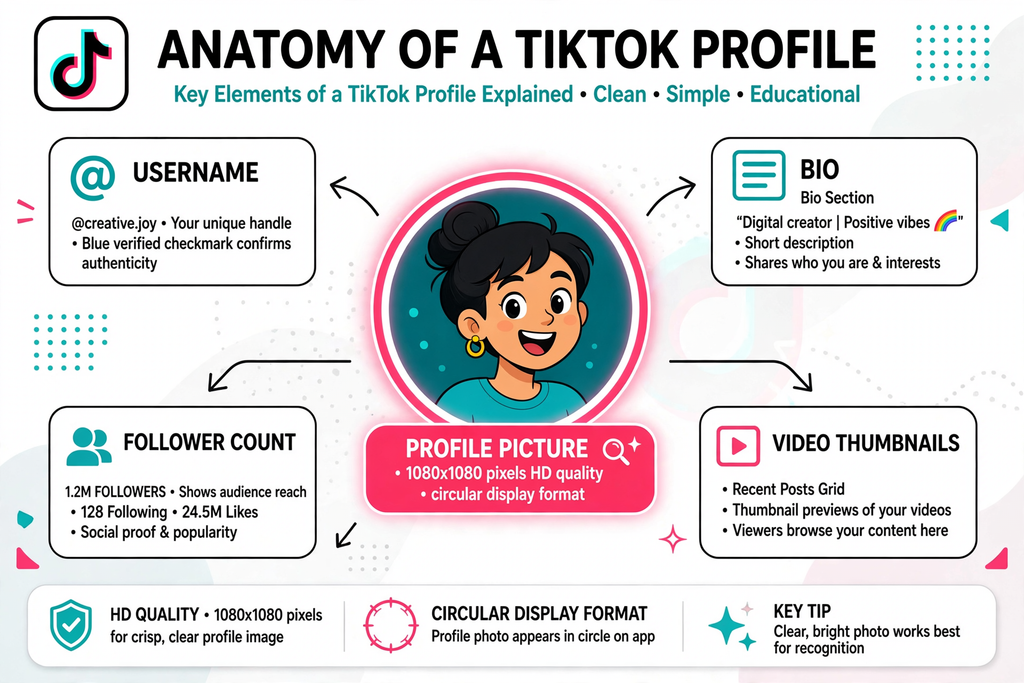
 Diagram explaining what a TikTok Profile picture downloader is and its dimensions

Quick Answer: Best Way to Download TikTok PFP

The fastest method to download a TikTok profile picture in HD is using a dedicated TikTok PFP downloader tool. Here’s the quick process:

Key Takeaways:

 Copy the TikTok username or profile URL
 Paste it into a TikTok Profile picture downloader like BGImageSnap
Download the image in HD quality (up to 1080×1080 pixels)
 No app installation required  works directly in your browser
 100% free for most reputable tools
 Works on all devices iPhone, Android, PC, Mac

Average time: Less than 30 seconds
Image quality: Up to full HD resolution
Cost: Free

What is a TikTok PFP and Why Download It?

Understanding TikTok Profile picture

PFP stands for “Profile Picture” – the circular image that represents a TikTok user’s account. This image appears next to every comment, video, and interaction the user makes on the platform. TikTok profile pictures are typically square images (usually 200×200 to 1080×1080 pixels) that get cropped into a circular format for display.

Why People Download TikTok Profile Pictures

Content Creators:

  • Analyze competitor branding strategies
  • Create collaboration graphics
  • Study visual trends in their niche

Designers & Marketers:

  • Build case studies
  • Create presentation materials
  • Conduct brand analysis

Personal Use:

  • Save memories of friends’ profiles
  • Use as inspiration for own profile pictures
  • Reference for artistic projects

Businesses:

  • Monitor influencer partnerships
  • Track brand ambassadors
  • Create marketing reports

5 Proven Methods to Download TikTok Profile Pictures

Best for: Quick, high quality downloads without software installation

Online tools like BGImageSnap provide the easiest way to download TikTok profile pictures in full HD resolution. These web based services work directly in your browser without requiring any downloads or registrations.

Advantages:

  • No software installation needed
  • Works on all devices and operating systems
  • Usually provides HD quality images
  • Fast and user friendly
  • Free to use

Limitations:

  • Requires internet connection
  • Some tools may have ads

Method 2: Screenshot and Crop (Basic Method)

Best for: Emergency situations when no tools are available

This manual method involves taking a screenshot of the profile and cropping the image.

Advantages:

  • Works offline
  • No third party tools needed
  • Universal method

Limitations:

  • Lower image quality
  • Time consuming
  • Requires manual editing
  • Results in compressed images

Method 3: Browser Developer Tools (Advanced)

Best for: Tech savvy users who want maximum control

This method involves using browser inspection tools to locate the direct image URL.

Advantages:

  • Direct access to source files
  • No third party services
  • Often provides highest available quality

Limitations:

  • Requires technical knowledge
  • Time consuming
  • Not mobile friendly
  • Can be complicated for beginners

Method 4: Mobile Apps (iOS/Android)

Best for: Users who frequently download profile pictures

Several mobile applications specialize in downloading TikTok content, including profile pictures.

Advantages:

  • Convenient on mobile devices
  • Often includes batch download features
  • May offer additional TikTok tools

Limitations:

  • Requires app installation
  • Some apps contain intrusive ads
  • Privacy concerns with some apps
  • Storage space required

Method 5: TikTok Profile Picture Downloader Browser Extensions

Best for: Regular users who need quick access

Browser extensions integrate directly into your browsing experience.

Advantages:

  • One click convenience
  • Fast access
  • Works while browsing TikTok

Limitations:

  • Only works on desktop browsers
  • Requires installation
  • May slow down browser
  • Potential security risks with unknown extensions

How to Use BGImageSnap’s TikTok PFP Downloader

BGImageSnap offers a streamlined, user friendly TikTok profile picture downloader that delivers HD quality images in seconds.

Features of BGImageSnap TikTok PFP Downloader:

  • 100% Free  No hidden costs or subscriptions
  • HD Quality  Download up to 1080×1080 resolution
  • No Registration  Start downloading immediately
  • All Devices  Works on desktop, mobile, and tablet
  • Fast Processing  Get your image in under 10 seconds
  • Privacy Focused  No data storage or tracking
  • Clean Interface  No intrusive ads or pop ups

Why Choose BGImageSnap?

BGImageSnap specializes in image downloading tools with a focus on quality and user experience. Unlike many competitors that compromise on image resolution or bombard users with advertisements, BGImageSnap maintains a clean, efficient service that prioritizes your needs.

Step-by-Step: Downloading TikTok Profile Pictures on Different Devices

How to Download TikTok PFP on iPhone/iPad

Step 1: Open the TikTok app on your iPhone or iPad

Step 2: Navigate to the profile whose picture you want to download

Step 3: Tap the three dot menu icon and select “Copy Link” or simply copy the username

Step 4: Open Safari or your preferred browser and visit BGImageSnap.com

Step 5: Paste the username or link into the TikTok PFP downloader input field

Step 6: Tap the “Download” button

Step 7: The HD profile picture will appear – tap and hold the image

Step 8: Select “Add to Photos” or “Save Image” from the menu

Time Required: 30,45 seconds

How to Download TikTok PFP on Android Devices

Step 1: Launch the TikTok app on your Android phone or tablet

Step 2: Go to the target profile

Step 3: Tap “Share” and select “Copy Link” (or copy the @username)

Step 4: Open Chrome, Firefox, or your default browser

Step 5: Navigate to https://bgimagesnap.com/

Step 6: Paste the link or username into the TikTok profile picture downloader tool

Step 7: Click “Download PFP”

Step 8: Long press the displayed image and choose “Download image”

Time Required: 30-45 seconds

How to Download TikTok PFP on PC/Mac (Desktop)

Step 1: Open TikTok in your web browser (or use the desktop app)

Step 2: Navigate to the profile page of the user

Step 3: Copy the profile URL from the address bar or copy the username

Step 4: Open a new tab and visit BGImageSnap’s TikTok Profile picture downloader

Step 5: Paste the URL or username into the input field

Step 6: Click “Download Profile Picture”

Step 7: Right click the displayed HD image

Step 8: Select “Save image as…” and choose your download location

Time Required: 20-30 seconds

Using Browser Developer Tools (Advanced Method)

For those comfortable with technical approaches:

Step 1: Open TikTok in Chrome, Firefox, or Edge

Step 2: Navigate to the profile page

Step 3: Right click the profile picture and select “Inspect” or “Inspect Element”

Step 4: In the developer console, locate the <img> tag containing the profile picture

Step 5: Find the src attribute – this contains the image URL

Step 6: Copy the full URL (look for the highest resolution version)

Step 7: Paste the URL in a new browser tab

Step 8: Right click and save the image

Time Required: 1-2 minutes (for experienced users)

Understanding Image Quality: SD vs HD Downloads

What Determines TikTok Profile Picture Quality?

TikTok stores multiple versions of each profile picture:

  • Thumbnail version: 100×100 pixels (low quality)
  • Standard version: 200×200 pixels (medium quality)
  • HD version: 720×720 to 1080×1080 pixels (high quality)

Why Quality Matters

Use CaseMinimum Recommended Resolution
Social media sharing200×200 pixels
Printing720×720 pixels minimum
Professional presentations1080×1080 pixels
Digital displays720×720 pixels
Web thumbnails200×200 pixels

How to Ensure Maximum Quality

  1. Use dedicated downloader tools rather than screenshots
  2. Choose services that specifically advertise HD downloads like BGImageSnap
  3. Avoid compressing the image after download
  4. Save in PNG format when possible for better quality retention
  5. Check the file size  larger files typically indicate better quality

Short answer: It depends on how you use the downloaded image.

Permitted Uses:

  • Personal reference and inspiration
  • Educational purposes
  • Analysis and research
  • Fair use commentary and criticism

Prohibited Uses:

  • Impersonating the profile owner
  • Commercial use without permission
  • Creating fake accounts with someone else’s image
  • Harassment or defamation
  • Redistribution claiming ownership

TikTok’s Terms of Service

TikTok’s Community Guidelines and Terms of Service prohibit:

  • Impersonation
  • Unauthorized use of intellectual property
  • Creating misleading content using others’ identities

Best Practices for Ethical Use:

 Ask for permission when using for commercial purposes
 Give proper credit when sharing or referencing
 Respect privacy and personal boundaries
 Use responsibly and within legal frameworks
 Avoid impersonation under all circumstances

Profile pictures may be protected by copyright, even if publicly accessible. The creator of the image (not necessarily the TikTok user) holds the copyright. Always respect intellectual property rights.

Common Mistakes to Avoid When Downloading TikTok PFP

Mistake #1: Using Screenshot Only Methods

Why it’s problematic:

  • Results in significantly lower quality
  • Captures unnecessary elements
  • Requires additional editing
  • Wastes time

Better approach: Use a dedicated TikTok Profile picture downloader tool for clean, high resolution images.

Mistake #2: Downloading from Untrusted Websites

Risks include:

  • Malware and virus infections
  • Privacy breaches
  • Data theft
  • Poor quality downloads
  • Intrusive advertising

Solution: Stick to reputable services like BGImageSnap with verified security and privacy practices.

Mistake #3: Installing Unnecessary Software

Problems:

  • Takes up device storage
  • May contain adware or spyware
  • Often requires permissions that compromise privacy
  • Updates and maintenance burden

Better option: Use web based tools that require no installation.

Mistake #4: Ignoring Image Resolution

Consequences:

  • Unusable for printing
  • Pixelated appearance when enlarged
  • Unprofessional results
  • Wasted effort if quality is insufficient

Prevention: Always verify the resolution before downloading and choose HD options.

Legal risks:

  • Copyright infringement claims
  • Terms of service violations
  • Potential legal action
  • Account suspension
  • Reputation damage

Protection: Always use downloaded images ethically and within legal boundaries.

Mistake #6: Not Verifying the Username

Issues:

  • Downloading wrong profile picture
  • Wasting time
  • Confusion in projects

Fix: Double check the username or profile URL before downloading.

Best TikTok Profile Picture Downloader Tools Comparison

Comprehensive Tool Comparison Table

ToolQualitySpeedDevice SupportCostEase of UsePrivacyRating
BGImageSnapHD (1080p)Very FastAllFreeExcellentHigh⭐⭐⭐⭐⭐
Generic Web Tool ASD-HDFastAllFree with adsGoodMedium⭐⭐⭐⭐
Mobile App BHDMediumMobile onlyFreemiumFairLow⭐⭐⭐
Browser Extension CHDFastDesktop onlyFreeGoodMedium⭐⭐⭐⭐
Screenshot MethodLowSlowAllFreePoorHigh⭐⭐

Why BGImageSnap Stands Out

Superior Quality:
BGImageSnap consistently delivers the highest available resolution, ensuring your downloaded TikTok profile pictures are crisp and clear.

No Compromises:
Unlike competitors that trade user experience for ad revenue, BGImageSnap maintains a clean, distraction free interface.

Universal Compatibility:
Works seamlessly across all devices and operating systems without requiring downloads or registrations.

Privacy First:
No data collection, no tracking, and no storage of your download history.

Frequently Asked Questions

1. Can I download TikTok profile pictures without the user knowing?

Yes, downloading a TikTok profile picture is a passive action that doesn’t notify the user. However, remember to use downloaded images ethically and respect privacy. The profile owner won’t receive any notification when you download their picture using a TikTok Profile picture downloader tool.

2. What is the maximum resolution for TikTok profile pictures?

TikTok profile pictures are typically stored at a maximum resolution of 1080×1080 pixels. However, the displayed version is often smaller (around 200×200 pixels). Using a quality TikTok Profile picture downloader like BGImageSnap ensures you get the highest available resolution, which is usually 720×720 to 1080×1080 pixels depending on what the user originally uploaded.

3. Do I need to create an account to download TikTok profile pictures?

No, reputable TikTok profile picture downloader tools like BGImageSnap don’t require account creation or registration. You can simply paste the username or profile link and download immediately. Avoid services that demand registration, as this is often unnecessary and may be a data collection tactic.

4. Can I download private TikTok account profile pictures?

Generally, no. If an account is set to private, most TikTok PFP downloader tools cannot access the profile picture unless you’re an approved follower. Some tools may work if you’re logged into TikTok and have access to view the private profile, but this varies by tool and TikTok’s privacy settings.

5. Is using a TikTok profile picture downloader against TikTok’s rules?

Using a TikTok PFP downloader to save profile pictures for personal reference isn’t explicitly prohibited, but using downloaded images to impersonate others, create fake accounts, or violate copyright is against TikTok’s Terms of Service. Always use downloaded content responsibly and within legal parameters.

6. Why are some downloaded TikTok profile pictures blurry?

Blurry images typically result from:
Using screenshot methods instead of proper downloaders
The original uploaded image being low resolution
Using a poor quality downloader tool
Downloading a thumbnail version instead of the full size image
Solution: Use a reliable TikTok PFP downloader like BGImageSnap that specifically retrieves the HD version.

7. Can I download multiple TikTok profile pictures at once?

Most basic online TikTok profile picture downloader tools process one image at a time. Some premium services or dedicated software may offer batch downloading features, but for occasional use, single downloads through BGImageSnap are typically sufficient and faster.

8. How do I find someone’s TikTok username if I only have their video?

Navigate to the video on TikTok, and the username will be displayed at the top of the screen or in the video caption. The username always starts with “@” symbol. You can copy this username and paste it directly into a TikTok PFP downloader tool.

Conclusion

Downloading TikTok profile pictures in HD quality doesn’t have to be complicated or risky. With the right TikTok PFP downloader tool, you can save high resolution profile images in seconds without installing software, creating accounts, or compromising your privacy.

Throughout this guide, we’ve explored five proven methods for downloading TikTok profile pictures, with online tools like BGImageSnap emerging as the clear winner for speed, quality, and user experience. Whether you’re a content creator analyzing competitor branding, a designer seeking inspiration, or simply wanting to save a memorable profile picture, the process is straightforward when you use the right approach.

Passport Bio Page What It Is Where to Find It and How to Take a Clear Photo

Passport Bio Page is the single most important sheet in your travel document. It carries your photo, full name, birth date, passport number, and expiration all the details immigration officers, banks, and online portals scan first. If you are applying for a visa, renewing travel documents, or uploading identity verification, knowing exactly what this page contains and how to capture it clearly can save you days of resubmission.

In this guide, you will learn what a Passport Bio Page is, where it sits inside US, UK, and Canadian passports, and how to photograph or scan it without glare, shadows, or cut-off corners.

Quick Answer / Key Takeaways

  • A Passport Bio Page (also called the data page) contains your photo, name, birth date, nationality, passport number, and machine-readable zone.
  • It is usually the first or second page inside your booklet, or the front of a card-style passport.
  • For digital submissions, lay the page flat, use even daylight, and keep all four corners visible no fingers over text, no flash glare.

What Is a Passport Bio Page?

The Passport Bio Page is your identity anchor inside the booklet. It is not a visa page, not a stamps page, and not the decorative cover. It is the standardized data sheet issued by your government.

What it typically includes:

  • Your passport photo
  • Surname and given name
  • Date and place of birth
  • Sex/gender marker
  • Nationality
  • Passport number
  • Issue date and expiration date
  • Issuing authority
  • Machine-Readable Zone (MRZ) at the bottom

Because this page relies on a machine-readable zone and precise typography, any distortion, glare, or missing corner can cause automated systems to reject your upload.

Is a Passport Bio Page the Same as a Data Page?

Yes. In official language, many governments call it the “data page,” but travelers often refer to it as the Passport Bio Page because it holds your biographical data. The term applies regardless of whether you hold a US large booklet, UK passport, or Canadian document.

Where to Find Your Passport Bio Page

Location depends slightly on your country and document style.

USA

  • Large booklet: Page 2 (immediately inside the front cover).
  • Passport Card: Printed on the front face of the plastic card.

UK

  • Large booklet / Nano booklet: Inside the front cover (the first page after the cover sheet).

Canada

  • Large booklet: Inside the front cover or page 2, depending on issue year.

If you are holding a current passport and cannot locate the Passport Bio Page quickly, check for the page with your photo and the long alphanumeric passport number this is always the correct sheet.

CountryDocument TypePassport Bio Page Location
USALarge BookletPage 2 (opposite cover)
USAPassport CardFront face of card
UKBooklet / NanoInside front cover
CanadaLarge BookletInside front cover / Page 2

We recommend practicing once with your physical document so you can locate the Passport Bio Page quickly when an application timer is running.

How to Take a Clear Photo of Your Passport Bio Page

This is not about taking your portrait for a passport application this is about capturing the page itself for digital submission, backup storage, or verification.

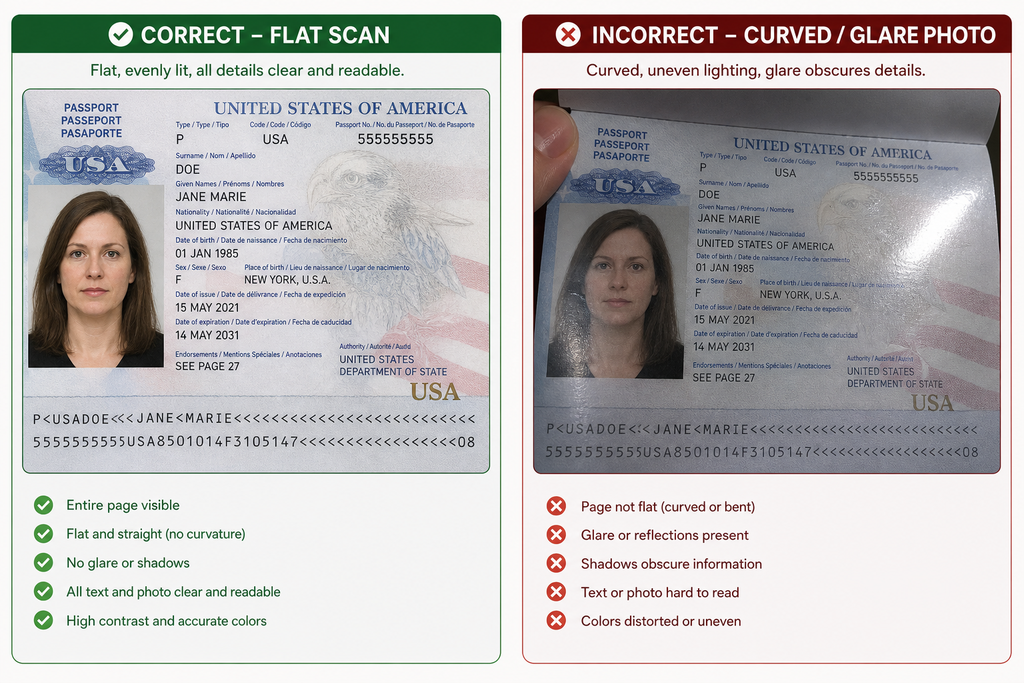
How to Photograph a Passport Bio Page Without Glare

  1. Clean the surface: Wipe the laminate. Remove dust that creates dark spots.
  2. Use a flat surface: Lay the booklet open on a neutral desk or table. Do not hold it in your hand; curves create shadows and focus blur.
  3. Position the camera directly above: Hold your smartphone or camera parallel to the page. Avoid shooting at an angle, which can shorten the MRZ and distort text.
  4. Turn off the flash: Direct flash creates hot spots on laminated paper. Use ambient light instead.
  5. Frame the full page: Ensure all four corners are visible. Do not crop out the MRZ at the bottom.

Best Lighting for a Passport Bio Page Scan

Natural daylight near a window works best. If you must shoot indoors, place two lamps at roughly 45-degree angles from the page to eliminate shadows. Avoid overhead fluorescent lights that create yellow color casts.

Step-by-Step Capture Process

  1. Open the booklet to the Passport Bio Page.
  2. Place it flat with the data facing up.
  3. Set your camera to highest resolution; disable digital “beauty” filters that soften text.
  4. Use a timer or remote shutter to avoid hand shake.
  5. Take two shots: one tight crop to check focus, one full-page frame.
  6. Review at 100% zoom check that names and numbers are sharp.
  7. Save as PNG or high-quality JPEG; avoid heavy compression.

If you need a clean, uniform background for your digital copy, explore our background library at BG Image Snap for neutral, high-resolution templates.

How to scan a passport bio page using a smartphone for digital submissions

Common Mistakes When Photographing Your Passport Bio Page

  • Flash glare on laminate: This hides the MRZ and can cause rejection.
  • Fingers over text: Even one finger covering a digit of your passport number invalidates the image for many portals.
  • Cropping the expiration date: If the field is cut off, you must retake.
  • Curved page: A curved page changes text spacing; flat is essential.
  • Dark background: Some auto-crop tools confuse a black background with missing data.

Frequently Asked Questions

What is a Passport Bio Page exactly?

It is the data sheet in your passport containing your photo, name, birth details, passport number, and machine-readable zone.

Where is the Passport Bio Page located in a US passport?

For standard booklets, it is page 2 inside the front cover.

Can I submit a photo of my Passport Bio Page for visa applications?

Yes, many online visa systems ask for a copy of the bio page. Always verify whether they want a scan, a photo, or both.

What is the best lighting for a Passport Bio Page scan?

Even natural daylight near a window is best. Avoid direct flash and overhead yellow lighting.

How do I crop a Passport Bio Page correctly?

Keep a small white border, but never cut off the bottom MRZ or the top photo area. Include all four corners.

Is it safe to upload a Passport Bio Page to government websites?

Only upload to verified government portals (such as official visa or immigration sites). Avoid emailing copies over unsecured platforms.

Do UK passports have a Passport Bio Page on the inside cover?

Yes, in most UK passports the bio data page is the first page inside the front cover.

Why does my Passport Bio Page photo get rejected?

Common reasons include glare, blur, missing corners, cropped MRZ, or incorrect file size/format.

Conclusion

Your Passport Bio Page is more than a photo it is the legal identity proof inside your passport. Whether you are navigating a visa portal, renewing early, or building a secure digital backup, taking a clear, flat, evenly lit photo of this page is a simple skill that prevents major delays.

If you need clean, high-resolution backgrounds to standardize document scans or passport-related visuals, visit BG Image Snap for professional templates.

Need a clutter-free backdrop for your passport scans or ID templates? Browse the high-quality background collection at BGImageSnap and keep every detail sharp.

YouTube PFP Downloader 5 Ultimate Free Tools to Download HD Profile Pictures

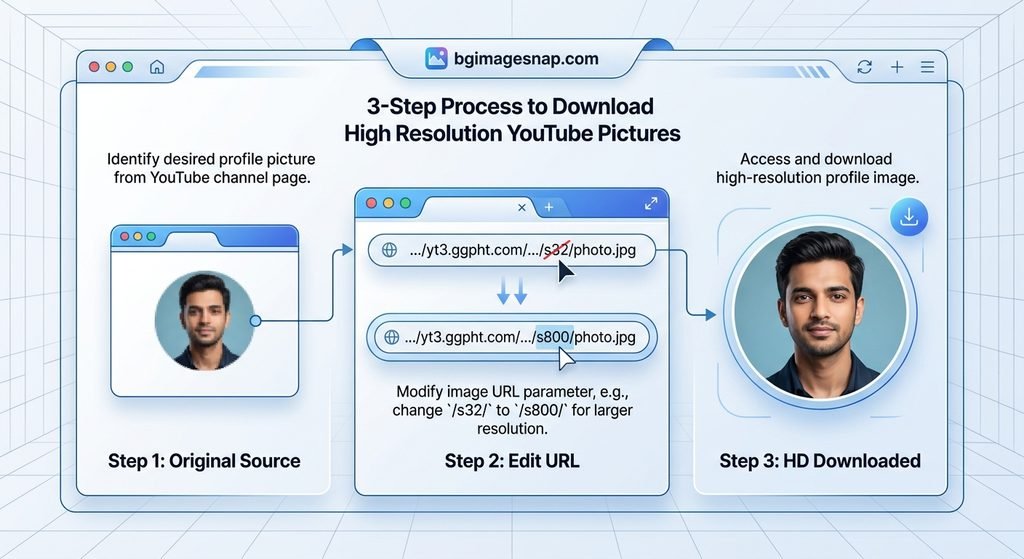
Step-by-step comparison using a YouTube PFP Downloader to extract HD avatar images

If you have ever tried to save a creator’s profile image from YouTube you already know the platform does not offer a direct “Save Image” button for avatars. That is exactly where a YouTube PFP Downloader becomes useful. Whether you want a high-quality wallpaper need to reference a channel’s branding or are curating visual assets for a creative project knowing how to download YouTube profile pictures in full resolution saves time and frustration.

In this guide you will learn exactly how a YouTube PFP Downloader works which methods actually deliver HD results and how to stay safe while doing it. We cover manual techniques web-based extractors and practical steps you can use today.

Quick Answer / Key Takeaways

  • A YouTube PFP Downloader extracts the high resolution source file of a channel avatar not just a compressed thumbnail.
  • Most reliable methods are browser based and do not require software installation.
  • You can often recover images from 200px up to 800px+ by using the correct URL parameters inside a YouTube PFP Downloader.
  • Always respect copyright and do not use downloaded avatars for commercial merchandise or ads without permission.

What Is a YouTube PFP Downloader?

A YouTube PFP Downloader is a tool or technique that lets you retrieve the original image file behind a YouTube channel’s profile picture. YouTube serves these avatars through Google’s content delivery network which means the image exists at a direct URL. A downloader either automates that retrieval or guides you to manipulate the URL to request a larger version.

This is different from taking a screenshot. A screenshot captures your screen resolution and adds compression artifacts. A proper YouTube PFP Downloader targets the source file which is why it can deliver sharp high definition results faster.

Can You Download YouTube Profile Pictures Without Tools?

Yes. Experienced users can locate the image URL within the page source or browser developer tools. Once you have the direct link you can sometimes change size parameters to request a larger format. However this requires comfort with web browsers and is not always intuitive for beginners.

Why Use a YouTube PFP Downloader for HD Images?

People seek HD YouTube profile pictures for several legitimate reasons. Content creators may need reference material for design mood boards. Marketers might collect brand assets for competitive analysis. Fans sometimes want a clearer version of a favorite creator’s avatar for personal wallpapers.

The key point is quality. YouTube compresses images for fast loading. If you rely on the small thumbnail shown on the channel page you miss detail. A YouTube PFP Downloader aims at the underlying file to recover that detail.

How to Use a YouTube PFP Downloader: Step-by-Step

If you prefer a direct approach follow these steps. They work for most web based extractors and manual methods.

  1. Open YouTube and navigate to the channel whose profile picture you need.
  2. Copy the channel URL from the address bar (for example, youtube.com/@ChannelName).
  3. Open your chosen YouTube PFP Downloader or image extraction service.
  4. Paste the channel URL into the input field.
  5. Wait for the tool to scan the page and locate the avatar source file.
  6. Select the highest available resolution (usually labeled HD 400×400 or Max).
  7. Right click the result and choose “Save Image As” or use the download button.

This process takes under 30 seconds once you know the steps. If a YouTube PFP Downloader asks for unnecessary permissions asks you to install unknown software or requires account creation treat it as a red flag.

5 Best Free Methods to Download YouTube Profile Pictures

Because needs vary here are five practical approaches rather than one size fits all software.

  1. Web Based URL Extractors: These are the simplest option. You paste a YouTube link and the service returns the image file. Look for sites that do not require installation and clearly state they do not store files.
  2. Browser Inspector Method: Right click the profile picture select “Inspect,” find the img tag URL and open it in a new tab. You can often request a larger size by adjusting URL parameters.
  3. Direct URL Adjustment: Some avatars use parameters like /s32-c/ or similar CDN sizing tags. Changing those identifiers to larger values (for example, /s128-c/ or /s256-c/) can yield a bigger file. Results vary by source.
  4. Trusted Browser Extensions: Some reputable extensions for Chrome or Firefox can capture media elements on a page. Use only extensions with high review counts and transparent privacy policies.
  5. Archive Services: Platforms like the Wayback Machine sometimes store older versions of profile pictures at higher resolutions if they were previously indexed.

Remember a YouTube PFP Downloader does not mean you need a dedicated app. Often the easiest path is a clean web tool with no ads.

Safety depends on your source. Avoid suspicious downloaders that prompt you to install unknown executables or grant camera access.

From a legal standpoint profile pictures are usually copyrighted by the creator. Downloading for personal use typically falls under fair use in many jurisdictions but distributing altering for merch or using in commercial campaigns requires permission. YouTube’s Terms of Service also prohibit scraping content at scale.

For individual non commercial retrieval the risk is generally low but always credit creators when appropriate. If you need legal high resolution visuals for backgrounds or design work explore our HD Background Collection at BG Image Snap for ready to use assets.

Common Mistakes to Avoid

  • Trusting pop up ads: Many “free downloader” pages push malware through fake download buttons. Close unexpected pop ups.
  • Assuming private profiles are accessible: If a channel is private or unlisted the avatar URL may be inaccessible to public extractors.
  • Ignoring resolution limits: Some profiles are uploaded at low resolution by design. No YouTube PFP Downloader can invent pixels that do not exist.
  • Skipping copyright checks: Always verify whether your intended use requires a license.
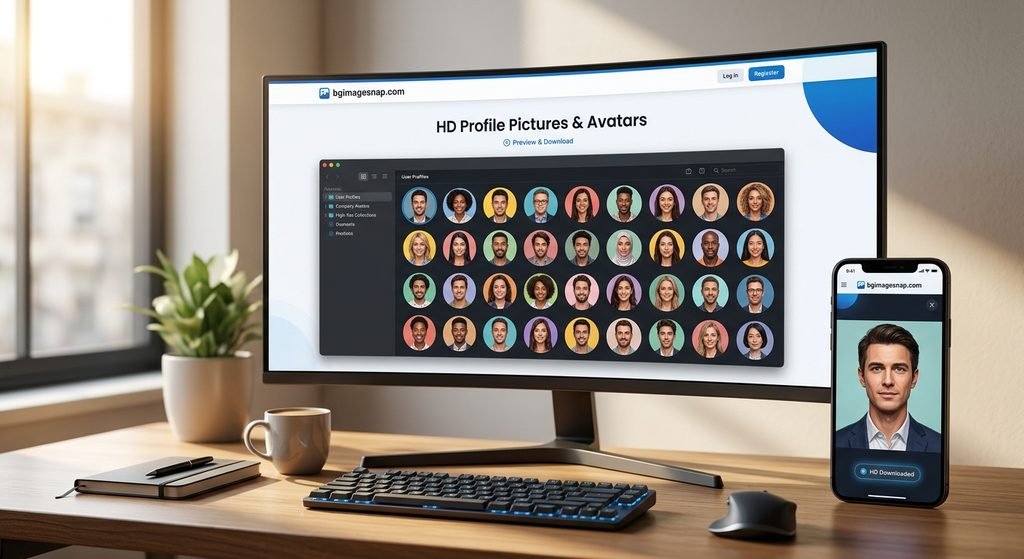
High definition YouTube profile pictures downloaded with a YouTube PFP Downloader

Frequently Asked Questions About YouTube PFP Downloader

Q1: Is a YouTube PFP Downloader free?

Most web-based tools are free for single downloads. Some offer batch features or faster speeds through paid tiers.

Q2: What is the best resolution I can get?

It depends on what the creator uploaded. Common results range from 200px to 800px, though some high-quality uploads can exceed 1000px.

Q3: Do I need to install software?

No. Many reliable methods work entirely in your browser.

Q4: Can I download a YouTube profile picture for commercial use?

Only if you have permission from the rights holder. Downloading is not the same as licensing.

Q5: Why is the image blurry after download?

The source file may be small, or the site you used delivered a compressed copy. Use a YouTube PFP Downloader that explicitly offers a full-resolution option.

Q6: How do I find the direct profile picture URL?

Use your browser’s inspect tool on the avatar image element or paste the channel link into a reputable extractor.

Q7: Are these downloaders legal?

Using them for personal, non-commercial retrieval is generally acceptable. Systematic scraping or redistribution violates YouTube’s terms.

Q8: Can I use this for background images?

Yes, many users save YouTube avatars to use as phone or desktop backgrounds though you should ensure personal-use compliance.

Final Thoughts

A YouTube PFP Downloader is a practical way to preserve high quality profile images when YouTube’s interface limits direct saving. By combining browser based extractors with a basic understanding of image URLs you can get sharp results without risking your device.

If you are looking for more high quality visuals to pair with your download visit BG Image Snap for curated HD backgrounds wallpapers and digital assets designed for creators and enthusiasts.

Create Better Images in Seconds → Try BGImageSnap

Looking for more helpful image editing tips? Explore our latest guides and learn how to resize, convert, remove backgrounds and improve your photos. → click here

MP4 to PNG The Ultimate Guide to Convert Video Frames into PNG Images

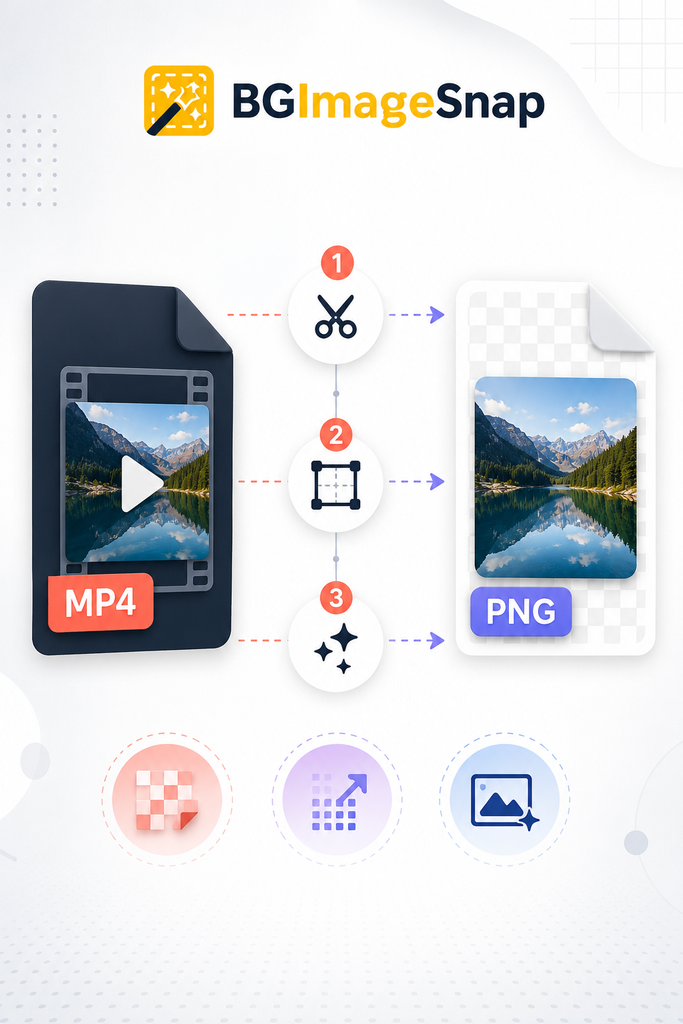
mp4 to png step-by-step diagram showing video container transforming into PNG through resolution and transparency steps

MP4 to PNG means extracting a still image from a video file. Instead of keeping motion you capture a specific second and save it as a lossless PNG.

  • Best for: Web backgrounds thumbnails graphic overlays and print assets.
  • Key benefit: PNG supports transparency and sharp edges unlike JPEG.
  • Time required: Seconds for one frame; minutes for bulk extraction.
  • Cost: Most reliable tools are free.

If you already know your frame timestamp skip ahead to the step by step section. If you need to compare methods first review the comparison table below.

MP4 to PNG: What It Actually Means

MP4 is a digital container format that holds video streams, audio tracks, subtitles and metadata. PNG is a raster image format that uses lossless compression and supports alpha channel transparency.

When you perform an MP4 to PNG conversion you are not “changing” the video format. You are pulling a still image from the video stream at a precise timecode. This matters for designers: a 4K MP4 might contain a perfect frame at 00:00:08 but if you export at 1080p or apply heavy compression the PNG will not recover lost detail.

For teams in the USA, UK, and CA working on background image projects the critical rule is simple: start with the highest source resolution then export the PNG at the exact pixel dimensions your layout requires.

The Difference Between Video and Frame Formats

FeatureMP4 (Video)PNG (Image)
Contains motionYesNo
Transparency supportNo (in final frame unless alpha source)Yes
Best for backgroundsOnly after frame extractionDirect use
File sizeLargeModerate (lossless)
Color profileOften Rec. 709Usually sRGB for web

5 Ultimate Best Methods to Convert MP4 to PNG

Not every tool fits every workflow. Here is a direct comparison of the most effective methods for MP4 to PNG tasks.

MethodBest ForQualitySpeedCost
Desktop Editor (Premiere / DaVinci)Color correction + cropHighMediumPaid / Free tier
Frame Grab SoftwarePrecise timestamp picksHighFastFree / Paid
FFmpeg Command LineBulk / automatedHighVery fastFree
Online MP4 to PNG ConverterOne off quick tasksMediumFastFree / Premium
Mobile AppsSocial / quick referencesMediumFastFree / Paid

Method 1: Desktop Video Editors (Adobe Premiere Pro, DaVinci Resolve)

Import the MP4 scrub to the exact frame and export a still. Choose PNG as the format and set resolution to match your source. This is the best path when you need color grading or framing adjustments before extraction.

Method 2: Dedicated Frame Grab Tools

VLC offers a snapshot feature; LosslessCut allows frame accurate cutting without a timeline. These are excellent for quick MP4 to PNG tasks when you do not need full editing power.

Method 3: FFmpeg (Command Line)

FFmpeg is the open source standard for video processing. It extracts frames without loading a visual timeline making it ideal for bulk tasks or automated workflows.

Method 4: Browser Based Online Converters

Platforms like CloudConvert or Online Convert accept an MP4 upload and return PNG files. They work well for single frame needs but review privacy policies before uploading proprietary footage.

Method 5: Mobile Apps

Apps such as Video to Photo (iOS) or FrameGrab (Android) allow quick exports from your camera roll. Use these for rapid reference shots rather than high precision design work.

Step-by-Step: How to Convert MP4 to PNG Using FFmpeg

If you want precise repeatable results follow this process.

Step 1: Download FFmpeg from the official repository and install it on your system.

Step 2: Open a terminal or command prompt and navigate to the folder containing your video.

Step 3: Extract a single frame at a specific timestamp.

textffmpeg -ss 00:00:05 -i input.mp4 -vframes 1 output.png

This command grabs the frame at 5 seconds.

Step 4: Verify the output file dimensions. If your source is 1920×1080 your PNG should match unless you specify a scale.

Step 5: Open the PNG in an image editor to confirm transparency. If your original video does not include an alpha channel transparency will not appear automatically.

This method delivers identical results across USA, UK, and CA operating environments because it relies on command line processing rather than localized software licenses.

Quality Tips for Background Images

When you convert video frames into PNG images for web backgrounds protect the asset quality with these practices:

  • Match pixel dimensions to layout. A full width hero banner may need 1920 px or 2560 px width; do not export small and upscale.
  • Preserve transparency. Choose PNG (not JPEG) if the frame includes logos cutouts or overlay ready elements.
  • Check color profiles. Many MP4 files use Rec. 709. Export your PNG in sRGB if it will live on the web.
  • Avoid double compression. Export once at high quality then scale down for thumbnails rather than re exporting from a compressed file.

If you are sourcing backgrounds for a site like bgimagesnap.com consider whether your extracted frame needs retouching before it becomes a final background asset.

Common MP4 to PNG Mistakes to Avoid

Mistake 1: Exporting as JPEG by accident. You lose transparency and introduce compression artifacts.

Mistake 2: Choosing a low resolution source. A PNG cannot invent detail that was never in the original video.

Mistake 3: Selecting the wrong timestamp. One second can mean the difference between a sharp face and a motion blur.

Mistake 4: Over compressing the PNG. Use lossless or near lossless settings for graphics; only compress if file size is a critical bottleneck.

MP4 to PNG vs. Other Image Formats

PNG is not the only option but it is usually correct for design work.

FormatTransparencyLosslessBest Use After MP4 to PNG
PNGYesYesWeb backgrounds logos graphics
JPEGNoNoPhotographs where file size is critical
GIFYes (1-bit)YesSimple animations not high quality frames
TIFFYesYesPrint workflows requiring print ready data

For most MP4 to PNG workflows PNG strikes the best balance between clarity and versatility.

Frequently Asked Questions

What does MP4 to PNG mean?

It means extracting a still frame from an MP4 video file and saving it as a PNG image.

How do I convert MP4 to PNG without losing quality?

Start with a high-resolution source use a lossless export setting and avoid recompressing the PNG afterward.

Can I convert MP4 to PNG online for free?

Yes. Many online converters support this but check file-size limits and privacy terms before uploading.

Is PNG better than JPG for video frames?

For backgrounds and graphics yes. PNG supports transparency and preserves sharp edges; JPG does not.

How do I pick the best frame from a video?

Scrub slowly avoid motion blur and select frames with clean negative space or clear focal points.

What is the best MP4 to PNG tool for professionals?

FFmpeg for speed and bulk work; Adobe Premiere or DaVinci Resolve for color-controlled extractions.

Does MP4 to PNG support transparency?

The PNG format supports transparency but the source frame must contain it—such as via a green-screen or alpha-channel source.

How long does MP4 to PNG conversion take?

A single frame takes seconds. Bulk extraction depends on video length and your hardware.

Conclusion

Mastering MP4 to PNG conversion gives you a direct pipeline from video source to polished graphic. Whether you use a desktop editor for color precision or FFmpeg for rapid extraction the rules remain constant: respect the source resolution export at the correct size and choose PNG when transparency and clarity matter.

If you need high quality PNG background images to pair with your extracted frames browse our curated collection at bgimagesnap.com. From web hero backgrounds to print ready assets we provide the visual foundation your next project needs.

How Many Pixels in an Inch 7 Easy Ways to Understand PPI

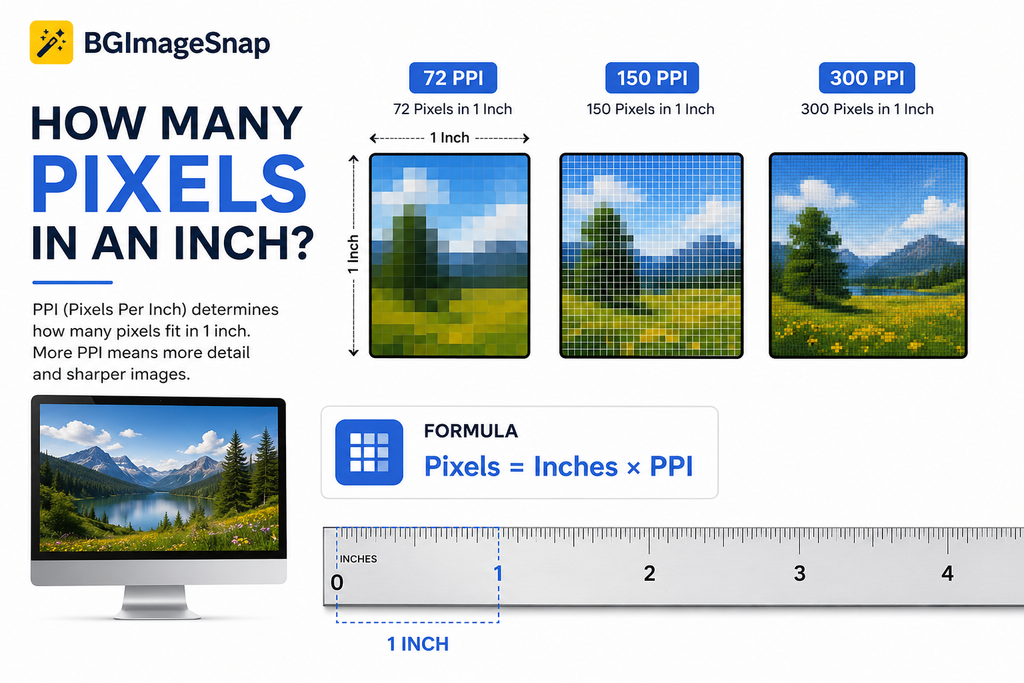
For example, an image prepared at 72 PPI has 72 pixels across one inch, while an image prepared at 300 PPI has 300 pixels across one inch. The important point is that a digital image does not automatically have a fixed physical size in inches. Its pixel dimensions and the intended display or print size determine the relationship.

Understanding this difference can help you choose the right image dimensions for printing photos, creating documents, designing graphics, or preparing images for websites.

In this guide, you’ll learn what pixels per inch means, how to calculate it, how PPI differs from DPI, what 72 and 300 PPI actually mean, and how to convert inches into pixels for common image sizes.

how many pixels in an inch at 72 150 and 300 PPI

How Many Pixels in an Inch? Quick Answer

How many pixels in an inch depends on the PPI value.

PPIPixels across 1 inch
72 PPI72 pixels
96 PPI96 pixels
150 PPI150 pixels
200 PPI200 pixels
240 PPI240 pixels
300 PPI300 pixels
600 PPI600 pixels

The formula is simple:

Pixels = Inches × PPI

So, at 300 PPI:

1 inch × 300 PPI = 300 pixels

For a square 1 × 1 inch image at 300 PPI, the image contains 300 × 300 pixels, or 90,000 pixels total. Adobe explains that PPI describes the number of pixels contained within each inch of a digital image.

What Does Pixel Per Inch Mean?

Pixels are the tiny picture elements that make up a digital image. PPI, or pixels per inch, describes pixel density how many pixels are placed across one physical inch when an image is displayed or printed at a particular size.

This is why asking how many pixels in an inch without specifying PPI can be misleading.

Consider a 1 inch wide image:

  • At 72 PPI → 72 pixels wide
  • At 150 PPI → 150 pixels wide
  • At 300 PPI → 300 pixels wide
  • At 600 PPI → 600 pixels wide

A higher PPI packs more pixels into the same physical space. For print, this can allow finer detail, provided the original image actually contains enough pixels.

Does a higher PPI automatically make an image better?

Not necessarily.

Changing a PPI value does not magically create missing image detail. If an image has limited pixel dimensions, simply changing its resolution setting cannot produce genuinely new photographic detail.

Adobe notes that increasing the PPI setting alone does not add pixels unless the image is resampled.

How to Calculate Pixels Per Inch

If you know the pixel width and the physical width of an image, you can calculate PPI using this formula:

PPI = Pixel width ÷ Physical width in inches

Example

Suppose a photograph is 1800 pixels wide and you want to print it 6 inches wide.

1800 ÷ 6 = 300 PPI

So the image would have an effective resolution of 300 PPI at a 6 inch print width.

You can use the same calculation for height:

PPI = Pixel height ÷ Physical height in inches

For accurate results, compare the pixel dimension with the corresponding physical dimension. Adobe gives the same basic relationship: the number of pixels divided by the image size in inches gives pixels per inch How Many Pixels in an Inch

How Many Pixels Are in an Inch at 72 PPI?

At 72 PPI, one inch contains 72 pixels across.

A 1 × 1 inch image at 72 PPI therefore measures:

72 × 72 pixels

That equals 5,184 pixels in total.

You may have heard that 72 PPI is the standard resolution for websites. However, modern screens vary considerably in pixel density, and web images are generally better specified by their actual pixel dimensions rather than relying on a PPI metadata value. Adobe also notes that the physical size of an on screen image can vary depending on the display How Many Pixels in an Inch

For web graphics, focus primarily on the required pixel dimensions, file format, image quality, and file size.How Many Pixels in an Inch

How Many Pixels Are in an Inch at 300 PPI?

At 300 PPI, one inch contains 300 pixels across.

A 1 × 1 inch image at 300 PPI contains:

300 × 300 pixels = 90,000 pixels

This is why 300 PPI is frequently used as a target for high quality photographic printing. Adobe identifies 300 PPI as a common choice for high quality print materials, although the ideal value can depend on the project and printing method.How Many Pixels in an Inch

For example:

  • 2 × 2 inches at 300 PPI = 600 × 600 pixels
  • 4 × 6 inches at 300 PPI = 1200 × 1800 pixels
  • 5 × 7 inches at 300 PPI = 1500 × 2100 pixels
  • 8 × 10 inches at 300 PPI = 2400 × 3000 pixels

PPI vs. DPI: What’s the Difference?

PPI and DPI are often used interchangeably, but technically they describe different things.

PPI (pixels per inch) describes the pixel density of a digital image or display How Many Pixels in an Inch

DPI (dots per inch) generally describes the physical dots produced by a printer.How Many Pixels in an Inch

In other words:

  • PPI → digital image pixels
  • DPI → printer output dots

Adobe similarly distinguishes image resolution in PPI from printer resolution in DPI.

This distinction matters when preparing an image for printing. If a printer or photo service asks for a particular DPI specification, check its requirements rather than assuming that changing an image’s PPI value alone will improve the final print. How Many Pixels in an Inch

How Many Pixels Do You Need for Printing?

The required pixel dimensions depend on the physical print size and the desired PPI.

The easiest calculation is How Many Pixels in an Inch How Many Pixels in an Inch

Required pixels = Print size in inches × Target PPI

For example, if you want an 8 × 10 inch photograph at 300 PPI:

  • Width: 8 × 300 = 2400 pixels
  • Height: 10 × 300 = 3000 pixels

Therefore, you would want an image of approximately 2400 × 3000 pixels for a 300 PPI 8 × 10 inch print.

If your image is much smaller, enlarging it may reduce visible sharpness. Adobe notes that images with fewer pixels can become pixelated when enlarged substantially.

What about passport photos?

Passport and ID photos are a good example of why both physical dimensions and pixel dimensions matter.

For a U.S. passport photo, the required physical size is 2 × 2 inches. At 300 PPI, that corresponds to 600 × 600 pixels.

If you need to prepare a passport photo, BGImageSnap’s free passport photo maker lets you work with physical dimensions and a resolution setting while preparing photos for different countries.

How to Convert Inches to Pixels

You can convert inches to pixels using one simple formula:

Pixels = Inches × PPI

Step by step

  1. Determine the physical size in inches.
  2. Choose the appropriate PPI for your purpose.
  3. Multiply the number of inches by the PPI.
  4. Repeat for the height if you need a complete image dimension.

Example: 3 × 5 inches at 300 PPI

Width:
3 × 300 = 900 pixels

Height:
5 × 300 = 1500 pixels

Your target image size would therefore be:

900 × 1500 pixels

Quick conversion table

Physical Size72 PPI150 PPI300 PPI
1 inch72 px150 px300 px
2 inches144 px300 px600 px
3 inches216 px450 px900 px
4 inches288 px600 px1200 px
5 inches360 px750 px1500 px
6 inches432 px900 px1800 px
8 inches576 px1200 px2400 px
10 inches720 px1500 px3000 px

Common Mistakes When Converting Pixels and Inches

1. Assuming one inch always equals 300 pixels

There is no universal conversion of one inch to 300 pixels. 300 pixels per inch is a PPI setting, not a permanent definition of an inch in digital imaging How Many Pixels in an Inch

2. Confusing PPI with image dimensions

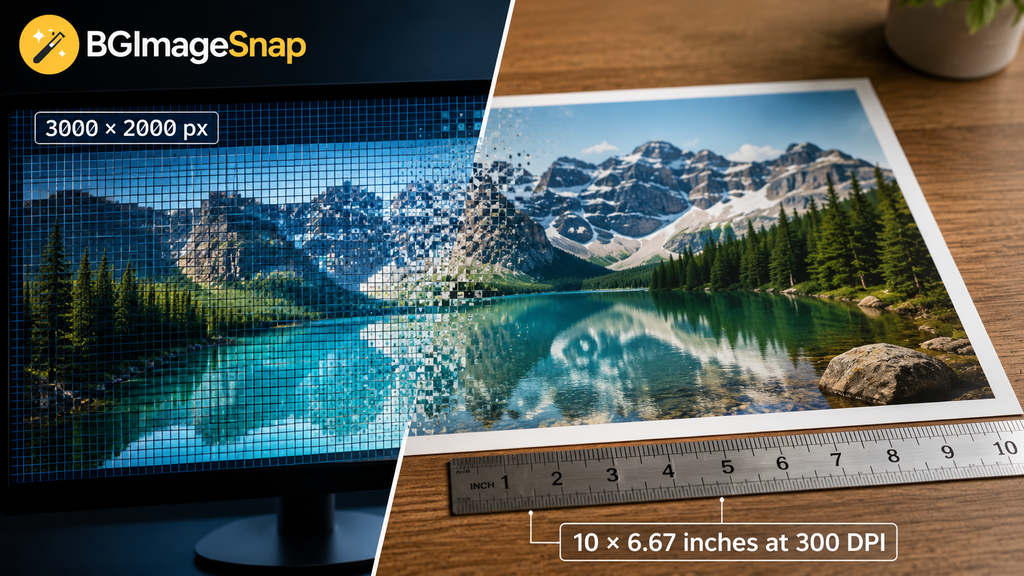
A 3000 × 2000 pixel image tells you how many pixels the file contains. It does not, by itself, tell you how many physical inches the image will occupy.

3. Increasing PPI and expecting better detail

Changing the resolution metadata without adding genuine image information does not automatically improve a low resolution photograph.

4. Using print measurements for web images

A website image is normally specified by pixel dimensions, such as 1200 × 800 pixels. Its physical size in inches can vary across different displays and viewing conditions How Many Pixels in an Inch

5. Ignoring the final output size

A 2000 pixel wide image may look excellent at one print size but become less suitable when printed significantly larger. Always calculate the effective PPI at the final physical size.

Frequently Asked Questions

How many pixels in an inch at 300 PPI?

There are 300 pixels across one inch at 300 PPI. A 1 × 1 inch square at that resolution is 300 × 300 pixels.

Is 1 inch always 96 pixels?

No. 96 pixels equals one inch only when the PPI value is 96. The relationship depends on the selected pixel density.

How many pixels are in 1 inch at 72 PPI?

At 72 PPI, there are 72 pixels across one inch.

How many pixels do I need for a 2 × 2 inch photo?

At 300 PPI, a 2 × 2 inch image requires 600 × 600 pixels.

Is 300 PPI better than 72 PPI?

For many print projects, 300 PPI is a common target because it provides higher pixel density. For web images, however, the actual pixel dimensions and image optimization are generally more important than simply assigning a PPI value.

Does changing PPI increase image quality?

Not by itself. Changing the PPI setting does not create missing image detail. Increasing the actual pixel dimensions through resampling is a separate process How Many Pixels in an Inch

What is the formula for converting inches to pixels?

Use:

Pixels = Inches × PPI

For example, 4 inches at 300 PPI equals 1,200 pixels.

Conclusion

So, how many pixels in an inch? There isn’t one universal answer. The number depends on the PPI setting.

At 72 PPI, one inch corresponds to 72 pixels. At 150 PPI, it is 150 pixels. At 300 PPI, it is 300 pixels. The most useful formula to remember is:

Pixels = Inches × PPI

For digital images, concentrate on the actual pixel dimensions required by the platform or application. For printing, consider both the physical print size and the effective PPI.

If you’re preparing photos for official documents, printing, or online use, getting the dimensions right before editing can save time and prevent blurry or incorrectly sized results.

For practical image preparation, explore the BGImageSnap Passport Photo Maker or visit BGImageSnap for browser based image tools.

Pixel to Inches 7 Easy Tips to Convert Image Size Perfectly

Introduction

Pixel to inches conversion is simple once you know one key detail: the image’s PPI also called pixels per inch. If you have ever tried to print a photo design a flyer upload a product image or resize a graphic for social media you may have noticed that pixels and inches do not automatically mean the same thing.

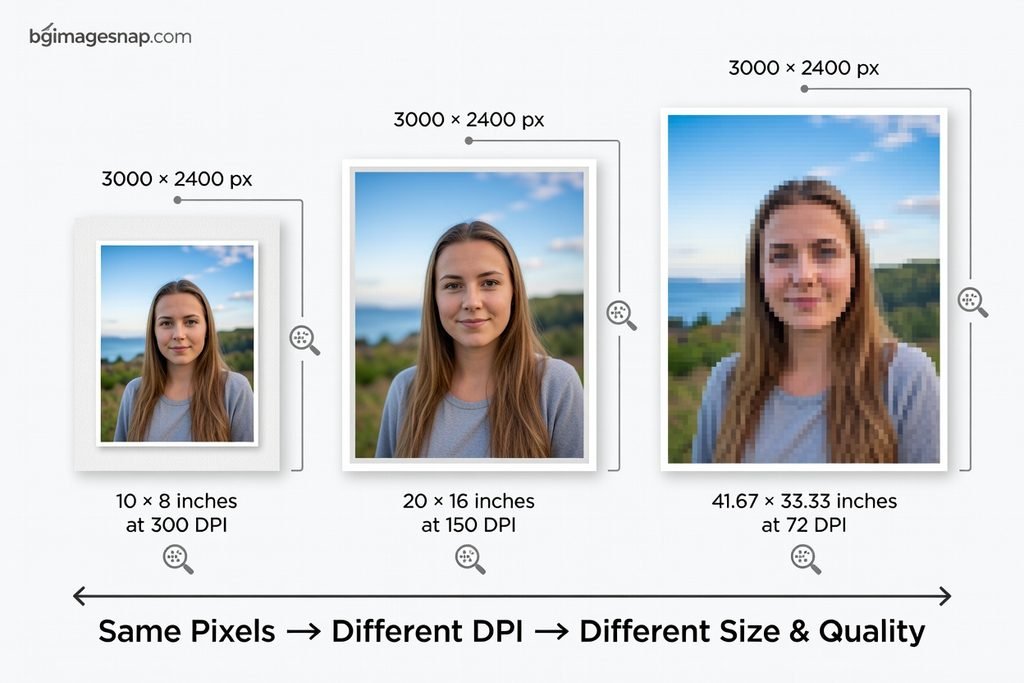
A photo that is 3000 pixels wide can print at 10 inches wide at 300 PPI but the same photo can print at 20 inches wide at 150 PPI. The pixel count stays the same but the print size changes.

In this guide from BGImageSnap, you’ll learn how to convert pixels to inches how PPI affects image quality which resolution to use for print or web and how to avoid common resizing mistakes.

Pixel to inches comparison showing how 3000 pixels prints at different sizes depending on DPI

Key Takeaways

  • Pixel to inches formula: pixels ÷ PPI = inches
  • Inches to pixels formula: inches × PPI = pixels
  • 300 PPI is commonly used for high-quality prints.
  • 72 or 96 PPI is often discussed for screens but web display depends mostly on pixel dimensions.
  • A higher PPI creates a smaller but sharper print.
  • A lower PPI creates a larger print but may reduce sharpness.

What Does Pixel to Inches Mean?

Pixel to inches means converting a digital image’s pixel dimensions into a physical size usually for printing.

A pixel is a tiny square of color in a digital image. An inch is a physical measurement. To connect the two you need PPI which tells you how many pixels will fit into one printed inch.

For example:

  • 1200 pixels at 300 PPI = 4 inches
  • 1200 pixels at 150 PPI = 8 inches
  • 1200 pixels at 100 PPI = 12 inches

The number of pixels did not change. Only the density changed.

This is why a photo can look large on a screen but print smaller than expected. Screens show pixels; printers need pixels distributed across physical space.

For deeper technical background Adobe has a helpful explanation of image size and resolution.

Pixel to Inches Formula Explained

The basic pixel to inches formula is:

Pixels ÷ PPI = Inches

You apply the formula separately to width and height.

Example: Convert 2400 × 3000 Pixels to Inches

If the image resolution is 300 PPI:

  • Width: 2400 ÷ 300 = 8 inches
  • Height: 3000 ÷ 300 = 10 inches

So, the image prints as 8 × 10 inches at 300 PPI.

What if the PPI is 150?

  • Width: 2400 ÷ 150 = 16 inches
  • Height: 3000 ÷ 150 = 20 inches

So, the same image prints as 16 × 20 inches at 150 PPI.

Practical Advice

Use 300 PPI when you want sharp prints especially for photos brochures invitations product inserts and framed images. Use a lower PPI only when the image will be viewed from farther away such as posters or banners.

Pixel to Inches Conversion Chart

Here is a quick pixel to inches reference chart using common PPI values.

Pixel DimensionsAt 300 PPIAt 150 PPICommon Use
600 × 600 px2 × 2 in4 × 4 inSmall icon or label
1200 × 1800 px4 × 6 in8 × 12 inStandard photo print
1500 × 2100 px5 × 7 in10 × 14 inPhoto print
2400 × 3000 px8 × 10 in16 × 20 inPortrait print
3000 × 3600 px10 × 12 in20 × 24 inWall print
3600 × 5400 px12 × 18 in24 × 36 inPoster print

This chart shows why PPI matters. The same image can create different physical sizes depending on resolution.

Best PPI Settings for Print and Web

Choosing the right PPI depends on where the image will appear.

For High-Quality Prints

Use 300 PPI for:

  • Photo prints
  • Invitations
  • Business cards
  • Product packaging
  • Brochures
  • Art prints

This setting gives you strong detail when the viewer sees the image up close.

For Posters and Large Prints

Use 150–200 PPI when:

  • The print is large
  • The viewer stands farther away
  • File size needs to stay manageable

Large prints do not always need 300 PPI because people usually view them from a distance.

For Websites and Social Media

For websites pixel dimensions matter more than physical inches. A browser displays images based on screen pixels CSS and layout rules.

For web use focus on:

  • Correct width and height in pixels
  • Fast loading
  • Compression
  • Responsive display
  • Proper format such as JPG, PNG, WebP, or SVG

The W3C explains how CSS uses absolute units including how CSS pixels relate to inches in its CSS Values and Units specification.

If you need to resize or prepare images for online use you can use a tool like the BGImageSnap image editor to make quick adjustments.

Pixel to inches comparison showing how 3000 pixels prints at different sizes depending on DPI

How to Convert Pixel to Inches Step by Step

Follow this simple process to convert pixel to inches correctly.

Step 1: Find the Pixel Dimensions

Check your image size first. You might see something like:

3000 × 2400 pixels

The first number is usually the width. The second number is the height.

Step 2: Choose the PPI

Pick the resolution based on your use case:

  • 300 PPI for sharp photo prints
  • 150–200 PPI for larger posters
  • 72 or 96 PPI for basic screen reference only

Step 3: Divide Pixels by PPI

Use the formula:

Pixels ÷ PPI = Inches

Example:

  • Width: 3000 ÷ 300 = 10 inches
  • Height: 2400 ÷ 300 = 8 inches

So, the final print size is 10 × 8 inches.

Step 4: Check the Aspect Ratio

Make sure the shape of the image fits your desired output.

For example, an 8 × 10 print has a different shape than a 4 × 6 print. If the aspect ratio does not match you may need to crop the image.

Step 5: Resize Without Stretching

Never stretch an image to force it into a size. Stretching can make people products or text look distorted.

Instead:

  • Crop to the correct shape
  • Resize proportionally
  • Use a clean background if needed
  • Export a copy not the original

For product photos or profile images try removing distractions with BGImageSnap’s background tools before resizing.

Pixel to Inches Example for Common Print Sizes

Here are common print sizes and the pixel dimensions needed at 300 PPI.

Print SizePixel Size at 300 PPI
4 × 6 in1200 × 1800 px
5 × 7 in1500 × 2100 px
8 × 10 in2400 × 3000 px
8.5 × 11 in2550 × 3300 px
11 × 14 in3300 × 4200 px
12 × 18 in3600 × 5400 px

If your image has fewer pixels than the recommended size it may still print but it may not look as sharp up close.

Common Mistakes to Avoid

1. Confusing PPI and DPI

PPI means pixels per inch and refers to digital image resolution. DPI means dots per inch and usually relates to printer output. People often use the terms interchangeably but they are not exactly the same.

2. Assuming Pixels Have a Fixed Inch Size

Pixels do not have one fixed physical size. A 1000-pixel image can be small or large depending on the PPI.

3. Enlarging Low-Resolution Images Too Much

If you enlarge a small image too far it can become blurry or pixelated. It is better to start with a larger original image.

4. Ignoring Cropping

A photo may have enough pixels but the wrong shape. Always check the aspect ratio before printing.

5. Exporting Over the Original File

Always save a copy. Keep the original image untouched in case you need another size later.

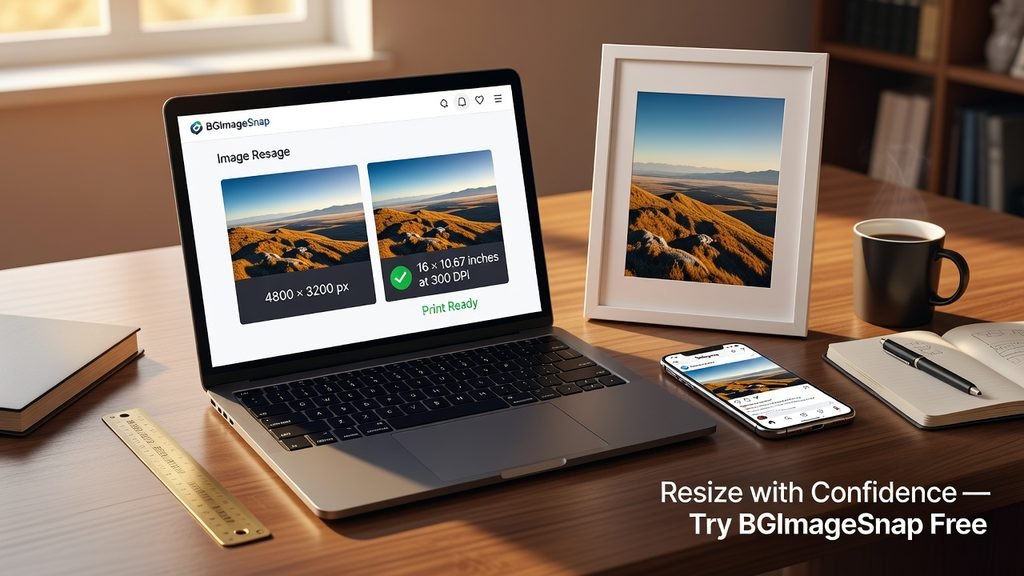
Use BGImageSnap to convert pixel to inches and resize images for perfect print quality

FAQ

1. How do I convert pixel to inches?

Use this formula: inches = pixels ÷ PPI. For example 1800 pixels divided by 300 PPI equals 6 inches.

2. How many pixels are in one inch?

It depends on the PPI. At 300 PPI one inch contains 300 pixels. At 150 PPI one inch contains 150 pixels.

3. What is 1920 pixels in inches?

At 300 PPI 1920 pixels equals 6.4 inches. At 96 PPI 1920 pixels equals 20 inches.

4. Is 300 PPI always required?

No. 300 PPI is ideal for high-quality close-up prints. Large posters may look fine at 150–200 PPI because they are usually viewed from farther away.

5. Does changing PPI change image quality?

Changing PPI alone does not add new detail. It changes how densely pixels are printed. If you resample the image then the software may add or remove pixels.

6. What pixel size do I need for an 8 × 10 print?

For a sharp 8 × 10 print at 300 PPI use 2400 × 3000 pixels.

7. Does pixel to inches matter for Instagram or websites?

Not as much as pixel dimensions. For web and social media focus on the image’s width, height, file size and format.

Conclusion

Understanding pixel to inches conversion helps you print sharper photos design better graphics and avoid blurry results. For high-quality prints use 300 PPI when possible. For web images focus more on pixel dimensions compression and responsive display.

If you want to prepare images faster visit BGImageSnap to edit clean up and resize your visuals for print, web and social platforms.

1920×1080 Image 5 Ultimate Ways to Get Direct Links Fast

A 1920×1080 image is the standard resolution for full HD backgrounds and finding a direct image link for this format is one of the most common frustrations for designers developers and content creators. Many sites wrap images in preview pages temporary session IDs or compressed thumbnails that never load properly.

This guide answers exactly how to get a direct image link for a 1920×1080 image whether you need it for a website hero section a video backdrop or a desktop wallpaper. You will learn practical methods that work today plus how to avoid broken links after you publish.

What you will learn:

  • The exact steps to grab direct URLs for 1920×1080 images
  • Why some “direct links” break after a few hours
  • How to self host so your link never dies
  • Where BGImageSnap fits into your workflow for dependable direct links
Direct 1920x1080 image link versus cluttered web preview page comparison 1920×1080 Image

Quick Answer / Key Takeaways

  • A 1920×1080 image is Full HD at a 16:9 ratio.
  • Use “Copy image address” in your browser for quick direct links.
  • Source URL parameters (like ?w=1920) can unlock a direct 1920×1080 image file.
  • Self hosting after download prevents broken links.
  • BGImageSnap offers direct download URLs for its 1920×1080 image library.

What Is a 1920×1080 image?

A 1920×1080 image has a width of 1920 pixels and a height of 1080 pixels. That makes it the standard resolution for 1080p displays projectors and most modern desktop screens. The aspect ratio is 16:9.

Because of its size a 1920×1080 image delivers enough detail for full screen backgrounds without forcing users to wait for massive file transfers. If you are building a website hero banner a YouTube thumbnail or a presentation slide this resolution is usually the sweet spot.

Common Use Cases

Web design backgrounds video overlays digital signage presentation slides and desktop wallpapers all rely on this format. When you link directly to a 1920×1080 image file the browser loads only that asset not an entire gallery page.

This is the core question. Below are five practical methods to grab a working direct URL.

Answer first: Most direct links come from either the browser’s native image copy function a modified source URL or a direct download library like BGImageSnap. The best method depends on whether you need the image for a single project or ongoing use.

Method 1 Right Click and Copy Image Address

Open the page with the image. Right click the photo and select “Copy image address” (Chrome/Edge) or “Copy Image Location” (Firefox). Paste the URL into your code or CMS.

If the URL ends in .jpg, .png, or .webp, it is likely direct. If it points to an HTML page or a CDN with query strings that block hotlinking test it in a new tab first.

Method 2 Modify the Source URL for Direct Access

Many platforms store originals at different resolutions. For example Unsplash allows you to adjust width parameters in the URL. Instead of a generic preview link add ?w=1920&q=80 to the source path. This can return a direct 1920×1080 image file instead of a compressed preview.

Always verify by opening the URL in an incognito window. You can also check the “Open image in new tab” option on platforms like Pexels and Pixabay. If the new tab shows only the image with no text you have a direct link.

For more on open source image resources see the Unsplash Source API and Pexels direct URLs.

At BGImageSnap the 1920×1080 image collection is built for direct use. Each file includes a clean URL that serves the image directly to your site or project. You skip the preview page avoid temporary session IDs and get consistent dimensions.

If you need a reliable source for backgrounds this approach removes the guesswork. Browse our full library of direct background images for more options.

Method 4 Browser Developer Tools

For tricky sites open the browser’s developer tools (F12) go to the Network tab and filter by Img. Reload the page. Find the image request that returns the largest file size often the 1920×1080 original. Right click the request URL and copy it.

This is especially useful when the visible thumbnail links to a different asset or when the site uses a lazy load script.

Method 5 Download and Self Host

Download the 1920×1080 image to your computer then upload it to your own server or content delivery network (CDN). This gives you a permanent direct link you control.

For commercial projects this is the most professional option because it eliminates dependency on third party hosts that can change or remove files.

For help with file hosting see our guide to direct image hosting tips.

A direct link ends in an image file extension and renders only the image. A preview page loads HTML, navigation, ads, and scripts around the photo.

If you embed a preview URL into your website users see broken layout or unwanted branding. If you use a direct 1920×1080 image link the asset loads cleanly in your design.

Before publishing open your URL in a private window to confirm it produces nothing but the image. If you see a page with menus and text you are not using a direct link.

Mistakes to Avoid with 1920×1080 Images

  • Using a thumbnail link instead of the full size file. Check pixel dimensions before embedding.
  • Hotlinking without checking terms. Some sites block direct embedding; others require attribution.
  • Relying on temporary CDN URLs that expire after a session. Always test after 24 hours.
  • Ignoring file size. A 1920×1080 image JPEG can range from 300 KB to 3 MB. Optimize with tools like TinyPNG or Squoosh if speed is critical.

Direct links work best for website backgrounds video production templates, e-learning modules digital presentations and social media ads. Because the format is standard a direct URL will scale correctly across desktop and tablet layouts if applied with responsive CSS.

If you are looking for quick high resolution assets explore our free HD wallpaper downloads to supplement your project.

Abstract high-definition grid symbolizing seamless 1920x1080 image access and direct links

FAQs

What does 1920×1080 mean?

It is Full HD resolution: 1920 pixels wide by 1080 pixels tall displayed in a 16:9 widescreen ratio.

How do I know if a link is direct?

Open it in a new tab. If you see only the image and a URL ending in .jpg/.png/.webp, it is direct.

Can I use a direct 1920×1080 image link for commercial work?

Only if the source allows commercial use. Always verify the license. Self hosted downloads from your own library are safest.

Why does my direct link break?

Third party hosts may change paths delete source files or block hotlinking. Self hosting prevents this.

Is 1920×1080 the same as 1080p?

Yes. 1080p describes progressive scan; 1920×1080 describes the pixel grid.

How do I get a direct image link for a 1920×1080 image from Unsplash?

Add ?w=1920&q=80 to the source URL or use the “Download” button and host the file yourself for guaranteed access.

What is the best format for a direct 1920×1080 image?

JPEG offers the smallest file size for photos. PNG is better for graphics with sharp text. WebP is ideal for web speed.

Does BGImageSnap provide direct links?

Yes. Our 1920×1080 image library includes direct download URLs designed for embedding and background use.

Conclusion

Getting a direct link for a 1920×1080 image does not require advanced technical skills just the right steps. Whether you use browser tools, URL tricks, or a dedicated library like BGImageSnap the goal is the same: a reliable image URL that loads fast and stays available.

If you want a curated library of direct 1920×1080 image files for your next project browse BGImageSnap today.

The 10 Best Instagram Picture Editing Apps to Transform Your Feed in 2026

Comparison of the 10 best Instagram picture editing apps for 2025 with edited photo examples

Quick Answer / Key Takeaways 

  • Best overall: VSCO – professional grade edits with a vast filter library
  • Best for beginners: Snapseed – intuitive easy to use and free
  • Best for stories: PicsArt – creative stickers, text and animated effects
  • Best for batch editing: Lightroom – edit multiple photos quickly
  • Best for vintage aesthetics: Radiant – retro filters and film grain effects

Why Use Instagram Picture Editing Apps? 

The Power of a Polished Feed

Instagram is a platform where first impressions matter. A well curated aesthetically pleasing feed can:

  • Increase engagement (likes, comments, saves)
  • Attract brand collaborations
  • Build a strong personal brand
  • Grow your follower base organically

But here’s the truth: not every photo will be perfect. That’s where Instagram picture editing apps come in. These apps offer everything from basic adjustments (like brightness and contrast) to advanced tools (like selective color editing and AI powered enhancements).

Whether you’re a travel blogger food photographer or lifestyle influencer the right app can turn a good photo into a standout post.

The 10 Best Instagram Picture Editing Apps in 2026

Below is a curated list of the top Instagram picture editing apps that dominate the market in 2026 and why they’re worth your attention.

1. VSCO (Best Overall)

Best For: Professional grade edits moody filters and cinematic looks
Platform: iOS, Android
Price: Free with premium features ($19.99/month)

Why It’s Great:

  • Massive library of handcrafted filters
  • Advanced tools like curves selective color and grain effects
  • Smooth intuitive interface for both beginners and pros

Best Use Case:
If you want your photos to look like they were shot on film or edited in a professional studio VSCO is your go to.

2. Snapseed (Best for Beginners)

Best For: Easy to use drag and drop editing
Platform: iOS, Android
Price: Free

Why It’s Great:

  • Simple visual sliders for brightness, contrast, saturation, and more
  • Selective editing to tweak specific areas of a photo
  • Built in filter presets for quick transformations

Best Use Case:
Perfect for anyone new to photo editing who wants fast beautiful results without a steep learning curve.

3. Lightroom (Best for Batch Editing)

Best For: Editing multiple photos in one go
Platform: iOS, Android
Price: Free with optional Adobe Creative Cloud subscription

Why It’s Great:

  • Batch editing – apply the same adjustments to a group of photos
  • Powerful RAW editing capabilities
  • Syncs across devices if you use Lightroom on your desktop

Best Use Case:
Ideal for influencers or creators who post daily and need to edit large volumes of photos quickly.

4. PicsArt (Best for Stories & Creative Effects)

Best For: Adding stickers text and animated effects to stories
Platform: iOS, Android
Price: Free with premium content ($29.99/year)

Why It’s Great:

  • Massive library of stickers GIFs and text templates
  • Collage maker and background remover
  • Fun animated effects for Instagram Reels and Stories

Best Use Case:
Best for lifestyle influencers meme creators or anyone who wants to add a playful engaging touch to their stories.

5. Radiant (Best for Vintage Aesthetics)

Best For: Retro film style filters and grain effects
Platform: iOS
Price: Free with in app purchases

Why It’s Great:

  • Unique vintage filters inspired by old film cameras
  • Film grain overlay and light leaks for a nostalgic feel
  • Easy to use interface with smooth transitions

Best Use Case:
If your feed has a retro or minimalist aesthetic Radiant will help you maintain that vibe.

6. AIDA (Best AI-Powered App)

Best For: AI enhanced photo editing
Platform: iOS, Android
Price: Free with premium features ($9.99/month)

Why It’s Great:

  • AI powered background remover
  • Smart subject selection for portraits
  • One tap enhancements that adjust lighting color, and clarity

Best Use Case:
Great for influencers who post a lot of portraits or product photos and want quick polished edits.

7. Facetune (Best for Portraits)

Best For: Enhancing facial features in portraits
Platform: iOS, Android
Price: $139.99/year

Why It’s Great:

  • Skin smoothing, blemish removal and eye brightening
  • Facial contouring and nose slimming tools
  • Portrait lighting adjustments for studio quality photos

Best Use Case:
Perfect for fashion influencers beauty bloggers and anyone who frequently shares portraits or selfies.

8. Colorcinch (Best One Tap Filters)

Best For: Quick stylish filters with minimal effort
Platform: iOS, Android
Price: Free with premium filters ($4.99/month)

Why It’s Great:

  • One tap filters that instantly elevate your photos
  • Color matching to ensure consistency across your feed
  • Light editing tools for fine tuning

Best Use Case:
If you want a consistent stylish look across your feed without spending hours editing Colorcinch is perfect.

9. UNUM (Best for Mood and Atmosphere)

Best For: Enhancing the mood and atmosphere of photos
Platform: iOS
Price: $4.99/month

Why It’s Great:

  • Atmospheric filters that add depth and emotion
  • Lighting enhancements for dramatic cinematic shots
  • Color grading tools for creators who love storytelling through visuals

Best Use Case:
Ideal for travel photographers landscape lovers and creators who want their photos to tell a story.

10. BGImageSnap (Best for Background Editing)

Best For: Quick background removals and replacements
Platform: Web, iOS, Android
Price: Free with premium features

Why It’s Great:

  • One click background remover
  • Custom background library
  • Easy to use for e-commerce, portraits and product photos

Best Use Case:
If you’re selling products on Instagram Shop or need clean distraction free portraits BGImageSnap is a must have.

instagram picture editing apps transforming photos for a polished feed in 2026

How to Choose the Right App for Your Style 

Ask Yourself These Questions

  1. What’s your editing skill level?
    • Beginner? Try Snapseed or Colorcinch
    • Advanced? Go with VSCO or Lightroom
  2. What type of content do you post?
    • Portraits? Use Facetune or AIDA
    • Landscapes? Try UNUM or Radiant
    • Stories? Pick PicsArt
  3. How much time do you have?
    • Quick edits? Use Colorcinch or BGImageSnap
    • In-depth editing? Choose VSCO or Lightroom
  4. Do you need batch editing?
    • If you post daily Lightroom is your best bet.

Step-by-Step: Editing Your First Photo 

Using Snapseed (Beginner Friendly)

Step 1: Open the App & Import Your Photo
Tap “+” to select a photo from your gallery.

Step 2: Choose a Filter
Start with a filter that matches your aesthetic try “Drama” or “Classic”.

Step 3: Adjust Sliders
Tweak brightness, contrast saturation and sharpening to your liking.

Step 4: Use Selective Editing
Tap “Selective” to adjust specific areas brighten the sky or darken the shadows.

Step 5: Save & Export
Save the edited photo and upload it directly to Instagram.

AppProsCons
VSCOProfessional tools huge filter libraryPremium features cost money
SnapseedEasy to use, freeLimited batch editing
LightroomBatch editing RAW supportRequires Adobe subscription
PicsArtGreat for stories fun stickersCan be overwhelming for beginners
BGImageSnapOne-click background removerLimited advanced tools

Common Mistakes to Avoid 

  1. Over-editing  Don’t fall in love with every slider. Subtlety is key.
  2. Inconsistent editing  Use the same filters and adjustments across posts for a cohesive feed.
  3. Ignoring mobile screen sizes  Make sure your edits look good on small screens.
  4. Using low quality images  Even the best app can’t fix a blurry or pixelated photo.
  5. Neglecting metadata  Some apps compress images and reduce quality always check before posting.

FAQs

1. Are free Instagram picture editing apps good enough?

Yes! Apps like Snapseed Colorcinch and BGImageSnap offer powerful tools at no cost.

2. Can I use the same app for all my Instagram content?

It depends on your needs. For example use VSCO for feed posts and PicsArt for stories.

3. Do these apps support Instagram Reels editing?

Yes many apps like PicsArt and AIDA allow you to edit videos for Reels.

4. How do I keep my Instagram feed consistent?

Use the same filter or color grading across all your photos apps like Colorcinch help with this.

5. Which app is best for removing backgrounds from product photos?

BGImageSnap offers a one-click background remover perfect for e-commerce.

6. Is Lightroom better than VSCO?

It depends  Lightroom is better for batch editing and RAW files while VSCO offers more stylized filters.

7. Can I edit Instagram carousel posts with these apps?

Yes all these apps allow you to edit multiple photos perfect for carousels.

8. How often are these apps updated?

Most top apps update monthly or biweekly to add new features and improve performance.

Conclusion

Choosing the right Instagram picture editing apps can transform your feed from ordinary to extraordinary. Whether you’re a beginner looking for quick edits or a pro aiming for cinematic visuals there’s an app for every style and need. From VSCO’s professional grade filters to BGImageSnap’s one click background remover the tools are out there all you need is a little creativity.

The Ultimate Guide to Normal Photo Size: Everything You Need to Know

Comparison of standard normal photo sizes for Instagram, YouTube, and print

Quick Answer / Key Takeaways

  • Normal photo size refers to the standard dimensions used for digital images and print photos such as 4×6 inches or 1080×1920 pixels.
  • The most common normal photo size for digital use is 1080px wide while 4×6 inches is standard for print.
  • Choosing the right normal photo size depends on where you’re using the image social media print or websites.
  • Always match your image dimensions to the platform’s requirements to ensure optimal display.

What Is Normal Photo Size?

Understanding Normal Photo Size

When we talk about normal photo size we’re referring to the default or most commonly accepted dimensions for photographs both in digital and print formats. These sizes are designed to work seamlessly across devices, printers, and platforms.

For digital images normal photo size often means 1080px in width (full HD) while for printed photos it typically refers to 4×6 inches  the most popular size for home printers and photo labs.

But why are these sizes considered “normal”

They’ve become standard because they balance quality file size and compatibility across most devices and platforms. Whether you’re posting on Instagram, printing for a family album or designing a website banner using the correct normal photo size ensures your images look sharp and professional.

Why Normal Photo Size Matters

Using the correct normal photo size isn’t just about aesthetics it’s about functionality performance and user experience.

Benefits of Using the Right Normal Photo Size

  • Optimal Display: Images appear crisp and clear without distortion or pixelation.
  • Faster Load Times: Properly sized images improve website performance and SEO.
  • Platform Compatibility: Social media platforms and printers are optimized for specific sizes.
  • Professional Look: Correct sizing shows attention to detail and enhances brand credibility.

💡 Pro Tip: Always check the recommended image dimensions for the platform or print service you’re using before uploading or printing.

Common Normal Photo Sizes Explained 

Let’s break down the most common normal photo sizes used today and when to use each one.

1. 4×6 Inches (Print)

  • Use Case: Standard photo prints greeting cards photo albums
  • Pixel Dimensions: 2048×3072 pixels (at 300 DPI)
  • Why It Works: This is the most popular print size and fits perfectly in standard photo frames.

2. 1080×1920 Pixels (Digital – Full HD)

  • Use Case: Instagram Stories Facebook Stories mobile banners
  • Aspect Ratio: 9:16 (vertical)
  • Why It Works: Matches the screen ratio of most smartphones and social media story formats.

3. 1080×1080 Pixels (Digital – Square)

  • Use Case: Instagram posts, Pinterest pins Facebook cover photos (with cropping)
  • Aspect Ratio: 1:1 (square)
  • Why It Works: Ideal for feeds and platforms that favor square formats.

4. 1920×1080 Pixels (Digital – Landscape)

  • Use Case: YouTube thumbnails, website headers desktop banners
  • Aspect Ratio: 16:9 (widescreen)
  • Why It Works: Fits most modern screens and video platforms.

5. 3×4 Inches (Print)

  • Use Case: Passport photos, ID cards small prints
  • Pixel Dimensions: 1536×2048 pixels (at 300 DPI)
  • Why It Works: Meets official requirements for identification documents.

How to Choose the Right Normal Photo Size 

Step 1: Identify Your Purpose

Ask yourself:

  • Where will the image be used? (e.g., website, print, social media)
  • What device will display it? (e.g., mobile, desktop, printer)
  • Is there a specific aspect ratio required?

Step 2: Check Platform Requirements

Most platforms publish their image specifications. For example:

  • Instagram Post: 1080×1080 pixels (square)
  • Facebook Cover Photo: 820×312 pixels (desktop) 640×360 (mobile)
  • Twitter Header: 1500×500 pixels

🔗 Need help finding specs? Visit the official help centers of Instagram, Facebook, and Twitter.

Step 3: Match the Resolution

  • Web & Social Media: 72 DPI is sufficient
  • Print: Use 300 DPI for high-quality prints

Step 4: Resize or Crop Accordingly

Use tools like Adobe Photoshop, Canva or BGImageSnap’s free photo resizer to adjust your images without losing quality.

Normal Photo Size for Different Platforms

Below is a quick reference table for the most popular platforms:

PlatformRecommended SizeAspect RatioUse Case
Instagram Post1080×1080 px1:1Feed posts
Instagram Story1080×1920 px9:16Stories
Facebook Post1200×630 px1.91:1Link shares
Facebook Cover820×312 px (desktop)2.6:1Profile header
Twitter Header1500×500 px3:1Profile header
YouTube Thumbnail1280×720 px16:9Video thumbnails
Pinterest Pin1000×1500 px2:3Vertical pins
Print (4×6)2048×3072 px @ 300 DPI4:6Photo prints

1080×1080 px (Square)

Pros:

  • Universally accepted on social media
  • Easy to design for
  • Looks great on mobile feeds

Cons:

  • Not ideal for storytelling or vertical content
  • May require cropping for some platforms

1080×1920 px (Vertical)

Pros:

  • Perfect for stories and reels
  • Fills the entire screen on mobile
  • High engagement on Instagram and Snapchat

Cons:

  • Wastes space on desktop
  • Not suitable for print

1920×1080 px (Landscape)

Pros:

  • Great for banners and thumbnails
  • Works well on widescreen displays
  • Ideal for YouTube and website headers

Cons:

  • Too wide for mobile feeds
  • May need cropping for square formats

Step-by-Step: Resizing Your Photos to Normal Photo Size 

Tools You Can Use

  • BGImageSnap Free, fast, and easy to use
  • Canva  Great for beginners with templates
  • Adobe Photoshop  Professional-grade control

Step 1: Open Your Image

Upload your photo into your chosen tool.

Step 2: Select the Target Size

Choose from preset sizes or manually enter dimensions.

Step 3: Resize or Crop

  • Resize if you want to keep the entire image
  • Crop if you need to adjust the aspect ratio

Step 4: Export with the Right Settings

  • Web: JPEG, 72 DPI, max 1MB
  • Print: PNG or JPEG, 300 DPI

Step 5: Test on Target Platform

Upload the image to see how it looks in the final environment.

Common Mistakes to Avoid

  1. Using a low-resolution image Causes pixelation and looks unprofessional.
  2. Ignoring aspect ratio Can stretch or crop your image unintentionally.
  3. Uploading oversized images Slows down websites and increases load time.
  4. Not checking platform requirements Leads to misaligned or truncated images.
  5. Forgetting to backup originals You may need to edit again later.
BGImageSnap photo resizer tool in action resize photos to normal photo size for social media and print

1. What is the most common normal photo size for printing?

The standard 4×6 inch size is the most commonly used for home printing and photo albums.

2. Is 1080px width considered normal photo size for websites?

Yes, 1080px wide is a standard width for responsive website images and banners.

3. Can I use a 1920×1080 image for Instagram posts?

It will get cropped to fit the 1:1 or 4:5 ratio, so it’s best to resize it first.

4. What’s the difference between normal photo size and resolution?

Size refers to the dimensions (width x height), while resolution refers to the number of pixels per inch (DPI or PPI).

5. How do I know if my image is high enough quality after resizing?

If the image looks sharp and clear without pixelation it’s high enough quality.

6. What file format should I use for normal photo size images?

Use JPEG for photos and PNG for images with transparency.

7. Can I use the same normal photo size for all platforms?

While you can each platform has optimal dimensions it’s best to tailor your images accordingly.

8. How can I batch resize multiple photos to normal photo size?

Tools like BGImageSnap, Canva, or Adobe Lightroom offer batch resizing features.

Conclusion

Understanding normal photo size is essential for creating visuals that look great everywhere whether you’re posting on social media printing photos or designing a website. By choosing the right dimensions and resolution for your purpose you’ll avoid distortion improve performance and present your content professionally. Remember: the “normal” size depends on your use case platform and audience. Always double-check requirements and test your images before final use.

Ready to perfect your photo sizing? Try BGImageSnap’s free photo resizing tool to quickly adjust your images to the perfect normal photo size no signup required.