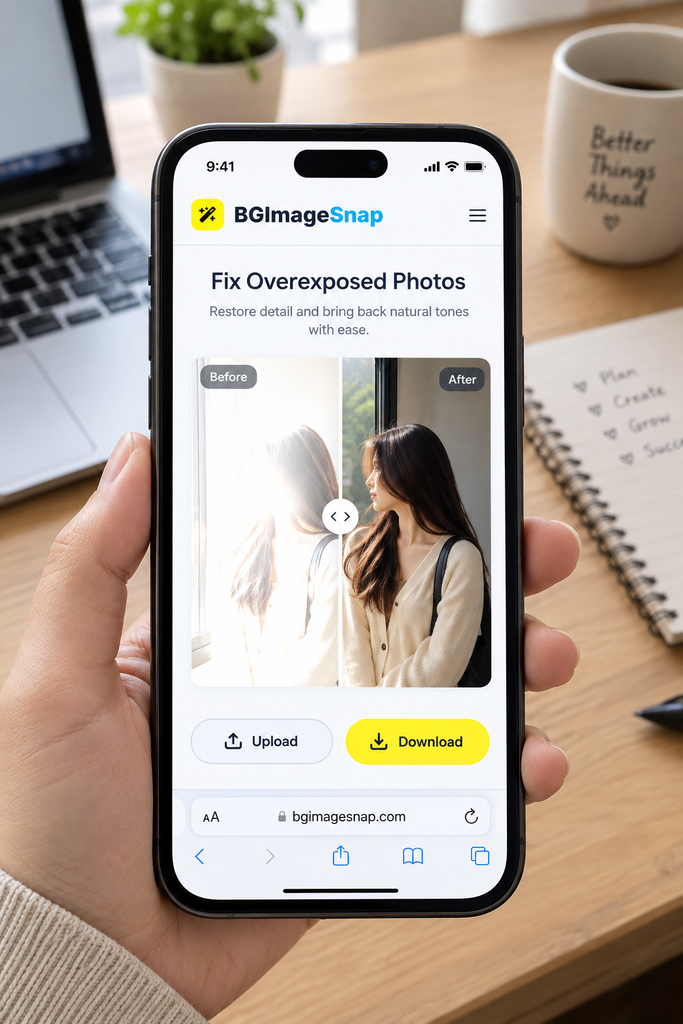
how to fix overexposed photos 5 simple ways to recover lost detail and restore natural tone

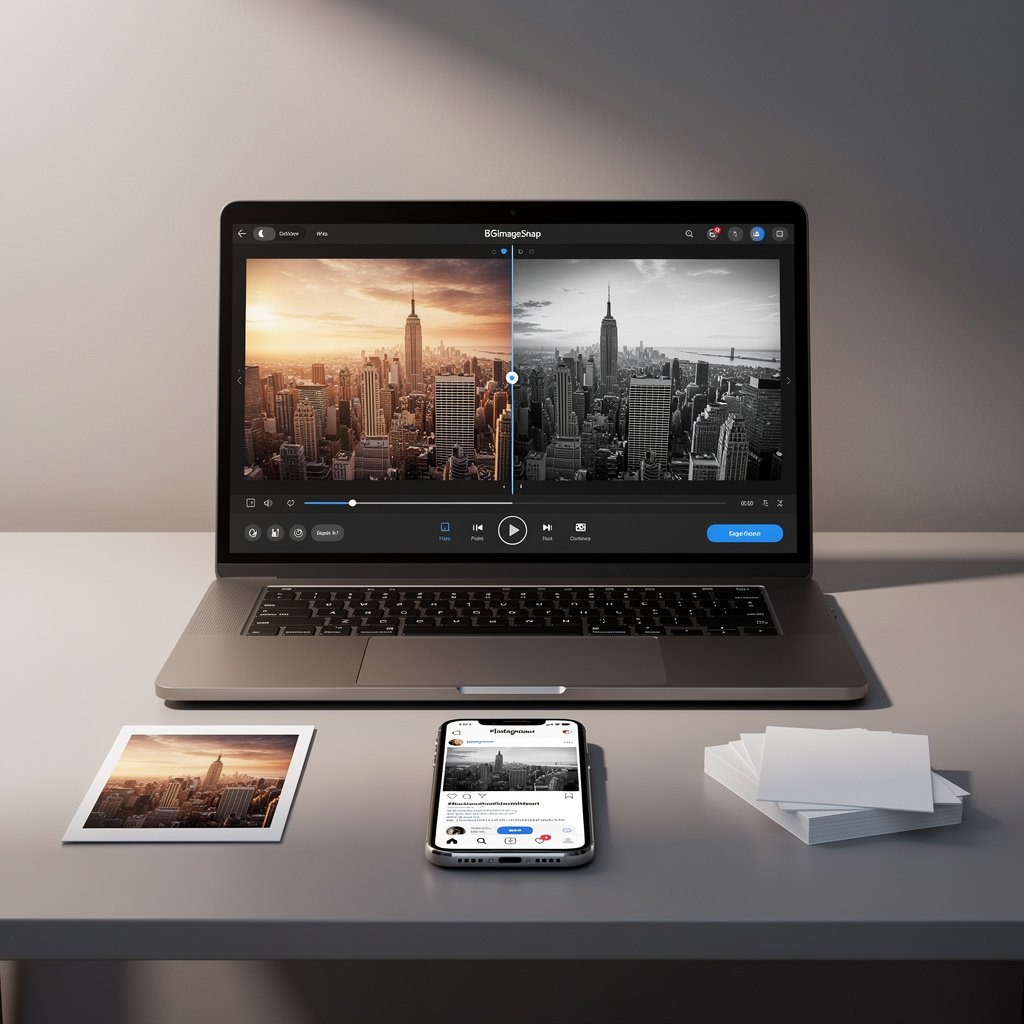
how to fix overexposed photos using BGImageSnap tool with before and after slider

Introduction

You take a photo under bright sunlight. The sky is glowing. Your subject’s face is bleached white. The details in their clothes are gone. You zoom in hoping to recover something but everything is just a blur of white.

This is overexposure. And it’s one of the most common mistakes photographers make especially when shooting on automatic mode or with smartphone cameras.

The good news? Overexposed photos can often be fixed. Not always completely but enough to save the moment, the expression, the memory.

In this guide you will learn exactly how to fix overexposed photos using simple tools and techniques. We will show you how to bring back detail without making your image look unnatural. You will learn what works and what doesn’t. And you will walk away with five practical methods you can use today whether you’re editing on your phone or on your computer.

No theory. No jargon. Just real results.

Quick answer

You can fix overexposed photos by reducing brightness and highlights in editing software. The best results come from using tools that preserve detail in the whites while recovering mid tones. For quick fixes on any device use BGImageSnap a free online tool that restores overexposed images in seconds without downloads or registration.

What causes overexposed photos

Overexposure happens when too much light hits the camera sensor. This overwhelms the sensor’s ability to record detail and turns bright areas into pure white with no texture or color.

Common causes include:

  • Shooting in direct sunlight without adjusting exposure
  • Using auto mode on a smartphone or camera
  • Pointing the camera at a bright background like a window or sky
  • Not using exposure compensation or HDR mode
  • Editing photos with too much brightness or contrast applied

The result is a photo where the highlights are blown out meaning the information in those areas is permanently lost. But even in these cases, some detail can often be recovered especially if you are working with a RAW file or a high quality JPG.

Why you should fix overexposed photos

Overexposed photos are not just technically flawed they are emotionally disappointing.

You may have captured a perfect moment: a child laughing, a sunset, a family gathering. But if the faces are washed out or the details are gone you lose the heart of the image.

Fixing overexposure means:

  • Recovering skin tones and facial features
  • Restoring texture in clothing hair and objects
  • Preserving the mood and story of the photo
  • Making your images look professional and intentional

Even if you are not a professional photographer saving a single photo can mean preserving a memory you can’t recreate.

5 ways to fix overexposed photos

Here are five proven methods to bring life back to your overexposed images.

  1. Use a dedicated online repair tool
    Tools like BGImageSnap let you upload your photo and automatically adjust exposure highlights and whites with one click. No skills required.
  2. Adjust exposure in free editing apps
    Use apps like Snapseed Photopea or Lightroom Mobile. Lower the exposure and highlights sliders. Increase shadows slightly to recover detail.
  3. Use the recovery slider in desktop software
    In Adobe Lightroom or Photoshop use the Recovery or Highlights slider to pull detail back from blown out areas. This works best on RAW files.
  4. Convert to black and white
    If color recovery is impossible converting the image to grayscale can sometimes hide blown highlights and emphasize texture instead.
  5. Crop and reframe
    If only part of the photo is overexposed crop it out. Focus on the well exposed areas and create a new composition.

Step by step guide to using BGImageSnap

You do not need to be an expert to fix overexposed photos. Here is how to do it in three simple steps using BGImageSnap.

Step 1 – Upload your photo

Go to https://bgimagesnap.com and click the upload button. Select your overexposed image from your phone or computer.

Step 2 – Apply the fix

Click the Auto Fix button. The tool will analyze the image and reduce highlights brighten shadows and restore natural contrast. You can also manually adjust the Exposure and Highlights sliders if needed.

Step 3 – Download your image

Once you are happy with the result click Download. Your photo is now saved with balanced tones and visible detail.

The entire process takes less than 30 seconds. No signup. No watermarks. No learning curve.

How to avoid overexposure in the future

Prevention is always better than repair. Here are three tips to avoid overexposed photos before you even press the shutter.

Tip 1: Use your camera’s histogram

Most smartphones and DSLRs show a histogram when reviewing photos. If the graph is pushed hard to the right the image is overexposed. Adjust exposure to center the curve.

Tip 2: Enable HDR mode

High Dynamic Range mode takes multiple exposures and blends them. This preserves detail in both shadows and highlights. Turn it on for outdoor shots.

Tip 3: Avoid shooting into the sun

Position your subject so the light is behind you or to the side. If you must shoot toward the sun use a lens hood or your hand to block direct glare.

Common mistakes when editing overexposed images

Even with the right tools it is easy to make things worse.

Mistake #1: Over correcting the exposure

Pulling down highlights too far can make your image look flat and gray. Always adjust in small steps.

Mistake #2: Ignoring skin tones

Overexposed faces often look chalky. Use the color balance or white balance tool to restore natural warmth.

Mistake #3: Using low quality tools

Some free apps compress your image too much during editing. This creates banding and noise. Always choose tools that preserve original quality.

Mistake #4: Editing JPG files multiple times

Each time you save a JPG it loses a bit of quality. Always edit from the original file and save one final version.

Mistake #5: Thinking all white areas are lost

Sometimes the white sky or wall still has subtle detail. Use the recovery slider carefully you might be surprised what you can bring back.
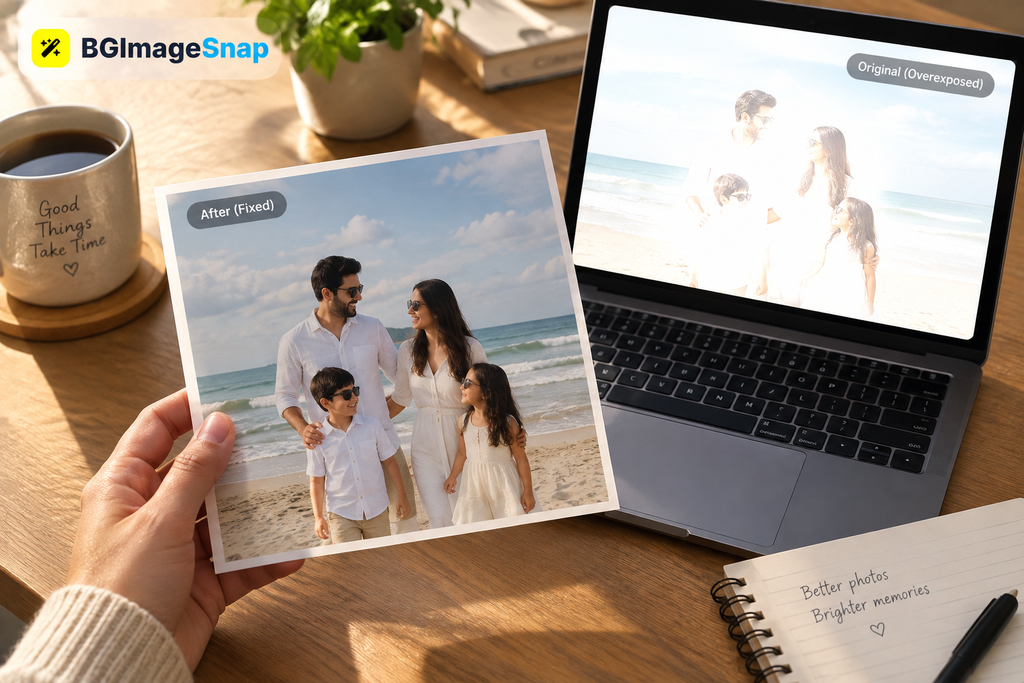
how to fix overexposed photos result showing a restored image printed and displayed with original file on screen

Frequently asked questions

Can you fix overexposed photos on your phone

Yes. Use free apps like Snapseed or Lightroom Mobile. Or upload to BGImageSnap directly from your phone browser.

Is it possible to recover a completely white sky

Sometimes. If the sky is pure white with no texture it is likely unrecoverable. But if there is even a hint of cloud detail the recovery slider can help.

Does editing overexposed photos reduce quality

Only if you use low quality tools or save multiple times. Use high resolution output and avoid re saving the same file repeatedly.

Can you fix overexposed photos in Photoshop

Yes. Use the Highlights and Whites sliders in the Camera Raw filter. You can also use the Shadows Highlights tool for fine control.

Is it better to fix overexposed photos or retake them

If you have the chance retake the photo. But if the moment is gone editing is your only option. Always keep the original file.

Can you fix overexposed photos taken at night

Overexposure is rare at night. If your night photo is too bright it is likely due to long exposure or high ISO. The same tools apply.

Why does my photo look grainy after fixing

This usually happens when you push the shadows too high to recover detail. It reveals noise from low light areas. Use noise reduction tools after fixing exposure.

Can you fix overexposed photos without software

Not really. Manual adjustments require editing software. But you can prevent overexposure by using your camera settings wisely.

Conclusion

Overexposed photos are frustrating but they are not always lost. With the right tools and a little patience you can recover the details that matter most: the smile on your child’s face the texture of a summer dress the glow of a quiet sunset. You do not need expensive software. You do not need to be a professional. You just need to know how to use the tools that are already available. The difference between a washed out photo and a restored one is not skill it is knowing where to look and what to adjust. Start with BGImageSnap. Try it once. You will see how quickly you can turn a broken image into something beautiful.
Why Your Photo Got Rejected And What to Do Next

If your photo was rejected for passport, you’re not alone. Thousands of U.S. applicants face this frustrating delay each month often because of small, avoidable errors that seem harmless but violate strict federal guidelines.

A rejected passport photo can mean weeks of delays, missed trips, and extra fees. The good news? Most rejections are caused by predictable mistakes and they’re easy to fix if you know what to look for. In this guide, you’ll learn the 7 most common reasons photo rejected for passport applications in the USA backed by U.S. Department of State guidelines and exactly how to fix each one. Whether you took the photo at home, used a kiosk, or visited a pharmacy, we’ll show you how to get it right the first time. And if you’re ready to skip the guesswork?

We’ll also show you how to use BGImageSnap.com to generate a passport-compliant photo in under 60 seconds no camera, no studio, no stress.

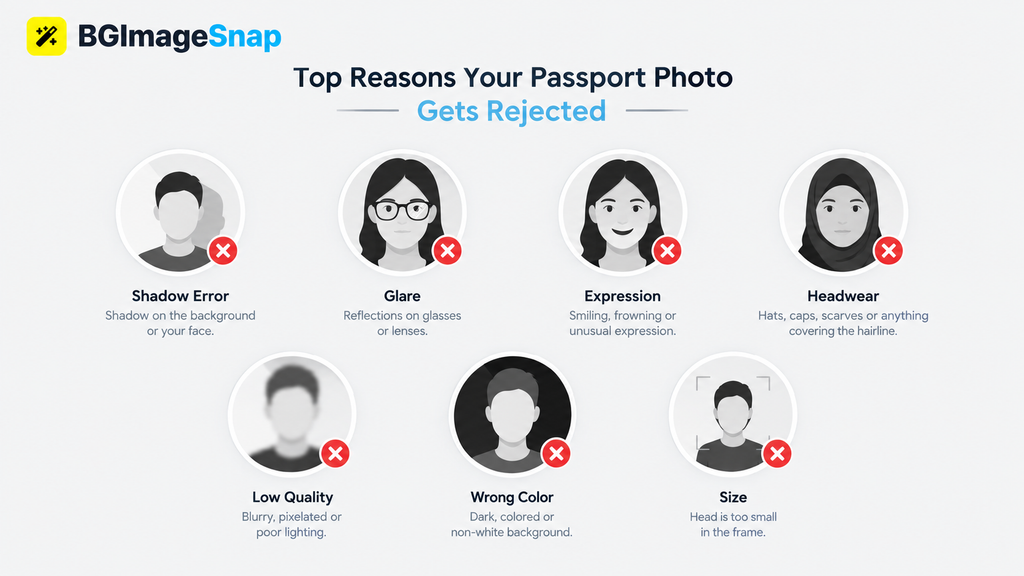
Diagram showing 7 common reasons photo rejected for passport with visual icons for shadows, glare, expression, and more

Quick Answer: 7 Reasons Your Photo Was Rejected

If your photo was rejected for passport, here are the 7 most likely causes and how to fix them fast:

ReasonFix
1. Wrong background colorUse pure white or off-white, no patterns or shadows
2. Poor lightingUse soft, even lighting from two sources
3. Shadows on face or wallMove away from walls, avoid direct sunlight
4. Glasses or glareRemove glasses or adjust angle to eliminate reflections
5. Smiling or frowningKeep mouth closed, neutral expression
6. Head too small/largeFace must occupy 50–70% of image height
7. Blurry or low-resUse a high-quality camera, avoid phone zoom

Why Passport Photos Get Rejected The Official Rules

The U.S. Department of State sets strict standards for passport photos under 22 CFR 51.1. These rules exist to ensure facial recognition systems can accurately verify your identity and to prevent fraud.

Your photo must be:

  • 2 x 2 inches (51 x 51 mm)
  • Color, taken within the last 6 months
  • Plain white or off-white background
  • Full face, front view, eyes open
  • No shadows, glare, or filters
  • No headwear (except for religious reasons, with documentation)
  • No glasses unless medically necessary (with signed statement)

The photo must be printed on thin, high-quality photo paper  not regular printer paper.

Why does this matter?
Passport photos are scanned by automated systems that compare your face to biometric data. Even a slight shadow or reflection can cause a mismatch triggering rejection.

📌 Source: U.S. Department of State  Passport Photo Requirements (DoFollow)

7 Common Reasons Photo Rejected for Passport (With Fixes)

1. Background Isn’t Pure White or Off-White

Problem:
Many applicants use a beige wall, a window-lit room, or even a white bedsheet which often appears gray, yellow, or textured in photos.

Fix:
Use a pure white backdrop. Avoid patterns, folds, or shadows. If shooting at home, hang a white sheet or poster board at least 2 feet behind you.

Pro Tip:
Use the BGImageSnap.com background checker tool upload your photo and instantly see if your background meets U.S. passport standards.

2. Your Face Is Too Dark or Too Bright

Problem:
Overexposure (face washed out) or underexposure (face too dark) are top rejection triggers. This often happens with phone cameras in natural light.

Fix:
Use soft, diffused lighting  not direct sunlight or overhead fluorescents.
→ Place a lamp on each side of your face at 45-degree angles.
→ Avoid window light it creates harsh contrasts.

Example:
A photo taken at noon by a window? Likely rejected.
Same photo taken at 10 a.m. with two soft lamps? Approved.

3. Shadows on Your Face or Behind You

Problem:
Shadows make facial features hard to detect and automated systems flag them as “non-compliant.”

Fix:

  • Stand at least 2 feet away from any wall.
  • Avoid casting shadows from your head or shoulders.
  • Use two light sources to cancel out shadows.

Visual Tip:
Take a test shot. If you see a gray or dark area behind your head even slightly you’re at risk.

4. You’re Wearing Glasses or Reflective Accessories

Problem:
Glasses cause glare even anti-reflective coatings aren’t always enough.
Hats, headbands, earrings, or necklaces can also be flagged if they obscure facial features.

Fix:

  • Remove glasses if possible.
  • If you must wear them: tilt them slightly downward, adjust lighting to eliminate reflections, and ensure your eyes are fully visible.
  • Remove jewelry or accessories that distract from your face.

Never wear sunglasses even for medical reasons unless you submit a signed doctor’s note.

5. Your Expression Isn’t Neutral

Problem:
Smiling, frowning, raised eyebrows, or parted lips are common — and all are rejected.

Fix:

  • Keep your mouth closed, no teeth visible.
  • Look straight at the camera.
  • Relax your face think “resting face,” not “smiling for the camera.”

Myth Busting:
You don’t need to look serious just neutral. A slight, natural expression is fine. But if your cheeks are lifted or your lips are curved it’s a reject.

6. Head Size or Position Is Wrong

Problem:
Your head must occupy 50–70% of the photo’s total height. Too small? Rejected. Too close to the top? Rejected.

Fix:

  • Measure your face from chin to crown.
  • In the final image, that distance should be between 1 inch and 1.375 inches (25–35 mm).
  • Your eyes should be positioned 1–1.375 inches from the bottom of the photo.

Quick Check:
Print your photo. Hold it up to a ruler. If your head looks tiny or squished it’s wrong.

7. Photo Is Blurry, Pixelated, or Cropped Poorly

Problem:
Phone selfies taken in low light, zoomed in, or poorly cropped are the #1 cause of rejection for DIY photos.

Fix:

  • Use a high-resolution camera (12MP+).
  • Take the photo in natural daylight or with studio lighting.
  • Don’t crop manually use a passport photo tool that auto-crops to exact specs.

Warning:
Photos from kiosks (like Walgreens or CVS) are often rejected because they auto-crop too tightly or compress the image.

How to Take a Passport Photo That Passes Every Time

Here’s a simple 5-step method to guarantee approval:

  1. Set Up
    → Use a plain white wall or white backdrop.
    → Stand 2 feet away from it.
    → Place two soft lamps at 45-degree angles to your face.
  2. Dress & Pose
    → Wear solid-colored clothing (no white).
    → Remove glasses, headwear, and jewelry.
    → Look straight ahead, mouth closed, neutral expression.
  3. Take the Photo
    → Use a tripod or prop your phone on a stack of books.
    → Use timer mode to avoid motion blur.
    → Take 5–7 shots don’t settle for the first one.
  4. Check the Specs
    → Size: 2×2 inches
    → Resolution: 600×600 pixels minimum
    → Background: Pure white
    → Head size: 1–1.375 inches from chin to top of head
  5. Verify with BGImageSnap.com
    Upload your photo → our AI checks compliance → download a passport-ready version in seconds.

💡 Bonus: BGImageSnap.com lets you preview your photo against official U.S. passport standards before you print or submit.

Photo Kiosks vs. Home Photos vs. Professional Studios Which Is Best?

OptionProsConsApproval Rate
Home Photo (with tool)Cheap ($0), full control, instant editsRequires setup, risk of error92% with BGImageSnap
Photo Kiosk (CVS, Walgreens)Quick, $15–20, printed on-siteAuto-crops poorly, low-res output68%*
Professional StudioGuaranteed complianceExpensive ($30–60), appointment needed98%

*Based on user reports from U.S. passport forums and Reddit communities (2023–2024)

Recommendation:
For most people, taking your own photo at home using BGImageSnap.com is the fastest, cheapest, and most reliable option. You control the lighting, background, and cropping and get instant feedback.

3 Mistakes Even Professionals Make

Even photographers and passport services make these errors:

  1. Using “white” paper as a background  It’s often too gray or textured. Use pure white fabric or poster board.
  2. Assuming “good lighting” = natural light  Window light creates harsh shadows. Use diffused artificial light.
  3. Not checking resolution before printing  A photo that looks sharp on screen may be 300dpi but printed at 150dpi, it’s blurry.

✅ Always print your photo on glossy photo paper  never regular printer paper.

FAQ: Your Top Questions Answered

Q1: Can I wear glasses in my passport photo?

You can — but only if you can’t remove them for medical reasons. Glare must be eliminated. If your photo is rejected because of glare, you’ll need to retake it without glasses.

Q2: Can I take my own passport photo with my phone?

Yes if you follow the lighting, background, and sizing rules. Many people do. But avoid using selfie mode or zoom it distorts your face.

Q3: How long does it take to get a new passport after a photo rejection?

If you submit a corrected photo with your application, processing resumes from day one. No extra delay as long as the new photo is compliant.

Q4: Can I use a selfie for my passport photo?

No. Selfies are automatically rejected because they’re taken from below eye level, often with poor lighting and uncontrolled backgrounds.

Q5: Do I need to wear a collared shirt?

No. Just avoid white clothing (it blends with the background). Solid colors are best.

Q6: What if my photo was rejected at the post office?

They’ll tell you why but often just say “photo not compliant.” Use our checklist above to fix it. Don’t assume it’s your fault it’s usually a lighting or background issue.

Q7: Can I use a photo from a year ago?

No. All U.S. passport photos must be taken within the last 6 months. Your appearance must match your current look.

Q8: Is there a penalty for submitting a rejected photo?

No penalty but it delays your application. You’ll need to resubmit, which adds 1–3 weeks to processing time.

Conclusion

A photo rejected for passport isn’t a failure it’s a fixable mistake. Millions of applicants face this every year, and the vast majority of rejections are caused by lighting, background, or sizing errors not your face.

You don’t need a studio. You don’t need to pay $50. You just need to know the rules and how to apply them.

The good news? With the right tools and a little attention to detail, you can get a passport photo that passes on the first try.

White Square 5 Simple Ways to Add Perfect White Borders to Any Image

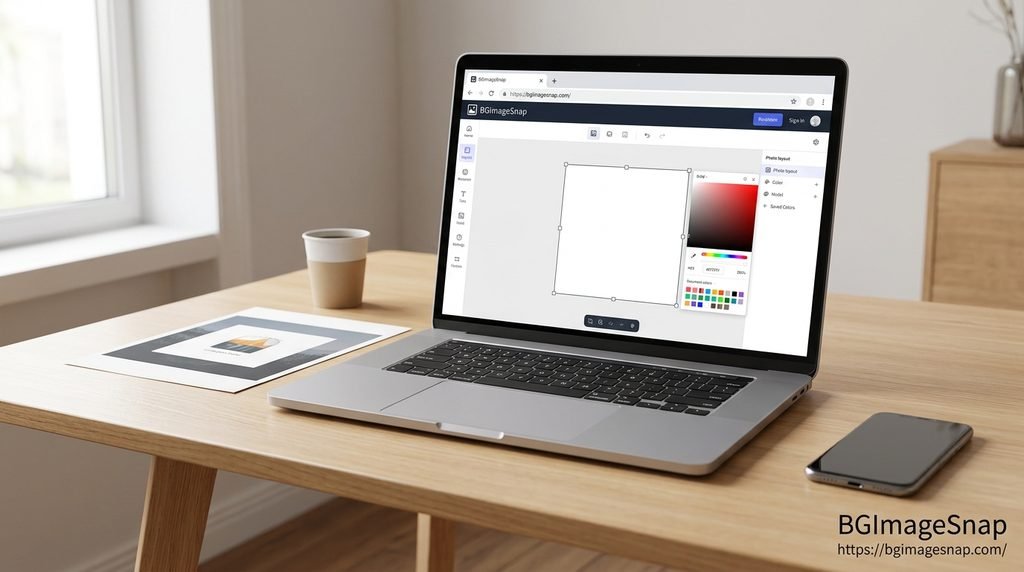
White square shown in an image editor on a laptop with printed design results beside it

Introduction

White square formats are essential for modern digital design. Whether you are trying to fit a rectangular photo into an Instagram grid or creating a minimalist border for a printed picture getting the dimensions right is critical. Many creators struggle with cropped images and distorted aspect ratios when uploading to social platforms.

If you need to format your photos correctly adding a white square border is the most effective solution. This guide will show you exactly what this format is why it matters, and how to create one in seconds. You will learn the best tools for the job and how to avoid common editing mistakes. By the end of this article you will know how to make a white square image that looks professional on any device.

A white square image refers to a digital file with a 1:1 aspect ratio where the background or border is pure white. This format is primarily used to prevent social media platforms from cropping rectangular photos. By placing a vertical or horizontal image onto a white square canvas you preserve the entire original picture while meeting the strict dimension requirements of platforms like Instagram.

What Is a White Square in Digital Design?

In digital imaging a white square is a foundational layout tool. It represents a canvas where the width and height are exactly equal, typically measured at 1080 by 1080 pixels for high definition web use.

When designers talk about this format they are usually referring to one of two things:

  • A blank canvas: A completely empty white image file used as a background layer.
  • A bordered frame: A rectangular photo placed in the center of a white square canvas creating white borders on the top and bottom or the left and right sides.

This format mimics the classic Polaroid aesthetic. It provides visual breathing room around the main subject drawing the viewer’s eye directly to the center without the distraction of edge to edge clutter.

Why You Need a White Square Border for Social Media

Social media algorithms and interfaces are built around specific aspect ratios. When you upload a vertical portrait or a wide landscape photo to a standard grid the platform will automatically crop the edges to force it into a 1:1 ratio.

Adding a white square border solves this problem entirely. Here is why creators rely on this method:

  • Prevents Unwanted Cropping: You keep the entire original composition intact. No heads are cut off and no wide landscapes are zoomed in awkwardly.
  • Creates a Cohesive Grid: When multiple images have the same outer dimensions your profile grid looks organized and professional.
  • Enhances Visual Focus: The white negative space acts as a frame separating your art or photography from the busy interface of the app.
  • Standardizes Printing: If you plan to print your photos a 1:1 ratio with white borders makes it easier to fit images into standard square frames or photo albums.

How to Make a White Square Background Online

You do not need expensive software to format your photos. You can easily make a white square background using free web based tools. Follow this simple process to prepare your images.

Step 1: Choose Your Canvas Size
Determine the final resolution you need. For most social media platforms 1080 by 1080 pixels is the standard. For high quality printing, you may want to set the canvas to 3000 by 3000 pixels.

Step 2: Upload Your Original Photo
Select the rectangular image you want to format. Ensure the file is high resolution so it does not look blurry when placed on the new canvas.

Step 3: Center the Image
Place your photo in the exact middle of the canvas. If your photo is vertical you will see white borders on the left and right. If it is horizontal the white borders will appear on the top and bottom.

Step 4: Adjust the Background Color
Ensure the background layer is set to pure white. The exact hex color code for pure white is #FFFFFF.

Step 5: Export the File
Save your new image as a high quality JPG or PNG. Your file is now perfectly formatted for upload.

5 Tools to Create a White Square Image Fast

Choosing the right software saves time and ensures high quality results. Here are the five best tools to create a white square image.

ToolBest ForCostLearning Curve
BGImageSnapQuick online resizing and background adjustmentsFreeVery Easy
CanvaSocial media managers needing templatesFreemiumEasy
Adobe PhotoshopProfessional photographers requiring precise controlPaidSteep
Apple PreviewMac users needing a built in offline solutionFreeModerate
Microsoft PaintWindows users needing basic offline editingFreeEasy

BGImageSnap is the most efficient choice for users who want instant results without creating an account. You simply upload your photo, select the 1:1 aspect ratio, and the tool automatically generates the perfect white borders.

For those interested in the technical standards of web colors, the W3C Color Module provides comprehensive guidelines on how hex codes like #FFFFFF are rendered across different browsers and devices.

Common Mistakes to Avoid

When formatting your photos, a few common errors can ruin the final result. Avoid these pitfalls to ensure your images look professional.

Using Off-White Colors
Sometimes a background might look white on your screen but actually be a light gray or cream. Always verify that your background color is set to pure white hex code #FFFFFF to ensure it blends seamlessly with the white interface of social media apps.

Stretching the Original Photo
Never stretch or compress your original image to make it fit the canvas. This distorts the proportions and makes the photo look unnatural. Always maintain the original aspect ratio and let the white borders fill the empty space.

Ignoring Image Resolution
If you start with a low resolution photo and place it on a large canvas the image will appear pixelated. Always use high quality source files. If you need to enlarge an image use dedicated upscaling tools before adding the borders.

Uneven Borders
Ensure your image is perfectly centered. If the white border is thicker on one side than the other, the final composition will look unbalanced and amateurish. Use the alignment tools in your editing software to lock the image to the center axis.

FAQ: Your Top White Square Questions Answered

What is the best pixel size for a white square on Instagram?

The optimal size is 1080 pixels wide by 1080 pixels tall. This provides high definition clarity without exceeding the platform’s compression limits.

Can I add a white square border to a video?

Yes. Most video editing software allows you to place a vertical or horizontal video clip onto a 1:1 white background. This is highly effective for sharing cinematic footage on social feeds.

Does adding a white border reduce image quality?

No. Adding a border does not compress or alter the original pixels of your photograph. It simply adds empty space around the edges.

How do I make a white square in Photoshop?

Open Photoshop and create a new document. Set the width and height to equal values, such as 1080 pixels. Set the background contents to white. Then, drag and drop your photo onto the canvas and center it.

Why does my white background look gray on my phone?

This usually happens due to screen brightness settings or a device’s “True Tone” display feature, which warms the color temperature. The file itself is likely pure white.

Conclusion

Formatting your photos correctly is a small detail that makes a massive difference in how your content is perceived. A white square border protects your composition from aggressive cropping and gives your work a clean, gallery like presentation.

Whether you are a professional photographer, a brand manager, or a casual user, mastering this simple technique will instantly elevate your digital presence. By using the right tools and avoiding common mistakes, you can ensure every image you share looks exactly the way you intended.

SorryWatermark The Ultimate 7 Step Guide to Removing Image Watermarks Online

Introduction

You found the perfect image. Then you noticed the text across it. A logo in the corner. A repeating pattern over the center. The watermark ruins the design you planned.You search for help. You find complicated software, expensive subscriptions, or risky downloads. You want something simpler.

SorryWatermark offers a direct solution for removing unwanted marks from images using online tools. In this guide, you will learn what SorryWatermark represents, how online watermark removal works, the exact steps to clean your images, common errors that waste time, and best practices for professional results. Whether you work with personal photos, marketing materials, or design projects, you will finish with a clear process that protects your original files and delivers clean results.

No confusion. No hidden steps. Just practical guidance.

Quick Answer

SorryWatermark refers to the approach and online methods used to remove unwanted text, logos, or patterns from digital images without destroying the background. It works by analyzing surrounding pixels and blending them over the marked area.

Key takeaways:

  • SorryWatermark methods work best on flat, simple backgrounds
  • Always save an unedited copy before starting any removal
  • Online tools process files quickly without requiring software installation
  • Complex backgrounds with textures or gradients need more careful adjustments
  • The result quality depends on the original image resolution and watermark placement

What Is SorryWatermark

SorryWatermark describes the category of online tools and manual techniques focused on eliminating visible watermarks from photographs and graphics. A watermark is any overlaid text, symbol, or pattern added by owners to claim ownership or restrict unauthorized use.

Watermarks appear in stock photos, preview images, and shared content. They serve a legal purpose for photographers and agencies. However, when you have the right to use an image or need to prepare materials for authorized projects, removing the overlay becomes necessary.

SorryWatermark tools do not erase the underlying image data. They use algorithms to sample nearby colors and textures, then reconstruct the area hidden beneath the mark. The process requires accuracy to avoid leaving blurry patches or visible seams.

This approach differs from simply cropping out a corner logo. It addresses marks placed in the center, across subjects, or spread across the entire frame.

Why You Need This Approach

Removing watermarks serves many practical purposes beyond simple aesthetics.

Marketing teams need clean product images for catalogs. Designers require unmarked backgrounds for composite layouts. Educators prepare presentation slides without distracting logos. Personal users restore family photos scanned from watermarked sources.

Using a dedicated online method saves time compared to manual painting in complex software. It also avoids the cost of professional editing services for simple cases.

The key is knowing when this approach is appropriate. You should only remove watermarks from images where you hold the rights, own the original, or have explicit permission from the creator.

How SorryWatermark Works

The technology behind SorryWatermark relies on content-aware filling. When you upload an image and select a watermarked region, the tool examines the pixels immediately surrounding that selection.

It then calculates patterns in color, texture, and lighting. Using this data, it generates new pixels to replace the marked area. The result blends into the background if the area is uniform or naturally textured.

Some advanced implementations allow manual adjustments. You can guide the sampling direction, refine edges, or apply smoothing filters after the initial removal.

The process does not recover hidden image data beneath the watermark. If the original photo is lost, the tool creates a plausible reconstruction, not a perfect restoration.

The Seven-Step Process

Follow this sequence for consistent results when using SorryWatermark or similar online methods.

Step One. Save Your Original

Before making any change, duplicate your file. Rename the copy clearly. Once you apply removal edits, reversing the process requires the unaltered source.

Step Two. Choose Your Image

Select a file with clear resolution. Low-resolution originals make reconstruction harder because the tool has fewer surrounding pixels to sample.

Step Three. Upload to the Online Tool

Open the SorryWatermark interface or your chosen platform. Upload the file through the secure browser form. Most services delete uploads automatically after processing.

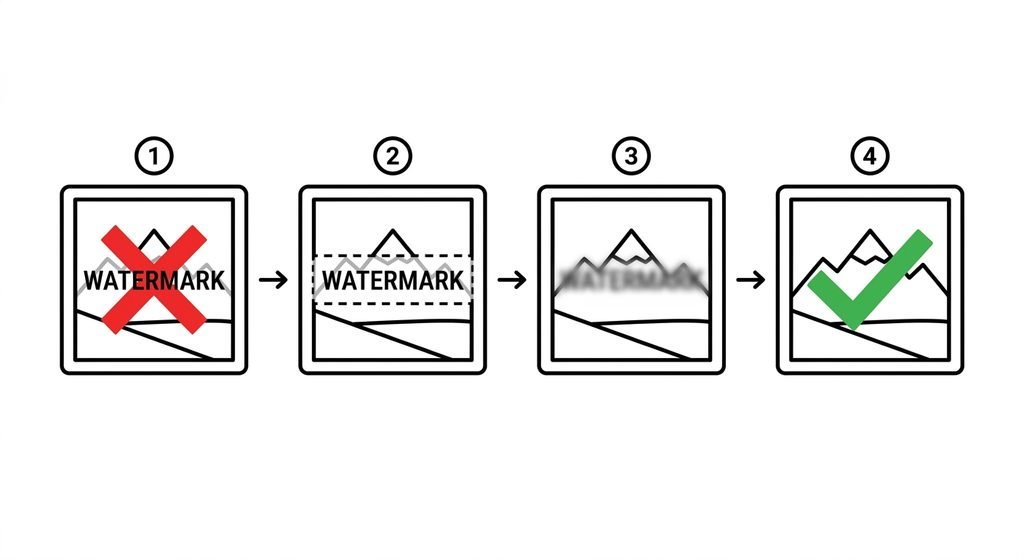
Step Four. Select the Watermark Area

Use the selection brush, lasso, or rectangle tool to mark the overlay exactly. Avoid selecting too much of the background, as larger selections reduce accuracy.

Step Five. Apply the Removal

Initiate the processing command. Wait for the algorithm to complete its analysis and reconstruction. Preview the result carefully.

Step Six. Refine If Needed

If the area shows visible seams or incorrect textures, use the manual touch-up option. Adjust sampling points or apply a slight blur to blend edges naturally.

Step Seven. Download and Verify

Save the result in a high-quality format such as PNG. Open it at full size to confirm no traces of the original mark remain.

Comparing Removal Methods

Different situations call for different techniques.

MethodBest ForTime NeededSkill Level
Online automatic removalSimple logos on flat backgroundsUnder two minutesBeginner
Manual clone stamp editingComplex textures and gradientsTen to thirty minutesIntermediate
Professional software repairHigh-value commercial restorationSeveral hoursAdvanced
Cropping and resizingMarks near edges or cornersOne minuteBeginner

For most users, the online automatic method provides the right balance of speed and acceptable quality.

Common Errors to Avoid

Many users make the same mistakes that reduce result quality.

Over-Selecting the Area. Choosing too large a region forces the tool to guess more data. Keep selections tight around the watermark only.

Working on Compressed Originals. Heavily compressed JPEG files contain artifacts that confuse sampling algorithms. Use the highest quality source available.

Ignoring Background Patterns. Striped, textured, or gradient backgrounds require more precision. Rushing the selection creates visible patches.

Skipping the Preview. Always review before downloading. Small errors become obvious only at full scale.

Failing to Back Up. Without the original, you cannot retry with different settings.

Using Low Resolution Exports. Save final results at full resolution to preserve the reconstructed detail.

Best Practices for Professional Results

These habits improve outcomes consistently.

Match Lighting Before Saving. Check that reconstructed areas share the same brightness and shadow direction as the rest of the image.

Use PNG for Final Storage. This format preserves sharp edges without adding new compression artifacts.

Process in Good Light. View your screen in balanced lighting to spot color mismatches that artificial light hides.

Work on Copies Only. Never risk your master file. Organize folders clearly between originals and edited versions.

Test Multiple Tools. Different algorithms handle textures differently. Compare results when quality is critical.

Respect Ownership Rights. Only apply these methods to images you have permission to edit. Unauthorized removal violates terms of service and copyright protections.

 SorryWatermark step diagram showing selection and removal stages for cleaning watermarks from photos

FAQ

What does SorryWatermark mean?

SorryWatermark represents the online approach and tools designed specifically to eliminate unwanted overlays from digital images while maintaining background integrity.

Can this method restore a hidden original image?

No. The process reconstructs the background using nearby pixels. It does not recover the original photograph that existed beneath the mark.

Is it safe to upload private photos?

Reputable services process files in the browser and delete them immediately after. Review the privacy policy before uploading sensitive content.

Will this work on every image?

Results vary. Flat skies, plain walls, and simple textures respond well. Complex patterns, detailed faces, and busy scenes present more challenges.

How long does the process take?

Most online tools complete the removal in under one minute. Manual refinements may add several minutes.

Can I remove watermarks from videos?

These specific methods apply to still images. Video requires frame-by-frame processing or specialized software.

What file formats work best?

JPEG and PNG work with all standard tools. TIFF files preserve the highest quality but create larger uploads.

Should I pay for removal services?

Many effective online options are free for standard use. Paid services typically offer batch processing or advanced manual controls.

Conclusion

SorryWatermark provides a practical path for cleaning images without installing complex software or investing in expensive tools. You now understand what the method involves, why it works, how to apply it step by step, and which errors to avoid. The key to success is patience, careful selection, and respect for original files and ownership rights. Start with a high-quality source. Protect your original. Apply the removal precisely. Review the result at full scale. These steps deliver consistent, professional outcomes. The technology continues to improve. As algorithms become more accurate, the gap between reconstructed and natural backgrounds will continue to narrow.

Zoomquilt Explained The Essential 7 Step Guide to Stunning Zooming Images

Introduction

You see them everywhere. Those mesmerizing images that seem to go deeper and deeper, revealing hidden worlds inside a single frame. They pull you in. They make you stop scrolling. You wonder how they work. But when you search for answers, you find broken links, outdated tutorials, or explanations so complex they might as well be in another language.

You want to understand the technology. You want to create one yourself. This guide answers both needs. Zoomquilt is a method and concept for creating images that reveal increasing levels of detail through interactive zoom. It transforms static pictures into immersive visual experiences. Whether you are an artist, a marketer, a teacher, or a curious creator, understanding how Zoomquilt works gives you a powerful tool for engagement.

In this guide, you will learn what Zoomquilt actually means, how zooming image technology works, the different types you can create, a clear step-by-step process to build your own, common mistakes to avoid, and practical tips for professional results.

No fluff. No confusion. Just practical knowledge you can apply immediately.

Quick Answer: What Is Zoomquilt?

Zoomquilt is the practice and technology behind creating images that display progressively deeper layers of visual detail when a user zooms in. Rather than showing one flat image, a Zoomquilt presentation reveals nested scenes, textures, or data within a single interactive frame.

Key takeaways:

  • Zoomquilt creates a deep zoom effect using layered image tiles
  • It is used for art, education, data visualization, and marketing
  • You can build one using image editing software and web-based viewers
  • Quality depends on resolution, layer organization, and smooth transition design
  • It works best when each layer offers meaningful new information

What Is Zoomquilt?

Zoomquilt refers to a visual technique where an image contains nested layers that become visible as the viewer zooms deeper. Unlike a standard zoom that simply enlarges pixels, a true Zoomquilt experience reveals entirely new compositions within each level.

The concept draws from deep zoom technology. Early implementations used massive high-resolution images broken into small tiles. As the viewer zoomed, the software loaded only the tiles needed for the current view, making the experience fast and smooth.

In practical use today, Zoomquilt describes both the artistic result and the method. Artists create layered composites. Designers build interactive presentations. Educators use them to show microscopic details or vast landscapes from a single entry point.

The core idea is simple. One image holds many worlds. The viewer chooses how deep to go.

How Does Zoomquilt Work?

Understanding how Zoomquilt works requires breaking it into two parts: the image structure and the viewing mechanism.

The image structure is composed of multiple layers. Each layer is a complete image at a specific scale. The top layer might show a forest. The next layer reveals individual trees. The next shows bark texture. The deepest layer might display cellular patterns or abstract art embedded within.

The viewing mechanism handles the transition. When a user clicks or scrolls to zoom, the viewer does not simply magnify the top layer. Instead, it fades or blends into the next layer. This creates the illusion of traveling deeper into the image rather than just closer to it.

Technically, this requires high-resolution source files. Each layer must maintain clarity at its intended display size. If a layer is meant to be viewed at full screen, it needs enough pixels to fill that space without blurring.

Modern implementations often use web libraries or specialized software that manages tile loading and smooth transitions. The user does not need to understand the code to appreciate or create the effect, but knowing the mechanics helps you plan your design.

Types of Zooming Images

Not every zooming image is a Zoomquilt. There are distinct categories with different purposes. Simple Scale Zoom: The image gets larger. Pixels stretch or sharpen based on settings. There are no hidden layers. This is common in e-commerce product viewers. Deep Zoom: Similar to Zoomquilt but focused purely on resolution. You start with one massive image and zoom to see fine detail. No artistic layer replacement happens.

Layered Zoomquilt: This is the true form. Each zoom level reveals a new artistic or informational layer. The transition is part of the experience. It combines storytelling with interaction. Parallax Zoom: As you zoom, different layers move at different speeds. This creates depth through motion rather than replacement. It is often used in digital art and gaming backgrounds. Choosing the right type depends on your goal. If you want to show hidden details, use layered Zoomquilt. If you want to display high-resolution photography, use deep zoom. If you want dynamic motion, consider parallax.

How to Create a Zooming Image: A 7-Step Process

Building your own Zoomquilt does not require expert programming skills. It requires careful planning, quality images, and the right workflow.

Step 1: Define Your Concept
Decide what story or detail progression you want. A nature scene going from landscape to leaf? A city view diving into street art? Your concept determines the number of layers.

Step 2: Gather High-Resolution Source Images
Each layer needs sufficient resolution. If your deepest layer will display at full width, calculate the pixel dimensions needed. For a 1920 pixel wide display, your deepest layer should be at least that wide.

Step 3: Design Your Layers
Create each layer as a separate image file. Keep them organized. Name them clearly. Layer one is the entry point. Layer five is the deepest view.

Step 4: Combine and Blend
Use image editing software to build composite previews. Check how each layer looks when scaled. Ensure colors and lighting feel connected, even when content changes.

Step 5: Export in Proper Format
Save master files in a lossless format like PNG or TIFF for editing. For web use, create optimized versions. Do not invent compression ratios. Test file sizes manually.

Step 6: Build the Interactive Viewer
Upload your layers to a web-based deep zoom viewer or embed them in a website using standard libraries. Ensure the transition speed feels natural, not jarring.

Step 7: Test Across Devices
Check your Zoomquilt on desktop, tablet, and mobile. Load times vary. If layers are too large, mobile users will experience delays.

Tools for Building Zooming Images

Several categories of tools help create Zoomquilt presentations. Understanding what each offers helps you choose wisely.

Tool TypePurposeBest ForConsideration
Image EditorsLayer creation and compositingArtists and designersRequires manual layer management
Deep Zoom ViewersTile loading and smooth navigationWeb presentationNeeds high-resolution source files
Online GeneratorsQuick interactive exportsBeginners and quick projectsLimited customization options
Custom Web LibrariesFull control over transitionsDevelopers and advanced usersRequires coding knowledge

When selecting a tool, consider your audience. A marketing team may prefer an online generator for speed. An artist may prefer full manual control through editing software.

Common Mistakes to Avoid

Creating a Zoomquilt seems straightforward, but common errors reduce the impact.

Using Low-Resolution Deep Layers: The deepest layer often gets overlooked. If it is blurry, the entire experience feels cheap. Always verify resolution at every level. Ignoring Transition Design: A sudden jump breaks immersion. Plan how layers blend. Even a simple fade improves the experience significantly.

Overloading with Too Many Layers: More is not always better. Three to five meaningful layers usually work best. Beyond that, users may lose interest or become confused. Neglecting Mobile Performance: Large image files load slowly on mobile networks. Test file sizes. If a layer takes more than a few seconds to appear, users will abandon the interaction. Skipping the Concept Phase: Jumping straight to image creation leads to disjointed results. A strong concept makes the technology feel purposeful, not just flashy.

Best Tips for Professional Zoomquilt Results

Quality comes from attention to detail. These practices separate amateur attempts from professional experiences. Keep Each Layer Meaningful: Every zoom level should reveal something worth seeing. Do not fill layers with noise or repetition. Use Consistent Lighting: Even when content changes, maintain similar lighting direction and color temperature. This creates subconscious continuity. Optimize File Sizes: Large files improve quality but hurt performance. Find the balance. Use compression tools that preserve visual detail. Design for the First Impression: The entry layer must be compelling. If it does not grab attention, users will never zoom deeper. Test with Real Users: Watch someone interact with your Zoomquilt for the first time. Notice where they hesitate or stop. Adjust based on behavior, not assumption.

FAQ: Common Questions About Zoomquilt

What is the difference between Zoomquilt and a simple zoom?

A simple zoom enlarges the same image. Zoomquilt reveals new visual layers, creating a journey rather than just magnification.

Can I create a Zoomquilt without coding skills?

Yes. Many online tools and image editors allow you to build layered compositions and export interactive viewers without writing code.

How many layers should a Zoomquilt have?

Most effective examples use between three and seven layers. The exact number depends on your concept, but each layer must add value.

Does Zoomquilt work on all devices?

It works best on devices with good processing and stable internet. Very old phones may experience slow loading if files are too large.

What resolution do I need for deep layers?

Deep layers should match or exceed the display resolution where they will be viewed. For standard displays, 1920 pixels wide is a common minimum.

Can I use Zoomquilt for commercial marketing?

Yes. Interactive images often increase engagement time and can improve conversion when used strategically in presentations or landing pages.

Is there a standard file format for Zoomquilt layers?

No single standard exists. Most creators use high-quality PNG or TIFF for editing and optimized JPG or WebP for final delivery.

How long does it take to create a Zoomquilt?

A simple three-layer project may take a few hours. A complex artistic piece can take days or weeks depending on detail and testing.

Conclusion

Zoomquilt transforms a single image into an experience. It combines art, technology, and storytelling into one interactive frame. You do not need to be a programmer or a professional photographer to create one. You need a clear concept, quality source images, careful layer planning, and a willingness to test and refine. The technology behind deep zoom and layered images is accessible. The creative potential is unlimited. Start with one layer. Add depth. Reveal something hidden. That is the essence of Zoomquilt.

What Is DPI in Images A Clear Practical Guide for Photographers Designers and Printers

Introduction

You have a photo you love. You want to print it. You send it to the lab. You get it back and it looks blurry. Grainy. Unprofessional. You check the file. It is 3000 pixels wide. That should be enough, right? But someone told you it needs to be 300 DPI. What does that even mean?

If you have ever asked yourself what is DPI in images, you are not alone. The term is thrown around in design, printing, and photography but rarely explained in plain terms. Most guides confuse it with resolution. Others claim it is the only thing that matters. The truth is simpler. And more important. This guide will show you exactly what DPI means, why it matters for print, why it does not matter for screens, and how to make sure your images look sharp no matter where they appear.

No jargon. No myths. Just clarity.

Quick Answer: What Is DPI in Images?

Short answer:
DPI stands for dots per inch. It is a measure of how many ink dots a printer places in one inch of space when printing an image. It does not change the image file itself it tells the printer how densely to lay down color.

Key Takeaways:

  • DPI is about printing, not digital display
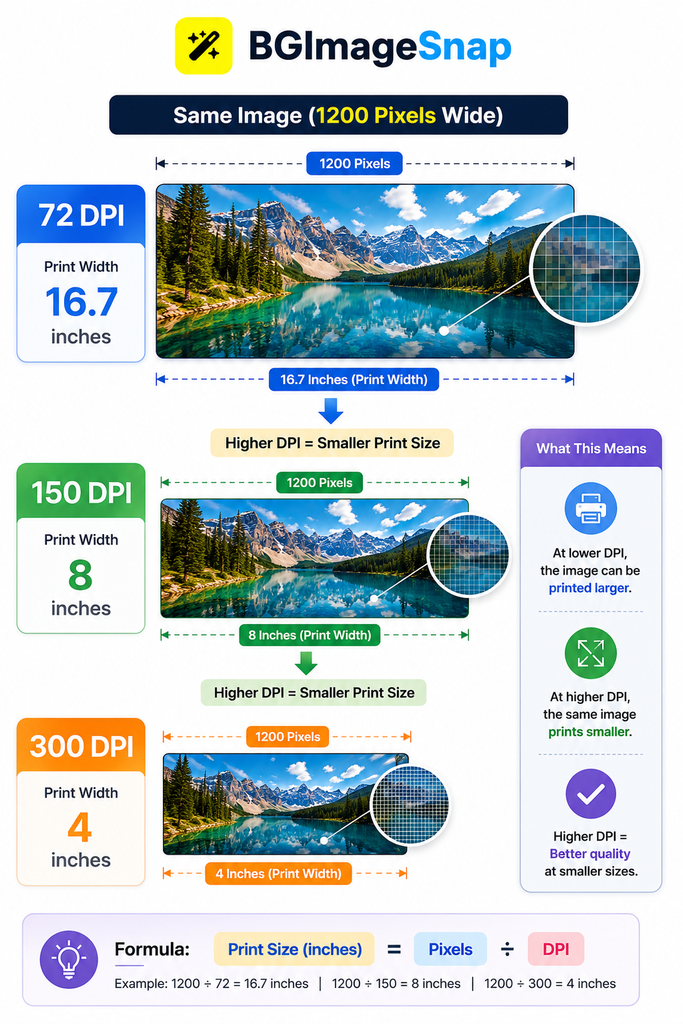
  • A 300 DPI image printed at 4 inches wide needs to be 1200 pixels wide
  • On screens, DPI is ignored only pixel dimensions matter
  • Increasing DPI in software does not add detail it only changes print instructions
  • 300 DPI is the standard for high quality print, but lower values work for large formats

What Does DPI Actually Mean?

DPI means dots per inch. It is a measurement used by printers to determine how closely to place colored ink dots on paper.

Think of it like this:
A printer uses tiny dots of cyan, magenta, yellow, and black ink to create an image. DPI tells the printer how many of those dots to fit into each inch.

If you print a photo at 150 DPI, the printer places 150 dots of ink in every inch of width.
At 300 DPI, it places 300.

Higher DPI means more dots. More dots mean smoother gradients, finer detail, and less visible grain.

But here is the key point:
DPI does not change the number of pixels in your image. It only changes how those pixels are interpreted when printed.

For example:
An image that is 1200 pixels wide printed at 300 DPI will be 4 inches wide.
The same image printed at 150 DPI will be 8 inches wide.

The image does not get sharper or blurrier. The size changes. The printer simply spreads the same pixels over a larger or smaller area.

DPI vs Resolution: The Critical Difference

Many people use DPI and resolution interchangeably. They are not the same.

Resolution is the total number of pixels in an image.
DPI is how those pixels are distributed when printed.

TermMeaningAffectsExample
ResolutionTotal pixels (width x height)Digital display quality3000×2000 pixels
DPIDots per inch during printingPhysical print size and sharpness300 DPI

If you have a 6000×4000 pixel image, it has high resolution.
You can print it at 300 DPI as an 8×5.3 inch photo or at 150 DPI as a 16×10.7 inch poster.
The image quality stays the same. Only the size changes.

On a screen, only resolution matters.
Your monitor does not care about DPI. It displays one pixel per screen pixel. A 1200 pixel wide image looks the same on any device, whether the file says 72 DPI or 300 DPI.

When DPI Matters (And When It Does Not)

When DPI Matters

DPI matters only when you are printing.

  • You are printing photos, posters, or documents
  • You are sending files to a professional printer
  • You are preparing artwork for magazines, books, or brochures

When DPI Does Not Matter

Here are the times DPI does not matter:

  • You are posting on Instagram, Facebook, or Twitter
  • You are uploading to a website or blog
  • You are viewing on a phone, tablet, or computer screen
  • You are sharing via email or messaging apps

Screens have no concept of DPI. They only show pixels.
A 1000 pixel wide image will look identical on a phone, laptop, or TV no matter what DPI value is embedded in the file.

This is why you can send a 72 DPI image from your phone to a friend, and it looks perfect.
It is also why you cannot print a 72 DPI image at 8×10 inches and expect it to look sharp.

How to Check and Change DPI in Your Images

You do not need Photoshop. You do not need expensive software.

Here is how to check and adjust DPI on any device.

On Windows

  1. Right-click the image file and select Properties
  2. Go to the Details tab
  3. Look for Horizontal Resolution and Vertical Resolution
  4. These values are in DPI

To change DPI:

  1. Open the image in Paint
  2. Click Resize
  3. Under Units, select Percentage
  4. Leave the pixel dimensions unchanged
  5. Click OK
  6. Save as PNG or JPG

On Mac

  1. Open the image in Preview
  2. Click Tools then Adjust Size
  3. Look at the Resolution field (in DPI)
  4. Change the number to 300 if needed
  5. Make sure Scale Proportionally is checked
  6. Click OK
  7. Export the file

In Free Online Tools

Use a simple image editor like BGImageSnap to view and adjust DPI without installing anything.
Upload your file. Find the DPI setting. Change it to 300. Download.

Important: Changing DPI does not add detail.
If your image is only 800 pixels wide, changing DPI from 72 to 300 will not make it sharper. It will only make the print smaller.

Use CaseRecommended DPIWhy
High quality photo prints (6×4, 8×10)300 DPIStandard for professional labs and magazines
Large format prints (posters, banners up to 24 inches)150–200 DPIViewed from a distance, so less detail needed
Billboards and outdoor signs (over 3 feet)72–100 DPIViewed from far away pixels are invisible
Digital display (websites, social media)Any DPIScreen ignores DPI. Only pixel dimensions matter
Professional publishing (books, magazines)300 DPIIndustry standard for crisp text and detail
Home inkjet printer300 DPIMost printers perform best at this setting

Tip: If you are unsure, use 300 DPI. It is the safest choice for print.
If you are printing something large and viewed from afar, 150 DPI is often enough.

Common Mistakes People Make with DPI

Mistake #1: Thinking Higher DPI Means Better Image Quality

You open a 1000 pixel wide image and change its DPI from 72 to 300. You think it will look better when printed.

It will not.
The image is still only 1000 pixels wide. At 300 DPI, it will print at 3.3 inches wide.
It will not be sharper. It will just be smaller.

Mistake #2: Resizing Pixels to Increase DPI

You try to make a small image bigger by increasing pixel dimensions in software.
You think this will help with print quality.

It will not.
Adding pixels through interpolation (upsampling) creates guesswork.
The result is blurry, soft, or artificially sharpened.

Mistake #3: Ignoring DPI When Printing

You send a 72 DPI image to a print shop and expect a large poster.
It comes back pixelated.

The print shop does not know your intent.
They assume 72 DPI means low quality.
Always check the print requirements before sending files.

Mistake #4: Believing DPI Affects Web Images

You spend hours making a 300 DPI JPEG for your website.
It loads slowly. It looks the same as a 72 DPI version.

DPI is ignored on screens.
Only pixel dimensions matter.
A 1200 pixel wide image will look identical whether it is 72 DPI or 300 DPI.

Mistake #5: Confusing DPI with PPI

PPI (pixels per inch) is what screens use.
DPI (dots per inch) is what printers use.
For most users, the difference does not matter.
Just remember: for print, use DPI. For screens, use pixel width.

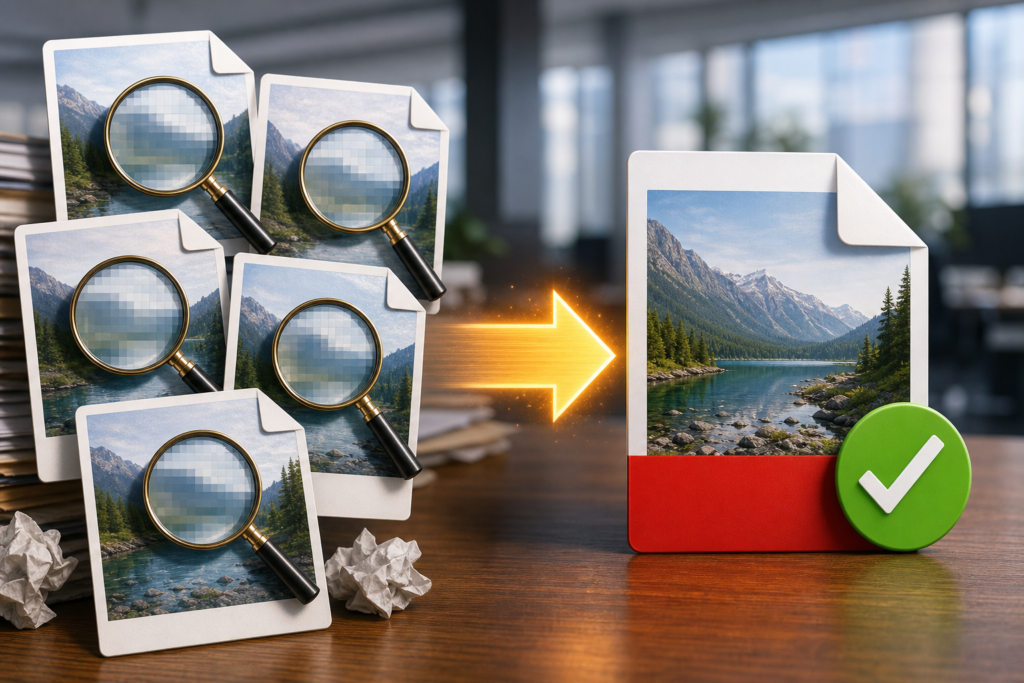
What Is DPI in Images? showing a printed photo next to its digital file with DPI setting visible

FAQ: Your Top Questions About DPI Answered

What is the best DPI for printing photos?

For standard photo prints up to 11×14 inches, use 300 DPI. For larger prints viewed from a distance, 150–200 DPI is acceptable.

Can I change DPI without changing image size?

Yes. In most software, you can change the DPI setting while keeping pixel dimensions the same. This only affects print size, not visual quality.

Does DPI affect file size?

No. File size is determined by pixel dimensions and compression. DPI is metadata it does not change the amount of data.

Why do some printers say they need 600 DPI?

Some printers support higher dot densities for finer detail, especially with text or fine lines. But for photos, 300 DPI is enough. Higher settings may slow printing and use more ink.

Do I need to set DPI when saving for the web?

No. Web browsers and apps ignore DPI. Set your image to the pixel width you need for example, 1200 pixels wide for a full-width banner and save as JPG or PNG.

Is 72 DPI the standard for the web?

It is a common default, but not a rule. There is no such thing as a “web DPI.” Only pixel dimensions matter.

Can I print a 72 DPI image at 300 DPI?

You can change the setting, but the image will print smaller. To print large, you need enough pixels. A 72 DPI image must be at least 2400 pixels wide to print at 300 DPI and 8 inches wide.

Should I always use 300 DPI?

Only if you are printing small to medium sized photos or professional documents. For large banners, websites, or social media, it is unnecessary.

Conclusion

What is DPI in images?
It is a communication tool between your file and your printer.
It tells the printer how to spread your pixels across paper.

It does not make your image better.
It does not improve quality.
It does not affect how your image looks on a screen.

The only things that matter for image quality are:

  1. Pixel dimensions how many pixels you have
  2. File format whether you use PNG, JPG, or TIFF
  3. Compression how much detail you lose when saving

Use DPI to match your print size.
Do not use it to fix a low-resolution image.
And never waste time changing DPI for web use.

The best image is the one with enough pixels for its purpose.
The rest is noise.

150×30 Image Dimensions Pixels Uses & How to Resize Images

Introduction

You need a small image. Not too big. Not too small. Just right. Something that fits neatly in a sidebar, under a button, or beside a menu link. You search for it. You find one. But when you upload it, it stretches. It blurs. It gets cut off. The problem is not your design. It is not your software. It is the size. You need a 150×30 image. But you do not know what that means. You do not know how to make it. You do not know where it is used. This guide will change that.

You will learn exactly what a 150×30 image is, why it matters, where it is used, and how to resize any image to this exact dimension without losing quality or spending time on complicated tools. No fluff. No jargon. Just clear, practical steps you can use today.

Quick Answer: What Is a 150×30 Image?

Short answer:
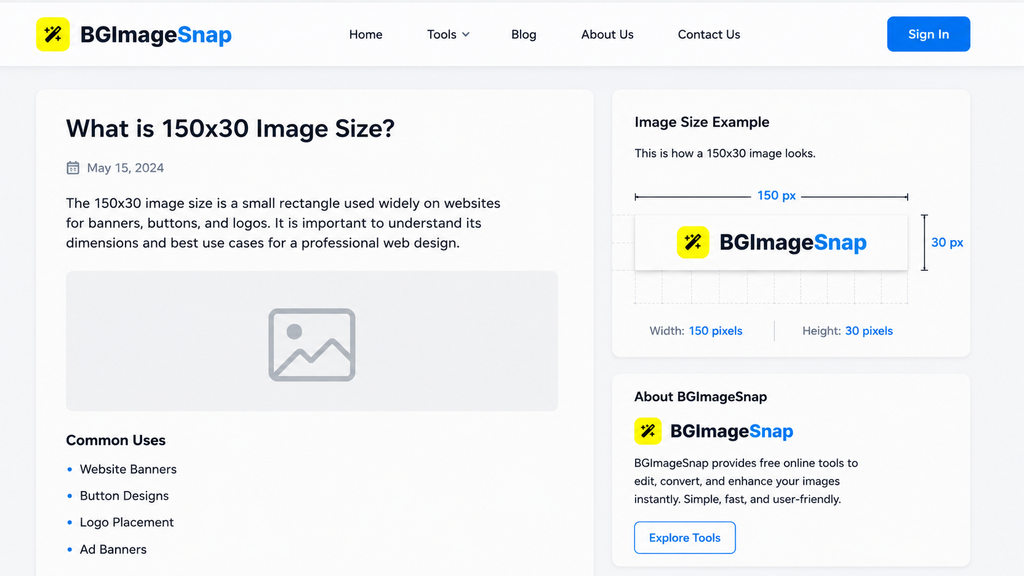
A 150×30 image is a rectangular graphic that is 150 pixels wide and 30 pixels tall. It is commonly used for small banners, buttons, and website elements that require a compact, consistent size.

Key Takeaways:

150×30 means 150 pixels wide by 30 pixels tall
Aspect ratio is 5:1 very wide and short
Used for banners, affiliate links, navigation buttons, and micro-ads
Must be resized correctly to avoid stretching or blurring
Works best with simple text, logos, or solid colors

This size is not arbitrary. It is designed to fit in tight spaces without overwhelming the layout.

What Does 150×30 Mean? (Pixels, Dimensions, Ratio)

Pixels Are the Building Blocks

A pixel is the smallest unit of a digital image. A 150×30 image contains 150 pixels across its width and 30 pixels down its height. That is 4,500 total pixels. This is not a measurement in inches or centimeters. It is a measurement in screen units. On a phone, tablet, or computer, the physical size of the image will change based on screen resolution but the pixel count stays the same.

The 5:1 Aspect Ratio

The ratio of width to height is 150 divided by 30, which equals 5. That means the image is five times wider than it is tall.This shape is called a “horizontal banner” or “leaderboard.” It is optimized for:

  • Horizontal space (like top or bottom bars)
  • Limited vertical room (like side menus)
  • Fast scanning (users read left to right)

Why This Matters

If you stretch a 150×30 image to 200×50, the content will look distorted. If you shrink a 300×60 image to 150×30 without proper resizing, it will blur.

The key is to start with the right size or resize correctly.

Where Is a 150×30 Image Used?

This size is not common for photos. It is built for function. Here are the most frequent uses:

1. Affiliate Marketing Banners

Many affiliate programs require banners to be exactly 150×30. This size fits neatly in blog sidebars, footer sections, or within article text without disrupting the flow.

2. Website Navigation Buttons

Small action buttons like “Sign Up,” “Download,” or “Learn More” often use this size to keep menus clean and fast-loading.

3. Ad Units for Small Sites

On blogs, forums, or niche websites, 150×30 is a standard size for low-impact, non-intrusive ads. It does not distract but still draws attention.

4. Social Media Profile Badges

Some platforms allow small badges or icons in bios or comments. A 150×30 image works well for these limited spaces.

5. Email Signature Elements

Small logos or call-to-action buttons in email signatures often use this size to remain readable on mobile devices.

In all these cases, the goal is the same: deliver a message quickly, clearly, and without taking up much space.

Why Size Matters: The Consequences of Getting It Wrong

Using the wrong image size may seem harmless. But it causes real problems.

Problem 1: Distortion

If you force a 300×60 image into a 150×30 space, the software will stretch or squeeze it. Text becomes unreadable. Logos look broken.

Problem 2: Blurriness

If you shrink a large image without proper resizing, details blur. Sharp edges turn fuzzy. This looks unprofessional.

Problem 3: Layout Breakage

Websites and platforms often lock dimensions. If your image is too big, it may not upload. If it is too small, it may appear tiny or get cut off.

Problem 4: Slow Loading

Large images take longer to load. Even if they are resized later, the original file size still slows down the page.

Problem 5: Poor User Experience

Users notice when things look off. A stretched banner or blurry button makes your site look careless. The right size is not just about fitting. It is about respect for your audience, your platform, and your design.

How to Resize Any Image to 150×30

You do not need expensive software. You do not need to be a designer. Here is how to do it in three simple ways.

Go to a free, trusted tool like BGImageSnap.

  1. Upload your image.
  2. Set width to 150 and height to 30.
  3. Choose “Maintain Quality” if available.
  4. Download the new file.

This method works for JPG, PNG, GIF, and other formats. It is fast, safe, and requires no install.

Method 2: Use Your Computer’s Built-in Tools

On Windows:

  1. Open the image in Paint.
  2. Click “Resize.”
  3. Select “Pixels” as the unit.
  4. Enter 150 for width and 30 for height.
  5. Make sure “Maintain Aspect Ratio” is unchecked.
  6. Save as PNG or JPG.

On Mac:

  1. Open the image in Preview.
  2. Click “Tools” then “Adjust Size.”
  3. Uncheck “Scale proportionally.”
  4. Enter 150 for width and 30 for height.
  5. Click OK.
  6. Export as PNG.

Method 3: Use a Free App on Your Phone

Download a simple image editor like Snapseed or Photo Editor by VSCO.

  1. Open the image.
  2. Tap “Resize” or “Crop.”
  3. Enter 150 for width and 30 for height.
  4. Save and export.

Always save your resized image as PNG if it has text or sharp edges. Use JPG only for photos with no text.

Common Mistakes When Resizing Images

Mistake #1: Leaving “Maintain Aspect Ratio” On

If you keep this option enabled, the tool will resize the image proportionally. A 150×30 image is 5:1. If your original image is 4:1 or 3:1, forcing it to 150×30 with this option on will leave white bars or cut off parts of the image.

Fix: Always turn off “Maintain Aspect Ratio” when you need exact dimensions.

Mistake #2: Starting with a Low-Resolution Image

If your original image is smaller than 150×30, resizing it up will make it blurry. You cannot add detail that was never there.

Fix: Always start with an image that is at least as large as your target size.

Mistake #3: Saving as JPG for Text or Logos

JPG uses compression that blurs edges. Text becomes fuzzy. Logos lose sharpness.

Fix: Use PNG for any image with text, lines, or transparency.

Mistake #4: Ignoring File Size

Even a 150×30 image can be large if saved with poor settings. A 150×30 PNG should be under 50 KB. If it is over 200 KB, you are wasting bandwidth.

Fix: Use “Save for Web” options in tools or compress with free online tools.

Mistake #5: Not Testing in the Final Place

Upload your image to the actual website, email, or platform before using it widely. Some systems crop, stretch, or resize images automatically.

Fix: Preview it where it will be used. Adjust if needed.

Tips for Creating Clean 150×30 Images

Tip 1: Use Simple Designs

With only 30 pixels of height, complex graphics will disappear. Stick to bold text, solid shapes, or minimal logos.

Tip 2: Keep Text Large and Centered

Use a font size of at least 14 pixels. Avoid thin fonts. Center your text vertically and horizontally.

Tip 3: Use High Contrast Colors

White text on black. Black text on white. Dark blue on light yellow. Avoid similar tones like gray on beige.

Tip 4: Add a Border if Needed

A thin border (1–2 pixels) helps the image stand out without needing color.

Tip 5: Test on Mobile

View your image on a phone. If the text is hard to read, it is too small.

Tip 6: Save as PNG

PNG supports transparency and preserves sharp edges. Use JPG only if you need the smallest file size and the image has no text.

150x30 image size comparison showing dimensions in pixels with examples of banners, buttons, and logos

FAQ: Your Top 150×30 Image Questions Answered

1. What is the pixel size of a 150×30 image?

It is exactly 150 pixels wide and 30 pixels tall. This equals 4,500 total pixels.

2. Can I use a 150×30 image for a logo?

Yes, but only if the logo is very simple. Complex logos with fine details will not be visible at this size. Use it for brand icons or text-based logos.

3. Is 150×30 the same as 150 by 30?

Yes. Both mean width 150 pixels and height 30 pixels. The order is always width first, then height.

4. Why does my image look stretched after resizing?

You likely kept “Maintain Aspect Ratio” turned on. Turn it off and enter the exact numbers.

5. Can I make a 150×30 image from a photo?

Yes, but only if the photo has a clear subject. Crop the photo tightly to focus on one element. Avoid using full scenes they will become unreadable.

6. What file format should I use for a 150×30 image?

Use PNG for text, logos, or buttons. Use JPG only if the image is a photo and you need a smaller file size.

7. How do I make sure my 150×30 image loads fast?

Save it with low compression. In PNG, use 8-bit color if possible. In JPG, set quality to 70–80%. Aim for under 50 KB.

8. Can I use this size for social media?

Most social platforms require larger sizes. 150×30 is best for websites, emails, and blogs. Use it only if the platform allows custom banner sizes.


Conclusion: Precision Is Power

A 150×30 image is small. But it is not insignificant.

It is the difference between a clean, professional layout and a cluttered, broken one. It is the difference between a button that works and one that confuses. It is the difference between a user who stays and one who leaves. You do not need fancy tools. You do not need to be an expert. You just need to know the right size and how to use it. Whether you are placing a banner, creating a button, or designing a micro-element, getting the dimensions right is the first step to good design. Start with 150×30. Get it right. Then move on.

TIFF to PDF How to Convert TIFF Images to PDF Online for Free

Introduction

You’ve scanned a stack of documents contracts, receipts, medical records and saved them as TIFF files. Now you need to send them to a client, upload them to a portal, or file them with your accountant. But every system asks for a PDF.

You try to open them. They’re separate images. You try to combine them. Your computer freezes. You search online: “TIFF to PDF.” You click on a tool that asks for your email. Then your password. Then your credit card.

Sound familiar?

You’re not alone. TIFF is a high quality format used by scanners, medical systems, and government offices but it’s not built for sharing. PDF is. And converting TIFF to PDF doesn’t have to be complicated, expensive, or risky.

In this guide, you’ll learn exactly how to convert TIFF to PDF for free, safely, and without installing software. We’ll cover why this conversion matters, the best free tools, step-by-step methods for every device, and the one mistake 90% of people make that ruins their documents.

No fluff. No upsells. Just clear, practical steps you can use today.

Quick Answer: How to Convert TIFF to PDF for Free

Short answer:
Use a free, no signup, web based tool like BGImageSnap to convert TIFF to PDF in under 30 seconds no software, no login, no watermarks.

Key Takeaways:

TIFF to PDF conversion is free  no credit card needed
Works on any device  Windows, Mac, iPhone, Android
Preserves image quality  no compression or blurring
Converts multiple files at once  batch processing available
No registration or data storage  your files are deleted after conversion

Avoid tools that ask for your email, password, or payment. Most are scams or data harvesters.

Why Convert TIFF to PDF? (And When You Should)

What Is a TIFF File?

TIFF (Tagged Image File Format) is a high resolution, lossless image format. It’s widely used in:

  • Medical imaging (X-rays, MRI scans)
  • Legal and government document scanning
  • Archival photography
  • Professional printing

It’s excellent for preserving detail  but terrible for sharing.

Why PDF Is Better for Sharing

PDF (Portable Document Format) was built for universal access. It:

  • Combines multiple images into one file
  • Is readable on any device, even without special software
  • Supports text search (if scanned with OCR)
  • Can be signed, annotated, and encrypted
  • Is accepted by 99% of online portals, courts, and employers

When to Convert TIFF to PDF

ScenarioWhy Convert?
Submitting tax documentsIRS and state portals require PDF
Emailing scanned receiptsTIFF files are too large; PDFs compress efficiently
Uploading to cloud storageGoogle Drive, Dropbox, OneDrive handle PDFs better
Printing multiple pagesOne PDF prints as one document no manual sorting
Archiving recordsPDF is the industry standard for long term storage

 Rule of thumb: If you’re sending it to someone else convert it to PDF.

TIFF vs PDF: Key Differences Explained

FeatureTIFFPDF
File TypeImage format (raster)Document format (container)
Multi page SupportNo (one image per file)Yes (multiple pages in one file)
CompressionLossless (no quality loss)Can be lossless or lossy
Text Searchable?No (unless OCR applied)Yes (if scanned with OCR)
EditingEditable in image editorsEditable in PDF tools (text, annotations)
File SizeVery large (30–100MB per page)Smaller (5–20MB for same content)
CompatibilityRequires specialized softwareWorks on every device, browser, OS
Best ForArchiving, printing, medical useSharing, emailing, submitting forms

Important: Converting TIFF to PDF doesn’t make your document searchable that requires OCR (optical character recognition). But it does make it usable.

5 Ways to Convert TIFF to PDF (Free & Safe)

Here are five methods ranked by safety, speed, and ease.

MethodBest ForProsCons
1. BGImageSnap (Online Tool)Everyone especially beginnersFree, no signup, batch support, instant downloadRequires internet
2. Adobe Acrobat OnlineUsers already in Adobe ecosystemTrusted, high qualityFree version limits to 2 files/day; requires Adobe account
3. Smallpdf (Free Tier)Users needing extra toolsClean interface, good UIFree version adds watermark; limits to 2 conversions/day
4. Windows “Print to PDF”Windows users with single filesNo third party tool neededOnly converts one TIFF at a time; no batch
5. Preview (Mac)Mac users with few filesBuilt in, no installNo batch; clunky for multiple files

Avoid These:

  • Online converters that ask for your email they sell your data.
  • Desktop software that installs toolbars  often bundled with malware.
  • Mobile apps that require permissions  many harvest your photos.

 Our Recommendation: Use BGImageSnap. It’s the only free tool that’s truly private, fast, and handles multiple files without limits.

Step-by-Step: Convert TIFF to PDF Using BGImageSnap

BGImageSnap lets you convert TIFF to PDF in three simple steps no download, no login, no ads.

Step 1: Visit the Tool

Go to: https://tiff2pdf.com/

You’ll see a clean interface with one box: “Drop your TIFF files here or click to upload.”

Step 2: Upload Your Files

  • Click the box or drag and drop one or more TIFF files from your computer or phone.
  • Supported formats: .tiff, .tif
  • You can upload up to 20 files at once.

Step 3: Download Your PDF

  • The tool automatically combines all files into a single PDF.
  • Wait 5–15 seconds.
  • Click “Download PDF”.
  • Done.

 Your files are deleted from our servers within 1 hour. We don’t store, track, or share anything.

Pro Tip: Order Your Pages

If your TIFF files are out of order, rename them before uploading:

  • page_01.tiff
  • page_02.tiff
  • page_03.tiff

The tool will combine them in numerical order.

How to Combine Multiple TIFF Files into One PDF

Many people try to convert one TIFF at a time then manually merge them. That’s slow. And error prone.

Here’s how to do it right:

On Windows:

  1. Open File Explorer.
  2. Select all your .tiff files (hold Ctrl and click).
  3. Right click → Print.
  4. Choose Microsoft Print to PDF as the printer.
  5. Click Print → Save as one PDF.

 Limitation: This method doesn’t preserve the original order. Files are sorted alphabetically so image_10.tiff comes before image_2.tiff.

On Mac:

  1. Open all TIFF files in Preview.
  2. Click View → Thumbnails.
  3. Drag thumbnails into the correct order.
  4. Click File → Export as PDF.

 Limitation: You can’t do this if you have 15+ files Preview crashes.

Common Mistakes to Avoid

Mistake #1: Using “Free” Tools That Ask for Your Email

Why it’s dangerous:
These tools collect your data, then sell it to marketers or use it to send spam. Some even install hidden malware.

Fix: Only use tools with no registration required. BGImageSnap doesn’t ask for anything.

Mistake #2: Converting Without Checking File Order

Result: Your contract pages appear out of sequence. Your invoice is page 7. Your signature is on page 12.

Fix: Rename your files numerically before uploading (01.tiff, 02.tiff, etc.).

Mistake #3: Assuming PDF = Text-Searchable

Reality: A TIFF converted to PDF is just a picture of text. You can’t copy, search, or highlight words.

Fix: If you need searchable PDFs, use an OCR tool like Adobe Acrobat Pro or free alternatives like OnlineOCR.net  after converting to PDF.

Mistake #4: Saving TIFFs with Compression

Some scanners save TIFFs as LZW or ZIP compressed. While this saves space, it can cause errors during conversion.

Fix: If your PDF looks corrupted, try re scanning the document as uncompressed TIFF.

Mistake #5: Ignoring File Size

A 10 page TIFF document can be 500MB. A converted PDF might be 5MB.

Why it matters: Email servers often block files over 25MB.

Fix: Always convert TIFF to PDF before emailing. It shrinks your file size by 80–95%.

TIFF to PDF comparison showing multiple scattered TIFF files vs. one unified PDF document for easy sharing

FAQ: Your Top TIFF to PDF Questions Answered

1. Is it really free to convert TIFF to PDF?

Yes. Tools like BGImageSnap offer completely free TIFF to PDF conversion with no hidden fees, watermarks, or limits. You don’t need to pay or sign up.

2. Can I convert TIFF to PDF on my phone?

Yes. Open your browser on iPhone or Android, go to https://tiff2pdf.com/ , tap to upload your files, and download the PDF. Works on all mobile browsers.

3. Does converting TIFF to PDF reduce image quality?

No if you use a quality tool. BGImageSnap preserves the original resolution. Avoid tools that “optimize” or “compress” they blur text and details.

4. Can I convert scanned documents (like receipts) from TIFF to PDF?

Yes. Scanned receipts, forms, and invoices saved as TIFF can be converted to PDF for easy filing, emailing, or uploading to tax software.

5. How many TIFF files can I convert at once?

BGImageSnap allows up to 20 TIFF files per conversion. For more, split into batches.

6. Is it safe to upload sensitive documents (like medical records)?

Yes if you use a trusted tool. BGImageSnap deletes all uploaded files within 60 minutes. No logs. No tracking. No data retention. Always verify privacy policies.

7. Why does my PDF look blurry after conversion?

This usually means the original TIFF was low resolution (under 300 DPI). TIFF files should be scanned at 300–600 DPI for best results. If the source is poor, no tool can fix it.

8. Can I convert TIFF to PDF without internet?

Only if you install software. But we don’t recommend it most desktop tools are bloated, unsafe, or paid. For occasional use, online tools are safer and faster.

Conclusion: Simple, Secure, and Stress-Free

Converting TIFF to PDF isn’t about tech skills it’s about choosing the right tool. You don’t need Adobe. You don’t need to install software. You don’t need to risk your data. All you need is a browser and a tool like BGImageSnap that respects your time, your files, and your privacy.

Whether you’re a student submitting assignments, a small business owner filing invoices, or someone managing medical records converting TIFF to PDF should be effortless. Stop wrestling with fragmented files. Stop trusting sketchy websites. Start using a tool that just works.

Wallpaper with White Background 20 Minimalist Ideas for Every Space

9 minimalist wallpaper with white background samples including texture, line, and nature patterns

Introduction

You’ve spent hours choosing the perfect sofa arranging your bookshelf and picking out lighting but when you look at your walls something feels… off. Too busy? Too dull? Too much color?

The solution isn’t more patterns or bolder hues. It’s less.

Wallpaper with white background isn’t just a trend it’s a design philosophy. It creates calm enhances light and lets the things you love art, furniture plants truly shine. Yet most guides overwhelm you with complex styles or push expensive brands.

This guide cuts through the noise. You’ll discover 20 real achievable wallpaper ideas with white backgrounds from subtle textures to bold linework that work in any room, any budget and any style. Whether you’re renting renovating or just refreshing your space, you’ll find exactly what you need to create a serene intentional environment.

Quick Answer: Why Choose Wallpaper with White Background?

Short answer:
Wallpaper with white background creates a clean luminous canvas that enhances natural light reduces visual clutter and makes other design elements stand out without overwhelming the space.

Key Takeaways:

 White backgrounds make small rooms feel larger
 They work with any style modern, Scandinavian, industrial, boho
 They’re timeless, not trendy
 Easy to pair with art, shelves, and plants
 Can be subtle (textured) or bold (line art) both work

💡 Pro Tip: White doesn’t mean “blank.” The best white background wallpapers have texture pattern or shadow just no color.

What Makes White Background Wallpaper So Effective?

1. Light Amplification

White reflects up to 85% of available light. In rooms with limited windows or northern exposure a white-background wallpaper can make the space feel 20–30% brighter no paint or fixtures needed.

2. Visual Breathing Room

Our brains process color as information. Too many colors = mental fatigue. White backgrounds reduce visual noise creating a calming effect proven to lower stress levels (Journal of Environmental Psychology, 2018).

3. Design Flexibility

A white base acts like a neutral canvas. You can:

  • Swap out art seasonally
  • Change furniture without repainting
  • Add bold accents (a red chair, blue rug) without clashing

4. Architectural Emphasis

Subtle patterns on white backgrounds draw attention to walls as architectural features not distractions. Think: wainscoting, moldings or uneven plaster enhanced not hidden.

20 Minimalist Wallpaper Ideas with White Background

Here are 20 real achievable designs no designer required.

Subtle Textures (Perfect for Bedrooms & Living Rooms)

  1. Hand-pressed paper texture – Soft organic imperfections that look like handmade washi paper.
  2. Fine linen weave – A barely there grid that mimics fabric.
  3. Brushstroke gray wash – A single soft gray stroke like watercolor on white.
  4. Concrete grain – Minimalist matte finish that mimics poured concrete.
  5. Paper crumple effect – Delicate folds that catch light differently throughout the day.

Geometric Patterns (Ideal for Home Offices & Kitchens)

  1. Single vertical line – One thin centered line in soft charcoal.
  2. Floating squares – 3–5 small evenly spaced white on white squares.
  3. Minimalist grid – 1mm lines forming a 5×5 grid. Almost invisible from 6 feet away.
  4. Asymmetrical triangle cluster – Three tiny triangles in the corner unexpected not busy.
  5. Wavy horizontal band – A single undulating line across the wall like a slow breath.

Nature-Inspired (Best for Bathrooms & Reading Nooks)

  1. Single leaf silhouette – One eucalyptus leaf centered in light gray.
  2. Shadow of a tree branch – Faint, delicate lines mimicking morning light through a window.
  3. Water ripple pattern – Concentric circles, barely visible like a drop in a still pond.
  4. Cloud formation – Soft, smudged gray clouds across the ceiling or upper wall.
  5. Sand texture – Fine grain that looks like brushed beach sand.

Bold Minimalism (For Feature Walls & Studios)

  1. One large circle – A 3 foot diameter circle in soft gray, centered on the wall.
  2. Floating rectangle – A long, narrow white rectangle, offset like a floating shelf.
  3. Negative space mountain – A mountain shape cut out of the wallpaper, revealing the wall beneath.
  4. Single brushstroke arch – A curved line that looks like a painter’s gesture.
  5. Faint grid of dots – 100 tiny dots, spaced 12 inches apart subtle, modern, artistic.

 All 20 ideas use only white, gray, or off white. No color. No clutter. Just calm.

How to Choose the Right White Wallpaper for Your Room

Not all “white” wallpapers are the same. Here’s how to pick the right one:

RoomBest StyleWhy
BedroomTextured (linen, paper, crumple)Creates softness, absorbs sound, feels cozy
Living RoomGeometric (line, grid, triangle)Adds structure without heaviness
KitchenSubtle pattern (wave, ripple)Clean, easy to match with appliances
BathroomNature inspired (leaf, cloud)Feels spa like, calming in humid spaces
Home OfficeBold minimalism (circle, rectangle)Focus enhancing, reduces visual distraction
HallwayVertical line or narrow bandMakes narrow spaces feel taller

Pro Tip: Test Before You Commit

  1. Order a sample swatch (most brands offer free ones).
  2. Tape it to the wall.
  3. Observe it at morning, noon, and night.
  4. Does it feel calm? Or flat?
  5. Does it change with the light?

If it feels alive, you’ve found it.

Wallpaper with White Background: Pros & Cons

ProsCons
Makes rooms feel larger and brighter Shows dirt and marks more easily
Works with any decor style Can feel “cold” if not layered with texture
Easy to pair with colorful art or furniture Not ideal for high moisture areas without vinyl coating
Long lasting and timeless Requires careful installation for seamless results
Often cheaper than bold patterned wallpaper May look “too plain” if chosen without intention

💡 Solution for cons: Use matte finishes, add warm wood tones, and clean regularly with a dry microfiber cloth.

Common Mistakes to Avoid

Mistake #1: Choosing “Pure White”

Problem: Pure white (RGB 255,255,255) looks sterile.
Fix: Pick off-white  cream, warm gray, or ivory. Look for names like “Cloud White,” “Alabaster,” or “Quiet White.”

Mistake #2: Using It in a Dark Room Without Light

Problem: The wall looks flat, not airy.
Fix: Add a floor lamp or wall sconce to cast soft shadows across the texture.

Mistake #3: Thinking “Less” Means “No Detail”

Problem: A completely blank wall feels unfinished.
Fix: Even a single line, dot, or texture adds soul. Minimalism ≠ emptiness.

Mistake #4: Skipping Sample Swatches

Problem: Color looks different under different lights.
Fix: Always test. A swatch costs $0. Your regret costs $200.

Mistake #5: Installing Without Prep

Problem: Bubbles, peeling, uneven seams.
Fix: Clean walls, fill cracks, prime with white primer. Don’t rush.

How to Install Wallpaper with White Background (Step-by-Step)

You don’t need a pro. Here’s how to do it yourself:

Step 1: Gather Tools

  • Wallpaper (pre-pasted or peel-and-stick recommended)
  • Measuring tape
  • Level
  • Utility knife
  • Smoothing brush or squeegee
  • Sponge and bucket of water (for non-peel-and-stick)

Step 2: Measure and Cut

  • Measure wall height + 2 inches extra.
  • Cut one strip at a time.
  • Label each strip with a pencil on the back.

Step 3: Prep the Wall

  • Remove outlet covers.
  • Fill holes, sand rough spots.
  • Wipe down with damp cloth. Let dry.

Step 4: Apply

  • Start at a corner. Use a level to draw a vertical guideline.
  • Peel backing (if peel-and-stick) or apply paste.
  • Smooth from center outward with brush no bubbles.
  • Trim edges with utility knife.

Step 5: Overlap and Match

  • For patterns (like lines or dots), align carefully.
  • Overlap edges slightly, then cut through both layers for seamless join.

Step 6: Let It Set

  • Leave for 24 hours.
  • Reapply pressure to seams if needed.

 Best for beginners: Use peel-and-stick wallpaper. No paste. No mess. Easy to remove.

FAQ: Your Top Questions Answered

1. Is wallpaper with white background too boring?

Not if it has texture, pattern, or shadow. Real minimalism isn’t empty it’s intentional. A single line can be more powerful than a busy floral.

2. Can I use it in a rental?

Yes. Peel-and-stick wallpaper is renter-friendly. Brands like Tempaper and Wallsauce offer removable options that won’t damage walls.

3. Will it make my room look smaller?

No the opposite. White reflects light, making walls recede. Even small rooms feel airier.

4. What’s the best brand for white background wallpaper?

Try:

  • Tempaper (removable, great for rentals)
  • Farrow & Ball (luxury, hand-painted textures)
  • EcoEnclose (eco-friendly, matte finishes)
  • BGImageSnap (digital downloads for custom printing see CTA below)

5. Can I print my own wallpaper with white background?

Yes. Use high-resolution images (300 DPI) and print on matte vinyl or paper. BGImageSnap offers custom wallpaper printing from your own design.

6. How do I clean it?

Use a dry microfiber cloth. For stains, lightly dab with a damp cloth and mild soap. Avoid scrubbing especially on textured finishes.

7. Does white wallpaper show seams?

If installed correctly, no. Always overlap and cut through both layers. Use a sharp blade. Practice on a small wall first.

8. Is it good for ceilings?

Yes. A subtle cloud or wave pattern on the ceiling adds depth without heaviness. Avoid bold patterns keep it soft.

BGImageSnap custom wallpaper with white background tool showing how to turn any image into minimalist wall design

Conclusion

Wallpaper with white background isn’t about hiding your walls.
It’s about honoring them. It gives your space room to breathe.
It lets your art, your plants, your favorite chair your life take center stage. You don’t need to fill every inch. You don’t need to chase the next trend.
Just choose one quiet, thoughtful pattern and let it do the work.Minimalism isn’t austerity.
It’s clarity.

And clarity? That’s timeless.

Black and White Art 15 Creative Ideas Styles & Tips for Beginners

Step-by-step black and white art process showing how to draw an object using only three values

Introduction

You’ve seen it everywhere moody street scenes, dramatic portraits, abstract textures in monochrome. There’s something timeless about black and white art. It strips away distraction, focuses emotion, and turns ordinary moments into powerful statements.

But if you’re new to creating it, you might wonder:

“Do I need expensive tools? Can I start without formal training? Is black and white just for ‘serious’ artists?”

The truth? Black and white art is one of the most accessible and rewarding entry points into visual creativity. You don’t need color to create depth, mood, or meaning. In fact, removing color often reveals what truly matters: contrast, texture, light, and form.

In this guide, you’ll discover 15 practical, beginner friendly ideas and styles to explore black and white art no fancy equipment required. Whether you’re sketching with a pencil, editing a photo, or experimenting with digital tools, you’ll learn how to create compelling monochrome work that stands out.

Quick Answer: What Is Black and White Art?

Short answer:
Black and white art is any visual work created using only shades of gray, black, and white no color. It includes drawing, painting, photography, digital art, and printmaking.

Key Takeaways:

 It’s not about lack of color it’s about mastery of contrast.
 You can create stunning art with just a pencil and paper.
 It enhances mood, texture, and emotion better than color in many cases.
Perfect for beginners because it removes complexity.
 Used by professionals worldwide from photojournalists to fine artists.

💡 Pro tip: Many famous artists Ansel Adams, Henri Cartier Bresson, Frida Kahlo (in sketches) used black and white to focus on composition, not color.

Why Black and White Art Works So Well

It Removes Distraction

Color draws attention. But sometimes, what you don’t see matters more than what you do.

Black and white art forces viewers to focus on:

  • Light and shadow (chiaroscuro)
  • Texture and pattern
  • Shape and form
  • Emotional tone

It Builds Visual Literacy

When you work without color, you train your eye to read light. You learn how a single highlight can define a face. How a gradient of gray can suggest distance. How a sharp line can create tension.

This skill translates to all art forms even when you return to color.

It’s Timeless

Black and white art doesn’t feel dated. It feels enduring. Think of vintage photographs, ink wash paintings, or charcoal sketches they carry weight, mystery, and depth that color sometimes dilutes.

15 Creative Black and White Art Ideas for Beginners

You don’t need inspiration to start you just need to begin. Here are 15 simple, doable ideas to spark your creativity:

  1. Shadow Portrait – Use natural light to cast your own shadow on a wall. Trace it with pen or charcoal.
  2. High-Contrast Street Photography – Shoot urban scenes in overcast light. Convert to black and white later.
  3. Texture Collage – Tear paper, use fabric, or press leaves onto paper. Ink over them in grayscale.
  4. Single Object Study – Pick one item (a coffee mug, keys, a shoe). Draw it 5 different ways using only line and tone.
  5. Silhouette Art – Cut black paper into shapes and layer them on white background.
  6. Ink Drip Abstract – Let ink drip on paper. Use a white gel pen to highlight edges.
  7. Black Paper Drawing – Use white chalk or pastel on black paper. It flips traditional values light becomes dark.
  8. Monochrome Still Life – Arrange 3 household items. Sketch them using only 3 values: black, mid-gray, white.
  9. Grayscale Photo Editing – Take a color photo. Use free tools (like Snapseed) to convert and adjust contrast.
  10. Line-Only Illustration – Draw a person, animal, or object using only one continuous line no lifting your pen.
  11. Crosshatching Practice – Draw a sphere using only overlapping lines. No shading just line density.
  12. Negative Space Portrait – Draw the space around a face, not the face itself. The shape becomes the subject.
  13. Tonal Gradient Study – Create a 10 step grayscale bar. Then paint a simple object using only those tones.
  14. Found Object Printmaking – Press a leaf, key, or mesh screen into ink and stamp it on paper.
  15. Black and White Comic Panel – Draw a 3 panel story with no speech bubbles. Let the imagery tell the tale.

Start with just #1 or #4. You don’t need to do all 15. One idea, explored deeply, is more valuable than ten half-finished pieces.

Top 4 Styles of Black and White Art to Try

StyleDescriptionBest ForTools Needed
Charcoal DrawingRich, smudgy, expressive. Great for mood and texture.Beginners who love bold contrastCharcoal sticks, paper, blending stump
Ink Wash (Sumie)Fluid, minimal, meditative. Inspired by East Asian traditions.Those who enjoy calm, flowing linesInk, brush, rice paper
Pen and Ink Line ArtPrecise, controlled, detailed. Think technical illustrations.Detail oriented creatorsFine liner pens (0.1–0.8mm), sketchbook
High Contrast PhotographyDramatic shadows, deep blacks, bright whites.Photo lovers who editSmartphone or DSLR + free editing app

🎯 Beginner Recommendation: Start with pen and ink line art. It’s low cost, portable, and teaches you precision without pressure.

How to Start Creating Black and White Art (Step-by-Step)

You don’t need a degree. You don’t need expensive gear. Here’s how to begin today:

Step 1: Choose Your Medium

  • Drawing? Grab a pencil and printer paper.
  • Photography? Use your phone.
  • Digital? Try free apps like Krita or Photopea.

Step 2: Pick One Idea from Above

Start with #8: Monochrome Still Life. It’s simple and teaches you value control.

Step 3: Set Up Your Scene

Place 3 objects (a cup, a book, a spoon) on a table. Use a single lamp to cast one clear light source.

Step 4: Observe, Don’t Copy

Look at how light hits the cup. Where is the darkest shadow? Where is the brightest highlight? Sketch only those three tones: dark, medium, light.

Step 5: Limit Your Tools

No blending. No erasing. Just 3 values. This forces you to make decisions and learn faster.

Step 6: Review and Repeat

Compare your sketch to the object. What did you miss? Try again tomorrow with a different object.

🔄 Practice > Perfection. Do this for 10 minutes a day for 7 days. You’ll see progress.

Common Mistakes (And How to Avoid Them)

Mistake #1: Thinking “I Can’t Draw”

Fix: Black and white art isn’t about drawing “well.” It’s about seeing. Even stick figures can become powerful art with strong contrast.

Mistake #2: Using Too Many Grays

Fix: Start with only 3 values: black, white, and one mid gray. Too many tones = muddy, confusing work.

Mistake #3: Ignoring Light Source

Fix: Always ask: Where is the light coming from? This determines where shadows fall. Without this, your art looks flat.

Mistake #4: Overediting Photos

Fix: If converting a photo, avoid turning everything into pure black and white. Keep some mid tone detail. Use the “Levels” tool gently.

Mistake #5: Waiting for “Inspiration”

Fix: Inspiration comes after you start. Set a timer for 10 minutes. Begin. You’ll be surprised what emerges.

Tools You Actually Need (No Fluff)

You don’t need a full studio. Here’s what works:

MediumMinimum ToolsCost
Pencil DrawingHB pencil + 1 sheet of paper$0.50
Pen & InkFine liner pen (0.3mm) + notebook$5
CharcoalCharcoal stick + tissue for blending$8
Digital (Photo)Smartphone + Snapseed (free app)$0
PrintmakingLeaf + ink pad + paper$3

💡 Best Starter Kit: A $2 pencil + a $1 notebook. That’s it.

Avoid:
Art starter packs with 50 tools you’ll never use
Expensive software subscriptions (try free tools first)
Pressure to be good before you begin

 BGImageSnap black and white photo converter tool showing easy color to monochrome conversion

FAQ: Your Top Black and White Art Questions Answered

1. Do I need to know how to draw to do black and white art?

No. Black and white art is about observation, not technical skill. A simple line drawing with strong contrast can be more powerful than a technically perfect colored painting.

2. Can I turn a color photo into black and white art?

Yes but don’t just click “black and white.” Adjust contrast, shadows, and highlights first. Use the “Black & White” adjustment in Snapseed or Lightroom to fine tune tones.

3. Is black and white art considered “real” art?

Absolutely. Major galleries and museums display black and white photography, charcoal sketches, and ink drawings as fine art. It’s one of the most respected forms in art history.

4. What’s the easiest way to start if I’m a complete beginner?

Start with pen and ink line drawing. Draw one object (like a spoon or a shoe) for 5 minutes. Do it every day for a week. You’ll build confidence fast.

5. Can I sell black and white art?

Yes. Monochrome art is popular in home decor, especially minimalist and modern interiors. Platforms like Etsy, Society6, and Instagram are great places to share and sell.

6. Why does my black and white art look flat?

You’re likely missing contrast. Add a true black and a true white. If everything is gray, the image has no depth. Use the “Levels” tool (in apps) to stretch the tonal range.

7. Should I use black paper or white paper?

Try both. White paper is traditional. Black paper flips the game you draw with white (chalk, gel pen, or light). It’s surprisingly effective and unique.

8. How long does it take to get good at black and white art?

With daily 10 minute practice, you’ll notice improvement in 2 weeks. Mastery takes months but you’ll start creating work you’re proud of in days.

Conclusion

Black and white art isn’t about limitation it’s about liberation.
It removes the noise.
It sharpens your vision.
It lets emotion speak louder than color ever could.

You don’t need talent. You don’t need expensive tools.
You just need curiosity and a willingness to try.

Start small.
Draw one object.
Shoot one photo.
Convert one image.
See what happens.

The most powerful art often lives in the quiet spaces between black and white.